

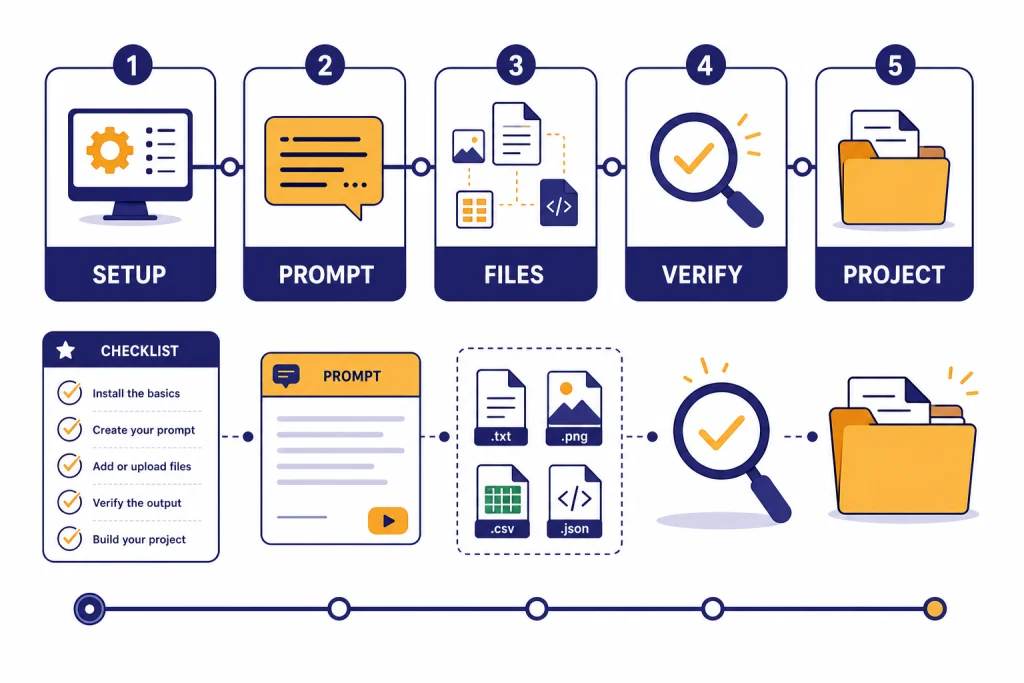
To learn ChatGPT in 2026, start with the basics: set up your account, learn how to ask clear questions, practice with everyday tasks, then move into files, research, writing, data analysis, images, and long-running projects. This free course gives you a practical path from beginner to confident user. You do not need to memorize prompt formulas or buy a paid plan before you start. ChatGPT’s Free tier includes access to GPT-5.2, web search, data analysis, file and image uploads, GPTs, and image creation, with stricter limits than paid plans.[1] Use the lessons below in order, save your best prompts, and build one repeatable workflow each week.
What you will learn
This course teaches ChatGPT as a working tool, not as a novelty. You will learn how to give context, ask for useful formats, check output, revise weak answers, and build workflows you can reuse. The goal is not to produce one impressive prompt. The goal is to know what to do when the first answer is incomplete, generic, or wrong.
By the end, you should be able to use ChatGPT for learning, writing, planning, document review, basic data analysis, image brainstorming, and research support. If you are brand new, start with what ChatGPT is and how it works. If you already use it casually, focus on the lessons about structure, verification, and reusable projects.
One note before you begin: older tutorials may mention GPT-4o, GPT-4.1, GPT-4.1 mini, OpenAI o4-mini, or GPT-5 Instant and Thinking as ChatGPT model choices. OpenAI’s release notes said those legacy ChatGPT models were retired on February 13, 2026, with no API change at that time.[8] Treat any workflow that depends on those exact model names as outdated for ChatGPT.
Set up ChatGPT the right way
You can begin on the Free tier. OpenAI says Free tier users can search the web, analyze and extract insights from data, upload images or files, discover and use GPTs, and create images in ChatGPT.[1] That is enough for this course. Paid plans mainly matter when you need higher limits, faster access during busy periods, or heavier professional usage.
As of OpenAI’s January 16, 2026 ChatGPT Go announcement, the U.S. monthly prices listed were ChatGPT Go at $8, ChatGPT Plus at $20, and ChatGPT Pro at $200.[2] OpenAI’s Plus help page also lists ChatGPT Plus at $20 per month, billed monthly.[3] If pricing changes in your region, use the plan screen in your own account as the source of truth.
Before your first lesson, make these setup choices:
- Create or sign in to an account. Some features require a signed-in account.
- Review Data Controls. OpenAI says Data Controls let you decide whether your conversations help improve its models.[5]
- Use Temporary Chat for sensitive one-off work. OpenAI says Temporary Chats do not appear in history, do not create memories, are not used to train models, and may be retained for safety for up to 30 days.[5]
- Start a prompt notebook. Keep a simple document with prompts that worked, prompts that failed, and improved versions.
Do not paste passwords, private keys, confidential client files, medical records, or legal documents unless you understand your account’s data settings and your organization allows it. ChatGPT can be useful with sensitive topics, but privacy controls and professional obligations still matter.
The free ChatGPT course map
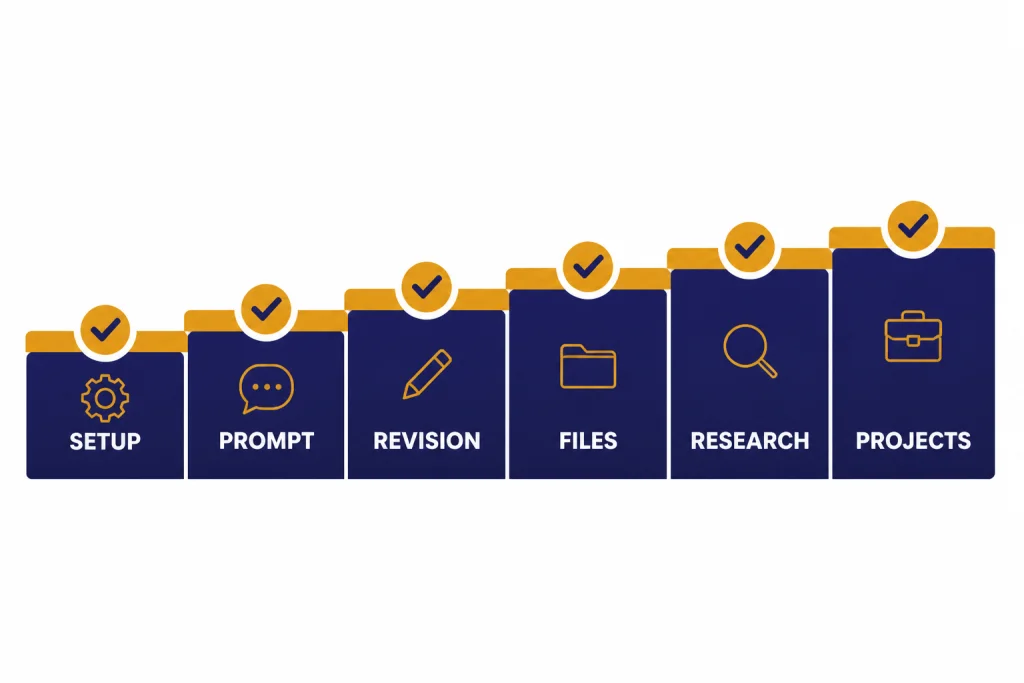
Use this course like a small skills ladder. Each row adds one new behavior. Do not skip verification. Most ChatGPT mistakes come from treating the first response as final.
| Stage | Skill to build | Practice task | Success standard |
|---|---|---|---|
| Setup | Safe account habits | Review settings and create a prompt notebook | You know where your data controls are |
| Prompting | Clear instructions | Ask for a plan, draft, table, or checklist | The answer matches your goal and format |
| Revision | Iterative editing | Ask ChatGPT to improve a weak answer | The second version is more specific |
| Files | Document and data work | Upload a sample PDF or spreadsheet | You can ask grounded questions about the file |
| Research | Source-aware work | Ask for claims, assumptions, and checks | You can verify important facts yourself |
| Projects | Reusable workflows | Create one workspace for a recurring task | Instructions and files stay organized |
If you want a deeper prompt-only path after this course, read our practical prompt engineering techniques. If you prefer a full curriculum, compare it with our prompt engineering course.
Lesson one: write prompts that work
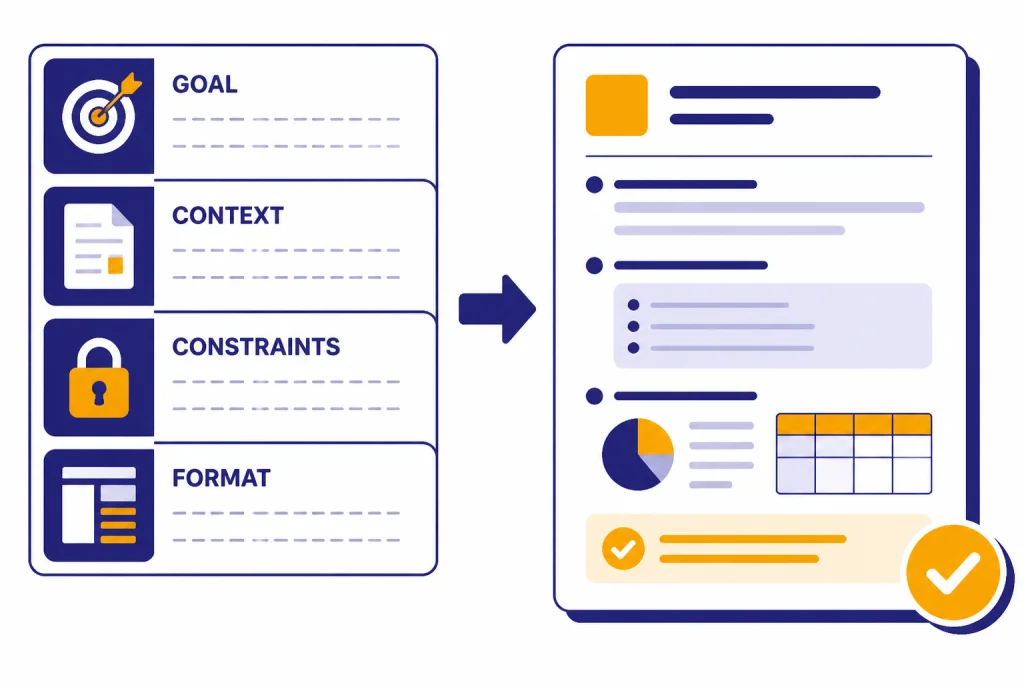
A good ChatGPT prompt has a job, context, constraints, and an output format. Beginners often ask a broad question and hope the model guesses the rest. Better users state the task plainly and give ChatGPT the information it needs to succeed.
Use the four-part prompt
Use this structure for most everyday work:
Goal: What I want done.
Context: What you need to know.
Constraints: What to avoid or prioritize.
Format: How the answer should look.
Example:
Goal: Help me plan a beginner-friendly home workout.
Context: I have twenty minutes, no equipment, and sore knees.
Constraints: Avoid jumping and deep knee bends. Include a warm-up.
Format: Give me a simple table with exercise, time, and notes.
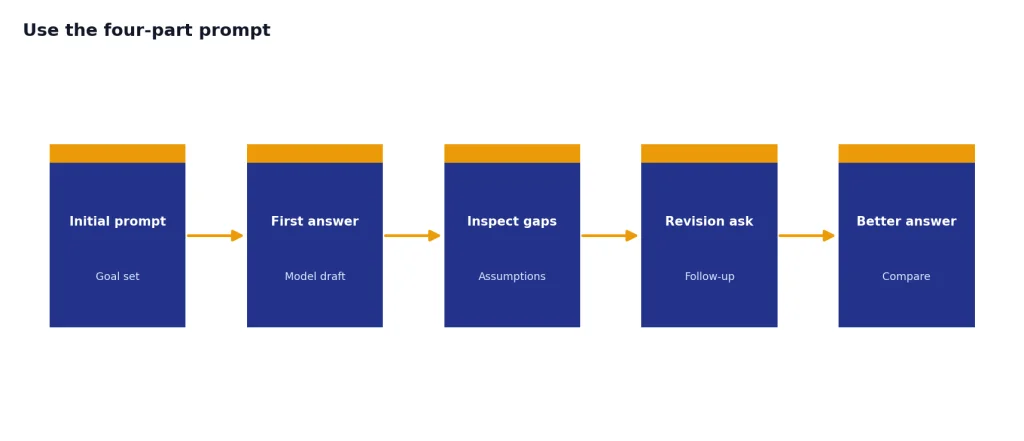
After the first answer, ask for revision instead of starting over. Try: “Make this more beginner-friendly,” “Ask me three questions before revising,” or “Show me what assumptions you made.” These follow-ups teach you how the model interpreted your request.
Ask ChatGPT to expose its assumptions
For planning, analysis, and advice, add this line: “List the assumptions you are making before the answer.” This turns hidden guesses into visible choices. You can then correct the assumptions and get a better result.
For writing tasks, include audience, tone, length, and source material. Our ChatGPT writing tutorial gives a fuller workflow for outlines, drafts, edits, and style passes. For code, use small reproducible examples and error messages; our coding with ChatGPT tutorial covers that path in more detail.
Lesson two: use ChatGPT as a tutor and writing partner
ChatGPT works best for learning when it makes you think, not when it hands you a final answer. OpenAI introduced Study Mode on July 29, 2025 as a learning experience that gives step-by-step guidance instead of quick answers, initially for signed-in users on Free, Plus, Pro, and Team.[6] Use it when you want coaching, practice questions, concept checks, or a slower explanation.
For learning, ask ChatGPT to teach in layers:
- Explain the concept in plain English.
- Give one concrete example.
- Ask me a question to check my understanding.
- Correct my answer without giving away the next step.
- Give me a similar practice problem.
For writing, separate the work into stages. Ask for ideas first, then an outline, then a draft, then a critique. Do not ask for a polished final version too early. The best writing workflows use ChatGPT as a brainstorming partner, editor, and pressure tester.
Try this writing prompt:
I am writing a short guide for new managers. The audience is smart but busy. First, ask me five questions about the reader and goal. Then create a concise outline. Do not draft the article until I approve the outline.This forces a useful pause. It also prevents ChatGPT from inventing a structure before it understands the assignment.
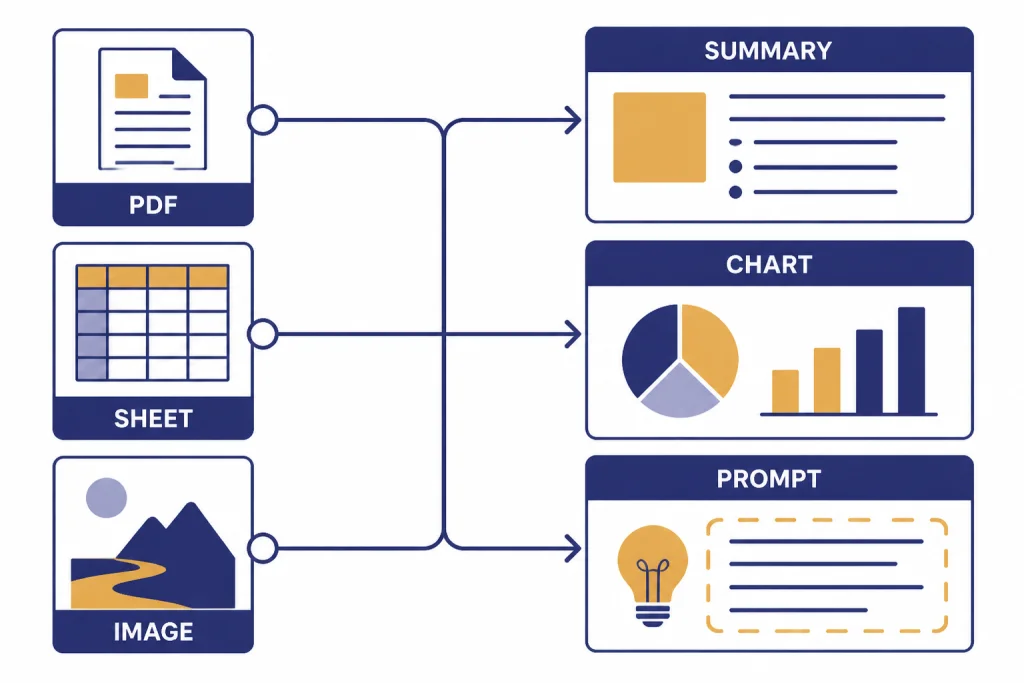
Lesson three: work with files, data, and images
File work is where ChatGPT becomes more than a chat box. You can upload documents, spreadsheets, screenshots, and images depending on your plan and limits. OpenAI’s Free tier help page says file and image uploads, data analysis, and image creation are available to Free users, with separate rate limits and stricter limits than paid tiers.[1]
PDF and document practice
Upload a short PDF that you are allowed to use. Ask ChatGPT to summarize it, identify claims, pull out action items, and list what it could not determine from the document. Never stop at “summarize this.” Better prompts ask for structure and caveats.
Read this PDF. Create a table with: main claim, evidence given, page or section reference if available, and questions I should verify independently.For a deeper document workflow, use our PDF reading and summarizing tutorial.
Spreadsheet and data practice
Upload a small spreadsheet you understand. Ask ChatGPT to describe the columns, spot missing values, suggest charts, and explain patterns in plain English. Then ask it to generate formulas or analysis steps you can verify outside ChatGPT. Our data analysis step-by-step tutorial and Excel formulas guide build on this lesson.
Image practice
For image generation, describe the subject, medium, layout, color, and what should not appear. For image understanding, ask for observations first and conclusions second. This matters because a model can overinterpret an image if you ask for a diagnosis, identity, or conclusion too soon. For a complete creative workflow, see our image generation mastery tutorial.
Lesson four: organize long-term work
Once you use ChatGPT repeatedly, organization becomes the skill. OpenAI describes Projects as workspaces that group chats, uploaded reference files, and custom instructions so ChatGPT stays on topic for long-running work.[4] Projects are useful for recurring work such as a class, newsletter, client account, job search, coding project, or research folder.
OpenAI says Projects are available to all free and paid subscription types globally, require a logged-in ChatGPT account, and support an unlimited number of projects.[4] The same help page lists project file limits of five files per project on Free, twenty-five files per project on Go and Plus, and forty files per project on Edu, Pro, Business, and Enterprise.[4]
Create one practice project named “ChatGPT Course.” Add a short instruction such as: “Help me learn ChatGPT by asking clarifying questions, explaining mistakes, and turning good prompts into reusable templates.” Then save your best prompts, outputs, and corrections inside it.
Memory is different from Projects. Memory can personalize future answers across conversations, while a Project keeps context inside a specific workspace. Use Memory for stable preferences, such as your writing style or learning goals. Use Projects for files, instructions, and threads tied to one effort. Our memory power-user tutorial covers when to keep, edit, or delete remembered details.
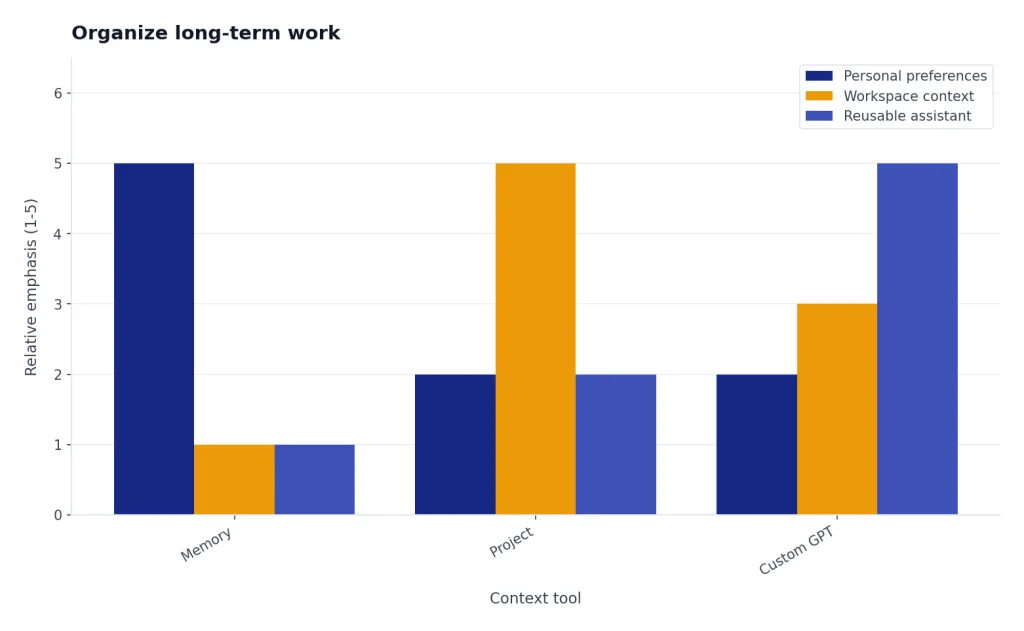
When you have a repeatable task, consider whether a custom GPT makes sense. A Project is usually better for your own workspace. A custom GPT is better when you want a reusable assistant with instructions, knowledge, or actions for a specific audience. Our custom GPT tutorial explains that split.
Lesson five: research and verify answers
ChatGPT can help with research, but it is not a substitute for verification. Use standard chat for quick explanations and planning. Use web-connected answers when current information matters. Use Deep Research when the question requires source gathering, synthesis, and a documented report.
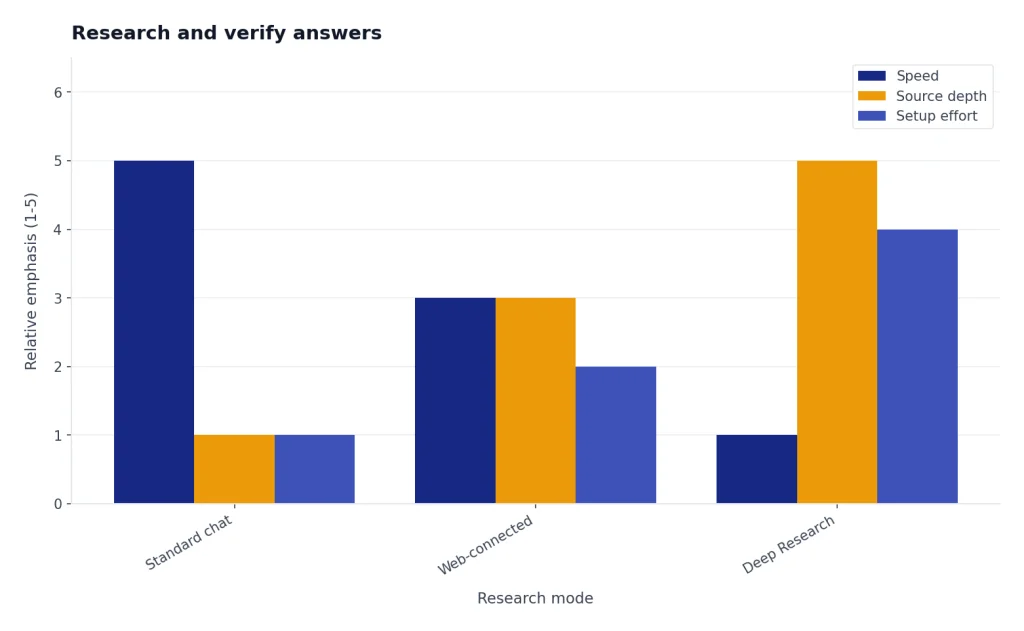
OpenAI describes Deep Research as a ChatGPT feature that can reason, research, synthesize information into a documented report, work with uploaded files, search the public web or specific sites, use enabled apps, and return a structured report with citations or source links.[7] That makes it better suited to market scans, literature overviews, vendor comparisons, and complex policy questions than to quick lookups.
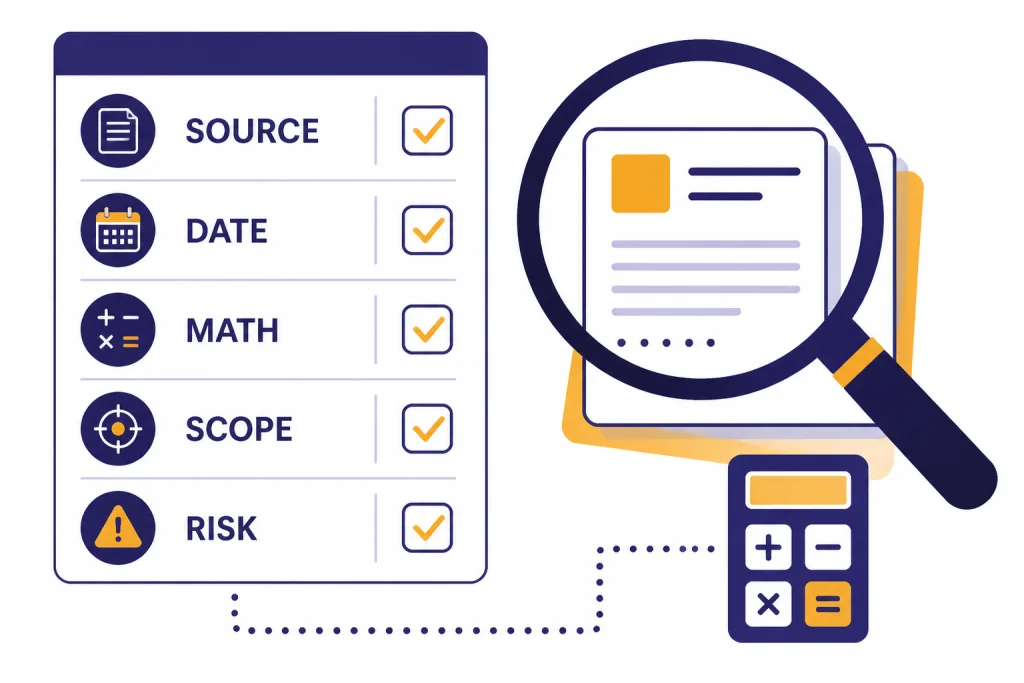
Use this verification checklist for any important answer:
- Source. Ask where the claim came from and open the original source yourself.
- Date. Check whether the source is current enough for the question.
- Math. Recalculate prices, totals, percentages, and dates independently.
- Scope. Ask what the answer excludes.
- Risk. For medical, legal, financial, or safety topics, treat ChatGPT as preparation for professional advice, not as the final authority.
Try this prompt after any research answer:
Audit your answer. Separate confirmed facts, likely interpretations, and unsupported assumptions. Tell me which claims I should verify before relying on them.If you do research often, continue with our deep research project tutorial. If you browse with ChatGPT, our Atlas web browsing tutorial explains how to keep search-focused work separate from ordinary chat.
A simple practice plan
Use this plan over the next month. Each session should produce something you can inspect: a checklist, table, draft, summary, chart idea, prompt template, or verified research note.
- First session: Ask ChatGPT to explain a topic you know well. Your job is to spot what it gets right, what it misses, and how your prompt could improve.
- Second session: Use the four-part prompt pattern for a real task. Revise the answer at least twice.
- Third session: Upload a document or spreadsheet you are allowed to use. Ask for summary, structure, and caveats.
- Fourth session: Create a Project for a recurring task and add one instruction that improves future answers.
- Fifth session: Ask a research question and verify the most important claims manually.
Keep your prompt notebook simple. Save the prompt, the result, what failed, and the improved version. Over time, this becomes your personal ChatGPT playbook.
After finishing this course, pick one specialization. Writers should continue with the writing tutorial. Analysts should continue with data analysis. Marketers should use our SEO workflow tutorial or marketing workflow guide. The fastest way to learn ChatGPT is to attach it to work you already do.
Frequently asked questions
Can I learn ChatGPT for free?
Yes. The Free tier is enough for the lessons in this course. OpenAI says Free users can use web search, data analysis, file and image uploads, GPTs, and image creation, though limits are stricter than paid plans.[1]
Do I need ChatGPT Plus to follow this course?
No. Start free and upgrade only if you regularly hit limits or need heavier usage. OpenAI listed ChatGPT Plus at $20 per month in its help documentation.[3]
What is the best first skill to learn?
Learn to write clear prompts with goal, context, constraints, and format. That one habit improves writing, coding, planning, learning, and research tasks. After that, learn how to revise weak answers instead of accepting them.
How do I know when ChatGPT is wrong?
You often cannot tell from confidence alone. Ask for sources, assumptions, and uncertainty, then check important claims yourself. Be especially careful with current events, prices, laws, health, finance, and technical details.
Should I use Study Mode?
Use Study Mode when you want to learn a concept instead of getting a quick answer. OpenAI introduced it as a step-by-step learning experience with guiding questions and knowledge checks.[6] It is most useful for homework-style practice, exam prep, and unfamiliar topics.
What should I learn after the basics?
Pick a practical track. Learn files and PDFs if you handle documents, data analysis if you use spreadsheets, coding if you build software, or deep research if you compare sources. Specialization matters more than collecting random prompts.