

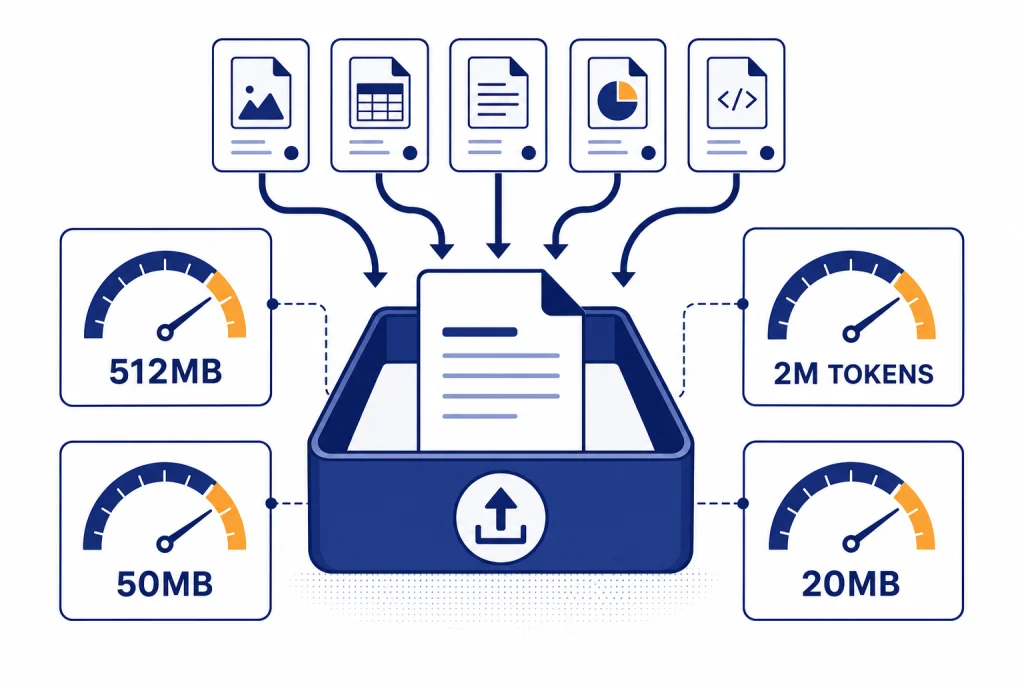
ChatGPT file upload lets you attach documents, spreadsheets, presentations, images, text files, and many common code files so ChatGPT can summarize, extract, compare, transform, or analyze their contents. The main limits to know are a 512MB hard cap for uploaded files, a 2M-token cap for text and document files, an approximate 50MB cap for CSV or spreadsheet files, and a 20MB cap for images.[1] The feature is useful, but it is not unlimited cloud storage. Upload rules vary by plan, tool surface, and file type, and OpenAI’s own help pages contain a few conflicting file-count and storage details that users should treat carefully.
What ChatGPT file upload does
ChatGPT file upload is the attachment workflow inside ChatGPT. You add a file to a chat, Project, or custom GPT, then ask ChatGPT to work with the file. OpenAI describes the feature around synthesis, transformation, and extraction. That means it can combine information from multiple documents, rewrite or reshape a document, summarize a paper, analyze a spreadsheet, extract metadata, or count rows that match a condition.[1]
The feature overlaps with several other ChatGPT tools. If you upload screenshots, diagrams, or charts, you are using image input as much as document upload; our ChatGPT Vision guide covers that side in more detail. If you upload CSV or XLSX files and ask for charts, formulas, cleaning, or calculations, you are closer to data analysis; our Code Interpreter tutorial is the better companion. If you need fresh information from websites instead of a local file, use ChatGPT Search or ChatGPT web browsing rather than uploading a static document.
The simplest rule is this: upload when the information already exists in a file you control. Search when the information lives on the web. Use Projects when the files belong to a longer workspace. Use a custom GPT when the files are reference knowledge for a reusable assistant.
Supported file formats
OpenAI does not publish one exhaustive extension-by-extension list for ChatGPT uploads. Its File Uploads FAQ says ChatGPT supports common extensions for text files, spreadsheets, presentations, and documents.[1] Its custom GPT builder documentation adds that GPTs support most common document, spreadsheet, image, text, and code file types, while noting that accepted types can vary by model and that some file types depend on Code Interpreter & Data Analysis being enabled.[2]
In practical terms, the reliable categories are the ones below. Treat unusual, proprietary, encrypted, password-protected, or heavily embedded files as “test first” formats, even if the extension appears familiar.
| File category | Common examples | Best use in ChatGPT | Watch out for |
|---|---|---|---|
| Documents | PDF, DOCX, plain text | Summaries, Q&A, extraction, rewriting | Scanned PDFs may not expose text cleanly on non-Enterprise plans |
| Spreadsheets and data | CSV, XLSX | Cleaning, grouping, charting, calculations | Large rows can hit the approximate spreadsheet cap sooner |
| Presentations | PPTX and similar slide files | Outline review, slide-to-document conversion, speaker-note drafting | Visual elements may not be fully retrieved on all plans |
| Images | PNG, JPEG, screenshots | Diagram reading, chart interpretation, image-based questions | Images have a separate 20MB per-image limit[1] |
| Code and text assets | TXT, Markdown, JSON, Python, JavaScript and similar files | Debugging, explanation, refactoring, documentation | Generated advice still needs testing in your own environment |
Audio and video require different expectations. ChatGPT can work with some media workflows, but a video file is not the same as a text document. For that, see our guide to whether ChatGPT can analyze video. If your real goal is turning speech into text, start with our ChatGPT transcription guide or the related Whisper transcription walkthrough.
ChatGPT file upload limits
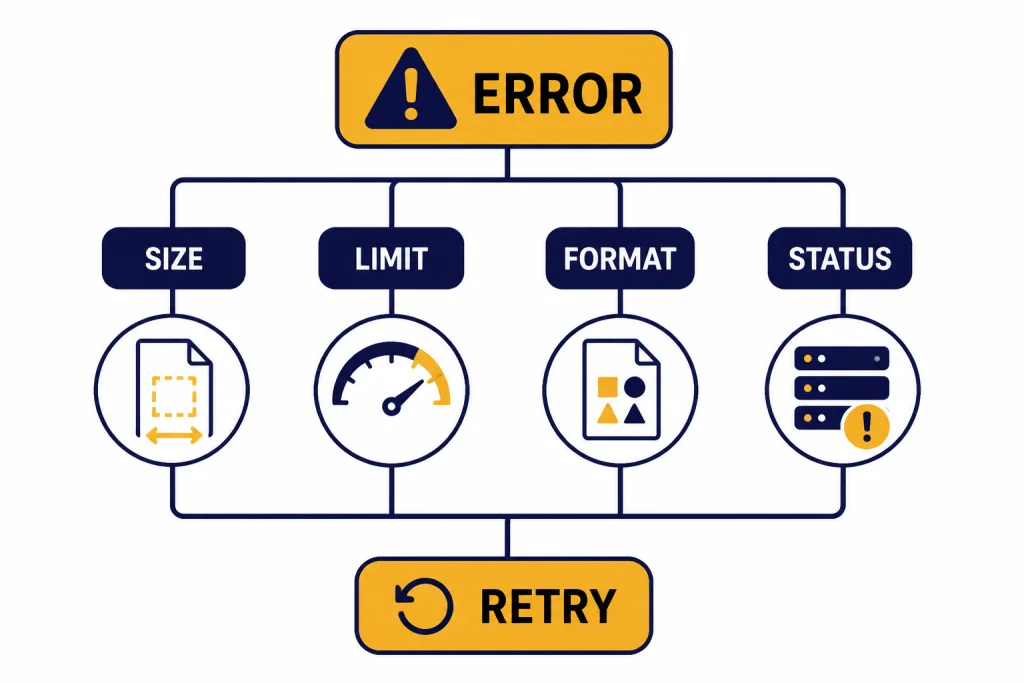
ChatGPT file upload limits are layered. A file can fail because it is too large, because its text is too long, because the account has reached a short-term upload window, because Project or custom GPT file counts are full, or because shared storage is exhausted. Do not troubleshoot every upload failure as a format problem.
| Limit type | Published limit | What it means |
|---|---|---|
| Hard per-file size | 512MB per file[1] | No uploaded file can exceed this cap in a chat or GPT. |
| Text and document length | 2M tokens per file[1] | A text-heavy document can fail even if its byte size is below 512MB. |
| CSV and spreadsheet size | Approximately 50MB, depending on row size[1] | Wide rows and messy exports can reduce usable headroom. |
| Image size | 20MB per image[1] | Compress screenshots or export large images before uploading. |
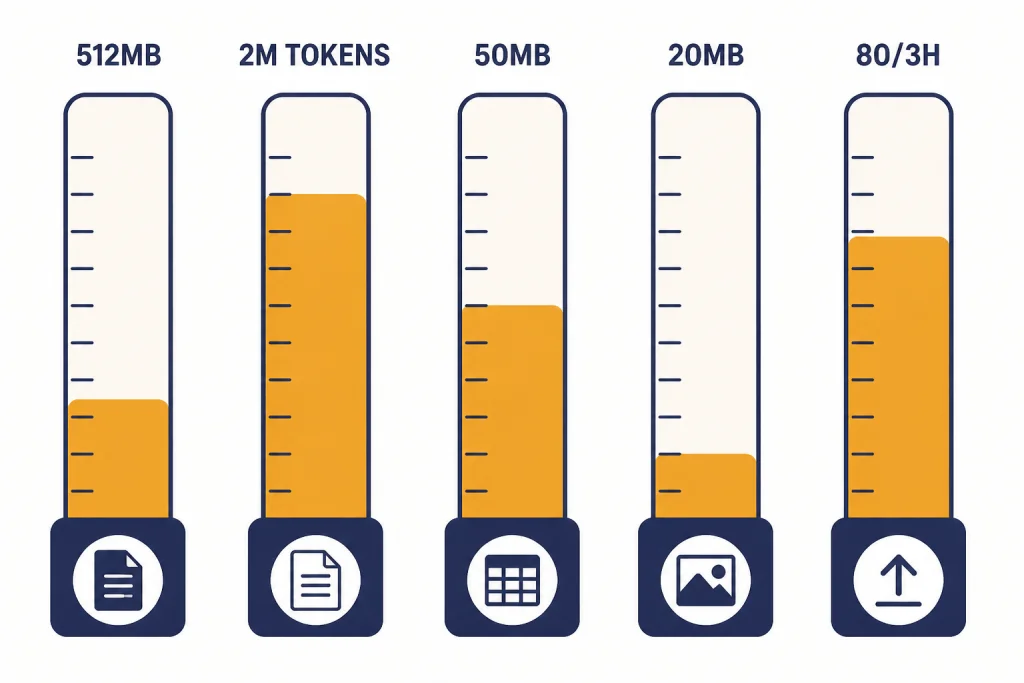
| Rolling upload rate | Up to 80 files every 3 hours[1] | OpenAI says limits may be lowered during peak hours. |
| Free-plan file uploads | 3 file uploads per day[1] | Free users should expect a much smaller daily upload allowance. |
| Project file count | Plus: up to 20 files per project; Pro, Team, Education, and Business: up to 40 files per project[1] | Projects are better for organized work, but still have file-count ceilings. |
| Custom GPT knowledge files | OpenAI pages conflict: one says up to 10 files per GPT; another says up to 20 files attached to a GPT[1][2] | Test in the GPT builder and trust the live UI if the help pages disagree. |
| Shared storage | OpenAI’s File Uploads FAQ lists 25GB per end user in one place and 10GB per user in a troubleshooting note; both mention 100GB per organization[1] | OpenAI’s documentation is inconsistent here, so do not rely on an exact user storage number without checking your account behavior. |
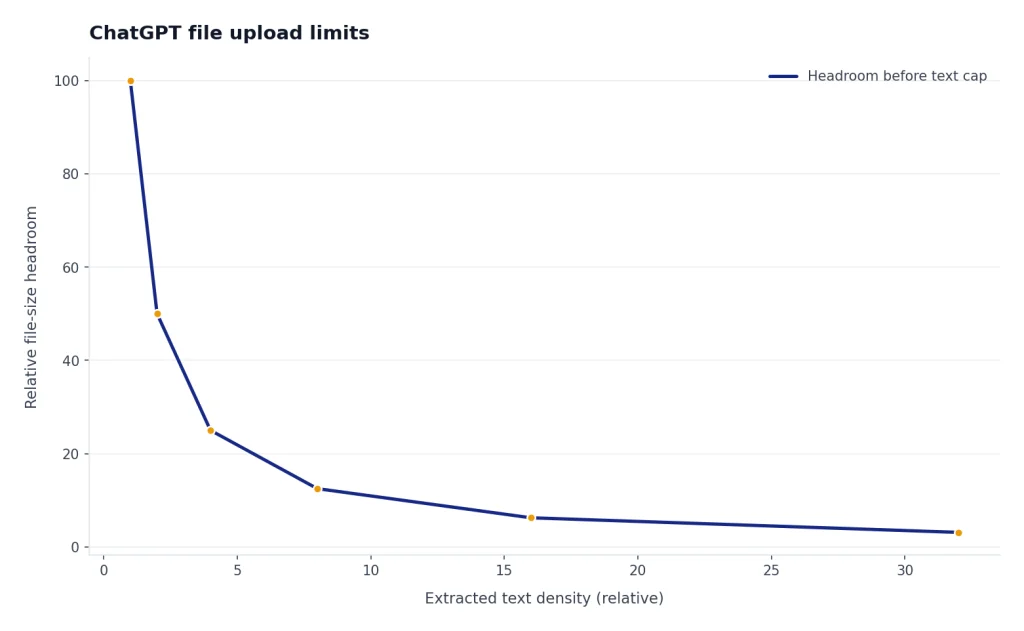
The two most important limits for everyday work are the 512MB file cap and the 2M-token document cap.[1] Token count is not the same as file size. A compressed PDF with dense extracted text can run into the token limit even when the file looks small. A large image-heavy PDF can fit under the file-size cap but still be less useful if ChatGPT extracts little readable text.
OpenAI also says ChatGPT does not currently provide a way for users to see how much file-upload quota has been used or how much remains.[1] That missing counter explains why upload failures can feel sudden. If you work with files all day, keep your own rough count and delete old files you no longer need.
Where uploaded files work
Files work in several places, and each surface has a different job. A normal chat is best for quick one-off analysis. A Project is better when files and conversations belong to the same ongoing assignment. A custom GPT is best when uploaded files should act as reusable background knowledge for a specialized assistant.
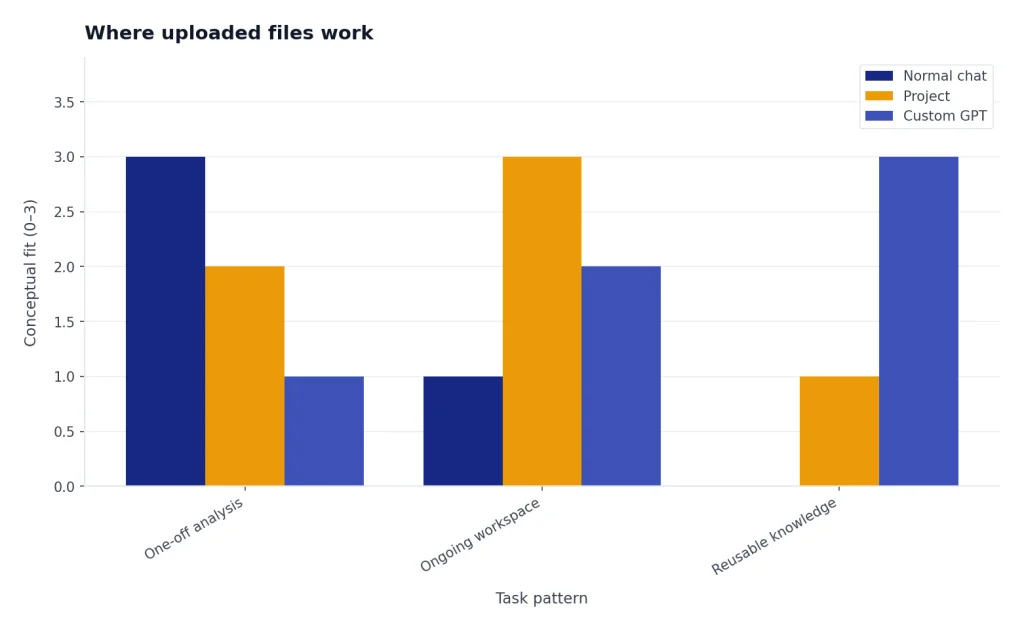
OpenAI says ChatGPT can upload files such as PDFs, presentations, and plain text documents, then summarize, extract information, or answer questions based on them.[3] It also describes Projects as a way to organize chats, files, and context under a shared objective.[3] If you regularly return to the same client packet, research archive, legal matter, class module, or product documentation set, ChatGPT Projects usually makes more sense than scattering uploads across separate chats.
Custom GPTs are different. Their knowledge files are meant to give a GPT source material it can consult across conversations. OpenAI says knowledge works best for reference material such as documentation, guides, handbooks, or internal content.[2] Use custom GPT instructions for behavior, tone, and process, not for large reference dumps. If you need reusable behavior more than uploaded knowledge, start with ChatGPT Custom Instructions before building a GPT.
For sharing, remember that file context and conversation visibility are separate concerns. If you plan to send a result to someone else, review our ChatGPT Shareable Links guide so you understand what the recipient can and cannot see.
How to get better results from uploaded files
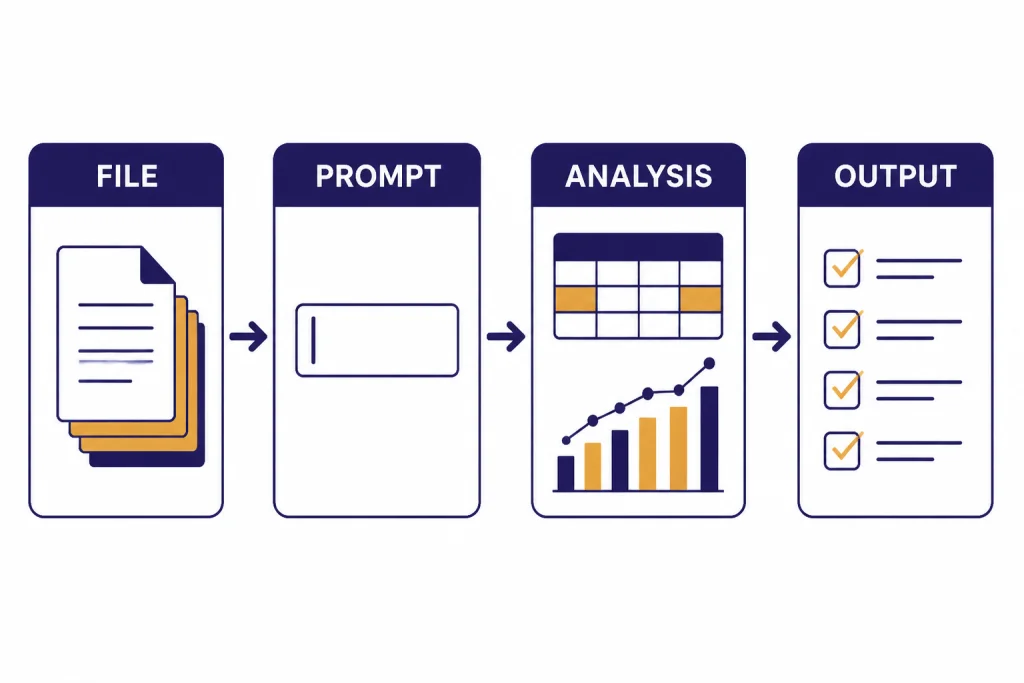
Good file prompts are specific. Do not upload a report and ask, “What do you think?” Tell ChatGPT what role to play, what output format you want, what sections matter, and what to ignore. The file gives context, but your prompt still controls the job.
- For documents: ask for a structured summary, risk register, decision memo, quote table, or section-by-section critique.
- For spreadsheets: ask ChatGPT to inspect columns first, identify missing values, confirm assumptions, then create calculations or charts.
- For presentations: ask for a slide-by-slide critique, an executive summary, or a rewritten narrative.
- For images: ask ChatGPT to describe visible elements before interpreting them, especially for charts and diagrams.
- For code: ask for a diagnosis, minimal fix, test plan, or explanation rather than a total rewrite.
A useful prompt pattern is: “Use the uploaded file as the source. First summarize the relevant parts. Then produce a table with finding, evidence, page or section if available, confidence, and recommended next step. If the file does not contain enough evidence, say so.” This reduces hallucinated detail and makes it easier to audit the answer.
For long documents, ask ChatGPT to map the file before answering. A prompt like “List the main sections and tell me which sections are relevant to contract termination” often works better than asking for the final answer immediately. For messy CSV files, ask it to inspect headers and data types before calculating. For PDFs, ask whether the text appears extractable. If it cannot read parts of the document, re-export the file, run OCR, or split the file into cleaner pieces.
Privacy, retention, and training
Do not upload sensitive files casually. OpenAI says files uploaded during a conversation are stored in your Library for use across chats, and that chats and files are managed separately.[4] Deleting a chat does not necessarily delete a file saved to the Library, so remove the file itself if your goal is cleanup.[4]
OpenAI’s retention page says chats are saved to your account until you delete them manually, and deleted chats are scheduled for permanent deletion from OpenAI systems within 30 days unless an exception applies.[4] It also says files uploaded to a custom GPT or Project are retained until that GPT or Project is deleted, then removed within 30 days unless legal or security exceptions apply.[4]
Training use depends on the service. OpenAI’s File Uploads FAQ says content submitted to individual ChatGPT services may be used to improve model performance and may include uploaded files, subject to user choices. The same FAQ says OpenAI does not use content submitted by customers to business offerings such as the API and ChatGPT Enterprise to improve model performance.[1]
For confidential work, use the right workspace and confirm your organization’s policy. Do not upload regulated data, client secrets, unreleased financials, credentials, or private medical details unless your plan, settings, contract, and internal policy allow it. ChatGPT is a powerful file reader, not a substitute for a governed document management system.
Troubleshooting upload errors
Most upload errors fall into a small set of causes. Start with the limit that is easiest to verify, then move toward account and service issues.
- Check the file size. Keep general files below 512MB, spreadsheets around or below 50MB, and images below 20MB.[1]
- Check the file contents. Re-save corrupted PDFs, remove password protection, flatten unusual formatting, or export to a cleaner format.
- Check the upload window. OpenAI says users can upload up to 80 files every 3 hours, Free users are limited to 3 file uploads per day, and limits may be lowered during peak hours.[1]
- Check storage and Projects. If you work in Projects, compare your file count with the Project limits published for your plan.[1]
- Check service status and browser state. OpenAI recommends checking service status for incidents that may affect uploads.[1]
If you see an “upload limit reached” message after only a few visible uploads, remember that failed upload attempts can sometimes count toward the upload-rate cap.[1] Also check whether old chats, Projects, or GPT knowledge files are consuming shared storage. If the file is critical, try a smaller excerpt first. If the excerpt works, split the original file by section and upload only the parts needed for the task.
Use the ChatGPT desktop or mobile app only if it fits your workflow. Upload behavior should be broadly similar, but browser extensions, stale sessions, corporate networks, and old app versions can add their own problems. If you are setting up a local workflow, our ChatGPT Windows app and best ChatGPT app guides can help you pick the right surface.
Frequently asked questions
What file types can ChatGPT upload?
OpenAI says ChatGPT supports common file extensions for text files, spreadsheets, presentations, and documents.[1] Its GPT builder page also mentions common document, spreadsheet, image, text, and code file types.[2] In practice, PDF, DOCX, TXT, CSV, XLSX, PPTX, PNG, and JPEG are the safest categories to try first.
What is the maximum ChatGPT file upload size?
The broad hard cap is 512MB per uploaded file.[1] Text and document files also have a 2M-token cap, spreadsheets are limited to roughly 50MB depending on row size, and images are limited to 20MB per image.[1] A file can therefore fail even when it appears to be under the general size cap.
How many files can I upload to ChatGPT?
OpenAI says users can upload up to 80 files every 3 hours, while Free users are limited to 3 uploads per day and limits may be lowered during peak hours.[1] For Projects, OpenAI lists up to 20 files per project on Plus and up to 40 files per project on Pro, Team, Education, and Business.[1] For custom GPTs, OpenAI’s pages conflict between 10 and 20 files, so verify in the GPT builder UI.[1][2]
Can ChatGPT read images inside PDFs?
It depends on the plan and file type. OpenAI says ChatGPT Enterprise supports Visual Retrieval for PDF files, while other plans and document files use text-based retrieval and discard images from the document.[1] If the visual content matters, upload the image or screenshot directly and use the workflow in our ChatGPT image search guide where appropriate.
Does deleting a chat delete uploaded files?
Not always. OpenAI says files uploaded during a conversation are stored in the Library and that chats and files are managed separately.[4] If you want to remove an uploaded file, check the Library or the relevant Project or GPT, not only the chat thread.
Will OpenAI train on files I upload?
It depends on the service and settings. OpenAI says content submitted to individual ChatGPT services may be used to improve model performance and may include uploaded files, while content submitted by API and ChatGPT Enterprise customers is not used to improve model performance.[1] Check your data controls and workspace policy before uploading sensitive files.