

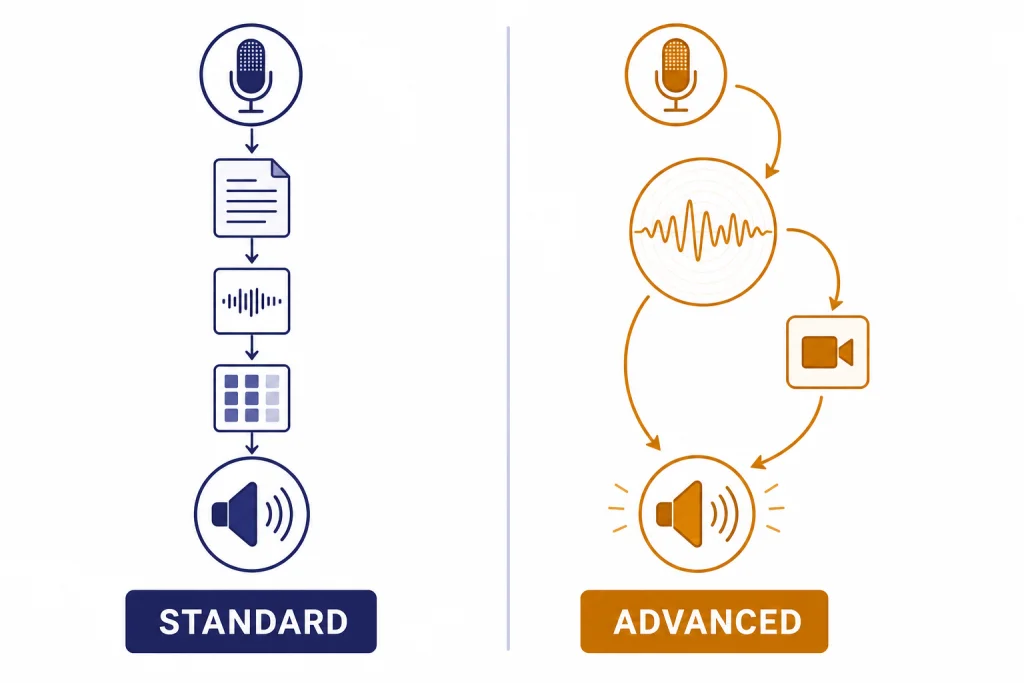
ChatGPT Voice Mode lets you talk with ChatGPT instead of typing, but the Standard vs Advanced split can be confusing. Standard Voice is the older, more text-like experience: your speech is handled through transcription, ChatGPT answers, and the reply is spoken back. Advanced Voice, now commonly presented as ChatGPT Voice, is the newer real-time voice experience built around natively multimodal models, with faster turn-taking, more expressive speech, and support for video or screen sharing when the higher voice model is available.[1] For most users in 2026, the practical choice is simple: use Advanced Voice for natural conversation and use Standard Voice only if your account still exposes it and you prefer fuller, read-aloud-style answers.
Standard vs Advanced Voice in one minute
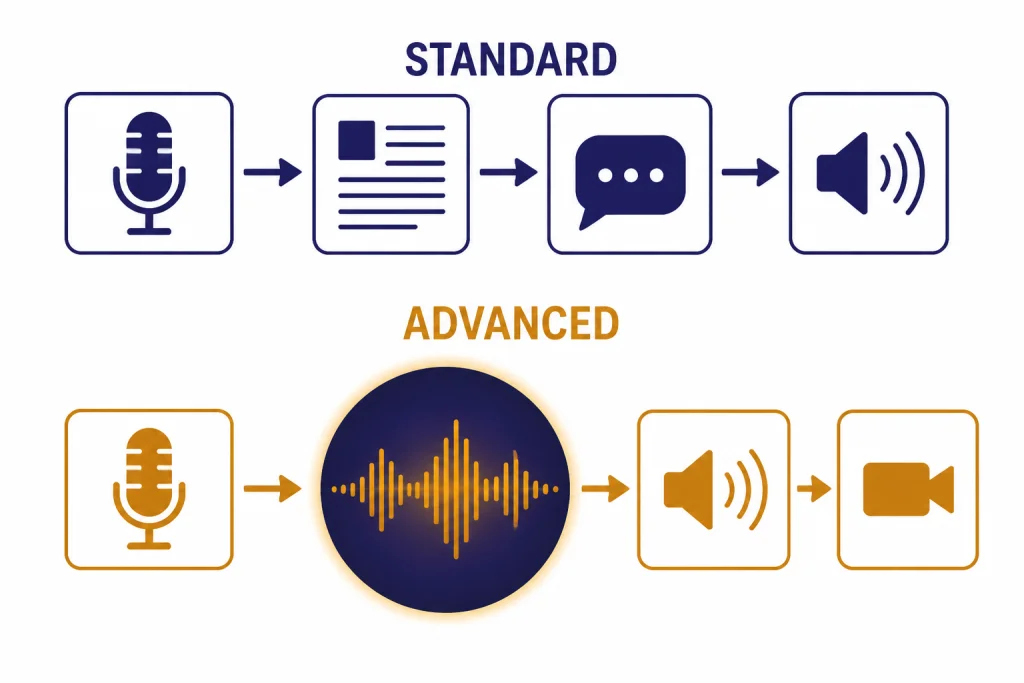
The main difference is the interaction model. Standard Voice behaves more like normal ChatGPT with a microphone and speaker attached. It turns speech into text, generates a text answer, and reads that answer aloud. OpenAI’s help page still describes legacy Standard Voice as a mode where audio clips are transcribed before a response is generated.[1]
Advanced Voice is built for live conversation. OpenAI describes current voice conversations as powered by natively multimodal models and available to logged-in users in the ChatGPT mobile apps and on desktop web at ChatGPT.com.[1] It can respond more fluidly, handle interruptions better, and, when the account and model state allow it, work with camera or screen sharing. OpenAI introduced GPT-4o on May 13, 2024 as a flagship model with stronger text, voice, and vision capabilities.[3]
| Feature | Standard Voice | Advanced Voice / ChatGPT Voice |
|---|---|---|
| Core behavior | Speech-to-text, text answer, spoken playback. | Real-time voice conversation powered by natively multimodal models.[1] |
| Best feel | Closer to having a written answer read aloud. | Closer to a live back-and-forth conversation. |
| Strength | Longer, more structured answers when available. | Fast turn-taking, expressive speech, interruptions, and live context. |
| Video or screen sharing | Not the main use case. | Supported in voice when the higher voice model is available; OpenAI says new video or screen sharing stops after GPT-4o voice minutes are used up.[1] |
| Current status | Legacy and account-dependent. | The default voice direction OpenAI is moving toward. |
OpenAI planned to retire Standard Voice after a sunset period in 2025, then said on September 9, 2025 that it would keep Standard Voice available while addressing feedback from users.[2] TechRadar also reported the reversal after user pushback, which is useful context but not the primary product source.[5]
How ChatGPT Voice Mode works
ChatGPT Voice Mode replaces the keyboard with a spoken loop. You speak into your microphone, ChatGPT processes the request, and the answer comes back as audio. After the voice session ends, OpenAI says a transcription is added to the current text conversation.[1] That transcript matters because it gives you a written record, lets you continue by typing, and makes the voice chat searchable in your conversation history.
Advanced Voice changes the rhythm. Instead of waiting for a long typed-style answer to be read aloud, it is tuned for shorter conversational turns. That makes it better for coaching, brainstorming, language practice, interview prep, and hands-free troubleshooting. It can feel less formal than a typed answer. That is a feature for live discussion, but it can be a drawback when you want a complete written explanation.
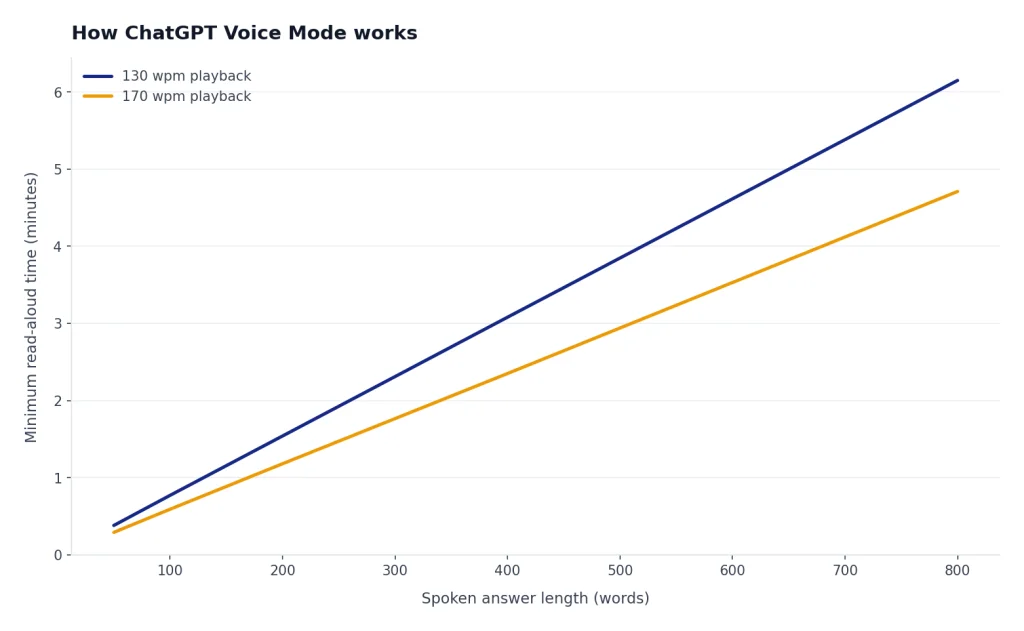
Standard Voice, when present, can feel more predictable for people who want ChatGPT to read a full answer. It is also easier to compare with a typed response because the spoken output is closer to the written reply. The tradeoff is latency and conversational stiffness. It is less like a call and more like dictating to ChatGPT and listening to the answer.
If you use voice for audio transcription rather than conversation, see our separate guide to ChatGPT audio transcription and the deeper ChatGPT Whisper transcription explainer. Voice Mode is for conversation. Transcription workflows are better when you need clean notes, timestamps, or reusable text.
How to start a voice conversation
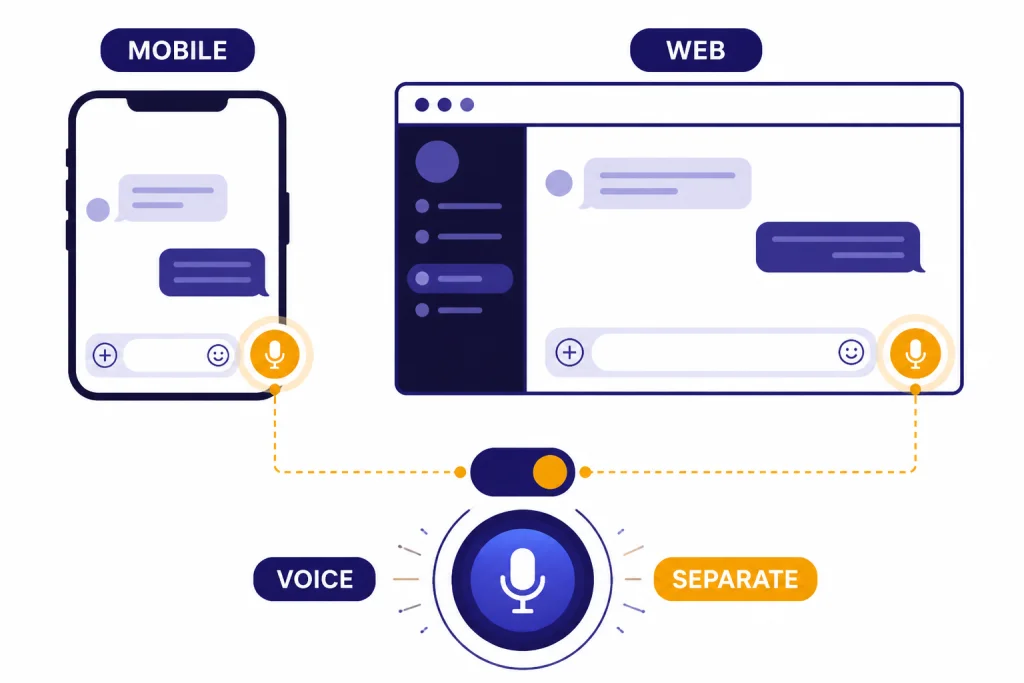
On mobile, open the ChatGPT app and select the Voice icon near the message composer. OpenAI says ChatGPT voice may appear either inside the main chat page or as a separate blue-orb screen, and that most iOS and Android users see the integrated experience by default while rollout details can vary by account.[1] If the app asks for microphone permission, allow it or Voice Mode cannot listen.
On desktop web, go to ChatGPT.com and select the Voice icon near the prompt box. OpenAI says desktop web voice conversations are available at ChatGPT.com and that first-time browser use may require microphone permission.[1] If you use the desktop app route, our ChatGPT Windows app setup and best ChatGPT app guide can help you choose the right client.
- Start: tap or click the Voice icon.
- Grant access: allow microphone permission if prompted.
- Pick a voice: choose a voice the first time if ChatGPT asks.
- Mute: use the microphone control during the session.
- End: use the exit control to return to the normal chat.
If you want ChatGPT to use your preferences during voice sessions, update ChatGPT Custom Instructions. If you want it to remember durable facts about you across chats, review ChatGPT Memory. Voice Mode can feel much more useful when the assistant already knows your preferred explanation style.
Best uses for each voice mode
Use Advanced Voice when the work benefits from fast turns. It is well suited to practicing a presentation, talking through a plan while walking, role-playing a sales call, debugging a household problem with your camera, or getting language feedback. If you are using live visuals, you are in Advanced Voice territory. Standard Voice is not the right tool for that.
Use Standard Voice, if your account still has it, when you want a more deliberate read-aloud answer. Some users prefer it for long explanations, bedtime-style listening, guided study, or situations where they want ChatGPT to answer as if it had typed the response first. This is a preference issue, not only a capability issue.
For research-heavy questions, voice is often best as the first pass. Ask the question aloud, get oriented, then switch to text and use ChatGPT Search for source-backed follow-up. For translation practice, voice can help with natural phrasing, but a text workflow gives you cleaner side-by-side output; our ChatGPT Translate guide covers that use case in more detail.
For visual tasks, voice pairs well with camera or screen sharing, but image-specific work may be better in a normal chat where you can inspect the result. Use ChatGPT Vision for still images and our guide on whether ChatGPT can analyze video for moving footage. Voice is the interface, not the whole capability.
A practical rule
If you want a conversation, use Advanced Voice. If you want a spoken document, use Standard Voice if available or ask Advanced Voice to “give a complete answer in sections and pause only between sections.” That prompt does not turn Advanced Voice into Standard Voice, but it usually improves structure.
Limits, plans, and model fallback
Voice limits are not a fixed permanent entitlement. OpenAI says access and associated usage limits are subject to change.[1] That is important because voice behavior can differ by plan, region, device, and rollout stage.
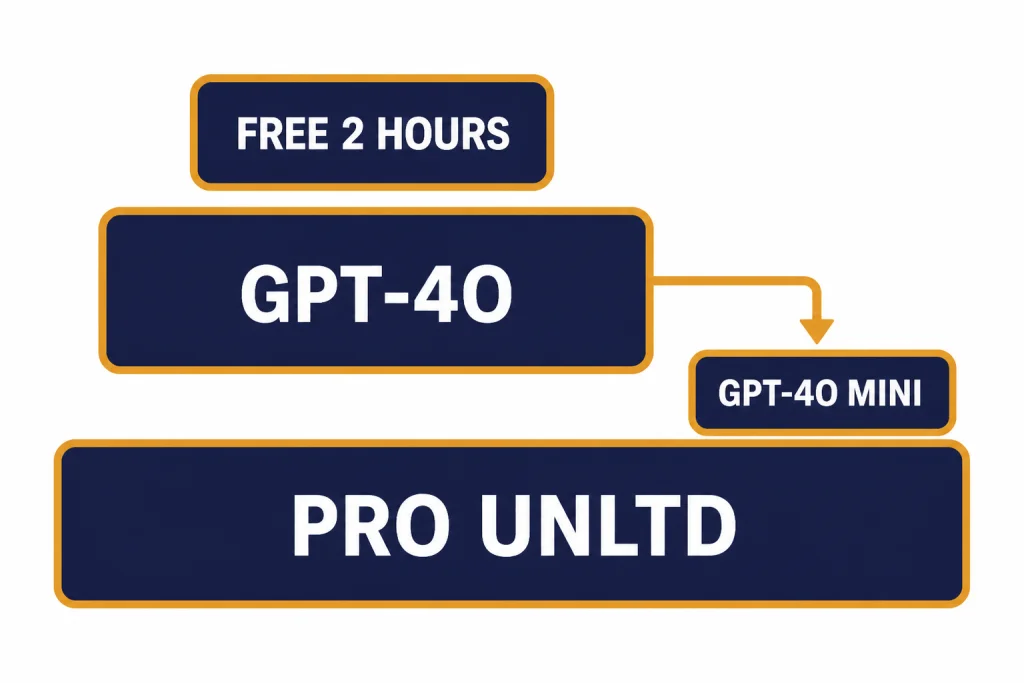
As of OpenAI’s current Voice Mode FAQ, logged-in Free users get voice powered by GPT-4o mini and are subject to a 2-hour daily limit.[1] Subscribers start voice sessions with GPT-4o, then can continue with GPT-4o mini after using their GPT-4o voice minutes for the day.[1] Pro subscribers have unlimited GPT-4o voice use subject to abuse guardrails, according to the same OpenAI help page.[1]
OpenAI has not published an official public minute number for every subscriber tier in the Voice Mode FAQ. Treat any exact unofficial Plus or Team minute count as temporary unless it appears inside your ChatGPT account or in an OpenAI help article. If you hit a cap often, our guide to legitimate ChatGPT message limit workarounds explains what you can and cannot do safely.
| Plan or state | What OpenAI says | Practical impact |
|---|---|---|
| Logged-in Free | Voice is powered by GPT-4o mini with a 2-hour daily limit.[1] | Good for casual use, practice, and quick help. |
| Subscriber | Voice starts with GPT-4o, then falls back to GPT-4o mini after daily GPT-4o voice minutes are used.[1] | Best for regular voice use, but visual sharing may stop after fallback. |
| Pro | Unlimited GPT-4o voice use, subject to abuse guardrails.[1] | Best fit for heavy daily voice sessions. |
| Enterprise flexible pricing | GPT-4o voice use is unlimited subject to credit consumption.[1] | Budget and admin policy matter more than a simple minute cap. |
Privacy, transcripts, and data controls
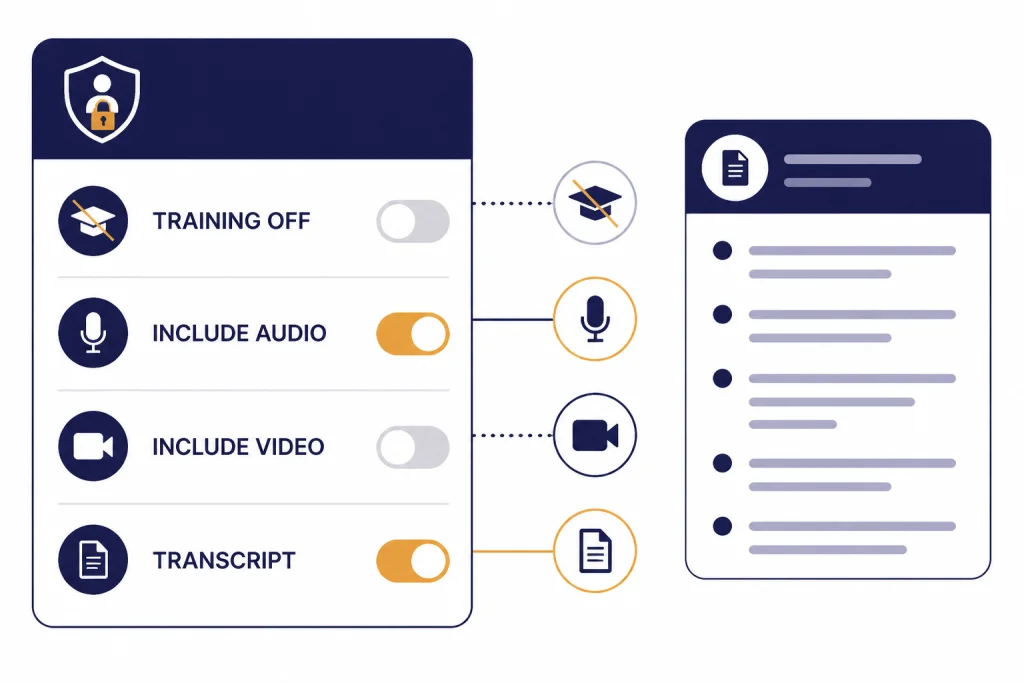
Voice chats create more than sound. They can create transcripts, audio clips, and, when you use visual sharing, video-related content. OpenAI says the transcript is added to your current text conversation after you exit a voice conversation.[1] That means you should treat voice chats like normal ChatGPT chats from a privacy standpoint, with the added sensitivity of spoken audio.
OpenAI’s Voice Mode FAQ says Free, Plus, and Pro users may choose to share audio and video clips from voice chats for model training by enabling “Improve the model for everyone” and turning on audio or video recording options.[1] OpenAI’s broader data-use policy says users can manage whether content from its services is used to improve models through data controls.[7]
Review these settings before using Voice Mode for medical details, financial issues, workplace material, or private family conversations. If you use ChatGPT through a work or school workspace, check your admin’s policy rather than assuming your personal account settings apply. OpenAI’s FAQ also states that users cannot share audio or video from voice chats in ChatGPT Business, Edu, and Enterprise workspaces.[1]
- Do not say anything in voice that you would not type into ChatGPT.
- Check whether model improvement is on or off in Data Controls.
- Delete sensitive chats you do not need to keep.
- Use text instead of voice when exact wording or auditability matters.
- Use a workspace account for work data if your organization provides one.
Troubleshooting common voice problems
ChatGPT cannot hear you
Check microphone permission in the browser or app. Then check the operating system’s microphone setting. If you use a headset, make sure ChatGPT is listening to the headset microphone rather than the laptop microphone.
Voice Mode is missing
Update the app, sign in, and try desktop web. OpenAI says voice is available to logged-in users in the mobile apps and on desktop web, but account rollouts and interface variants can differ.[1] If you are trying to use ChatGPT without an account, read our guide to using ChatGPT without logging in and expect fewer features.
The answer is too short
Ask for the format you want. Say, “Answer in three sections, give examples, and do not summarize unless I ask.” Advanced Voice is optimized for conversation, so it may compress answers unless you steer it.
Video or screen sharing stopped working
You may have fallen back from GPT-4o voice to GPT-4o mini after using the day’s GPT-4o voice minutes. OpenAI says subscribers can keep chatting in voice with GPT-4o mini after the GPT-4o voice limit is reached, but they can no longer share new video or screen share content until the GPT-4o usage limit resets.[1]
Voice is not a good fit for the task
Switch to text when you need exact wording, citations, code, formulas, tables, or careful editing. Voice is excellent for exploration. Text is better for artifacts you plan to copy, share, or publish. If you are organizing a long project, move the result into ChatGPT Projects after the voice session.
Frequently asked questions
Is Advanced Voice the same as ChatGPT Voice?
In current OpenAI wording, Advanced Voice has largely become the mainstream ChatGPT Voice experience. OpenAI previously described this as streamlining voice around the latest experience with faster responses, more expressivity, and more natural flow.[1] Some users may still see legacy wording or account-specific interface differences.
Is Standard Voice still available?
It depends on the account and rollout state. OpenAI said on September 9, 2025 that it would keep Standard Voice available while addressing feedback, after previously planning a sunset.[2] If you do not see it, assume your account is on the newer ChatGPT Voice path.
Which voice mode is better for studying?
Advanced Voice is better for active recall, quizzes, role-play, and back-and-forth tutoring. Standard Voice is better if you want lecture-style spoken explanations and your account still offers it. For serious study, ask Voice Mode to summarize the session in text before you exit.
Can ChatGPT Voice see my camera or screen?
Voice can support video and screen sharing when the relevant feature and model access are available. OpenAI says subscribers lose the ability to share new video or screen share content after using their daily GPT-4o voice minutes and falling back to GPT-4o mini.[1] Use this for live troubleshooting, object identification, and walkthroughs, not for private visual information you do not want processed.
Does Voice Mode save a transcript?
Yes. OpenAI says a transcription is added to the current text conversation after you exit a voice conversation.[1] Review the transcript before relying on it, because speech recognition and conversational summaries can make mistakes.
Can I use ChatGPT Voice offline?
No. ChatGPT Voice needs an active connection to process the conversation. If you need a broader reality check, see our guide to using ChatGPT offline.