


The DALL-E API is now best understood as OpenAI’s Image API: a set of endpoints for generating, editing, and varying images from code. You can still call `dall-e-2` and `dall-e-3`, but OpenAI’s current image stack as of May 2026 also includes GPT Image models such as `gpt-image-2`, `gpt-image-1.5`, and `gpt-image-1`.[1] For most new applications, start with GPT Image through the Image API when you need a single generated or edited image, and use the Responses API when image generation belongs inside a multi-turn workflow.[1] This guide shows the endpoints, model choices, code shape, pricing logic, and production checks that matter before you ship.
What the DALL-E API means now
Developers still say “DALL-E API” because DALL-E made OpenAI image generation familiar. In the current platform docs, the practical product is the Image API. It exposes endpoints for creating images, editing source images, and generating variations, with support for DALL-E and GPT Image models.[1]
The naming matters because the older DALL-E models are no longer the default recommendation for most new builds. As of May 2026, the current GPT Image lineup includes `gpt-image-2`, `gpt-image-1.5`, and `gpt-image-1`; `gpt-image-1-mini` is not a current OpenAI image model name and should not be copied into new code. OpenAI’s image guide also identifies DALL-E 2 and DALL-E 3 as specialized legacy models available through the Image API, and says they are deprecated and scheduled to stop being supported on May 12, 2026.[1]
That does not mean every old integration must break today. It does mean you should avoid starting a new product on `dall-e-2` or `dall-e-3` unless you have a narrow compatibility reason. If you are building a new image generator, product mockup tool, thumbnail service, creative editor, or asset pipeline, treat GPT Image as the forward path and treat DALL-E as legacy vocabulary.
You also need a real API account. A ChatGPT subscription and API billing are separate systems, and OpenAI says API usage is billed independently from ChatGPT Plus.[10] If you are still setting up access, read our guide to a free OpenAI API key and our explainer on whether ChatGPT Plus includes API access.
Choose the right image workflow
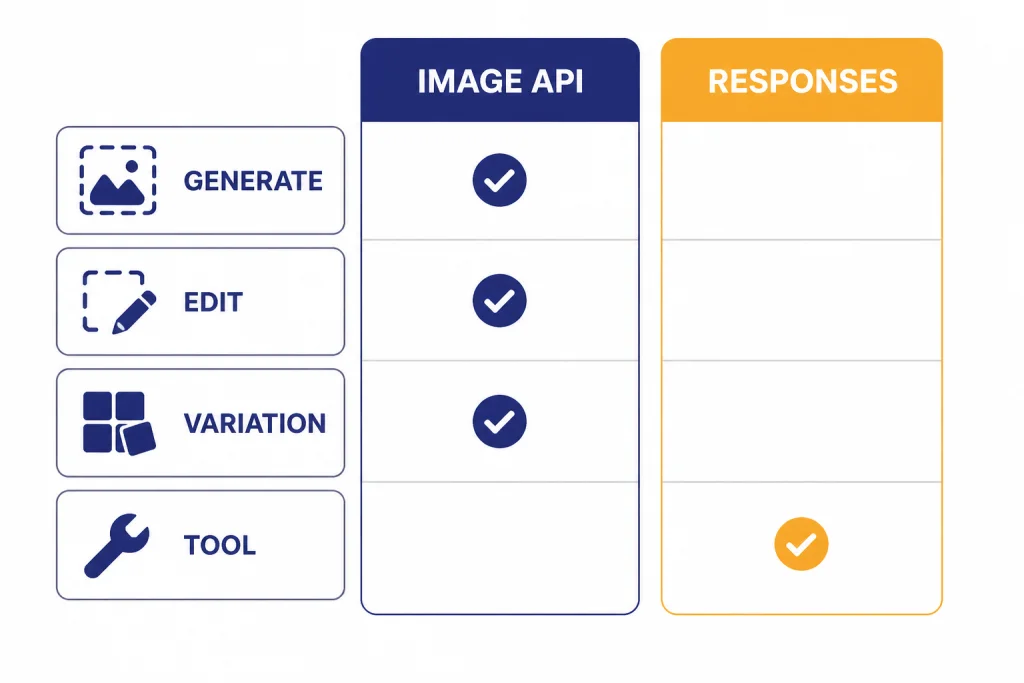
OpenAI gives you two main ways to generate images from code. The Image API is the direct route: use it when your app sends one prompt and expects one or more image outputs. The Responses API is the orchestration route: use it when image generation is part of a broader conversational or agentic flow.[1]
The Image API has three image-specific endpoints: generations, edits, and variations.[1] The Responses API exposes image generation as a tool inside a model response, which helps when the assistant must reason, ask a follow-up question, revise a prompt, or continue editing across turns.[9] For a broader view of that design, see our OpenAI Responses API guide.
| Workflow | Use it when | Best model family | Important limit |
|---|---|---|---|
| Image API generation | You need a new image from a prompt. | `gpt-image-2`, `gpt-image-1.5`, `gpt-image-1`, `dall-e-3`, or `dall-e-2`.[2] | `dall-e-3` supports only `n=1` per request.[2] |
| Image API edit | You need to transform, extend, or inpaint an existing image. | `gpt-image-2`, `gpt-image-1.5`, `gpt-image-1`, or `dall-e-2`.[2] | GPT Image edits can accept up to 16 source images; DALL-E 2 edits accept one square PNG under 4MB.[2] |
| Image API variation | You need variations of a source image. | `dall-e-2` only.[2] | The variation image must be a square PNG under 4MB.[2] |
| Responses API image tool | You need image generation inside a multi-step assistant flow. | GPT Image models through the `image_generation` tool.[9] | The image model is used as a tool, not as the top-level `model` value in the Responses API.[9] |
Use the Image API for a clean service endpoint. Use the Responses API when image generation is one capability inside a larger assistant that may also call tools, inspect context, or route between tasks. If you also accept user-uploaded images for analysis, pair this guide with our OpenAI Vision API breakdown.
Generate an image with the Image API
The direct generation endpoint is `POST /v1/images/generations`.[2] Your request needs a prompt and should specify the model, size, and output options that match your application. If you omit the model, OpenAI’s API reference says the default is `dall-e-2` unless you use a parameter specific to GPT Image models.[2] Do not rely on that default in production. Always set the model explicitly.
Here is a minimal Python example using the OpenAI SDK. It asks for one square image and writes the returned base64 payload to a local PNG file.
from openai import OpenAI
import base64

client = OpenAI()

result = client.images.generate(
    model="gpt-image-2",
    prompt=(
        "A clean editorial product mockup of a reusable water bottle "
        "on a white desk, soft shadows, no logos, no text."
    ),
    size="1024x1024",
    quality="medium",
    n=1,
)

image_base64 = result.data[0].b64_json
with open("mockup.png", "wb") as f:
    f.write(base64.b64decode(image_base64))
The exact response shape can vary by SDK version, so inspect the object your installed package returns. GPT Image models return base64 image data by default, while the API reference notes that DALL-E 2 and DALL-E 3 can use `b64_json` when requested through `response_format`.[2]
A service wrapper should validate inputs before calling OpenAI: reject empty prompts, cap prompt length, enforce allowed sizes, log the model and output settings, and estimate cost before dispatch. Do not log sensitive user text unless your privacy policy and retention settings allow it.
For a production service, wrap image calls in a small function that handles predictable failure branches instead of letting raw exceptions leak into your app. The example below uses illustrative unit prices; replace them with values from your pricing configuration or billing system.
from openai import OpenAI, BadRequestError, RateLimitError, APIError
import base64
import time

client = OpenAI()

ALLOWED_SIZES = {"1024x1024", "1536x1024", "1024x1536"}
# Illustrative only: keep real prices in config and update them from OpenAI pricing.
ESTIMATED_PRICE_BY_MODE = {
    ("gpt-image-2", "1024x1024", "medium"): 0.00,
    ("gpt-image-1.5", "1024x1024", "medium"): 0.034,
}

def estimate_image_cost(model: str, size: str, quality: str, n: int) -> float | None:
    unit_price = ESTIMATED_PRICE_BY_MODE.get((model, size, quality))
    return None if unit_price is None else unit_price * n

def generate_product_mockup(prompt: str, user_id: str) -> dict:
    model = "gpt-image-2"
    size = "1024x1024"
    quality = "medium"
    n = 1

    if not prompt.strip():
        return {"ok": False, "type": "validation", "message": "Prompt is required."}
    if len(prompt) > 4000:
        return {"ok": False, "type": "validation", "message": "Prompt is too long."}
    if size not in ALLOWED_SIZES:
        return {"ok": False, "type": "validation", "message": "Unsupported image size."}

    estimated_cost = estimate_image_cost(model, size, quality, n)

    for attempt in range(3):
        try:
            result = client.images.generate(
                model=model,
                prompt=prompt,
                size=size,
                quality=quality,
                n=n,
            )
            image_bytes = base64.b64decode(result.data[0].b64_json)
            asset_path = f"generated/{user_id}-{int(time.time())}.png"
            with open(asset_path, "wb") as f:
                f.write(image_bytes)

            return {
                "ok": True,
                "asset_path": asset_path,
                "model": model,
                "size": size,
                "quality": quality,
                "estimated_cost": estimated_cost,
            }
        except BadRequestError as exc:
            return {"ok": False, "type": "bad_request", "message": str(exc)}
        except RateLimitError:
            if attempt == 2:
                return {"ok": False, "type": "rate_limit", "message": "Please try again shortly."}
            time.sleep(2 ** attempt)
        except APIError:
            if attempt == 2:
                return {"ok": False, "type": "upstream", "message": "Image service unavailable."}
            time.sleep(2 ** attempt)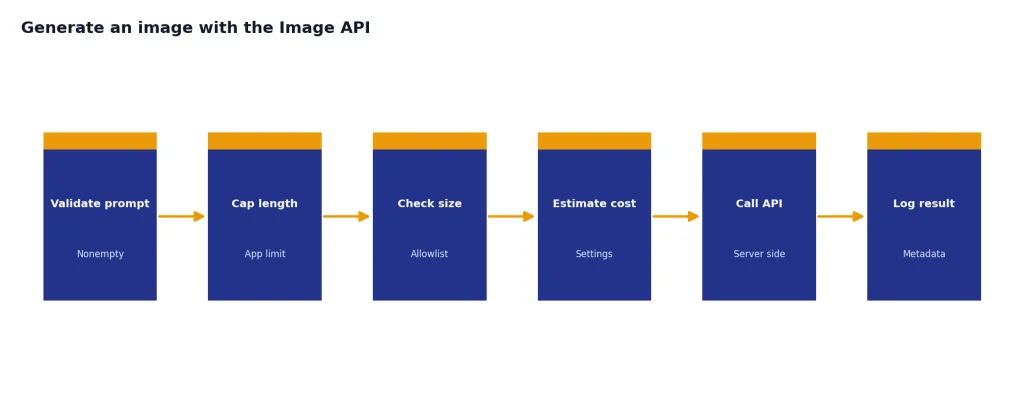
For a web app, keep the API key on the server. OpenAI’s API reference says keys must be supplied with HTTP Bearer authentication and should not be exposed in browsers or client-side apps.[8] Our OpenAI API best practices for production guide covers key storage, staging projects, usage limits, retries, and monitoring in more depth.
Edit and vary images
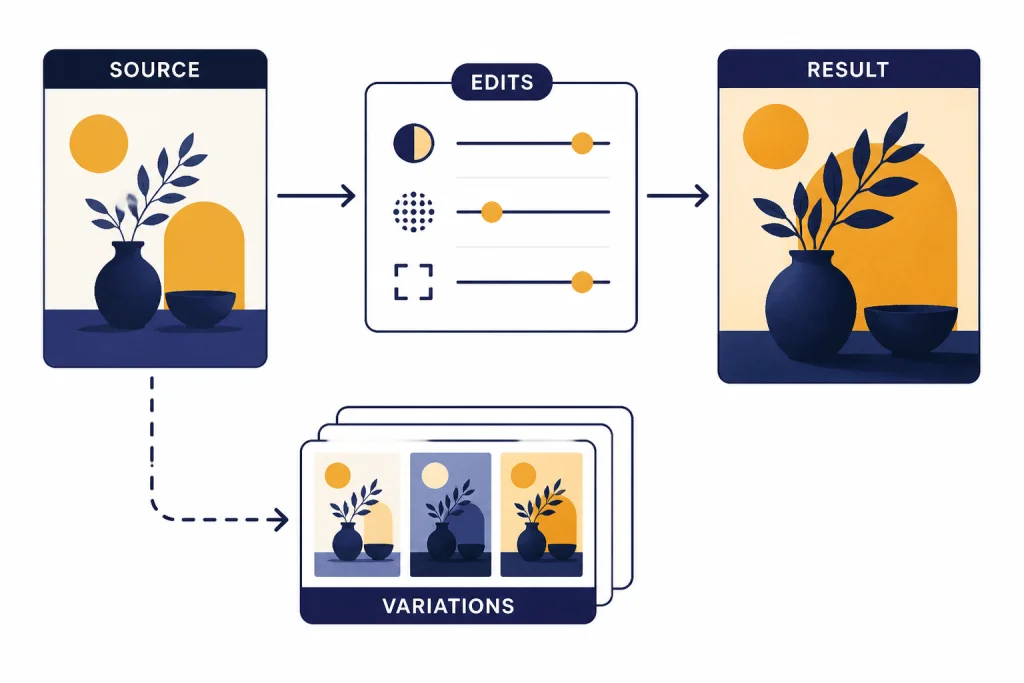
Image generation starts from text. Image editing starts from one or more image files plus instructions. The edit endpoint is `POST /v1/images/edits`, and OpenAI’s API reference says it supports GPT Image models and `dall-e-2`.[2]
GPT Image edits are more flexible than DALL-E 2 edits. For GPT Image models, OpenAI says each input image should be a PNG, WebP, or JPG file under 50MB, and you can provide up to 16 images.[2] For DALL-E 2, the edit input is limited to one square PNG under 4MB.[2]
Use edits for product recoloring, background replacement, localized changes, style transfer, mockup cleanup, and iterative creative tooling. Use variations only when you specifically need the DALL-E 2 variation endpoint. OpenAI states that `POST /v1/images/variations` supports only `dall-e-2`.[2]
from openai import OpenAI
import base64

client = OpenAI()

result = client.images.edit(
    model="gpt-image-2",
    image=[open("source-product.jpg", "rb")],
    prompt=(
        "Keep the product shape unchanged. Replace the background with "
        "a clean studio surface and add a soft amber reflection."
    ),
    size="1024x1024",
    quality="medium",
)

with open("edited-product.png", "wb") as f:
    f.write(base64.b64decode(result.data[0].b64_json))
If you need the model to look at an image and describe it before deciding what to generate, add a vision step before the image call. That workflow is common for catalog cleanup, ad creative generation, and user-submitted design tools. If you need the output in a strict JSON plan before generation, combine the image workflow with structured outputs.
Parameters that change results
Image generation quality depends on the prompt, model, and a small set of output parameters. Do not expose every parameter directly to end users. Map product controls such as “fast draft,” “balanced,” and “final quality” to fixed API settings that you can test and price.
| Parameter | What it controls | Notes for production |
|---|---|---|
| `model` | The image model used for generation or editing. | Use current GPT Image models such as `gpt-image-2`, `gpt-image-1.5`, and `gpt-image-1` for new builds; DALL-E 2 and DALL-E 3 are deprecated.[1] |
| `prompt` | The text instruction for the image. | The API reference lists maximum prompt lengths of 32,000 characters for GPT Image models, 1,000 for `dall-e-2`, and 4,000 for `dall-e-3`.[2] |
| `size` | The output resolution. | GPT Image models support `1024×1024`, `1536×1024`, `1024×1536`, and `auto`; DALL-E 2 supports `256×256`, `512×512`, and `1024×1024`; DALL-E 3 supports `1024×1024`, `1792×1024`, and `1024×1792`.[2] |
| `n` | The number of images to create. | The API reference allows values from 1 to 10, but `dall-e-3` supports only `n=1`.[2] |
| `quality` | The quality tier for supported models. | Higher quality usually costs more and takes longer. Fix this per product mode instead of letting users choose arbitrary settings. |
| `background` | Whether the background should be transparent, opaque, or automatic. | OpenAI says transparent backgrounds require an output format that supports transparency, such as PNG or WebP.[2] |
| `output_format` | The returned file format. | GPT Image models support PNG, JPEG, and WebP output formats.[2] |
| `output_compression` | Compression level for some formats. | The API reference describes a 0–100% compression setting for GPT Image models with WebP or JPEG output.[2] |
Two practical defaults work well for many apps. Use square images for thumbnails, catalog previews, and social card bases. Reserve portrait or landscape outputs for final assets where aspect ratio matters. If your app publishes images directly, store the original output and a normalized derivative, not just one compressed version.
OpenAI has not published an official seed parameter for deterministic DALL-E API image generation in the current Images API reference. If you need repeatability, store the prompt, model, size, quality, source image IDs, and generated image asset. Regenerate only as a best-effort approximation, not as an exact copy guarantee.
Pricing and cost control
Pricing is the most common place image API projects get surprised. Older DALL-E pricing is per image. GPT Image pricing is token-based, and OpenAI also publishes estimated per-image prices by quality and size on model pages.[4] For a full model-by-model view, keep our OpenAI API pricing guide and API cost calculator nearby.
| Model | Pricing note | When it fits |
|---|---|---|
| `gpt-image-2` | Current top GPT Image model as of May 2026. Check the live pricing page before hard-coding costs. | New applications where image quality, instruction following, and forward compatibility matter most. |
| `gpt-image-1.5` | OpenAI lists `1024×1024` at $0.009 low, $0.034 medium, and $0.133 high.[4] | High-quality production workloads where you have already tested this model’s output and cost profile. |
| `gpt-image-1` | Use your account’s live OpenAI pricing page or pricing configuration for current token and image estimates. | Existing GPT Image integrations and migrations away from DALL-E models. |
| `dall-e-3` | OpenAI lists standard `1024×1024` output at $0.04 and standard `1024×1792` or `1792×1024` output at $0.08.[6] | Legacy integrations that already depend on DALL-E 3 behavior. |
| `dall-e-2` | OpenAI lists standard `1024×1024` output at $0.016.[7] | Legacy variation workflows and low-cost DALL-E 2 compatibility. |
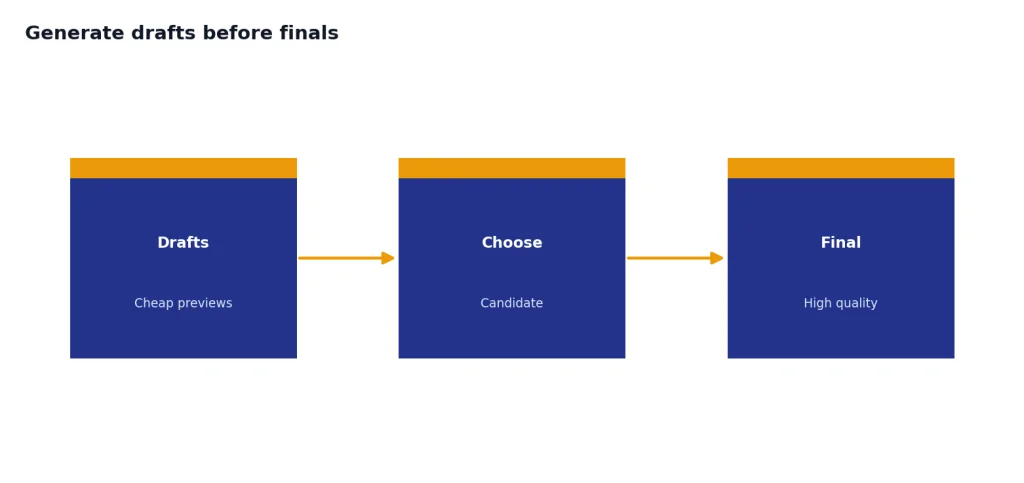
The best cost control is product design. Generate fewer final images. Use a cheaper draft mode before final rendering. Cache successful outputs. Deduplicate identical prompts. Let users pick from generated candidates before requesting high-quality versions. Add account-level quotas before users can create unbounded costs.
For internal tools, show the estimated price before a batch starts. For customer-facing tools, meter credits against the settings that drive cost. A “high quality portrait” button should burn more credits than a “draft square” button because the underlying request is more expensive. If you run scheduled generation jobs, compare synchronous calls with the OpenAI Batch API where the endpoint and latency requirements fit your use case.
Rate limits, errors, and safety
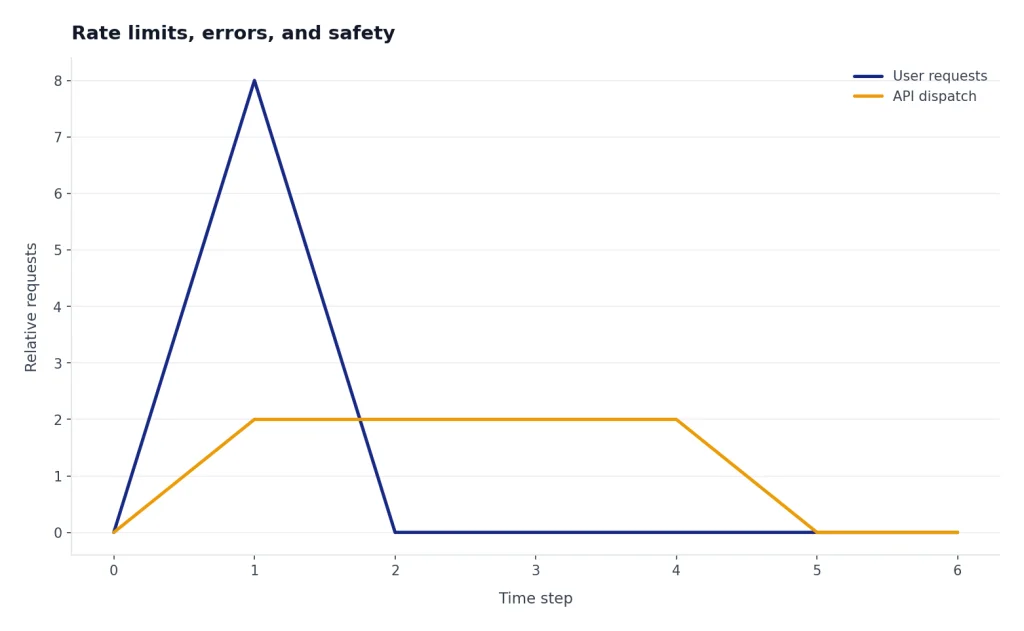
Image systems fail in predictable ways. Users send unsafe prompts. Files are too large. Requests exceed rate limits. A model refuses a prompt. A background job times out. Treat these as normal product states, not rare exceptions.
OpenAI publishes image-specific rate limits by usage tier on model pages. For `gpt-image-1.5`, the listed limits range from 100,000 tokens per minute and 5 images per minute in Tier 1 to 8,000,000 tokens per minute and 250 images per minute in Tier 5.[4] For DALL-E 2, OpenAI lists 500 images per minute in Tier 1 and 10,000 images per minute in Tier 5.[7] Your actual limit can vary by project and account, so read the limits page in your dashboard before launch.
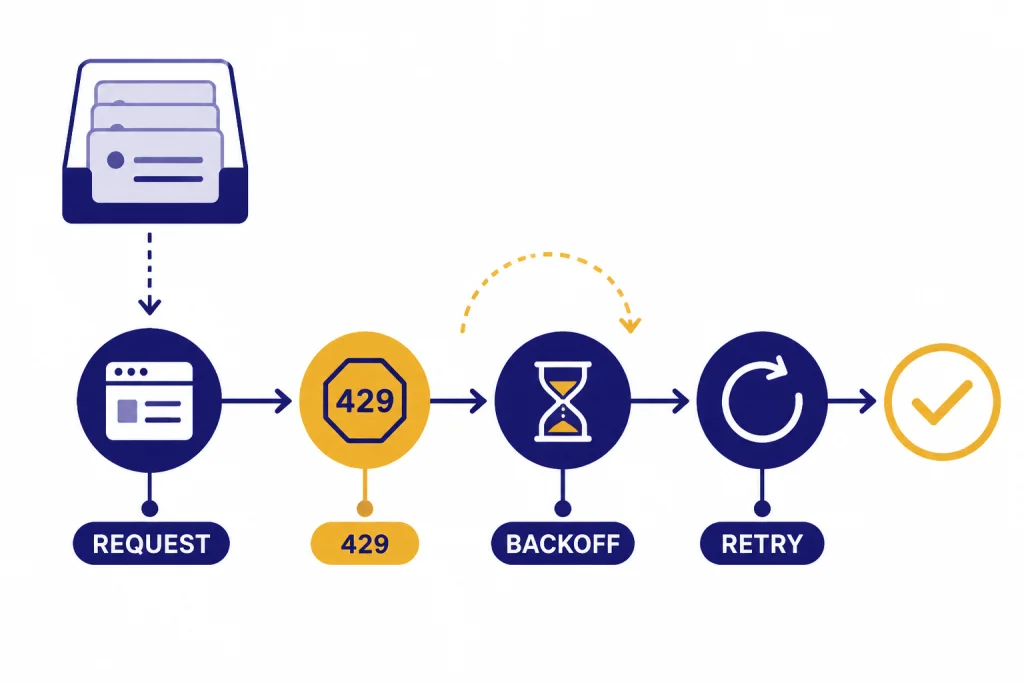
Build a queue between your app and the image endpoint. The queue should enforce per-user quotas, project-wide concurrency, exponential backoff, and retry limits. Do not retry every error. Retry transient failures and rate-limit responses. Return clear user messages for invalid files, unsupported sizes, and blocked content. Our OpenAI API errors guide lists the common status codes and fixes.
Data handling also matters. OpenAI states that API data is not used to train or improve models unless you explicitly opt in, and that default abuse monitoring logs may be retained for up to 30 days unless a longer period is legally required.[8] For `/v1/images`, OpenAI says Zero Data Retention is compatible with `gpt-image-1` and `gpt-image-1.5`, but not with `dall-e-3` or `dall-e-2`.[8] Check your dashboard and data controls for newer model coverage before promising Zero Data Retention to customers.
If your users upload personal photos, medical images, children’s images, customer designs, or confidential product shots, review your data retention settings before you launch. For public apps, add a content safety layer before generation and after upload. The OpenAI Moderation API can help screen text and image inputs before you spend money on generation.
Prompt patterns that work
Good image prompts are concrete. They describe subject, composition, style, lighting, constraints, and exclusions. Bad prompts ask for a vibe without specifying what should appear. The API can infer a lot, but production systems should not rely on hidden interpretation when brand, layout, and compliance matter.
Use a prompt template, not a blank box
A reliable application prompt usually combines user input with controlled system text. For example: “Create a square product image of {product_description}. Use a clean studio surface, soft shadows, no logo, no text, no people, centered composition.” This keeps outputs closer to your product requirements while still giving users creative room.
Separate creative choices from hard constraints
Do not bury hard constraints at the end of a long prompt. Put them in a short, direct sentence. If the image must contain no text, say “No text in the image.” If the product shape must not change during an edit, say “Keep the product shape unchanged.” For editing, repeat preservation constraints even when they seem obvious.
Generate drafts before finals
Many image products should use a two-step flow. Generate several draft or medium-quality previews. Let the user choose one. Then run a final high-quality generation or edit. This reduces wasted high-cost outputs and gives users more control.
Store metadata with every asset
Save the prompt, normalized prompt, model, endpoint, size, quality, timestamp, source asset IDs, output file path, user ID, and moderation result. This metadata helps with debugging, billing disputes, abuse review, and prompt improvement. It also lets you compare model behavior when OpenAI changes defaults or when you migrate from a deprecated DALL-E model.
If your app also writes captions, listings, or metadata after image generation, use function calling or structured outputs to keep those downstream fields consistent. If you need streaming progress in a richer assistant interface, review streaming responses with the OpenAI API.
Frequently asked questions
Is the DALL-E API still available?
Yes, but it is now legacy for many new projects. OpenAI’s Image API supports `dall-e-2` and `dall-e-3` alongside GPT Image models.[1] OpenAI also says DALL-E 2 and DALL-E 3 are deprecated and scheduled to stop being supported on May 12, 2026.[1]
Which model should I use for a new image app?
Start with `gpt-image-2` for new production apps when you want the current top GPT Image model. Use `gpt-image-1.5` or `gpt-image-1` when you have already validated their output, latency, and cost profile for your workflow. Use DALL-E 2 only for variation workflows or old integrations that need its behavior.
Can I edit images through the DALL-E API?
Yes, through the image edits endpoint. OpenAI’s API reference says edits support GPT Image models and `dall-e-2`.[2] GPT Image edits can accept more flexible input formats and multiple source images, while DALL-E 2 edits are limited to one square PNG under 4MB.[2]
Does ChatGPT Plus include DALL-E API credits?
No. OpenAI says ChatGPT and API billing are handled separately, and API usage is billed independently from ChatGPT subscriptions.[10] If you use image generation in ChatGPT, that does not give your application free API usage.
Can I generate multiple images in one API request?
Often, yes. The Images API reference says the `n` parameter can request 1 to 10 images, but `dall-e-3` supports only `n=1`.[2] For production, cap this per user and per job so one request cannot consume too much budget.
Are generated images returned as URLs or base64?
GPT Image models return base64 image data by default. The API reference notes that DALL-E 2 and DALL-E 3 can return `b64_json` when that response format is requested.[2] Store the generated image in your own object storage instead of depending on temporary response links.