

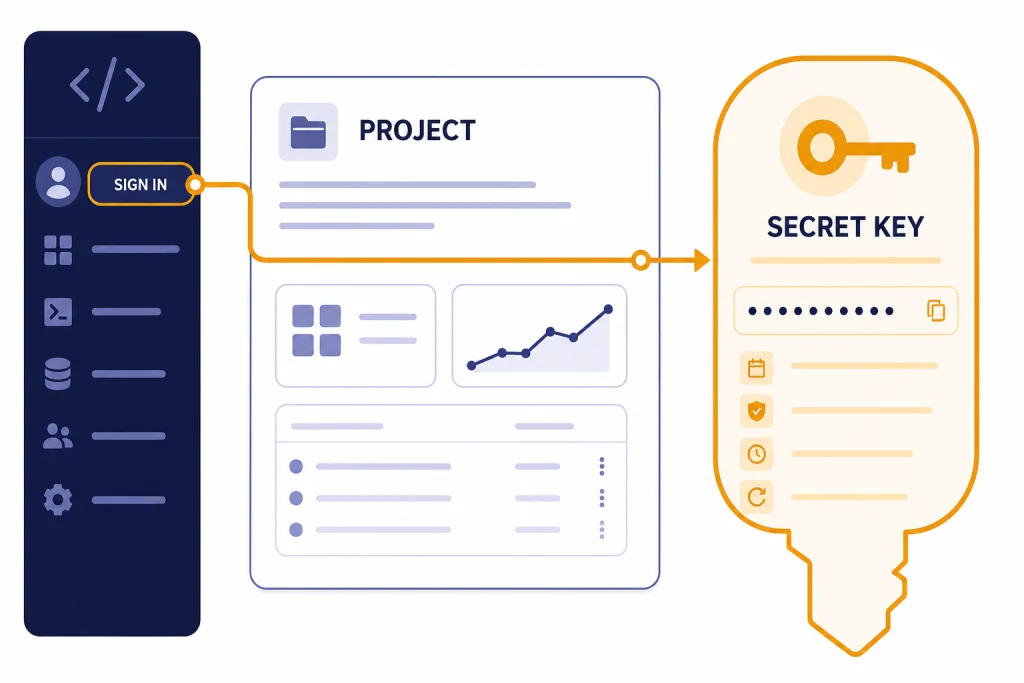
Getting an OpenAI API key is simple once you know where the platform separates accounts, projects, keys, and billing. You create the key inside the OpenAI developer dashboard, not inside the regular ChatGPT subscription area. The short version is this: sign in to the API platform, open or create a project, go to API Keys, generate a new secret key, copy it once, store it securely, add billing if needed, and test it with a server-side request.[1][2][4][6] This guide walks through the exact steps, explains what the checklist tool does, and shows when you should use a personal project key, a restricted key, or a service account instead.
What the API key checklist tool does
The checklist tool at the top of this page is a quick preflight for developers who want to avoid the two most common mistakes: looking for an API key in the wrong place and creating a key before the project or billing setup is ready. OpenAI keeps ChatGPT subscriptions and API billing in separate systems, so a working ChatGPT plan does not automatically mean you already have API access.[8][9]
Use the tool as a short path through the setup. It helps you confirm that you are in the developer platform, that you are inside the correct project, that you know where the API Keys page lives, and that you understand whether you also need payment details before making real requests.[1][4][6] If you only need the answer to “where do I click,” the tool gets you there. If you need the full context, keep reading.
How to get an OpenAI API key step by step
Here is the cleanest way to do it.
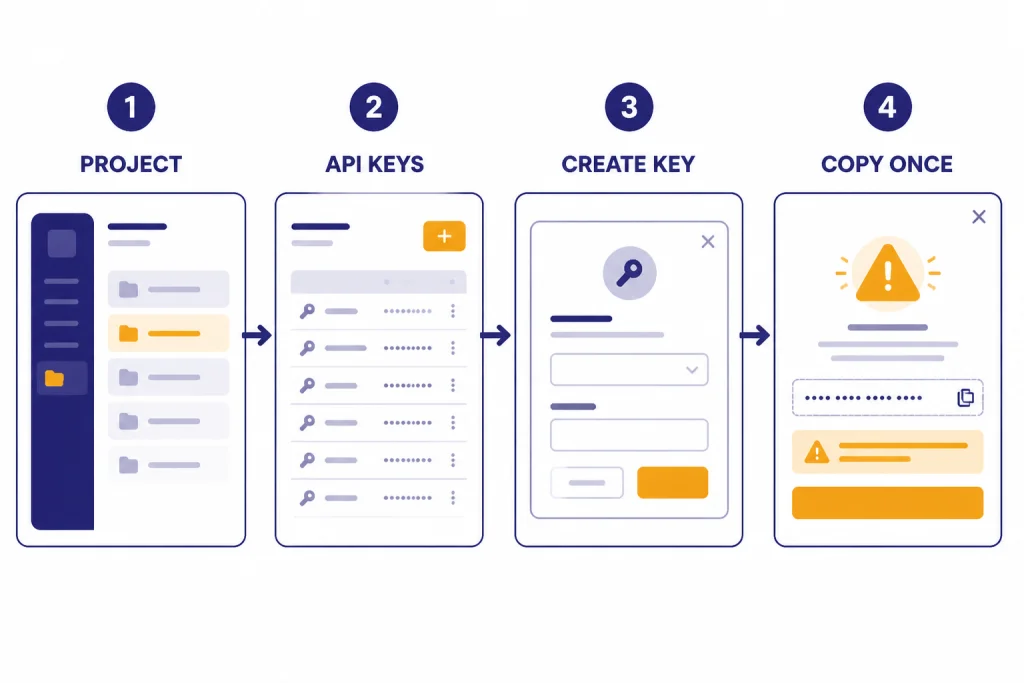
1. Sign in to the OpenAI developer platform
Start in the OpenAI developer platform, not the normal ChatGPT billing area. OpenAI’s quickstart says you create an API key in the dashboard before making your first request.[1] If you already use ChatGPT, you may still need to set up the platform side separately because the two products are billed and managed independently.[8][9]
2. Choose the right project
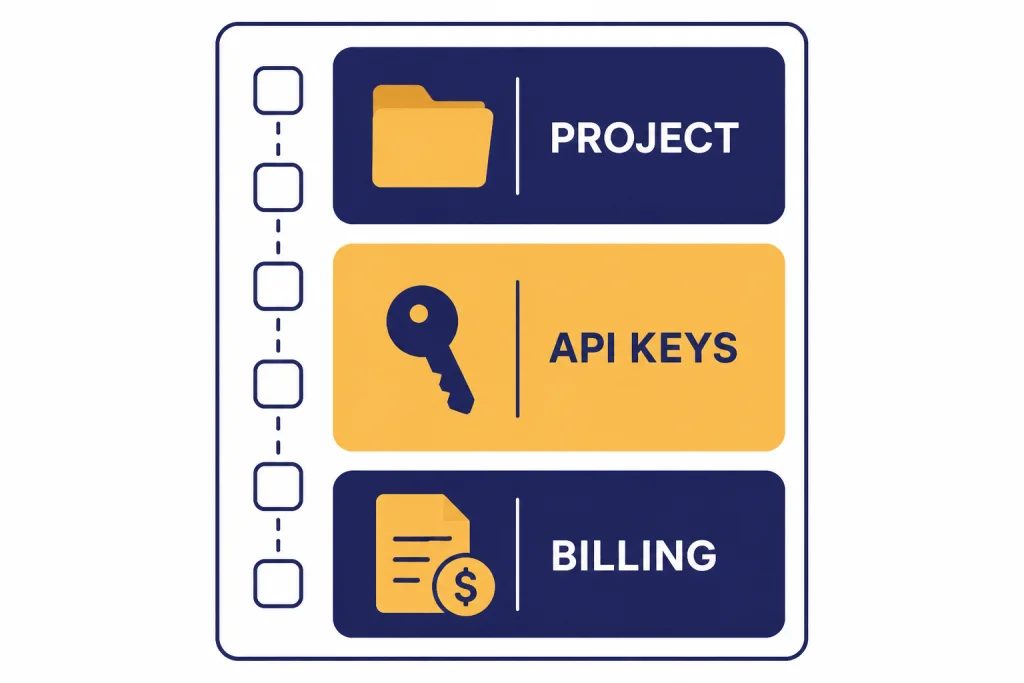
OpenAI now organizes API work around projects. In the project settings, you can create and manage API keys for that specific project.[4] This matters because usage, permissions, budgets, and service accounts are all easier to manage when you keep each app or team in its own project. If you are building multiple products, do not throw them all into one default setup. Use separate projects from the start.[4]
3. Open the API Keys page
On the project’s settings page, open API Keys. OpenAI’s help center says this is where you create and manage secret keys, and the simpler help article says your secret API key is found on the API key page.[4][5]
4. Click “Create new secret key”
OpenAI’s documentation is explicit here: select Create new secret key on the API Keys page.[3][4] Give the key a name you will recognize later, especially if you expect to rotate keys or run more than one app.
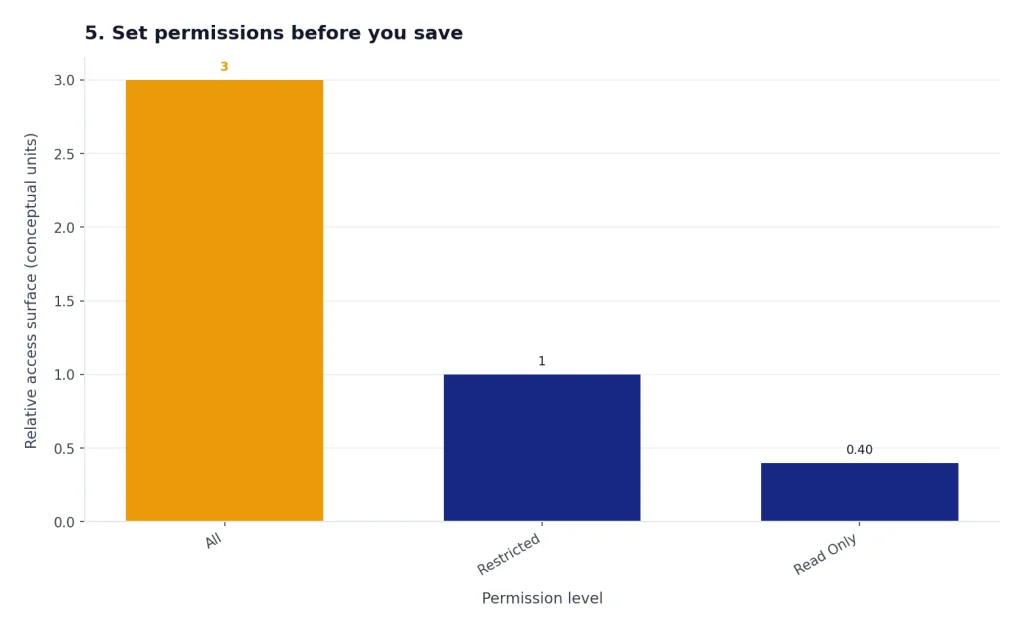
5. Set permissions before you save
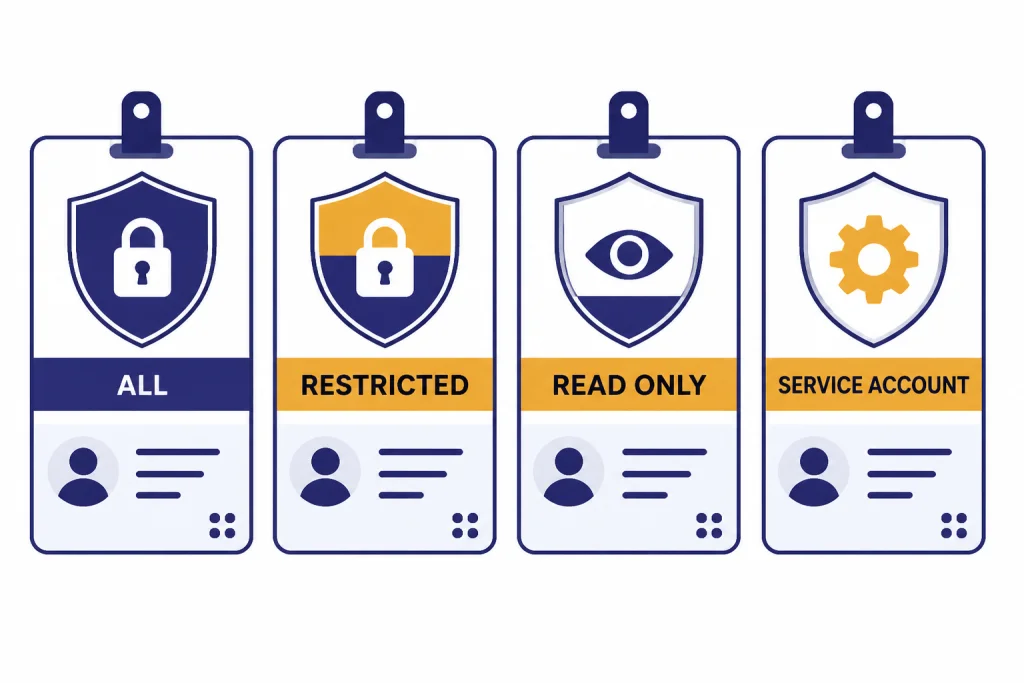
OpenAI supports three permission levels for keys: All, Restricted, and Read Only.[3][4] For quick testing, an all-access key is convenient. For production work, a restricted key is usually the better choice because you can deny access to endpoints your app does not need.
6. Copy the key immediately
This is the part many people miss. OpenAI says the secret key is displayed when it is created and that you will not be able to view it again later. If you lose it, you need to generate a new one.[4] Copy it once, store it in your password manager or secret store, and do not paste it into notes, chat logs, or front-end code.
7. Keep it server-side
The API reference says API keys are secrets and should never be exposed in browsers or apps. OpenAI recommends loading them from an environment variable or key management service on the server, then sending them as a Bearer token in requests.[2] That is the baseline safe setup.
If you want a deeper look at secure deployment patterns after you finish this guide, read openai api best practices for production and OpenAI API Errors to avoid common rollout mistakes.
Billing, credits, and what happens after key creation
Creating a key and being able to use it are related, but not identical, steps. OpenAI’s quickstart now mentions a free test API request, then points new users to billing to keep building.[1] In practice, if you want reliable self-serve access beyond the initial trial experience, you should expect to add payment details in the API platform.[6][7]
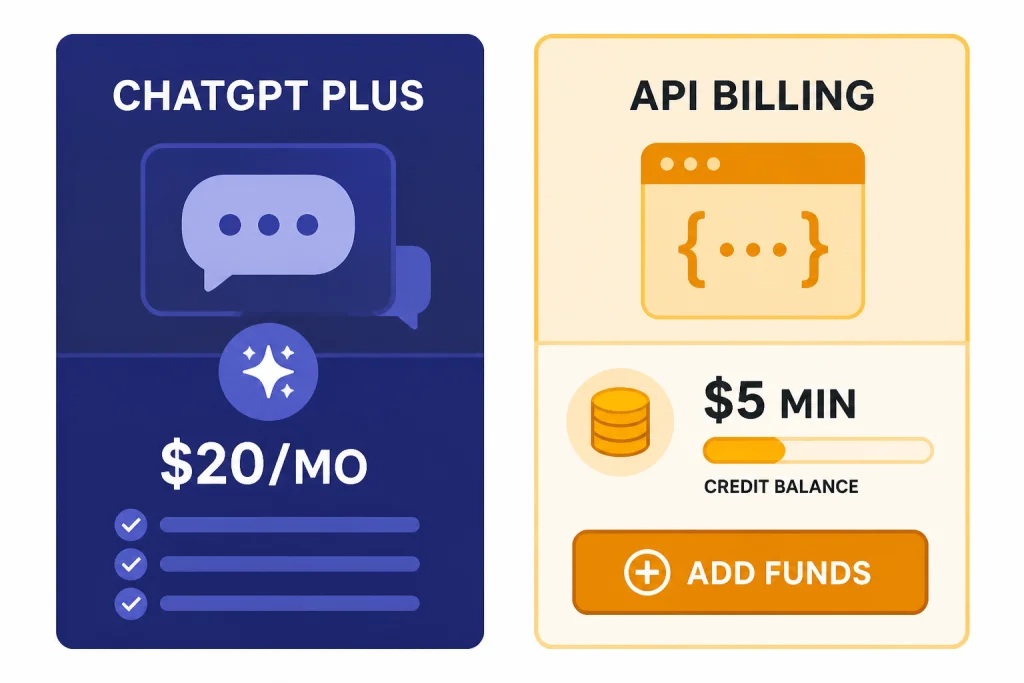
OpenAI says new API accounts are enrolled in prepaid billing.[7] The billing setup flow tells you to add payment details in billing overview and purchase an initial credit amount. The minimum purchase is $5, and purchased credits expire after 1 year and are non-refundable.[6][7] If a replenishment fails and your balance reaches $0, API usage will halt until billing is fixed.[7]
This is also where many readers confuse ChatGPT Plus with API billing. ChatGPT Plus costs $20 per month, but OpenAI says API usage is separate and billed independently.[9] The API platform and ChatGPT platform are separate billing systems.[8] If that distinction is still fuzzy, see Does ChatGPT Plus Include API Access?, ChatGPT API vs ChatGPT Plus, and our breakdown of openai api pricing.
| Screen or item | What it is for | What it does not do |
|---|---|---|
| ChatGPT Plus | Paid access to the ChatGPT app | It does not include API usage |
| API platform project | Scopes usage, keys, budgets, and members | It is not the same as a ChatGPT workspace |
| API Keys page | Creates and manages secret keys | It does not show the full key again after creation |
| Billing overview | Adds payment details and prepaid credits | It does not merge with ChatGPT billing |
How to store the key safely
The safest default is simple: keep the key on the server, inject it with an environment variable, and never ship it to the browser. OpenAI’s quickstart shows exporting OPENAI_API_KEY as an environment variable, and the API overview says server-side secret loading is the recommended pattern.[1][2]
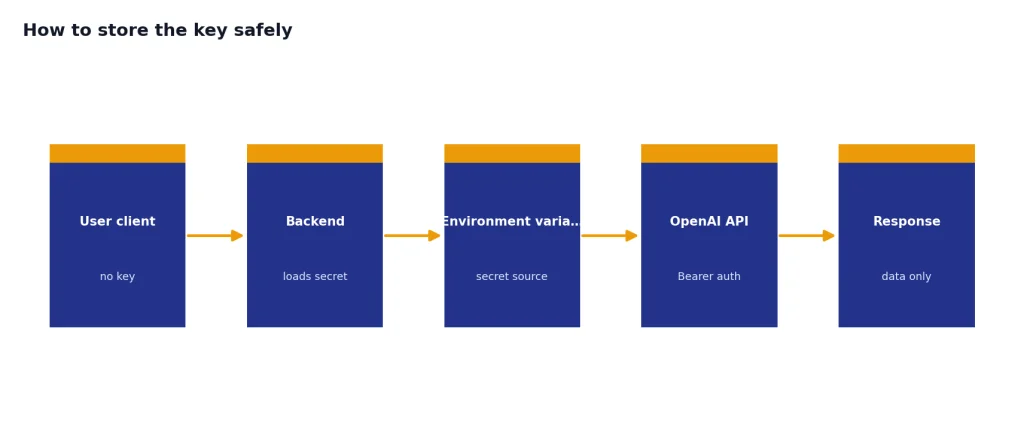
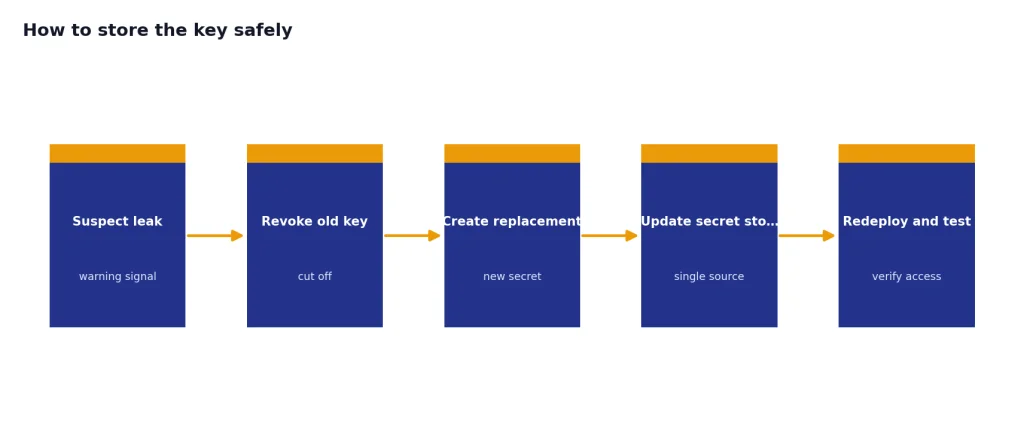
That means no hard-coding the key into JavaScript bundles, no posting it in GitHub, and no sending it from a mobile app directly to OpenAI unless you have a secure backend layer in between. If you think a key may have leaked, rotate it and create a replacement. Because OpenAI does not let you re-open the original full secret later, rotation is the normal recovery path.[4]
For team setups, restricted keys and project separation matter as much as storage. A small internal bot does not need the same access as a production agent using tools, uploads, or realtime features. After you have a working key, you can branch into openai responses api, function calling in openai api explained, openai realtime api, or structured outputs with the openai api without broadening every key in the account.
When not to use a personal API key
A personal project key is fine for learning, prototypes, and one-developer tools. It is a poor fit for shared production systems, contractor access, or apps where multiple people need auditable separation. In those cases, move to project-based controls and consider service accounts.[4]
OpenAI’s project documentation says service accounts are unique to a project, and creating one immediately generates a service-account API key that you must save securely because it is shown once.[4] That setup is better when the application, not a human user, should own the credential. It also makes staff turnover less painful because your production system is not tied to one person’s personal key.
Personal keys, restricted keys, and service accounts compared
| Option | Best for | Main advantage | Main drawback |
|---|---|---|---|
| Personal key with All permissions | Quick local testing | Fastest setup | Too broad for production |
| Personal key with Restricted permissions | Single app with defined endpoints | Least privilege control | Takes a few extra clicks to configure |
| Read Only key | Limited internal tooling | Safer than full access | Cannot perform write actions |
| Project service account key | Production apps and team-owned systems | Credential belongs to the project, not a person | Needs stronger secret management discipline |
If you only need one recommendation, it is this: use a restricted project key for serious development, and use a service account when the app should outlive the individual who first built it.[3][4]
How to test your key with a first API request
Once your key is stored as OPENAI_API_KEY, you can test it with a simple server-side request. OpenAI’s quickstart shows the environment variable pattern, and the API reference shows Bearer authentication.[1][2] The current docs use models such as gpt-5.5 in quickstart examples and note that API products like the Responses API, Chat Completions API, Realtime API, Batch API, and Assistants API are not priced separately; the cost comes from the model and tools you use.[1][10]
curl https://api.openai.com/v1/responses
  -H "Content-Type: application/json"
  -H "Authorization: Bearer $OPENAI_API_KEY"
  -d '{
    "model": "gpt-5.5",
    "input": "Reply with the word connected if this API key works."
  }'
If you get a response back, your key works. If you get an authentication error, the usual causes are a copied key with missing characters, an environment variable that was not loaded into the current shell, a key tied to the wrong project, or missing billing setup. Our step-by-step article on this guide to openai api errors covers the failure cases in detail.
From there, the next useful reads are gpt-5 api, streaming responses with the openai api, openai embeddings api, and openai batch api if you want lower-cost offline jobs.
Frequently asked questions
Do I need ChatGPT Plus to get an OpenAI API key?
No. OpenAI says ChatGPT Plus and API usage are separate. Plus is a $20 per month ChatGPT subscription, while API access is managed and billed on the platform side.[8][9]
Where do I actually find the key after I create it?
You create and manage it on the API Keys page for your project.[4][5] But the full secret is shown when the key is created and cannot be viewed again later, so you need to copy and save it immediately.[4]
Can I use one API key in browser JavaScript?
You should not. OpenAI says not to expose API keys in client-side code such as browsers or apps. Load the key server-side from an environment variable or key management service instead.[2]
Do I need to add billing before the API works?
Usually, yes for ongoing use. OpenAI’s quickstart points developers to billing after an initial free test request, and the billing docs say new API users are on prepaid billing with a minimum initial purchase of $5.[1][6][7]
What permission setting should I choose?
For quick personal testing, All is the simplest. For anything real, use Restricted and limit the endpoints your app needs. OpenAI offers three permission levels: All, Restricted, and Read Only.[3][4]
Should I use a personal key or a service account for production?
Use a service account when the application should be owned by the project rather than a specific employee. OpenAI’s project docs describe service accounts as project-level identities and generate a service-account API key at creation time.[4] Personal keys are easier for solo development, but they are weaker for long-term team operations.