

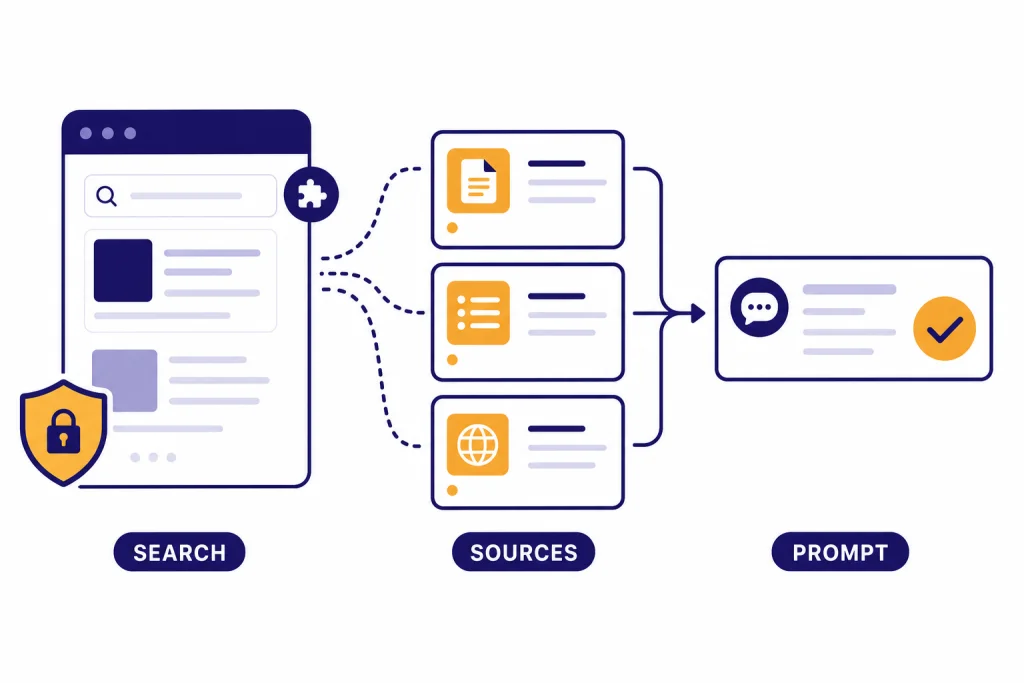
This WebChatGPT review finds a useful but less essential Chrome extension than it was when ChatGPT had limited native web access. WebChatGPT still helps when you want tight control over which search results or URLs get inserted into a prompt. It also adds a prompt library and prompt management features. The tradeoff is trust. The extension needs broad site access to search and extract page text, and ChatGPT now has built-in search for all major user tiers. Use WebChatGPT if you value manual source control inside the browser. Skip it if you prefer fewer extensions and native citations from ChatGPT Search.
Verdict: who should use WebChatGPT
WebChatGPT is best for people who want to add selected web results directly into a ChatGPT prompt. It is not the only way to search the web with ChatGPT anymore. OpenAI says ChatGPT Search is available to Free, Plus, Team, Edu, and Enterprise users, and it works on chatgpt.com plus OpenAI desktop and mobile apps.[4] That makes WebChatGPT a specialist tool rather than a default recommendation.
The strongest reason to install WebChatGPT is control. You can decide when a prompt should include web results, how much source text should be passed in, and whether a specific URL should be extracted. That can help researchers, writers, support teams, and students who want to see the source bundle that goes into the model.
The strongest reason to avoid it is extension risk. WebChatGPT is a third-party browser extension, not an OpenAI product. The Chrome Web Store listing says the developer disclosed that it will not collect or use user data, but the extension still asks for broad access because its web search and page extraction run in the browser.[1] If your work involves client data, health records, legal files, school records, source code, or unreleased company material, a browser extension with broad host permissions deserves extra scrutiny.
Our recommendation is simple. Use WebChatGPT for low-risk browsing and prompt drafting when source control matters. Use built-in ChatGPT Search for general web answers. Use a dedicated research tool when you need a more auditable workflow; our Best AI Research Tools for Academics guide covers that category in more depth.
What WebChatGPT does
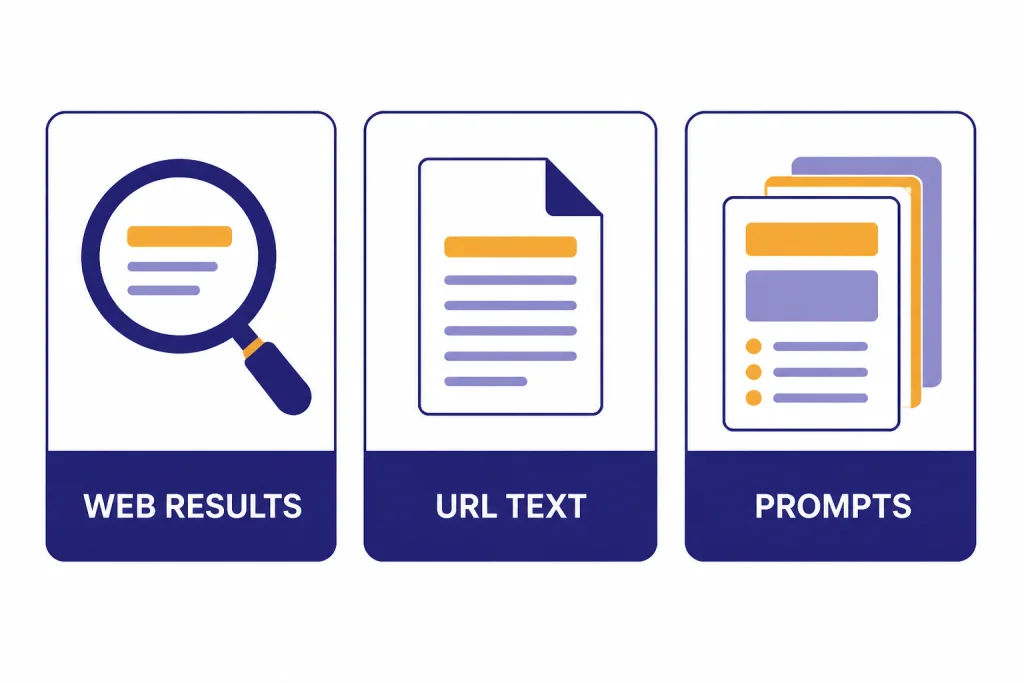
WebChatGPT is a Chrome extension that augments ChatGPT prompts with web search results. The Chrome Web Store description lists web access, one-click prompts, prompt management, search result scraping, URL text extraction, and AI-powered search answers beside search results as core features.[1] Chrome-Stats summarizes the same feature set as live web results, a one-click prompt library, reusable templates, full search-result scraping, URL text extraction, and AI search across multiple engines.[2]
At review time, the Chrome Web Store listed WebChatGPT at version 4.1.75, updated March 26, 2026, with a 4.2 out of 5 rating, 3.3K ratings, a 2.14MiB size, and 55 languages.[1] Chrome-Stats also listed version 4.1.75, a March 26, 2026 update date, a 1,000,000-user count, and a 4.25 rating from 3,271 ratings.[2] These figures are useful context, not proof that the extension is safe or right for every workflow.
Think of WebChatGPT as three tools in one. The first tool pulls web results into your prompt. The second extracts text from a page when you supply a URL. The third gives you prompt templates that can speed up repetitive work. That combination overlaps with other ChatGPT browser add-ons. If you are comparing extensions broadly, start with our ChatGPT Chrome extension roundup, then compare narrower tools such as Superpower ChatGPT Extension Review, AIPRM for ChatGPT, and ChatGPT Sidebar Review.
| Feature | What it does | Best use case | Risk to consider |
|---|---|---|---|
| Web results | Adds search results to a ChatGPT prompt | Current topics, product research, news context | Search snippets can be shallow or stale |
| URL extraction | Pulls text from a page you provide | Summarizing a known article or policy page | Page text may be incomplete or blocked |
| Prompt library | Offers reusable prompt templates | Marketing, sales, operations, productivity tasks | Templates can encourage generic output |
| Prompt management | Lets you save and reuse your own prompts | Repeated workflows with consistent instructions | Saved prompts may include sensitive details |
How WebChatGPT gets web results into ChatGPT
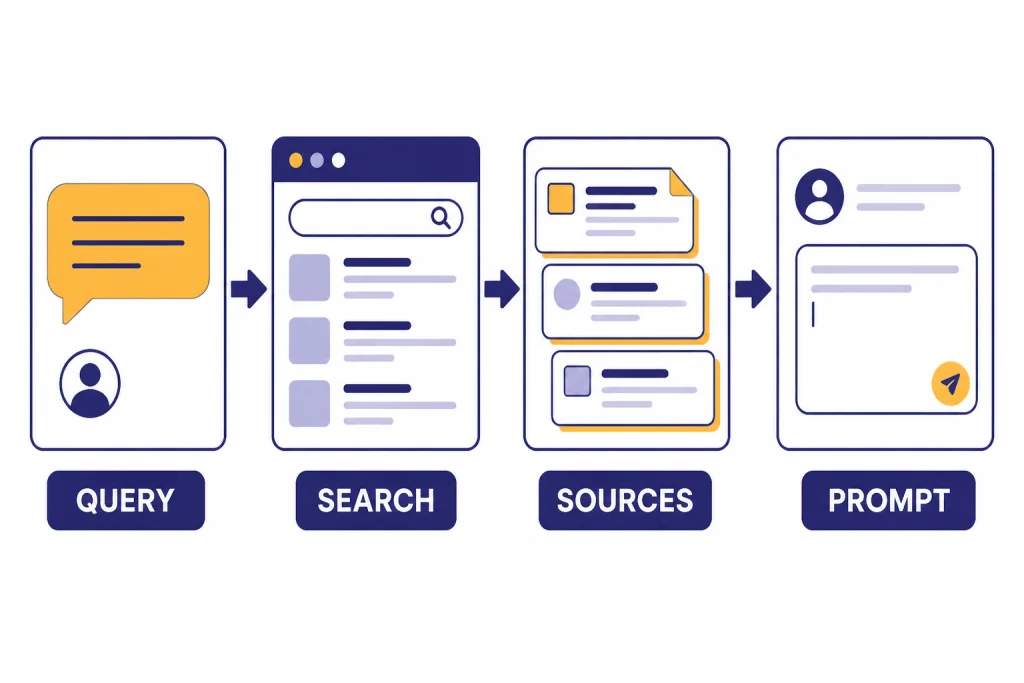
WebChatGPT works by adding an interface layer to the ChatGPT web experience. The extension can run a web search, gather results, and insert those results into your prompt before ChatGPT answers. The Chrome Web Store listing says there are two modes: web searching and extracting webpage text from URLs.[1] It also says web searching requires search engine access, while URL extraction requires access to websites.[1]
This design is different from native ChatGPT Search. Native search is part of ChatGPT itself. OpenAI says ChatGPT can automatically search the web when a question may benefit from web information, and users can also choose Search from the tools menu or by typing a slash command.[4] WebChatGPT instead packages search material into the prompt context. You get more visible control over what gets sent into the conversation, but you also depend on a third-party extension and the structure of the pages it can read.
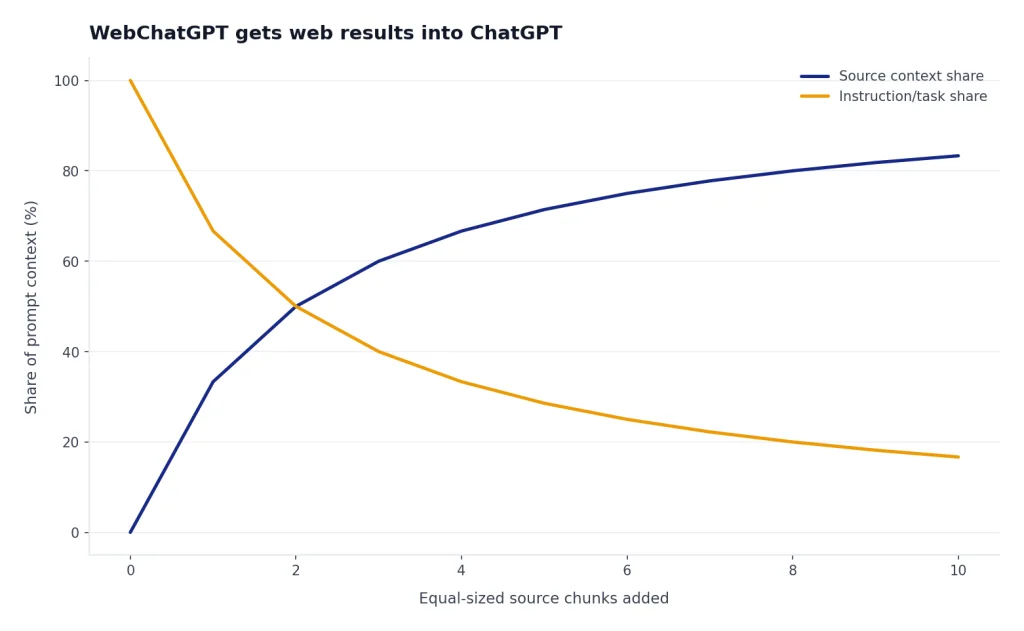
The practical advantage is repeatability. You can write a prompt such as “Use only the included web results and list any gaps.” Then you can inspect whether the answer is based on the pages you intended. That is useful for content briefs, vendor comparisons, public policy summaries, and light market research. It is less useful when you need exhaustive retrieval, formal citations, or source ranking. For long-source workflows, a dedicated summarizer may be cleaner; see our Best AI Summarizer Tools for Long Documents guide.
The practical drawback is context quality. Search results are not the same as verified facts. A result page can contain ads, duplicate summaries, SEO pages, outdated snippets, and pages that only partially match your query. WebChatGPT helps ChatGPT see more current text, but it does not guarantee that the answer is correct. You still need to open important sources and verify the claims yourself.
WebChatGPT vs ChatGPT Search and AI search tools
The main question in 2026 is not whether WebChatGPT can add web access. It can. The question is whether that access is better than the search already built into ChatGPT. OpenAI introduced ChatGPT Search on October 31, 2024, and later updated the rollout so it was available to everyone in supported regions without signup.[7] OpenAI’s current help page says ChatGPT Search provides timely answers with links to web sources and can show citations or a Sources panel.[4]
That change reduced WebChatGPT’s original advantage. If you only need a current answer with source links, use native ChatGPT Search first. It is built into the same product, works across more devices, and does not require a separate browser extension. If you are a Plus subscriber, OpenAI’s help center describes ChatGPT Plus as enhanced access to the ChatGPT web app for $20/month.[6] That price does not make WebChatGPT unnecessary by itself, because ChatGPT Search is not limited to Plus users, but it matters if you are comparing the broader value of paid ChatGPT features.
WebChatGPT still has a place when you want prompt-level control. Native ChatGPT Search decides how to search and which sources to cite. WebChatGPT lets you shape the retrieved context more directly. That is helpful when you already know which search terms or URLs should guide the answer.
| Option | Best for | Source control | Extra extension required | Main limitation |
|---|---|---|---|---|
| WebChatGPT | Manual web snippets and URL extraction inside ChatGPT | High, because the user can steer included results | Yes | Broad browser permissions and variable reliability |
| ChatGPT Search | General web answers with links and citations | Medium, because ChatGPT chooses searches and sources | No | Less manual control over retrieved context |
| Dedicated AI research tools | Multi-source research, literature review, citation-heavy work | Varies by product | Usually no browser extension required | Can be slower, more expensive, or more complex |
| Classic search engine plus ChatGPT | Manual fact-checking and source discovery | Very high, because you choose every source | No | More copying, pasting, and verification work |
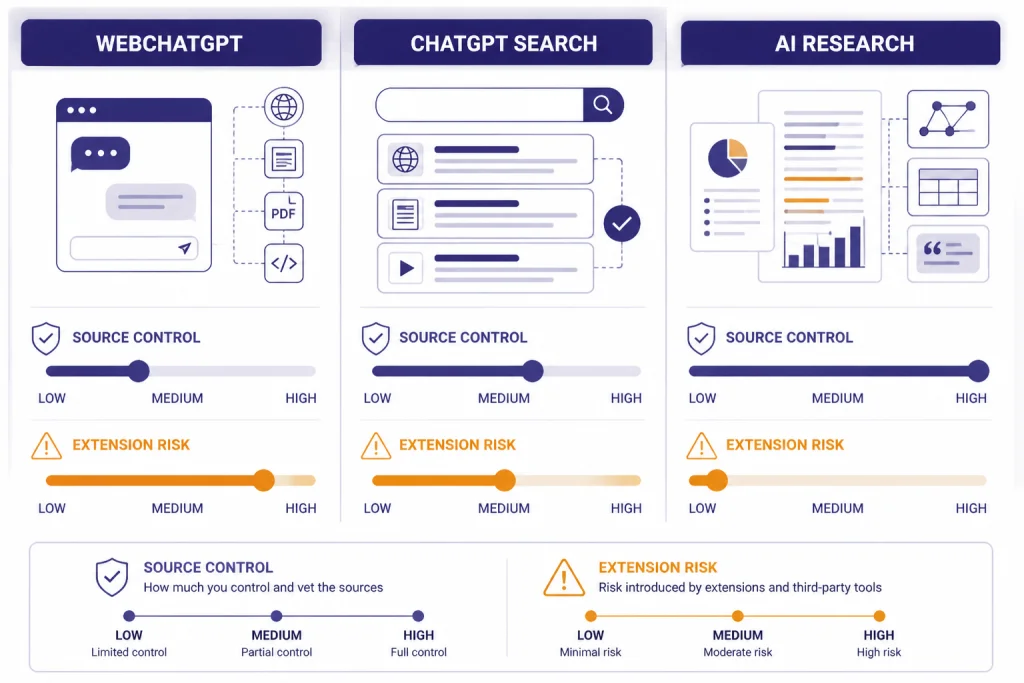
Privacy, permissions, and trust
Privacy is the most important part of this WebChatGPT review. The Chrome Web Store listing says the developer disclosed that it will not collect or use user data, and the developer’s privacy policy says WebChatGPT does not collect personal information and does not store such information.[1][3] Those statements are positive, but they do not remove the need to review permissions.
The extension’s own listing explains why it asks for access to all websites: there is no backend server to process web requests, so web searching and URL extraction happen locally in the browser.[1] Chrome-Stats lists host permissions including *://*/* and <all_urls>, and says WebChatGPT requires sensitive permissions that warrant caution before installation.[2] Google’s Chrome Web Store help explains that an extension with access to data on all websites can read, request, or modify data from every page you visit.[5]
Those facts do not mean WebChatGPT is malicious. They mean the extension sits in a sensitive position. Any browser extension that can read pages you visit creates a larger attack surface. Updates, compromised developer accounts, supply-chain issues, and accidental overreach all matter. Chrome-Stats rated WebChatGPT with moderate risk impact and very low risk likelihood, but also warned that high-impact permissions can be harmful if an extension turns malicious.[2]
Use a stricter rule for work accounts. Do not install WebChatGPT in the same browser profile you use for banking, client portals, patient systems, school administration tools, payroll, private source repositories, or unreleased documents. If you want to test it, create a separate browser profile used only for low-risk AI work. Review the extension after updates. Remove it when you no longer need it.

Testing notes: where it helps and where it falls short
WebChatGPT helps most when the user already knows the shape of the task. For example, it works well for “compare these public product pages,” “summarize this article and list open questions,” or “draft a briefing using current search results.” It is less impressive for broad questions where native ChatGPT Search can decide which searches to run and present citations with less setup.
The extension’s prompt library is useful if you like templates. It can reduce blank-page friction for sales emails, content outlines, support replies, and planning tasks. The downside is sameness. Prompt libraries often produce polished but generic first drafts. You should treat templates as scaffolding, not as final instructions. If prompt quality is your main need, compare this extension with our Best ChatGPT Prompt Generator Tools article.
Reliability is the biggest day-to-day weakness. Browser extensions depend on the pages they modify. If ChatGPT changes its interface, if a search engine changes its markup, or if another extension conflicts with the toolbar, WebChatGPT can fail or behave inconsistently. The Chrome Web Store listing itself says other ChatGPT extensions are known to interfere with WebChatGPT and suggests disabling other ChatGPT extensions if the toolbar does not show.[1] Chrome-Stats’ review summary also notes recurring complaints about loading issues, reliability problems, intrusive ads or malware concerns, and search failures.[2]
For writing workflows, WebChatGPT is useful for gathering background facts, but it should not replace editing. For academic work, it can help locate context, but it is not a citation manager or scholarly database. For SEO work, it can gather competing page context, but it can also pull thin search-result snippets that encourage copycat structure. Writers should still build original outlines and verify every claim. If your main goal is writing rather than browsing, compare the broader market in our Best AI Writing Tools Compared in 2026 guide.
Setup and safer workflow
Install WebChatGPT only from the Chrome Web Store listing linked by the developer or the listing itself. Avoid CRX download mirrors unless you have a specific security reason and know how to validate extension packages. Chrome-Stats lists the Chrome Web Store as the source for the extension record, but the safest path for most readers is the official Chrome Web Store install flow.[2]
After installation, use this safer workflow:
- Create a separate Chrome profile for AI extensions.
- Install only one ChatGPT-modifying extension at a time.
- Sign in only to the accounts needed for the test.
- Use WebChatGPT on public pages first.
- Do not paste passwords, API keys, customer records, unpublished contracts, medical details, or private school records.
- When the answer matters, open the cited or extracted pages yourself.
- Disable or remove the extension after the project if you do not plan to use it regularly.
For prompts, be explicit about source boundaries. A good instruction is: “Use only the included web results. If the web results do not support a claim, say that the source bundle does not support it.” This reduces unsupported synthesis. It does not eliminate hallucination, but it gives you a clearer way to audit the answer.
For teams, decide whether browser extensions are allowed before employees install them. A small marketing team may accept the risk for public-page research. A school, law firm, hospital, financial company, or software team may require managed extension policies. If your workflow includes API tools rather than browser extensions, our OpenAI API Errors, OpenAI Token Counter Tools, and OpenAI API Pricing guides may be more relevant.
Alternatives to consider
The best alternative depends on why you considered WebChatGPT in the first place. If you want current answers inside ChatGPT, start with ChatGPT Search. It is available inside ChatGPT itself, can be invoked from the tools menu, and may include inline citations or a Sources panel.[4] If you want a browser add-on that changes the ChatGPT interface in broader ways, compare WebChatGPT with other extensions in our chatgpt chrome extension roundup.
If you want prompt templates, AIPRM and prompt-generator tools may be a better match than WebChatGPT’s web features. If you want side-panel help while reading pages, a sidebar tool may fit better. If you want research depth, use a research product designed for source discovery and citation review. If you want mobile access, a Chrome extension will not solve that problem; see our Best ChatGPT Mobile Apps guide instead.
For most readers, the decision tree is short:
- Use ChatGPT Search for normal current answers.
- Use WebChatGPT when you want to choose the web material that enters the prompt.
- Use AI research tools for high-stakes source work.
- Use classic search plus manual notes when accuracy matters more than speed.
WebChatGPT remains useful, but it is no longer a must-install extension for every ChatGPT user. Its value is control. Its cost is permission exposure. That tradeoff is acceptable for some public-web workflows and unnecessary for many everyday searches.
Frequently asked questions
Is WebChatGPT an official OpenAI tool?
No. WebChatGPT is a third-party browser extension. It works with ChatGPT in the browser, but it is not listed as an OpenAI product. For built-in web search, use ChatGPT Search inside ChatGPT.
Is WebChatGPT free?
The Chrome Web Store description calls WebChatGPT a free extension.[1] That does not mean every related service, future feature, or connected AI product will always be free. Check the current listing before installing.
Does WebChatGPT still matter now that ChatGPT has search?
Yes, but for narrower use cases. ChatGPT Search is the better default for general current answers because it is built into ChatGPT and can show source links.[4] WebChatGPT is more useful when you want to control the exact web results or URLs included in a prompt.
Is WebChatGPT safe to install?
We cannot guarantee that any third-party extension is safe. The developer says it does not collect personal information, and the Chrome Web Store listing says the developer disclosed that it will not collect or use user data.[1][3] The concern is permissions: broad website access can create risk, so use a separate browser profile and avoid sensitive accounts.
Why does WebChatGPT need access to all websites?
The listing says WebChatGPT needs broad access because it processes web searches and URL text extraction locally in the browser rather than through a backend server.[1] Google’s Chrome Web Store help says access to data on all websites can allow an extension to read, request, or modify data from pages you visit.[5] That is why the permission deserves attention.
What is the best WebChatGPT alternative?
For most users, the best alternative is ChatGPT Search. For prompt templates, compare AIPRM and prompt-generator tools. For formal research, use a dedicated AI research tool with stronger source handling.