

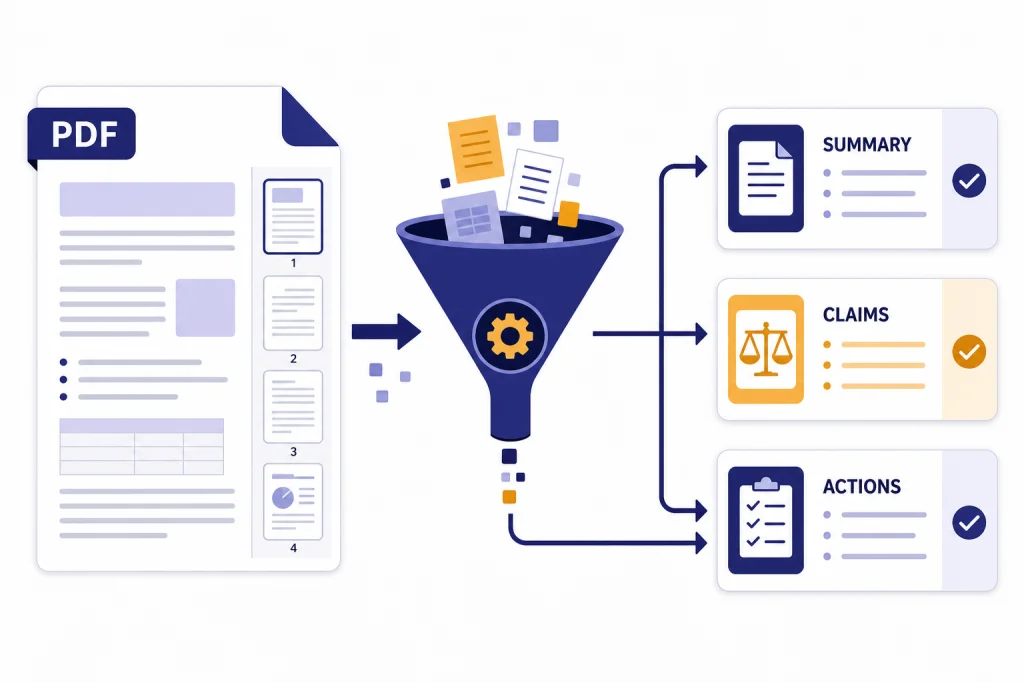
ChatGPT can read and summarize PDFs when you upload the file, then ask focused questions about its contents. The best workflow is not simply “summarize this PDF.” A better workflow is to define the audience, choose the summary format, ask for source evidence, verify important claims, and iterate section by section for long or technical documents. ChatGPT supports common document formats, including PDF, DOCX, PPTX, TXT, CSV, XLSX, XLS, and TSV.[2] OpenAI’s file upload FAQ also says text and document files are capped at 2M tokens per file, with a hard 512MB file-size limit.[1] This tutorial shows a practical PDF workflow you can reuse for reports, contracts, papers, manuals, and meeting packets.
What ChatGPT can do with PDFs
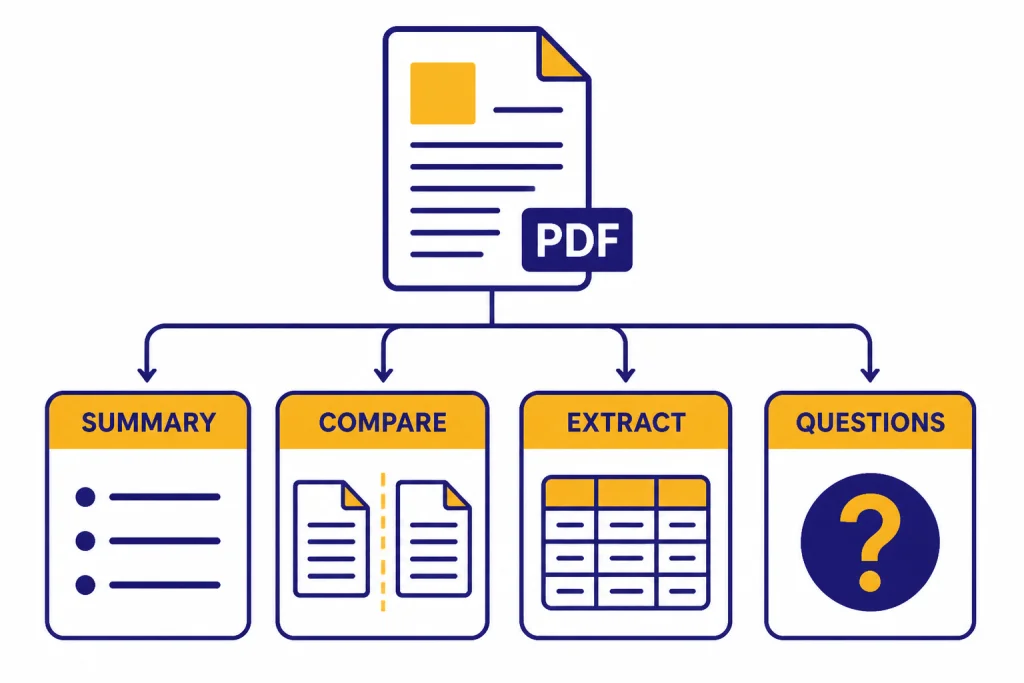
Use ChatGPT as a document-reading assistant, not as a replacement for reading anything important yourself. It can turn a dense PDF into a short brief, pull out decisions and action items, compare two documents, find references to a specific topic, extract sections, and reformat content into tables or checklists. OpenAI describes file uploads as useful for synthesis tasks such as comparing documents and analyzing tone or sentiment.[1]
For high-stakes PDFs, treat ChatGPT’s summary as triage: a way to find the relevant pages faster, draft questions, and spot issues for review. Do not use it as the final basis for legal, medical, financial, employment, academic, safety, or compliance decisions. Read the source document yourself and consult a qualified professional when the outcome matters.
The most reliable PDF tasks are text-based. Ask ChatGPT to summarize a section, identify themes, list defined terms, explain a method, compare positions, or produce a study guide. If your PDF is a research paper, pair this workflow with our academic research tutorial. If it contains datasets or tables, you may also want the data analysis step-by-step guide.
ChatGPT is less reliable when the PDF is a poor scan, uses complex columns, hides meaning in charts, or contains critical details only inside images. OpenAI says ChatGPT Enterprise supports visual retrieval for embedded images, graphs, and diagrams in PDFs, while the visual PDF capability is not supported for Free, Pro, Team, or Edu accounts.[4] For most users, treat embedded visuals as something to verify separately.
Prepare the PDF before uploading
A clean PDF gives ChatGPT better material to work with. Before you upload, open the document and check whether you can select and copy normal text. If you cannot select the text, the PDF may be a scanned image. In that case, use OCR first or export a text-based version from the original source if you have it.
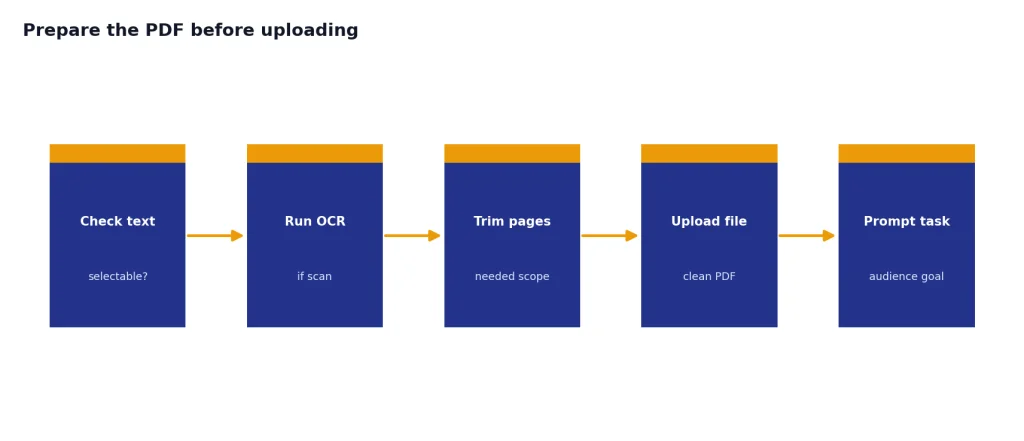
Rename the file before uploading. Use a plain name such as vendor-contract-2026.pdf, biology-paper-methods.pdf, or board-packet-march.pdf. A clear filename helps you manage multiple files in one chat. OpenAI’s data analysis help says ChatGPT can analyze files in formats including PDF, Excel, CSV, and JSON, and can also upload current file versions from Google Drive, Microsoft OneDrive Personal, and Microsoft OneDrive including SharePoint.[3]
Remove pages you do not need when possible. If you only need the policy section, upload that section. If the PDF is a long appendix, split the main document and appendix into separate files. This keeps the conversation focused and reduces the chance that ChatGPT summarizes the wrong part.
Also decide whether the PDF contains sensitive material. If it includes health, legal, financial, employment, client, student, or confidential company information, use the right account type and privacy settings before you upload. We cover the privacy controls later in this tutorial.
Upload and summarize step by step
Start a new chat for each important PDF project. This keeps the document context clean. If the summary will become a report, open a separate working document or use Canvas for document drafting after you have the source-grounded summary.
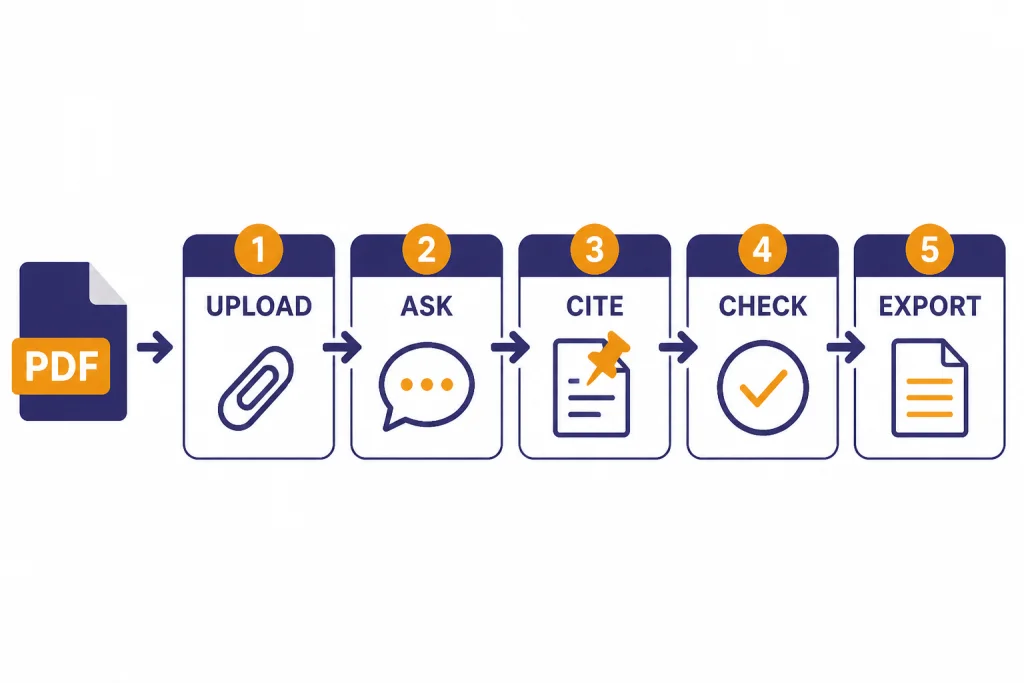
- Upload the PDF. Use the attachment control in ChatGPT and wait until the upload finishes.
- State the job. Tell ChatGPT who the summary is for and what decision it should support.
- Constrain the format. Ask for bullets, a table, a memo, a study guide, or a checklist.
- Request evidence. Ask for page numbers, section names, paragraph labels, or short excerpts for important claims.
- Verify and refine. Ask follow-up questions about unclear parts, then compare key claims against the PDF.
Page and section references are useful, but they are not guaranteed to match what you see in your PDF viewer. PDF parsing can reorder columns, skip headers or footers, misread OCR text, confuse printed page numbers with PDF file pages, or lose context around tables and footnotes. When a page reference matters, open the PDF and verify the cited page, heading, and nearby text manually.
A strong first prompt is specific. Try this:
Read the uploaded PDF. Create a one-page executive summary for a busy director. Include: main purpose, five most important findings, risks or open questions, key numbers, and recommended next steps. For each major claim, include the page or section where you found it. If the PDF does not support a claim, say “not found in the PDF.” If a page reference may be uncertain because of OCR, page labels, or layout, mark it “verify manually.”
Then ask a second prompt that tests the result:
Review your summary against the PDF. List any claims that need stronger evidence. For each one, show the exact section or page reference you used, or mark it as uncertain.
This two-pass method matters because ChatGPT can produce confident but incorrect outputs. OpenAI’s accuracy guidance says ChatGPT can produce incorrect or misleading responses and recommends verifying important information from reliable sources.[7]
Mini walkthrough with an illustrative excerpt:
Sample PDF excerpt: “Section 2. Renewal. The agreement renews automatically for one additional one-year term unless either party gives written notice at least 60 days before the current term ends. Section 4. Fees. The monthly platform fee is fixed for the initial term. Implementation services are billed separately after written approval.”
Bad prompt: “Summarize this contract.”
Likely weak output, illustrative only: “The contract covers renewal and fees. It says the agreement may renew and includes platform and implementation costs.” This is vague, hides the deadline, and does not separate obligations from interpretation.
Improved prompt: “From the uploaded contract excerpt, make a two-row risk table for a non-lawyer operations manager. Columns: issue, exact requirement from the PDF, deadline or trigger, business risk, and what to verify with counsel. Do not give legal advice.”
Improved output, illustrative only:
| Issue | Exact requirement from the PDF | Deadline or trigger | Business risk | What to verify with counsel |
|---|---|---|---|---|
| Auto-renewal | Agreement renews for one additional one-year term unless written notice is given. | At least 60 days before the current term ends. | Missing the notice window could extend the agreement unintentionally. | Confirm how notice must be delivered and whether any other termination rights apply. |
| Implementation services | Implementation services are billed separately after written approval. | Written approval before billing. | Budget may increase if approvals are not tracked. | Confirm who may approve services and whether fee caps exist elsewhere in the agreement. |
Prompt recipes for PDF summaries
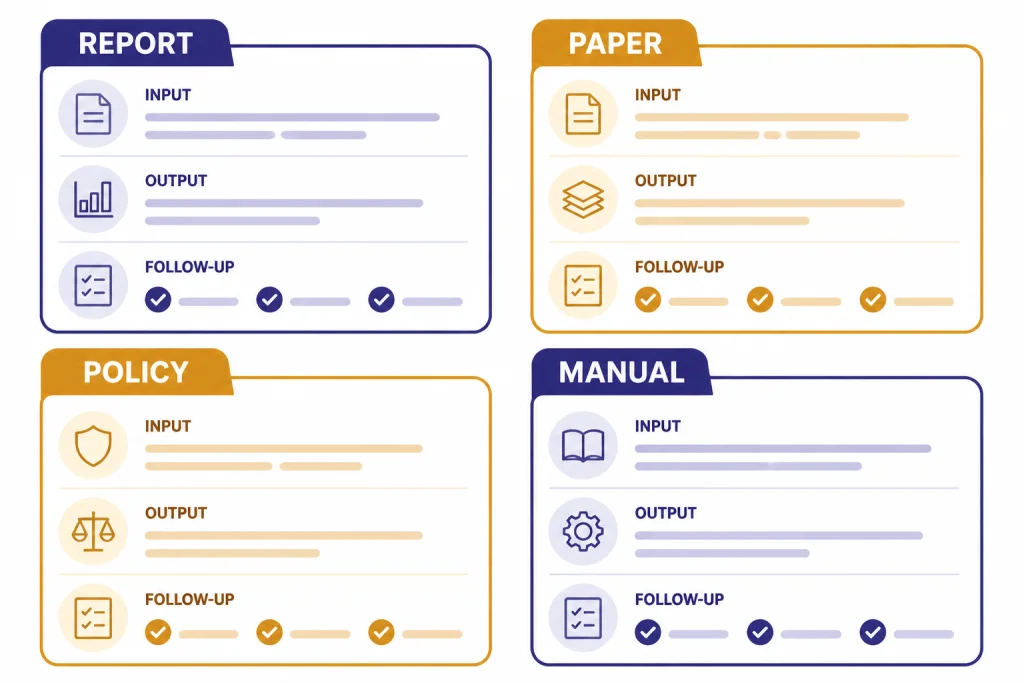
The right prompt depends on the document. A quarterly report needs a different summary than a lecture packet or a legal agreement. Use the table below as a starting point, then adapt the language to your field.
| PDF type | Best summary format | Prompt to use | Best follow-up |
|---|---|---|---|
| Business report | Decision memo | “Summarize this PDF for an executive who needs to decide what to do next. Separate facts, risks, and recommendations.” | “Which recommendations are directly supported by the PDF, and which are your inference?” |
| Academic paper | Study brief | “Explain the research question, method, results, limitations, and practical meaning in plain English.” | “List the assumptions and limitations the authors acknowledge.” |
| Contract or policy | Clause checklist | “Extract obligations, deadlines, exceptions, defined terms, and approval requirements. Do not provide legal advice.” | “Show the exact sections that support each obligation and mark page references that need manual verification.” |
| Manual or guide | Operating checklist | “Turn this PDF into a step-by-step checklist for a first-time user. Include warnings and prerequisites.” | “What steps are easy to miss or depend on earlier setup?” |
| Meeting packet | Agenda brief | “Create a briefing note with topics, decisions needed, unresolved issues, and questions to ask.” | “Group the questions by stakeholder.” |
If you are new to structured prompting, review our prompt engineering techniques before building a large PDF workflow. The biggest improvement usually comes from adding role, audience, output format, and verification requirements to the prompt.
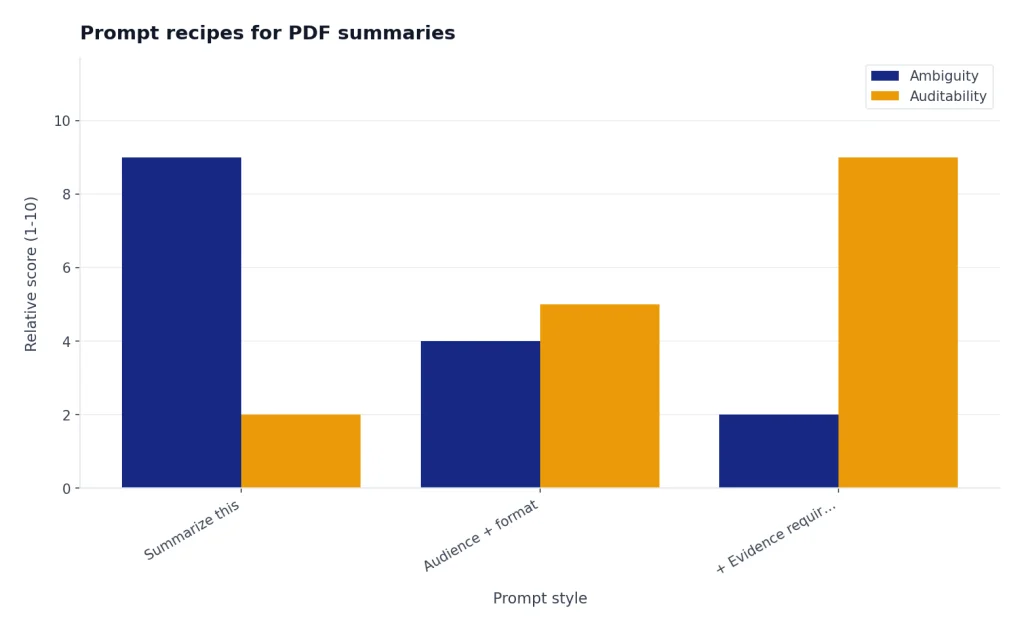
For recurring document types, save your best prompts in a personal library. If your team repeatedly summarizes the same kind of PDF, a custom assistant may help. Our custom GPT tutorial explains how to package instructions and reference material for repeat use.
Ask for evidence, not just a summary
The safest PDF summaries separate source-backed claims from interpretation. Tell ChatGPT to mark what the PDF says, what it infers, and what remains unknown. This is especially important for contracts, scientific papers, medical material, financial filings, employment records, or anything that could affect a decision.
Use a verification prompt like this:
Create a source-grounded claim table from this PDF. Columns: claim, why it matters, page or section, confidence, and what to verify manually. Only include claims that appear in the PDF. If the page reference is uncertain because of page labels, OCR, columns, or extracted text order, say so.
You can also ask ChatGPT to produce a contradiction check:
Find places where the PDF appears to contradict itself, changes terminology, or gives a number without explaining its source. Quote only short snippets and include page or section references. Mark any reference that may need manual verification.
Do not ask ChatGPT to “prove” that a summary is correct. Ask it to show its working, then inspect the relevant pages yourself. Page-grounded output is a navigation aid, not a guarantee. For high-stakes research tasks, combine this article with our deep research project tutorial or the web browsing tutorial when you need outside sources.
For contracts, medical records, financial disclosures, employment decisions, insurance claims, safety procedures, and similar material, use the summary to decide what to read next or what questions to ask. Do not treat it as legal, medical, financial, HR, or safety advice.
Tables, charts, scans, and long documents
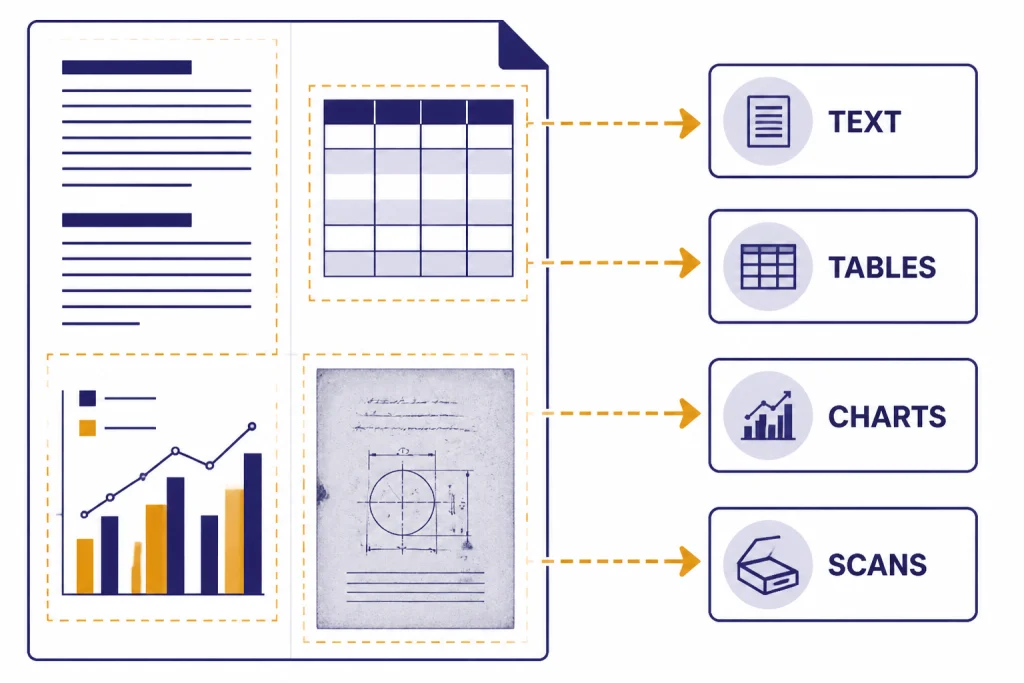
PDFs often mix normal text with tables, charts, footnotes, and images. Treat each content type differently. For tables, ask ChatGPT to extract the table into a clean format and explain assumptions. For charts, ask it to identify the title, axes, units, trend, and any values it can read. For scans, use OCR or upload the image separately if your account supports image analysis.
OpenAI says ChatGPT’s data analysis feature can create static and interactive tables and charts from uploaded data, and it can produce summaries that explain findings.[3] The same help article says bar, pie, scatter, and line charts are currently interactive in most cases.[3] If your PDF contains serious tabular data, you may get better results by exporting the table to CSV or Excel and using the Code Interpreter mastery tutorial.
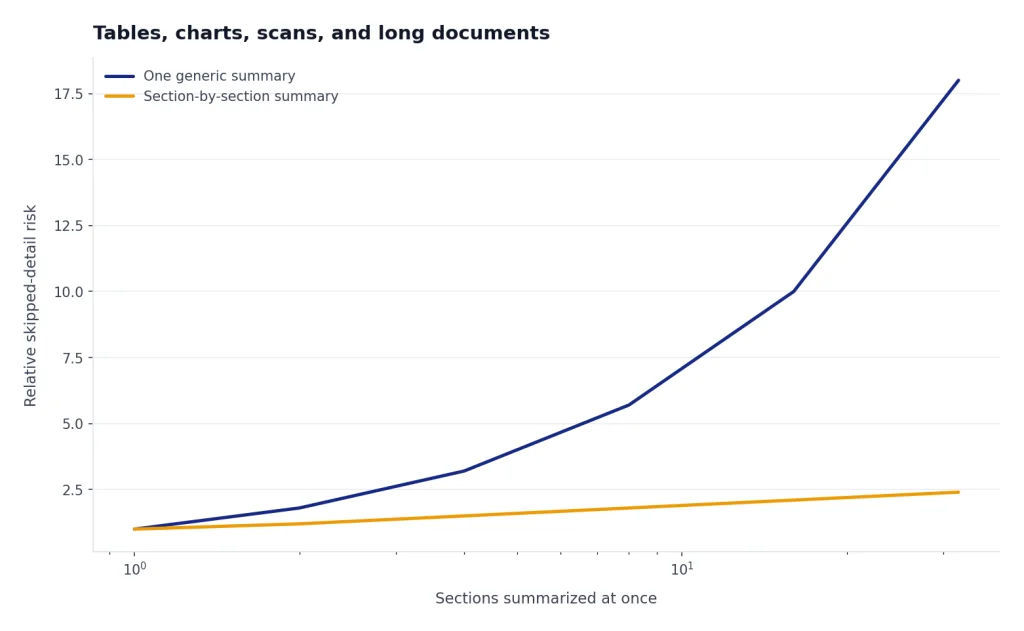
For very long documents, do not ask for one generic summary. Ask for a map first:
Before summarizing, create a document map. Identify the major sections, their purpose, and the questions each section answers. Then ask me which sections to summarize in detail.
After the map, summarize section by section. This reduces skipped details and lets you control depth. If you need a final output, ask ChatGPT to merge the section summaries into one memo and preserve the source references.
Limits, privacy, and file retention
OpenAI’s file upload FAQ says all files uploaded to a GPT or ChatGPT conversation have a hard 512MB limit per file, and text and document files are capped at 2M tokens per file.[1] The same FAQ says users can upload up to 80 files every 3 hours, while Free users are limited to 3 file uploads per day, and OpenAI may lower limits during peak hours.[1] OpenAI’s data analysis help also says up to 10 files can be uploaded to a given conversation.[3]
Those limits are not a reason to upload everything. Smaller, cleaner PDFs are easier to audit. If you hit a limit, delete files from recent chats or GPTs you created, split the task into a smaller document, or wait for the rolling upload window to reset.
Privacy depends on your settings and plan. OpenAI’s Data Controls FAQ says signed-in users can turn off “Improve the model for everyone” under Settings and Data Controls, and conversations still appear in chat history but are not used to train ChatGPT after that setting is off.[5] The same FAQ says Temporary Chats are deleted from OpenAI systems after 30 days, are not used to train models, are not saved in history, and do not create memories.[5]
Retention rules can differ by file location. OpenAI’s chat and file retention article says chats are saved until you delete them, and deleted chats are scheduled for permanent deletion within 30 days unless exceptions apply.[6] It also says files uploaded to custom GPTs or projects are retained until the GPT or project is deleted, then removed within 30 days unless exceptions apply.[6]
Memory is separate from file retention. A PDF upload is not something you should assume will become a saved memory, but if Memory or saved instructions are enabled, ChatGPT may use remembered preferences or project context when helping you in future chats. For sensitive PDFs, keep the project isolated: use Temporary Chat when appropriate, avoid asking ChatGPT to remember details from the document, review your Memory settings, and delete chats or project files you no longer need. Our ChatGPT memory power-user guide explains when memory helps and when to keep a project isolated.
Troubleshoot bad PDF summaries
If the summary is vague, the prompt is usually too broad. Add audience, decision, depth, and format. Replace “summarize this” with “summarize this for a product manager deciding whether to approve the launch plan.”
If ChatGPT misses important pages, ask for a document map before the summary. Then tell it which sections to inspect. If it invents claims, require a claim table with source references and an “uncertain” label. If the references look plausible but do not match the PDF, check whether the PDF has cover pages, Roman numerals, appendix labels, OCR errors, or two-column text that may have been parsed out of order.
If it struggles with tables, extract the table into CSV or spreadsheet format and analyze it separately. If a chart matters, ask ChatGPT to describe what it can and cannot read, then verify the chart manually from the original PDF. For scanned documents, run OCR first and spot-check names, dates, numbers, and section headings.
If the upload fails, try a smaller file, remove unnecessary pages, export a fresh PDF, or check whether the file is encrypted. OpenAI’s troubleshooting guidance for ChatGPT errors recommends refreshing the page, starting a new chat, checking status, clearing cache and cookies, trying a private window, disabling browser extensions, turning off VPN or secure DNS tools, and switching networks when relevant.[9]
Finally, choose the right output path. For a polished memo, move the verified summary into a document. For a dataset, move it into a spreadsheet workflow. For writing projects based on PDFs, the writing better content tutorial shows how to turn source notes into a draft without losing structure.
Frequently asked questions
Can ChatGPT summarize a PDF for free?
It depends on your account access and current limits. OpenAI’s file upload FAQ says Free users are limited to 3 file uploads per day, while paid plans have higher file-upload access.[1] If you cannot upload a PDF, paste a short excerpt instead or use a plan that includes file uploads.
What is the best prompt to summarize a PDF?
The best prompt names the audience, output format, decision, and evidence requirement. A good default is: “Summarize this PDF for [audience]. Include key findings, risks, open questions, and page or section references for major claims. Say ‘not found in the PDF’ if the document does not support the claim, and mark page references that need manual verification.”
Can ChatGPT read scanned PDFs?
Scanned PDFs are harder because the text may be stored as an image. If you cannot select text in the PDF, run OCR first or upload a text-based version. OpenAI says Enterprise supports visual retrieval for embedded visuals in PDFs, but that PDF visual retrieval feature is not supported for Free, Pro, Team, or Edu accounts.[4]
Can ChatGPT compare two PDFs?
Yes, if you upload both files and give a clear comparison task. Ask for a table with similarities, differences, conflicts, missing sections, and page or section references. OpenAI’s file upload FAQ lists comparing and contrasting documents as one of the intended file-upload tasks.[1]
How do I stop ChatGPT from making up details from a PDF?
Ask for source-grounded output. Require page or section references, tell it to mark uncertain claims, and ask it to separate PDF facts from its own inferences. Still verify important claims manually because page references can be wrong and OpenAI says ChatGPT can produce incorrect or misleading responses.[7]
Can I turn a PDF summary into a finished document?
Yes. First create a verified summary with source references. Then ask ChatGPT to turn it into a memo, study guide, checklist, slide outline, or article draft. Keep the source-grounded notes available so the final document does not drift away from the PDF.