

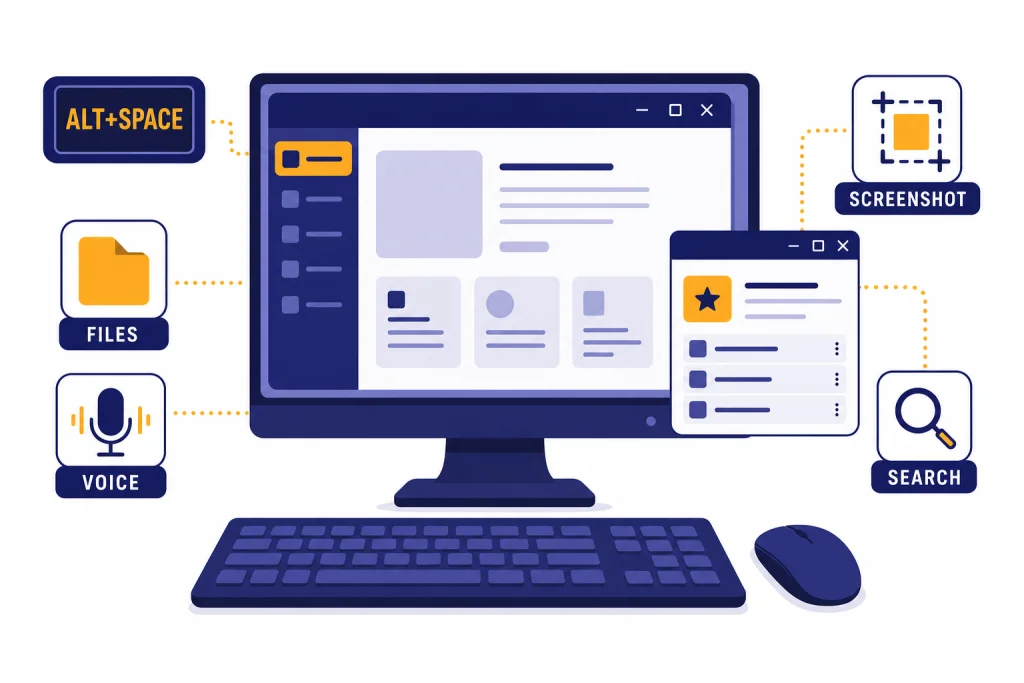
The ChatGPT Windows app is the official desktop version of ChatGPT for Windows PCs. The safest way to get it is through OpenAI’s ChatGPT download page or directly from the Microsoft Store listing linked there.[3] It gives you a dedicated ChatGPT window, an Alt+Space companion window, file upload, image generation, screenshot attachment, voice features, and chat history search, depending on your plan and rollout status.[1][2] This guide walks through download, setup, keyboard shortcuts, workplace deployment, troubleshooting, and when the browser may still be the better choice.
Quick answer
Install the ChatGPT Windows app from the Microsoft Store link on OpenAI’s official download page. OpenAI’s desktop download page includes a Windows option under “Download ChatGPT for desktop,” and its Windows Help Center article says the app is distributed through the Microsoft Store.[3][1]
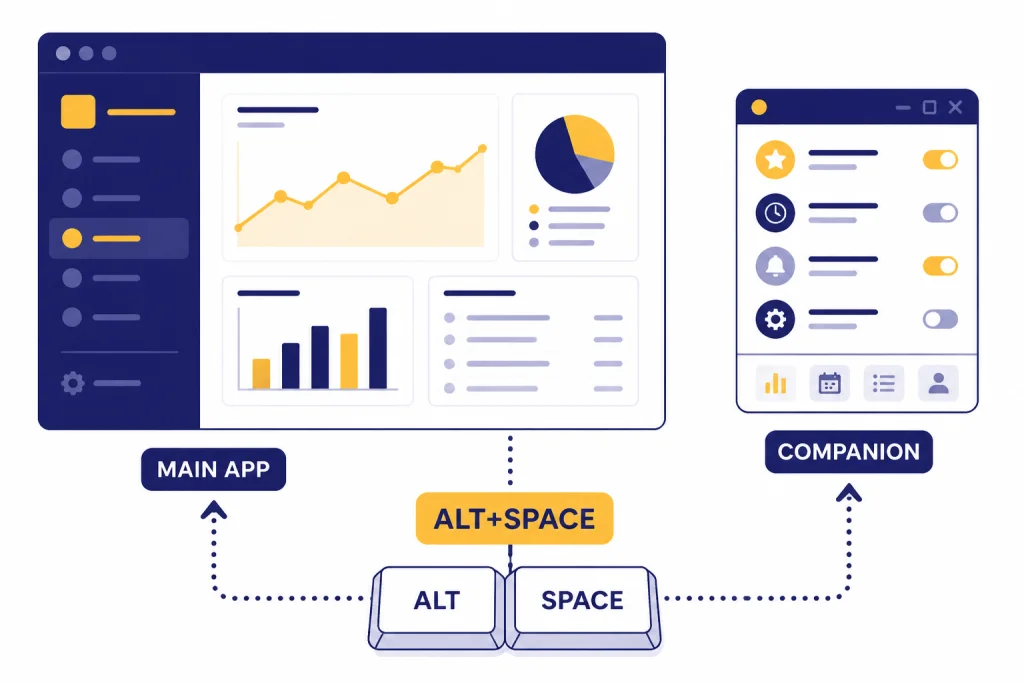
After installation, open ChatGPT from the Start menu, sign in, then test the companion window with Alt+Space. OpenAI documents Alt+Space as the Windows shortcut for opening ChatGPT from the desktop, and the companion window can ask questions, upload files, generate a new image, or start a new conversation.[4][1]
If you are choosing between ChatGPT surfaces, the Windows app is best for quick desktop access. The browser is still better when your work depends on browser extensions, multiple side-by-side tabs, or a tightly controlled work computer. For phone-first use, see our best ChatGPT app guide. For browser-native AI browsing, compare it with ChatGPT Atlas for Windows.
Requirements before you install
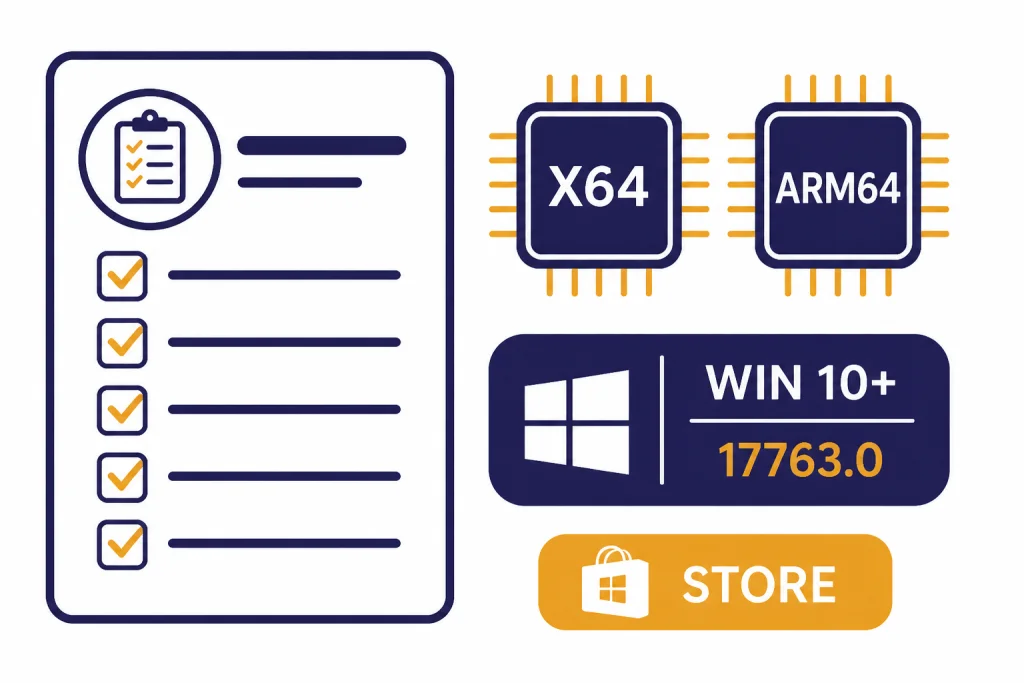
The official system requirement is Windows 10 version 17763.0 or higher, with support for x64 and arm64 systems.[1] If your PC runs an older Windows build, update Windows before troubleshooting the ChatGPT installer.
You also need access to the Microsoft Store. OpenAI says access to the Windows app follows the Microsoft Store policies set by an organization’s IT admin.[1] On managed work or school computers, that means the Store button may be hidden, downloads may be blocked, or the app may need to be deployed by IT.
You need a ChatGPT account to use the full app experience. OpenAI’s current download page includes the Windows desktop download next to its macOS option, while the Help Center page still describes the Windows app as an early version for paid plans such as Plus, Team, Edu, and Enterprise.[3][1] If your account cannot access a feature after installation, treat that as a plan, rollout, region, or workspace-policy issue rather than proof that you installed the wrong app.
- Use a personal PC if you want the simplest Microsoft Store install.
- Use a work PC only if your admin allows Microsoft Store apps or deploys the app for you.
- Use the browser if Microsoft Store access is blocked and you do not control the device.
Download the app safely
The safest route is to start at OpenAI’s download page, choose the Windows desktop option, and let that link open the Microsoft Store listing.[3] OpenAI’s Help Center also links to the Microsoft Store and states that the Windows app is distributed there.[1]
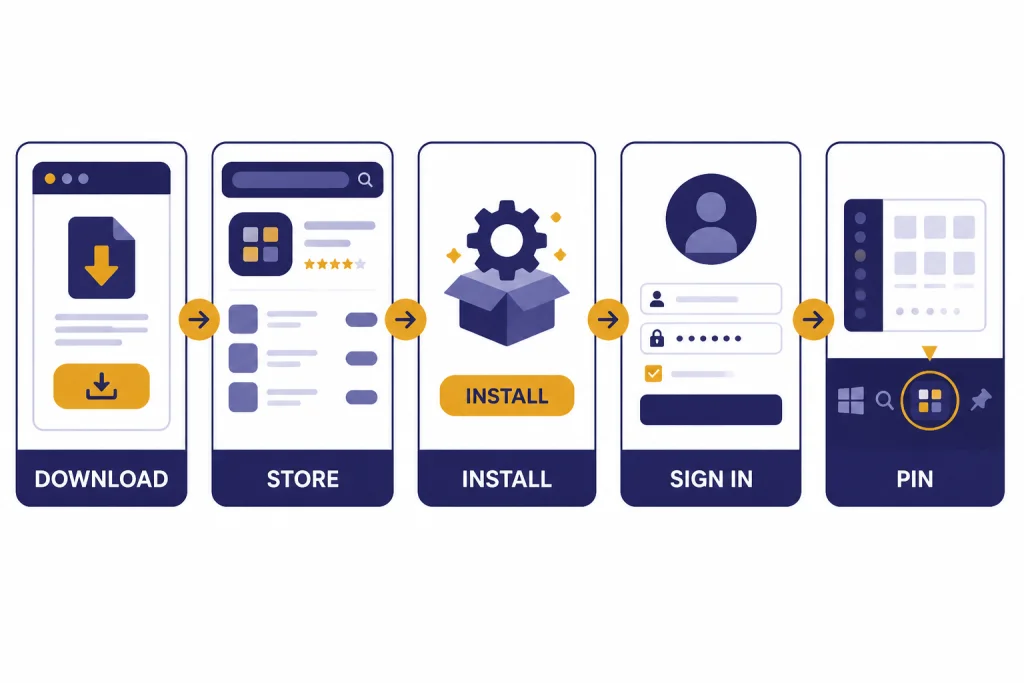
- Open OpenAI’s ChatGPT download page.
- Find the section labeled “Download ChatGPT for desktop.”
- Select the Windows option.
- Confirm that the Microsoft Store page is for ChatGPT.
- Select Get or Install.
- Launch ChatGPT from the Store, Start menu, or taskbar.
Avoid random download pages, “ChatGPT for PC” installers, browser pop-ups, and direct executable files from unfamiliar domains. The official route is simple: OpenAI download page to Microsoft Store. If a site asks you to disable Windows security, install a browser extension, or sideload an installer, stop.
Admins can also use winget. OpenAI documents this command for managed installation: winget.exe install --id=9NT1R1C2HH7J --source=msstore --accept-package-agreements --accept-source-agreements –silent.[1] The same app ID appears in OpenAI’s Windows release notes for the winget installation method.[2]
If you only need occasional access, the browser at ChatGPT may be enough. If you often send screenshots, files, or quick prompts while working in other apps, the Windows app is worth installing. For deeper file workflows, pair this guide with our ChatGPT file upload reference.
Set up the Windows app
After installation, launch ChatGPT and sign in with the same account you use on the web. Your sidebar and conversation history should feel familiar because OpenAI describes the Windows app as a way for users familiar with the web experience to integrate ChatGPT into desktop work.[1]
Pin the app
Open the Start menu, search for ChatGPT, then pin it to Start or the taskbar. This reduces friction if the Alt+Space companion window is not active or if another app captures that shortcut.
Test Alt+Space
With the ChatGPT app open, press Alt+Space. OpenAI says this opens the companion chat, which remembers its last position and resets to the bottom center of the screen when the app resets.[1] If nothing happens, another Windows app may already use the shortcut. OpenAI says you can change it under Settings > App > Companion window hotkey.[1]
Check permissions
Voice, webcam photos, screenshots, and file attachment features may prompt Windows for permission. OpenAI’s release notes say the Windows app added webcam photo attachment on November 7, 2024 and screenshot attachment through the Snipping Tool on November 14, 2024.[2] Allow only the permissions you plan to use.
Use the app like a desktop launcher
Keep the main window for longer chats and use the companion window for quick questions. This works well when you are drafting, coding, reading a PDF, or checking something without switching browser tabs. If you rely on saved context across workstreams, organize long-running threads with ChatGPT Projects.
What the Windows app does
The Windows app is not just a shortcut to a website. Its main advantage is operating-system access. OpenAI’s desktop feature page says you can open ChatGPT from any screen with a keyboard shortcut, use Alt+Space on Windows, take screenshots, upload files, search the web, ask anything, and use Advanced Voice Mode on desktop.[4]
The companion window is the headline feature. It lets you ask a quick question, upload a file, generate a new image, or start a new conversation without first finding a browser tab.[1] That is useful when you want ChatGPT beside another app instead of inside your browser.
OpenAI’s Windows release notes show the app gained Advanced Voice Mode and chat history search on October 30, 2024; chat history search uses Control+K.[2] If you use ChatGPT as a daily reference tool, that shortcut matters because it turns old conversations into a searchable desktop notebook.
For image workflows, the app can help you attach screenshots and photos faster than the browser. If you want to understand what ChatGPT can infer from images, read our ChatGPT Vision guide. If you are trying to search from an image rather than analyze it, use our ChatGPT image search explainer.
For research, the Windows app can be a convenient place to use ChatGPT’s web-connected answers. OpenAI’s desktop page lists “Search the web” among desktop app capabilities.[4] Our separate guides explain ChatGPT Search and ChatGPT web browsing in more detail.
Windows app vs browser
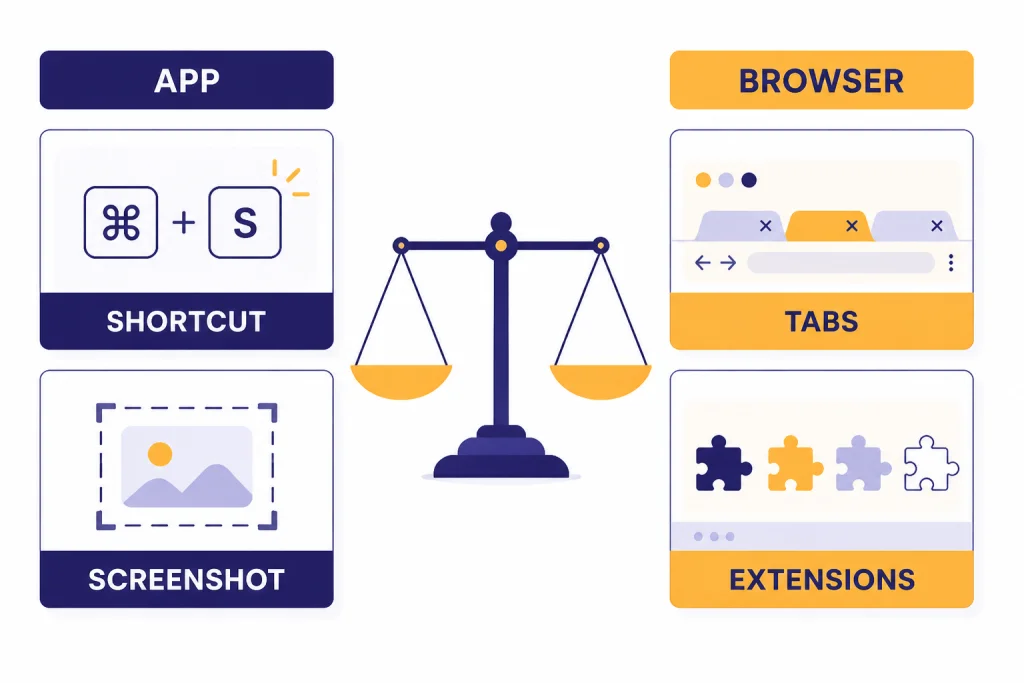
Use the Windows app when you want quick access from anywhere on the desktop. Use the browser when you need browser features, tab management, extensions, or a setup that works without Microsoft Store installation.
| Use case | Windows app | Browser | Best choice |
|---|---|---|---|
| Quick prompt while working in another program | Alt+Space companion window | Requires switching tabs or windows | Windows app |
| Uploading files from desktop | Built into the ChatGPT desktop workflow | Works well, but stays inside the browser | Tie |
| Screenshot-based questions | OpenAI release notes say screenshot attachment uses the Snipping Tool.[2] | Manual screenshot upload is usually required | Windows app |
| Managed workplace computer | May be blocked by Microsoft Store policy.[1] | Often easier if the website is allowed | Browser |
| Multiple research tabs | Dedicated ChatGPT surface | Works naturally with tabs and extensions | Browser |
| Offline use | Not the right tool for offline AI work | Not the right tool for offline AI work | Neither |
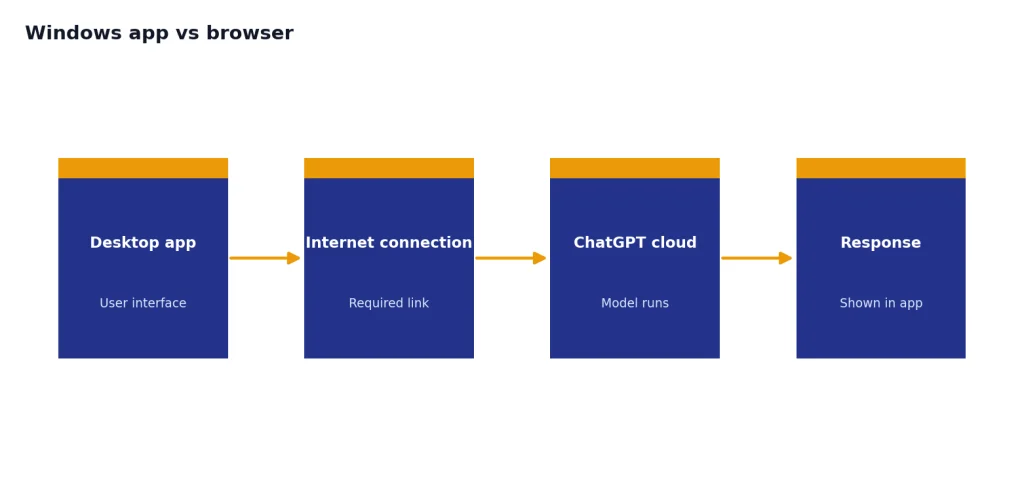
If you are installing the app because you hope it works offline, reset expectations. ChatGPT is primarily a cloud service, not a local model you can run without a connection. For the practical limits, see our guide on using ChatGPT offline.
The app also does not replace every specialized ChatGPT interface. If your main workflow is voice dictation or transcription, compare it with ChatGPT Whisper transcription and ChatGPT audio transcription. If your main need is scheduled follow-up, use ChatGPT Tasks instead of relying on a pinned desktop app.
Enterprise and school setup
For Enterprise and Edu workspaces, the important detail is distribution control. OpenAI says access follows the organization’s Microsoft Store policies, and IT admins may deploy the app through MDM/MAM tools such as Microsoft Intune when employees cannot download Store apps directly.[1]
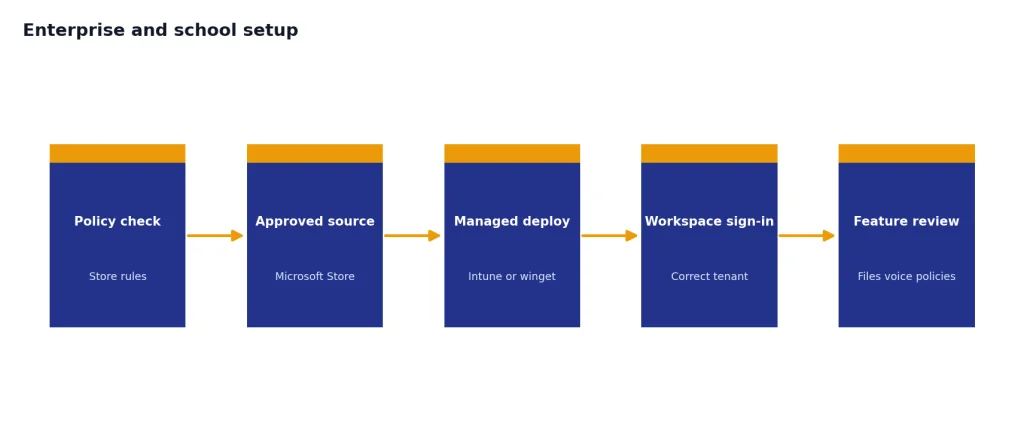
OpenAI’s Help Center also says IT departments managing ChatGPT Enterprise workspaces may prefer winget for installation.[1] The release notes added winget as a supported method on January 30, 2025.[2]
winget.exe install --id=9NT1R1C2HH7J --source=msstore --accept-package-agreements --accept-source-agreements –silentAdmins should test three things before broad deployment. First, confirm Store access or deployment policy. Second, verify sign-in with the correct ChatGPT workspace. Third, test any policy-sensitive features such as file upload, screenshots, voice, memory, and connectors. OpenAI states that, by default, it does not use content submitted by customers to business offerings such as ChatGPT Enterprise to improve model performance unless the customer has explicitly opted in.[1]
For workers, the practical advice is simple. Do not bypass company policy to install ChatGPT. Ask IT whether the Microsoft Store app is approved, whether your workspace supports the desktop app, and whether features such as file upload or memory are enabled. If memory is part of your workflow, review our ChatGPT Memory guide before using it with workplace information.
Troubleshooting
The Microsoft Store button is missing or blocked
On a work or school PC, this usually means your admin blocks Store installs. OpenAI says Windows app access follows Microsoft Store policies set by IT.[1] Use ChatGPT in the browser or ask your admin to deploy the app.
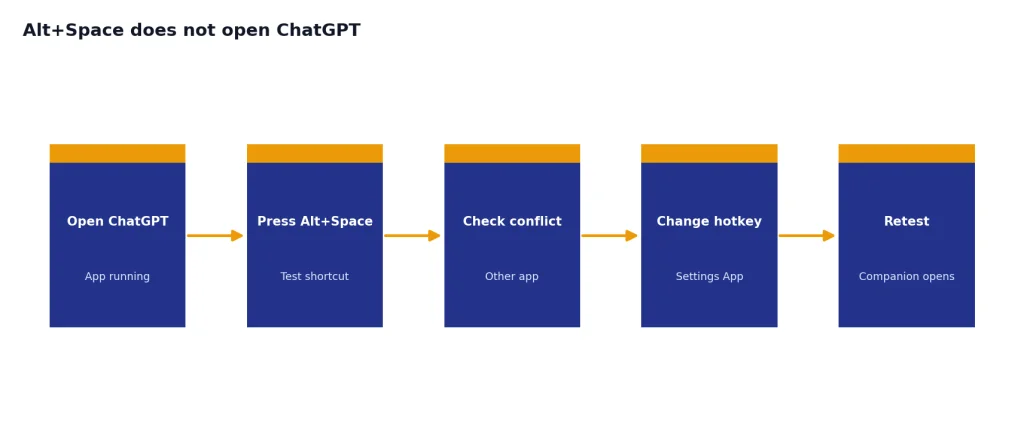
Alt+Space does not open ChatGPT
Open the ChatGPT app first, then try again. If the shortcut still fails, another Windows app may already use it. OpenAI says the companion shortcut will not work if it is already registered by another Windows application, and the hotkey can be changed in Settings.[1]
The app installed but behaves strangely
Try a reset. OpenAI’s reset path is Settings > Apps > Installed Apps > ChatGPT > three-dot menu > Advanced Options > Reset.[1] You may need to sign in again after resetting.
Features are missing
Missing features can come from rollout status, plan limits, workspace policy, or regional availability. OpenAI’s Windows app article notes that some macOS and web features may not be available in the early Windows version.[1] If you need a feature immediately, test the same account in the browser.
The app cannot find an old chat
Use chat history search. OpenAI’s Windows release notes say chat history search was added on October 30, 2024 and can be opened with Control+K.[2] If search still fails, open ChatGPT in the browser and confirm the conversation exists there.
Frequently asked questions
Is the ChatGPT Windows app official?
Yes. OpenAI’s download page links to a Windows desktop download, and OpenAI’s Windows app Help Center article says the app is distributed through the Microsoft Store.[3][1] Use those routes instead of third-party installers.
What Windows version do I need?
OpenAI lists the requirement as Windows 10 version 17763.0 or higher on x64 and arm64 systems.[1] If installation fails on an older PC, update Windows first.
What is the ChatGPT Windows shortcut?
The documented Windows shortcut is Alt+Space.[4] OpenAI says the companion window shortcut can be changed under Settings > App > Companion window hotkey if another app already uses it.[1]
Can I install ChatGPT with winget?
Yes. OpenAI says winget is supported, especially for IT departments managing ChatGPT Enterprise workspaces.[2] The documented Microsoft Store package ID is 9NT1R1C2HH7J.[1]
Does the Windows app work better than the browser?
It depends on the job. The Windows app is better for quick desktop access, screenshots, and the companion window. The browser is better for tab-heavy research, extensions, and locked-down devices where Store installs are blocked.
Can the ChatGPT Windows app use screenshots?
Yes. OpenAI’s Windows release notes say screenshot attachment was added on November 14, 2024 and uses the Windows Snipping Tool so you can capture a window, the full screen, or a custom region.[2]