

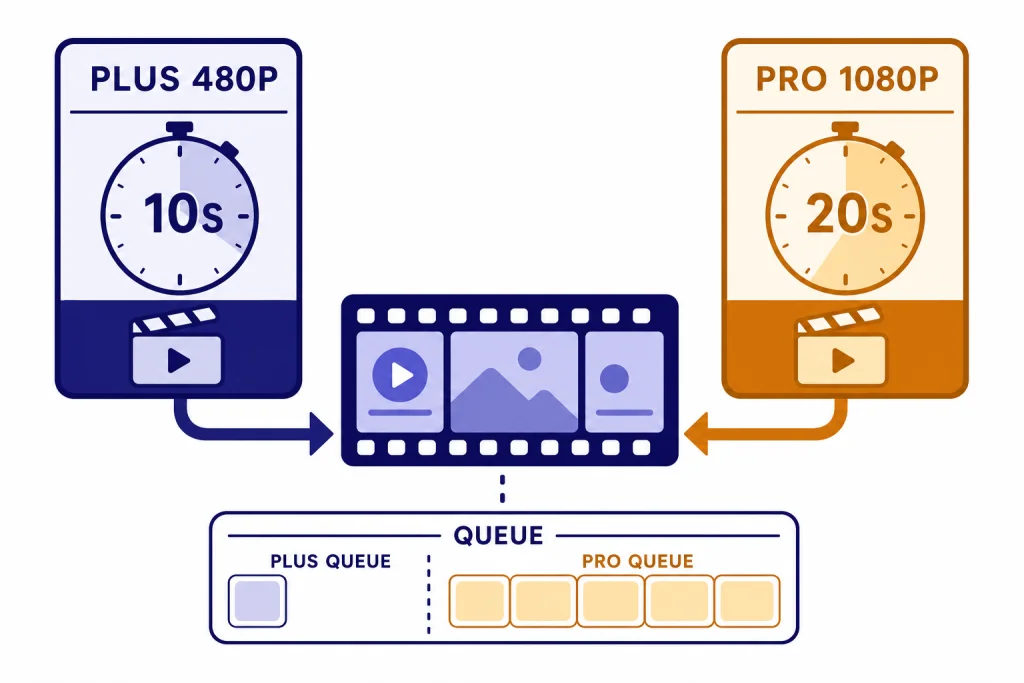
The ChatGPT video generator is Sora, OpenAI’s video creation system for turning text, images, and uploaded media into short AI-generated clips. As of March 7, 2026, Sora is tied to eligible ChatGPT plans rather than a normal free ChatGPT chat. ChatGPT Plus, Business, and Pro users can generate videos, with Pro receiving higher resolution, longer duration, more concurrent generations, and watermark-free downloads.[3] The practical takeaway is simple: use ChatGPT to plan, script, and refine the idea, then use Sora to generate and iterate the video. It is best for short concept clips, visual experiments, storyboards, product mockups, and social drafts, not finished long-form production.
What the ChatGPT video generator is
The ChatGPT video generator is best understood as Sora access attached to ChatGPT accounts. OpenAI moved Sora out of research preview and released Sora Turbo as a standalone product for ChatGPT Plus and Pro users on December 9, 2024.[1] That matters because Sora is not just another answer format in a text chat. It is a separate video creation workspace where you can prompt, revise, extend, remix, blend, download, and share clips.
ChatGPT still helps the process. It can turn a rough idea into a shot list, rewrite prompts, create character descriptions, plan camera movement, generate voiceover scripts, and help you evaluate results. If you want to understand ChatGPT’s general assistant layer before using media tools, start with what is ChatGPT. If your goal is to inspect an existing clip rather than create one, use our separate guide on whether ChatGPT can analyze video.
OpenAI describes Sora as a video generation model that can create complex scenes with multiple characters, motion, subject details, and background details from a prompt.[2] In everyday use, that means you describe the clip you want, add optional media, choose settings available to your plan, and wait for the generation queue to finish.
Availability, plans, and limits
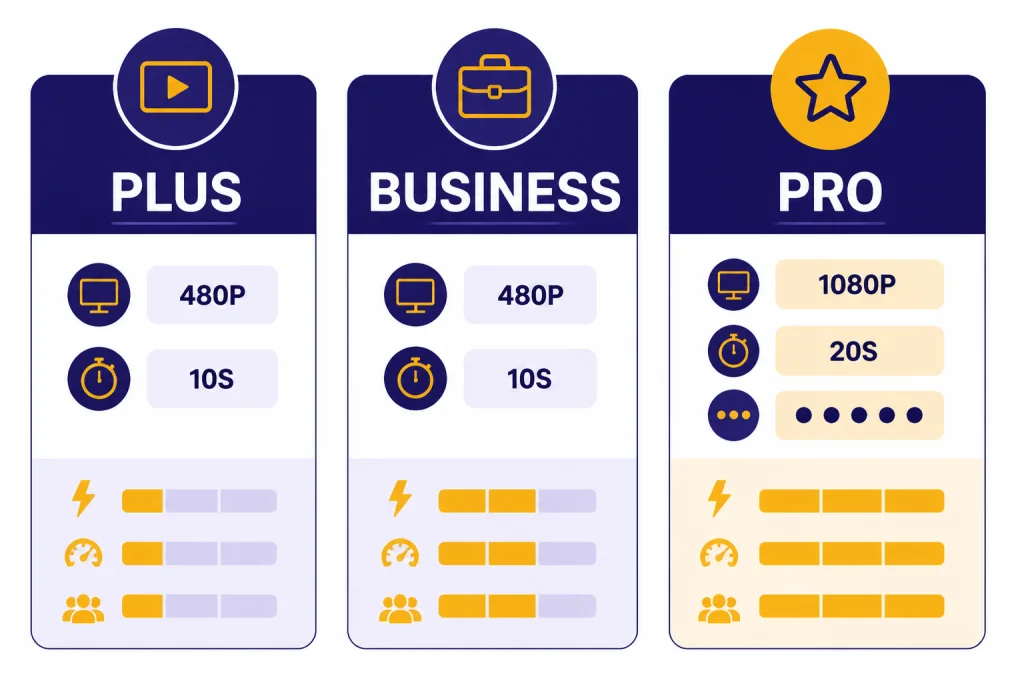
Sora access depends on plan, region, and account eligibility. OpenAI’s Sora billing FAQ says ChatGPT Plus, Business, and Pro users can use Sora features, while Free, Enterprise, and Edu accounts are not eligible for Sora access.[3] OpenAI’s supported-countries page says Sora is available in OpenAI-supported countries, including the EU and UK, for the Sora web experience covered by that page.[5]
The most important difference is output size and queue capacity. Plus and Business are usable for short drafts. Pro is the better fit if you need longer, sharper, or more parallel generations. OpenAI’s public plan pages list ChatGPT Plus at $20 per month and ChatGPT Pro at $200 per month.[6][7]
| Plan | Sora access | Video limits listed by OpenAI | Best fit |
|---|---|---|---|
| ChatGPT Free | No Sora access listed | Not eligible | Planning prompts in ChatGPT, then using another video tool |
| ChatGPT Plus | Included for eligible users | Up to 480p resolution, up to 10 seconds, and up to 1 concurrent generation | Short experiments, personal clips, concept drafts |
| ChatGPT Business | Included for eligible users | Up to 480p resolution, up to 10 seconds, and up to 1 concurrent generation | Team evaluation under business controls |
| ChatGPT Pro | Included for eligible users | Up to 1080p resolution, up to 20 seconds, up to 5 concurrent generations, faster generations, and downloads without a watermark | Frequent creators, marketers, production teams, and iterative concept work |
| ChatGPT Enterprise or Edu | No Sora access listed | Not eligible | Organizations that need separate OpenAI guidance before adopting video generation |
OpenAI also says Plus and Pro plans offer unlimited access to Sora, but that usage still must follow its Terms of Use, and temporary restrictions may apply to prevent misuse.[3] Treat “unlimited” as a consumer-plan access policy, not a guarantee that every prompt will run instantly at peak demand.
How to use Sora with ChatGPT
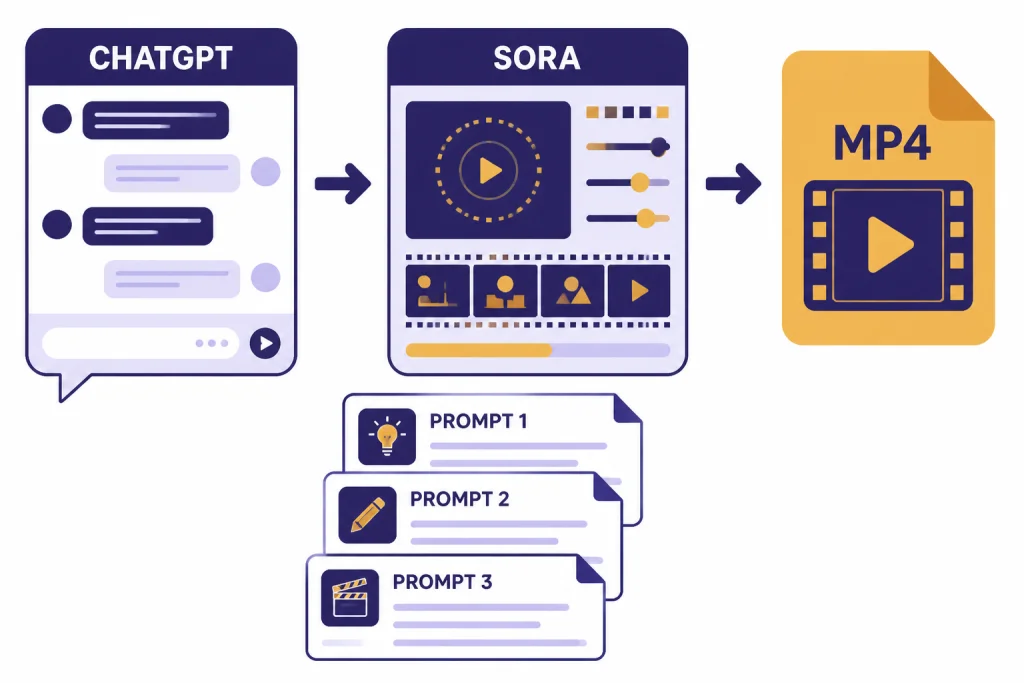
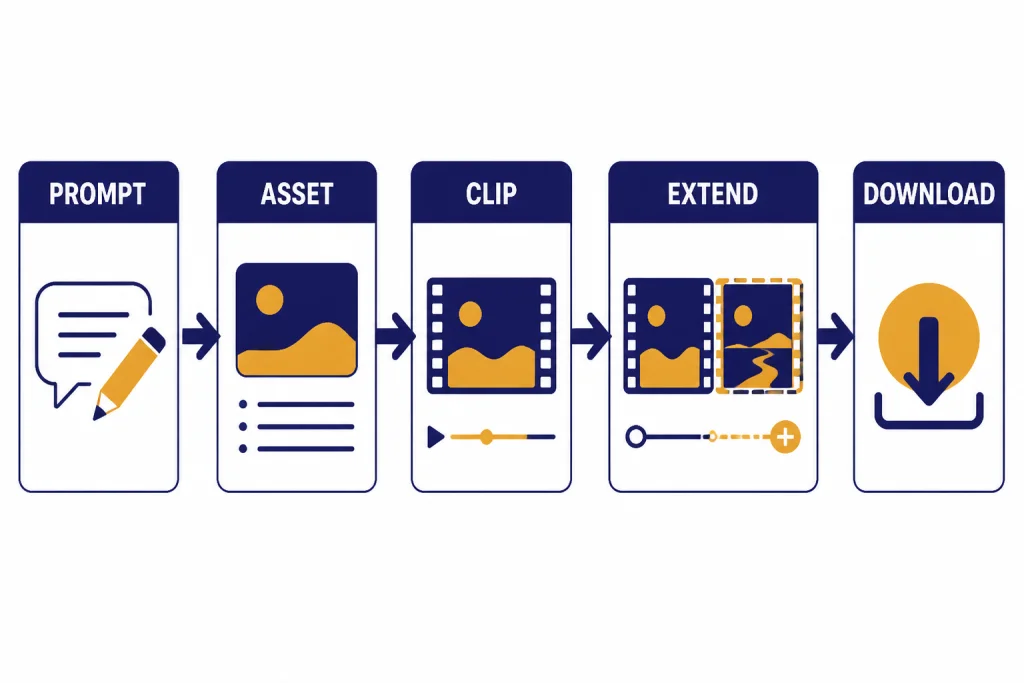
The simplest workflow is to use ChatGPT as the planning room and Sora as the rendering room. Start in ChatGPT with a plain description of the video. Ask for a tighter version with subject, action, setting, camera movement, lighting, duration, and aspect ratio. Then paste the refined prompt into Sora, generate a clip, and return to ChatGPT with notes about what worked and what failed.
OpenAI’s Sora help article says you can begin by describing your video in the input field or by uploading an image or video file in the initial prompt.[2] After the clip is created, Sora provides actions such as Re-cut, Remix, Blend, and Loop.[2] Those controls are useful because video prompting is rarely a one-shot process. You usually need to narrow the shot, simplify motion, or ask Sora to keep a subject more consistent.
- Draft the creative brief in ChatGPT. Include audience, mood, duration, and what must appear on screen.
- Turn the brief into a Sora prompt. Ask ChatGPT for one compact prompt and one alternate version with different camera movement.
- Generate in Sora. Use the plan settings available to you, then review the result for continuity, artifacts, and unwanted details.
- Iterate with Sora tools. Use Remix for targeted changes, Re-cut for trimming and extension, Blend for transitions, and Loop for repeating motion.
- Finish outside Sora when needed. Add captions, color, sound design, and brand-safe review in your normal editing workflow.
If you are using source files, pair this workflow with ChatGPT file upload for organizing briefs, scripts, and reference notes. If still images are central to the project, ChatGPT Vision can help describe frames and ChatGPT image search can help with visual research before you write the prompt.
A practical video prompting workflow
A good Sora prompt reads like a miniature production note. It should tell the model what is visible, what moves, how the camera behaves, and what the clip should feel like. The prompt should not ask for too many scene changes. Sora can create impressive motion, but a short clip works best when it has one clear subject and one clear action.
Use a compact prompt formula
Use this structure when you are starting from scratch:
Subject + action + setting + camera movement + style + lighting + duration + aspect ratioFor example: “A small ceramic robot rolls across a walnut desk, pauses beside a steaming mug, and waves one arm. Slow push-in camera, shallow depth of field, warm studio lighting, tactile stop-motion feel, 10 seconds, square format.” That prompt gives Sora a subject, movement, place, camera instruction, look, length, and frame shape. It also avoids a long plot.
Ask ChatGPT for variants
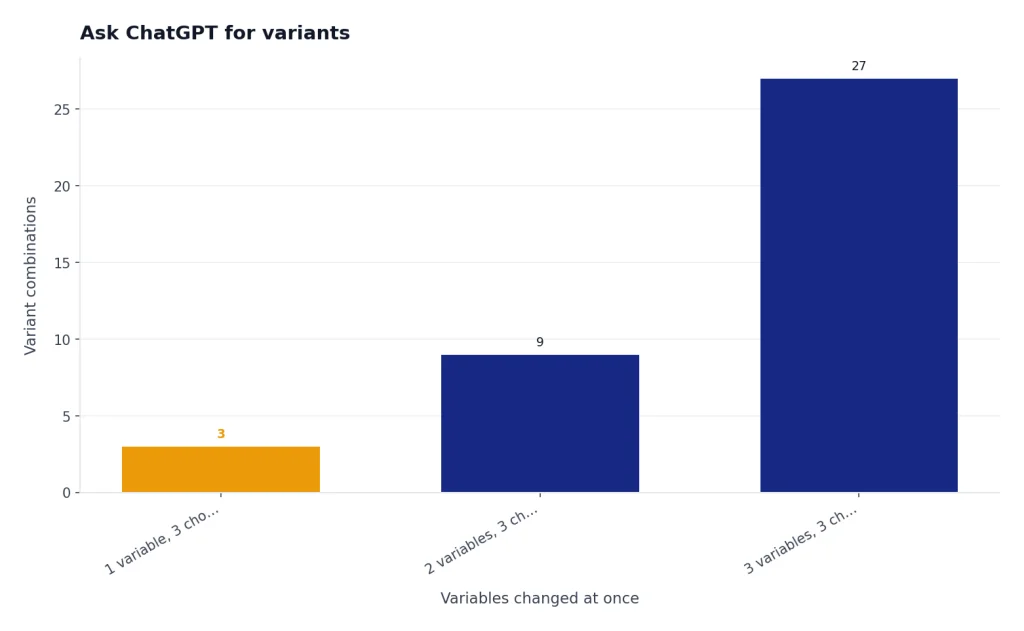
Do not generate ten unrelated versions. Generate controlled variants. Ask ChatGPT for three prompts that change only one variable at a time: camera movement, lighting, or action. This makes it easier to diagnose what improved the clip. Store strong prompt patterns inside ChatGPT Projects if you are building a repeatable campaign or series.
Write negative constraints in plain language
If a mistake keeps appearing, name it directly. Use constraints such as “no text on screen,” “no extra hands,” “no camera cuts,” or “keep the subject centered.” Negative prompting is not magic, but clear constraints can reduce repeated failure modes.
Quality limits to expect
Sora is strongest for short visual ideas, not long narrative continuity. OpenAI’s original Sora launch post said the deployed version had limitations, including unrealistic physics and trouble with complex actions over long durations.[1] That remains the right mental model for most users: expect strong single-shot aesthetics and uneven physical consistency.
The practical limits show up in predictable places. Hands can change. Small objects may drift. Text in the frame may be wrong. Cause and effect can break. A character may not preserve the same exact clothing or face across multiple clips unless the workflow gives Sora stronger reference material and the task is allowed by the safety rules.
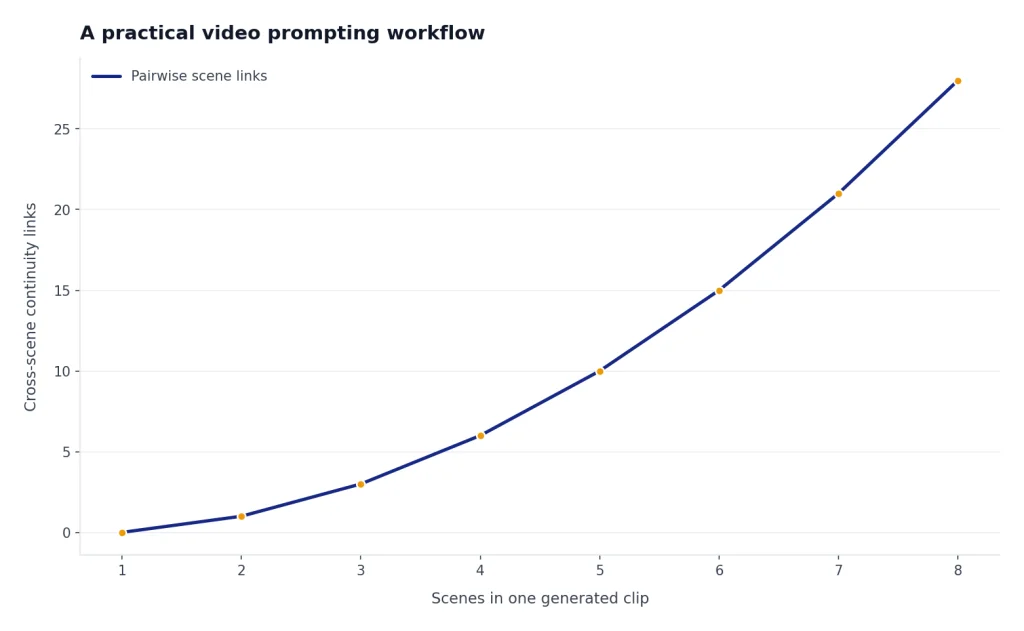
Keep prompts narrow when quality matters. Instead of asking for “a full product launch ad with five scenes,” ask for “one close-up shot of the product rotating on a matte table while amber light sweeps across the surface.” Then build a sequence from multiple controlled clips. If your final output needs spoken narration, use ChatGPT Whisper transcription or ChatGPT audio transcription to align scripts, captions, and rough voiceover notes.
Safety, likeness, and rights rules
Video generation creates higher trust and rights risks than text. OpenAI says Sora-generated videos include C2PA metadata for transparency and visible watermarks by default.[1] For Pro users, OpenAI lists downloads without a watermark as a Pro feature, but provenance and policy obligations still matter.[3]
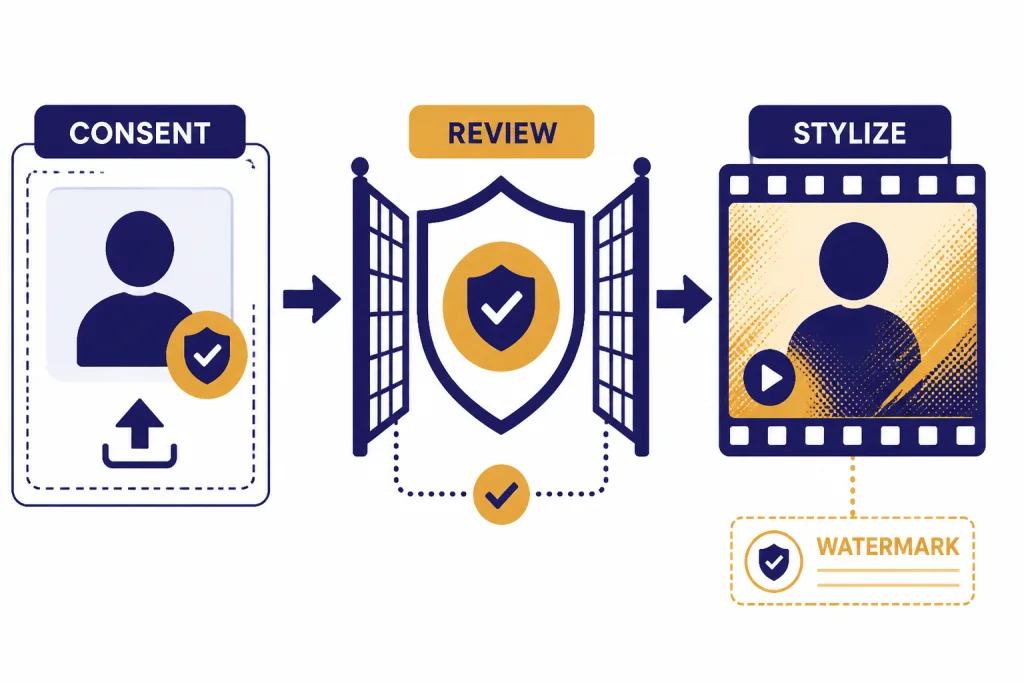
OpenAI’s February 4, 2026 Sora release notes say eligible users can upload images with people to make videos only after attesting that they have consent from featured people and the right to upload the media.[4] The same notes say image-to-video generations with people are subject to stricter safety guardrails, images with kids or young-looking people receive even stricter moderation, and known public figures remain prohibited for video generations even in image-to-video.[4]
Use a conservative rule for real people: get consent, document consent, and avoid implying that a person did or said something they did not do. For businesses, do not upload customer, employee, or actor likenesses unless your legal and privacy teams have approved the workflow. For public posting, preserve provenance signals and avoid removing context that tells viewers the clip is AI-generated.
How it compares with other ChatGPT media tools
Sora is the video generator, but it is not the only media-related feature around ChatGPT. The best workflow often combines several tools. Use ChatGPT Search for research, Vision for image understanding, file upload for source material, and Sora for the moving clip. If you need current facts before writing a script, use ChatGPT Search or ChatGPT web browsing before generating video.
| Tool | Main job | Use it before Sora when | Use it after Sora when |
|---|---|---|---|
| ChatGPT | Planning, scripting, and prompt rewriting | You need a clearer concept or shot list | You need critique and revision instructions |
| Sora | Generating short AI video clips | You already know the shot you want | You need new variations, loops, or edits |
| ChatGPT Vision | Understanding still images | You want to describe reference frames | You want to analyze a generated still or thumbnail |
| File upload | Working with scripts, briefs, and references | You have a campaign doc or storyboard | You need a production checklist from notes |
| Transcription | Turning speech into text | You are building captions from rough audio | You need to compare narration with the final cut |
| Shareable links | Sharing ChatGPT conversations | You want feedback on prompt drafts | You want collaborators to see the reasoning behind a prompt |
For collaboration, share the planning conversation with ChatGPT Shareable Links, but do not share private media, unreleased campaigns, or personal likeness prompts unless your team has a clear review process.
Best uses and weak uses
The ChatGPT video generator is most useful when the clip is short, visual, and exploratory. It can compress the distance between “I can describe it” and “I can see a version of it.” That makes it valuable for ideation even when the generated clip is not the final deliverable.
- Strong use: mood boards, concept art in motion, product ambiance, social draft clips, speculative interfaces, event bumpers, storyboards, and visual treatments.
- Acceptable use: internal prototypes, educational metaphors, pitch-deck visuals, background loops, and abstract scenes where exact realism is not required.
- Weak use: legal evidence, news footage, public-figure impersonation, medical demonstrations, precise training footage, and long scenes that require exact continuity.
Think of Sora as a visual exploration engine, not a replacement for filming, editing, clearance, or review. It is especially useful when paired with a disciplined ChatGPT workflow: write the concept, narrow the shot, generate, critique, revise, and archive what worked. If you use ChatGPT across devices, our guide to the best ChatGPT app can help you choose where to plan and review your video projects.
Frequently asked questions
Is there a ChatGPT video generator?
Yes, for eligible users, the ChatGPT video generator is Sora access connected to ChatGPT plans. It is not the same as asking a normal text chat to output a finished video. Use ChatGPT for planning and Sora for generation.
Can free ChatGPT users generate Sora videos?
OpenAI’s Sora billing FAQ does not list ChatGPT Free as eligible for Sora access.[3] Free users can still use ChatGPT to write prompts, scripts, and shot lists, then move that plan to a video tool they can access.
How long can Sora videos be?
OpenAI lists up to 10-second videos at 480p for Plus and Business, and up to 20-second videos at 1080p for Pro.[3] Shorter prompts usually work better than trying to force a complex multi-scene sequence into one generation.
Does Sora remove watermarks?
OpenAI lists watermark-free downloads as a ChatGPT Pro feature.[3] That does not remove the need to follow OpenAI policies, preserve appropriate context, and avoid misleading viewers about AI-generated media.
Can I upload a photo of a person and animate it?
OpenAI’s February 4, 2026 Sora release notes say eligible users can upload images with people after attesting that they have consent and upload rights.[4] OpenAI also says these generations have stricter guardrails, and known public figures remain prohibited for video generation.
Is Sora good enough for final commercial videos?
It depends on the use case. Sora can be strong for short visual drafts, backgrounds, and concept clips, but you should expect review, editing, rights checks, and sometimes reshoots through a conventional tool. For high-stakes commercial use, treat Sora as part of a production pipeline, not the whole pipeline.