

Last editorial review: May 4, 2026. This page is not a live status widget. For the real-time answer to “is ChatGPT down today,” check OpenAI’s official status page first.[1] The guidance below explains how to read that page, compare it with your symptoms, and avoid wasting time on local fixes during a confirmed incident. The cited incident examples in this article are historical examples from OpenAI’s status history, including a March 7, 2026 login issue that OpenAI marked resolved.[3]
ChatGPT is not always down when it feels broken. If ChatGPT will not load, will not send messages, or keeps showing a vague error, first check OpenAI Status, then test your browser, app, network, VPN, and login session. The official status page is the best source for confirmed incidents, but it can lag behind user reports and may not reflect every regional, feature-specific, or account-specific failure.
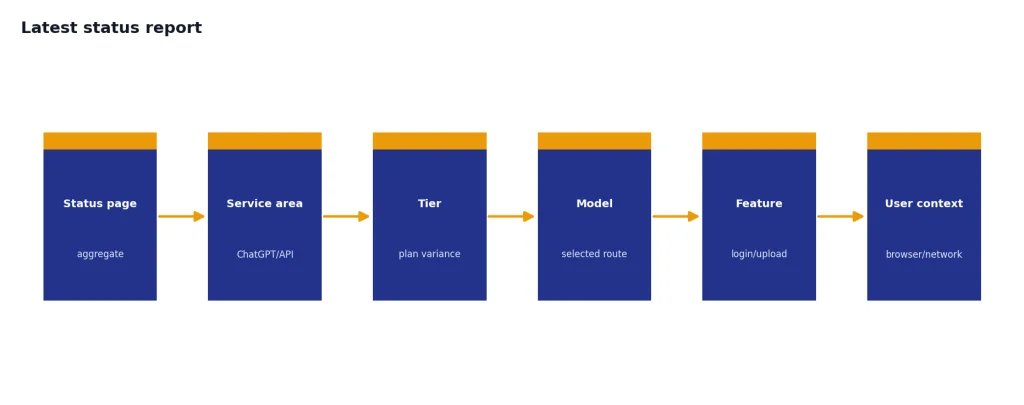
Latest status report
Use OpenAI Status for the live report. Because outage pages change minute by minute, this article should be treated as a troubleshooting guide and incident-reading checklist, not as a continuously refreshed confirmation that ChatGPT is up or down right now. OpenAI’s public status page lists current status areas such as ChatGPT and APIs, while its history page lists past incidents and resolution timestamps.[1][2]
The most useful current reading is therefore: if OpenAI Status shows an active ChatGPT incident, wait for OpenAI’s updates before making account changes. If it shows no active ChatGPT incident, your problem may still be real, but it may be local to your browser, app, network, VPN, account, region, model, or feature. If your symptom is login-specific, start with our ChatGPT login failed guide. If ChatGPT loads but responses crawl, use why ChatGPT is so slow instead.
OpenAI’s status page says availability metrics are reported at an aggregate level across tiers, models, and error types, and that individual customer availability can vary by subscription tier, model, and API feature.[1] In plain English: a green status page can coexist with a real problem for a smaller group of users.
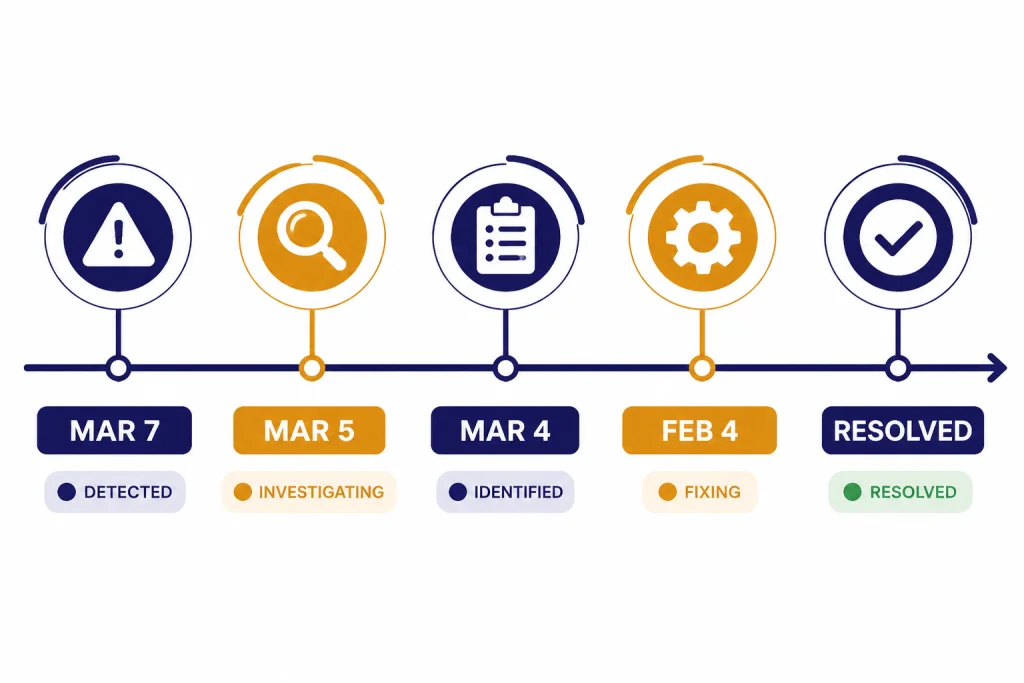
Historical example: on March 7, 2026, OpenAI listed a Login Issues incident and later marked it resolved after identifying login issues for impacted services and applying a mitigation.[3] That is useful as a pattern for reading status updates, but it should not be mistaken for today’s live status.

How to check ChatGPT status
Use this order when you want a fast answer to “is ChatGPT down today.” It separates confirmed outages from local failures.
- Check OpenAI Status first. Look at the ChatGPT row and any active incident banner. OpenAI groups status areas such as APIs, ChatGPT, Codex, and FedRAMP on its public status page.[1]
- Open the history page. The history page shows resolved incidents and timestamps, which helps you tell a current incident from yesterday’s or last month’s outage.[2]
- Compare your symptom to the incident title. “Login Issues” explains sign-in loops. “Issues Sending Messages” explains failed prompts. “API Error Rates” may not affect normal ChatGPT use.
- Test another surface. Try the web app if the mobile app fails. Try mobile data if office Wi-Fi fails. Try a new chat if one conversation is stuck.
- Wait before making account changes. Do not delete chats, cancel a plan, change authentication methods, or reinstall everything during an active incident unless you have backed up important work.
The official status page should carry the most weight. Social posts and outage trackers can be useful early signals, but they can also amplify local network problems, browser bugs, and regional routing issues. Treat them as supporting evidence, not as the final answer.
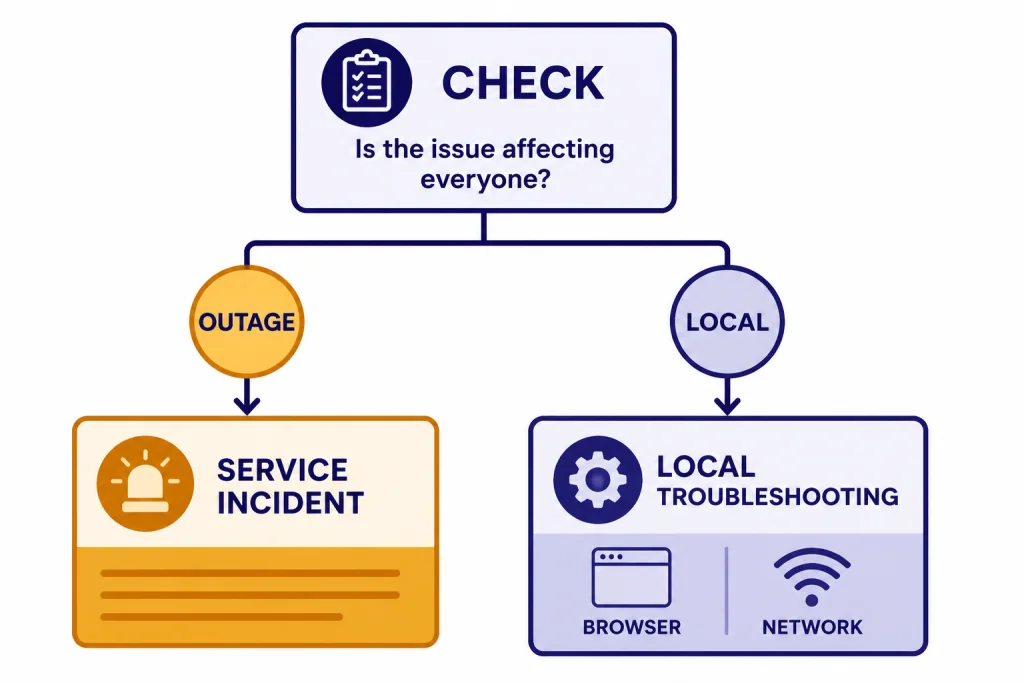
How to tell an outage from a local problem
A broad outage usually affects many parts of ChatGPT at once. A local problem usually stays tied to one browser, device, network, account, or feature. The table below gives you a practical read before you spend time troubleshooting the wrong thing.
| What you see | More likely cause | Best next step |
|---|---|---|
| ChatGPT will not load in any browser or app | Possible service incident | Check OpenAI Status and wait for an update |
| Login page loops or rejects the same account | Authentication issue, blocked cookies, wrong sign-in method, or outage | Use the original sign-in method and test incognito |
| Only one old conversation fails | Conversation-specific state problem | Start a new chat and copy the useful context manually |
| Only file upload fails | Feature-specific issue or file constraint | See our ChatGPT file upload not working guide |
| Only the mobile app fails | App cache, version, device network, or account session | Compare against ChatGPT app not working |
| Errors appear only on a VPN | VPN routing, blocked IP range, or security challenge | Test without the VPN and read ChatGPT not working with VPN |
| “Too many requests” appears after heavy use | Rate limit, not a full outage | Wait, reduce retries, and review ChatGPT Error 429 |
OpenAI’s login help recommends disabling blockers, allowing cookies and JavaScript for ChatGPT and OpenAI domains, trying incognito, switching networks, and checking status.openai.com when generic login errors appear.[7] Those steps isolate the failure without changing your account.
What to do if ChatGPT is not working
Use this short diagnostic sequence. Stop as soon as the problem is explained.
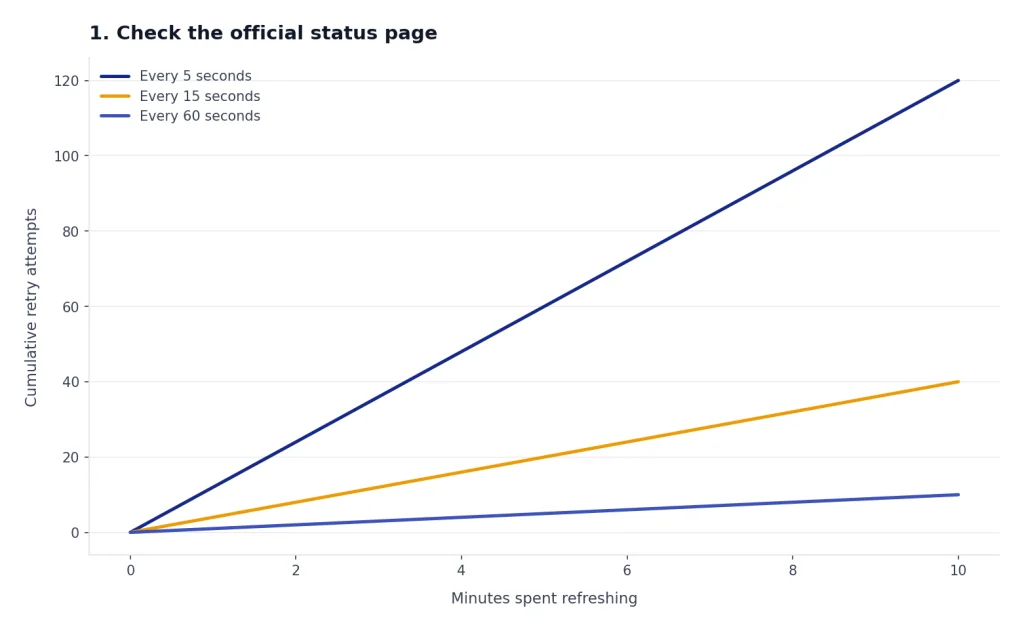
1. Check the official status page
If OpenAI shows a ChatGPT incident, do not keep refreshing every few seconds. Heavy retries can make your own session worse and may run into rate limits. Save your prompt locally and wait for the next status update.
2. Try a clean browser session
Open an incognito or private window. If ChatGPT works there, your normal browser profile is likely the problem. Disable privacy extensions, script blockers, cookie managers, and ChatGPT-related extensions one at a time. Then clear site data only if needed.
3. Check your login method
If you originally created the account with Google, Microsoft, or Apple, keep using that same method. OpenAI’s login help says a “Wrong authentication method” message can appear when you try to sign in using a different method than the one used at registration.[7]
4. Switch networks
Move from Wi-Fi to mobile data, or from a corporate network to a home network. If the problem disappears, the issue may be DNS, firewall inspection, a blocked security challenge, or VPN routing.
5. Match the error to a focused guide
For server-side codes, use the exact error message. We maintain separate guides for ChatGPT error 500, ChatGPT error 502, ChatGPT error 503, and ChatGPT internal server error. For vague failures, start with ChatGPT something went wrong.

OpenAI incident examples to know
The incidents below are cited examples from OpenAI’s history, not a claim about today’s live status. They show how different outage types can look similar to users: login failures, message failures, API errors, access errors, and conversation problems.
| Date | Official incident title | What it affected | Final status |
|---|---|---|---|
| March 7, 2026 | Login Issues | APIs and ChatGPT login for impacted users | Resolved at 12:57 AM[3] |
| March 5, 2026 | ChatGPT Issues Sending Messages | Some users could not send messages in ChatGPT | Resolved at 9:49 PM[4] |
| March 5, 2026 | User may experience errors in ChatGPT | ChatGPT errors for an affected component | Resolved at 6:27 AM[5] |
| March 4, 2026 | API Error Rates | API traffic and some Codex traffic, with elevated error rates and latency | Service restored by 4:56 PM PST[6] |
| February 4, 2026 | ChatGPT Availability Impacted | Some ChatGPT users saw 403 errors | Fully mitigated at 9:59 AM PST[8] |
For a longer record, use our ChatGPT outages 2026 timeline and ChatGPT outage history. Those pages are better when you want patterns, not just today’s answer.
Common error messages during outages
Outages rarely show one perfect error message. A single incident can produce login failures, blank pages, stuck messages, 403 access errors, 5xx server errors, and slow responses. The February 4, 2026 ChatGPT availability incident is a useful example: OpenAI said some users experienced 403 errors when accessing ChatGPT, with the web experience seeing the highest impact.[8]
- “Something went wrong.” This can mean a temporary service issue, a failed conversation request, a broken browser session, or a blocked network request.
- “Network error.” This often points to connectivity, long responses, proxy interruptions, or a browser session problem. See ChatGPT network error if it repeats.
- 403 or access denied. This can come from security checks, blocked routes, or a service incident. The February 4 incident confirms that 403 errors can appear during a real ChatGPT availability problem.[8]
- 429 or too many requests. This usually means you are hitting a rate limit. It is not the same as ChatGPT being down for everyone. Our ChatGPT too many requests guide covers that path.
- 500, 502, or 503. These point more strongly toward a server-side or gateway problem, but you should still test a clean browser and a second network before assuming a full outage.
If the image generator, voice mode, or Code Interpreter fails while normal chat works, treat it as a feature-specific problem. Start with ChatGPT image generator not working, ChatGPT voice mode not working, or Code Interpreter session expired rather than assuming a global outage.
When waiting is the right fix
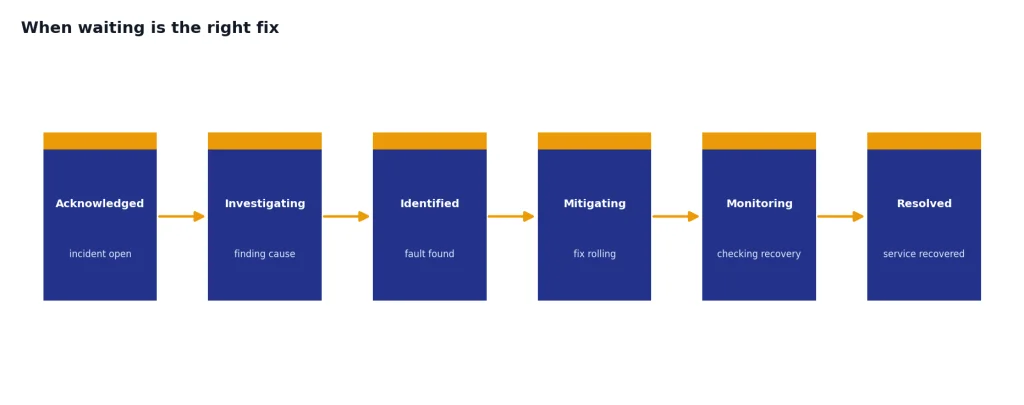
Waiting is the right fix when OpenAI has acknowledged an incident, identified the issue, and says it is applying or monitoring a mitigation. During the March 7 Login Issues incident, OpenAI moved from identifying the login problem to applying a mitigation and then marking impacted services recovered at 12:57 AM.[3] During the March 5 message-sending incident, OpenAI investigated, applied a mitigation, and then marked services recovered at 9:49 PM.[4]
Do not make destructive changes during that window. Do not delete your account, reset important settings, or repeatedly submit the same high-value prompt without saving it elsewhere. If you are near a deadline, copy your prompt and source material into a local document, then try a lightweight workaround: a new chat, a shorter prompt, the web app instead of mobile, or mobile data instead of Wi-Fi.
If OpenAI shows no incident and your problem continues across devices and networks, collect the exact error text, time, browser or app version, plan type, and screenshots. Then contact support through the official Help Center. That evidence matters because status pages show aggregate health, not every individual account state.
Frequently asked questions
Is ChatGPT down today?
Check OpenAI Status for the live answer.[1] As of this May 4, 2026 editorial review, this article does not automatically verify the current service state. If OpenAI shows no active ChatGPT incident but ChatGPT still fails for you, test whether the problem is limited to your browser, app, network, VPN, feature, or account.
Why does ChatGPT fail when the status page is green?
OpenAI says its availability metrics are aggregate across tiers, models, and error types, and individual availability may vary by subscription tier, model, and feature.[1] A green page can miss a small regional problem, a feature-specific issue, or a local browser failure.
What was the latest confirmed ChatGPT problem?
For the latest confirmed problem, use OpenAI’s status and history pages.[1][2] One historical example covered here is the March 7, 2026 Login Issues incident, which affected APIs and ChatGPT components and was later marked recovered.[3]
Should I keep refreshing ChatGPT during an outage?
No. Save your prompt locally and wait for OpenAI’s next update. Repeated refreshes can create duplicate attempts, worsen a stuck session, or push you toward rate-limit errors.
Does a 429 error mean ChatGPT is down?
Usually no. A 429 or “too many requests” message normally means your account, browser session, or client is sending too many requests in a short period. It can happen during heavy use even when ChatGPT is otherwise available.
What should I try first if ChatGPT will not log in?
Use the same sign-in method you used when you created the account. Then try incognito, allow cookies and JavaScript, disable blockers, switch networks, and check OpenAI Status. OpenAI’s login help recommends those steps for common login failures.[7]