

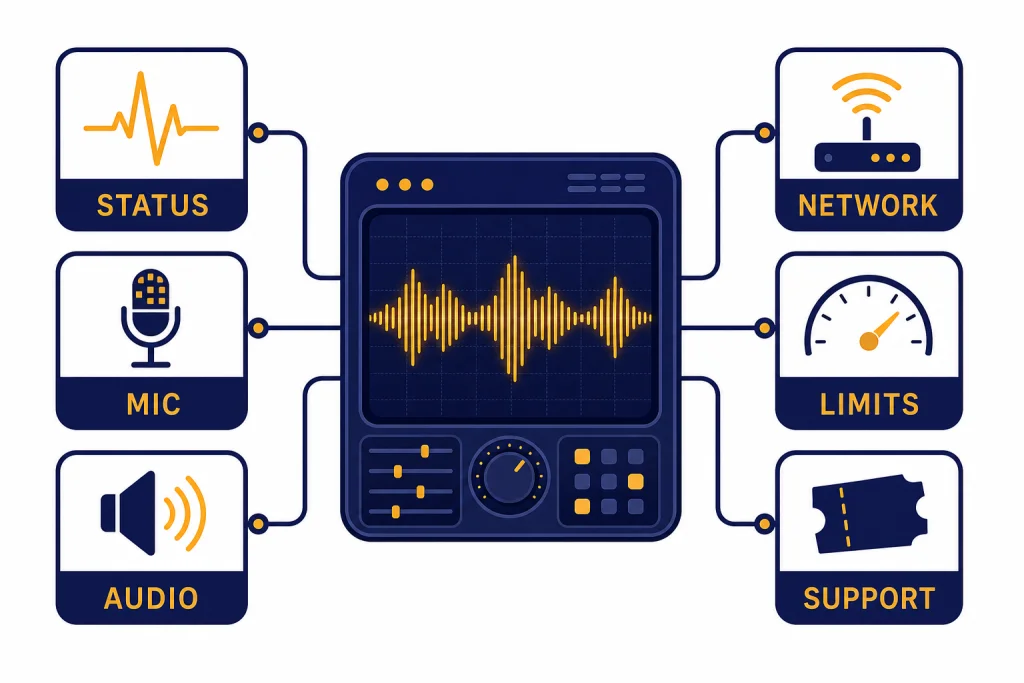
If ChatGPT Voice Mode is not working, start by separating the problem into four buckets: OpenAI service status, microphone or speaker permissions, app or browser state, and account-level limits. Do not reinstall the app first. A missing Voice button, a session that never connects, and a call that starts but cannot hear you point to different causes. This guide walks through the checks in the fastest order: confirm whether Voice is affected on OpenAI’s side, test whether the issue is only on one device, repair microphone access, rule out VPN or browser interference, and decide when the problem needs OpenAI support rather than another local fix.
Quick diagnostic checklist
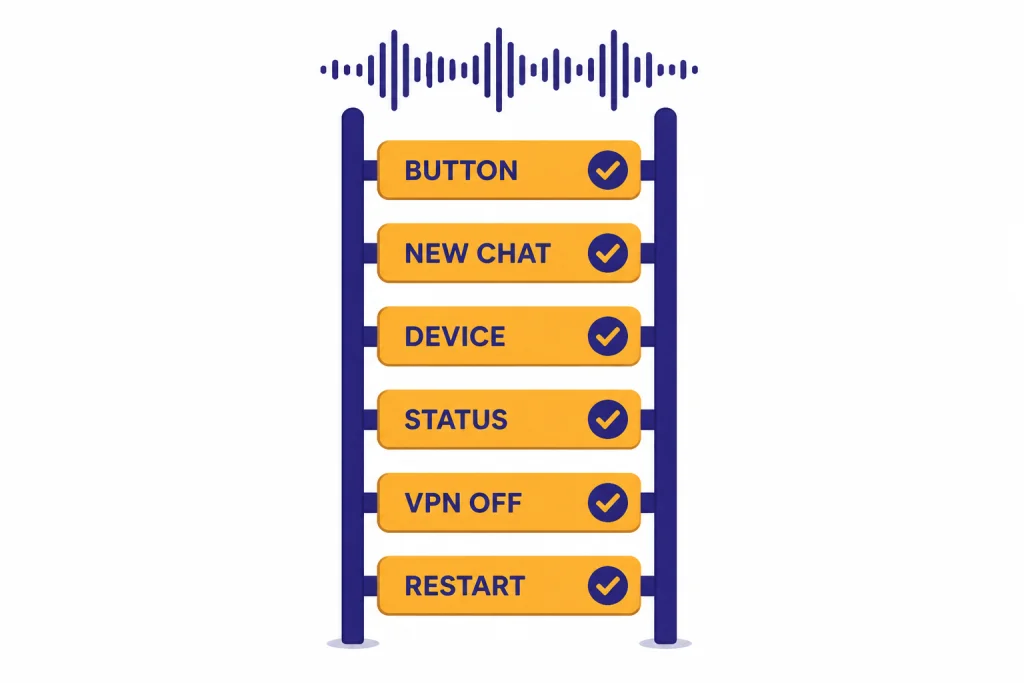
Use this order when ChatGPT Voice Mode fails. It prevents you from spending time on microphone settings when the service is down, or reinstalling the app when the browser permission was simply blocked.
- Check whether the Voice button is present. OpenAI says Voice conversations are available to logged-in users in ChatGPT mobile apps and on desktop web at ChatGPT.com.[1] If the button is missing everywhere, think account, rollout, plan, or status issue first.
- Try one clean session. Start a new chat, tap or click the Voice icon, and confirm that the microphone is not muted inside the Voice screen.
- Test another device or network. If Voice works on mobile but not desktop, the browser or operating-system microphone permission is the likely cause.
- Check OpenAI status. OpenAI’s troubleshooting guidance tells users to check status.openai.com for ongoing incidents when ChatGPT is slow, stuck, or unresponsive.[2]
- Disable interference. Temporarily turn off VPNs, proxies, secure DNS tools, privacy extensions, and content blockers. OpenAI recommends disabling those tools during ChatGPT troubleshooting.[2] For more detail, see our ChatGPT VPN troubleshooting guide.
- Restart the session. Refresh the page or restart the app. If the issue persists across devices and networks, prepare a support report instead of repeating the same fixes.
If the symptom is a general app failure rather than a Voice-only failure, use our ChatGPT app not working guide first. If the app loads but the voice session drops, keep going here.
Identify the voice feature that is failing
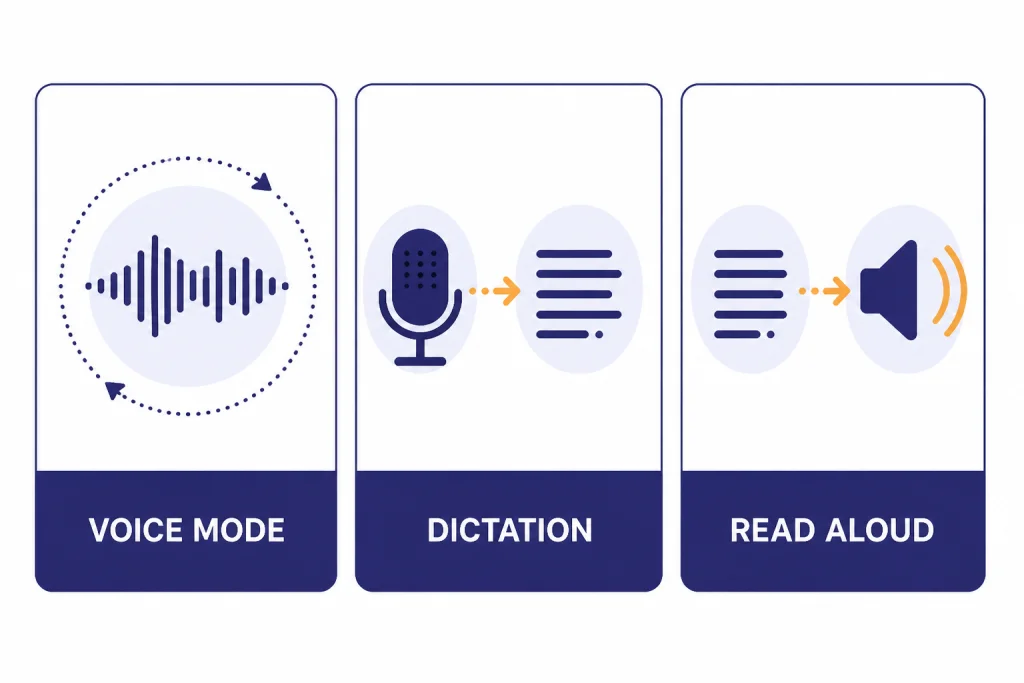
ChatGPT has more than one audio-related feature. A fix for Voice Mode may not fix dictation, and a dictation issue may not affect a live voice conversation. Identify the failing feature before changing settings.
| Feature | What you see | Likely failure point | Best first test |
|---|---|---|---|
| Voice Mode | A live spoken conversation with a Voice icon, mute control, and an exit control | ChatGPT Voice service, app state, microphone permission, speaker route, or account limit | Start a new voice conversation on another device |
| Dictation | You press the microphone icon to record an audio message that becomes editable text | Browser or app microphone permission, selected input device, transcription path | Record a short phrase and confirm whether text appears before sending |
| Read aloud | ChatGPT speaks a text answer that already exists | Output volume, audio route, browser autoplay behavior, app sound setting | Play another audio source on the same device |
| Video or screen share inside Voice | Camera, photo, or screen controls appear during a voice chat | Plan eligibility, mobile app support, camera permission, or daily video/screen-share limit | Test audio-only Voice first, then add video or screen share |
OpenAI describes dictation separately from Voice Mode: dictation records an audio message, sends the audio to models for transcription, and returns editable text before you send it.[3] Voice Mode is different because it is a spoken conversation with ChatGPT rather than a one-time speech-to-text input.

This distinction matters when a user says “the microphone is broken.” If dictation records nothing but Voice Mode works, you may have a dictation-specific browser issue. If Voice Mode opens but ChatGPT cannot hear you, check the in-call mute button, OS microphone permission, selected microphone, and competing audio apps.
Check OpenAI status before changing settings
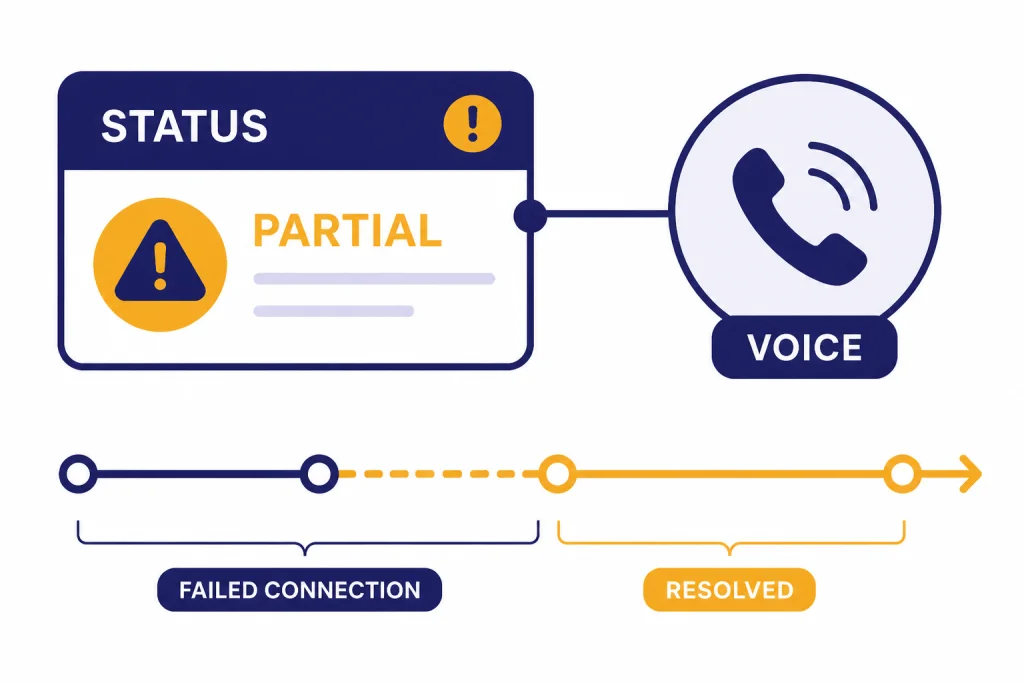
Voice Mode can fail because OpenAI is having a service incident. OpenAI’s status pages also note that availability metrics are reported in aggregate across tiers, models, and error types, so your account can be affected even when another person’s account works.[4] If Voice fails at the connection step, a status check should come before reinstalling the app.
OpenAI has logged Voice-specific incidents before. On August 25, 2025, OpenAI reported elevated errors in ChatGPT Voice where voice conversations could not start or failed to connect for a subset of users from 10:13 a.m. to 11:00 a.m. PT.[4] On December 17, 2024, OpenAI reported degraded performance in ChatGPT Advanced Voice Mode where some conversations did not appear in conversation history between 12:37 p.m. and 3:17 p.m. PST.[5] OpenAI also recorded a resolved degraded-performance incident for ChatGPT voice on February 26, 2025.[6]
Those examples show why the symptom matters. A server-side incident can look like a local device issue. It may show up as a spinning connection screen, a voice chat that drops immediately, a missing transcript, or an error after you tap the Voice icon. If the status page lists a current ChatGPT or Voice incident, wait for recovery and avoid changing multiple device settings at once.
If you are tracking a broader service problem, compare the symptom with our ChatGPT outages 2026 timeline and the longer ChatGPT outage history. If text chat also fails, the problem may be wider than Voice Mode.
Fix microphone and speaker permissions
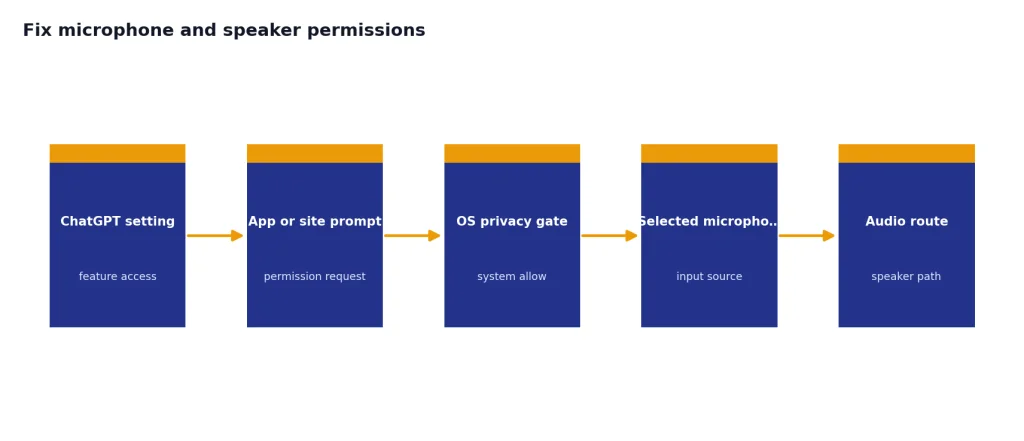
If OpenAI status looks normal and the failure follows one device, inspect permissions. Voice needs both ChatGPT-level permission and system-level permission. A browser can show microphone access as allowed while the operating system blocks the browser. A phone can show the ChatGPT app as installed while microphone access is disabled.
iPhone and iPad
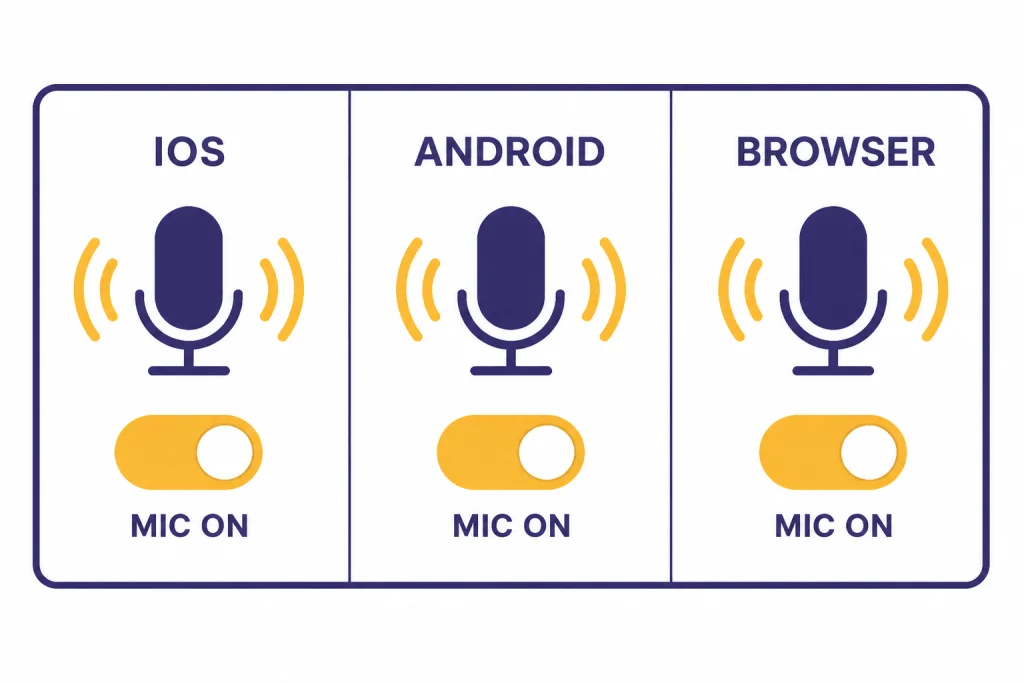
OpenAI says the ChatGPT app needs Microphone permission to use Voice.[1] On iPhone and iPad, Apple says Privacy settings let users see which apps can access items such as Microphone and revoke or grant access in Settings > Privacy & Security.[9] Open Settings, find ChatGPT, and confirm Microphone is enabled. Then open Privacy & Security > Microphone and confirm ChatGPT appears there and is switched on.
If Voice opens but ChatGPT cannot hear you, also check the in-call mute icon. Then disconnect Bluetooth headphones, car audio, or external microphones and test with the built-in microphone. Audio routing is a common false lead: ChatGPT may be listening to a headset in another room or sending sound to a muted Bluetooth device.
Android
On Android, Google says you can change app permissions by opening Settings, tapping Apps, choosing the app, opening Permissions, and changing the permission setting.[7] For ChatGPT Voice, verify that Microphone is allowed for ChatGPT. Also check Android’s privacy controls, because Google documents a separate device-level Camera access and Microphone access toggle that can disable the microphone for apps.[7]
After changing permissions, force close ChatGPT and reopen it. If Android still shows a microphone warning, remove stale Bluetooth routes and test with another recording app. If every app cannot record audio, the issue is device-level, not ChatGPT-specific.
Desktop web
OpenAI says desktop web users may need to give the browser permission to access the device microphone before using Voice.[1] In Chrome, Google says sites can ask for microphone permission and that users can change a site’s camera and microphone access in browser settings.[8] Open the site information controls for ChatGPT, allow Microphone, and confirm the correct input device is selected in browser or system sound settings.
Then test in a private window with extensions disabled. If the private window works, the culprit is usually an extension, blocked site permission, or a stale browser profile. If the private window fails but mobile works, test another browser. If no browser can access the microphone, check operating-system privacy settings for the browser itself.
Fix the app, browser, and network path
Once permissions are correct, move to the path between your device and ChatGPT. OpenAI’s troubleshooting guidance recommends refreshing the page or restarting the app, trying a different browser, device, or network, clearing site data or cookies if needed, and disabling VPNs, proxies, secure DNS services, extensions, or content blockers that may interfere.[2]
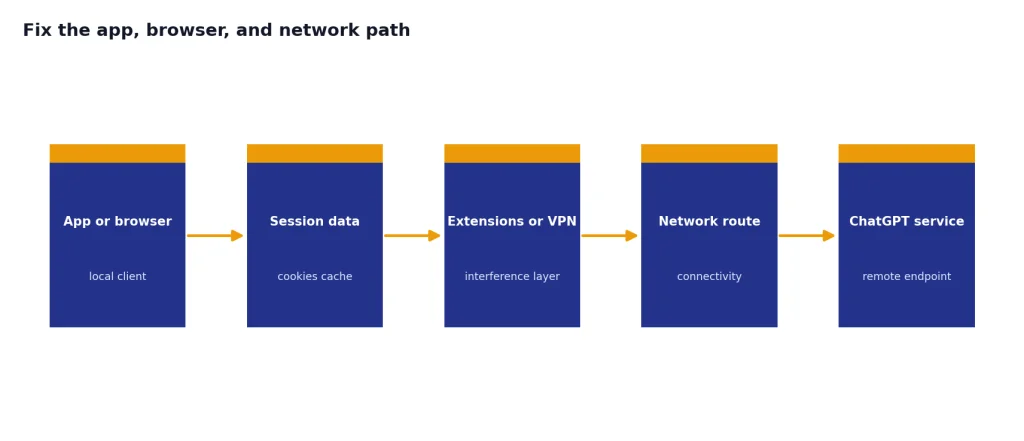
Use this sequence for the mobile app:
- End the voice session and start a new chat.
- Force close ChatGPT and reopen it.
- Switch from Wi-Fi to cellular, or from cellular to Wi-Fi.
- Disable VPN, private relay-style services, proxy apps, and DNS filtering temporarily.
- Update the ChatGPT app if an update is available.
- Restart the phone.
- Only then consider signing out and back in, or reinstalling the app.
Use this sequence for web:
- Hard refresh ChatGPT.
- Open a private window with extensions disabled.
- Grant microphone permission again when prompted.
- Try a different browser.
- Try a different network.
- Clear site data for ChatGPT if the problem remains.
If the failure appears only on one network, treat it like a connection problem. Our ChatGPT network error guide covers browser, DNS, and network tests that also apply to Voice Mode. If the app loads but keeps returning a generic message, compare it with the ChatGPT something went wrong error guide.
Account limits and feature behavior that look like bugs
Some Voice Mode behavior is intentional even when it feels broken. OpenAI says subscribers’ voice sessions automatically begin with GPT-4o, and after their GPT-4o minutes are used for the day, they can continue in Voice Mode with GPT-4o mini.[1] OpenAI says logged-in Free users’ ChatGPT voice use is powered by GPT-4o mini and is subject to a daily time limit that may change.[1]
That means a model change, a limit warning, or loss of video and screen-share options after heavy use may be expected plan behavior rather than a device fault. OpenAI says video and screen-share capabilities have daily limits, and subscribers who reach their GPT-4o voice daily usage limit fall back to GPT-4o mini and cannot share new video or screen-share content until the GPT-4o usage limit resets.[1]
Voice also does not support every ChatGPT feature. OpenAI says Voice Mode does not yet support tools such as image generation, file uploads, or Code Interpreter, and custom actions in GPTs are not available in Voice Mode.[1] If your voice chat cannot upload a file or run a tool, that is not the same issue as ChatGPT file upload not working or Code Interpreter session expired.
Account state can also hide the real issue. If you are signed out, using a restricted workspace, or switching between personal and work accounts, Voice may not appear where you expect it. Fix login problems first with our ChatGPT login failed guide. If you see rate-limit language rather than a Voice-specific message, compare it with ChatGPT Error 429 Too Many Requests.
When Voice starts but behaves badly
A working Voice session can still feel broken. The most common symptoms are interruptions, wrong language detection, mismatched transcripts, low volume, or missing conversation history.
For interruptions, OpenAI recommends using headphones, enabling Voice Isolation mic mode on iPhone, closing and restarting the app, turning up the assistant volume, or moving to a quieter environment.[1] Start with the physical environment. Fan noise, keyboard noise, and another person speaking nearby can cause premature pauses or unwanted interruptions.
For wrong language detection, OpenAI says the spoken language may not always be accurately reflected and users can verbally correct the model; for dictation, users can set a preferred Main Language in Speech settings.[1] If you switch languages often, set the main language instead of relying on automatic detection.
For transcript mismatch, OpenAI explains that Voice conversations are multimodal and that the transcript may not align perfectly with the original conversation.[1] Treat the transcript as a useful record, not as a perfect verbatim log. If you need an exact record, use a dedicated recording and transcription workflow with proper consent.
For missing history, compare the behavior with known service incidents. OpenAI’s December 17, 2024 Advanced Voice Mode incident specifically involved conversations not appearing in conversation history after users returned from Voice.[5] If the voice chat itself worked but the transcript vanished, the cause may be sync or service history rather than microphone access.
For slow responses, apply the same basic checks you would use for text ChatGPT. Our guide to why ChatGPT is slow covers network, browser, load, and extension causes that can also affect Voice Mode.
When to contact OpenAI support
Contact OpenAI support when the issue survives a clean test across devices, browsers, and networks. OpenAI’s troubleshooting guidance says that if an issue persists across browsers, devices, and networks, users should collect a HAR file and browser console errors with timestamps, note the model used and conversation URL or ID, and contact Support.[2]
For Voice Mode, include more detail than you would for a text-only error:
- Your device model and operating system.
- Whether the issue happens in the mobile app, desktop web, or both.
- Whether the Voice icon is missing, the session fails to connect, ChatGPT cannot hear you, you cannot hear ChatGPT, or the transcript is missing.
- The account type or workspace where it happens.
- The exact time zone and timestamp of the last failed attempt.
- Whether VPN, proxy, secure DNS, browser extensions, or managed work-device policies were active.
- Whether the same account works on another device.
Do not send sensitive audio, private screenshots, or workplace data unless support specifically asks and you are allowed to share it. If the symptom is a server error instead of a Voice-specific failure, use the relevant status guide first, such as ChatGPT internal server error or ChatGPT Error 503 service unavailable.
Frequently asked questions
Why is the ChatGPT Voice button missing?
The most likely causes are that you are signed out, using an unsupported surface, affected by a rollout or account issue, or seeing a temporary service problem. OpenAI says Voice conversations are available to logged-in users in the ChatGPT mobile apps and on desktop web at ChatGPT.com.[1] If the button is missing on every device, check your account and OpenAI status before reinstalling anything.
Why can ChatGPT not hear me in Voice Mode?
Check the Voice session mute button first. Then confirm ChatGPT has microphone permission at both the app or browser level and the operating-system level. If it works on your phone but not on desktop, the browser permission or selected microphone is the likely problem.
Why can I hear ChatGPT, but ChatGPT cannot hear me?
That points to input, not output. Disconnect Bluetooth devices, close other apps that may be using the microphone, and test the built-in microphone. On desktop web, open a private browser window and grant microphone permission again.
Is dictation the same as Voice Mode?
No. Dictation records an audio message and returns editable text before you send it.[3] Voice Mode is a live spoken conversation. A dictation bug can exist even when Voice Mode works.
Why did Voice Mode switch models or lose video options?
That can happen because of usage limits. OpenAI says subscribers start Voice sessions with GPT-4o and can continue with GPT-4o mini after using their GPT-4o minutes for the day.[1] OpenAI also says video and screen-share capabilities are limited and may stop being available until the usage limit resets.[1]
Should I reinstall the ChatGPT app?
Reinstalling should be late in the process, not the first move. Check status, permissions, mute state, audio routing, network, VPN, and app restart first. Reinstall only after the issue is isolated to one device and basic fixes have failed.