
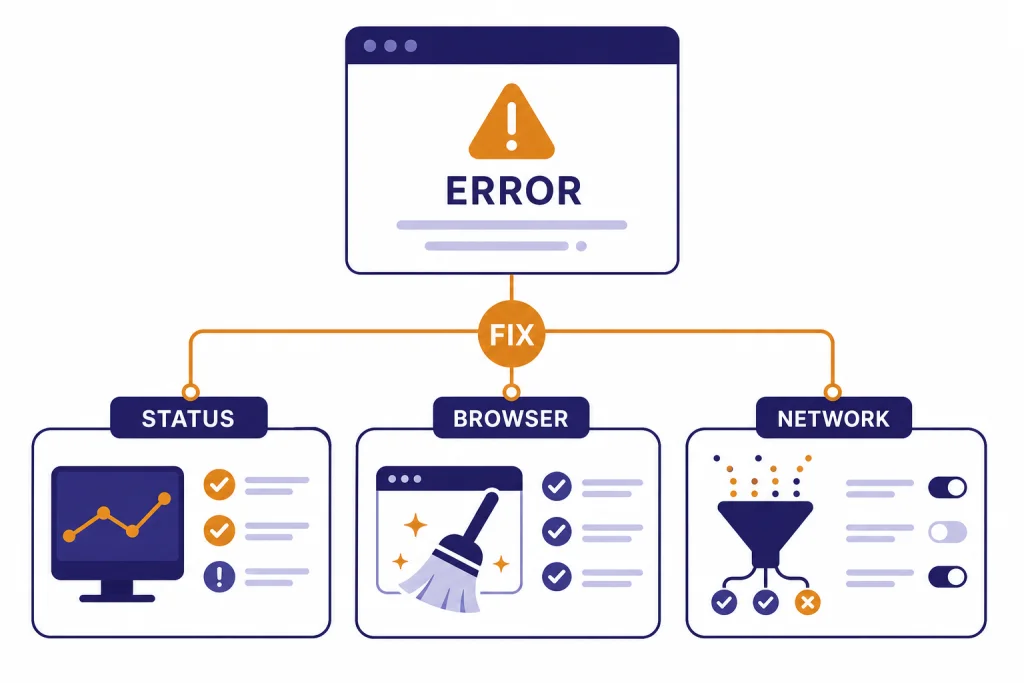
The ChatGPT “Something went wrong” error is a general failure message. It usually means ChatGPT could not complete a request because of a temporary OpenAI service issue, a broken browser session, a network filter, a login problem, or a local app bug. Start by checking OpenAI’s status page, then refresh the page or start a new chat. If the error remains, test ChatGPT in a private window, clear site data, disable extensions, turn off VPN or secure DNS tools, and try another network. Use this guide as a fast decision tree, not a random checklist, so you can isolate the cause before you reset everything.
What the error means
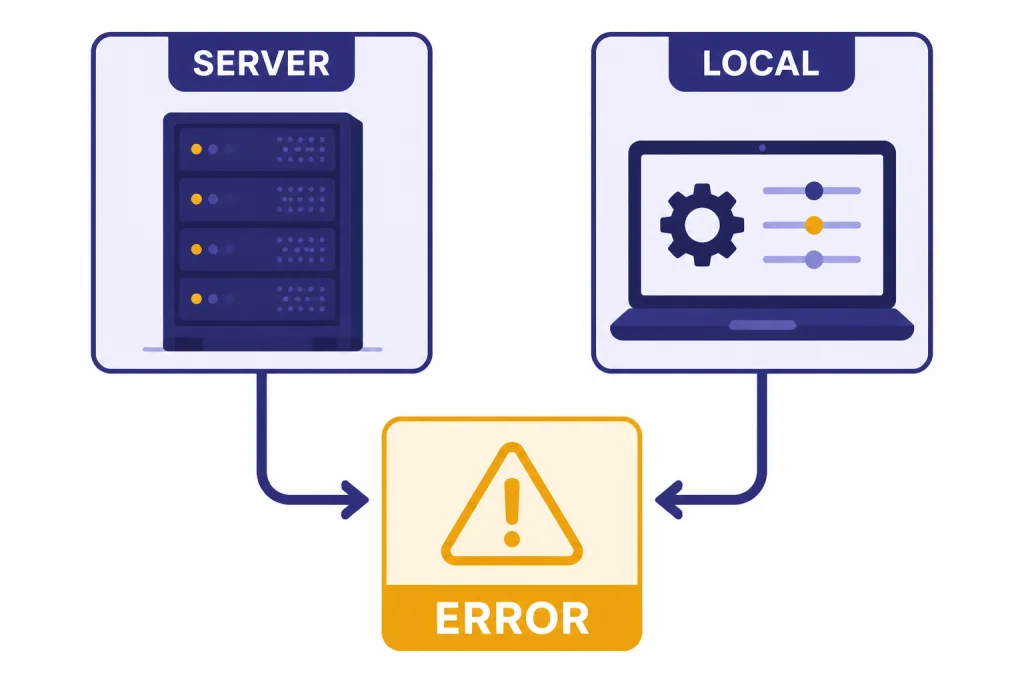
OpenAI describes “Something went wrong” as a general ChatGPT error that can point to either a temporary server-side problem or a problem with your local setup.[1] That broad wording matters. It means the message is not a diagnosis by itself. It is a fallback error that appears when ChatGPT cannot give you a more specific message.
The practical question is whether the failure follows your account, your browser, your device, your network, or the OpenAI service. If the same prompt works in a private browser window on mobile data, your original browser or network is the likely cause. If the error appears across devices and networks, an outage or account-side issue becomes more likely.
This guide focuses on the standard ChatGPT web and app experience. If you see a named HTTP error instead, use the more specific guide for that code. For example, a rate limit problem belongs in our ChatGPT Error 429 Too Many Requests guide, while a backend failure may fit chatgpt error 500 internal server.
The fastest fix sequence
Do not begin by reinstalling apps or changing account settings. Use the smallest reversible tests first. OpenAI’s own troubleshooting list starts with refreshing, checking service status, clearing cache and cookies, using a private window, disabling extensions, turning off VPN or secure DNS tools, and switching networks.[1]
- Open a fresh chat. If one conversation is corrupted or too heavy, a new thread may work.
- Refresh the page. On desktop, use a hard refresh if a normal reload does not help.
- Check OpenAI status. If ChatGPT has an active incident, wait before changing local settings.
- Try a private window. This bypasses many extension and cached-session conflicts.
- Disable extensions. Start with ad blockers, privacy tools, script blockers, password managers, and security extensions.
- Turn off VPN, proxy, secure DNS, or web filtering. Corporate and school networks can also interfere.
- Switch networks. Test home Wi-Fi, mobile hotspot, or another trusted connection.
- Sign out and back in. Do this after browser tests, not before.
- Clear ChatGPT site data. This is stronger than a simple refresh and may require signing in again.
- Try another device. This separates account or service problems from device problems.
If you need a shorter rule: test status, test private browsing, then test another network. Those three checks usually tell you which branch to follow.

Outage or local problem
OpenAI’s status page is the first external check. It lists current system status and links to incident history, but OpenAI notes that individual availability can vary by subscription tier, model, and feature.[2] That means a green status page does not prove your exact workflow is healthy. It only means OpenAI has not posted a matching active incident.
Use the table below to decide whether to wait or troubleshoot locally. For larger service patterns, compare the timing with our chatgpt outages 2026 tracker and broader ChatGPT Outage History.
| What you see | Most likely cause | Best next move | When to stop changing settings |
|---|---|---|---|
| Error appears on every device and network | OpenAI incident, account issue, or service-side routing problem | Check status, wait, then collect evidence if it continues | When other users or status history show matching failures |
| Error disappears in a private window | Browser extension, cookie, cache, or stale login state | Disable extensions and clear ChatGPT site data | When private mode works reliably |
| Error disappears on mobile data | Wi-Fi, VPN, proxy, DNS, firewall, or workplace filter | Turn off filters or use another trusted network | When one network consistently fails and another works |
| Error appears only in one conversation | Thread-specific loading or context issue | Start a new chat and copy only the needed context | When new chats work normally |
| Error appears during sign-in | Authentication method, cookie, extension, or temporary login restriction | Use the original sign-in method and test a private window | When the problem is limited to login screens |
If the error started at the same time as slow answers, missing history, or blank responses, treat it as a possible service or loading problem. Our guide to Why Is My ChatGPT So Slow? 8 Easy Fixes covers response delays that do not always show a formal error.
Browser and account fixes
Browser problems are common because ChatGPT depends on a working session, cookies, JavaScript, network requests, and extension compatibility. OpenAI recommends clearing cache and cookies, using an incognito or private window, disabling browser extensions, and trying a different browser when ChatGPT errors appear.[1]
Test a private window first
A private window is a clean diagnostic test. If ChatGPT works there, your account is probably fine. The issue is more likely an extension, cookie, cache, browser profile, or site permission in your normal window.
Clear site data, not just cache
A simple cache clear may leave old cookies and local site storage in place. If the error keeps returning, clear site data for ChatGPT and sign in again. OpenAI separately recommends clearing site data or cookies when ChatGPT is blank, frozen, endlessly loading, or still failing after normal reloads.[1]
Disable extensions in groups
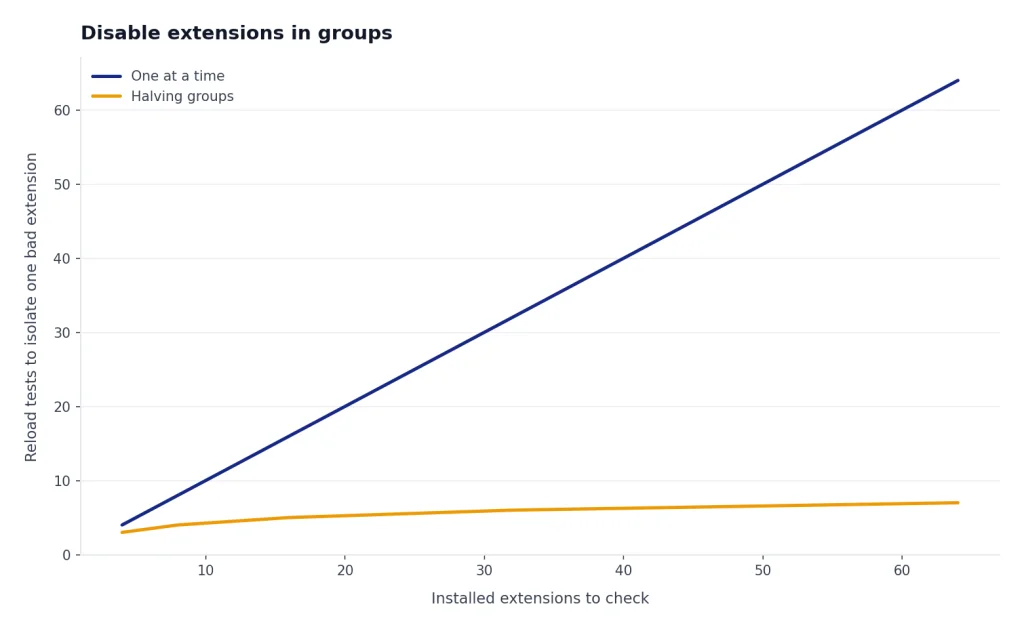
Turn off extensions that change pages, block scripts, rewrite links, manage cookies, inject prompts, or inspect network traffic. Then reload ChatGPT. If the error disappears, turn extensions back on one at a time until the failure returns. Privacy and security tools deserve special attention because OpenAI specifically calls out those categories in its troubleshooting guidance.[1]
Check the login method
If the error appears during login, make sure you use the same authentication method you used when you created the account. OpenAI says users who signed up with Google, Microsoft, or Apple should continue with that same method; using another method can trigger account and authentication errors.[3] If your problem is mainly sign-in, use our chatgpt login failed guide instead of resetting browser settings repeatedly.

Network, VPN, and DNS fixes
Network filters can make ChatGPT look broken even when OpenAI is operating normally. OpenAI advises users to turn off VPNs or secure DNS tools such as Web Protect and switch to a different network if possible when the “Something went wrong” error appears.[1]
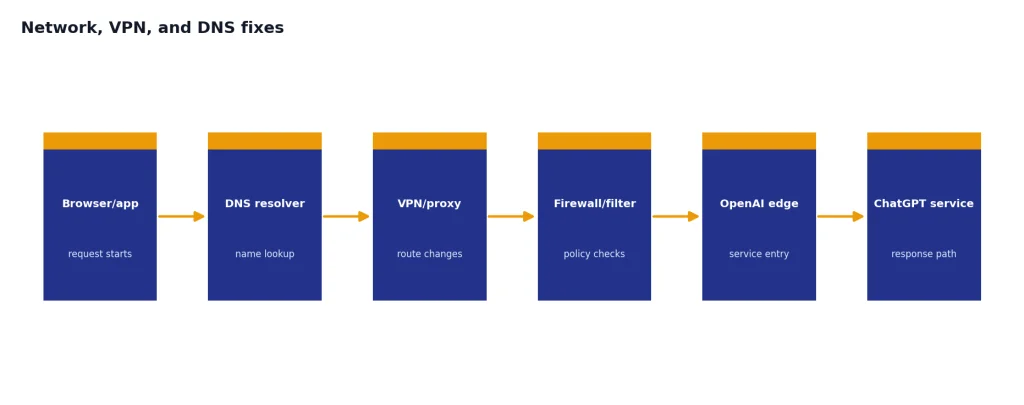
- VPN: Disconnect it and reload ChatGPT. If that works, try a different VPN region or use ChatGPT without the VPN where appropriate.
- Proxy: Turn it off temporarily, especially on managed work devices.
- Secure DNS: Disable filtering DNS services for a test, then re-enable them after you know whether they are involved.
- Firewall or content filter: Ask your IT team whether ChatGPT, OpenAI authentication, or required web sockets are blocked.
- Public Wi-Fi: Captive portals and filtering gateways can interrupt sessions. Switch to a trusted hotspot for the test.
If the error turns into a connection-specific message, move to our chatgpt network error walkthrough. If ChatGPT works without your VPN but fails with it, see our chatgpt not working with vpn guide for the narrower VPN branch.
Be careful with permanent workarounds. A different network is a useful test, not always a safe long-term setup. Avoid sending sensitive work data through an untrusted hotspot just to bypass a corporate filter.
Mobile and desktop app fixes
On mobile, the same error can come from the app, the operating system, the sign-in browser, or the network. For iOS app crashes, OpenAI recommends relaunching the app, uninstalling it, and downloading it again if the problem continues.[5] That sequence is reasonable for app-only “Something went wrong” loops too, after you test whether ChatGPT works in a mobile browser.
- Force close and reopen the app. This clears a stuck app state without touching your account.
- Switch between Wi-Fi and mobile data. This separates app problems from network problems.
- Update the app and operating system. This matters when device security checks or embedded browser flows fail.
- Sign out and sign back in. Use the same authentication method as the account originally used.
- Reinstall the app. Do this only after the faster tests fail.
OpenAI’s DeviceCheckError article also points users to stable internet, correct device date and time settings, app restart, switching between Wi-Fi and mobile data, updating the app and operating system, and contacting support with a screenshot if the issue remains.[6] If your problem is app-wide, our chatgpt app not working guide covers iOS and Android branches in more detail.

Similar errors that need a different fix
“Something went wrong” is generic. When ChatGPT gives you a more specific message, follow that message instead. Specific errors usually narrow the cause and save time.
| Error or symptom | How it differs | Use this guide |
|---|---|---|
| Network error | The connection to ChatGPT is unstable or interrupted. | chatgpt network error |
| Error in message stream | The response starts but fails while streaming. | chatgpt error in message stream |
| File upload failure | The problem happens when adding or processing a file. | chatgpt file upload not working |
| 503 service unavailable | The service is temporarily unavailable or overloaded. | chatgpt error 503 service unavailable |
| 502 bad gateway | A gateway or upstream server path failed. | ChatGPT Error 502 Bad Gateway |
| At capacity | ChatGPT is limiting access because demand is high. | chatgpt at capacity at the moment |
Also separate feature failures from whole-product failures. If only image generation fails, use chatgpt image generator not working. If only voice fails, use chatgpt voice mode not working. A feature-specific issue can coexist with a working chat box.
When to contact support
Contact OpenAI support when the error survives the core tests: private window, cleared site data, disabled extensions, another browser, another device, and another network. OpenAI says support may ask for a HAR file when troubleshooting ChatGPT interface issues, and describes a HAR file as a JSON-formatted archive of browser interactions with a website.[7]
Before you contact support, prepare a short evidence packet. Include the exact error text, the time it happened, your browser and operating system, the device type, whether you used a VPN or managed network, the conversation URL or ID if relevant, and screenshots. OpenAI’s troubleshooting guidance also says that persistent issues across browsers, devices, and networks may require browser console logs, a HAR file, timestamps, the model used, and the conversation URL or ID.[1]
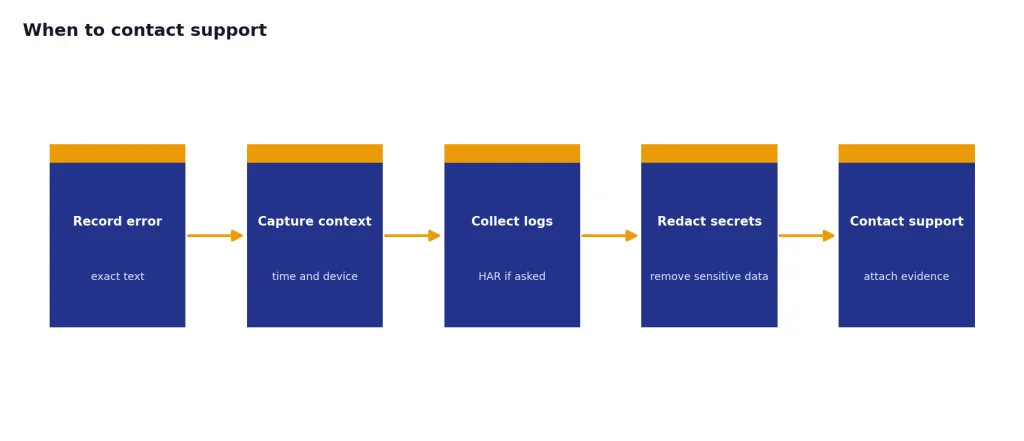
Do not send passwords, payment details, private keys, or unnecessary personal data in screenshots or logs. If your organization manages your ChatGPT workspace, check with your admin before collecting or sharing diagnostic files.
Frequently asked questions
Why does ChatGPT say “Something went wrong”?
It is a general error. OpenAI says it can indicate a temporary server issue or a local setup problem.[1] The fix depends on whether the error follows your browser, account, device, network, or OpenAI’s service.
Should I clear all browser history?
No. Start by clearing ChatGPT site data or cookies instead of deleting your entire browser history. A private window is the cleaner first test because it shows whether your normal browser profile is part of the problem.
Can a VPN cause the ChatGPT “Something went wrong” error?
Yes. OpenAI recommends turning off VPNs, secure DNS tools, and similar filters when this error appears.[1] If ChatGPT works after you disconnect the VPN, the VPN route, region, DNS, or filtering policy is probably involved.
Why does ChatGPT work on my phone but not my laptop?
That usually points to a browser, extension, cookie, device, or network difference. Test your laptop in a private window and then on a different network. If mobile data works but your laptop Wi-Fi fails, focus on network filtering or DNS.
Does this error mean my account is banned?
Usually no. “Something went wrong” is too generic to prove an account ban. If you cannot log in at all, check your sign-in method and use the original provider associated with the account, as OpenAI recommends for Google, Microsoft, or Apple sign-ins.[3]
What if OpenAI status is green but ChatGPT still fails?
A green status page does not rule out a local problem or a limited issue. OpenAI notes that availability may vary by subscription tier, model, and feature.[2] Run the private-window and alternate-network tests before assuming the problem is only on your side.