

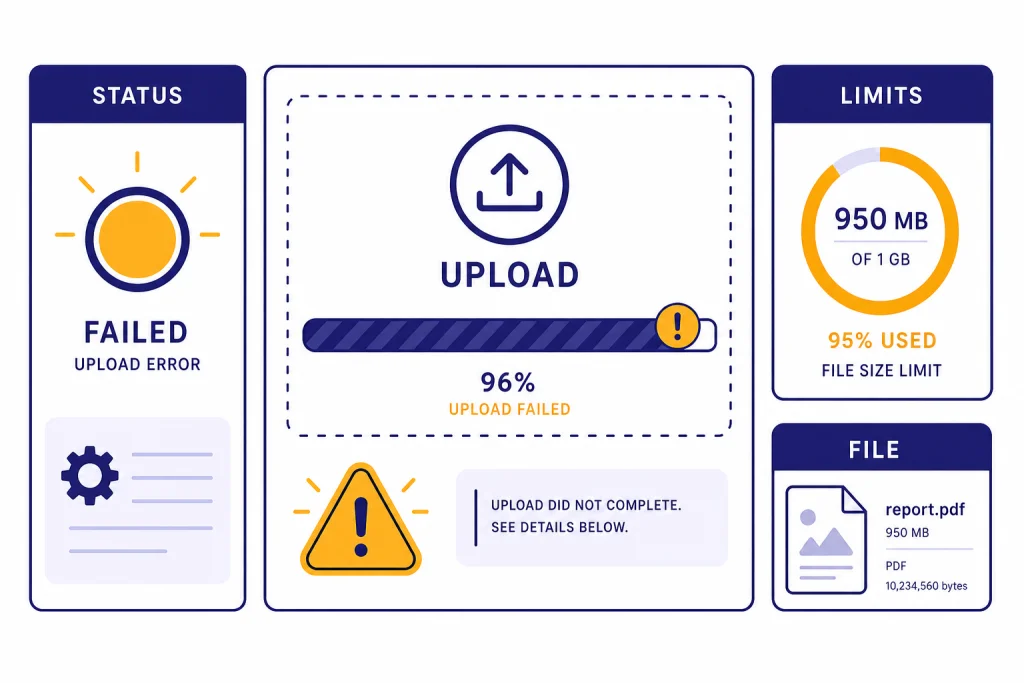
When ChatGPT file upload is not working, the cause is usually one of four things: an OpenAI service incident, an account or plan limit, a browser or network block, or a file that ChatGPT cannot process cleanly. Start by checking OpenAI’s status page, then test a small plain-text file in a new chat. If that works, the problem is probably the original file, its size, or its format. If every file fails, focus on limits, browser extensions, VPNs, app updates, and account access. This guide gives you a practical order of operations so you do not waste time re-uploading the same broken file.
Quick diagnosis
The fastest way to troubleshoot ChatGPT file uploads is to separate upload failure from file-reading failure. Upload failure means the file never attaches, stalls, disappears, or returns an error. File-reading failure means the file attaches, but ChatGPT says it cannot access it, ignores it, or gives answers that do not use the file. Those are different problems.
OpenAI says ChatGPT can upload documents such as PDFs, presentations, and plain text files, then summarize, extract information, or answer questions from them. It also recommends using a supported, fully updated browser for uploads.[2] If the upload button itself is missing, also confirm that you are signed in to the right account and using a plan where file uploads are available. OpenAI’s File Uploads FAQ says the feature is available to ChatGPT Plus, Pro, and Enterprise users on the web and in the iOS and Android apps.[1]
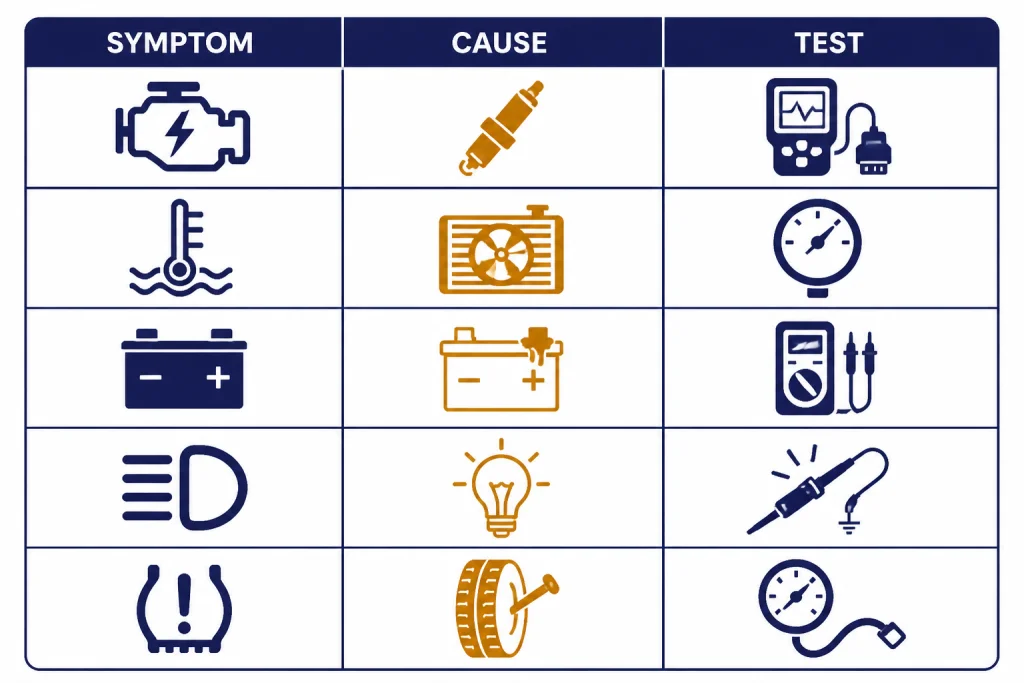
| Symptom | Most likely cause | Best first test | Next guide if related |
|---|---|---|---|
| Upload stuck or fails for every file | OpenAI incident, browser issue, VPN, or account limit | Check status, then try a tiny TXT file in a new chat | ChatGPT network error fixes |
| Only one PDF fails | Corrupt PDF, scanned pages, huge images, or unsupported structure | Export the PDF again or make an OCR copy | Code Interpreter session expired |
| Upload limit reached appears too early | Rolling upload cap, storage cap, or failed attempts counting | Wait, delete unneeded file chats, and retry with one small file | ChatGPT Error 429 Too Many Requests |
| Works on phone but not desktop | Browser cache, extension, blocked network request, or desktop app bug | Try an incognito window and a second browser | ChatGPT app not working |
| ChatGPT says it cannot access the uploaded file | Temporary file-processing failure or expired file handle | Start a new chat and re-upload a simpler copy | error in message stream |
Check OpenAI status first
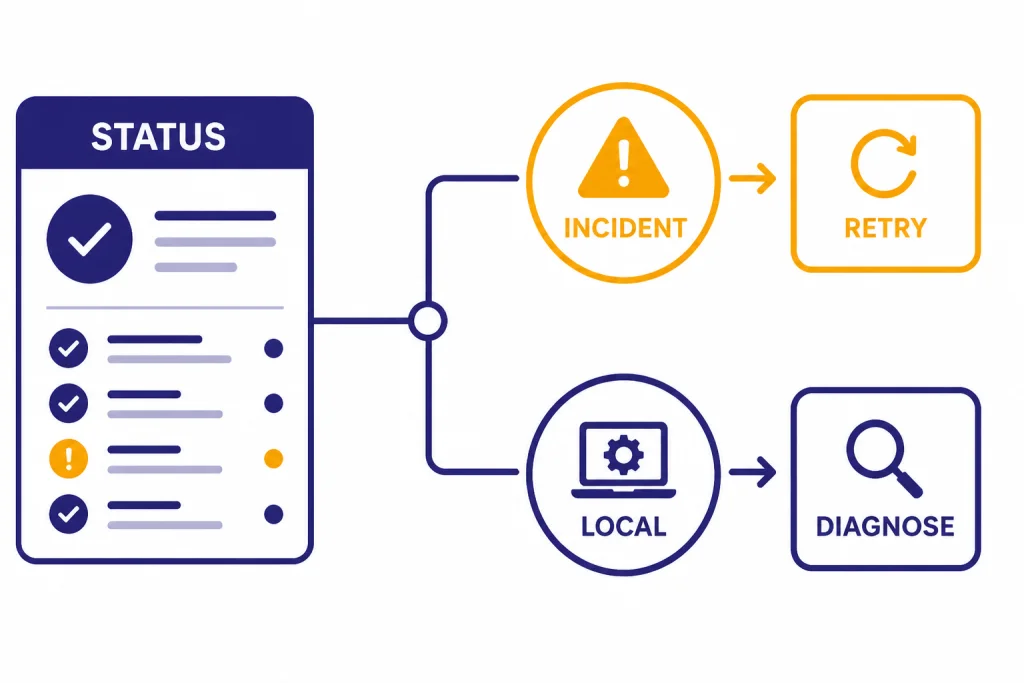
Before changing your file, check whether OpenAI is already reporting a file-related incident. OpenAI’s File Uploads FAQ explicitly tells users to check the status page for incidents that may affect uploads.[1] This matters because local fixes will not solve a server-side file-processing outage.
As of this article’s publication date, OpenAI’s status history showed multiple March 2026 file-related events, including “File uploads and file processing failing” on March 2, “Elevated errors in ChatGPT file uploads” on March 3, “Increased errors on ChatGPT File Uploads” on March 12, and a March 24 incident mentioning errors creating, updating projects, and uploading files.[3] Those entries are a reminder that file upload problems can be service-side even when normal text chat still works.
Use this rule: if OpenAI’s status page shows an active ChatGPT file upload, file processing, project file, or general ChatGPT incident, pause heavy troubleshooting. Save your work locally. Try again later. If you need to keep moving, paste the most relevant excerpt into the chat or split the task into smaller text blocks until upload service recovers.
If the status page looks clear but your uploads fail, do not assume the status page is wrong. Move to a controlled test: open a new chat, upload a small TXT file, and ask ChatGPT to repeat the first line. If that fails, troubleshoot your account, browser, or network. If it succeeds, your original file is the likely problem.
Check upload limits and account caps
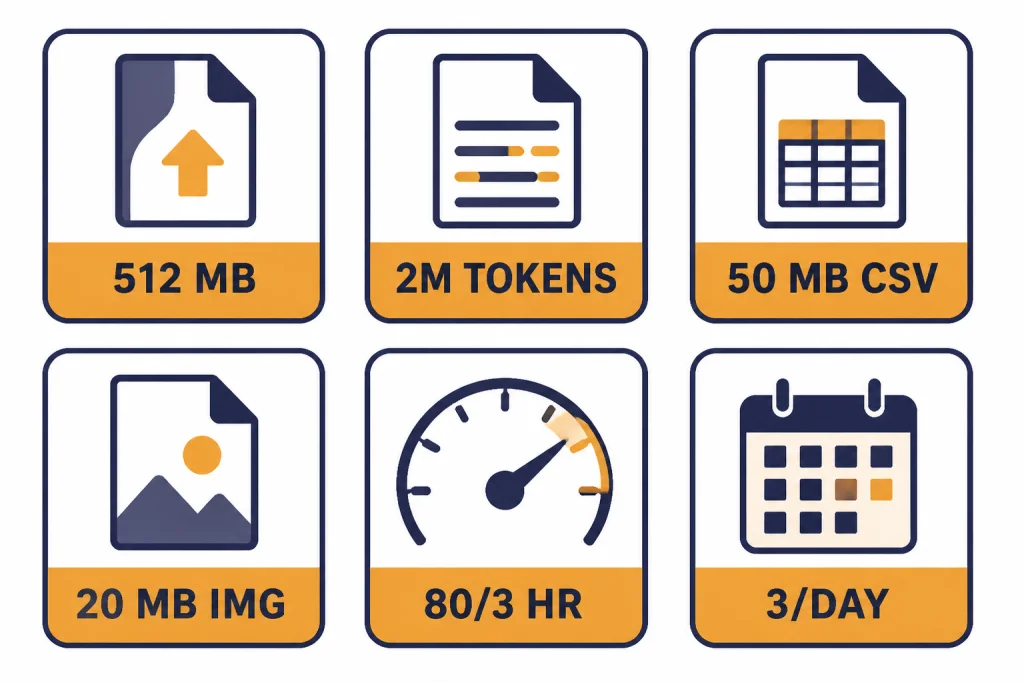
Upload limits can look like a technical bug. OpenAI documents a hard file size limit of 512 MB per file for files uploaded to a GPT or ChatGPT conversation.[1] It also documents a 2M-token cap for text and document files, an approximate 50 MB limit for CSV or spreadsheet files depending on row size, and a 20 MB limit per image.[1]
OpenAI also says users can upload up to 80 files every 3 hours, while Free users are limited to 3 file uploads per day, and it notes that limits may be lowered during peak hours.[1] This is why a paid account can still see a limit message before a workflow feels “large.” Failed upload attempts can sometimes count toward the upload-rate cap, according to the same FAQ.[1]
There is one important documentation wrinkle. The File Uploads FAQ lists an end-user cap of 25 GB and an organization cap of 100 GB, but the troubleshooting section on the same page later describes shared storage caps as 10 GB per user and 100 GB per organization.[1] OpenAI has not published a single consistent official figure on that page for the per-user shared storage cap. If you suspect a storage cap, delete unneeded chats with files, remove unused project files, and document the conflicting limit text if you contact support.
| Limit type | Official figure in OpenAI help | What to do when you hit it |
|---|---|---|
| General file size | 512 MB per file[1] | Compress or split the file. Test with a smaller export. |
| Text/document size | 2M tokens per file[1] | Split long documents by chapter or section. |
| Spreadsheet or CSV | About 50 MB, depending on row size[1] | Remove unused columns, export a smaller CSV, or sample rows. |
| Image file | 20 MB per image[1] | Resize or compress the image before upload. |
| Rolling upload count | Up to 80 files every 3 hours[1] | Wait for the rolling window to reset. Avoid repeated failed retries. |
| Free-user upload count | 3 file uploads per day[1] | Wait until the daily allowance returns or use a plan with higher limits. |
Project limits are separate from ordinary one-off conversation uploads. OpenAI says Plus supports up to 20 files per project, while Pro, Team, Education, and Business support up to 40 files per project.[1] If your file works in a normal chat but not inside a Project, remove old project files or start a fresh Project before assuming the file is broken.
Custom GPT knowledge has its own documentation issue. One OpenAI page says you can upload up to 10 files per GPT for the lifetime of that GPT.[1] Another OpenAI page about creating and editing GPTs says you can attach up to 20 files to a GPT and that each file can be up to 512 MB.[6] Treat this as a documented discrepancy, not as user error. If you are troubleshooting a custom GPT rather than a normal chat, test in a regular chat to isolate whether the issue is GPT knowledge, the file, or your account.
Fix browser, app, and network causes
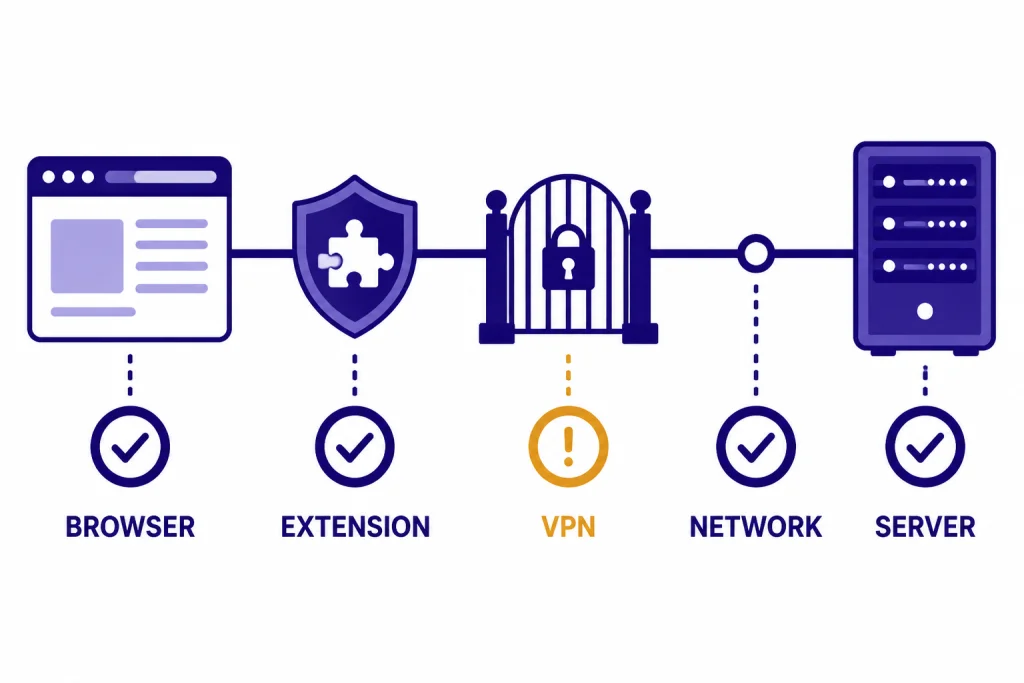
If every file fails and OpenAI status looks normal, switch environments. Use a fully updated browser, because OpenAI specifically recommends a supported, updated browser for file uploads.[2] Then test in this order: private or incognito window, a second browser, the mobile app, and a different network.
Browser extensions are a common local cause. Ad blockers, privacy tools, script blockers, corporate security extensions, and download managers can interfere with file pickers and upload requests. Open a private window with extensions disabled. If the upload works there, re-enable extensions one by one until the problem returns.
VPNs and managed networks can also break uploads. If your browser can load ChatGPT but cannot send files, your network may be blocking the separate file transfer path. Turn off your VPN temporarily, switch from office Wi-Fi to a mobile hotspot, or ask your IT team whether ChatGPT file upload endpoints are blocked. If ChatGPT itself behaves oddly with a VPN, use our separate guide to ChatGPT VPN issues.
Also check the basics. Sign out and sign back in. Confirm you are using the intended workspace or personal account. If login is unstable, fix that first with our ChatGPT login failed guide. If the whole interface is slow or stuck, use the steps in why ChatGPT is so slow before focusing on file upload alone.
On mobile, update the ChatGPT app and confirm the app has permission to access files or photos. On desktop, test both drag-and-drop and the paperclip or add-files button. If one method fails and the other works, you have a UI-specific issue rather than a file-processing issue.
Fix file-specific upload problems
If small test files upload but your real file fails, rebuild the file. This is especially important for PDFs, scanned documents, exported slide decks, and spreadsheets with unusual formatting. A file can be below the official size limit and still fail because it contains corrupted objects, very large embedded images, password protection, hidden sheets, macros, or malformed metadata.
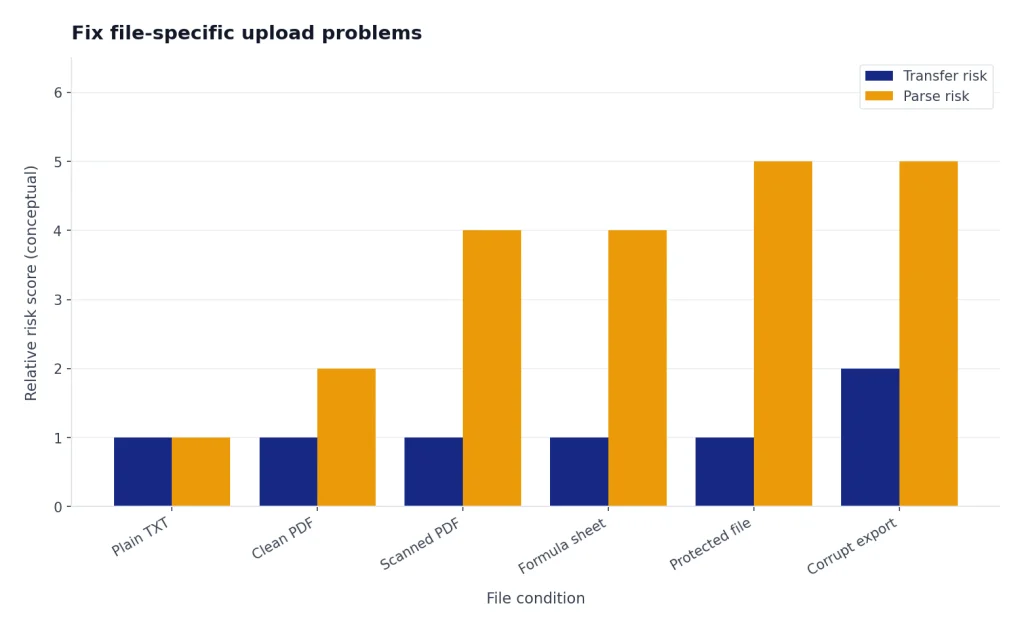
For PDFs, try these fixes in order. First, export a fresh PDF from the original document. Second, remove password protection and commenting restrictions. Third, run OCR if the PDF is mostly scanned images. Fourth, compress images. Fifth, split the PDF into smaller parts and upload only the section you need.
For spreadsheets, simplify before uploading. Remove unused columns, hidden tabs, external links, pivot caches, charts, and volatile formulas. Then export a clean CSV copy for analysis. OpenAI’s FAQ gives a separate approximate 50 MB limit for CSV or spreadsheet files, depending on row size, so a wide spreadsheet with many columns can fail even when it looks modest in ordinary storage terms.[1]
For images, resize first. OpenAI lists a 20 MB per-image limit.[1] If you are uploading screenshots for analysis, use PNG for sharp interface text and JPEG for photos. If you are trying to use the image generation tool and file upload together, see our separate ChatGPT image generator not working guide.
For code files, rename unusual extensions only as a test. If a .cs, .jsx, .sql, or config file fails, copy the content into a .txt file and upload that. If the TXT version works, the problem is file-type handling. If neither version works, the problem is likely account, browser, network, or service-side.
Use a controlled test file
Create a file named upload-test.txt with one sentence: “This is my upload test.” Upload it in a new chat and ask ChatGPT to quote the sentence. If it succeeds, the upload system is working. If it fails, stop editing your original file and return to status, limits, browser, and network checks.
When the file uploads but ChatGPT does not read it
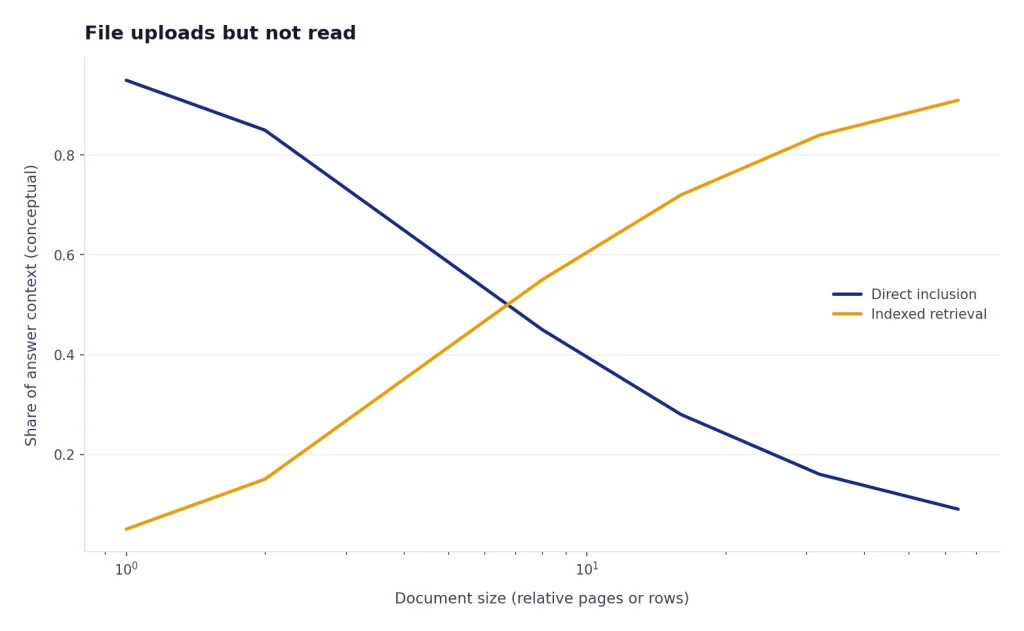
Sometimes the file attaches, but ChatGPT answers as if it cannot see the contents. That is not the same as a failed upload. The file may have attached to the chat while parsing, indexing, or retrieval failed behind the scenes.

OpenAI describes file uploads as supporting synthesis, transformation, and extraction tasks, including comparing documents, analyzing spreadsheets, summarizing documents, and extracting specific information.[1] If ChatGPT gives a generic answer, ask a file-grounding question that can only be answered from the file: “What is the exact title on page one?” or “What are the column names in the uploaded CSV?”
If ChatGPT cannot answer, re-upload the file in a new chat. If that fails, convert the file to a simpler format. For PDFs, use OCR or export to DOCX or TXT. For spreadsheets, export to CSV. For slide decks, export speaker notes and slide text as a document. This gives ChatGPT cleaner text to retrieve.
For large documents, ask narrow questions first. OpenAI’s Enterprise file guidance says ChatGPT Enterprise treats file types differently: text documents use text extraction and retrieval, spreadsheets use code analysis, and image files use image interpretation.[7] It also says large text documents may be partly included directly and partly searched through a private index.[7] In plain terms, a huge document may attach successfully but still need precise prompts to retrieve the right section.
If a file worked earlier and now ChatGPT says it is unavailable, re-upload it. Files can become unavailable when a conversation changes state, a session expires, or the file has been removed with the chat. If the behavior appears alongside broader outages, check ChatGPT outages in 2026 and the longer ChatGPT outage history.
What to send OpenAI support
If the problem survives status checks, limit checks, browser tests, network tests, and a clean test file, collect evidence before contacting support. OpenAI’s File Uploads FAQ asks users escalating upload problems to include the account email, a screenshot, timestamp and timezone, platform, app or browser, and request ID if available.[1]
- The exact error text, copied rather than paraphrased.
- The file type and size.
- Whether a small TXT test file worked.
- Whether the issue happens in a private window.
- Whether the issue happens on another network.
- Your plan and workspace type.
- The date, local time, and timezone of the failed upload.
- A screenshot showing the failure state.
Do not send private, regulated, or confidential files to third-party “upload fixer” tools just to make ChatGPT accept them. If the document contains sensitive data, make a sanitized copy that reproduces the failure. If you are in a business workspace, check with your admin before using external converters.
If the upload error appears with broader ChatGPT failures, such as ChatGPT internal server error, ChatGPT error 503, or ChatGPT something went wrong, treat the file issue as a symptom. Fix or wait out the broader service problem first.
Frequently asked questions
Why is ChatGPT file upload not working today?
Check OpenAI’s status page first. File uploads can fail during a ChatGPT incident even when normal chat still works. If status is clear, test a small TXT file in a new chat to separate a local problem from a bad source file.
What file size is too large for ChatGPT?
OpenAI documents a 512 MB hard limit per uploaded file, a 2M-token cap for text and document files, an approximate 50 MB limit for CSV or spreadsheet files, and a 20 MB limit per image.[1] A file can still fail below those limits if it is corrupt, encrypted, image-heavy, or formatted in a way the parser cannot handle.
Why does ChatGPT say I reached the upload limit?
You may have hit a rolling upload cap, a daily cap, a project cap, or a shared storage cap. OpenAI says failed upload attempts can sometimes count toward the upload-rate cap.[1] Wait before retrying, and avoid repeatedly uploading the same failing file.
Why did my PDF upload but ChatGPT cannot answer from it?
The PDF may have uploaded but failed during text extraction or retrieval. Try asking for a fact from the first page. If ChatGPT cannot find it, export the PDF again, run OCR, split the document, or paste the relevant section into the chat.
Does deleting old chats help file uploads?
It can help if you are hitting a shared file storage cap. OpenAI says files uploaded to ChatGPT are saved up to the retention period of the corresponding chat, and files associated with deleted chats or deleted GPTs are deleted from OpenAI systems within 30 days unless exceptions apply.[1] Deleting old file-heavy chats may not free space instantly.
Should I use a VPN when uploading files to ChatGPT?
If uploads fail, turn the VPN off as a test. Some VPNs and managed networks can block or slow file-transfer requests while leaving ordinary chat usable. If uploads work without the VPN, adjust the VPN location, split tunneling, or network policy.