
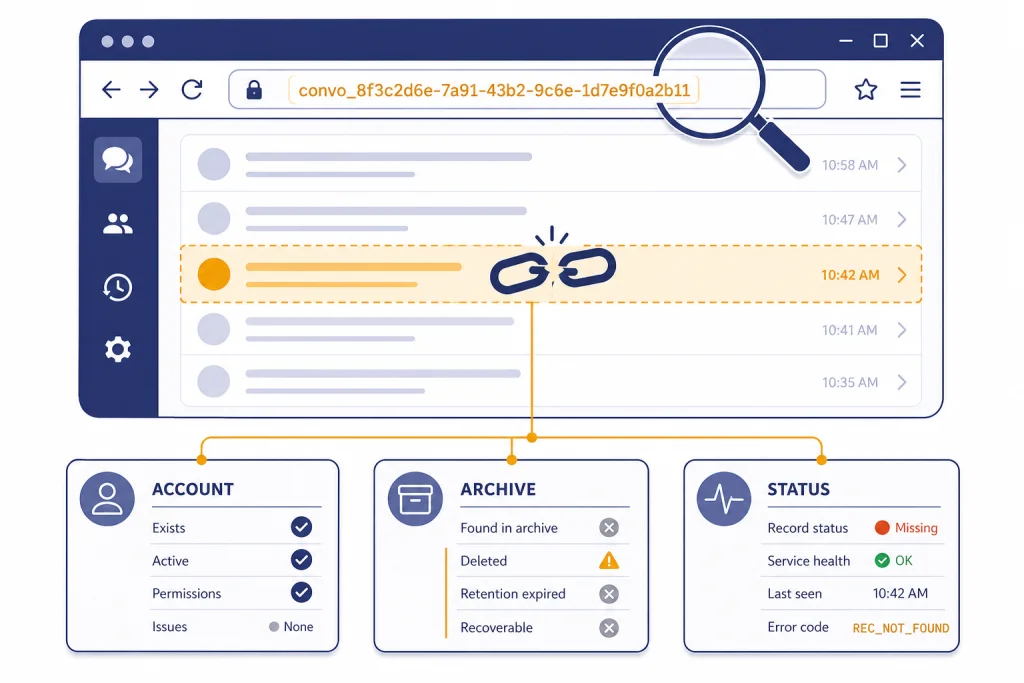
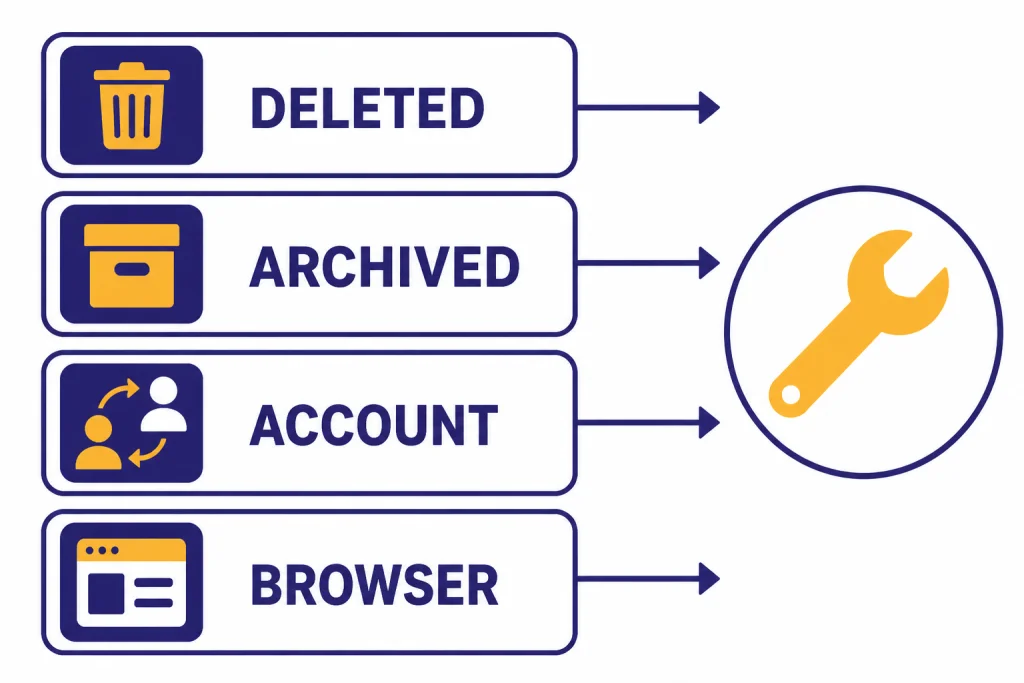
The ChatGPT conversation not found error usually means ChatGPT cannot open the conversation ID in your URL or sidebar. The chat may have been deleted, archived, moved behind a different account or workspace, blocked by a browser session problem, or temporarily unavailable during a ChatGPT incident. Start with the fastest checks: refresh the page, open ChatGPT in a private window, sign out and back in, confirm you are using the right account, check archived chats, and open the OpenAI status page. If the conversation was deleted, OpenAI says it cannot be recovered through the UI, APIs, or support. If it is only missing, you may still be able to find it in archived chats or a data export.
What the error means
The chatgpt conversation not found error means the app has a reference to a conversation but cannot load that conversation in your current context. In practice, the broken reference is often a sidebar item, a saved browser tab, a bookmarked URL, or a shared link.
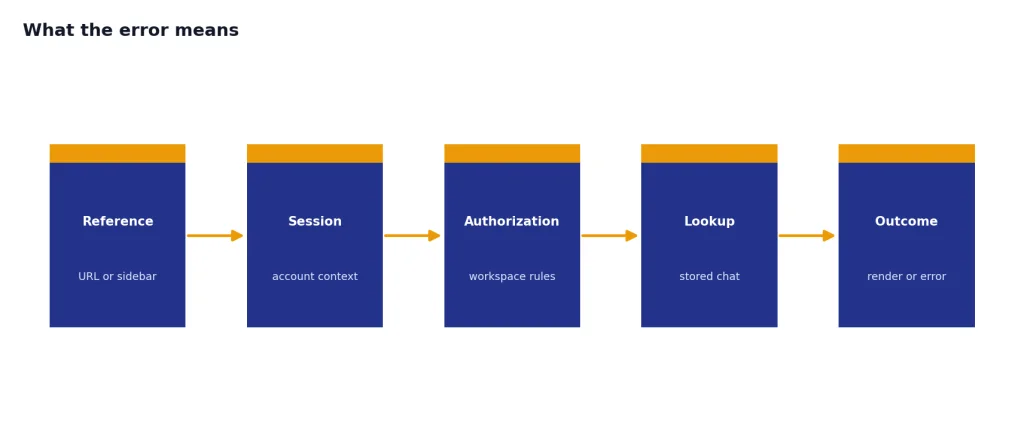
Do not assume the chat is permanently gone. ChatGPT has separate states for active chats, archived chats, deleted chats, temporary chats, shared links, and workspace-controlled conversations. OpenAI says archived chats remain in your account under standard retention settings, while deleted chats are removed from your visible history and scheduled for permanent deletion within 30 days, unless a legal, security, or de-identification exception applies.[1]
The important distinction is simple. A missing or inaccessible chat may still exist. A deleted chat is different. OpenAI says deleted chats cannot be restored through the ChatGPT UI, APIs, or support.[1]
If ChatGPT is also showing blank history, slow loading, failed responses, or login loops, use this article together with our ChatGPT network error, ChatGPT something went wrong error, and ChatGPT login failed guides.
Fast fix checklist
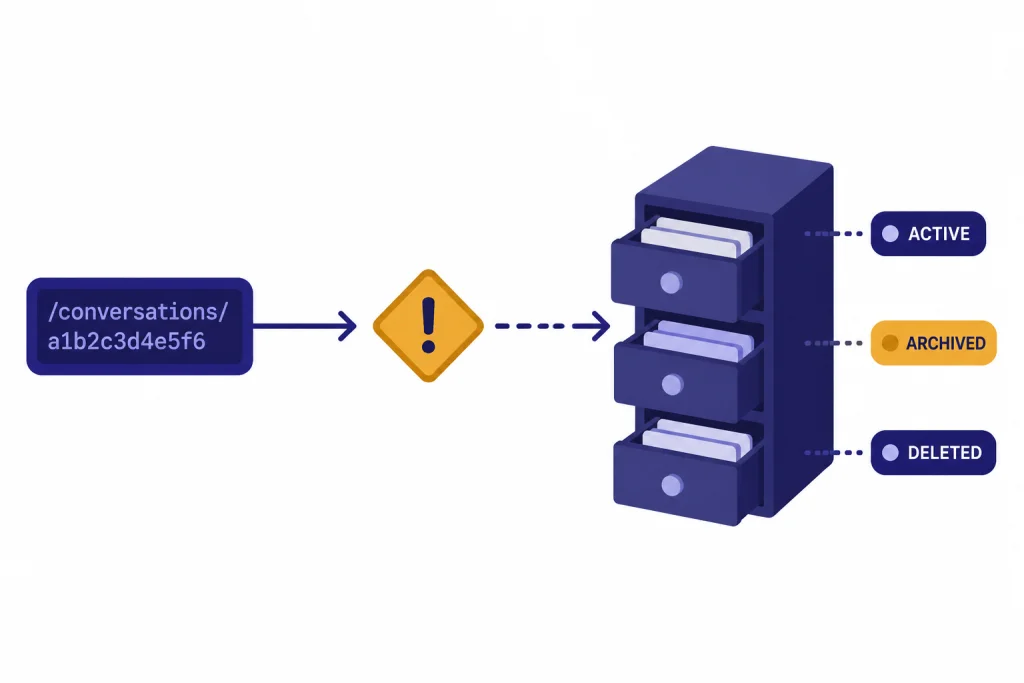
Run these checks in order. They separate a local session problem from a deleted chat or service-side issue.
- Refresh the page once. Use the browser refresh button, not only ChatGPT’s regenerate button.
- Copy the conversation URL. Save it in a note before you try destructive fixes.
- Open a new chat. If new chats work, the issue is probably tied to one conversation or one URL.
- Sign out and back in. Use the exact same login method you used when you created the chat.
- Check the account and workspace. Personal, Business, Enterprise, Google login, Apple login, and SSO sessions can lead to different histories.
- Look in archived chats. Open Settings, then Data controls, then Archived Chats.
- Try a private window. This bypasses many extension and cookie conflicts.
- Try another network. A VPN, office network, school network, or security gateway can block parts of the app.
- Check OpenAI status. If many users are affected, waiting is safer than deleting local data.
- Export your data if the chat matters. A data export can confirm whether stored conversation data still exists.
OpenAI’s general ChatGPT troubleshooting guidance recommends clearing site data or cookies, testing across browsers, devices, and networks, and collecting the conversation URL or ID, browser console errors, timestamps, and model used if the issue persists.[4] If your mobile app is the only place failing, compare these steps with our ChatGPT app not working guide.
Causes and fixes
The table below covers the most common causes. Use it as a diagnostic map rather than a list of guesses.
| Likely cause | What you see | Best fix | Recovery odds |
|---|---|---|---|
| Deleted conversation | The chat is gone from history, and direct links fail | Stop trying to reopen it; use a data export only to verify stored account data | Low |
| Archived conversation | The chat is missing from the sidebar but may still exist | Open Settings, Data controls, Archived Chats, then unarchive it | High |
| Wrong account or workspace | Other chats are missing too, or history looks unfamiliar | Sign out and return with the original email, SSO method, or workspace | High |
| Expired or removed shared link | A shared URL opens a blank chat or access error | Ask the owner to create a new link or share a copy | Medium |
| Browser state problem | The same chat works in another browser or private window | Clear ChatGPT site data, disable extensions, and reload | High |
| OpenAI incident | Many conversations fail, or history is missing for many users | Check status and wait for mitigation | Usually high after recovery |
Archived chats are the best first place to look. OpenAI describes archiving as a way to hide a chat from the sidebar without deleting it, and says archived chats can be managed from Settings under Data controls.[1]
Deleted chats are different. OpenAI says chats are saved to your account until you delete them manually, and that deleting a chat removes it from your account immediately and schedules permanent deletion from OpenAI systems within 30 days, subject to stated exceptions.[2]
Shared link problems
A shared ChatGPT conversation can fail even when your own ChatGPT account is working. Shared links are not the same as your private conversation history.
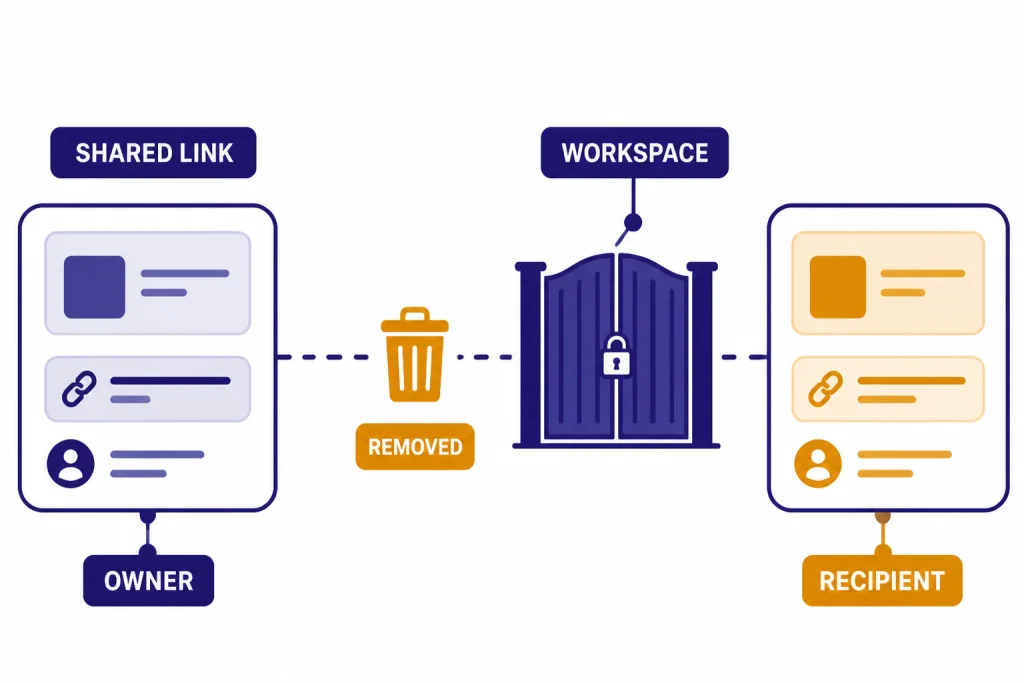
OpenAI says a shared link is a snapshot of the conversation up to the point it was shared. If the original ChatGPT conversation is deleted, the shared link is also deleted and the content is no longer accessible through that shared link.[3]
That explains a common pattern: someone sends you a link, it works for a while, and later it says the conversation cannot be found. The owner may have deleted the original chat, deleted the shared link, changed workspace access, or removed the conversation from a Business or Enterprise environment.
For Enterprise shared chats, OpenAI says links are for members of the user’s workspace, and people outside the workspace cannot access or read those conversations.[12] If the link came from a company account, ask the sender whether you are in the correct workspace and whether the shared link is still active.
If you own the shared link, open the original conversation, use the Share controls, and update or recreate the link. OpenAI says shared link settings can be managed from Data controls, and links can also be deleted from the shared link modal.[3]
Browser and network fixes
If the conversation opens in one browser but not another, the problem is probably local. The usual culprits are stale cookies, blocked scripts, privacy extensions, outdated cached app code, or a network rule that interferes with ChatGPT requests.
Clean browser test
- Open a private or incognito window.
- Go to ChatGPT manually instead of using an old bookmark.
- Sign in with the original account.
- Paste the conversation URL.
- If it works, return to your main browser and disable extensions one at a time.
If the private-window test fails too, try another browser or device. OpenAI’s troubleshooting article specifically points users to cross-browser, cross-device, and cross-network testing when persistent errors continue.[4]
Network test
Turn off your VPN for one test, or switch from Wi-Fi to a mobile hotspot. If ChatGPT works without the VPN, read our ChatGPT not working with VPN guide before changing account settings. If requests fail only after many rapid retries, check whether you are hitting a rate or abuse-protection path with ChatGPT Error 429 Too Many Requests.
Do not clear all browser data before checking status and archived chats. Clearing cookies can help a bad session, but it can also sign you out, remove local preferences, and make it harder to remember which login method created the original conversation.
When it is an OpenAI outage
Sometimes the error is not yours to fix. OpenAI’s status page states that availability metrics are reported at an aggregate level across tiers, models, and error types, so your individual experience may differ by subscription tier, model, and feature.[5]
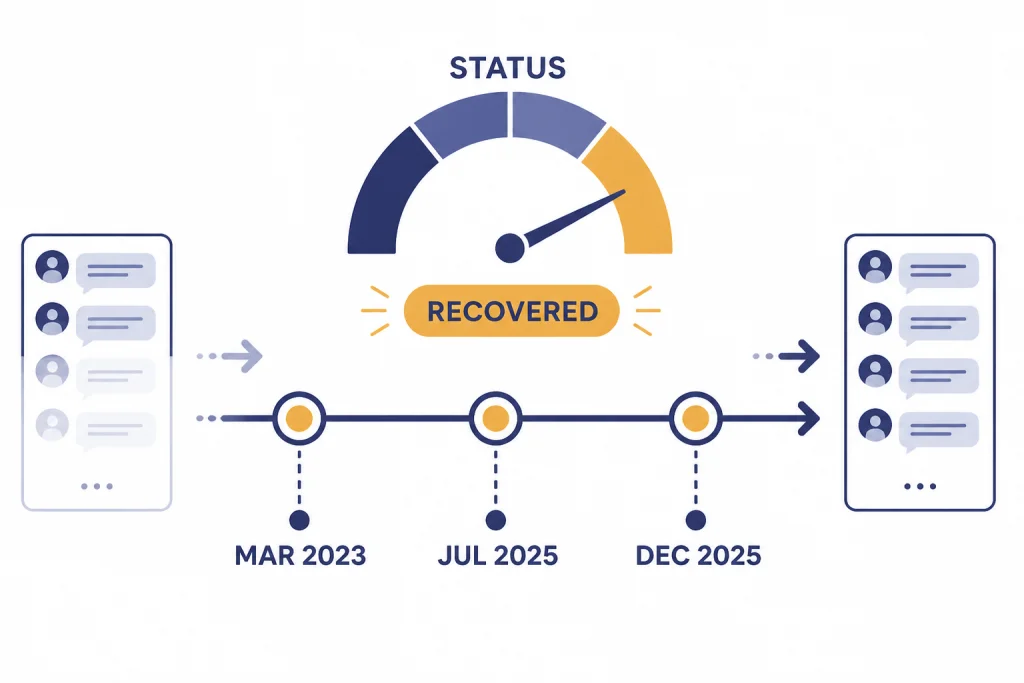
Conversation history has failed before. On March 9, 2023, OpenAI reported a resolved incident for missing conversation history and told users still not seeing history to log out and back in.[6] On July 30, 2025, OpenAI reported a resolved incident where ChatGPT conversation history was missing in the web sidebar for some users.[7] On December 25, 2025, OpenAI reported a resolved incident affecting conversation history loading and file downloads from custom GPTs.[8]
Conversation creation and loading errors can also look similar. OpenAI reported elevated conversation errors for ChatGPT on March 11, 2026, with recovery the same day.[9] In a February 12, 2026 write-up, OpenAI said ChatGPT experienced elevated conversation error rates between 1:20 PM and 1:40 PM PST, and successful conversation request rates dropped by about 35% during the 1:20 PM to 1:25 PM PST peak impact window.[10]
If status shows an active incident, avoid deleting conversations, clearing all settings, or repeatedly resubmitting long prompts. Wait for recovery, then sign out and back in. For broader outage context, see ChatGPT outages 2026 and our longer ChatGPT outage history.
Recover or preserve the chat
Recovery depends on what happened to the conversation. If it was archived, unarchive it. If you are in the wrong account, switch accounts. If a shared link was deleted, ask the owner for a new share or a copy. If OpenAI is having an incident, wait for recovery.
If you need to verify whether account data still exists, use ChatGPT’s export option. OpenAI’s Android export article says users can navigate to Data Controls and choose Export Data, and that the downloadable ZIP file is sent to the registered email address with a link that expires after 24 hours.[11]
A data export is not the same as restoring a chat into the sidebar. OpenAI’s help content on transferring conversations says export can preserve a record, but it does not recreate conversations in your chat history.[13] Use the export as a backup and reference, not as a repair button.
For important work, keep a separate record. Copy final answers into a document, save project decisions outside ChatGPT, and export periodically if the conversation is business-critical. Long-running chats are convenient, but they are not a version-control system. If files are part of the missing conversation, also review ChatGPT file upload not working and code interpreter session expired.
When to contact support
Contact OpenAI support when the conversation still fails after you test another browser, device, and network, and after you confirm the chat is not archived and not tied to a different account. Support is most useful when the problem is a persistent account, workspace, or service issue. It is least useful when the conversation was manually deleted, because OpenAI says deleted chats are not recoverable through support.[1]
Prepare a short report. Include your account email, login method, workspace name if applicable, approximate creation date, approximate last successful access date, the conversation URL or ID, your browser and device, whether it works in a private window, and whether OpenAI status showed an incident at the time. OpenAI’s general troubleshooting guidance asks users to collect details such as the model, conversation URL or ID, timestamps, HAR file, and browser console errors when problems persist across browsers, devices, and networks.[4]
If the error appears together with server-side messages, compare the symptom with ChatGPT internal server error, ChatGPT error 500, ChatGPT error 502, or ChatGPT error 503. Those errors point more strongly to service or gateway problems than to one missing conversation.
Frequently asked questions
Why does ChatGPT say conversation not found?
It means ChatGPT cannot load the conversation reference in your current session. The chat may be deleted, archived, tied to another account or workspace, blocked by browser state, or temporarily unavailable during a service incident. Start by checking account, archived chats, private-window access, and OpenAI status.
Can I recover a deleted ChatGPT conversation?
Usually no. OpenAI says deleted chats cannot be recovered through the UI, APIs, or support.[1] If the chat was archived rather than deleted, you may be able to unarchive it from Settings under Data controls.
Why does an old shared ChatGPT link no longer work?
The owner may have deleted the original conversation or removed the shared link. OpenAI says deleting the original conversation also deletes the shared link, so the content is no longer accessible through that shared URL.[3] Ask the owner to create a new link or send a separate copy.
Does archiving a chat make it say conversation not found?
Archiving should hide the chat from the active sidebar, not delete it. OpenAI says archived chats remain in your account under standard retention settings and can be managed from Settings under Data controls.[1] If a direct link fails, check archived chats and confirm you are in the same account.
Should I clear cookies to fix the error?
Try a private window first. If the chat works there, clearing ChatGPT site data or disabling extensions may help. Do not clear all browser data until you have saved the conversation URL and confirmed you know the original login method.
Is conversation not found the same as ChatGPT being down?
Not always. A single broken conversation is usually local to that chat, account, or link. If many conversations fail, history disappears, or other users report the same issue, check OpenAI status and wait before making destructive changes.