

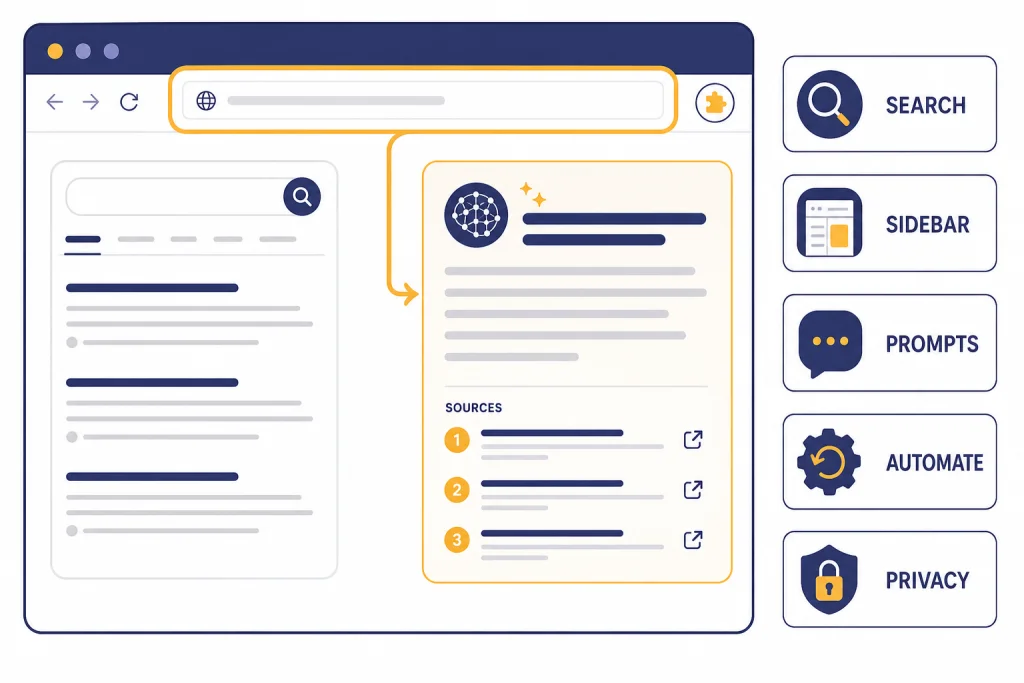
The best ChatGPT Chrome extension depends on what you want Chrome to do. If you only want ChatGPT in your address bar, OpenAI’s official ChatGPT search extension is the safest starting point because it changes Chrome’s default search engine to ChatGPT search and requires a ChatGPT login.[1] If you want a sidebar, prompt library, page summarizer, or workflow automation, you will need a third-party extension. Those tools can be useful, but they also ask for broader browser permissions. This guide separates the strongest options by use case, explains the trade-offs, and shows when you should skip an extension and use the ChatGPT web, desktop, or mobile app instead.
Quick answer
For most readers, the safest first pick is ChatGPT search, OpenAI’s official Chrome extension. It does one narrow job. It makes ChatGPT search available from the Chrome address bar, and OpenAI says you must be logged in to chatgpt.com to use it.[1] That limited scope is a strength if you do not want a third-party sidebar reading pages across your browser.
If you want a broader assistant, start with your exact workflow. Merlin and Monica are better fits for people who want a general AI sidebar across web pages.[2][3] HARPA AI is stronger when you need page-aware automation, monitoring, extraction, or command workflows.[4] Superpower Chat is best if you already live inside ChatGPT and want folders, search, export, prompts, and organization tools layered on top.[5]
| Use case | Best fit | Why it stands out | Watch for |
|---|---|---|---|
| Official search from Chrome | ChatGPT search | Official OpenAI publisher page; makes ChatGPT the default search engine | It is not a full sidebar assistant[1] |
| All-purpose sidebar | Merlin or Monica | Both present broad reading, writing, search, and summarization workflows inside Chrome | Broad tools often need broader permissions[2][3] |
| Automation and page monitoring | HARPA AI | Includes page-aware commands, data extraction, price monitoring, and automation hooks | More power means more setup and more trust decisions[4] |
| ChatGPT organization | Superpower Chat | Adds folders, search, export, prompt management, notes, and related ChatGPT workflow tools | Best for heavy ChatGPT users, not casual search[5] |
| Prompt templates | AIPRM | Focuses on curated prompt templates and prompt management inside ChatGPT | Prompt quality varies by use case[6] |
| Lightweight sidebar | ChatGPT Sidebar | Opens the ChatGPT website in Chrome’s sidebar and says it collects no user data | Less feature-rich than multi-model assistants[8] |
How we picked these extensions
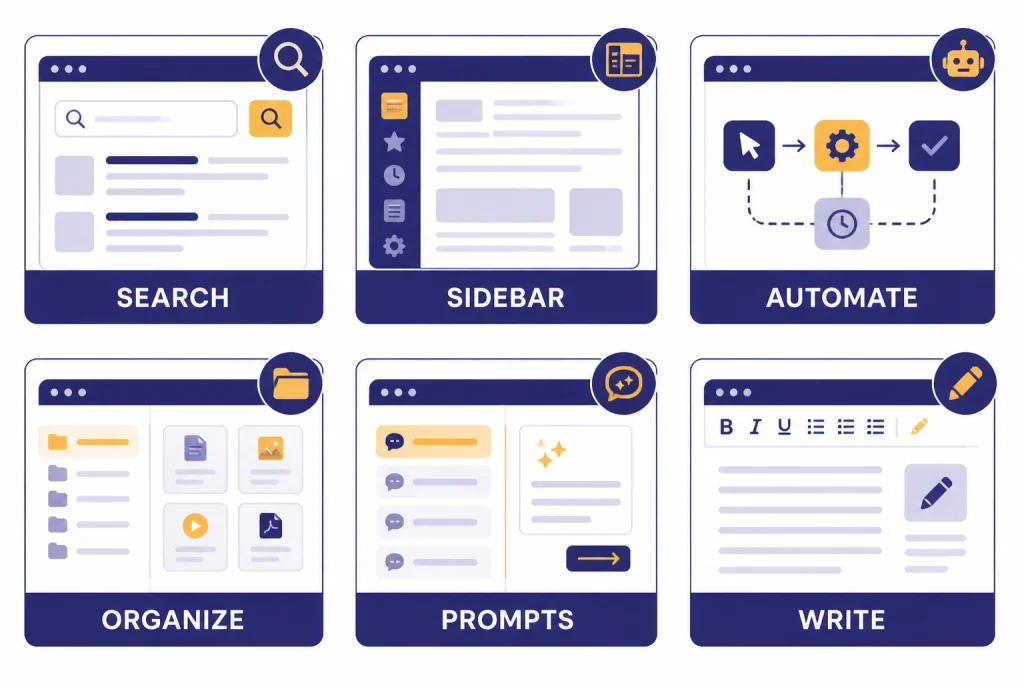
We ranked each ChatGPT Chrome extension by practical fit, not by hype. The first question was simple: does the extension solve a real browser problem that the normal ChatGPT web app does not already solve well? A sidebar can be useful when you are reading a long web page. A prompt manager can help if you reuse structured prompts. A search extension can reduce tab switching. A tool that only opens chatgpt.com in a popup may not be worth extra permissions.
We also favored clear publishers, narrow feature scope, recent store visibility, and readable privacy claims. Chrome Web Store badges help, but they are not a guarantee. Google says Featured extensions follow technical best practices and that the Chrome Web Store team reviews them before awarding the badge.[13] Google also says an Established Publisher badge means the publisher’s identity is verified and the publisher has a positive track record with Google services.[13] Treat those as signals, not proof that every future update will remain safe.
Finally, we looked for category coverage. A student summarizing articles needs a different tool from a marketer saving prompt templates, a support agent drafting replies, or a researcher extracting data from multiple web pages. If your main need is summarization rather than browser integration, compare dedicated options in our Best AI Summarizer Tools for Long Documents guide. If your main need is polished drafting, our best AI writing tools compared in 2026 roundup may be more useful than another browser add-on.
Official vs. third-party ChatGPT Chrome extensions
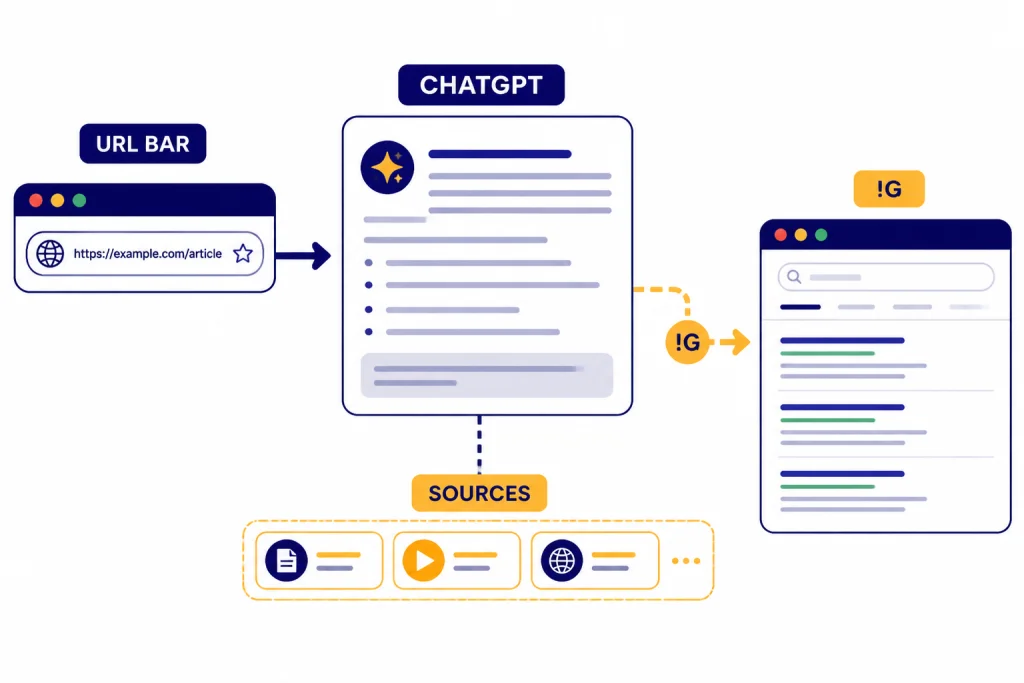
OpenAI’s official Chrome extension is ChatGPT search. Its purpose is narrow. It changes Chrome’s default search engine to ChatGPT search, lets you search from the browser URL bar, and supports a !g shortcut when you want to redirect a query to Google search.[1] It is the right choice if you want ChatGPT search in the address bar and do not need page overlays, Gmail helpers, prompt libraries, or website automation.
Most other extensions in this category are third-party tools. Some connect to your existing ChatGPT session. Some use their own AI subscriptions. Some support multiple AI systems. This can be useful, but it changes the trust model. The publisher, not OpenAI, controls the extension code, its update path, its account system, and its data handling.
That distinction matters because a browser extension can sit very close to your private work. Google’s permission guide says extensions that can access data on all websites you visit can read, request, or modify data from every page you visit.[12] If an extension needs that access to summarize the current page, the permission may be functional. If it asks for broad access but only claims to open a chatbot window, that is a warning sign.
Top ChatGPT Chrome extension picks
Best official option: ChatGPT search
Choose ChatGPT search if you want the official OpenAI route and a clean search workflow. The extension changes Chrome’s default search engine to ChatGPT search, and the Chrome Web Store listing says chats include links to sources such as news articles and blog posts.[1] It is not trying to be a writing suite or sidebar automation tool. That is the point. It keeps the use case small.
The downside is that it will not summarize any page by itself, draft inside Gmail, organize ChatGPT conversations, or run page monitors. If you want those features, keep reading. If you only wanted a safer chatgpt chrome extension for search, start here.
Best all-purpose sidebar: Merlin
Merlin is a strong pick for readers who want one browser panel for research, rewriting, summarizing, and chatting with web pages. Its Chrome Web Store listing describes it as a 26-in-1 extension for research, rewriting, and summarizing content on any website, with webpage chat, YouTube summarization, document workflows, translation, and prompt storage.[2] That broad feature set makes it a good everyday assistant, especially if you frequently move between articles, documents, email, and search results.
The trade-off is complexity. A broad assistant can become noisy if you only need one task. If you mostly want reusable prompt structures, compare Merlin with Best ChatGPT Prompt Generator Tools before installing another sidebar.
Best all-in-one AI assistant: Monica
Monica is another broad sidebar-style assistant. Its listing emphasizes chat, writing, translation, search, summarization, image generation, and video generation, and it says users can wake it with Cmd/Ctrl + M.[3] It also highlights search enhancement, translation workflows, a browser operator, and an AI memo feature for saving webpages, chats, images, and PDFs.[3]
Monica is best for people who want a polished multi-function assistant rather than a narrow ChatGPT wrapper. It is less ideal if your organization has strict rules about browser extensions, saved browsing context, or third-party AI accounts.
Best for automation and research workflows: HARPA AI
HARPA AI stands out when the job is more than asking a question. Its listing describes a free AI sidebar with ChatGPT, Claude, Gemini, and DeepSeek, plus 100+ commands for automation, price monitoring, summarization, writing, and data extraction.[4] It also describes page-aware workflows, PDF and file summarization, CSV and JSON extraction, and automation hooks for Make.com, Zapier, and n8n.[4]
That makes HARPA the most useful pick in this guide for researchers, operations teams, ecommerce monitoring, and people who repeat the same browser tasks. It is not the simplest option. Install it only if you will use the automation layer and you are comfortable reviewing permissions carefully.
Best for organizing ChatGPT: Superpower Chat
Superpower Chat is for people who already use ChatGPT heavily and want better organization. The Chrome Web Store listing describes folders, search, bulk export and delete, prompt management, a prompt optimizer, notes, an image gallery, chat references, and a model switcher.[5] It is less about bringing AI to every website and more about making the ChatGPT interface easier to manage.
If you have hundreds of conversations, recurring research threads, or client-specific chats, this category makes sense. For a focused review of this specific tool, read our superpower chatgpt extension review.
Best prompt library: AIPRM
AIPRM is best when you want prompt templates inside ChatGPT rather than a general web assistant. Its listing says it adds curated prompt templates and advanced features, and it describes 4,500+ professional one-click prompts for ChatGPT.[6] It is most useful for repeatable marketing, SEO, sales, productivity, and customer support workflows.
The main caution is quality control. A template can save time, but it can also lock you into mediocre phrasing. Treat AIPRM as a prompt library, not as a substitute for domain knowledge. For a deeper look, see our aiprm for chatgpt review.
Best for adding web context to prompts: WebChatGPT
WebChatGPT focuses on adding relevant web results to ChatGPT prompts and includes a prompt library and prompt management features.[7] Its listing also describes extracting text from URLs and showing AI-generated answers next to search results across popular search platforms.[7] This can be useful when you want more control over what web context enters a prompt.
Use it carefully. Any tool that brings outside web text into prompts can also bring in outdated, biased, or irrelevant context. For a dedicated breakdown, read our webchatgpt review.
Best lightweight sidebar: ChatGPT Sidebar
ChatGPT Sidebar is the simplest third-party pick here. Its listing says it opens the ChatGPT website in Chrome’s sidebar, lets you use ChatGPT without switching tabs, and is free, open source, and collects no user data.[8] If you want fewer features and less interface clutter, this is the category to consider.
The limitation is obvious. It does not compete with full assistants like Merlin, Monica, or HARPA. It is mainly a convenience layer. For more detail, see our chatgpt sidebar review.
Best for email and message drafting: Jetwriter AI
Jetwriter AI is the better fit if your browser work centers on replies, messages, and writing assistance. Its Chrome Web Store listing describes email and message writing, page chat, grammar fixes, translation, Gmail integration, support for Gmail, WhatsApp, LinkedIn, Outlook, Zendesk, and text transformation from selected text.[9] It is a writing tool first and a research tool second.
If your work depends on long-form content, compare it with dedicated writing apps before committing. Browser convenience matters, but document workflows, brand voice controls, and review features often matter more for professional writing.
Privacy and permission checks
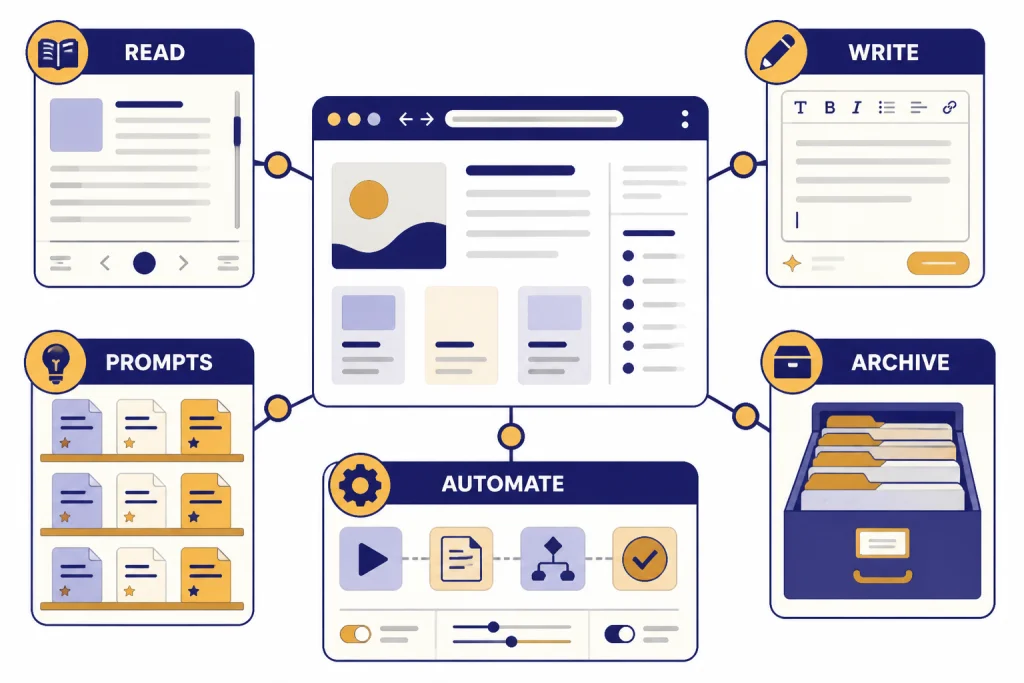
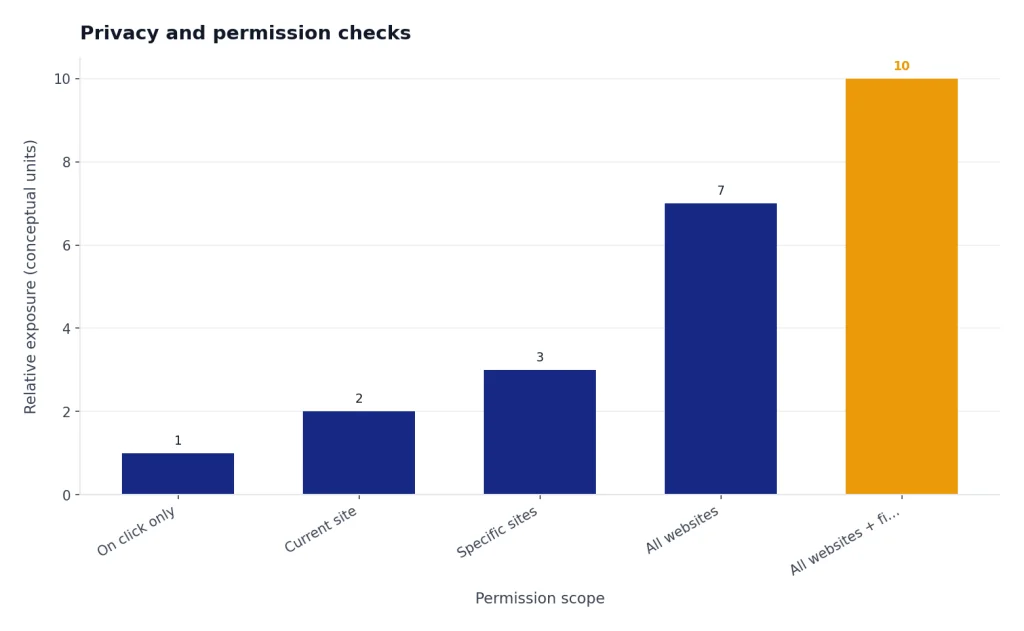
ChatGPT Chrome extensions deserve more scrutiny than ordinary productivity tools because they often sit on top of your browsing, email, documents, search results, or private work systems. Google warns that a permission allowing access to all data on your computer and websites can let an app or extension access almost anything, and that access to your data on all websites can allow reading, requesting, or modifying data from every page you visit.[12]
Security researchers have found real abuse in this category. BleepingComputer reported on February 12, 2026, that 30 malicious Chrome extensions masquerading as AI assistants had been installed by more than 300,000 users and were used to steal credentials, email content, and browsing information.[10] A separate academic paper submitted to arXiv on December 10, 2025, analyzed 5,551 AI-themed Chrome Web Store extensions released over a nine-month period and identified 154 previously undetected malicious Chrome extensions, later producing a final analysis set of 341 malicious extensions.[11]
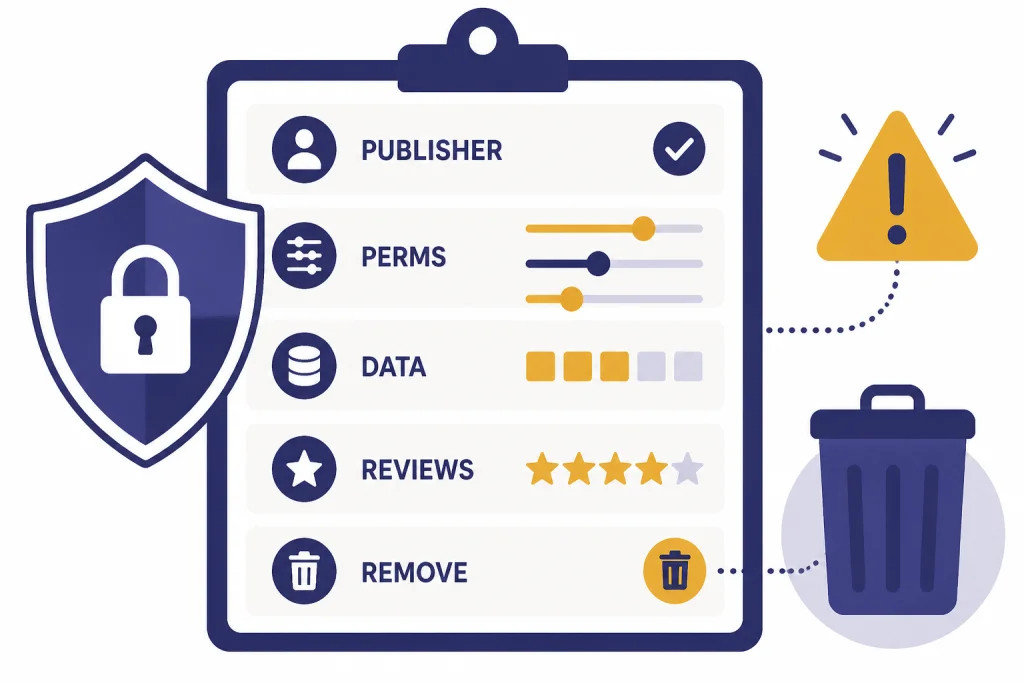
Use this checklist before installing any ChatGPT Chrome extension:
- Confirm the publisher. OpenAI’s official extension appears under the OpenAI publisher page on the Chrome Web Store.[1]
- Read the permissions. Be skeptical of tools that ask to read and change data on all websites when the feature does not require it.
- Check privacy disclosures. A claim that data is not collected is useful, but it is still a claim made by the developer.
- Prefer narrow tools. The safest extension is often the one that does the least.
- Review recent complaints. Ratings can lag behind bad updates.
- Remove unused extensions. An extension you forgot about can still update later.
When not to use a Chrome extension
Do not install a ChatGPT Chrome extension just because it saves one click. If you are handling legal documents, medical records, financial data, source code, student records, unpublished research, or client information, use the lowest-permission workflow that still gets the job done. Often that means using chatgpt.com directly, the official desktop app, or your organization’s approved AI platform.
OpenAI’s own download page lists official mobile downloads for iOS and Android, desktop downloads for macOS and Windows, and a Chrome extension download link.[14] If your goal is simply to access ChatGPT faster, a native app may be cleaner than granting a browser extension access to pages. Compare options in our Best ChatGPT Desktop Apps and Best ChatGPT Mobile Apps guides.
Extensions are most justified when the browser itself is the workspace. Examples include summarizing a page you are reading, drafting inside a web app, extracting structured data from a site, or saving prompts while you work. If the task happens outside the browser, a dedicated app is usually safer and more stable.
Setup tips
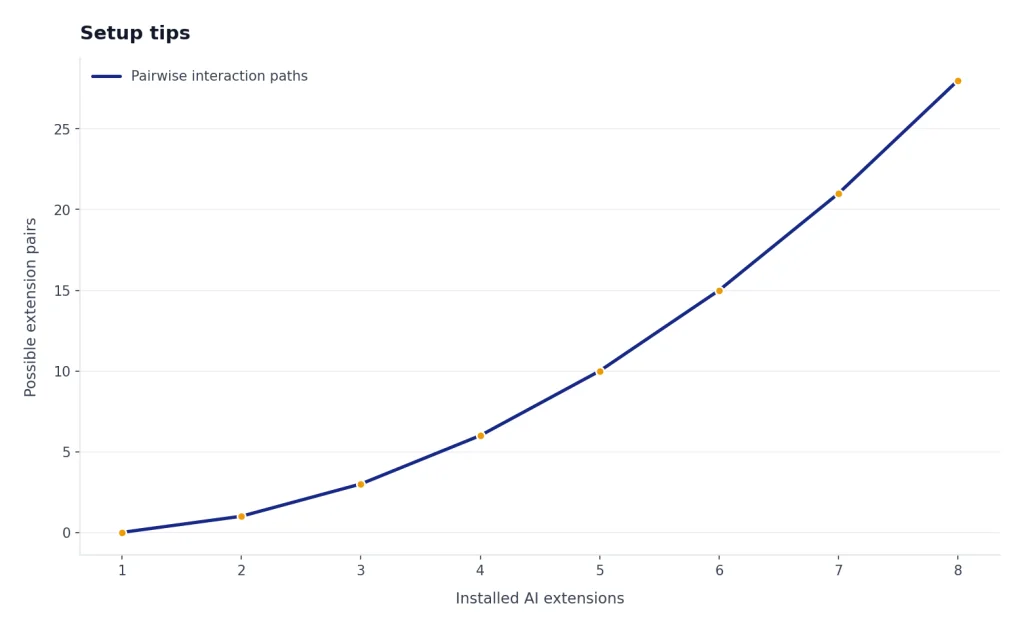
Install one ChatGPT Chrome extension at a time. Test it for a few days before adding another. Multiple sidebars, context menus, search overlays, and writing assistants can conflict with each other, slow pages, or duplicate shortcuts.
Create a simple permission routine. Before installing, read the Chrome permission prompt. After installing, open Chrome’s extension manager and disable site access where possible. If an extension supports “on click” access instead of access on all sites, use the narrower setting. If you work with sensitive data, keep a separate browser profile with no AI extensions at all.
Also separate prompt tools from measurement tools. A prompt library helps you write better instructions. It does not estimate cost, context length, or API usage. For those jobs, use a dedicated OpenAI Token Counter Tools guide or compare Best OpenAI API Cost Calculator Tools if your work involves API spending.
Frequently asked questions
Is there an official ChatGPT Chrome extension?
Yes. OpenAI’s official Chrome Web Store publisher page lists ChatGPT search, which changes Chrome’s default search engine to ChatGPT search and requires a chatgpt.com login.[1] It is not the same as a full ChatGPT sidebar.
What is the safest ChatGPT Chrome extension?
The safest option is usually the narrowest one that solves your problem. For search, start with OpenAI’s official ChatGPT search extension. For third-party tools, review the publisher, permissions, privacy disclosure, and recent reviews before installing.
Are ChatGPT Chrome extensions free?
Many offer a free tier or free installation, but features can be limited. Some extensions use paid plans, in-app purchases, or separate AI subscriptions. Check the Chrome Web Store listing and the developer’s pricing page before building a workflow around one tool.
Can a Chrome extension read my ChatGPT conversations?
It depends on the extension permissions and design. If an extension can read page content on chatgpt.com, it may be able to process visible conversation text. Use fewer extensions on sensitive accounts, and remove tools you no longer use.
Which extension is best for prompts?
AIPRM is the strongest prompt-library pick in this roundup because it focuses on curated prompt templates and prompt management inside ChatGPT.[6] Superpower Chat is better if you also want folders, search, export, notes, and broader conversation organization.[5]
Should students use ChatGPT Chrome extensions?
Students should check school rules first. Some classes allow AI for brainstorming or summarization and prohibit it for graded writing. Teachers and administrators may also use AI detection and plagiarism tools, so students should understand the policy before relying on any extension.