

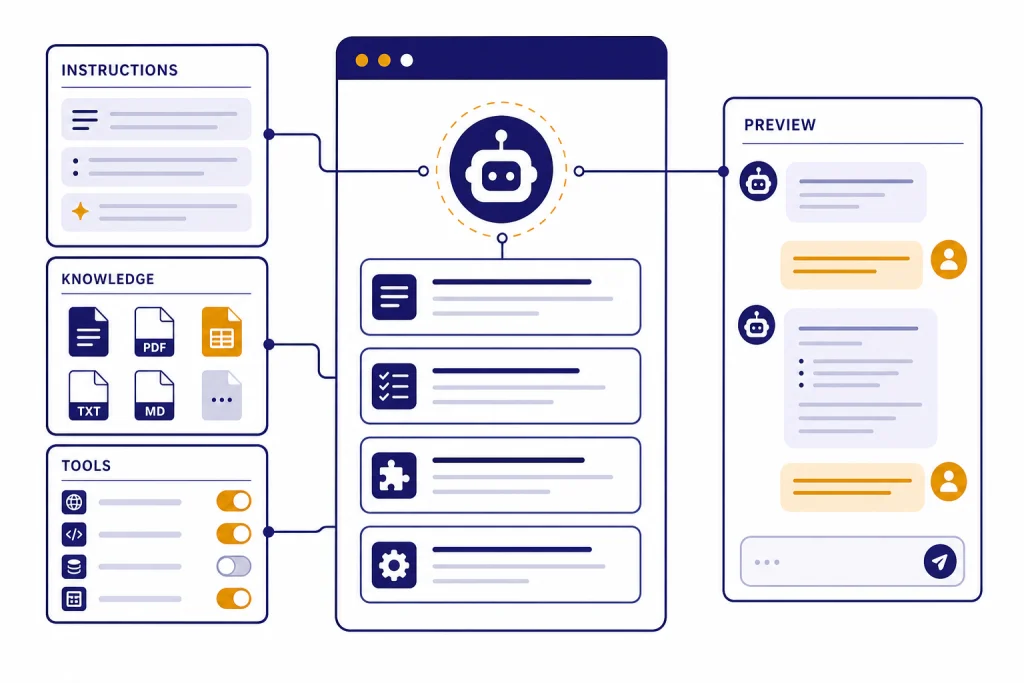
A custom GPT is a reusable version of ChatGPT that you configure for a specific job: answering from your files, following a repeatable workflow, using selected tools, or helping a team handle a recurring task. This chatgpt tutorial custom gpts guide walks you through the practical build process from planning to publishing. You will create a clear GPT concept, write durable instructions, add knowledge files only when they help, test the GPT with failure cases, and choose the right sharing option. The goal is not to make a flashy bot. The goal is to make a reliable assistant that saves you from rewriting the same prompt every week.
What custom GPTs are
GPTs, also called custom GPTs, are configured versions of ChatGPT made for a specific purpose. OpenAI says a GPT can combine instructions, knowledge, selected capabilities, apps, and actions to create a more tailored ChatGPT experience.[1]
Think of a custom GPT as a saved operating manual for ChatGPT. Instead of pasting a long prompt every time, you define the role, rules, source material, output format, and allowed tools once. Then you test and improve it like a small internal product.
GPTs are available to signed-in ChatGPT users who have access to them, but creating or editing GPTs requires a paid subscription. In managed workspaces, access can also depend on workspace settings and role permissions.[1] Building and editing GPTs is limited to the web experience; mobile apps support using GPTs but not building them.[2]
| Option | Best use | Main limitation |
|---|---|---|
| Regular ChatGPT chat | One-off questions, drafts, brainstorming, quick analysis | You must restate the workflow each time |
| Custom instructions or memory | Personal preferences that should apply broadly | Not ideal for a single workflow with files, starters, or sharing |
| Custom GPT | Repeatable task, team workflow, file-backed helper, public or private assistant | Runs inside ChatGPT rather than your own app |
| OpenAI API assistant or app | Product integrations, embedded assistants, custom user interface | Requires development work and separate deployment |
If you need a primer before building, start with what ChatGPT is. If your project depends on large prompts and reusable patterns, pair this tutorial with our guide to prompt engineering techniques that actually work.
Plan before you open the builder
The best custom GPTs start as a small spec. Do not begin with “make me a helpful assistant.” Start with one repeatable job. A narrow GPT usually performs better than a general one because every instruction can point toward a concrete outcome.
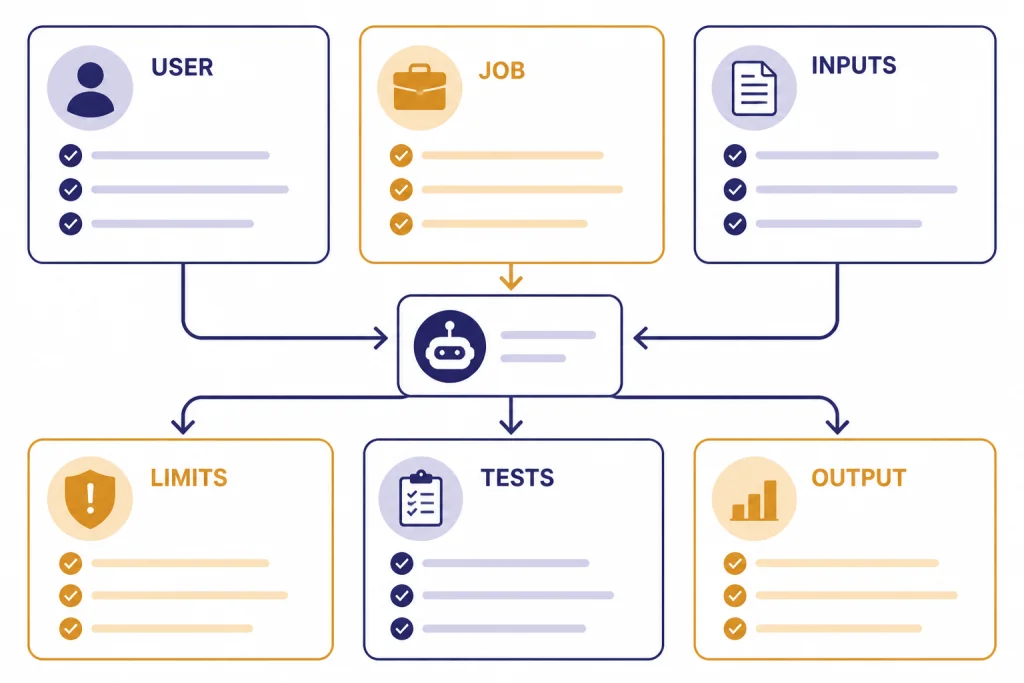
Use this planning checklist before you open GPT Builder:
- User: Who will use this GPT?
- Job: What task should it complete repeatedly?
- Inputs: What will users paste, upload, or ask?
- Outputs: What should the response look like?
- Boundaries: What should it refuse, avoid, or escalate?
- Knowledge: What files should it reference, if any?
- Tools: Does it need web search, image generation, data analysis, apps, or actions?
- Tests: What prompts prove that it works?
For this tutorial, we will build a “Client Brief GPT” for a small marketing team. Its job is to turn rough client notes into a structured creative brief. It should ask for missing details, preserve client constraints, avoid inventing facts, and return a consistent brief format.
This example is useful because it uses the core GPT building blocks without requiring custom code. If your own GPT is for analytics, pair the same process with ChatGPT data analysis workflows. If it needs to summarize uploaded documents, also review our PDF reading and summarizing tutorial.
Build it in GPT Builder
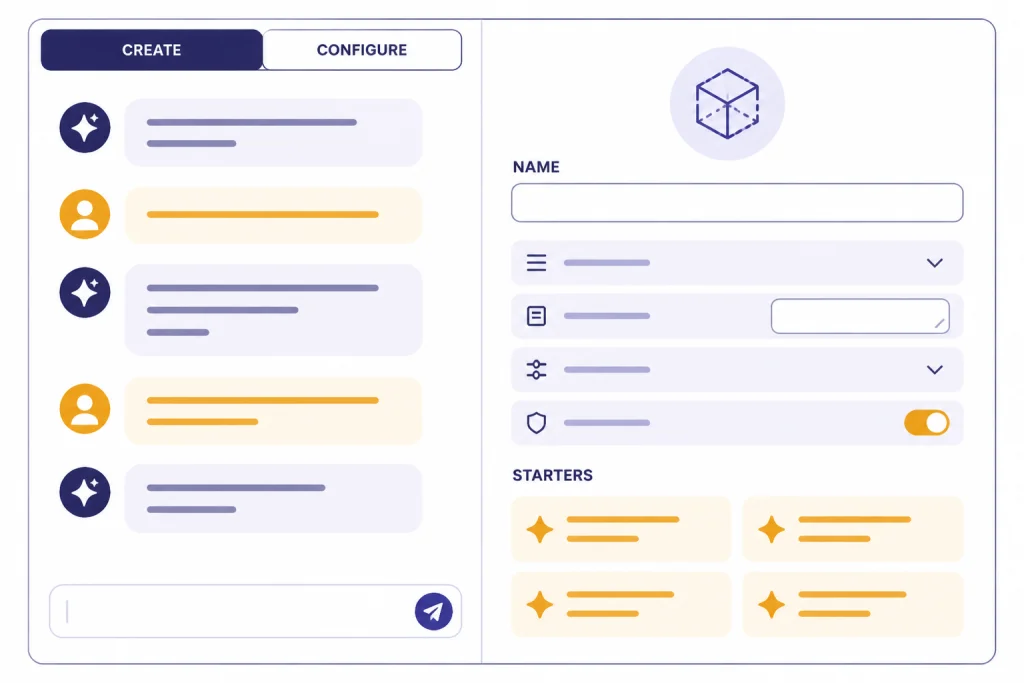
Open the GPTs area in ChatGPT and select Create. OpenAI describes two build paths: a conversational builder where you describe what you want, and a configuration view where you edit the GPT fields directly.[2] Use the conversational builder for a first draft. Use the configuration view for precision.
For the Client Brief GPT, start with this builder message:
Create a GPT for a small marketing team. It turns messy client discovery notes into a structured creative brief. It should ask clarifying questions when required facts are missing, avoid inventing client details, and return a clean brief with sections for objective, audience, offer, constraints, deliverables, risks, and next steps.Then move into Configure and tighten the fields manually.
Name and description
Use a name that explains the job. “Client Brief Builder” is better than “Marketing Genius.” The description should say who it helps and what it produces. OpenAI notes that the name, description, and conversation starters are user-facing fields that affect how people understand and start using the GPT.[2]
Conversation starters
Conversation starters should be real prompts, not vague suggestions. Use prompts that teach the user the right input format.
- “Turn these discovery notes into a creative brief.”
- “Review this brief and list missing client details.”
- “Create three positioning angles from this client summary.”
- “Convert this call transcript into a campaign brief.”
If you are building a writing assistant, adapt the output pattern from our writing better content tutorial. If your GPT will create visual prompts or image directions, use the workflow in our image generation mastery guide.
Write instructions that survive real users
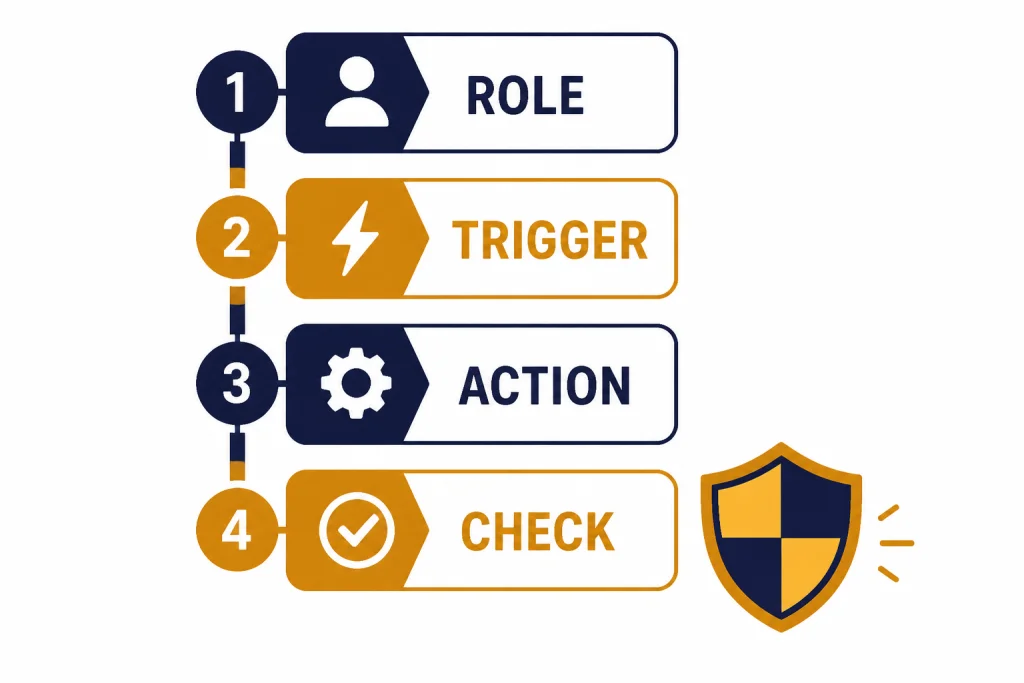
Instructions define how the GPT behaves in every conversation. OpenAI recommends breaking complex instructions into clearer steps, using delimiters, defining trigger-and-instruction pairs, and stating tool-use rules explicitly.[4]
Use sections instead of one long paragraph. The model can follow a structured operating manual more reliably than a dense prompt blob.
ROLE
You are Client Brief Builder, a practical assistant for turning rough client notes into clear marketing briefs.

PRIMARY TASK
Transform user-provided notes, transcripts, or summaries into a structured creative brief.

WORKFLOW
1. Identify the client objective, audience, offer, constraints, deliverables, timeline, and success metric.
2. If a required field is missing, ask up to three clarifying questions before drafting.
3. If the user asks for a draft anyway, mark unknown details as "Not provided" instead of inventing them.
4. Return the brief in the approved section order.
5. End with a short "Risks and follow-ups" list.

OUTPUT FORMAT
Use these headings: Objective, Audience, Offer, Key Message, Deliverables, Constraints, Timeline, Success Metric, Risks, Next Steps.

BOUNDARIES
Do not claim that the client approved anything unless the user says so. Do not invent budget, legal requirements, dates, or performance targets.
The most important part is the boundary section. Many weak GPTs fail because they are optimized only for fluent output. Reliable GPTs also know when to ask, when to mark uncertainty, and when to stop.
When you need more control, add examples. Show one poor input and one ideal output. This is especially useful for classification, grading, legal review, brand voice, content editing, and research summaries. For more advanced instruction patterns, see our advanced prompt engineering techniques.
Add knowledge, tools, apps, and actions carefully
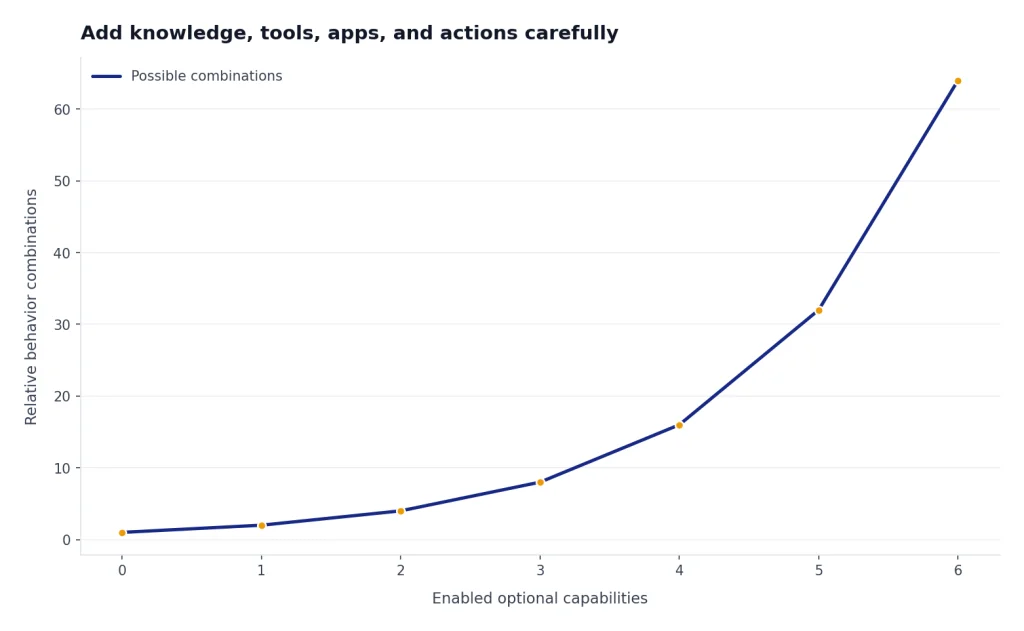
A custom GPT can include instructions, conversation starters, uploaded knowledge, selected capabilities, apps, and actions.[1] Do not enable everything by default. Each extra capability adds power, but it also adds another way for the GPT to behave unexpectedly.
Knowledge files
Knowledge files are best for reference material: brand guides, product docs, policy manuals, style guides, support articles, or internal templates. OpenAI says GPT builders can attach up to 20 files, each up to 512 MB, and that GPTs support most common document, spreadsheet, image, text, and code file types.[2] OpenAI’s separate Knowledge article also states that each file can contain up to 2,000,000 tokens.[3]
For the Client Brief GPT, upload a short brand voice guide and a sample brief template. Do not upload every client file your company has. The GPT should retrieve relevant reference material, not wade through a junk drawer.
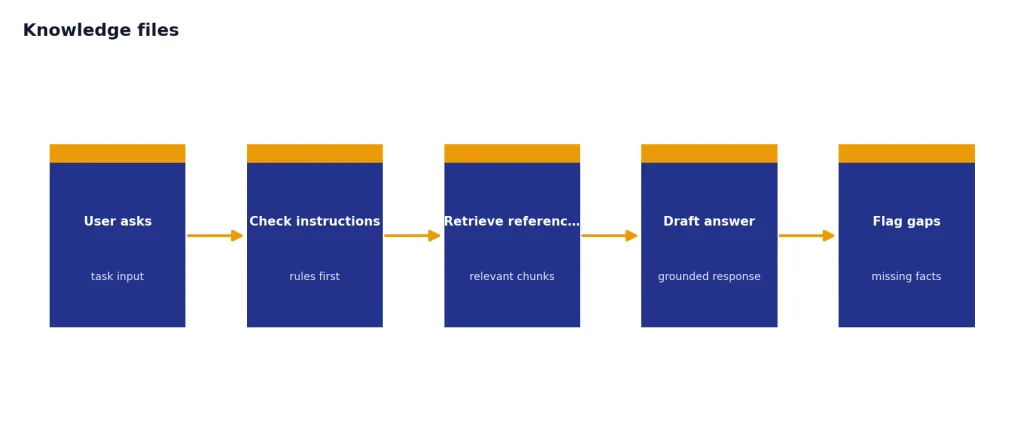
Keep rules in the instructions and facts in the knowledge files. For example, “Always ask before inventing a deadline” belongs in instructions. “Our standard creative brief template has these sections” can live in a knowledge file.
Capabilities, apps, and actions
Capabilities are built-in ChatGPT tools such as web search or image generation, depending on what your plan and workspace allow. Apps connect the GPT to outside services through user-connected tools. Actions connect the GPT to external APIs that you define.[1] A GPT can use either apps or actions, but not both at the same time.[1]
Use actions only when the GPT must retrieve or change data in another system. OpenAI says configuring an action requires API details, authentication information, and an OpenAPI schema.[7] Public GPTs with actions must include a valid privacy policy URL.[7] If you are comparing a GPT with an API-based product, our OpenAI API pricing comparison is the better next stop.
| Need | Use this | Example |
|---|---|---|
| Reusable behavior | Instructions | Always ask for missing client budget before drafting |
| Reference material | Knowledge | Brand guide, product FAQ, sample brief |
| Current public information | Web search capability | Check a company’s latest product page before drafting |
| File analysis | Data analysis capability | Read a spreadsheet of campaign metrics |
| External service connection | App or action | Send a brief to a project management system |
If your GPT depends on calculations, tables, or uploaded datasets, review our Code Interpreter mastery tutorial. If it needs to operate across a multistep web or app workflow, compare it with Agent Mode use cases before adding custom actions.
Test, share, and maintain your GPT
OpenAI recommends using the built-in Preview before sharing or publishing a GPT so you can test real prompts, check tone and accuracy, and refine the setup.[2] Treat preview testing like quality control, not casual chatting.
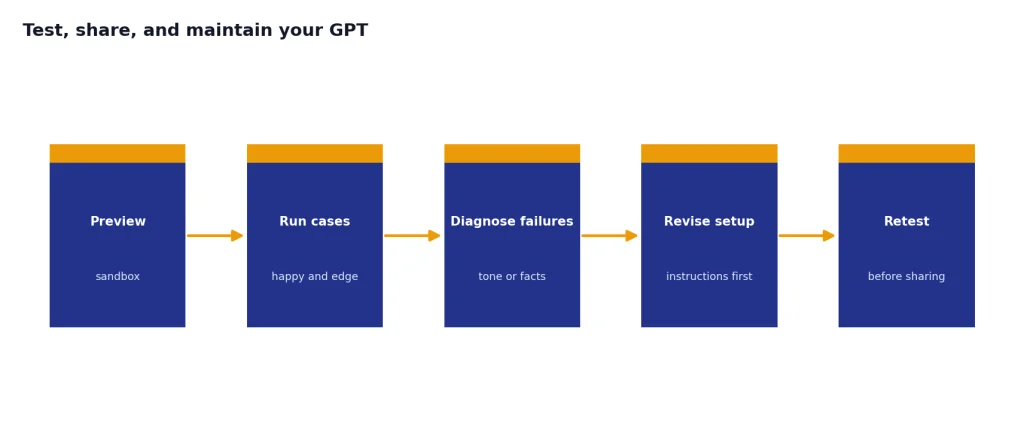
Run at least these tests:
- Happy path: The user provides complete notes and gets the desired output.
- Missing facts: The user omits budget, audience, deadline, or approval status.
- Conflicting facts: The notes contain two different launch dates.
- Wrong task: The user asks for something outside the GPT’s purpose.
- File use: The GPT must use the uploaded template correctly.
- Overreach: The user asks it to invent data or pretend something was approved.
For each failed test, revise the instructions before adding more tools. In many cases, clearer trigger rules fix the problem faster than a new capability.
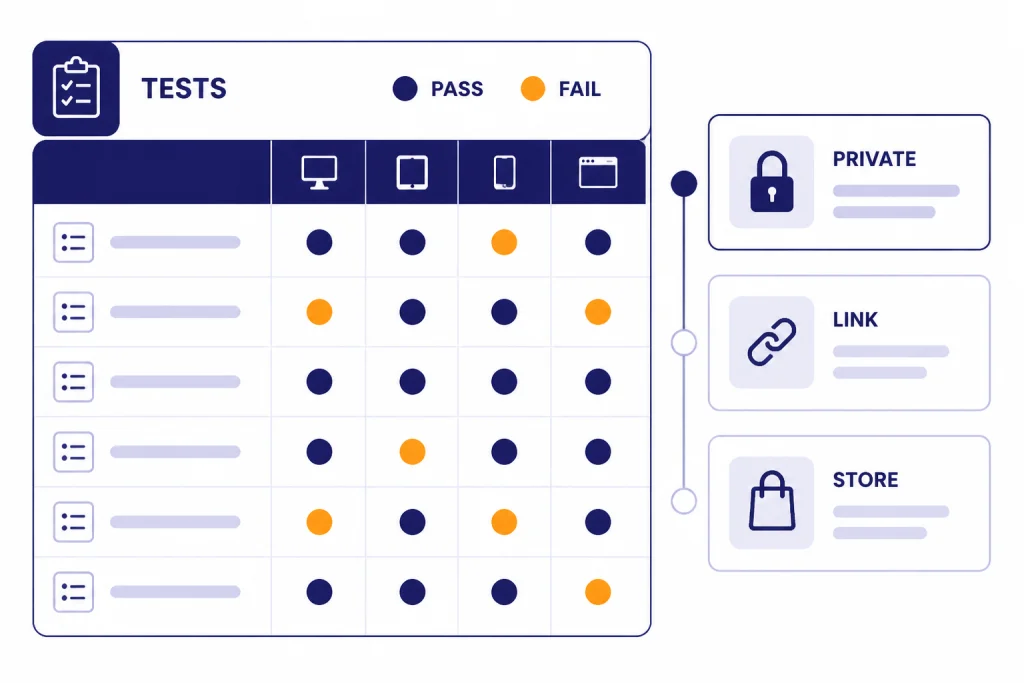
When the GPT works, choose a sharing level. Available options depend on the plan and workspace settings, and may include private use, direct sharing, workspace sharing, link sharing, or publishing to the GPT Store.[5] In managed workspaces, direct sharing with specific users or groups is available only there, and OpenAI lists a limit of up to 100 direct recipients for users and groups combined.[5]
For public GPTs, review policy and privacy implications before publishing. OpenAI states that public publishing may require a Builder Profile and that public GPTs must meet applicable policy and product requirements.[5] OpenAI’s terms and policy hub links to usage policies, privacy policy, service terms, and related publication rules.[8]
Privacy also matters after launch. OpenAI says conversations with GPTs in consumer products such as ChatGPT Free or Plus may be used to improve models unless the user opts out through Data Controls, while business products such as ChatGPT Business and ChatGPT Enterprise do not use data for training by default.[6] OpenAI also says GPT builders cannot view individual conversations that users have with their GPTs.[6]
Maintain your GPT like a living document. Re-test it when you change knowledge files, update instructions, alter sharing settings, or add tools. If you edit long instructions often, keep a changelog outside ChatGPT so you know which revision introduced a behavior change. For document-heavy workflows, Canvas can help you draft and refine the instruction set before pasting it into the GPT editor.
Frequently asked questions
Can I build a custom GPT for free?
You can use GPTs that you have access to as a signed-in user, but OpenAI says creating or editing GPTs requires a paid subscription.[1] In a managed workspace, your admin settings and role permissions can also affect whether you can create or edit GPTs.
Should I use knowledge files or paste information into the instructions?
Use instructions for behavior, rules, tone, and workflow. Use knowledge files for reference material the GPT should consult during a conversation. If the GPT must always follow a rule, put that rule in the instructions rather than burying it in a file.
Can a custom GPT replace a full software integration?
Usually, no. A custom GPT is best when the assistant can live inside ChatGPT. If you need a custom interface, embedded product assistant, billing integration, user management, or production API workflow, build with the API instead.
Can GPT builders read chats people have with their GPTs?
OpenAI says GPT builders cannot view individual conversations that users have with their GPTs.[6] That does not mean users should paste sensitive information casually. If the GPT uses third-party APIs or apps, relevant parts of the user’s input may be sent to those outside services.[6]
How many files can I upload to a GPT?
OpenAI states that builders can attach up to 20 files to a GPT, with each file up to 512 MB.[2] Its Knowledge article also states that each file can contain up to 2,000,000 tokens.[3] Use fewer, cleaner files when possible.
What is the most common mistake when building a custom GPT?
The most common mistake is making the GPT too broad. “Help with marketing” is weak. “Turn client discovery notes into a creative brief and ask for missing budget, audience, timeline, and approval status” is much easier to test and improve.