

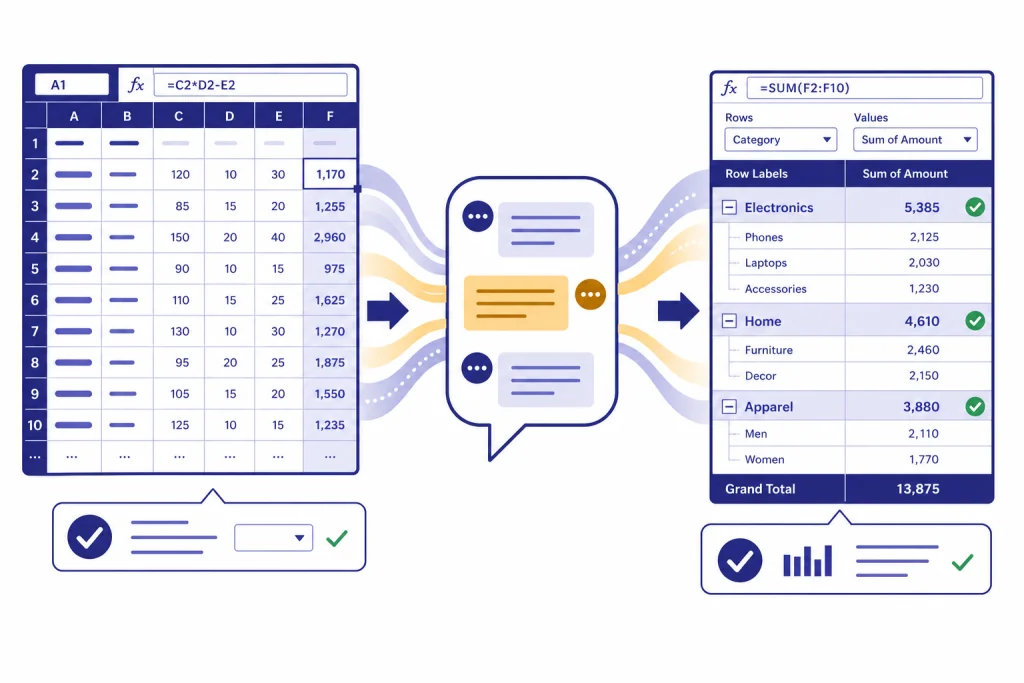
ChatGPT can help you write Excel formulas, explain broken formulas, clean spreadsheet logic, and plan PivotTables before you build them in Excel. The safest workflow is simple: describe the workbook structure, ask for one formula or PivotTable layout at a time, test the result on a small sample, then ask ChatGPT to explain the assumptions. This tutorial shows how to use ChatGPT with Excel without turning your spreadsheet into a black box. You will learn how to prepare data, prompt for formulas, debug errors, build PivotTables, summarize pivot results, and decide when to upload a file for deeper analysis instead of copying cell ranges into chat.
What ChatGPT can do with Excel
ChatGPT is useful for Excel work when you treat it as a spreadsheet reasoning assistant, not as a replacement for Excel. It can translate a business rule into a formula, compare formula options, explain why a formula fails, draft PivotTable layouts, write helper-column logic, and summarize analysis results in plain English.
For data-heavy tasks, ChatGPT can also analyze uploaded spreadsheet files. OpenAI says ChatGPT data analysis supports Excel files, CSV files, PDFs, and JSON, and can create tables and charts from uploaded data.[1] OpenAI also says ChatGPT can upload current file versions from Google Drive, Microsoft OneDrive Personal, and Microsoft OneDrive including SharePoint.[1]
That does not mean you should upload every workbook. For simple formulas, paste the column names and a few rows. For sensitive files, remove private data or use synthetic examples. For complex workbooks, ask ChatGPT for a plan first, then decide whether file upload is worth it.
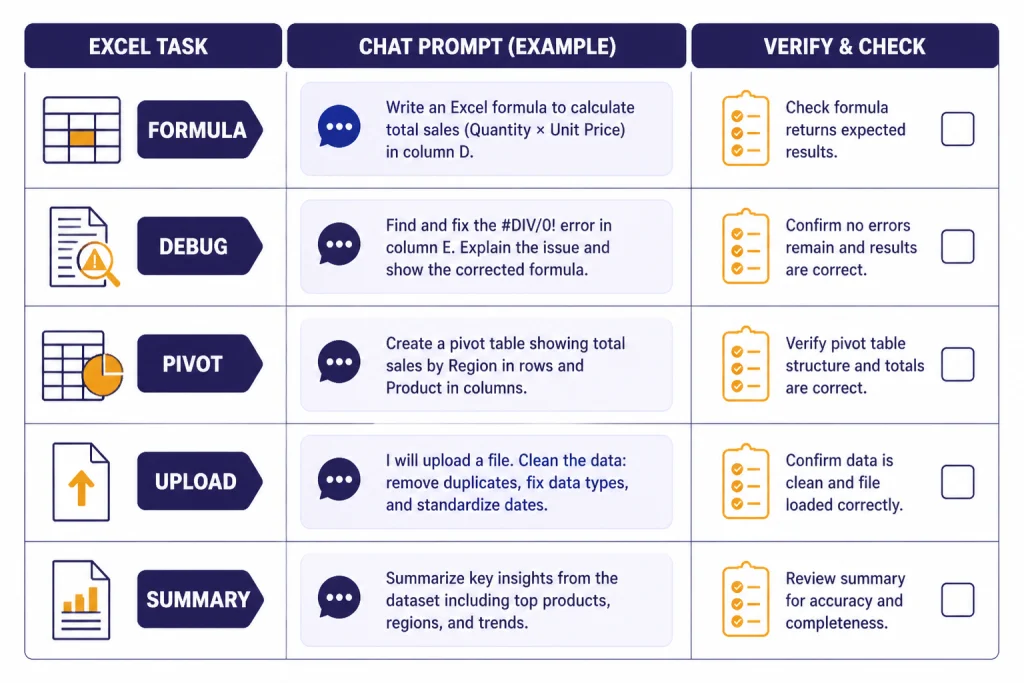
| Excel task | Best way to use ChatGPT | What to verify in Excel |
|---|---|---|
| Write a lookup formula | Give column names, lookup direction, and expected output | Exact-match behavior, missing values, and return column |
| Fix a formula error | Paste the formula, error message, and sample rows | Separators, sheet names, table names, and data types |
| Create a PivotTable plan | Ask for Rows, Columns, Values, Filters, and sorting | Field names, aggregation type, and source range |
| Explain a workbook | Upload or describe tabs, columns, and business purpose | Hidden assumptions, manual overrides, and stale pivots |
| Summarize findings | Ask for executive bullets tied to the pivot outputs | Totals, filters, and any excluded records |
If you want a broader walkthrough of ChatGPT’s spreadsheet-adjacent data tools, pair this tutorial with our ChatGPT data analysis step-by-step guide. If you already know the basics and want reusable prompts, see ChatGPT Excel prompts for power users.
Prepare your workbook before prompting
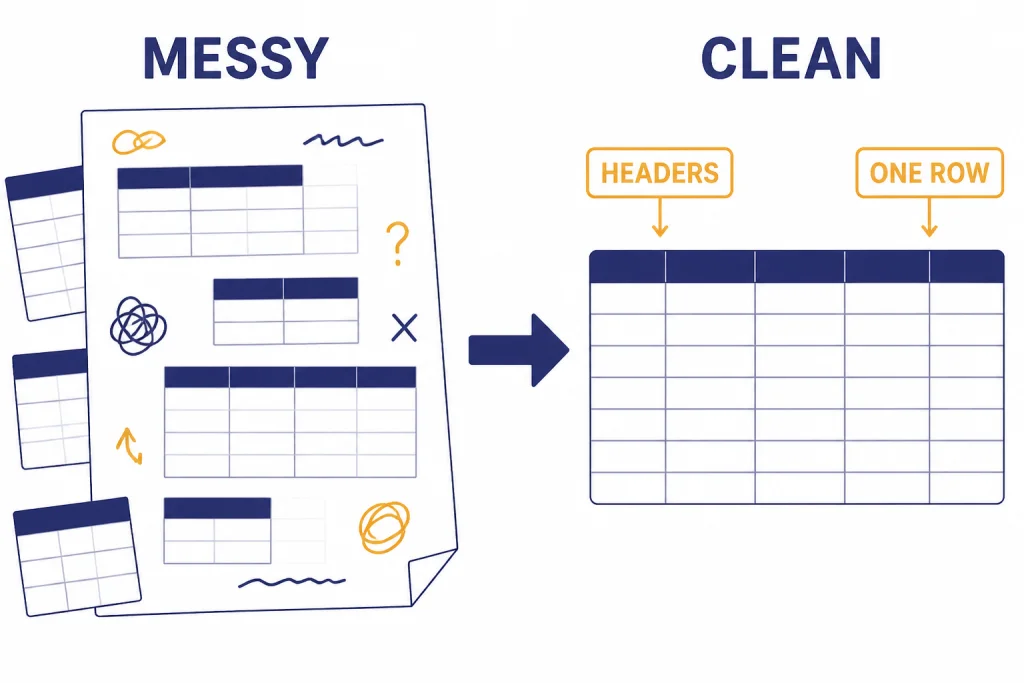
ChatGPT gives better Excel help when your data is shaped like a clean table. Put one field in each column. Put one record in each row. Use plain column names. Avoid merged cells, blank header cells, subtotals inside the source data, and separate mini-tables stacked on one sheet.
This advice aligns with OpenAI’s own spreadsheet guidance for ChatGPT data analysis: use descriptive column headers in the first row, use plain language for headers, and use one row per record. OpenAI also advises against multiple sections or tables in one spreadsheet, empty rows or columns, and images that contain critical information.[1]
The same structure helps PivotTables. Microsoft says PivotTable source data should be organized in columns with a single header row.[3] If your sheet has nested headings, blank separator rows, or subtotal lines, ask ChatGPT to help you design a cleaner source table before you ask for PivotTable instructions.
Use this setup prompt
Start with a compact description of the workbook. This keeps ChatGPT focused on your actual structure.
I am working in Excel. My source table is named SalesData.
Columns: OrderDate, Region, Rep, Product, Units, Revenue, Cost, Channel.
Goal: build formulas and PivotTables to understand revenue, margin, and top products by region.
Assume the data is one row per order. Ask clarifying questions before giving formulas.
If your data is messy, use a cleanup prompt first.
Here is a description of my worksheet: row 1 has a report title, row 2 is blank, row 3 has headers, rows 4-500 have data, and every region has a subtotal row.
Tell me how to reshape this into a PivotTable-ready source table. Do not write formulas yet.
For repeat workflows, save your preferred workbook description. You can keep a reusable version in a prompt library, a custom instruction, or a custom GPT. If you want to build a dedicated spreadsheet helper, read our custom GPT tutorial. If you want the assistant to remember stable preferences across sessions, see our ChatGPT memory power-user tips.
Write better Excel formula prompts
A strong Excel formula prompt has four parts: the table shape, the desired result, the edge cases, and the Excel version or function constraints. If you omit those details, ChatGPT may produce a formula that looks plausible but does not match your workbook.
Use table names when you can. Microsoft calls formulas that use table and column names “structured references,” and says those references adjust when data is added or removed from the table.[4] Structured references also make prompts easier because you can say SalesData[Revenue] instead of explaining a cell range that may change next week.
Prompt for a lookup formula
Good prompts tell ChatGPT which value to find, where to find it, what to return, and what to do when there is no match.
Write an Excel formula using structured references.
Table: PriceList
Columns: SKU, ProductName, UnitPrice, Active
In table OrderLines, I need a formula in column UnitPrice that looks up OrderLines[SKU] in PriceList[SKU] and returns PriceList[UnitPrice].
If the SKU is missing, return blank.
Explain the formula briefly.
ChatGPT will often suggest XLOOKUP for this kind of task. Microsoft describes XLOOKUP as a function that searches a range or array and returns the item corresponding to the first match it finds.[5] Ask ChatGPT for an older-compatible alternative only if your workbook must work in an Excel version where a newer function may not be available.
Prompt for conditional logic
Conditional formulas fail when the business rule is vague. Instead of asking for “a commission formula,” state the rule as a decision table.
Write an Excel formula for a calculated column named CommissionRate.
Table: SalesData
Rules:
- If Channel is "Partner", rate is 6%.
- If Channel is "Direct" and Revenue is at least 10000, rate is 8%.
- If Channel is "Direct" and Revenue is below 10000, rate is 5%.
- If Revenue is blank or zero, return 0.
Use structured references and explain the order of the tests.
After you receive the formula, ask ChatGPT for test cases. This is one of the simplest ways to catch logic errors before you fill the formula down a large table.
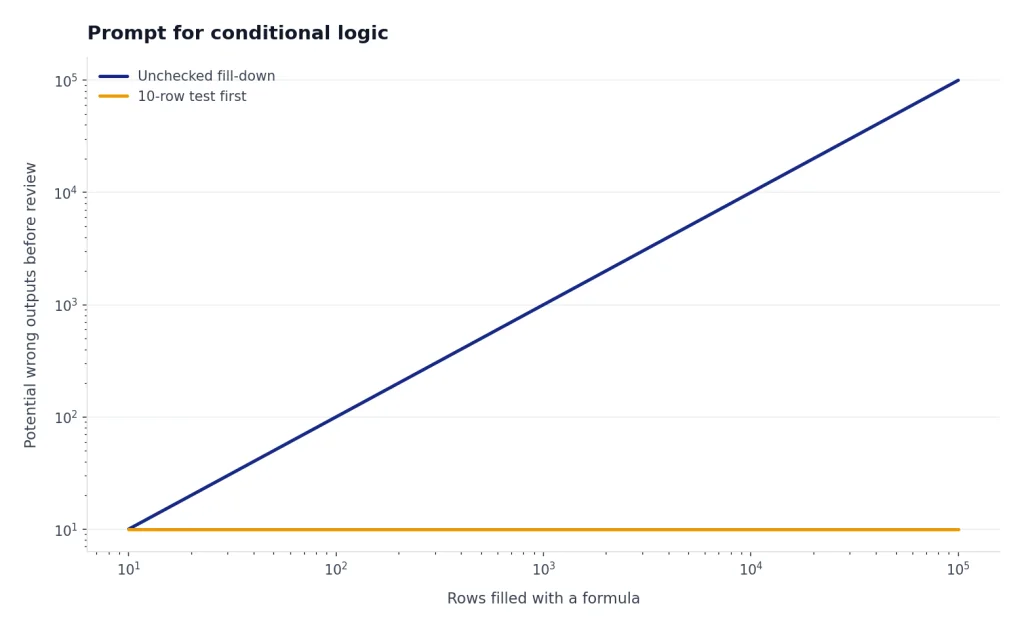
Create a small test table with example Channel and Revenue values that would validate every branch of this formula. Include the expected CommissionRate for each row.This habit comes from the same discipline used in coding. If you want to go deeper on test-driven prompting, our ChatGPT coding tutorial covers the pattern in more detail.
Debug formulas with ChatGPT
Formula debugging works best when you give ChatGPT the exact error, the exact formula, and a small sample of the data. Do not paste only “my formula does not work.” That forces the model to guess.
Use a reproducible debugging prompt
Debug this Excel formula.
Formula: =XLOOKUP([@SKU],PriceList[SKU],PriceList[UnitPrice],"")
Error or problem: it returns blanks for SKUs that I can see in PriceList.
Sample OrderLines rows:
SKU: A-100, B-200, C-300
Sample PriceList rows:
SKU: A-100 , B-200, C-300
Possible issue: some SKU values may have spaces.
Give me the likely cause, a corrected formula, and a way to test it.
Ask ChatGPT to separate likely causes from confirmed causes. It may suggest hidden spaces, text-number mismatches, wrong table names, filtered rows, or mismatched delimiters. Those are hypotheses until you test them in Excel.
Ask for a safer version, not just a shorter one
Short formulas are not always better. For business workbooks, a readable helper column can be safer than a dense nested formula. Ask ChatGPT to give you both versions.
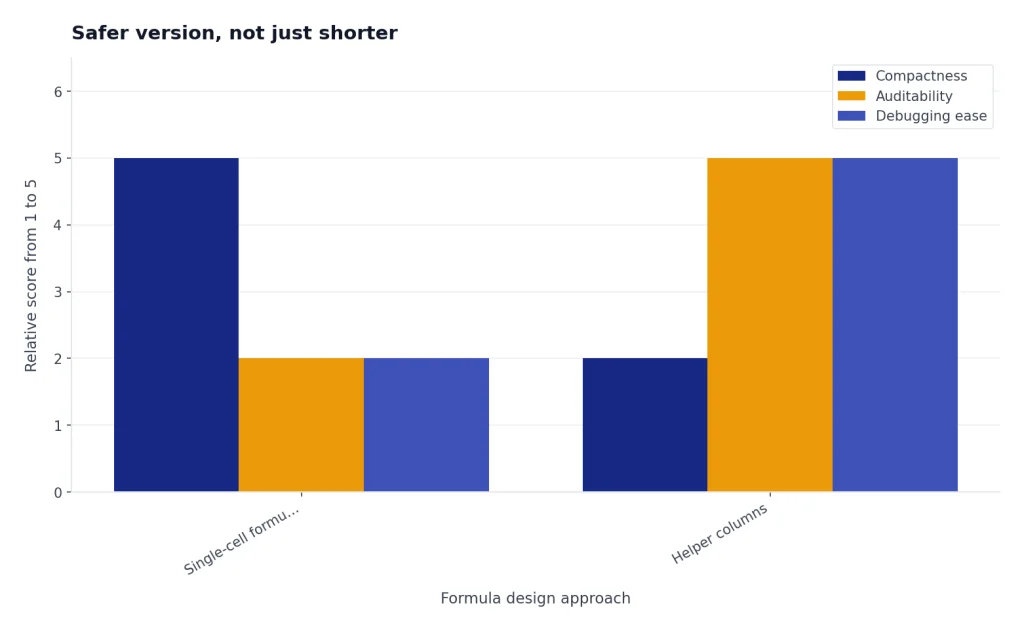
Give me two versions of this solution:
1. A single-cell formula.
2. A helper-column approach that is easier for a finance analyst to audit.
Explain which version you would use in a workbook shared with nontechnical users.
If the formula is part of a larger reporting process, document the assumptions in the workbook. You can ask ChatGPT to draft a short “formula notes” section for a README tab. For longer spreadsheet documentation, our Canvas document tutorial shows how to turn rough notes into a clean operating guide.
Build PivotTables with ChatGPT
ChatGPT cannot reliably click through your local Excel interface unless you are using a supported automation environment. Its main value is planning the PivotTable before you build it. Ask for a field layout, aggregation choices, filters, sort order, and follow-up questions.
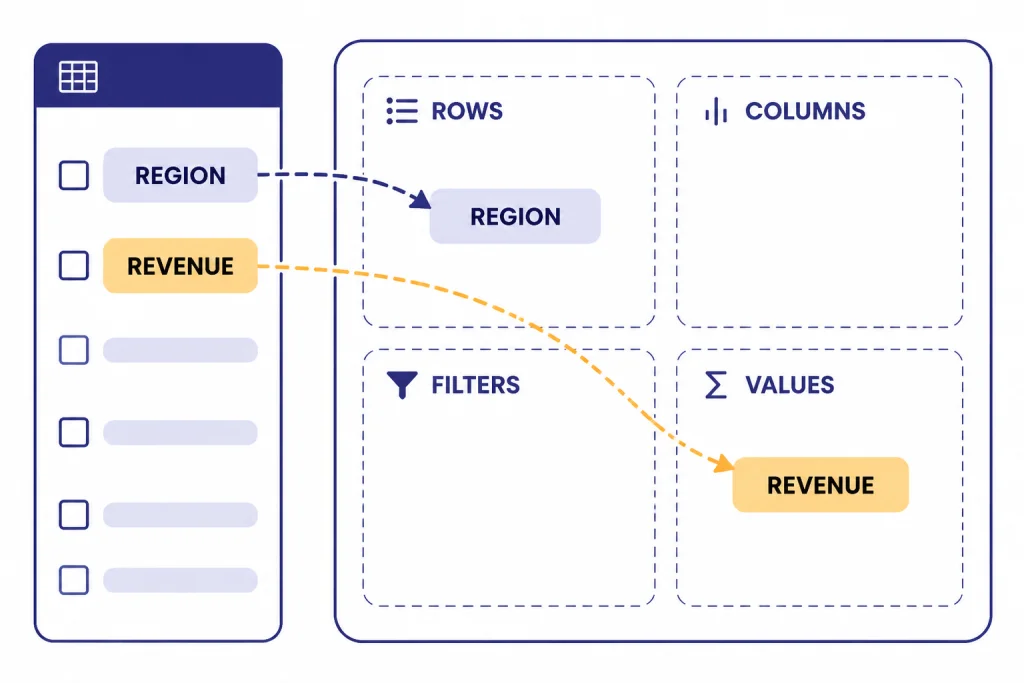
Microsoft describes a PivotTable as a tool for calculating, summarizing, and analyzing data so you can see comparisons, patterns, and trends.[3] Microsoft also says the PivotTable Field List lets you add fields, remove fields, rearrange them, and reposition them in the layout areas.[6] That field-list structure maps well to ChatGPT prompts.
Prompt for a PivotTable layout
Design a PivotTable layout for this Excel table.
Table: SalesData
Columns: OrderDate, Region, Rep, Product, Units, Revenue, Cost, Channel
Business question: Which products drive the most gross margin by region?
Return the layout with Rows, Columns, Values, Filters, sorting, number formatting, and one optional slicer.
Also tell me what helper column I need if gross margin is not already present.
A good answer might place Region and Product in Rows, gross margin in Values, Channel in Filters, and a date field in Columns or a slicer. But do not accept the first layout blindly. Ask why each field belongs where it does.
Use ChatGPT to choose the aggregation
Excel may default to a count when you expected a sum, especially if a numeric column contains blanks or text. Ask ChatGPT to state the correct aggregation for each value field.
| Business question | Rows | Values | Likely aggregation | Watch out for |
|---|---|---|---|---|
| Revenue by region | Region | Revenue | Sum | Revenue stored as text |
| Average order size by channel | Channel | Revenue | Average | Outliers and refunds |
| Number of orders by rep | Rep | Order ID | Count | Duplicate order lines |
| Margin rate by product | Product | Margin Rate | Weighted calculation | Averaging percentages incorrectly |
For calculated results outside the pivot, Microsoft documents GETPIVOTDATA as a function that returns visible data from a PivotTable.[7] Ask ChatGPT to help write GETPIVOTDATA formulas only after the pivot layout is stable, because field names and item names matter.
Prompt for GETPIVOTDATA
I have a PivotTable starting at cell A3.
The Values field is named Sum of Revenue.
Rows include Region and Product.
Write a GETPIVOTDATA formula that returns revenue for Region = West and Product = Widget A.
Then show a version where Region and Product are cell references instead of hard-coded text.
If you are choosing between formulas, pivots, and ChatGPT data analysis, our Code Interpreter mastery tutorial explains when to let ChatGPT compute directly and when to keep the calculation in the workbook.
Use ChatGPT with uploaded Excel files
Use file upload when the workbook structure is too large to describe, when you need exploratory analysis, or when you want charts from a dataset. Do not use upload as a substitute for understanding the workbook. Your prompt should still define the question, the target output, and the level of detail.
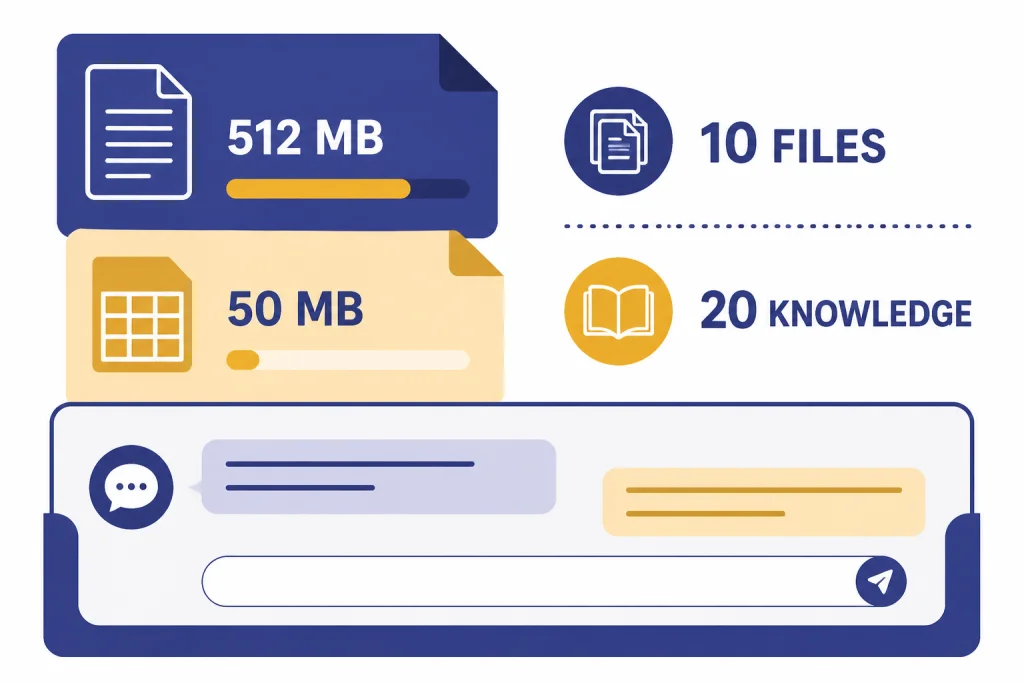
OpenAI says ChatGPT can analyze uploaded Excel files and CSV files, among other formats.[1] OpenAI’s File Uploads FAQ says files uploaded to a GPT or ChatGPT conversation have a hard limit of 512 MB per file, while CSV files or spreadsheets cannot exceed approximately 50 MB depending on row size.[2] OpenAI also says up to 10 files can be uploaded to a given conversation and up to 20 files can be attached to a GPT as Knowledge when Code Interpreter is enabled at the GPT level.[1]
Before uploading, make a copy of the workbook. Remove hidden tabs that are not needed. Replace private customer names with IDs if possible. Delete irrelevant worksheets. Add a short README sheet that explains the purpose of each tab and the definition of key fields.
Use an upload prompt that limits scope
I uploaded an Excel workbook.
Goal: help me build a PivotTable-ready analysis of revenue and margin.
First, inspect the workbook structure and list the sheets, tables, and likely key columns.
Do not make conclusions yet.
Then ask me which business question to answer first.
Once ChatGPT describes the workbook, move in stages. Ask it to identify data quality issues. Then ask for formulas. Then ask for a PivotTable plan. Then ask for a summary. This staged approach reduces the chance that an early misunderstanding flows into every later answer.
Ask to see the analysis path
OpenAI says that after ChatGPT analyzes or visualizes data, the “View Analysis” link can show how it used tools such as pandas and Matplotlib.[1] Use that option when accuracy matters. You do not need to read every line of code, but you should check that the right sheet, columns, filters, and aggregations were used.
If the workbook includes PDFs, exported reports, or mixed file types, our PDF reading and summarizing tutorial can help you combine spreadsheet work with document review. If your task requires outside research before the Excel analysis, see our deep research project tutorial.
Turn pivot results into decisions
The final step is not the PivotTable. It is the decision the PivotTable supports. ChatGPT can help translate pivot outputs into short findings, follow-up analysis questions, and stakeholder-ready summaries.
Paste the visible pivot output or upload the workbook, then ask for a constrained interpretation. Tell ChatGPT which filters are active. Tell it whether blanks, refunds, or test records were excluded. If you do not provide that context, it may overstate the conclusion.
Here is the visible output from my PivotTable.
Filters active: Channel = Direct, Year = 2025.
Rows: Region, Product.
Values: Sum of Revenue, Sum of Gross Margin, Margin Rate.
Write:
1. Three executive bullets.
2. Two risks or caveats.
3. Three follow-up PivotTables I should build next.
Do not claim causation from this summary.
Ask for caveats every time. Spreadsheet summaries often hide exclusions, filters, and changes in definitions. A careful ChatGPT prompt should force those limitations into the answer.
You can also ask for audience-specific versions. A CFO may want margin risk and forecast impact. A sales manager may want account-level actions. An operations lead may want stockout or fulfillment signals. Give ChatGPT the audience and the action you want the reader to take.
Rewrite the pivot summary for a sales manager.
Keep it under 150 words.
Focus on actions by region and product.
Include one sentence that says what data we need before making staffing or pricing changes.
For presentation writing, you can combine this workflow with prompt engineering techniques that actually work. The useful pattern is role, data, task, constraints, and verification.
Common mistakes to avoid
The biggest mistake is asking ChatGPT for a formula without giving the workbook structure. The second biggest mistake is accepting an answer without testing it. Excel is unforgiving about small details: table names, hidden spaces, locale separators, date formats, and data types can all change the result.
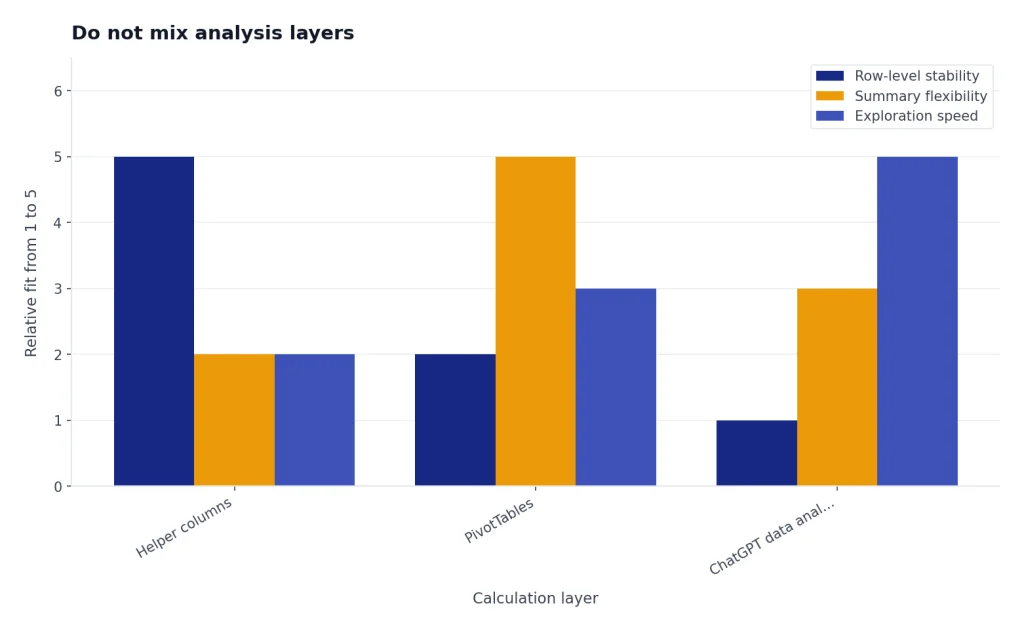
Do not mix analysis layers
Decide where each calculation should live. Put stable row-level logic in helper columns. Put flexible summaries in PivotTables. Put exploratory questions in ChatGPT data analysis. Do not scatter the same business rule across all three without documentation.
Do not forget to refresh pivots
When source data changes, the PivotTable may need a refresh. Microsoft says you can select Refresh to update PivotTable data, including data from an Excel table or external sources.[8] If your numbers look stale, ask ChatGPT for a checklist, but use Excel’s refresh command to confirm the workbook is current.
Do not confuse PIVOTBY with PivotTables
Excel also has formula-based summary options. Microsoft says the PIVOTBY function can create a summary of data via a formula, but notes that PIVOTBY is not directly related to Excel’s PivotTable feature.[9] Ask ChatGPT which approach fits your workbook: a formula summary, a PivotTable, Power Query, or direct data analysis.
Do not upload more than you need
Upload the smallest useful file. Remove tabs that do not support the question. If the workbook contains confidential information, check your organization’s policy before using any AI tool. When in doubt, use a synthetic sample that preserves the same column names and edge cases.
A dependable ChatGPT Excel workflow is narrow, testable, and documented. Ask for one formula. Test it. Ask for a PivotTable layout. Build it. Ask for a summary. Verify the totals. That rhythm gives you the speed benefit without giving up spreadsheet control.
Frequently asked questions
Can ChatGPT create Excel formulas for me?
Yes. ChatGPT can draft formulas when you provide table names, column names, the desired output, and edge cases. You should test the formula on a small sample before using it across a workbook.
Can ChatGPT fix a broken Excel formula?
Yes, but give it the exact formula, the error message, and representative sample rows. Ask for likely causes, a corrected formula, and a test plan. Do not rely on a fix until Excel returns the expected results.
Can ChatGPT build a PivotTable directly in Excel?
ChatGPT is best used to design the PivotTable layout unless you are using a supported automation workflow. Ask it for Rows, Columns, Values, Filters, aggregation choices, slicers, and sorting. Then build and verify the PivotTable in Excel.
Should I paste data or upload the Excel file?
Paste a small sample when you only need a formula or explanation. Upload a workbook when the structure matters, when there are many sheets, or when you need deeper analysis. Remove unnecessary or sensitive data before uploading.
What should I ask ChatGPT before making a PivotTable?
Ask it to restate the business question, identify the source table, recommend fields for each PivotTable area, and specify the aggregation for every Values field. Also ask what data quality problems could distort the result.
Can ChatGPT explain PivotTable results?
Yes. Paste the visible pivot output and list active filters, fields, and measures. Ask for findings, caveats, and follow-up analysis instead of asking for a broad conclusion.