

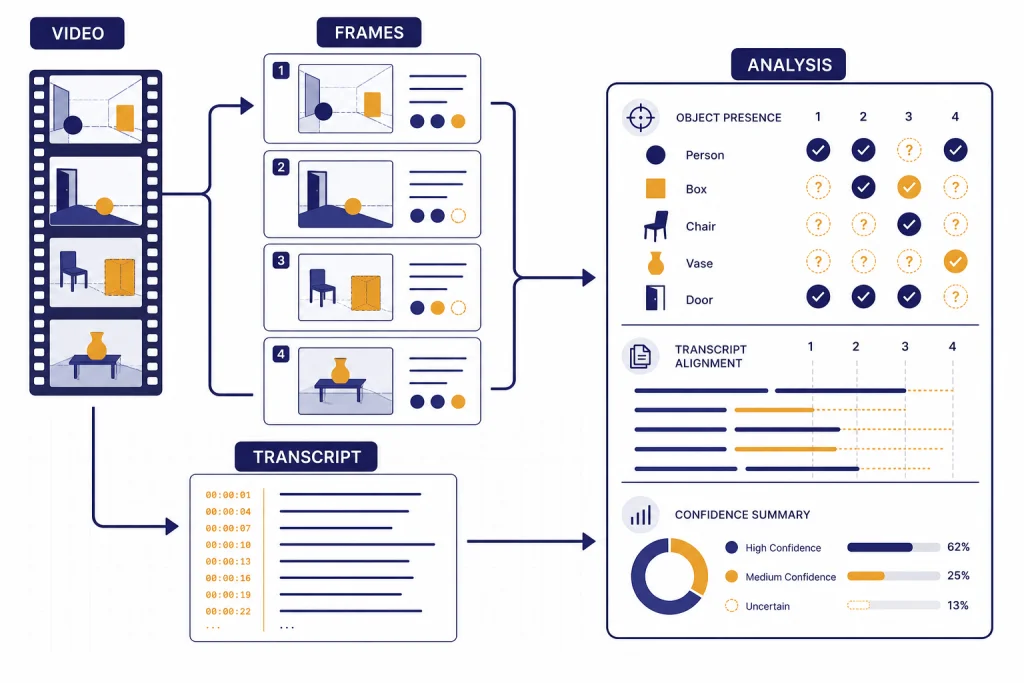
ChatGPT can help analyze video, but not in the simple “upload any MP4 and ask what happens” sense most users expect. As of March 12, 2026, OpenAI’s ChatGPT image input documentation says video is not supported there and that ChatGPT processes static images only.[1] The practical workaround is to turn the video into inputs ChatGPT can handle: representative frames, screenshots, a transcript, scene notes, or a link that ChatGPT can discuss only if enough public page text is available. That makes ChatGPT useful for summaries, shot lists, accessibility notes, visual QA, and content planning. It is still weak for exact motion tracking, frame-by-frame timing, sports technique, surveillance review, and any task where missing a moment matters.
Short answer
If your question is “can ChatGPT analyze video?” the honest answer is: yes for video-derived material, no for dependable native video watching in regular ChatGPT image input. OpenAI’s own image input FAQ says image inputs do not support videos and currently process static images only.[1] OpenAI also says ChatGPT can analyze uploaded images, diagrams, screenshots, and charts, which is the core capability you can use when you extract frames from a video.[3]
This distinction matters. A transcript tells ChatGPT what was said. A frame tells ChatGPT what was visible at one moment. A sequence of frames can approximate a scene. None of those is the same as watching continuous motion with reliable timing, audio, camera movement, and every visual change.
For most everyday work, the workaround is good enough. If you need to summarize a webinar, review a product demo, extract action items from a recorded meeting, describe a tutorial, or create chapter titles, feed ChatGPT the transcript and selected screenshots. If you need exact biomechanical coaching, security analysis, collision reconstruction, or compliance review, use a purpose-built video analysis tool and treat ChatGPT as a writing and reasoning assistant.
What ChatGPT can see from a video
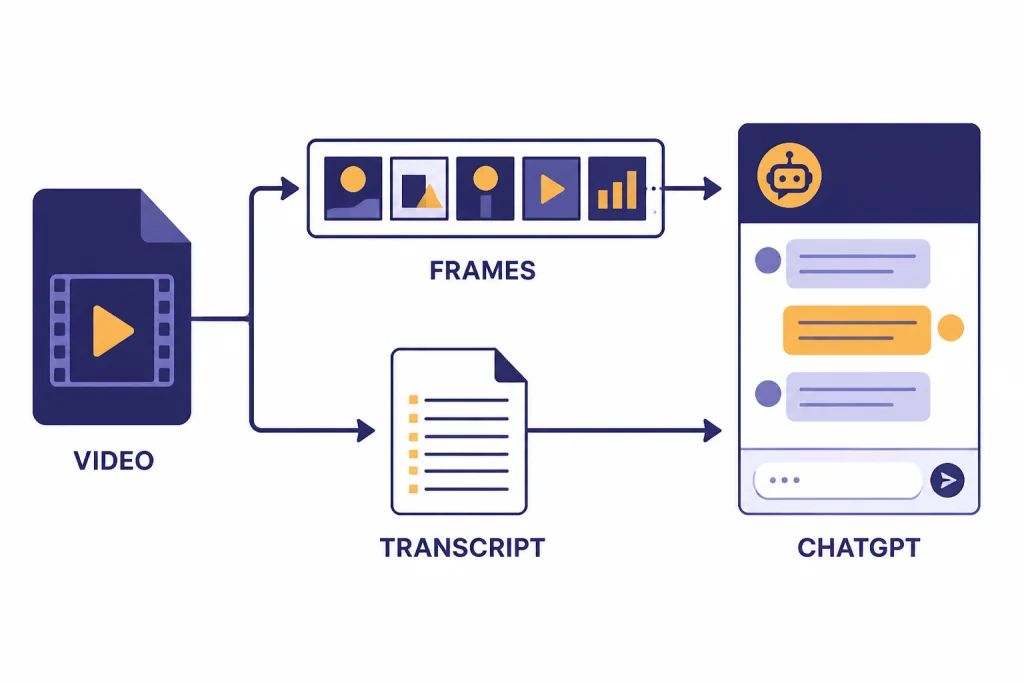
ChatGPT’s useful video workflow depends on separating a video into parts. The model can reason over text, still images, uploaded documents, and structured notes. It cannot infer every hidden event between still frames unless you provide enough evidence.
The strongest inputs are usually a transcript plus a small set of key frames. The transcript carries speech, speaker claims, and sequence. The frames carry layouts, gestures, slides, objects, and on-screen text. If the video is a screen recording, screenshots often work better than camera frames because text is sharper. For a deeper breakdown of the still-image side, see our ChatGPT Vision guide.
OpenAI lists PNG, JPEG, and non-animated GIF as supported image input file types, with a 20MB size limit per image.[1] OpenAI’s file upload FAQ repeats the 20MB image limit and separately describes broader file upload limits for documents and other supported files.[2] For general uploads, see our ChatGPT file upload reference.
| Input you provide | What ChatGPT can usually do | What it cannot safely infer |
|---|---|---|
| Transcript | Summarize speech, extract claims, list decisions, rewrite captions | Facial expressions, camera moves, slides not mentioned aloud |
| Selected frames | Describe visible objects, read some on-screen text, compare scenes | Continuous motion, exact timing, events between frames |
| Scene notes | Organize events, build a shot list, identify gaps in your notes | Facts you did not observe or document |
| Public video link | Discuss available page text or search results when browsing is available | Privately watch the full video unless a transcript or frames are available |
| Raw video file | May be accepted by some product surfaces for generation or editing workflows | Reliable general-purpose video understanding in standard image input |
The gap between “video file” and “video analysis” is the source of most confusion. ChatGPT may know that a file exists, or a related tool may use a video as a creative reference, without the chat experience giving you a complete evidence-based analysis of every frame.
Capabilities tested
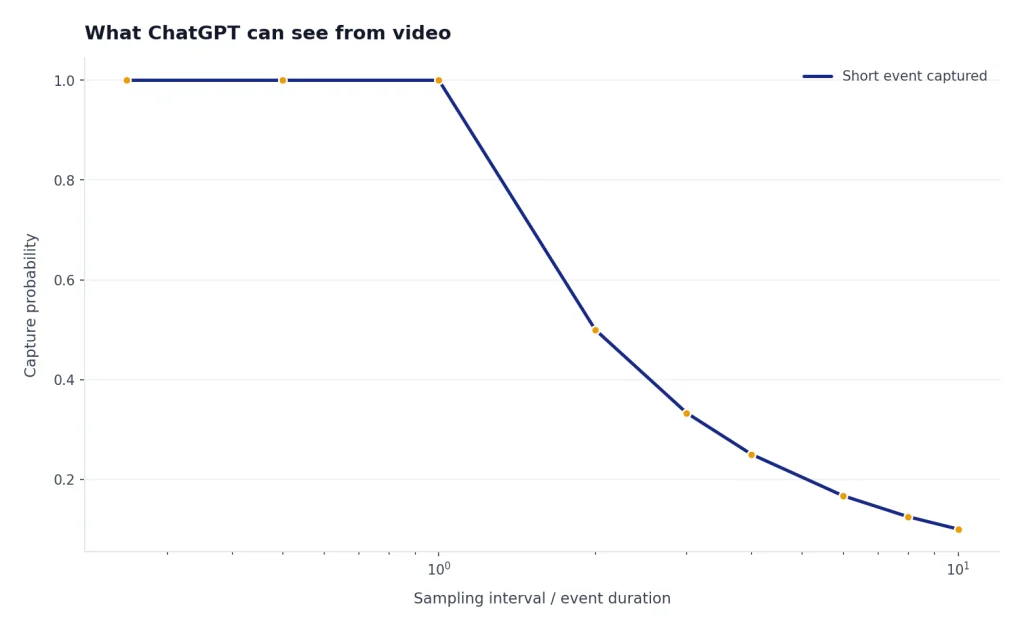
I tested the common jobs users mean when they ask ChatGPT to analyze video. The pattern was clear: ChatGPT is best when the task can be reduced to text plus representative stills. It is weakest when the task depends on subtle motion, precise timing, or changes that occur between sampled frames.
These results also match OpenAI’s documentation. OpenAI says ChatGPT can analyze uploaded images and documents, while the image input FAQ says video is not supported in image inputs.[1][3] OpenAI’s GPT-4o announcement is broader at the model level: it says GPT-4o accepts text, audio, image, and video as input.[4] That model-level statement should not be read as a guarantee that every ChatGPT surface provides native video-file analysis for every user.
| Test | Input used | Result | Reliability |
|---|---|---|---|
| Summarize a spoken presentation | Transcript plus title slide | Strong summary, clear outline, good action items | High |
| Describe a product demo | Transcript plus screenshots of each major screen | Good feature list and user-flow notes | High |
| Find visual inconsistencies | Before-and-after frames | Useful observations, but missed small details | Medium |
| Score athletic form | Several still frames | General comments only; motion-specific claims were risky | Low to medium |
| Analyze a video link only | URL without transcript or frames | Could discuss page context, not the full underlying video | Low |
| Extract exact timestamps | Transcript without time codes | Could create sections, not exact timing | Low |
The safest rule is simple. If the answer must be grounded in what appears on screen, show ChatGPT that screen. If the answer depends on speech, provide the transcript. If the answer depends on timing, include timestamps. For audio-heavy videos, start with our ChatGPT transcription guide or the Whisper transcription workflow.
Best workflow for video analysis
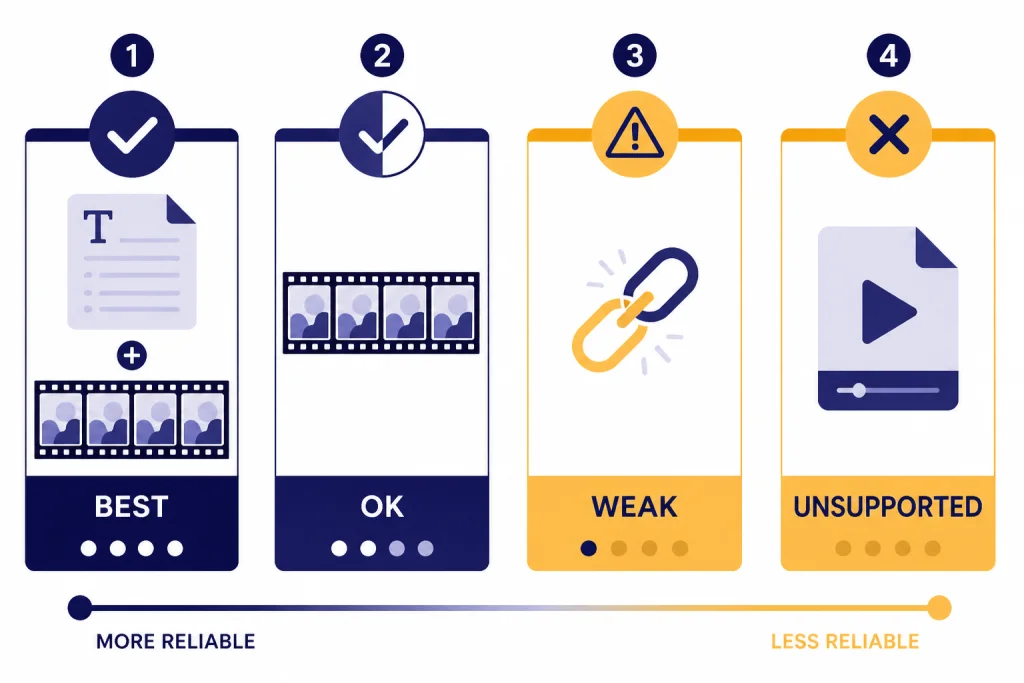
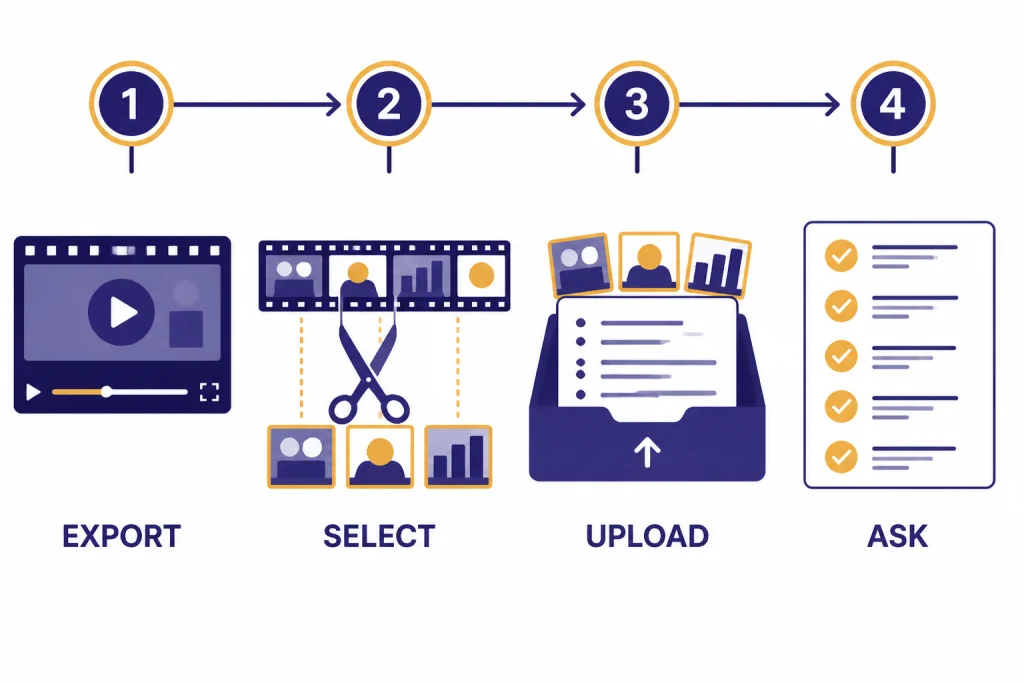
The best workflow is not to upload a whole video and hope ChatGPT can inspect it. Build an evidence packet. That packet should contain the transcript, a short description of the video’s purpose, the frame images that matter, and the question you want answered.
- Start with the goal. Ask for a summary, continuity check, learning objectives, caption draft, scene list, or risk review. Do not ask for “analyze this” without a target.
- Generate a transcript. Use timestamps when possible. Keep speaker labels if the video has multiple speakers.
- Export representative frames. Use scene changes, slide changes, camera cuts, or moments you already suspect are important.
- Name the frames in plain language. Since ChatGPT may not use original file metadata reliably, label frames in the prompt itself: “Frame A is the opening slide; Frame B is the checkout screen.” OpenAI notes that image capabilities do not process original file names or metadata.[1]
- Ask for uncertainty. Tell ChatGPT to separate visible evidence from assumptions.
- Review the output against the source. Do not accept visual claims blindly, especially when the frame is blurry or crowded.
For a short product demo, I would upload the transcript and screenshots of the landing page, the main interaction, the settings screen, and the final result. Then I would ask ChatGPT to create a user-flow summary and list anything unclear. For a lecture, I would provide the transcript and slide screenshots at major topic changes. For a social video, I would provide the caption text, the hook frame, the middle frame, and the final call-to-action frame.
If you are working from a public page, ChatGPT web browsing or ChatGPT Search may help gather surrounding context. That does not replace the video itself. A page title, description, comments, and transcript can be useful, but they are still secondary evidence.
Prompts that get better results
Good prompts make ChatGPT treat the transcript and frames as evidence instead of guessing. The prompt should define the role, list the inputs, state the output format, and require uncertainty labels.
You are analyzing a video from extracted materials, not watching the original video.
Inputs:
- Transcript with timestamps
- Frame A: opening screen
- Frame B: main action
- Frame C: final result

Task:
Create a concise summary, a scene-by-scene outline, and a list of visual details that are visible in the frames.
Rules:
- Do not infer motion unless the transcript or frames support it.
- Mark uncertain claims as "uncertain."
- Separate spoken claims from visible evidence.
For a screen recording, ask for a workflow audit:
Review these screenshots and transcript from a software walkthrough.
Return:
1. The user journey in order.
2. Any missing steps a beginner would need.
3. Confusing interface labels visible in the screenshots.
4. Suggested chapter titles for the video.
Only refer to elements visible in the screenshots or stated in the transcript.
For a creator workflow, ask for production notes:
Analyze this short-form video from the transcript and frames.
Return a table with: hook, topic shift, proof point, visual support, and call to action.
Then suggest a clearer title and caption.
Do not claim that a gesture, expression, or object appears unless it is visible in the uploaded frames.
These prompts work because they reduce the chance of overreach. They also make the output easier to check. If you need to compare a frame to another image or source, our ChatGPT Image Search guide explains the adjacent reverse-image workflow.
Limits and failure modes
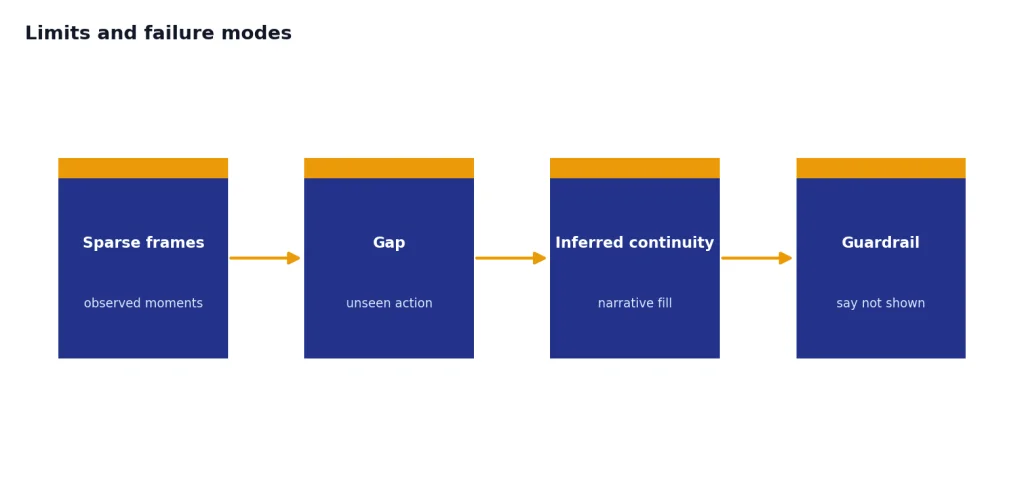
ChatGPT’s main video-analysis failure is false continuity. It may describe a smooth event even though you only gave it a few moments. This is not intentional deception; it is a side effect of asking a language model to fill narrative gaps. You can reduce that risk by requiring it to say “not shown” whenever the evidence is missing.
Small text is another weak area. ChatGPT can often read clean screenshots, but compressed video frames, motion blur, glare, and tiny captions reduce reliability. OpenAI’s image input FAQ specifically warns about limitations with ambiguous images, non-Latin text, rotated text, graph styles, spatial localization, accuracy, panoramic images, metadata, resizing, and approximate counting.[1]
Counting is especially risky. If you ask how many people entered a room, how many times a ball bounced, or how many objects changed position, a few still frames are not enough. Use dedicated video software for counting and tracking, then ask ChatGPT to summarize the exported measurements.
Links can also mislead. If you paste a YouTube, TikTok, Instagram, or course-platform link, ChatGPT may use the title, description, transcript, or web snippets if available. That is not the same as watching the private stream. If the visual content matters, upload screenshots or provide a transcript.
Finally, be careful with medical, legal, safety, and identity questions. Do not ask ChatGPT to diagnose a condition from a video, identify a private person, determine guilt, or certify compliance from incomplete clips. Use it to organize observations and draft questions for a qualified reviewer.
Privacy and rights checklist
Before you upload frames, transcripts, or video-derived files, make sure you have the right to process them. This matters for workplace recordings, classrooms, client calls, surveillance footage, children, medical settings, and any video that includes people who did not consent to broader review.
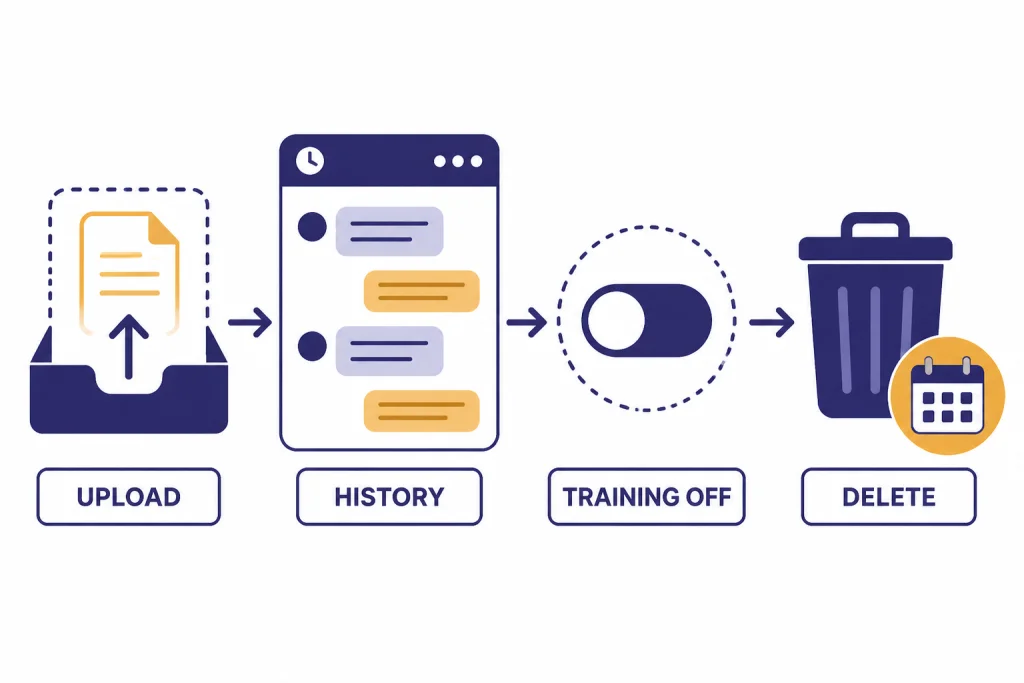
OpenAI’s Data Controls FAQ says users can turn off “Improve the model for everyone,” and that conversations remain in chat history but are not used to train ChatGPT after the setting is off.[6] The same FAQ says Temporary Chats are deleted from OpenAI systems after 30 days and are not used to train models.[6] OpenAI’s file upload FAQ says uploaded files are retained according to the relevant chat or custom GPT context and that associated files are deleted within 30 days after deleting the containing chat, account, or custom GPT, unless exceptions apply.[2]
- Remove faces, names, license plates, account numbers, and private messages when they are not needed.
- Use cropped frames instead of full frames when the question concerns one region of the screen.
- Do not upload confidential client video unless your organization permits it.
- Use Temporary Chat or approved business controls when the analysis is sensitive.
- Keep the original video outside ChatGPT if you only need a summary from transcript and frames.
If you often analyze the same kind of video, consider using ChatGPT Custom Instructions to remind the model to separate visible evidence, transcript evidence, and assumptions.
Sora, the API, and alternatives
Do not confuse ChatGPT video analysis with Sora video generation. OpenAI describes Sora as a video generation model and says the Sora Video Editor can generate videos up to 20 seconds long in the Sora 1 web experience.[5] Sora can use prompts and media in creative workflows, but that is not the same product promise as forensic or analytical review of arbitrary footage. For the creative side, see our ChatGPT video generator guide.
The OpenAI API can also be part of a custom analysis pipeline. OpenAI’s vision documentation says API models can process image inputs and that the Responses API, Images API, and Chat Completions API support image-related workflows.[7] A developer can sample frames from a video, transcribe the audio, send those artifacts to a model, and combine the results. That is a pipeline, not a single native “watch this video” command.
Use the right tool for the job. Use a media player or editor to extract frames. Use speech-to-text for spoken content. Use computer vision or sports-analysis software for tracking. Use ChatGPT to turn the evidence into summaries, checklists, outlines, captions, lesson plans, QA notes, and follow-up questions.
If your workflow is mostly mobile, the best ChatGPT app guide can help you choose the right surface for capturing screenshots and uploading supporting files. If you are organizing a long project with many clips and transcripts, ChatGPT Projects is usually cleaner than keeping everything in one long chat.
Verdict
ChatGPT is useful for analyzing the meaning, structure, and content of videos when you provide the right extracted evidence. It is not a dependable replacement for a video player, editor, motion tracker, or specialized reviewer. The best results come from a transcript plus selected frames, with a prompt that forbids unsupported motion claims.
Use ChatGPT for summaries, scene outlines, caption drafts, course notes, product-demo reviews, accessibility descriptions, and content repurposing. Avoid relying on it for exact timestamps, small-object tracking, frame-perfect counts, identity decisions, safety-critical judgments, or anything that requires watching every moment. The capability is real, but it is indirect.
Frequently asked questions
Can ChatGPT analyze an MP4 file?
Not reliably as a general ChatGPT workflow. OpenAI’s image input FAQ says video is not supported there and static images are the supported visual input.[1] Convert the MP4 into a transcript and selected frames before asking for analysis.
Can ChatGPT analyze a YouTube video?
ChatGPT can help if you provide a transcript, screenshots, or enough page context. A link alone usually gives it only surrounding text such as a title, description, or transcript when available. It should not be treated as if it watched the whole video unless you supplied the content.
Can ChatGPT summarize a recorded meeting?
Yes, if you provide the transcript. Add screenshots only when slides, whiteboards, demos, or chat messages matter. For audio-heavy meetings, transcription quality matters more than visual analysis.
Can ChatGPT analyze sports form from video?
It can comment on visible posture in still frames, but it is not a reliable motion-analysis coach. Sports form depends on timing, speed, angles, and transitions. Use dedicated tools for measurement, then ask ChatGPT to explain or summarize the findings.
How many frames should I upload?
Use the fewest frames that capture the important changes. Choose scene changes, slide changes, before-and-after states, and moments referenced in the transcript. Too many similar frames can make the prompt harder to audit.
Is Sora the same as ChatGPT video analysis?
No. Sora is OpenAI’s video generation and editing product, while this article covers analyzing existing video-derived evidence in ChatGPT. Sora can create or transform video, but that is different from a dependable analysis workflow for arbitrary footage.[5]