

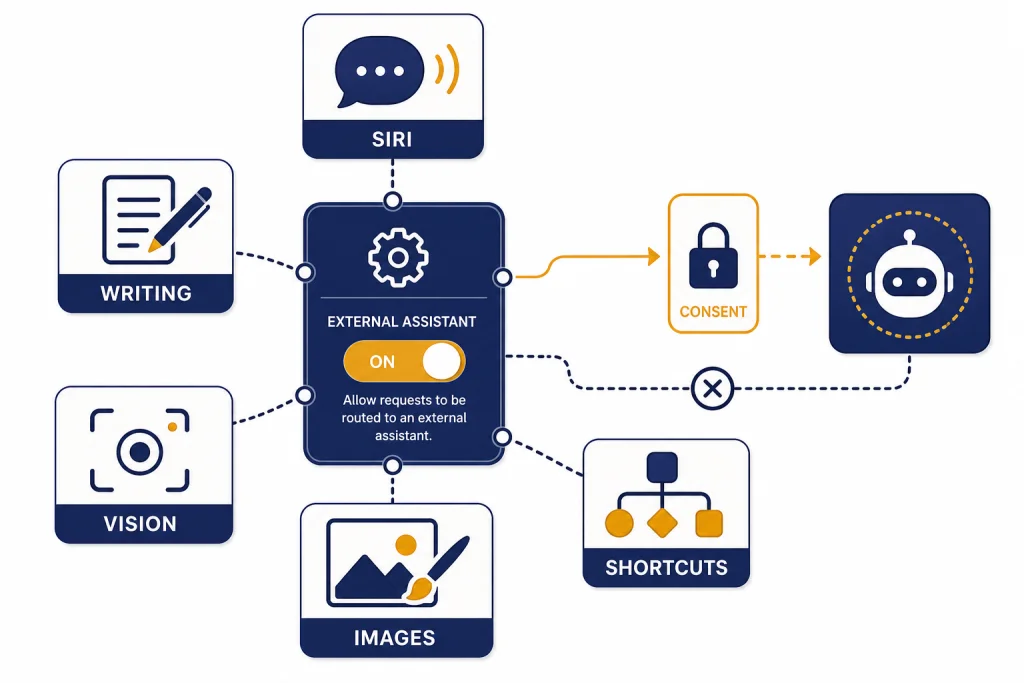
The ChatGPT Apple Intelligence integration lets Siri, Writing Tools, Visual Intelligence, Image Playground, and Shortcuts hand certain requests to ChatGPT when Apple’s built-in models are not the best fit. It is optional. You can use it without a ChatGPT account, or you can connect an account for plan-based features and saved history. Apple and OpenAI announced the integration on June 10, 2024, with OpenAI saying it was powered by GPT-4o and designed for iOS, iPadOS, and macOS.[1] This guide explains what the integration does, how to turn it on, what data is shared, and when the standalone ChatGPT app is still the better tool.
What the ChatGPT Apple Intelligence integration is
Apple Intelligence is Apple’s system-level AI layer for supported Apple devices. ChatGPT is an outside model service that Apple can call when a request benefits from broader world knowledge, long-form generation, image understanding, or document understanding. The two are not the same product. Apple Intelligence handles many features locally or through Apple’s own cloud systems, while ChatGPT is an optional extension that you choose to enable.
OpenAI described the partnership as a way to bring ChatGPT into Apple experiences across iOS, iPadOS, and macOS, including Siri and systemwide Writing Tools.[1] Apple’s support pages describe the same integration as an optional way for Apple Intelligence to work with ChatGPT on iPhone and Mac.[2][3]
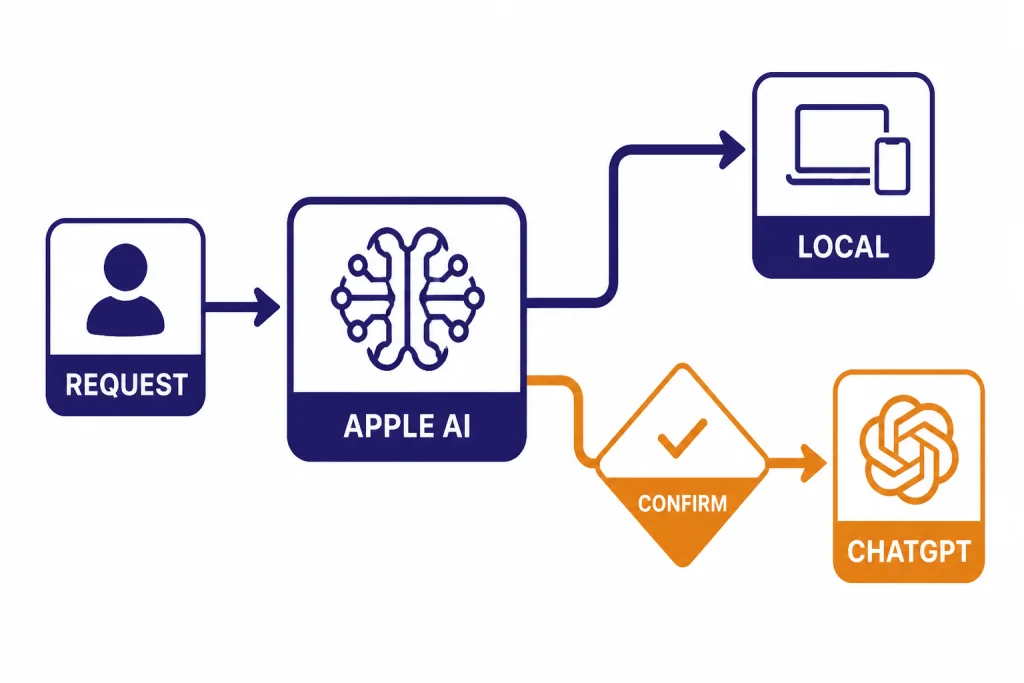
The easiest way to think about it is this: Apple Intelligence is the operating-system assistant. ChatGPT is the specialist Apple can ask with your permission. When Siri can answer with Apple’s own systems, it may do that. When Siri decides ChatGPT would be useful, it can ask before sending the request. You can also start some Siri requests with “Ask ChatGPT” to make that routing explicit.[2][7]
This matters because the integration changes where ChatGPT appears. You do not always need to open the ChatGPT app. You can ask Siri, write inside Notes or Mail, inspect something with Visual Intelligence, or build a Shortcut that calls a model. If you want the full ChatGPT workspace with conversation management, memory, files, and custom settings, the standalone app still matters. See our guide to the best ChatGPT app for Mac, iPhone, and Android if you are choosing between Apple’s built-in path and OpenAI’s app.
Where ChatGPT appears inside Apple Intelligence
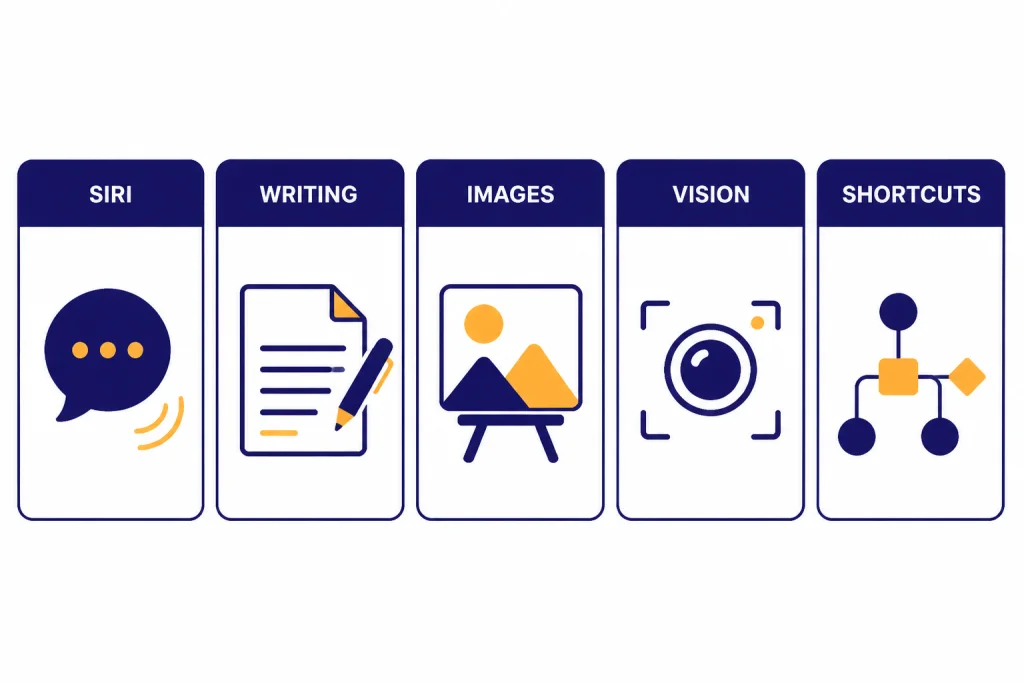
ChatGPT shows up in several Apple Intelligence surfaces. The exact set depends on device, software version, language, region, and whether the ChatGPT service is available where you are. Apple’s iPhone guide lists Siri, Writing Tools, Image Playground, Visual Intelligence, Shortcuts, and account connection as supported ChatGPT-related uses.[2] Apple’s Mac guide lists Siri, Writing Tools, Image Playground, Shortcuts, and account connection on Mac.[3]
| Apple surface | What ChatGPT adds | Best example | What to watch |
|---|---|---|---|
| Siri | More detailed answers for requests where ChatGPT may help, including questions about photos and documents.[2] | Ask Siri to summarize a PDF or explain a photo. | Siri may ask for confirmation before sending the request. |
| Writing Tools | Drafting, composing, refining, and rewriting with ChatGPT inside places where you type.[6] | Compose a product description inside Notes. | Use Apple’s built-in rewrite tools for quick tone edits. |
| Image Playground | Additional visual styles for image creation through ChatGPT-related options.[2] | Create a supporting image style for a document. | Use the dedicated ChatGPT app for deeper prompt iteration. |
| Visual Intelligence | Ask ChatGPT about places and objects using Camera Control on supported iPhone models.[8] | Point the camera at an object and tap Ask. | Check important answers before acting on them. |
| Shortcuts | Use a model in automations that need more complex reasoning.[2] | Build a shortcut that summarizes selected text. | Keep private or regulated data out unless your organization allows it. |
Siri is the most visible part of the integration. OpenAI says Siri can tap into ChatGPT when helpful, while Apple says Siri asks for permission before using ChatGPT and always asks before sending photos or files.[1][2] That makes Siri a broker rather than a replacement for ChatGPT.
Writing Tools are the most practical everyday use. Apple says Writing Tools are available in many places you type and can proofread, summarize, and rewrite text on compatible devices starting with iOS 18.1, iPadOS 18.1, and macOS Sequoia 15.1.[9] When you add ChatGPT, the Compose option can generate fresh text from a prompt instead of only revising text you already wrote.[2][6] If your main use case is translation rather than drafting, compare it with ChatGPT Translate, because the ChatGPT app can be easier for multi-turn language work.
Visual Intelligence is different. It starts from the camera or screen context rather than a text box. OpenAI says Visual Intelligence can use ChatGPT to ask questions about places and objects around you, and Apple’s iPhone guide describes opening Visual Intelligence, pointing the camera at an object, and tapping Ask.[8][2] For deeper image analysis workflows, see our separate ChatGPT Vision guide.
How to set it up on iPhone, iPad, and Mac
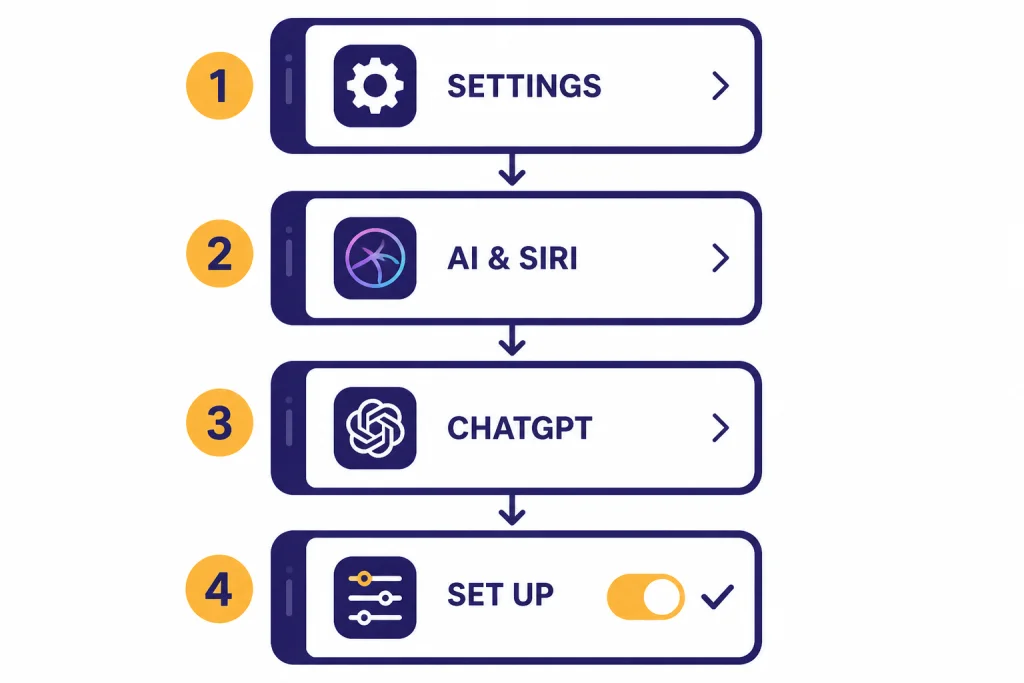
On iPhone, open Settings, tap Apple Intelligence & Siri, tap ChatGPT under Extensions, and tap Set Up. Apple then gives you a choice: enable ChatGPT without an account, or use ChatGPT with an existing account.[2] The same general path applies on iPad.
On Mac, open System Settings, click Apple Intelligence & Siri, click ChatGPT under Extensions, click Set Up, then choose whether to enable ChatGPT without an account or connect an existing ChatGPT account.[3] If you already enabled it without an account and later want saved history or plan-based access, return to the same ChatGPT settings panel and sign in.[2][3]
- iPhone and iPad: Settings → Apple Intelligence & Siri → ChatGPT → Set Up.
- Mac: System Settings → Apple Intelligence & Siri → ChatGPT → Set Up.
- Later sign-in: Return to the ChatGPT extension settings and choose Sign In.
- Turn off: Return to the ChatGPT extension settings and turn off Use ChatGPT.
You also need a device that supports Apple Intelligence. Apple lists iPhone 15 Pro models, iPhone 16 models or later, iPad mini with A17 Pro, iPad models with M1 or later, Macs with M1 or later, Apple Vision Pro, and certain Apple Watch models when paired with an Apple Intelligence-enabled iPhone.[5] Apple also lists iOS 18.1 or later, iPadOS 18.1 or later, macOS Sequoia 15.1 or later, visionOS 2.4 or later, watchOS 11 or later, 7 GB of on-device storage except on Apple Watch, and matching device and Siri language settings as system requirements.[5]
If you do not see the ChatGPT option, first confirm that Apple Intelligence itself is available and turned on. Then check region, language, storage, software version, and device model. Apple says the ChatGPT extension is available only where the ChatGPT app and service are available.[2][3]
Using ChatGPT with or without an account
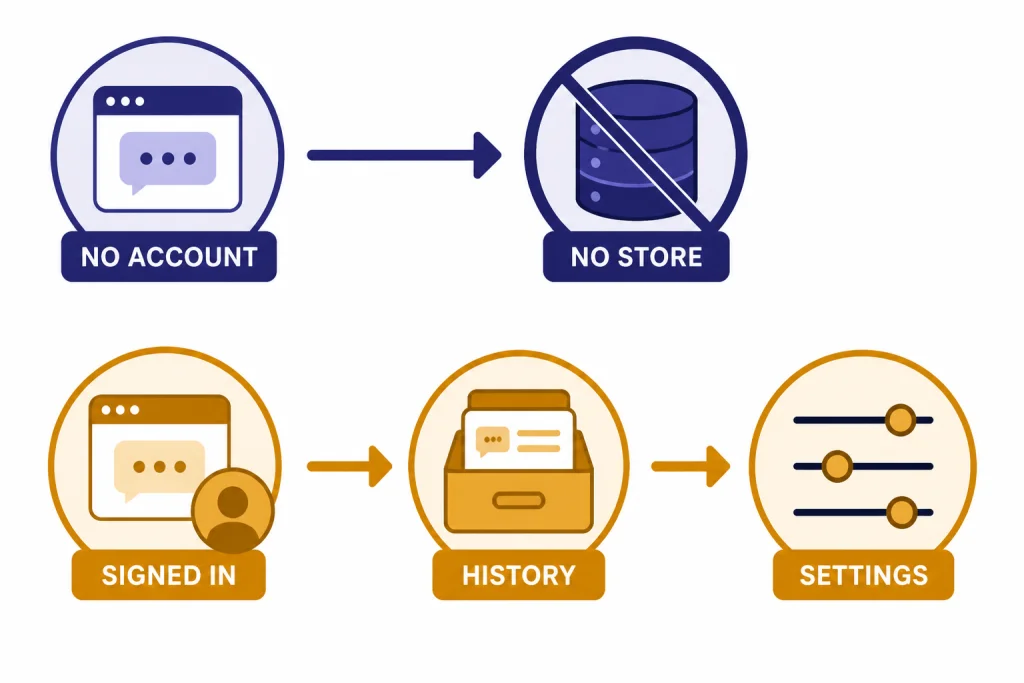
You can use ChatGPT through Apple Intelligence without creating or signing in to a ChatGPT account. OpenAI says the no-account path can answer questions, help with messages, and analyze an image or document through Apple’s integrations.[4] This is the simplest setup for people who want occasional assistance from Siri or Writing Tools.
Signing in changes the experience. OpenAI says connecting a ChatGPT account gives access to additional features, such as OpenAI’s latest AI models, and applies your existing ChatGPT data preferences to Apple-integrated requests.[4] Apple says a paid ChatGPT account can use advanced ChatGPT capabilities more often from iPhone or Mac.[2][3]
The account decision mostly comes down to continuity. Without an account, Apple Intelligence can call ChatGPT for a task, but you do not get the same saved ChatGPT history. With an account, your interactions can be saved in your ChatGPT history, depending on your settings.[4] If you rely on previous chats, custom preferences, or long-running work, the signed-in path is more useful. If you want one-off help without account linking, the no-account path is cleaner.
This integration is also not the same as using ChatGPT without login on the web. Apple’s route sits inside the operating system and uses Apple’s permission screens. The standalone web route is broader but less integrated with Siri and system text fields. If that distinction matters, read how to use ChatGPT without logging in.
Account mode comparison
| Mode | What you get | What you give up | Best for |
|---|---|---|---|
| No ChatGPT account | Optional ChatGPT help from Siri, Writing Tools, and supported Apple Intelligence surfaces.[4] | No saved ChatGPT history from those requests. | Occasional answers, drafting, and visual questions. |
| Signed in with free account | Account continuity and your ChatGPT data settings applied to the integration.[4] | Plan limits and feature access follow the account. | Users who want history without a paid plan. |
| Signed in with paid account | More frequent access to advanced ChatGPT capabilities through Apple’s integration.[2][3] | Requests follow your ChatGPT account settings and policies. | Heavy users who already pay for ChatGPT. |
Privacy and data handling
The privacy model depends on whether you use ChatGPT through Apple Intelligence with or without a ChatGPT account. Without an account, OpenAI says conversations are processed only to provide a safe response and comply with applicable laws, and that OpenAI does not receive your IP address, store your requests, or use them to train models.[4] Apple’s iPhone and Mac guides also say OpenAI does not receive information tied to your Apple Account in the no-account mode.[2][3]
Apple says the request, attachments, and limited associated data can be sent to ChatGPT when you use the extension. Apple’s examples of associated data include current time zone, country, device type, language, and the feature used for the request.[2][3] Apple also says your IP address is obscured from ChatGPT, while general location is provided for fraud prevention and legal compliance.[2]
With a signed-in ChatGPT account, your ChatGPT settings and OpenAI’s data policies apply. OpenAI says it may make basic account information available on the device to connect the account, including name, email address, profile image, workspace names, and billing plan associated with the account.[4] OpenAI also says saved history and use for service improvement depend on your choices and account settings.[4]
The practical takeaway is simple. Use the no-account option for occasional prompts where you do not need continuity. Use a signed-in account when you want history, plan benefits, or a consistent ChatGPT setup. Avoid sending confidential work data unless your employer or school has approved the exact account mode and data policy. If your main concern is long-term personalization, review ChatGPT Memory separately, because memory behavior in the ChatGPT app is not the same as Apple’s operating-system integration.
When to use Apple Intelligence versus the ChatGPT app
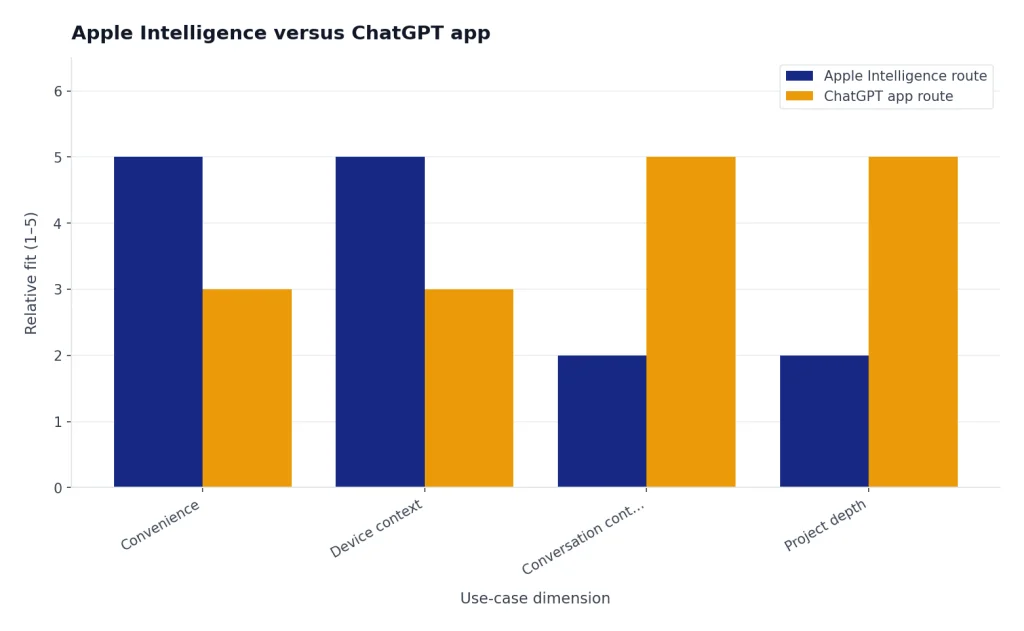
Use Apple Intelligence when the task begins inside Apple’s operating system. If you are already writing an email, looking at a document, asking Siri a spoken question, or using Visual Intelligence, the integrated route is faster. It reduces copying and pasting. It also keeps permission prompts close to the content being sent.
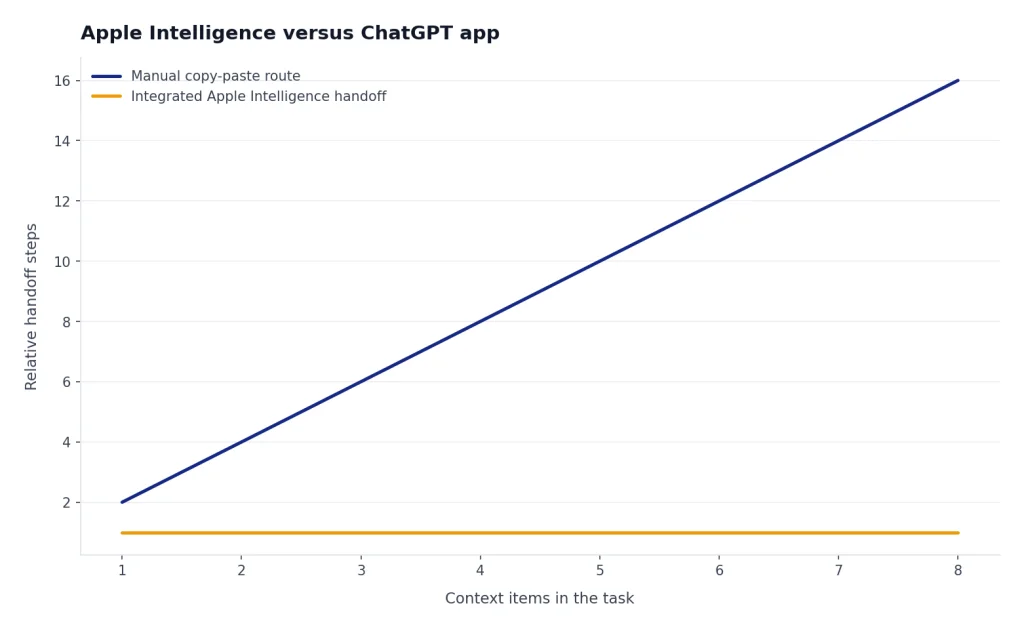
Use the ChatGPT app when the task is a project rather than a quick assist. The standalone app is better for multi-turn research, long conversations, uploaded files, voice workflows, saved chats, and work that needs a dedicated workspace. For example, you may start with Siri for a quick summary, then open ChatGPT for a longer follow-up using ChatGPT file upload or a structured project space such as ChatGPT Projects.
Search is another dividing line. Siri can ask ChatGPT for help, but that is not the same as choosing a dedicated web-answer workflow. If you need sources, recent information, or a research-style answer, compare the integrated path with ChatGPT Search and ChatGPT web browsing. For voice-heavy use, compare Apple’s Siri handoff with the experience in our ChatGPT Voice Mode review.
For automation, Shortcuts is the key Apple-side advantage. Apple says Shortcuts can use ChatGPT to handle more complex requests inside Apple Intelligence.[2][3] That is useful for personal workflows that begin on your device. If you need scheduled reminders from ChatGPT itself, ChatGPT Tasks may be the more direct feature.
A practical rule
Use Apple Intelligence for “help me with what is on this device right now.” Use the ChatGPT app for “help me manage an ongoing AI conversation.” That rule will not cover every case, but it prevents most confusion.
Troubleshooting common problems
The ChatGPT setting does not appear
Check whether the device supports Apple Intelligence. Apple lists iPhone 15 Pro models, iPhone 16 models or later, iPad mini with A17 Pro, iPads with M1 or later, Macs with M1 or later, Apple Vision Pro, and supported Apple Watch models paired to an Apple Intelligence-enabled iPhone.[5] Also confirm that the device and Siri language match and that you have enough storage for Apple Intelligence models.[5]
Siri keeps asking before using ChatGPT
That is expected behavior unless you change the confirmation setting. Apple and OpenAI both say Siri asks for confirmation before using ChatGPT by default.[2][7] You can turn off Confirm ChatGPT Requests in the ChatGPT extension settings, but Apple says you will still be asked before photos or files are sent.[2][7]
Requests do not save to ChatGPT history
You need to be signed in to a ChatGPT account for requests to be saved to ChatGPT history. Apple states this directly in its setup instructions, and OpenAI says signed-in conversations can be saved depending on your choices and account settings.[2][4]
ChatGPT is unavailable
The extension depends on ChatGPT availability in your region and service status. Apple says the ChatGPT extension is available only in regions where the ChatGPT app and service are available.[2][3] If your settings are correct, try again later, test the standalone ChatGPT app, and check whether your network or organization blocks external AI services.
You want to disable it completely
Return to Settings or System Settings, open Apple Intelligence & Siri, choose ChatGPT, and turn off Use ChatGPT. Apple also says you can turn off setup prompts if you do not want Siri to suggest ChatGPT, and Screen Time can block access to intelligence extensions.[2][3]
Frequently asked questions
Is Apple Intelligence the same as ChatGPT?
No. Apple Intelligence is Apple’s built-in AI system for supported devices. ChatGPT is an optional OpenAI extension that Apple Intelligence can call for certain requests.
Do I need a ChatGPT account to use ChatGPT with Apple Intelligence?
No. Apple and OpenAI both state that you can use the integration without a ChatGPT account.[2][4] Sign in only if you want account-based features, saved history, or plan-based access.
Does Siri send every question to ChatGPT?
No. Siri can use ChatGPT when it may help, and it asks for confirmation by default.[7] You can also start a request with “Ask ChatGPT” when you specifically want Siri to use ChatGPT.
Can ChatGPT see my Apple Account?
In the no-account mode, Apple says OpenAI does not receive information tied to your Apple Account.[2] If you sign in to ChatGPT, OpenAI says basic account information can be made available on the device to connect the account.[4]
Can I use ChatGPT in Writing Tools?
Yes. OpenAI says Writing Tools can access ChatGPT for composing, refining, and rewriting.[6] Apple’s iPhone and Mac guides also describe using Compose with ChatGPT inside Writing Tools.[2][3]
Should I still install the ChatGPT app?
Usually, yes. Apple’s integration is convenient for system-level tasks, but the ChatGPT app is better for longer conversations, saved projects, uploads, and dedicated AI workflows. Many users will want both.