

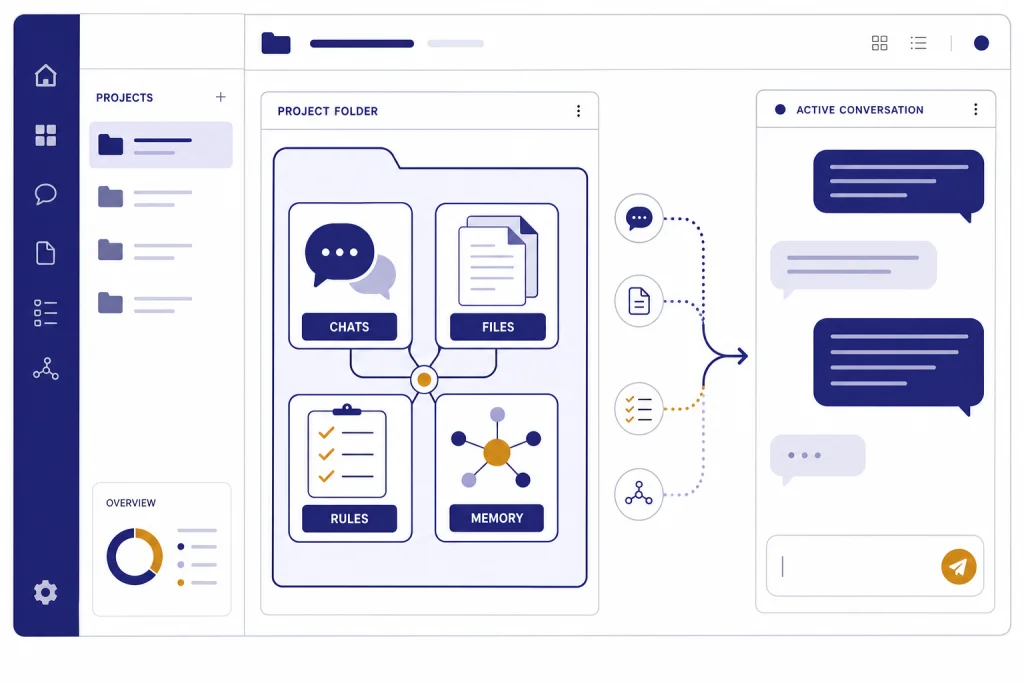
ChatGPT Projects are workspaces for keeping related conversations, files, instructions, and context together. They are best for work that spans more than one chat: research, client work, writing, studying, planning, and recurring reports. Instead of re-explaining the same background every time, you start new chats inside a project and let ChatGPT draw on that project’s saved context. As of this publication date, Projects are available across free and paid ChatGPT plans, with file limits that vary by plan.[1] The feature is not just a folder. It is a context container, memory boundary, and collaboration surface.
What ChatGPT Projects are
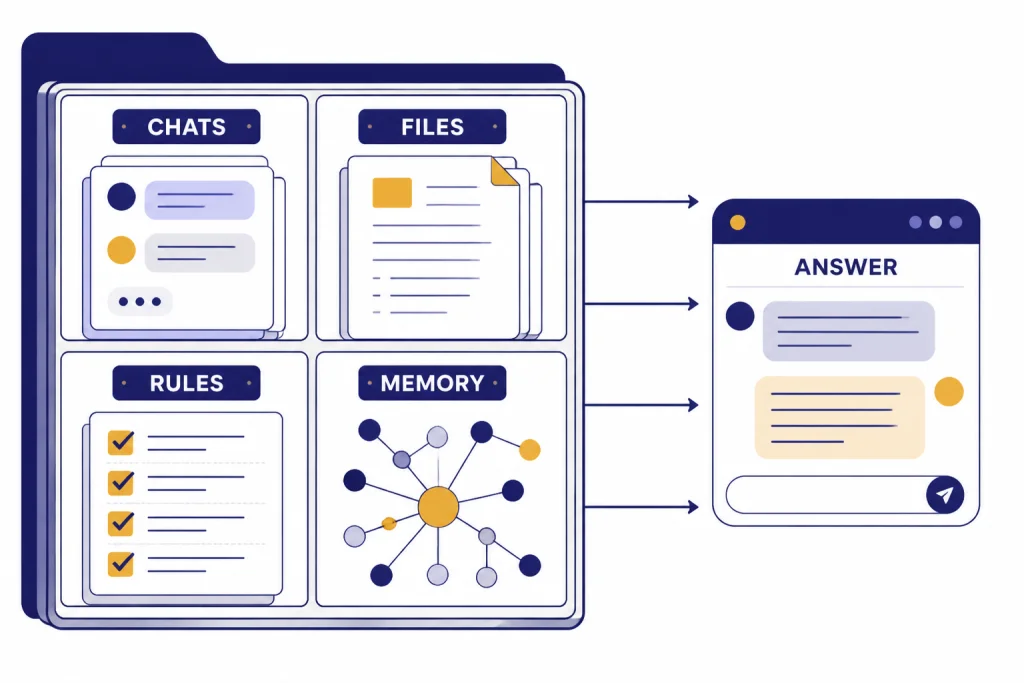
ChatGPT Projects give you a named workspace for a continuing objective. A project can contain chats, uploaded reference files, project-specific instructions, saved responses, and context from connected apps. OpenAI describes Projects as smart workspaces for long-running efforts where chats, files, and instructions stay together.[1]
The simplest way to think about a project is this: a regular chat is one conversation, while a project is a workbench. You can have several conversations inside the same workbench. Each one can focus on a different angle, but they still have access to the same project context.
This matters when you use ChatGPT for anything that grows over time. A writer can keep a style guide, outline, research notes, and draft threads in one project. A student can keep class PDFs, exam notes, and practice-question chats in one place. A product manager can keep user interviews, a roadmap, and meeting summaries together. If your work depends on recurring context, ChatGPT Projects usually beat isolated chats.
Projects also reduce the urge to paste the same background into every prompt. You can put stable rules in project instructions, add supporting material as files or sources, and then start smaller chats for specific tasks. For broader personalization across all of ChatGPT, see our guide to ChatGPT Custom Instructions. For project-contained continuity, use Projects.
How to create a project
OpenAI’s setup flow starts from the sidebar: choose New project, give the project a name, and pick an icon and color so it is easy to spot later.[1] The name should describe the outcome, not just the topic. “Q2 sales report” is better than “Sales.” “AP Biology exam prep” is better than “School.”
After creating the project, add context in this order:
- Project instructions. Tell ChatGPT the role, tone, assumptions, output format, and rules that should apply inside this project.
- Core files. Upload the small set of documents that define the work. Use clean PDFs, docs, spreadsheets, images, or pasted text where possible.
- Existing chats. Move important past conversations into the project when they belong there. OpenAI says a moved chat inherits the project’s instructions and file context.[1]
- Working threads. Start separate chats for separate tasks, such as “outline,” “data cleanup,” “draft review,” or “meeting follow-up.”
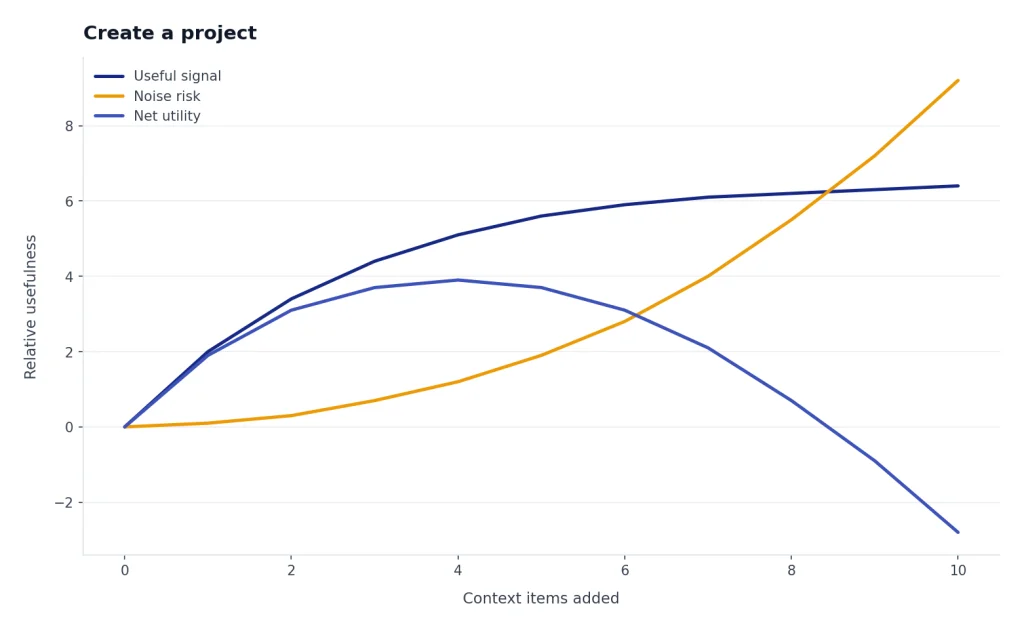
Do not overload the project on day one. A project works best when its context is curated. Add the files and chats that a future answer should actually consider. If a document is outdated, speculative, or only loosely related, leave it out or put it in a separate project.
A good project instruction block is short and operational. For example: “You are helping me manage a weekly customer-support report. Use concise bullets. Separate facts from recommendations. Ask before assuming missing dates. When using uploaded files, name the source file.” That kind of instruction is more useful than a long manifesto.
How project memory works
Project memory is the feature that makes Projects more than folders. OpenAI says project memory lets ChatGPT draw context from conversations within the same project and stay anchored to that project’s tone, context, and history.[1] This is useful when you want a long-running project to develop continuity without pulling in every unrelated chat from your account.
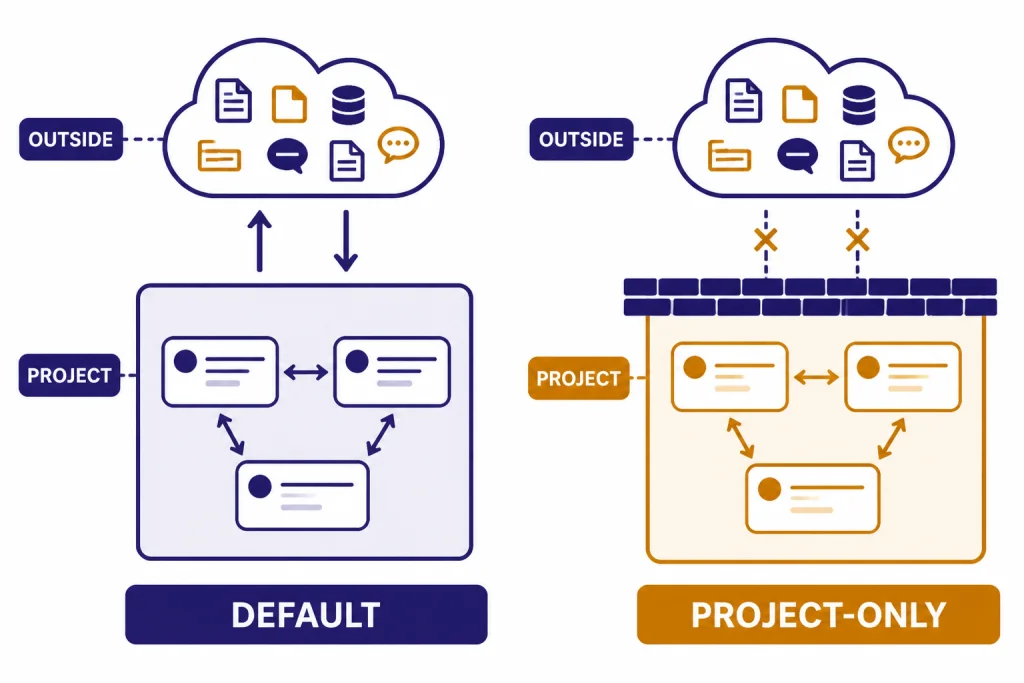
There are two important memory modes: default memory and project-only memory. Project-only memory can be chosen when creating a new project. OpenAI says existing projects stay on default memory, and a new project is required if you want to use project-only memory for a project that did not start with it.[1]
With project-only memory, ChatGPT does not reference saved memories from outside the project, can reference chats in the same project, and cannot reference conversations outside the project.[1] That makes it the safer choice for sensitive client work, separate writing voices, school subjects, or any case where context bleed would be a problem.
Default memory behaves differently. For non-Enterprise accounts, OpenAI says chats can reference project and non-project conversations unless another project is set to project-only memory.[1] Enterprise and Edu workspaces have tighter project containment under default memory, according to OpenAI’s project memory table.[1] If you work across both a personal account and a managed workspace, check the memory behavior in each environment instead of assuming they match.
For a deeper look at account-level memory, read ChatGPT Memory. The key distinction is simple: account memory personalizes ChatGPT broadly, while project memory keeps a specific body of work coherent.
Files, sources, and tools inside projects
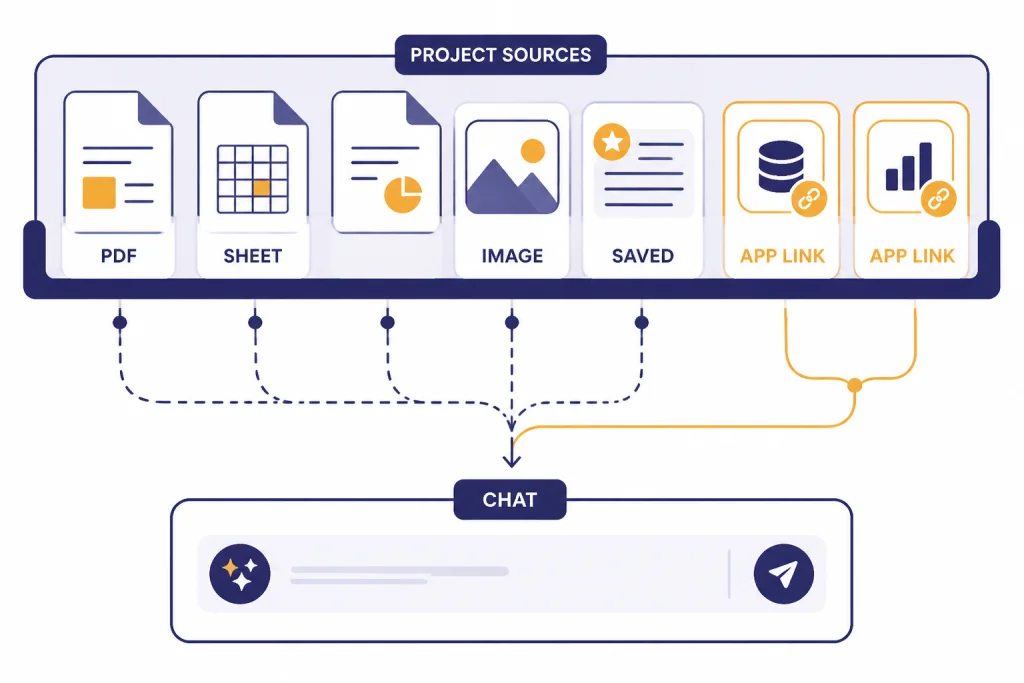
Projects can use uploaded PDFs, spreadsheets, documents, images, and pasted text as reference material.[1] OpenAI’s file guide says ChatGPT can work with formats such as CSV, XLSX, PDF, DOCX, JPEG, PNG, and TXT, among others.[3] If your work depends on document analysis, our ChatGPT File Upload guide is the next place to go.
Files are best for stable reference material. Put a brand guide, syllabus, dataset, proposal, transcript, or policy document in the project. Do not use files to store behavioral rules. Put rules in project instructions instead. OpenAI makes the same distinction for GPT knowledge: instructions define behavior, while uploaded files provide source material.[7] That principle also helps Projects stay predictable.
Projects can also use many of the tools you would use in a normal ChatGPT conversation. OpenAI lists Canvas, image generation, study mode, voice mode, and web search as tools available inside projects, with additional paid-plan tools depending on subscription.[1] The broader capabilities page describes Projects as a way to organize chats, files, and context under a shared objective for multi-session workflows and long-running research.[4]
Use ChatGPT Search or ChatGPT Web Browsing inside a project when the answer needs fresh external information. Use ChatGPT Tutorial: Build Documents in Canvas when the project produces a living document. Use files when the answer must be grounded in your own material.
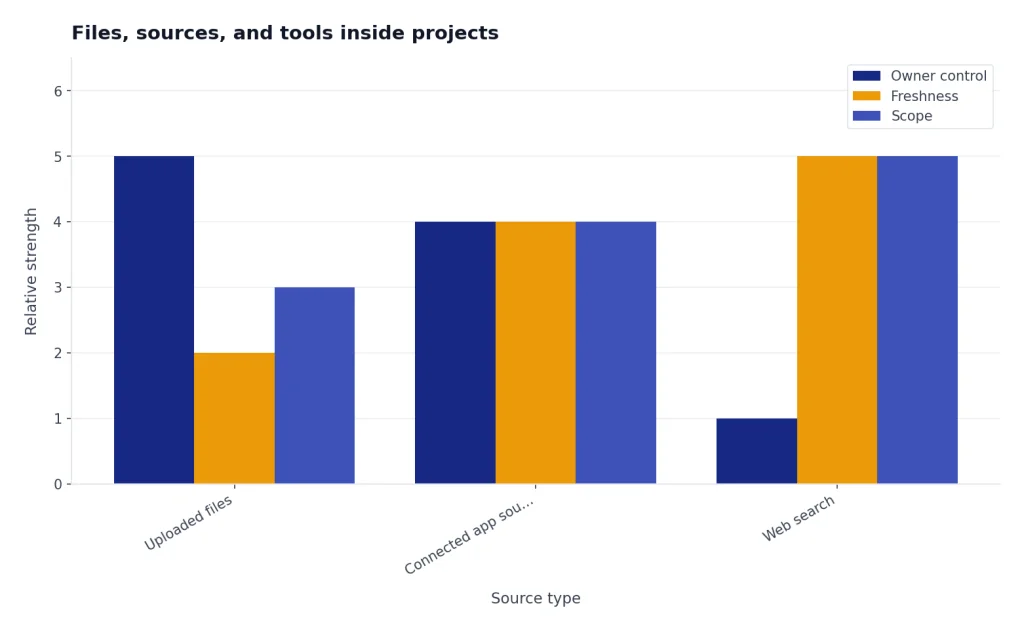
OpenAI also lets users paste supported app links as project sources, including Google Drive files or folders and Slack channels.[1] Treat connected sources carefully. A project becomes more useful when it has current material, but it also becomes easier to mix drafts, old notes, and unrelated context. If accuracy matters, ask ChatGPT to identify which file or source it used before you rely on the answer.
Limits and sharing
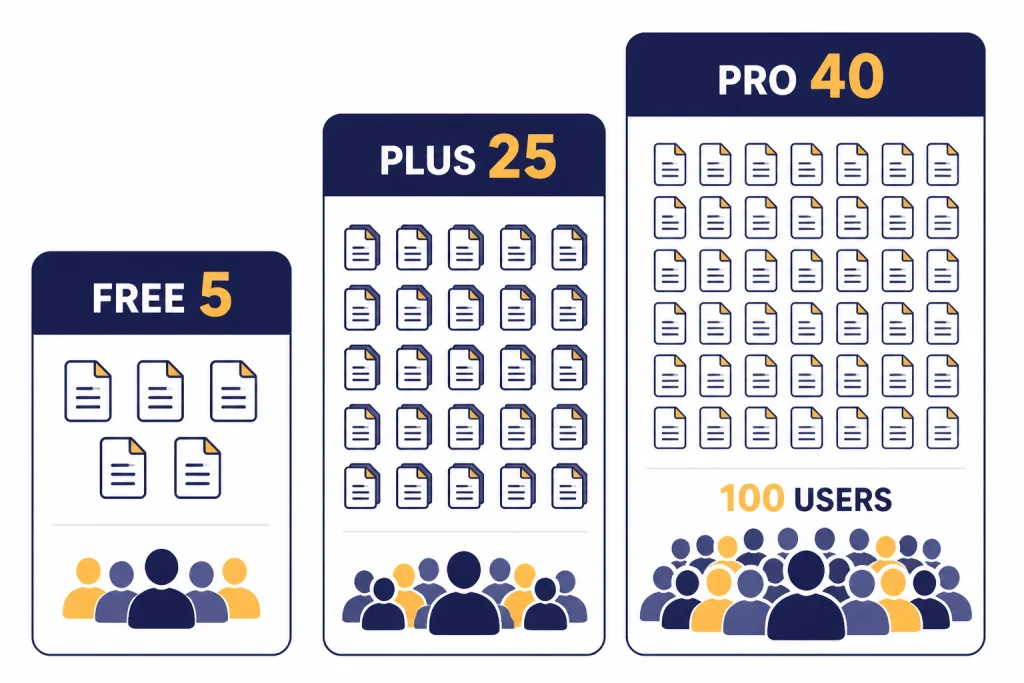
Project file limits depend on your ChatGPT plan. OpenAI’s Projects page says users can create an unlimited number of projects, but only 10 files can be uploaded at the same time.[1] As of the March 20, 2026 release-note update, Free supports up to 5 files per project, Plus, Go, and Edu support up to 25 files per project, and Pro, Business, and Enterprise support up to 40 files per project.[2] Gadgets 360 separately reported the same 5, 25, and 40 project-file tiers when OpenAI expanded Projects to more users.[9]
| Plan group | Files per project | Best use |
|---|---|---|
| Free | Up to 5 files[2][9] | Small personal projects, study packets, short planning work |
| Plus and Go | Up to 25 files[2][9] | Ongoing writing, research, personal operations, recurring reports |
| Edu, Pro, Business, and Enterprise | Up to 40 files[1][2] | Team work, larger research sets, client files, heavier analysis |
Shared projects add another layer. OpenAI says project sharing became available to all ChatGPT users globally on web, iOS, and Android as of October 22, 2025.[1] Owners can choose invite-only sharing or an anyone-with-a-link setting, and the maximum number of collaborators depends on the owner’s plan.[1]
OpenAI lists collaboration limits of up to 100 collaborators for Pro users, up to 10 collaborators for Plus and Go users, and up to 5 collaborators for Free users.[1] Shared projects also support different access levels. Edit access can update instructions and files, while chat access lets a member see and interact with the project’s context without managing it.[1]
For a one-off conversation, use ChatGPT Shareable Links instead of sharing a whole project. OpenAI says sharing a single chat from a personal project exposes only that chat, not the other project chats, files, instructions, or history.[1] That is the safer default when someone only needs one answer or one draft.
Projects vs. GPTs vs. regular chats
Projects, custom GPTs, and normal chats overlap, but they solve different problems. A project organizes work. A custom GPT defines a reusable assistant. A regular chat handles a single thread with minimal setup.
OpenAI defines GPTs as configured versions of ChatGPT for a specific purpose, combining instructions, knowledge, capabilities, apps, or actions.[6] Creating or editing GPTs requires a paid subscription, while using GPTs is available to signed-in users with access to that GPT.[6] GPTs can also be shared or published depending on plan and workspace settings.[6]
| Use case | Best choice | Why |
|---|---|---|
| One quick question or draft | Regular chat | Lowest setup. Best when you do not need persistent project context. |
| Long-running work with many chats and files | ChatGPT Project | Projects keep chats, files, instructions, and memory under a shared objective.[4] |
| A reusable assistant for a repeatable task | Custom GPT | GPTs are configured for a specific purpose with instructions, knowledge, capabilities, and optional apps or actions.[6] |
| Team work around a shared set of files | Shared Project | OpenAI says members can add files and instructions together so new chats start with the latest project context.[5] |
| External API workflows | Custom GPT or API build | GPT actions can connect to external APIs defined by the builder.[7] |
If you are deciding between Projects and custom GPTs, ask one question: are you organizing work, or are you building a repeatable assistant? Use a project for “everything about this client.” Use a GPT for “an assistant that reviews every client brief the same way.” Many power users combine them: a project holds the work, and a GPT supplies a specialized method.
There is one important file-limit difference. OpenAI’s GPT builder article says a GPT can attach up to 20 files, with each file up to 512 MB.[7] Projects can support different per-project file limits depending on plan, as shown above.[2] If your main problem is organizing many related chats, use a project. If your main problem is distributing a repeatable assistant, consider a custom GPT.
Practical workflows for Projects
The best projects have a clear boundary. Do not create one giant “Work” project. Create smaller projects that match outcomes: “April board deck,” “Customer onboarding refresh,” “Newsletter redesign,” or “Tax document review.” The more precise the boundary, the easier it is for ChatGPT to use the right context.
Research project
Create one project for a research question. Add your source PDFs, interview transcripts, spreadsheet exports, and a short instruction block that says how to cite internal files. Start separate chats for literature review, question generation, synthesis, and draft writing. When external information is needed, use search inside the project and ask ChatGPT to separate web findings from uploaded-file findings.
Content production project
Create a project for one campaign or publication stream. Add the style guide, product notes, examples of approved writing, and a checklist. Use one chat for outlines, one for drafting, one for editing, and one for social posts. Project instructions should define voice, forbidden claims, target audience, and citation rules.
Data and reporting project
Create a project for a recurring report. Add the latest spreadsheet, definitions, prior reports, and a short instruction that tells ChatGPT how to handle missing values. Use the data-analysis tool when calculations or charts are needed. OpenAI says ChatGPT can run code in a secure environment to analyze spreadsheets, CSVs, and other structured formats.[4]
Personal planning project
Create a project for a move, trip, wedding, job search, or home renovation. Add budgets, timelines, vendor notes, and decision criteria. Use one chat for brainstorming, one for checklists, and one for final decisions. If you need reminders rather than context, pair the project with ChatGPT Tasks where available.
Projects also work well across devices. OpenAI lists device switching as one reason to use a project: you can start on your phone and continue on the web.[1] If you use ChatGPT heavily on mobile or desktop, compare your options in our guide to the best ChatGPT app and the ChatGPT Windows app.
Privacy and cleanup
Projects can contain more sensitive context than ordinary chats because they bundle files, instructions, and conversation history. Treat each project like a workspace folder that may be shared later. Before inviting someone, review the files, saved responses, and old chats inside it.
OpenAI says deleting a project permanently deletes all files, chats, and instructions in that project and cannot be undone.[1] For Business, Enterprise, and Edu workspaces, OpenAI says messages created in a project inherit the workspace retention duration and residency region, and deleted projects and their contents are removed from OpenAI systems within 30 days unless legal or security reasons require retention.[1]
Training controls depend on account type. OpenAI says Business, Enterprise, and Edu customer data from projects is not used to train models by default, while Free, Plus, and Pro project information may be used if “Improve the model for everyone” is on.[1] OpenAI’s Data Controls FAQ says signed-in users can turn off “Improve the model for everyone” under Settings → Data Controls, and conversations will still appear in history but will not be used to train ChatGPT.[8]
Make cleanup a habit. Remove stale files. Split large projects when the objective changes. Move unrelated chats out. Use project-only memory for work that should not mix with the rest of your account. If you share a project, audit the access list after the collaboration ends.
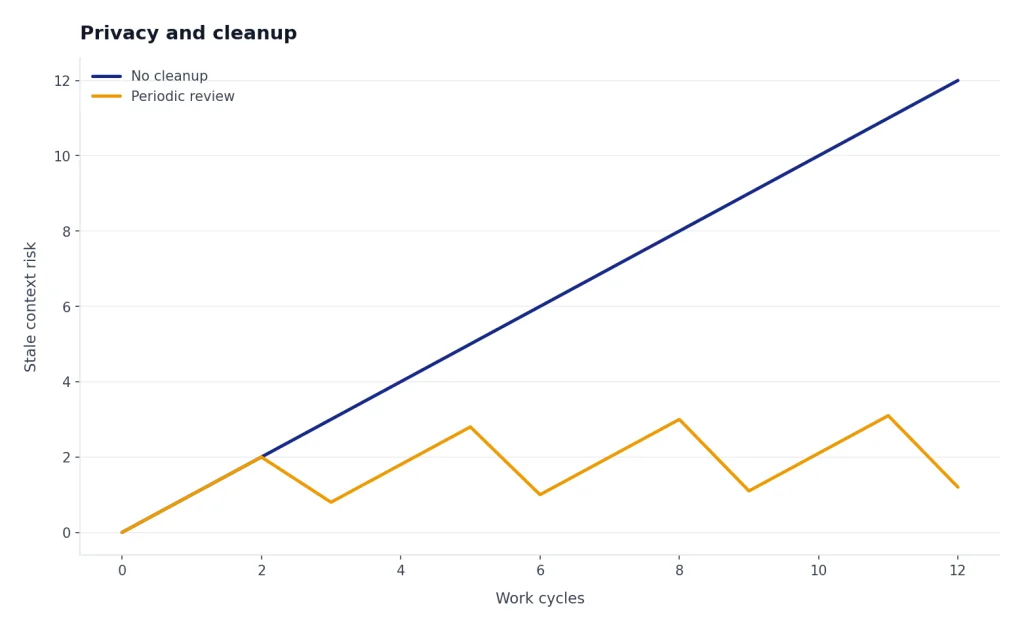
The most common mistake is assuming Projects are private by design forever. They are private until you share them, but they are also easy to fill with old context. Good project hygiene protects accuracy as much as privacy.
Frequently asked questions
Are ChatGPT Projects just folders?
No. They look like folders in the sidebar, but they also carry project instructions, files, memory behavior, saved sources, and tool access. A folder only organizes items. A ChatGPT Project can shape how future chats answer.
Can I move an old chat into a project?
Yes. OpenAI says you can drag a chat onto a project or use the chat menu to move it, and the chat then inherits the project’s instructions and file context.[1] This is useful when an existing conversation becomes part of a larger body of work.
Do project instructions override custom instructions?
Yes. OpenAI says project instructions apply only inside their project and override global custom instructions there.[1] Use global custom instructions for preferences that apply everywhere. Use project instructions for the rules of one workstream.
Can I share one project chat without sharing the whole project?
Yes. OpenAI says a single shared chat from a personal project lets viewers see only that chat, not the other project chats, files, instructions, or history.[1] This is better than sharing the entire project when someone only needs one output.
What happens when I hit the project file limit?
OpenAI recommends removing older or unnecessary uploads, combining file data, or splitting the work into multiple projects.[1] In practice, you should first delete stale drafts and duplicate exports. Then separate unrelated objectives into their own projects.
Should I use a Project or a custom GPT?
Use a Project when you need to organize a continuing body of work. Use a custom GPT when you need a reusable assistant with a defined behavior, knowledge base, and optional tools. If you need both, use the GPT as the method and the Project as the workspace.