

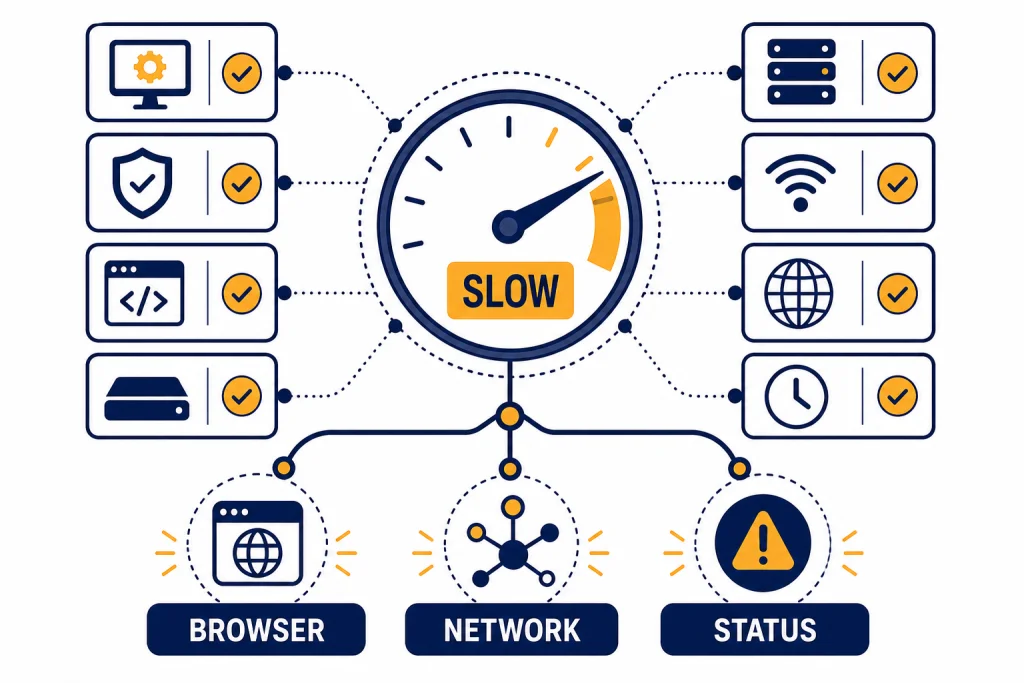
If you are asking “why is my ChatGPT so slow,” start with three likely causes: an OpenAI-side incident, a local browser or app problem, or a network path problem such as VPN, proxy, secure DNS, or corporate filtering. OpenAI’s own troubleshooting guidance points users to cache and cookies, status checks, browser tests, device or network swaps, and extension or VPN conflicts when ChatGPT becomes slow, laggy, frozen, or unresponsive.[1] The fastest fix is not to keep resending the same prompt. Run a short diagnostic, start a clean chat, remove local interference, and only then collect details for support if the issue follows you across browsers and networks.
Quick diagnosis: where the slowdown is coming from
Do not troubleshoot randomly. Slow ChatGPT usually falls into one of four buckets: service health, conversation load, browser or app state, and network routing. A quick isolation test saves time because each bucket has different fixes.
First, check whether other users are affected by reviewing OpenAI’s status information. OpenAI says status and availability reporting is aggregated across tiers, models, and error types, so your individual experience can differ by plan, model, and feature even when the status page looks mostly healthy.[3] If there is a live incident, your best fix is usually to wait, use a lighter workflow, or try again later.
Second, start a brand-new chat and send a simple prompt, such as “Give me a three-bullet summary of photosynthesis.” If that responds quickly, the old thread is probably the issue. Long conversations can carry more context, uploaded files, tool state, and instructions. OpenAI’s troubleshooting page specifically recommends starting a new chat when a conversation is long or has many turns.[2]
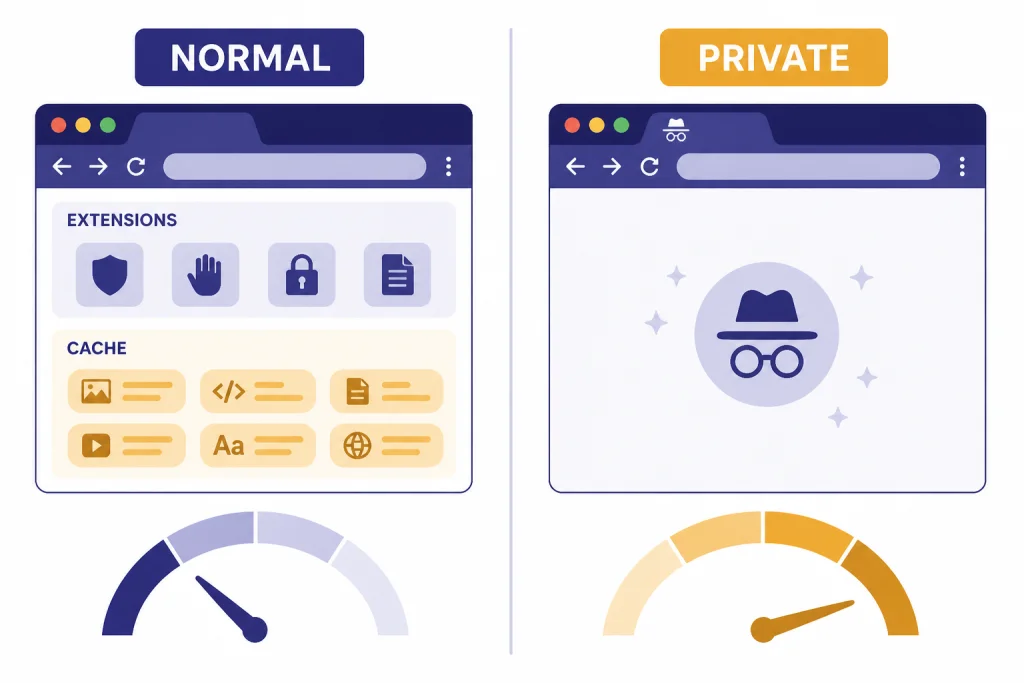
Third, open a private or incognito browser window. If ChatGPT becomes fast there, the slowdown is probably caused by cached site data, cookies, extensions, or a browser profile setting. OpenAI recommends private browsing and extension checks as part of its slow-response troubleshooting flow.[1]
Fourth, switch networks. Try mobile hotspot instead of office Wi-Fi, or home Wi-Fi instead of a VPN. If the same account and prompt work on a different connection, treat the problem as a network path issue. For persistent connection errors, see our ChatGPT network error guide and our separate walkthrough for ChatGPT not working with VPN.
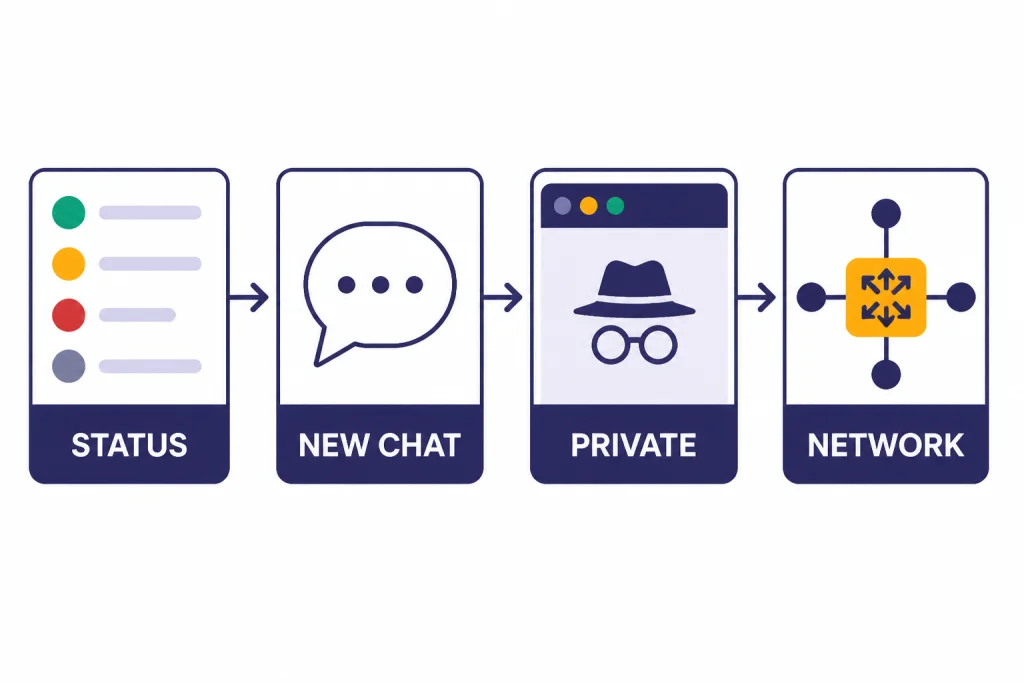
8 easy fixes for slow ChatGPT
Work through these fixes in order. Stop when ChatGPT becomes normal again. The sequence starts with low-risk checks and ends with account, device, and support steps.
1. Check OpenAI status before changing anything
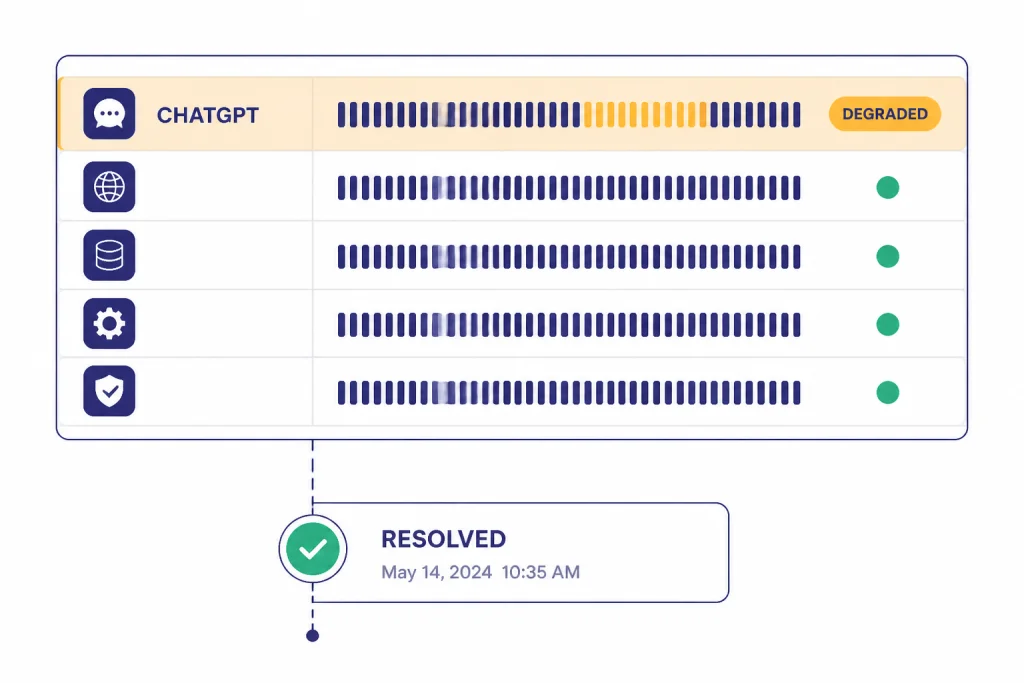
Open the official status page and look for current issues affecting ChatGPT. If ChatGPT is degraded, partial, or under investigation, clearing your cache will not fix the root cause. You can still try a new chat or a different model if available, but avoid assuming the problem is your device. For a broader history of service reliability, see our ChatGPT outages 2026 timeline and ChatGPT outage history.
2. Refresh once, then stop resending
If a response hangs, refresh the page or restart the app once. Do not press send repeatedly. Duplicate attempts can make your own session messier and may run into request limits or temporary throttling. If you see a clear limit message instead of normal slowness, use our ChatGPT Error 429 Too Many Requests guide.
3. Start a new chat
Long threads are useful, but they are not always the fastest place to work. Start a new chat, paste only the essential context, and ask for the next step. This fix is especially effective when the old conversation includes many turns, large files, code outputs, image requests, or repeated retries. OpenAI includes “start a new chat” in its guidance for slow, frozen, or unresponsive ChatGPT sessions.[2]
4. Try private browsing or a clean browser profile
Private browsing removes many profile-level variables. It usually disables extensions by default, avoids old site state, and gives you a cleaner test. If private mode works, return to your normal browser and disable extensions one by one, starting with ad blockers, script blockers, privacy tools, password managers, and security add-ons.
5. Clear ChatGPT site data, not only the general cache
General cache clearing can help, but site data matters more when a web app behaves strangely. OpenAI’s slow-response guidance tells users to sign out, sign back in, and clear site data for chat.openai.com rather than only clearing cache.[1] After doing this, close the tab, reopen ChatGPT, and test a short prompt before restoring extensions.
6. Disable VPNs, proxies, secure DNS, and filtering tools
VPNs and corporate filtering can add latency or interrupt persistent connections. OpenAI’s error troubleshooting specifically calls out VPNs, proxies, secure DNS tools, and security filters as items to disable when ChatGPT is slow, stuck, or unable to connect reliably.[2] If your workplace requires these tools, test on a personal network or ask IT whether ChatGPT traffic is being inspected or rate-limited.
7. Switch device, browser, or network
This is the cleanest isolation test. Try the same account on another browser, then another device, then another network. If only one browser is slow, focus on extensions and site data. If only one device is slow, focus on local resources and app state. If only one network is slow, focus on Wi-Fi quality, VPN, firewall, DNS, or ISP routing. OpenAI recommends different browsers, devices, and networks when diagnosing slow ChatGPT responses.[1]
8. Update or reinstall the app
If the web version is fine but the mobile app is slow, treat it as an app issue. Relaunch the app first. If that fails, update it, restart the device, and reinstall the app. OpenAI’s iOS troubleshooting guidance lists relaunching and uninstalling then re-downloading the app as basic recovery steps for app failures.[5] For mobile-specific steps, use our ChatGPT app not working guide.
| Symptom | Most likely bucket | Best first fix | Next guide |
|---|---|---|---|
| Every prompt takes a long time today | OpenAI incident or peak load | Check status and start a clean chat | ChatGPT at capacity |
| One old thread is slow, but a new chat is fast | Conversation load | Move only key context into a new chat | Conversation not found |
| Private browsing works, normal browser does not | Browser profile | Disable extensions and clear site data | Something went wrong |
| Home Wi-Fi works, VPN does not | Network path | Disable VPN, proxy, or secure DNS | VPN troubleshooting |
| Response starts, then stops mid-stream | Connection or streaming failure | Retry in a new chat and test another network | Error in message stream |
Slow, stuck, or broken: how to tell the difference
“Slow” means ChatGPT is still making progress. “Stuck” means the interface is waiting, spinning, or saying it is thinking without producing useful output. “Broken” means you get an explicit error, a blank page, a failed login, or a repeated connection failure. The distinction matters because each state calls for a different response.
If ChatGPT is slow but still streaming, wait briefly and avoid interrupting it unless the answer is clearly off track. If it hangs indefinitely, OpenAI recommends waiting 30–60 seconds, stopping generation, regenerating, starting a new chat, hard-refreshing, signing out and back in, trying private browsing, disabling VPNs or secure DNS services, and testing another device or network.[2]
If ChatGPT shows an explicit server error, move to the error-specific fix instead of treating it as ordinary slowness. A 500, 502, or 503 error points more strongly to server or gateway trouble than a messy local cache. Use our guides for ChatGPT error 500, ChatGPT Error 502 Bad Gateway, and ChatGPT error 503 service unavailable when those messages appear.
If you cannot log in, solve that first. Slow loading after a failed authentication loop is often a login or cookie problem, not a model performance problem. Our ChatGPT login failed guide covers sign-in loops, authentication method mismatches, cookies, and browser checks.
When the problem is on OpenAI’s side
Sometimes ChatGPT is slow because the service is degraded. During those periods, you may see delayed responses, failed generations, missing conversations, file upload failures, or tool-specific errors. The status page is the correct starting point because it separates broad service trouble from local device trouble.
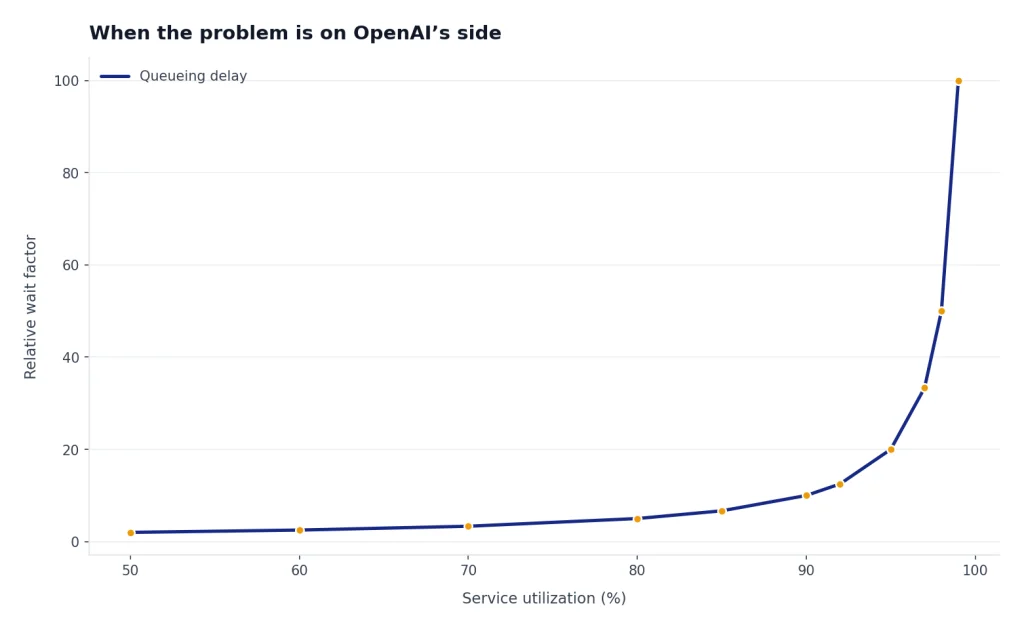
However, status pages are not perfect user-level mirrors. OpenAI states that availability metrics are reported at an aggregate level and that individual customer availability may vary by subscription tier, model, and feature.[3] That means your workspace, region, feature, or model can be affected even if the public summary does not match your exact symptom.
When the issue is likely OpenAI-side, the best user actions are simple: save your prompt elsewhere, start a shorter chat, avoid large file or image requests, and try again later. If you are on a deadline, reduce the task. Ask for an outline first, then expand one section at a time. Smaller requests are easier to retry and easier to move between tools if needed.
Do not repeatedly clear your browser or reinstall apps during a confirmed incident. That can waste time and create new sign-in friction. Instead, monitor status, keep a copy of your work, and test again after the incident is marked resolved.
Browser, app, and network checks that matter
Most local slowdowns come from the web app environment. Browser extensions can change scripts, block requests, rewrite pages, inject overlays, or inspect traffic. Security software can do the same at the network level. That is why private browsing, clean profiles, and alternate networks are more useful than guessing.
Browser checks
- Open ChatGPT in a private or incognito window.
- Disable extensions, especially ad blockers, script blockers, privacy tools, and security extensions.
- Clear ChatGPT site data and cookies.
- Hard-refresh the page after clearing site data.
- Try a different browser before changing account settings.
OpenAI’s guidance names cache, cookies, browser extensions, private browsing, and alternate browsers as practical steps for slow ChatGPT behavior.[1] If a clean browser fixes the problem, restore your usual setup slowly. Add extensions back one at a time and test after each change.
App checks
- Force-close and relaunch the app.
- Update the app from the official app store.
- Restart your phone or tablet.
- Test the web version in a browser.
- Reinstall the app if the web version works but the app stays slow.
If the issue is only inside the app, do not spend an hour changing router settings. Compare app and web first. If file uploads, voice, or images fail inside the app, use the feature-specific guides for ChatGPT file upload not working, ChatGPT voice mode not working, and ChatGPT image generator not working.
Network checks
- Turn off VPN temporarily.
- Disable proxy settings if you control them.
- Test without secure DNS or web protection filters.
- Switch from office Wi-Fi to mobile hotspot.
- Ask IT whether ChatGPT traffic is blocked, inspected, or rate-limited.
OpenAI’s network guidance starts with checking status for known disruptions before deeper connectivity troubleshooting.[4] That order matters. If status is clean and another network works, you have enough evidence to focus on local network routing rather than your ChatGPT account.
Why files, images, voice, and data analysis can feel slower
Not every ChatGPT request has the same workload. A short text answer is usually lighter than analyzing a spreadsheet, reading a long PDF, generating an image, using voice, or running code. When a feature adds upload, processing, tool execution, or streamed media, there are more places for delay.
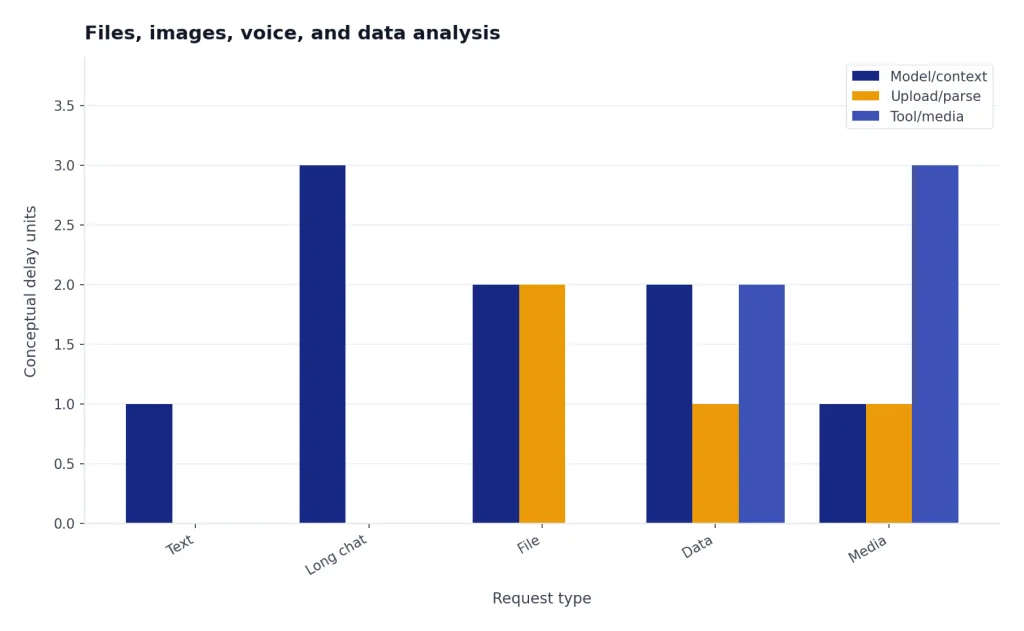
File workflows can feel slow because there is an upload step, a processing step, and then the actual response. If the file is large, complex, or poorly formatted, ChatGPT may spend more time extracting structure before it can answer. If the file tool fails outright, troubleshoot it as a file problem rather than a general speed problem.
Data analysis and code execution can also create session-specific issues. If a notebook-like tool has been running for a while, a fresh chat can be faster than trying to revive a messy session. If you see a session expiration message, see our code interpreter session expired guide.
Image generation and voice can be affected by feature-specific capacity, device permissions, microphone settings, file handling, and network quality. Test plain text first. If plain text is fast but one feature is slow, stay focused on that feature.
When to contact support
Contact support when the problem follows your account across browsers, devices, and networks, and when the status page does not explain it. Before you contact support, collect clean evidence. OpenAI recommends collecting a HAR file, browser console errors, timestamps, the model used, and the conversation URL or ID if the issue persists across browsers, devices, and networks.[2]
Useful support notes are specific. Write down what you tried, what changed, and what stayed the same. Include whether private browsing worked, whether mobile data worked, whether the app and web behaved differently, and whether the issue affected one chat or every chat.
Do not send sensitive data in screenshots or logs unless support explicitly asks for it and you understand what the file contains. HAR files can include request details. Review them according to your organization’s security rules before sharing.
For most users, support is the last step, not the first. The practical order is status check, new chat, private browser, clear site data, disable extensions and VPN, switch network, test another device, then collect diagnostics.
Frequently asked questions
Why is ChatGPT slow but not down?
ChatGPT can be degraded without being fully unavailable. It may still load and answer, but responses can take longer, fail more often, or affect only certain features. OpenAI also reports availability in aggregate, so your plan, model, or feature can feel worse than the broad status summary.[3]
Does starting a new chat really make ChatGPT faster?
Often, yes. A long conversation can carry a lot of prior context and tool state. OpenAI recommends starting a new chat when the existing conversation is long or has many turns and ChatGPT becomes slow, stuck, or unresponsive.[2]
Should I clear cache or cookies first?
Start with a private browsing test. If that works, clear ChatGPT site data and cookies for your normal browser profile. OpenAI’s slow-response guidance says outdated cache data can cause sudden delays and also recommends clearing site data for chat.openai.com, not only the cache.[1]
Can a VPN make ChatGPT slow?
Yes. A VPN, proxy, secure DNS product, or corporate security filter can add latency or interfere with connections. OpenAI lists VPNs, proxies, secure DNS services, and security filters among the items to disable when ChatGPT is slow, frozen, or failing to connect.[2]
Why is only one ChatGPT feature slow?
Feature-specific slowness usually means the extra tool is the bottleneck. File uploads, image generation, voice, and data analysis each add processing beyond a plain text reply. Test a simple text prompt first; if text is fast, troubleshoot the specific feature rather than the whole account.
When should I stop troubleshooting and wait?
Stop local troubleshooting when the official status page shows a relevant incident or when the same issue appears across multiple devices and networks. In that case, save your prompt, try a smaller task if necessary, and check again after the incident is resolved. Reinstalling apps or clearing data repeatedly will not fix a service-side outage.