

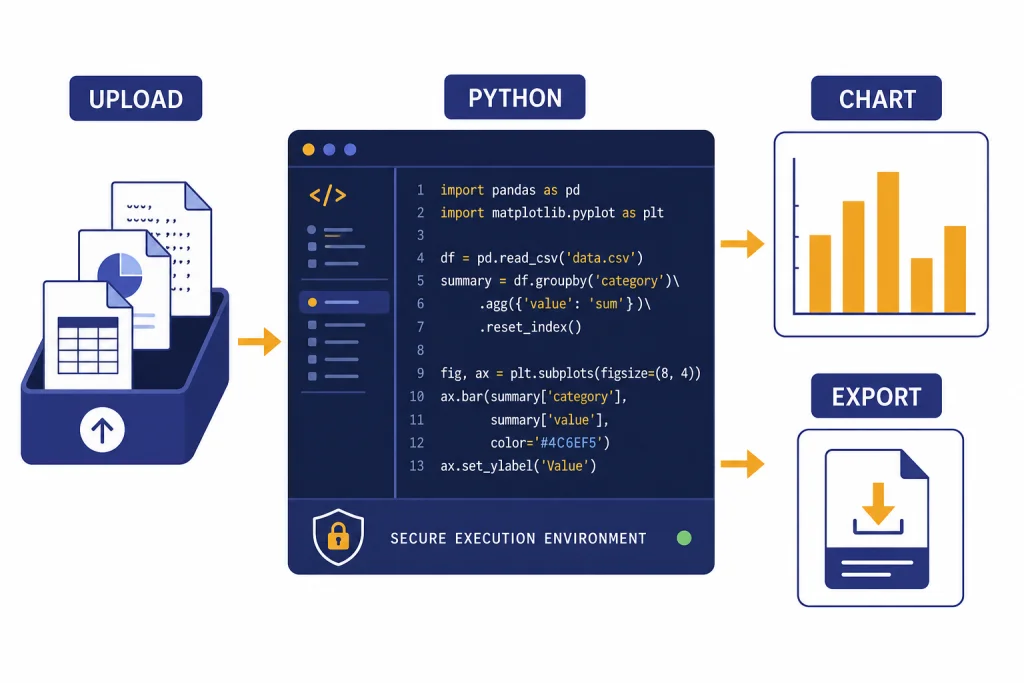
ChatGPT Code Interpreter is the older name for ChatGPT’s Advanced Data Analysis feature, which lets ChatGPT write and run Python code against files you upload.[2] Use it when you need repeatable calculations, spreadsheet cleanup, charting, file conversion, simulations, or a second pass on messy data. It is not a magic analyst. You still need to define the question, check the assumptions, and verify the output. The strength of chatgpt code interpreter is that it turns a plain-English request into executable analysis, then shows you the reasoning path, code, tables, and downloadable files when the task calls for them.
What Code Interpreter means now
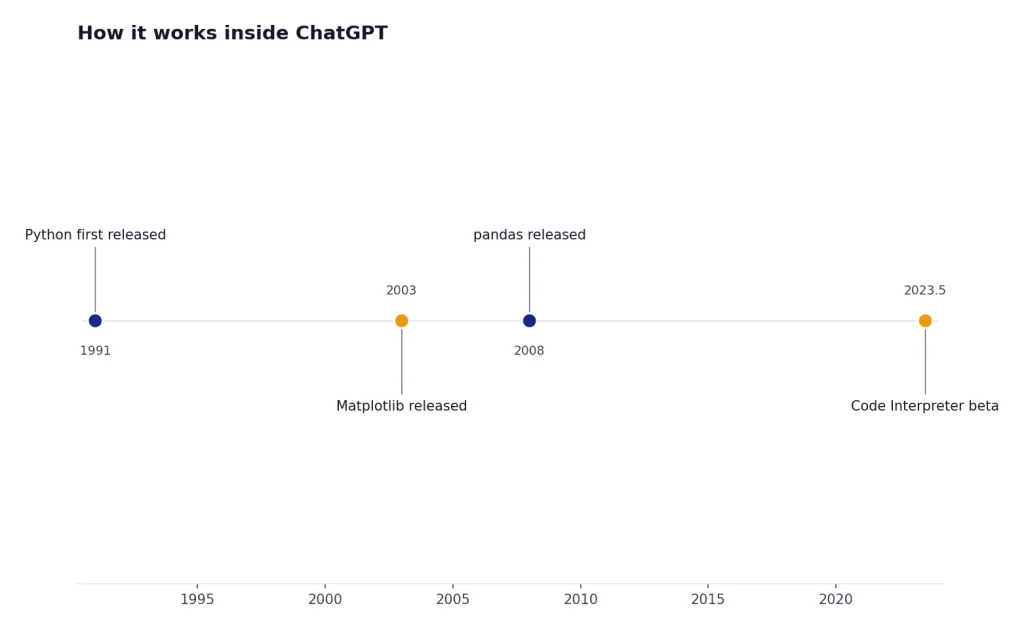
“Code Interpreter” is the name many users still use for ChatGPT’s built-in code execution and data analysis feature. OpenAI’s current help material calls the feature Advanced Data Analysis, and its file upload documentation describes it as formerly known as Code Interpreter.[2] The old name remains useful because it describes the core behavior: ChatGPT can write code, run that code in a controlled environment, inspect the result, and revise its answer.
OpenAI first rolled out Code Interpreter in beta on the web to ChatGPT Plus users in July 2023.[3] The original release note said it could run code with optional access to uploaded files and could help with data analysis, charts, file editing, and math.[3] Those remain the feature’s central jobs, even though the interface and naming have changed.
The easiest way to think about it is this: normal chat is best for explanation, planning, and drafting. Code Interpreter is best when the answer depends on computation. If you ask, “What does this spreadsheet show?” ChatGPT can inspect the file. If you ask, “Remove duplicate rows, normalize dates, and give me a downloadable CSV,” it can use code to transform the file. For broader upload basics, read our ChatGPT file upload guide.
How it works inside ChatGPT
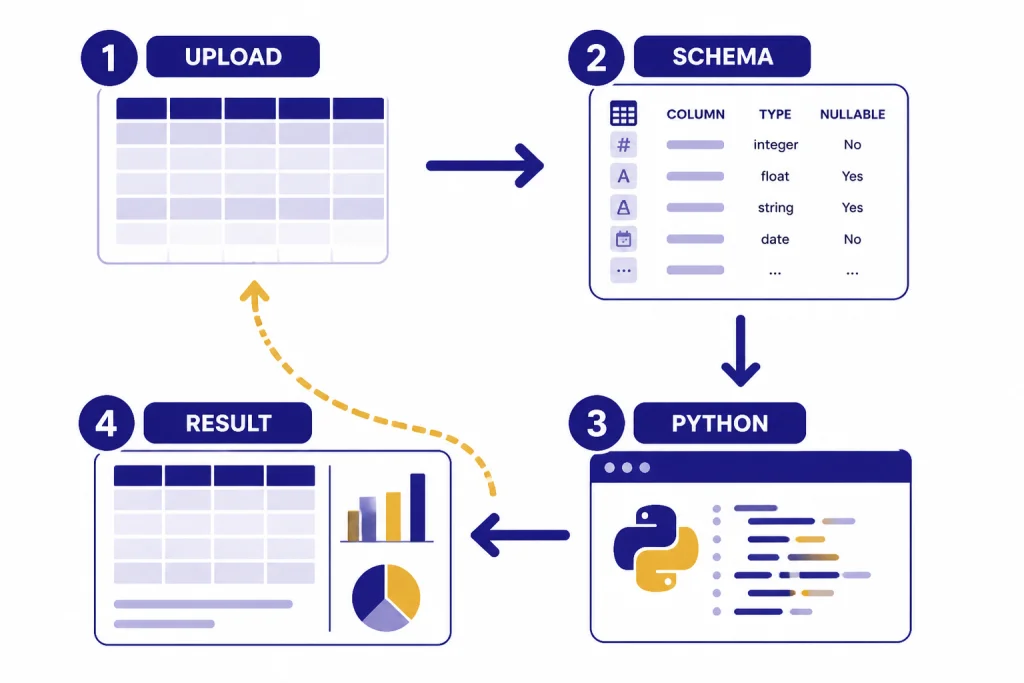
When you upload structured data, ChatGPT starts by looking at the first rows to understand the schema and the likely data types.[1] Then it writes Python code, executes that code, reviews the result, and integrates the findings into the answer you see in the chat window.[1] You can often inspect the generated code through the analysis link or code indicator shown after a data-analysis response.[1]
OpenAI says ChatGPT’s data analysis environment is preloaded with hundreds of Python libraries, and its documentation specifically names pandas and Matplotlib as tools used for analysis and chart generation.[1] That matters because many data jobs are easier and more reliable when handled by code rather than by language prediction alone. Sorting rows, calculating percent change, fitting a regression, detecting outliers, and drawing a chart all benefit from execution.
The feature does not mean ChatGPT becomes a full developer workstation. You should assume the environment is temporary, scoped to the conversation, and designed for analysis rather than long-running production software. If you need API calls, deployment workflows, reproducible notebooks, version control, or custom package management, the OpenAI API or a local Python environment may be more appropriate. For people comparing ChatGPT with the API, our OpenAI API pricing reference is a better starting point than this feature guide.
What it can do well
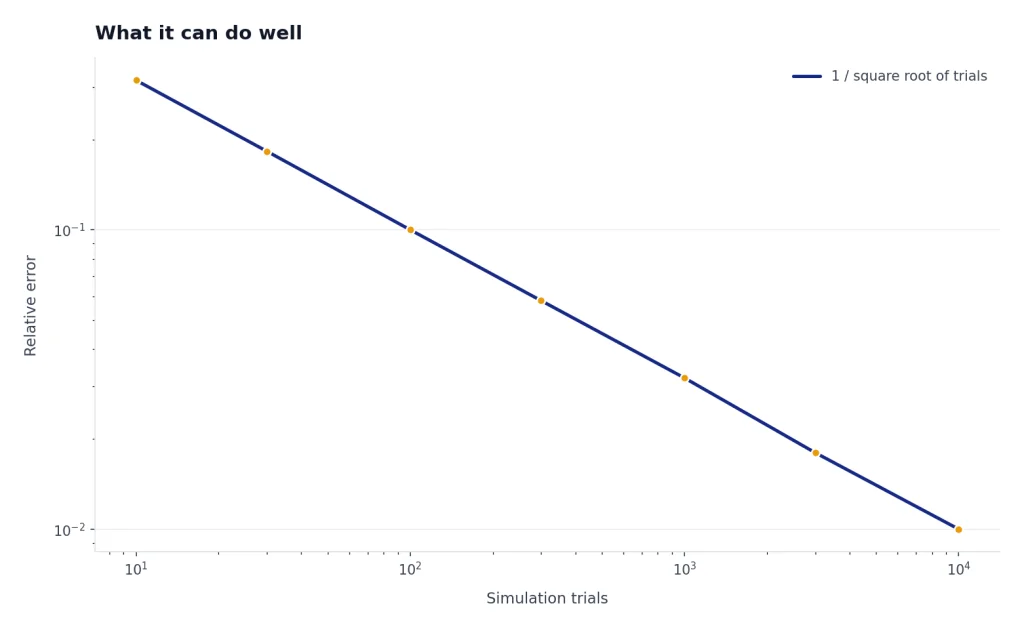
Code Interpreter is strongest when you give it a file, a goal, and permission to use code. It can analyze spreadsheets, summarize data, clean columns, find anomalies, create charts, simulate scenarios, convert files, and generate downloadable outputs. OpenAI’s data analysis help page says ChatGPT can create static and interactive tables and charts from uploaded data.[1] It also says reasoning models can be used for regressions, complex business metrics, and scenario-based simulations.[1]
Good tasks include:
- Spreadsheet cleanup. Standardize dates, remove blank rows, split full names, deduplicate records, and export a cleaned CSV.
- Exploratory data analysis. Identify top categories, missing values, suspicious spikes, and relationships between columns.
- Charting. Create a clean line chart, bar chart, scatter plot, histogram, heat map, or waterfall chart, then adjust labels and colors.
- Document extraction. Pull tables from a PDF and restructure the information into a spreadsheet when the file is readable.
- Math and simulation. Run calculations that are too long or error-prone to do manually.
- File transformation. Convert a data file into a different shape or generate a downloadable result.
It is less reliable for tasks where the uploaded file is ambiguous, the question is underspecified, or the answer depends on outside facts that are not in the file. If you need current web evidence, pair your data work with ChatGPT Search. If the source material is an image rather than a spreadsheet or document, ChatGPT Vision is the relevant companion feature.
Supported files and practical limits
OpenAI lists Excel, CSV, PDF, and JSON as supported formats for data analysis, and it also supports connecting the latest file versions from Google Drive, Microsoft OneDrive Personal, and Microsoft OneDrive including SharePoint.[1] In practice, the best results usually come from clean spreadsheets and structured files with clear headers. PDFs can work well when the text and tables are extractable. Scanned PDFs and image-heavy documents may need optical character recognition or manual cleanup first.
Limits change over time and may vary by plan, demand, and file type. The numbers below are the most important published limits to know before you upload a large dataset.
| Item | Published limit or support note | Why it matters |
|---|---|---|
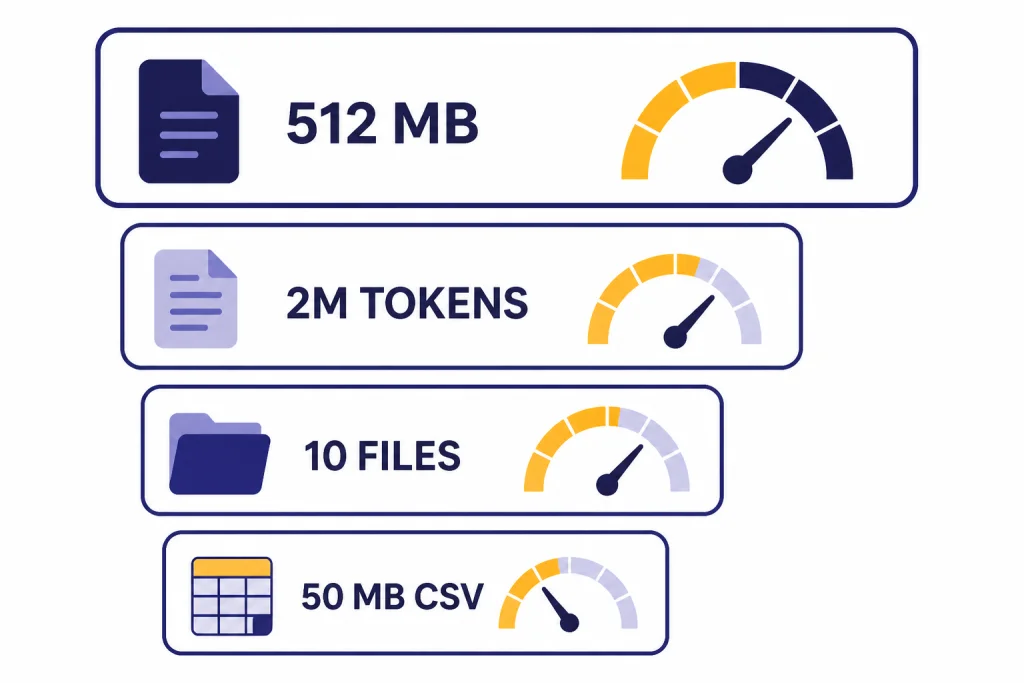
| Files in one conversation | Up to 10 files can be uploaded to a given conversation.[1] | Combine related small files before upload if you need one analysis pass. |
| Custom GPT knowledge files | Up to 20 files can be attached to a GPT as Knowledge when Code Interpreter is enabled at the GPT level.[1] | Useful for reusable internal analysis helpers, not one-off uploads. |
| General file size | OpenAI lists a hard limit of 512 MB per uploaded file.[2] | Large exports may need compression, sampling, or splitting. |
| Text and document size | OpenAI lists a cap of 2M tokens per text or document file.[2] | Very long PDFs or document bundles can fail before file size becomes the issue. |
| CSV and spreadsheet size | OpenAI says CSV files or spreadsheets cannot exceed approximately 50 MB, depending on row size.[1] | Wide rows, long text fields, and messy exports can hit limits early. |
| Rolling upload rate | OpenAI describes rolling upload limits such as up to 80 files per 3 hours.[2] | Batch work can pause unexpectedly if you upload many files in a short window. |
| Shared storage | OpenAI describes shared storage caps of 10 GB per user and 100 GB per organization across chats, Projects, and custom GPT knowledge.[2] | Old chats and GPT knowledge files can affect future uploads. |
The OpenAI API file documentation separately lists individual files up to 512 MB and references a 2 million token limit for supported Assistants API files, which corroborates the scale of the underlying file constraints, though API limits are not the same product surface as ChatGPT.[5] A third-party summary of ChatGPT upload limits also reports 512 MB per file and 2M tokens, but OpenAI’s own help center should be treated as the source of truth for ChatGPT.[7]
A reliable workflow for analysis
The best Code Interpreter sessions look more like an analyst workflow than a single prompt. Start with a narrow question. Upload the smallest file that can answer it. Ask ChatGPT to inspect the file before drawing conclusions. Then ask it to explain the columns, missing values, assumptions, and transformations it plans to use.
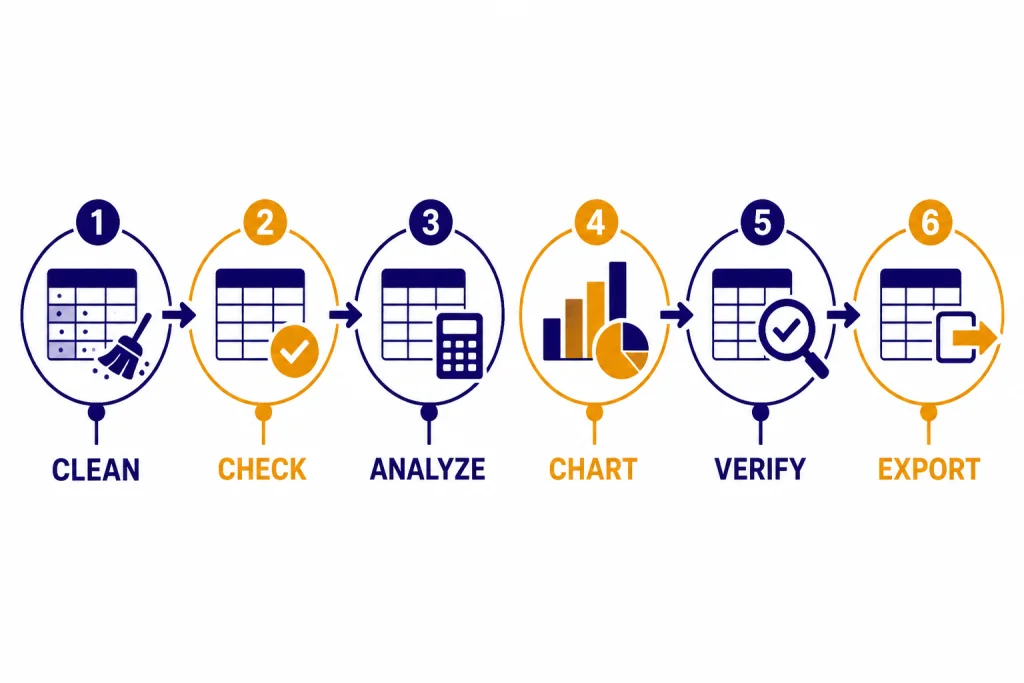
A strong workflow is:
- State the business question. Example: “Which customer segment had the largest margin decline last quarter?”
- Ask for a schema check. Have ChatGPT list columns, data types, missing values, and suspicious fields before analysis.
- Define the metric. Tell it exactly how to calculate margin, churn, conversion, cohort, retention, or any custom metric.
- Request the code path. Ask it to use Python and show the main calculation steps.
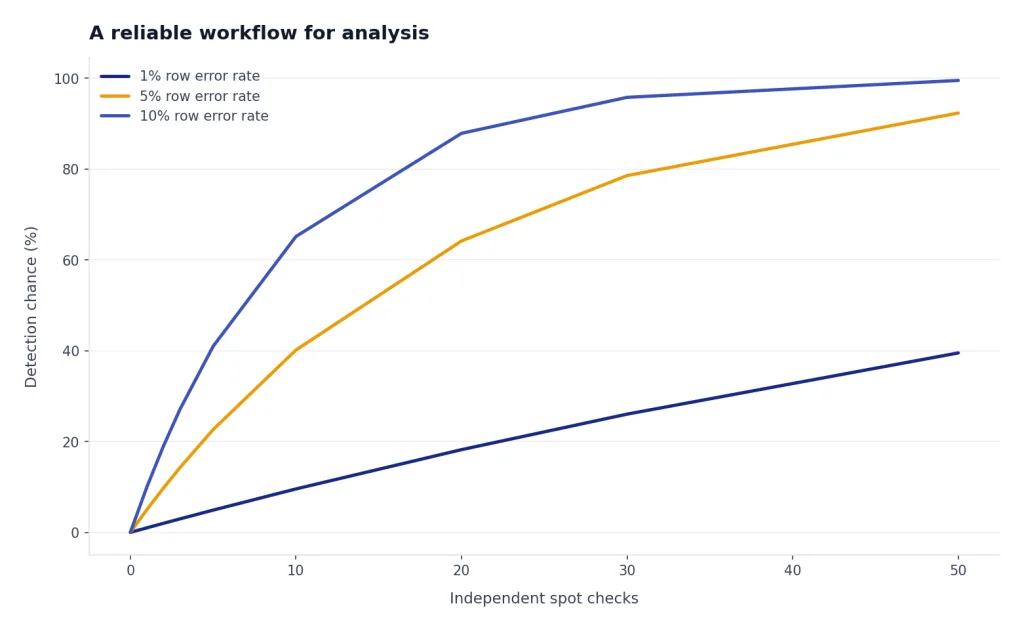
- Verify with spot checks. Pick a few rows or totals and ask it to prove the math.
- Export the result. Ask for a clean CSV, chart image, or summary table only after you trust the transformation.
If the work spans several files or conversations, use ChatGPT Projects to keep related context together. If you repeatedly use the same analysis style, pair this with ChatGPT Custom Instructions so ChatGPT knows your preferred chart style, naming rules, and verification habits.
For a deeper hands-on walkthrough, see our ChatGPT tutorial for Code Interpreter. This guide focuses on what the feature is and how to use it safely; the tutorial focuses on practice.
Prompt examples you can copy
Good prompts tell ChatGPT what to inspect, what to avoid, and how to report uncertainty. Use these as starting points.
Spreadsheet cleanup prompt
Inspect this CSV before changing it. Report the columns, row count, missing values, duplicate rows, and date formats. Then propose a cleaning plan. Do not modify or export anything until I approve the plan.
Exploratory analysis prompt
Analyze this dataset for trends, outliers, and segments that explain the largest change in revenue. Use Python for the calculations. Show the main formulas, include one table of the top drivers, and create one chart that would make sense to a nontechnical manager.
Charting prompt
Create a clean line chart of monthly active users by region. Use the same y-axis scale for every region. Include a short caption that explains the main pattern and one caveat about the data.
Verification prompt
Before finalizing the answer, run three spot checks from the raw file and show how the final metric was calculated for those rows. If any assumption changed during the analysis, list it clearly.
The pattern is the same across use cases. Ask for inspection first, transformation second, conclusion third, and export last. That sequence reduces silent errors.
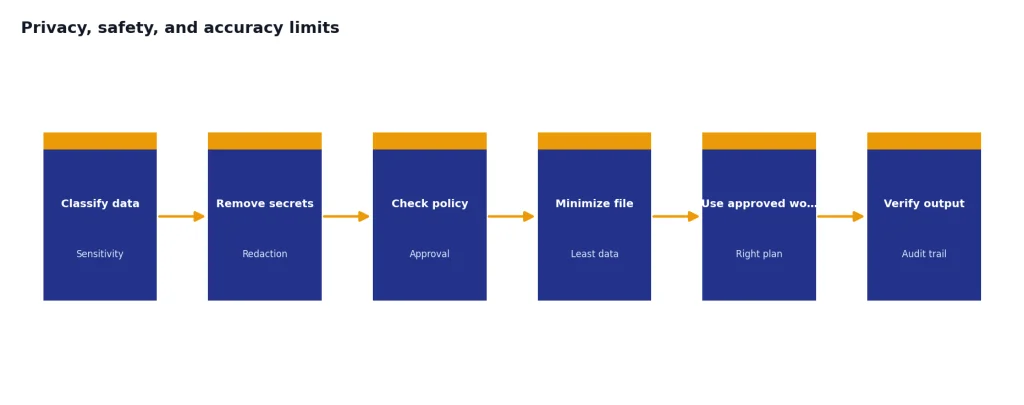
Privacy, safety, and accuracy limits
Do not upload sensitive files unless your account, workspace, and organization policy allow it. OpenAI says business data from ChatGPT Enterprise is not used by default for training or improving models, and its business data page says organizations own their data across business products and the API platform.[6] Those commitments are important, but they do not replace your company’s data classification rules.
Accuracy has a separate risk. Code execution makes math more reliable, but it does not guarantee that ChatGPT chose the right method. It can misunderstand a column, merge on the wrong key, treat a text field as a category when it should be numeric, or build a chart that hides an important denominator. Always verify high-stakes work with source rows, independent calculations, or a domain expert.
Security also depends on the file. A spreadsheet can contain hidden sheets, formulas, malformed data, or misleading labels. A PDF can omit context that appears visually obvious to a human. Ask ChatGPT to describe what it actually read, not what it assumes is present. If a file contains passwords, private health information, customer records, confidential contracts, source code secrets, or unreleased financials, treat upload as a governance decision rather than a convenience.
Code Interpreter compared with other ChatGPT tools
Code Interpreter overlaps with several ChatGPT features, but the differences are practical. Use the tool that matches the source material and the desired output.
| Tool or feature | Best for | Not ideal for |
|---|---|---|
| Code Interpreter / Advanced Data Analysis | Running calculations, cleaning data, creating charts, and exporting transformed files. | Current facts that are not in the uploaded file. |
| ChatGPT Search | Finding and summarizing recent web information with source grounding. | Heavy spreadsheet transformation or repeatable calculations. |
| ChatGPT Vision | Understanding screenshots, images, diagrams, and visual documents. | Large structured datasets that need code-based analysis. |
| ChatGPT Operator or agent-style tools | Multi-step browser or computer-use workflows that may include research and action. | Pure data work where an uploaded CSV and Python analysis are enough. |
| Local Python or a notebook | Production-grade reproducibility, version control, private execution, and custom environments. | Fast exploratory work when you do not want to write code yourself. |
If your task involves browsing websites or taking actions across apps, read our ChatGPT Operator guide. If your task starts with screenshots or visual files, start with ChatGPT image search or the vision guide instead. If you work mostly on Windows, our ChatGPT Windows app setup guide explains the desktop route.

Troubleshooting common problems
The upload fails
Check file size, file type, and account limits first. OpenAI says uploaded files have a hard limit of 512 MB per file, while CSV and spreadsheet files are limited to approximately 50 MB depending on row size.[2][1] If the file is near a limit, export only the needed columns, remove embedded images, split the file, or compress the source data.
ChatGPT gives a vague answer
Ask it to inspect the schema and show the exact fields it used. Vague answers often come from vague prompts. Replace “analyze this” with a metric, a grouping field, a date range, and a required output format.
The chart looks wrong
Ask ChatGPT to show the aggregation table behind the chart. Then ask whether missing values, duplicate rows, or mixed date formats changed the result. If the visual still looks wrong, request a simpler static chart before asking for styling.
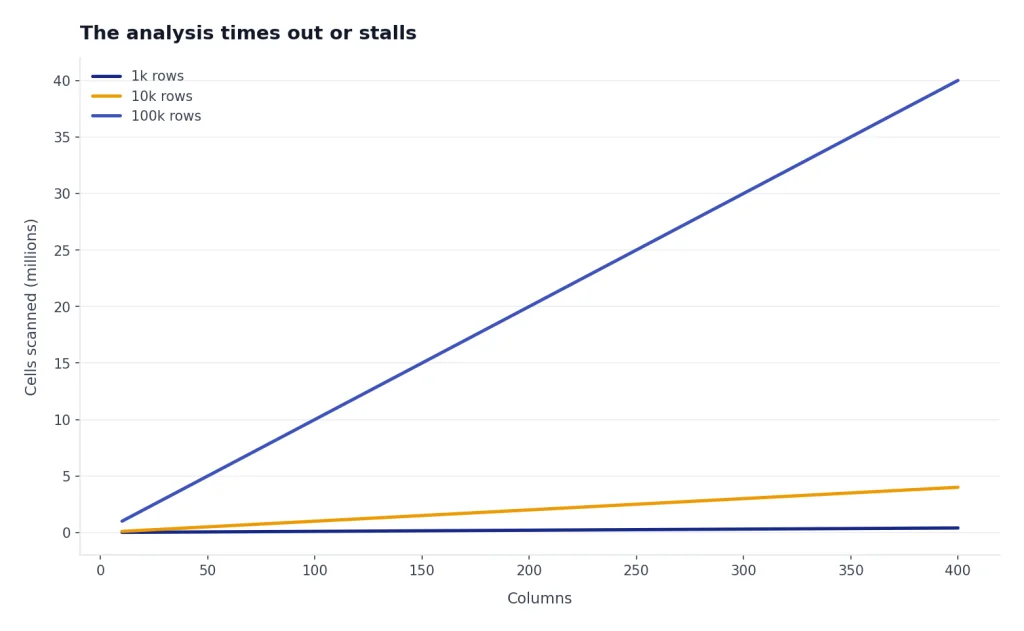
The analysis times out or stalls
Reduce the problem. Upload a smaller sample, ask for a plan, then process the full file only after the method is clear. Very wide spreadsheets, many formulas, and text-heavy columns can slow analysis even when the file is under the published size cap.
You hit a file quota
OpenAI says upload limits include both rolling upload rates and shared storage caps across chats, Projects, and custom GPT knowledge.[2] Delete old files from recent chats or GPTs you built if you no longer need them. If the problem appears account-wide, check OpenAI’s status page and try again later.
Frequently asked questions
Is ChatGPT Code Interpreter the same as Advanced Data Analysis?
Yes, in ordinary ChatGPT usage, Code Interpreter refers to the feature OpenAI now describes as Advanced Data Analysis. OpenAI’s file upload FAQ explicitly says Advanced Data Analysis was formerly known as Code Interpreter.[2] The older name remains common because it describes the code-running behavior clearly.
Can Code Interpreter run Python?
Yes. OpenAI says ChatGPT can write and execute code in a secure environment when analyzing data, and its documentation describes Python libraries such as pandas and Matplotlib being used for analysis and charts.[1] You do not need to write Python yourself, but you should review the logic for important work.
Can it analyze Excel and CSV files?
Yes. OpenAI lists Excel .xlsx and CSV as supported file types for ChatGPT data analysis.[1] Use clear column headers, one row per record, and avoid blank sections in the spreadsheet for better results.
Can it create downloadable files?
Yes, it can often create downloadable outputs such as cleaned CSV files, tables, charts, or transformed documents. The exact output depends on the task and the file. Always inspect the result before sharing it with others.
Is it safe to upload confidential data?
It depends on your plan, settings, and organization policy. OpenAI publishes stronger business data commitments for business products, including that ChatGPT Enterprise business data is not used by default to train or improve models.[6] Personal or regulated data still needs internal approval before upload.
Should I use Code Interpreter or ChatGPT Search?
Use Code Interpreter when the answer depends on uploaded files, calculations, charts, or transformations. Use ChatGPT Search when the answer depends on current web information. Many research workflows use both: Search to gather context, then Code Interpreter to analyze a downloaded dataset.