

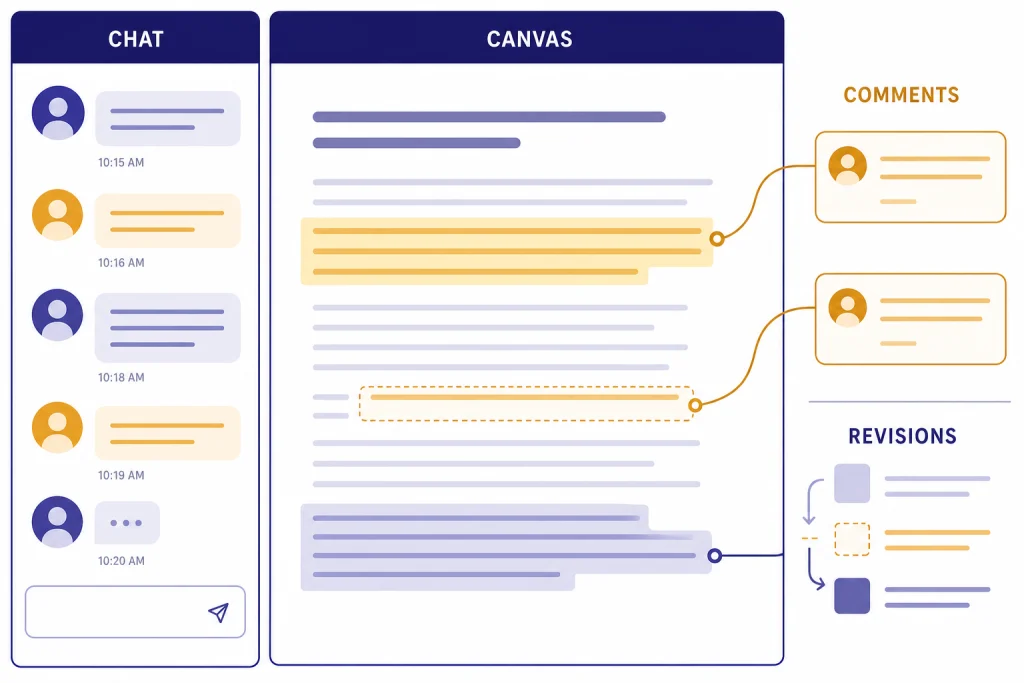
ChatGPT Canvas is the editable workspace for writing and coding inside ChatGPT. Instead of keeping every revision inside a long chat thread, Canvas opens a side-by-side work area where you can edit the draft directly, highlight a section, ask for targeted changes, review inline suggestions, run supported code workflows, and export the result. It is best for documents, scripts, lessons, emails, articles, code snippets, and React or HTML previews that need multiple rounds of refinement. It is not a full replacement for a word processor, a design tool, or a professional IDE, but it closes the gap between asking ChatGPT for output and turning that output into something usable.
What ChatGPT Canvas is
ChatGPT Canvas is a separate editing surface that opens beside the conversation. OpenAI introduced it on October 3, 2024 as a new interface for writing and coding projects that need more structure than a normal chat reply.[1] OpenAI later made Canvas available in 4o by default for Free and paid users on December 10, 2024.[3]
The main difference is control. In a normal chat, you ask for a revised version and receive another answer. In Canvas, the working document stays visible. You can click into it, type directly, select a sentence, select a code block, ask a question about that section, or ask ChatGPT to change only that part. OpenAI describes Canvas as a tool for writing and coding projects that require editing and revisions.[2]
That makes chatgpt canvas useful when the artifact matters. A finished artifact might be a policy memo, a blog post outline, a grant draft, a Python script, a lesson plan, a product requirements document, or a small interface mockup. If you only need an answer, stay in chat. If you need a draft you can keep shaping, use Canvas.
Canvas also changes how you review AI output. You do not have to accept a full rewrite every time. You can preserve the parts that work and ask ChatGPT to focus on weak sections. This is especially helpful for long drafts where one good paragraph can be damaged by a broad “rewrite everything” prompt.
How to open and edit a canvas
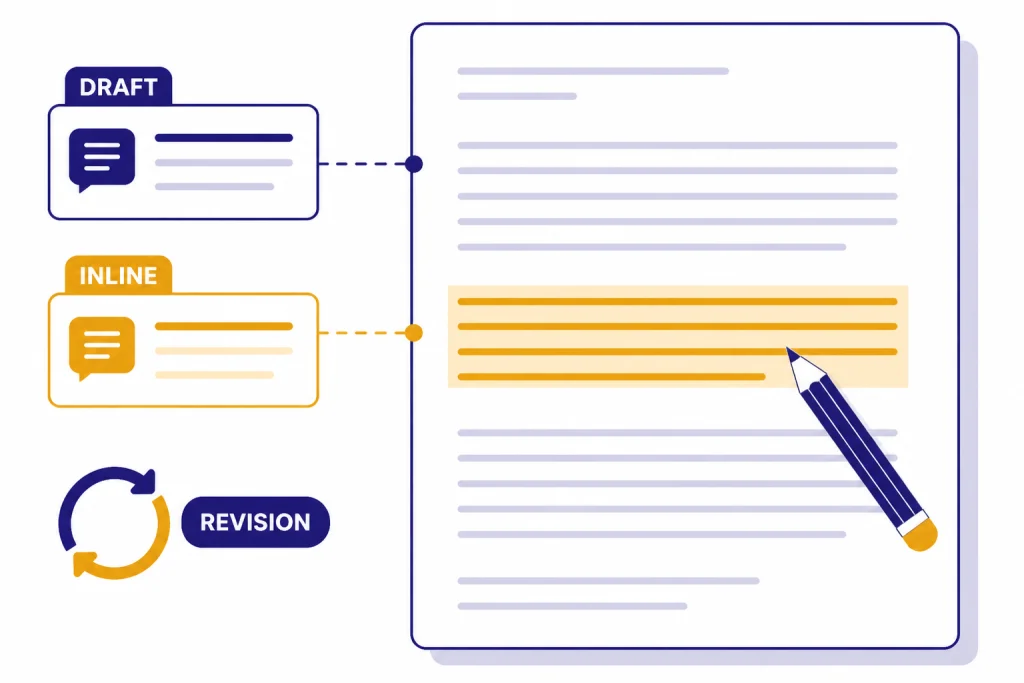
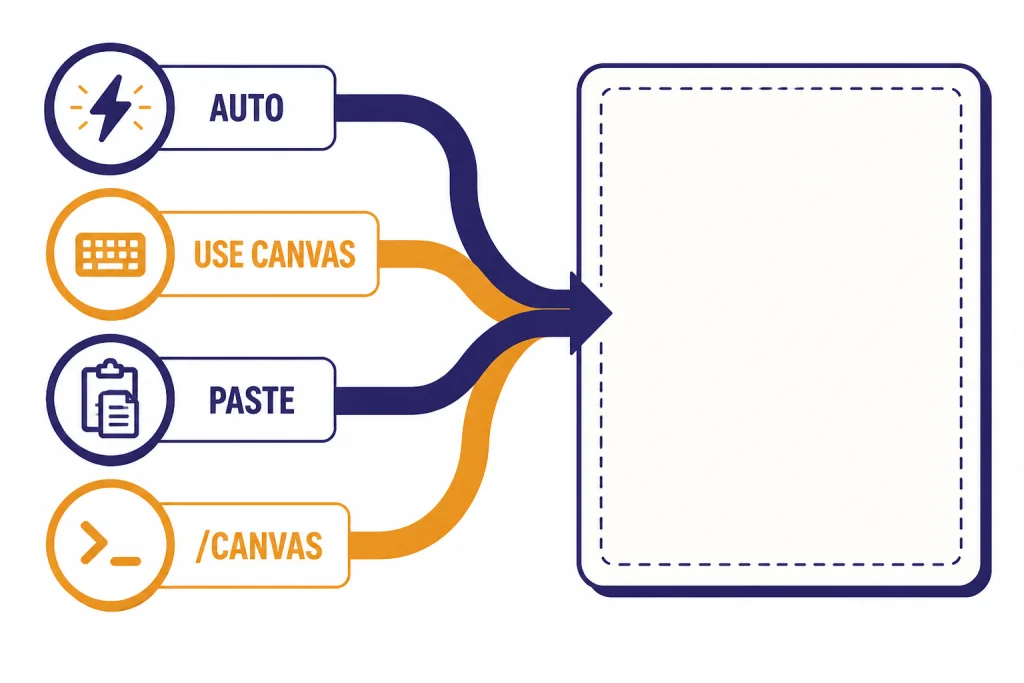
ChatGPT may open Canvas automatically when it recognizes that your request is better handled as a document or code project. OpenAI says users can also ask for it directly by including “use canvas” in the prompt, start a blank canvas on the web, use the toolbox, or trigger it with the slash command.[2]
A practical opening prompt is simple: “Use Canvas to draft a two-page onboarding guide for new support agents.” For code, try: “Use Canvas to create a Python script that cleans a CSV file and explain each function.” The goal is to tell ChatGPT that you want a working artifact, not just a conversational answer.
Once the canvas opens, you can edit in three ways. First, you can type directly into the document. Second, you can use the chat box to ask for changes. Third, you can highlight text or code and give instructions for that selection. OpenAI says Canvas supports direct editing, section highlighting, inline feedback, and restoring earlier work with the back button.[2]
Direct editing is the safest method for small fixes. Use it for names, dates, headings, sentence-level wording, and formatting. Use ChatGPT for heavier work, such as reorganizing a section, converting notes into prose, reducing repetition, or making code easier to read.
Canvas supports basic Markdown formatting, including bold, italic, headings, bullet points, and numbered lists; OpenAI says it does not currently offer more advanced formatting options in Canvas.[2] If you need tracked changes, page layout, footnotes, complex tables, or final print styling, export the draft and finish it in a dedicated editor.
Writing tools in Canvas
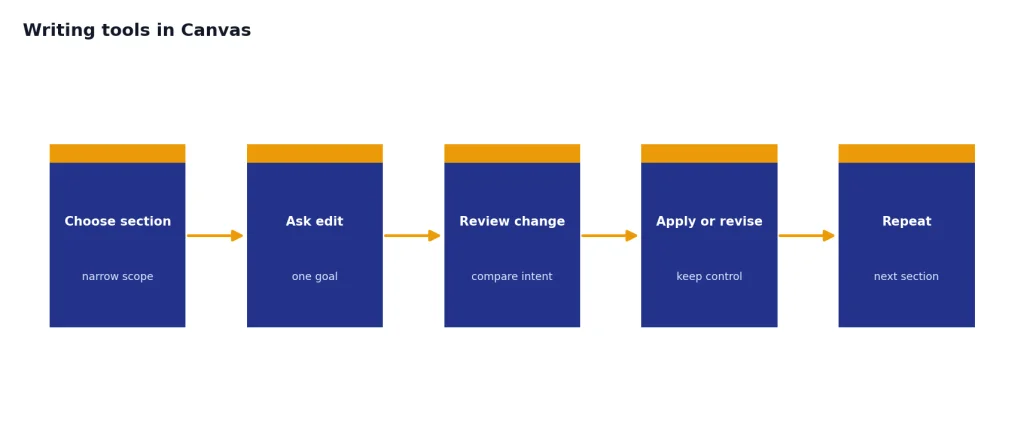
Canvas is strongest when you treat ChatGPT as an editor, not just a generator. Ask it to identify where a draft loses focus, where the tone shifts, where a section repeats another section, or where a reader may need more context. The inline workflow helps because you can ask for edits exactly where the issue appears.
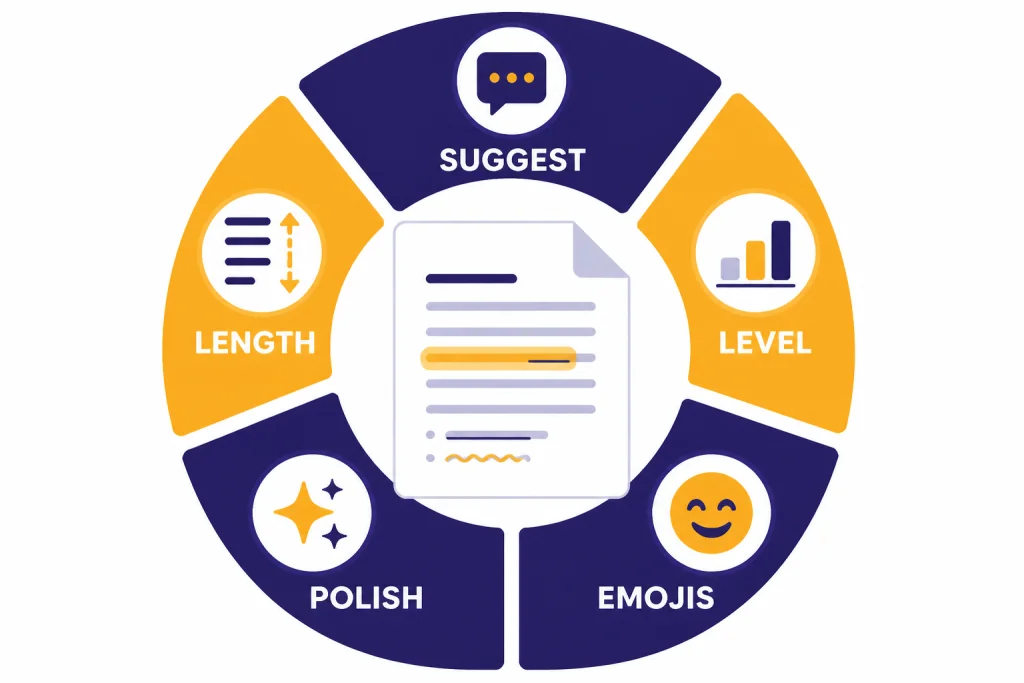
OpenAI lists several writing shortcuts in Canvas: Suggest edits, Adjust the length, Change reading level, Add final polish, and Add emojis.[2] These shortcuts are convenient, but they work best when you still give the model a clear goal. “Shorten this” is weaker than “Cut this section by one-third while keeping the compliance warning and the customer example.”
| Writing task | Best Canvas action | Example instruction |
|---|---|---|
| Make a section clearer | Highlight the section and ask for a focused rewrite | “Rewrite this for a first-time user without removing the setup steps.” |
| Reduce length | Use Adjust the length or give a target | “Cut this introduction to 120 words and keep the main claim.” |
| Improve tone | Ask for a tone pass on the whole document | “Make this direct, professional, and less promotional.” |
| Find weak spots | Use Suggest edits | “Mark places where the argument needs evidence or a better transition.” |
| Prepare for publishing | Use Add final polish, then review manually | “Check grammar, clarity, and consistency, but do not change technical terms.” |
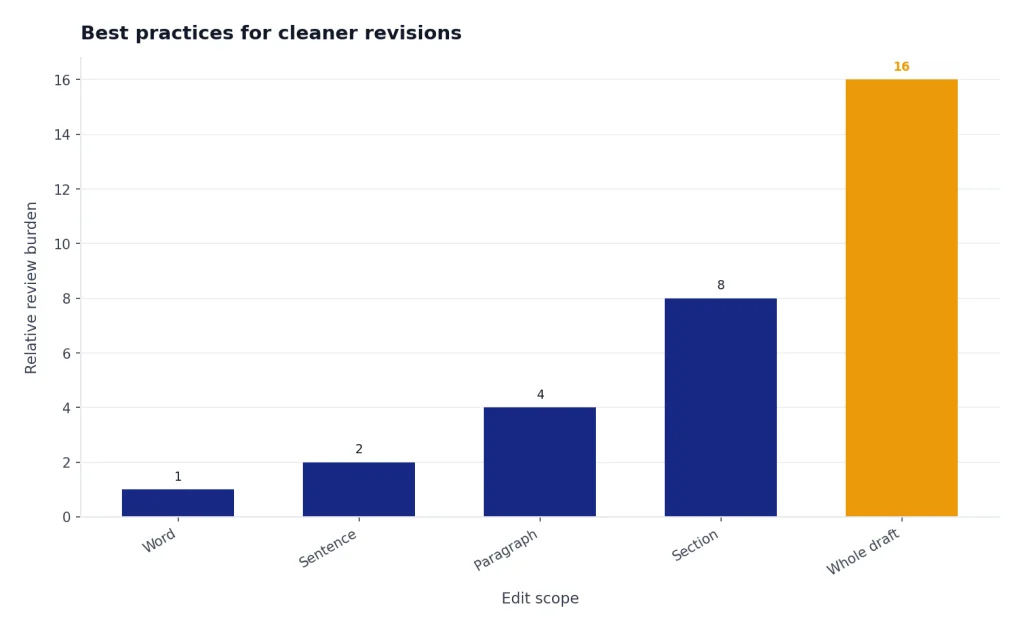
For long documents, work section by section. Ask ChatGPT to improve one heading, one example, or one transition at a time. This reduces accidental changes elsewhere. It also lets you compare the edit against your original intent before moving on.
Canvas pairs well with other ChatGPT features. Use ChatGPT Projects when a draft belongs with related chats and files. Use ChatGPT Custom Instructions when you want recurring tone, audience, or formatting preferences to shape future drafts. Use ChatGPT File Upload when source documents need to inform the draft before you begin editing.
Coding tools in Canvas
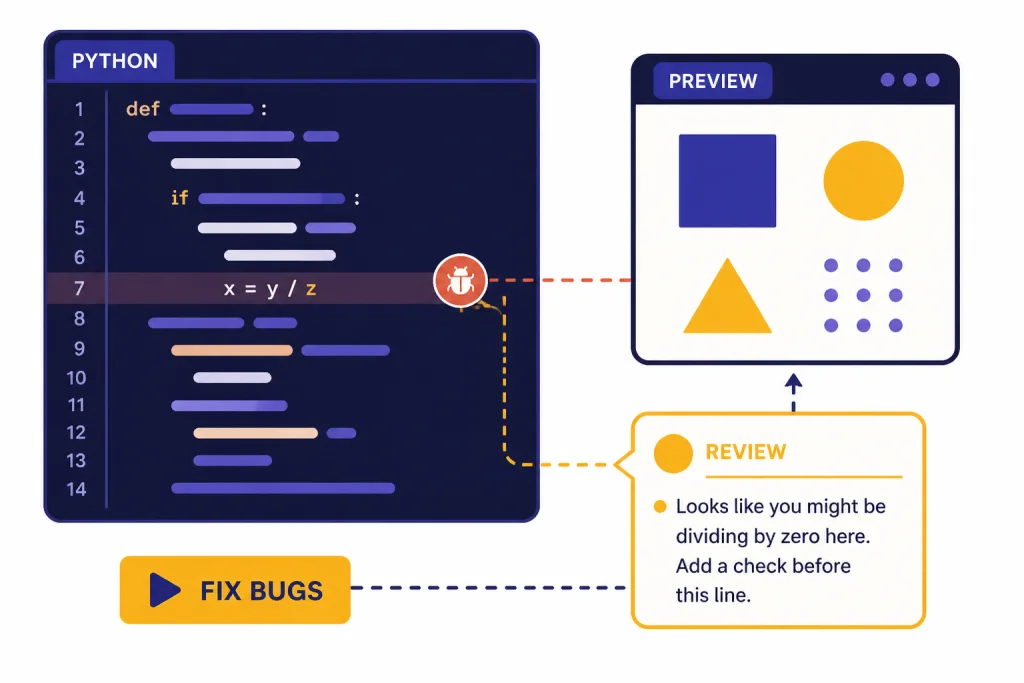
Canvas also supports coding workflows. OpenAI says Canvas includes coding shortcuts such as Add logs, Add comments, Fix bugs, Port to a language, and Code review.[2] The same principle applies: use ChatGPT for targeted changes, not blind acceptance. Ask it to explain the risk before it rewrites a function that affects data, authentication, billing, or security.
Canvas can be a useful scratchpad for small scripts, examples, exercises, helper functions, and prototypes. It is less suitable for large repositories, production deployments, dependency-heavy systems, or code that needs a full test suite. For deeper data work, our Code Interpreter tutorial is a better fit because that workflow focuses on analysis, files, and execution patterns beyond plain editing.
OpenAI says React and HTML code can render in a sandbox environment so you can view the output, and that all npm packages and many JavaScript libraries work.[2] This is helpful for checking small interface ideas, but it does not replace local development, browser dev tools, version control, or deployment testing.
Canvas also includes Python code execution. OpenAI announced Python code execution in Canvas on December 10, 2024.[3] In its Canvas help article, OpenAI notes that this code execution feature is currently available for Python code and that it plans to extend access to other programming languages in the future.[2]
A good coding workflow is to ask for a small change, review the diff mentally, run the relevant test, and then ask for the next change. For example: “Add input validation to this function only. Do not rename variables. Explain any edge cases after the code.” That prompt keeps the edit narrow and reviewable.
Sharing, exporting, and workspace controls
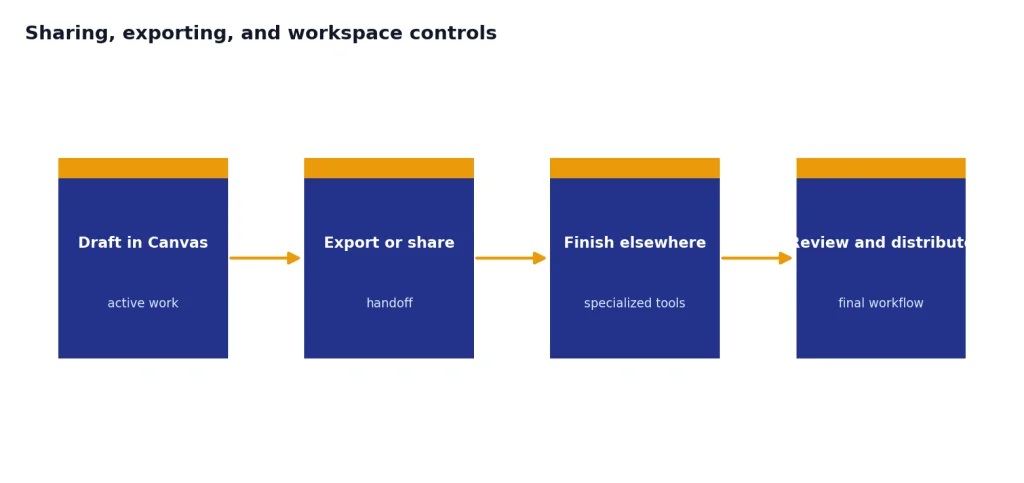
Canvas is not only an editing surface. It also supports handoff. OpenAI says Canvas sharing is available for Free, Plus, Pro, Team, Enterprise, and Edu plans, and users can share a canvas asset such as rendered React or HTML code, a document, or code from the Canvas toolbar.[2] For broader conversation sharing, see our guide to ChatGPT Shareable Links.
Canvas also supports downloads. OpenAI says general documents can be exported as PDF, Markdown, and Word files, while code-based canvases are exported with an appropriate file extension such as .py, .js, or .sql.[2] This makes Canvas practical for first drafts. You can move the result into your normal writing or development workflow once the structure is stable.
Workspace controls matter for organizations. OpenAI says code execution and React or HTML rendering can result in external network requests, and Enterprise workspace admins can control whether Canvas code execution is available and how network access behaves.[2] OpenAI also says Canvas code execution is on by default for Enterprise workspaces while network access is off by default, though those controls are configurable.[2]
Treat shared canvases like shared documents. Remove secrets, private customer information, credentials, unreleased financial data, and confidential legal material unless your organization has approved that workflow. If you are using Canvas inside a workplace, follow your company’s retention, access, and review rules rather than assuming a share link is harmless.
Canvas compared with chat, docs, and code editors
Canvas sits between a chat thread and a full editor. That middle position is the point. It gives ChatGPT more document context than a one-off prompt, but it does not try to become the only place where professional writing or software development happens.
| Tool | Best for | Where it falls short |
|---|---|---|
| Regular ChatGPT chat | Questions, brainstorming, quick rewrites, explanations | Long revision chains get hard to track |
| ChatGPT Canvas | Drafts and code that need focused edits, comments, and multiple passes | Advanced formatting, full IDE features, and complex collaboration are limited |
| Word processor | Final document layout, tracked changes, comments, templates, print-ready formatting | AI help is usually less central to the workflow |
| Code editor or IDE | Production code, repositories, debugging, tests, extensions, version control | Less convenient for conversational rewriting and explanation |
| Project workspace in ChatGPT | Keeping related chats, files, and instructions together | It organizes context; it is not itself the focused editing surface |
Use Canvas when the next step is revision. Use regular chat when the next step is understanding. Use a word processor when the next step is formatting, approval, or distribution. Use an IDE when the next step is testing, versioning, or shipping code.
Canvas also fits into a larger feature set. If you need current sources for a draft, start with ChatGPT Search and bring the useful findings into Canvas. If you are converting a draft into another language, ChatGPT Translate may be the better primary workflow. If you want ChatGPT to remember stable preferences over time, read our ChatGPT Memory guide before relying on repeated manual reminders.
Best practices for cleaner revisions
Start with a clear artifact. “Help me with this” is vague. “Turn these notes into a one-page internal memo for a finance audience” gives ChatGPT a format, audience, and purpose. Canvas works better when the model knows what the document is trying to become.
- Name the audience. A manager, attorney, student, developer, and customer need different explanations.
- Protect the parts that must not change. Say which terms, facts, headings, or code paths must stay intact.
- Make one class of edit at a time. Do structure first, tone second, and proofreading last.
- Use highlights for precision. Select only the paragraph, function, or list item you want changed.
- Review applied suggestions. Canvas can speed up editing, but you remain responsible for accuracy.
For writing, ask for comments before rewrites when the stakes are high. A comment pass shows you what ChatGPT thinks is wrong. You can then decide which suggestions are worth applying. That is safer than asking for a polished final and trying to infer what changed.
For code, ask for explanations after edits. A useful pattern is: “Make the smallest safe change, then list what changed and why.” This gives you a review checklist. If the answer touches more files, functions, or assumptions than expected, stop and narrow the request.
For multi-part work, combine Canvas with a project. Keep background files, source notes, and related conversations in ChatGPT Projects, then use Canvas for the active draft. If you work mostly on desktop, compare the experience with the ChatGPT Windows app or our guide to the best ChatGPT app for your devices.
Frequently asked questions
Is ChatGPT Canvas available to free users?
Yes. OpenAI says it made Canvas available in 4o by default for Free and paid users on December 10, 2024.[3] Availability can still vary by platform, workspace policy, model choice, or rollout status.
What platforms support Canvas?
OpenAI’s Canvas help article says Canvas is available on Web, Windows, and macOS, with mobile platforms listed as coming soon.[2] If you do not see it, try the web app first and check whether your selected model supports it.
Can I use Canvas with custom GPTs?
Yes. OpenAI says Canvas works with GPTs when the Canvas capability is enabled in the GPT Builder.[2] OpenAI also says the capability is off for existing GPTs and on by default for newly created GPTs.[2]
Can Canvas replace Google Docs or Microsoft Word?
Not completely. Canvas is better for AI-assisted drafting, section edits, and revision loops. A dedicated word processor is still better for final layout, tracked changes, formal templates, and document production.
Can Canvas replace a code editor?
No. Canvas can help draft, review, explain, and revise code, and OpenAI says it supports Python execution plus React and HTML rendering in a sandbox.[2] A professional IDE is still the right place for repositories, tests, debugging tools, version control, and deployment work.
What file formats can I export from Canvas?
OpenAI says general Canvas documents can be exported as PDF, Markdown, and Word files.[2] It also says code canvases are exported with an appropriate detected extension, such as .py, .js, or .sql.[2]