

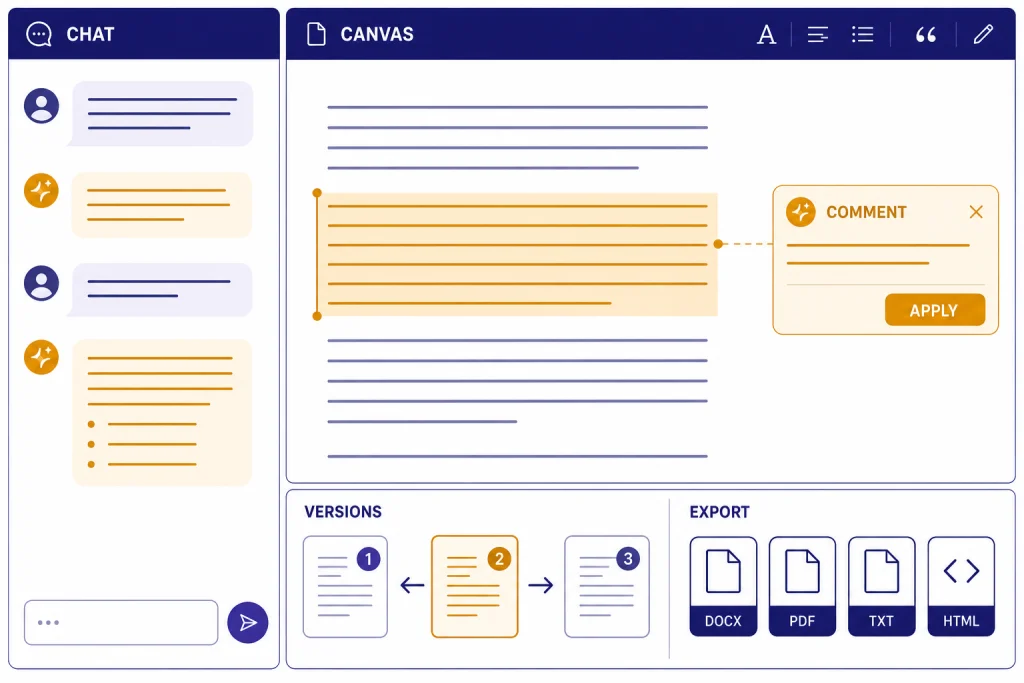
ChatGPT Canvas is the best ChatGPT interface for revising a draft or code file with the model still in the loop. It is not a full document editor, a full IDE, or a replacement for Google Docs, Word, VS Code, or the OpenAI Playground. Its value is narrower and more useful: it keeps the work visible, lets you select exact passages, accepts direct edits, shows version changes, and turns ChatGPT from a reply generator into an inline editor. In this ChatGPT Canvas review, the verdict is positive for writers, solo builders, students, and lightweight coding work. Power users will still outgrow it when they need complex formatting, multi-file codebases, or strict collaboration controls.
Verdict: Canvas is a strong editing workspace, not a full editor
Canvas earns its place when the work needs revision instead of another chat reply. A normal ChatGPT thread is fine for questions, outlines, quick snippets, and brainstorming. Canvas is better when you already have an object to improve: a memo, essay, landing page, policy draft, Python file, or small web prototype.
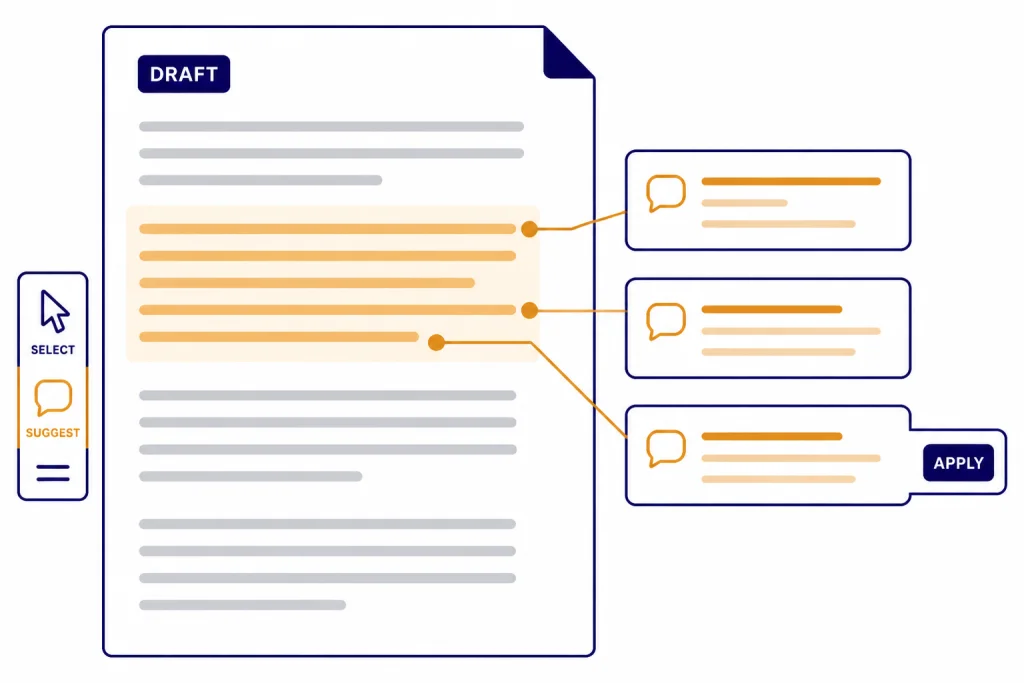
The biggest win is control. You can edit text or code directly, highlight the exact section you want changed, and ask ChatGPT to focus there instead of rewriting the whole answer. OpenAI describes Canvas as an interface for writing and coding projects that need editing and revisions, with inline feedback and suggestions that consider the broader project context.[1]
The main weakness is that Canvas still feels like an AI-assisted workbench, not a mature editor. Formatting is basic. It is not ideal for structured publishing workflows, tracked-review teams, long legal documents, or large software projects. If you care most about prompt-level control, model parameters, and API behavior, read our OpenAI Playground review instead. If you care about the whole consumer product, start with our ChatGPT review 2026.
What ChatGPT Canvas is
OpenAI introduced Canvas on October 3, 2024 as a separate workspace for writing and coding with ChatGPT.[2] It opens beside the conversation rather than burying the work inside the chat thread, and OpenAI originally described it as built with GPT-4o during the beta launch.[2]
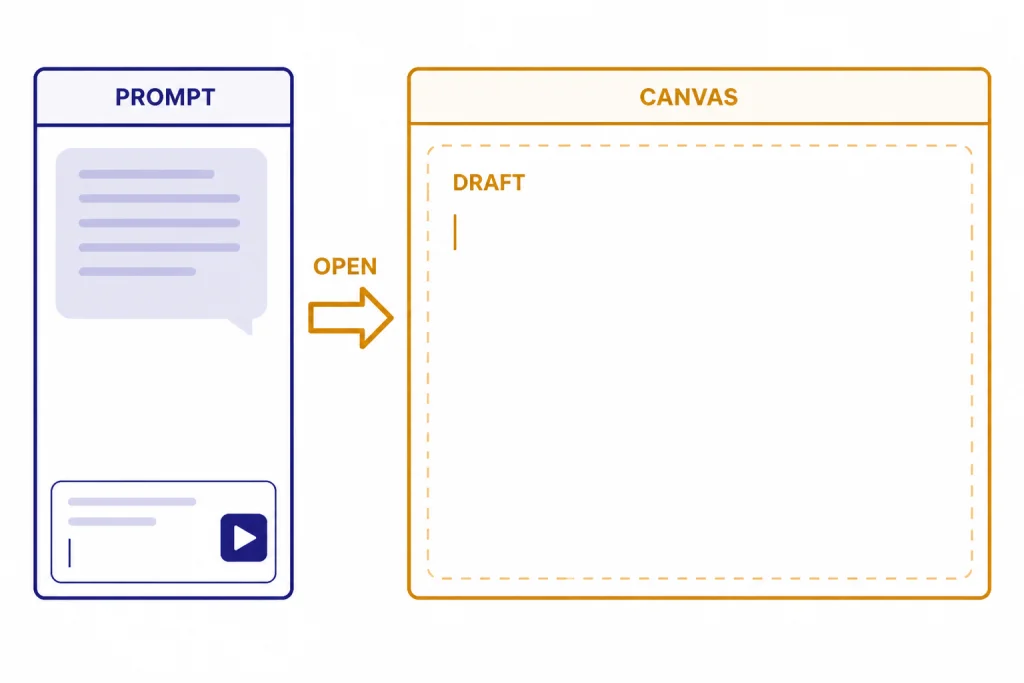
In practical terms, Canvas gives you a visible draft pane and a conversational control pane. ChatGPT may open Canvas automatically when it detects a suitable writing or coding task. OpenAI says users can typically expect Canvas to open automatically when ChatGPT generates content greater than 10 lines or detects that a writing or coding interface would help.[1] You can also prompt it directly with wording such as “use canvas,” start with a blank canvas, paste content into Canvas, or use the slash command for Canvas from the composer.[1]
Canvas is listed in OpenAI’s plan comparison for Free, Go, Plus, Pro, Business, and Enterprise users.[3] That matters because Canvas is not a reason by itself to pay for a subscription. The subscription case is stronger when you also need higher model limits, deeper reasoning, file workflows, or other paid features. For pricing context, compare our ChatGPT Plus review and ChatGPT Pro tier review.
Writing experience: where Canvas works best
Canvas is strongest as a revision environment. It keeps the draft in front of you while you ask for local changes. That sounds simple, but it changes the workflow. Instead of asking ChatGPT to “rewrite this” and then comparing two large blocks in a thread, you can select a paragraph and ask for a sharper opening, simpler language, a more neutral tone, or a stronger transition.
OpenAI’s writing shortcuts include suggested edits, length adjustment, reading level changes, final polish, and emoji insertion.[1] In our use, the first and fourth of those are the most valuable. Suggested edits turn ChatGPT into something closer to a line editor. Final polish is useful before you move a draft into WordPress, Google Docs, or a client deliverable.
The reading-level shortcut is more mixed. It can simplify dense text, but it can also flatten style. For professional writing, I prefer direct instructions such as “make this clearer for a nontechnical executive, but keep the specific nouns and do not shorten the evidence.” Canvas responds better when you constrain the job.
Canvas also supports direct editing and basic markdown formatting, including bold, italics, headers, bullet lists, and numbered lists. OpenAI says it does not currently offer more advanced formatting options in Canvas.[1] This is the right tradeoff for drafting. It is the wrong tool for final layout. For publication, move the result into your CMS or document editor after the language is stable.
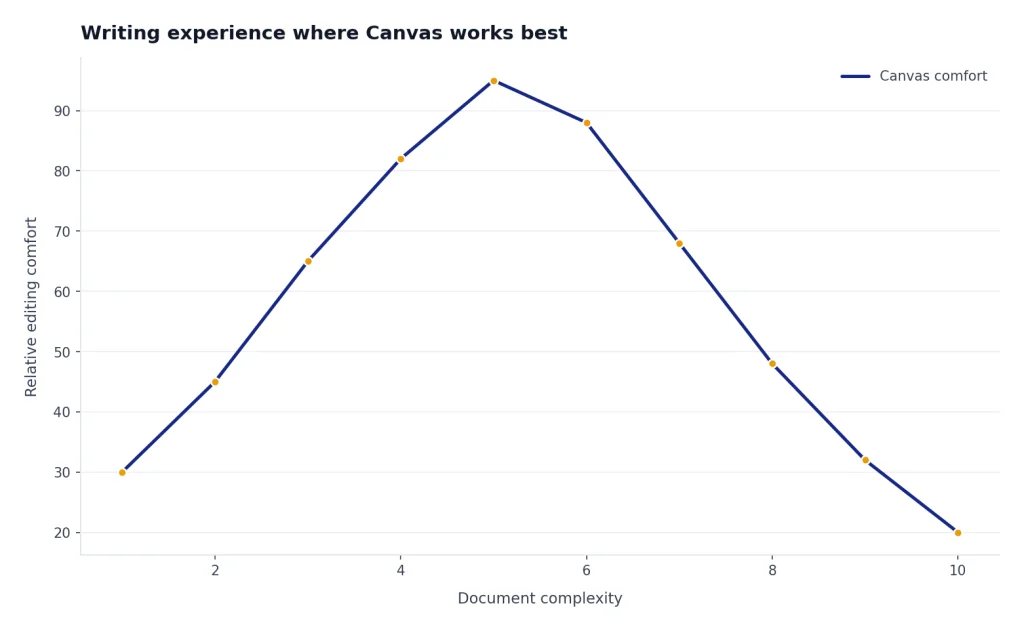
The editor experience is especially good for medium-length work: article sections, internal memos, emails, sales pages, scripts, study notes, and documentation. It becomes less comfortable when the document depends on footnotes, nested formatting, comments from several reviewers, or precise page layout.
Coding experience: useful for single-file work
Canvas is useful for coding, but the ceiling is lower than the writing experience. It works best for isolated files, small scripts, React or HTML experiments, and code review on a contained snippet. It is not a substitute for a local IDE, test suite, source control workflow, or repo-aware coding agent.
OpenAI lists coding shortcuts for adding logs, adding comments, fixing bugs, porting code to another language, and code review.[1] The porting shortcut supports languages including JavaScript, Python, Java, TypeScript, C++, and PHP.[1] These shortcuts are convenient when the file is small enough that you can understand the full change in one view.
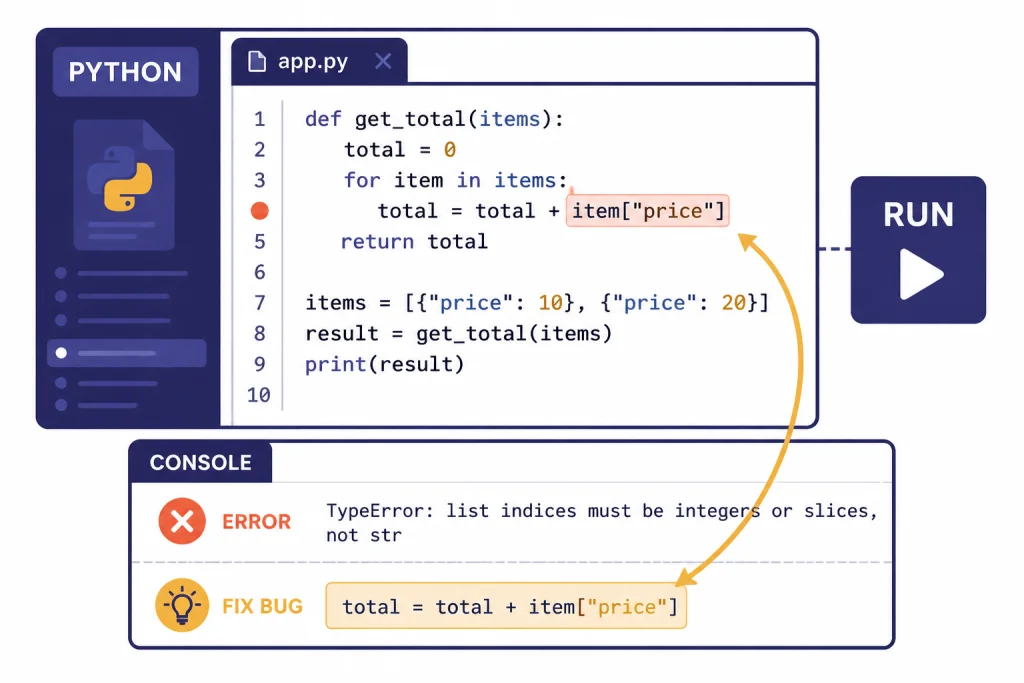
Python execution is the most concrete coding feature. OpenAI says you can run Python code in Canvas from the browser, see output in a console at the bottom of the screen, and ask ChatGPT to fix errors that appear there.[1] For quick scripts, data transformations, teaching examples, and debugging a short function, that loop feels productive.
React and HTML preview also improves the experience. OpenAI says React and HTML code render in a sandbox environment, and that all npm packages plus many JavaScript libraries will work.[1] This makes Canvas useful for prototypes. It does not make it a production frontend environment. You still need your own build system, dependency control, linting, tests, accessibility checks, and version control.
For serious coding, Canvas sits between normal ChatGPT and heavier tools. If you want model comparisons for reasoning and coding strength, see our GPT-5 review, GPT-4o review, and OpenAI o3 review. If you are building reusable assistants around a workflow, our ChatGPT Custom GPTs review is more relevant than Canvas alone.
Limits, safety notes, and rough edges
The first limitation is formatting. Canvas is not Word. It is not Google Docs. It is not a design canvas. The basic markdown support is enough for headings and lists, but not enough for detailed publishing, complex tables, editorial comments from several people, or print-ready formatting.[1]
The second limitation is model and plan confusion. OpenAI’s Help Center says Canvas is not available with pro-series models.[1] OpenAI’s pricing comparison still lists Canvas as available on the Pro plan.[3] Those statements can both be true because “pro-series models” and the “Pro” subscription tier are not the same thing. The practical takeaway is simple: if Canvas does not appear with a particular model, switch models before assuming your plan lacks Canvas.
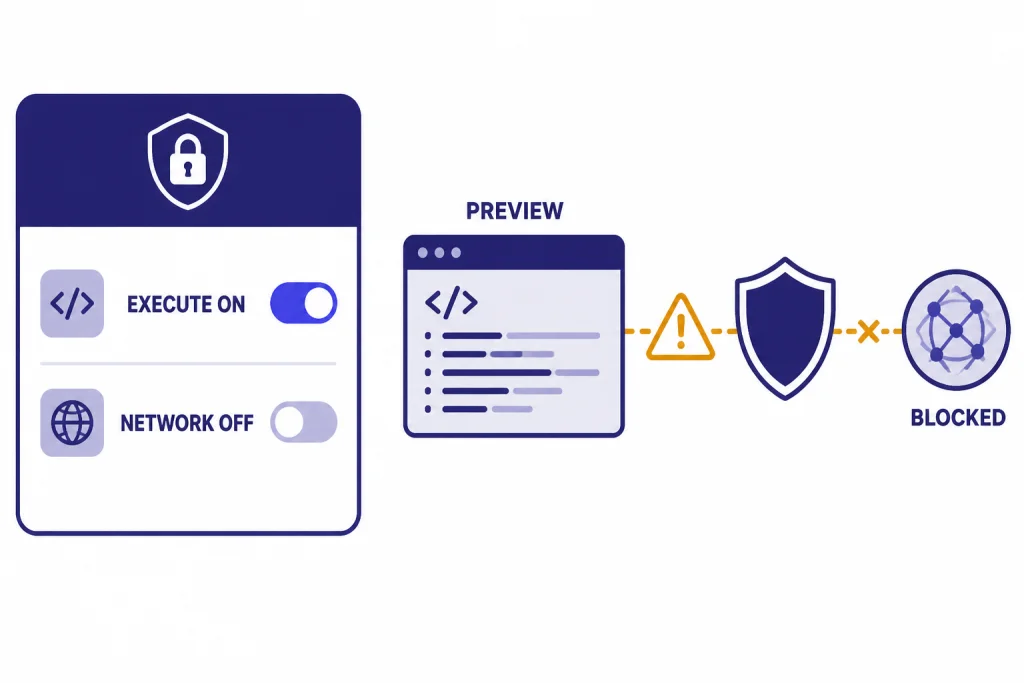
The third limitation is privacy and network behavior around previews. OpenAI warns that code execution and React or HTML rendering can make external network requests. It also says Enterprise workspace admins can control Canvas code execution and default network access behavior, with Canvas code execution on by default and network access off by default for Enterprise workspaces unless changed in admin settings.[1]
That warning matters. Do not paste secrets, credentials, confidential customer data, unreleased source code, or regulated data into a preview unless your organization has approved that workflow. Canvas can preview web content, and OpenAI says ChatGPT will ask you to confirm communication with third parties OpenAI does not know about when you interact with Canvas web preview.[1]
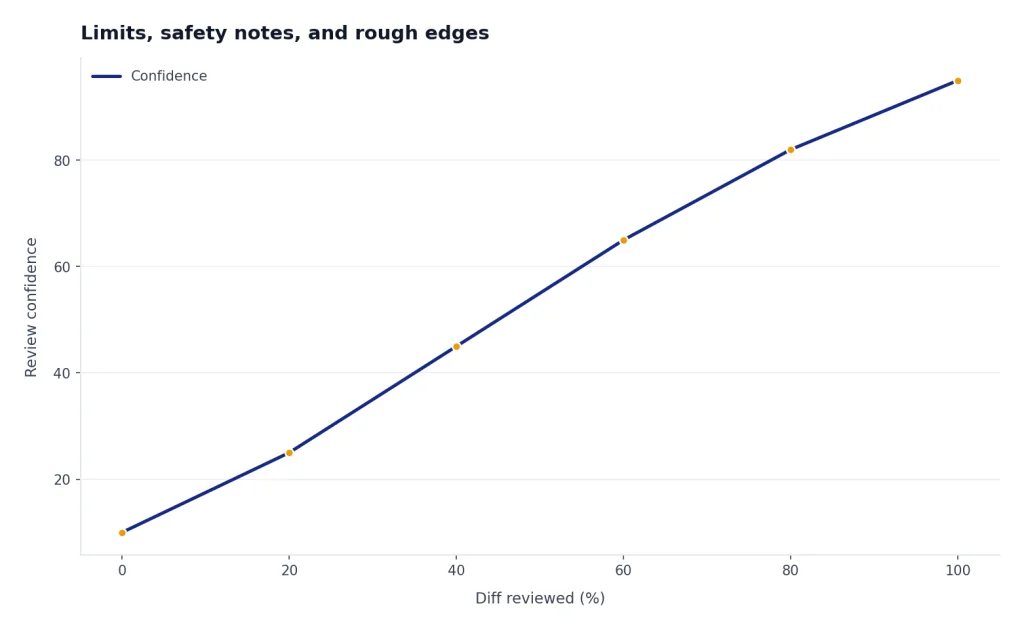
The fourth limitation is scale. OpenAI has not published an official maximum practical document length for comfortable Canvas editing. In use, the experience is best when the document or code file is small enough that you can inspect the model’s changes yourself. If you cannot review the diff, Canvas is too much trust for too little visibility.
Canvas compared with chat, docs, IDEs, and Playground
The easiest way to understand Canvas is to compare it with tools you already use. It is not the universal best interface. It is the best interface when the object being edited should stay visible while ChatGPT makes targeted changes.
| Workflow | Best choice | Why |
|---|---|---|
| Quick question or short answer | Regular ChatGPT chat | Canvas adds overhead when there is no draft to edit. |
| Article, memo, or script revision | ChatGPT Canvas | The visible draft and selected-section edits reduce rewrite chaos. |
| Final document formatting | Word, Google Docs, or a CMS | Canvas has basic formatting, not full layout or collaboration controls. |
| Small Python script debugging | ChatGPT Canvas | Browser execution and the console make the fix loop faster.[1] |
| Production software work | IDE plus source control | Canvas does not replace repo context, tests, branches, or review workflows. |
| Prompt and API testing | OpenAI Playground | Playground is better for parameters, model behavior, and developer experiments. |
Canvas also overlaps with other ChatGPT features, but the overlap is not redundant. Deep Research is better for gathering and synthesizing sources; see our ChatGPT Deep Research review. Voice Mode is better when you want spoken brainstorming before drafting; see our ChatGPT Voice Mode review. Canvas is where the actual revision should happen after the idea is concrete.
Who should use ChatGPT Canvas
Writers should use Canvas when they want ChatGPT to edit a draft without losing the original structure. It is especially helpful for tightening introductions, improving transitions, shortening bloated sections, and making a paragraph match the tone of the surrounding piece.
Students should use it carefully. Canvas can help organize notes, simplify explanations, and improve clarity. It should not become a way to submit work you cannot explain. The best student workflow is to draft first, use Canvas for feedback, and then make final edits manually.
Developers should use Canvas for small, inspectable units of code. It is useful for a function, script, component, or bug explanation. It is not where I would manage a production application. For agents that act across tools and files, our ChatGPT Agent review is a better comparison.
Teams should treat Canvas as a draft and review helper, not a governance layer. Sharing a canvas is available across plans, and OpenAI says users can share rendered React or HTML code, documents, or code from the Canvas toolbar.[1] That is useful for handoff. It is not the same as full document permissions, records management, or code review policy.
How to get better results in Canvas
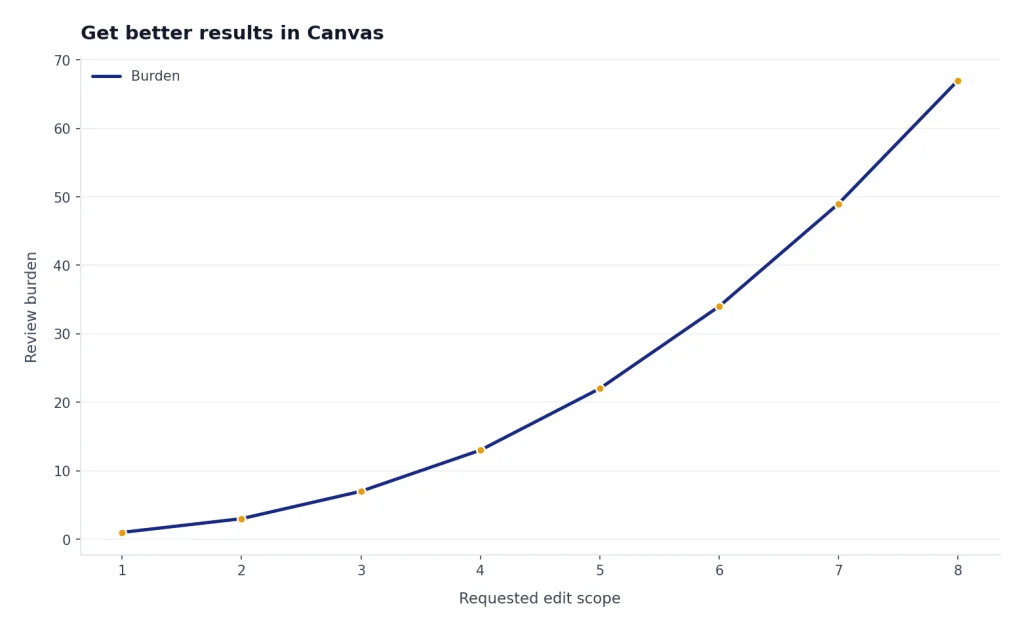
The best Canvas prompts are narrow. Ask for the smallest useful change. “Make this more persuasive” is vague. “Rewrite the selected paragraph so the claim appears first, keep the example, and reduce the sentence length” is better.
- Select before asking. Highlight the exact paragraph, sentence, or code block you want changed.
- Name the constraint. Tell Canvas what must stay: examples, terminology, function signatures, citations, tone, or structure.
- Ask for comments before rewrites. Suggested edits are safer than broad rewrites when the draft is already close.
- Use version history. OpenAI says Canvas lets you navigate previous versions, restore them, and show changes between versions.[1]
- Export when stable. OpenAI says documents can be exported as PDF, Markdown, and Word files, while code canvases export with appropriate file extensions such as .py, .js, and .sql.[1]
My strongest advice is to keep ownership of the final pass. Canvas can improve structure and clarity quickly, but it can also normalize your voice if you accept every suggestion. Use it like a fast editor, not an authority.
Frequently asked questions
Is ChatGPT Canvas worth using?
Yes, if you revise writing or small code files inside ChatGPT. Canvas is most useful when you need targeted edits, inline suggestions, version review, or a visible draft. It is less useful for quick answers, final formatting, or large engineering projects.
Is ChatGPT Canvas free?
OpenAI’s pricing comparison lists Canvas as available on Free, Go, Plus, Pro, Business, and Enterprise plans.[3] Paid plans may still matter because they can provide broader access to models and other ChatGPT features. Canvas alone is not a strong reason to upgrade.
Can Canvas replace Google Docs or Microsoft Word?
No. Canvas is better for AI-assisted drafting and revision. Google Docs and Word are better for final formatting, document collaboration, comments, permissions, and polished deliverables.
Can Canvas run code?
Canvas can run Python code in the browser and show output in a console, according to OpenAI.[1] It can also render React and HTML in a sandbox environment.[1] For production work, you should still use a real development environment with tests and version control.
Why does Canvas open automatically?
OpenAI says ChatGPT may open Canvas when it detects a writing or coding task where the interface would help, and it may do so for generated content greater than 10 lines.[1] You can also ask directly by including “use canvas” in the prompt.[1] If you do not want it, ask ChatGPT to answer in chat instead.
Is Canvas safe for confidential work?
Treat it with the same caution you apply to ChatGPT generally, plus extra caution for code previews. OpenAI warns that code execution and React or HTML rendering can make external network requests.[1] For regulated or confidential work, follow your organization’s ChatGPT policy before using Canvas.