

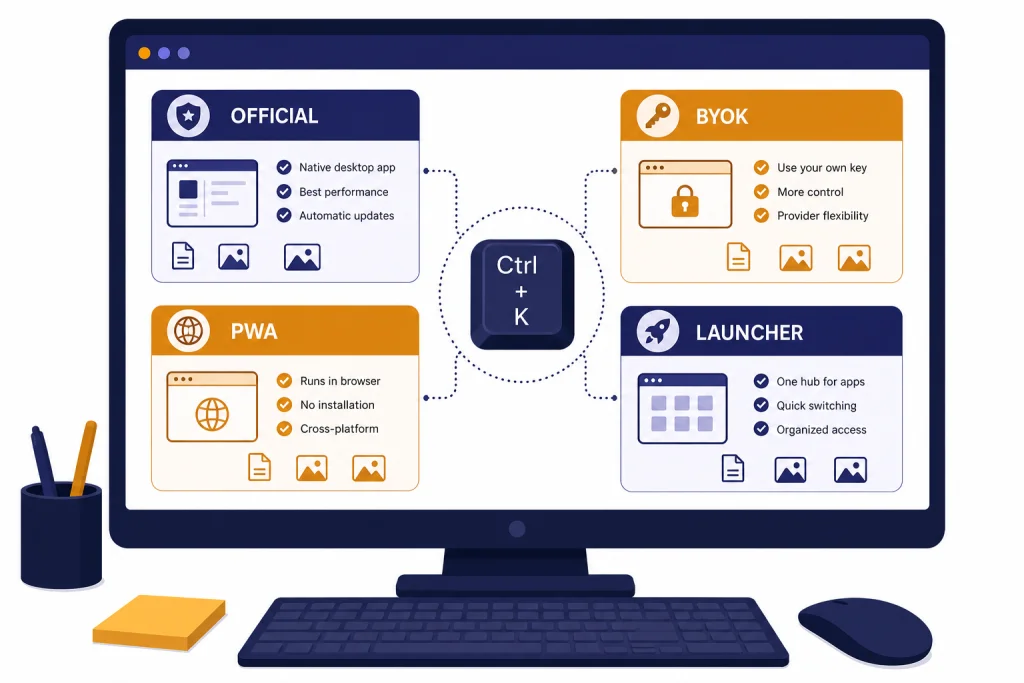
The best ChatGPT desktop app for most people is OpenAI’s official ChatGPT app because it supports macOS and Windows, includes fast keyboard access, and connects directly to the ChatGPT account you already use. Power users may prefer a desktop client such as BoltAI, MindMac, Chatbox, or TypingMind when they want local chat history, multiple model providers, prompt libraries, or bring-your-own-key control. The right choice depends less on raw model quality and more on workflow. Writers need frictionless access. Coders need app and IDE context. Teams need policy controls. API users need cost visibility. This guide compares the strongest options and explains when a browser tab is still the better tool.
Quick picks
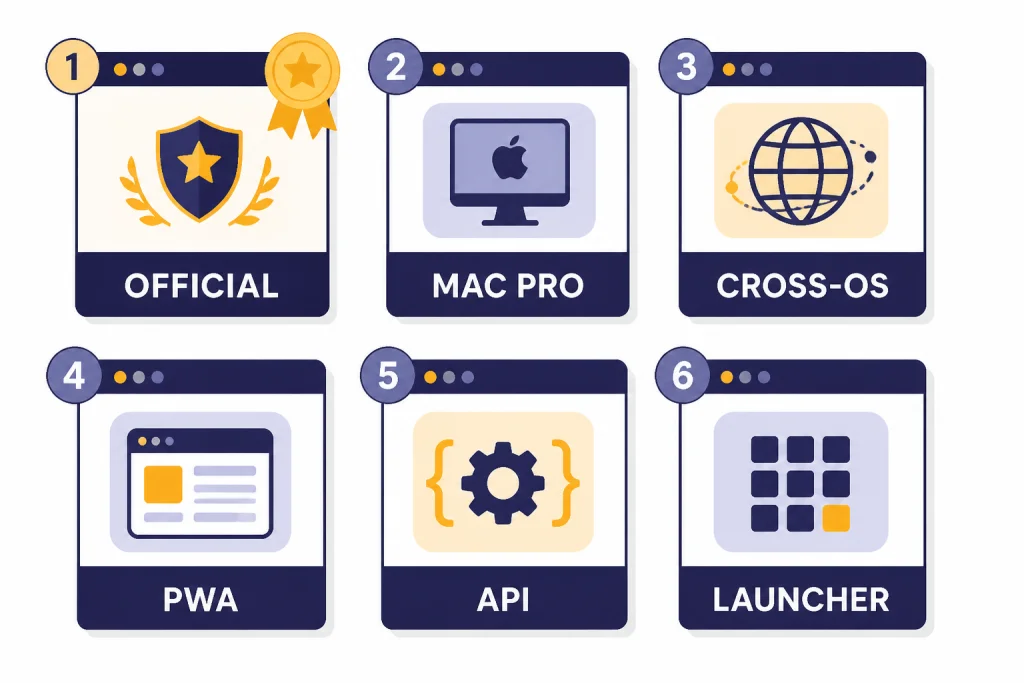
If you want the shortest answer, start with the official ChatGPT desktop app. OpenAI describes it as a desktop app for chatting about code, email, screenshots, files, and content on your screen, with a keyboard shortcut on both supported platforms.[1] It is the safest default because it uses your ChatGPT account, not a copied API key or an unknown middle layer.
- Best overall: Official ChatGPT desktop app for macOS and Windows.
- Best for Windows users: Official ChatGPT Windows app from the Microsoft Store.
- Best Mac power-user client: BoltAI, especially if you want native macOS behavior, local chats, and many model providers.
- Best Mac API client: MindMac, especially if you want an OpenAI API workflow, inline mode, and local storage.
- Best cross-platform BYOK app: Chatbox, because it supports Windows, macOS, Linux, mobile, web, and your own API key.[11]
- Best browser-like workspace: TypingMind, because it offers installable PWA support across macOS, Linux, Windows, iOS, and Android.[8]
- Best launcher-first option: Raycast AI for Mac users who already live in Raycast and want quick commands more than a full ChatGPT clone.
If you are comparing desktop and phone use together, read Best ChatGPT Mobile Apps and best ChatGPT app for Mac, iPhone, and Android next. If you only need a Windows setup walkthrough, use our ChatGPT Windows app guide.
Best ChatGPT desktop apps compared
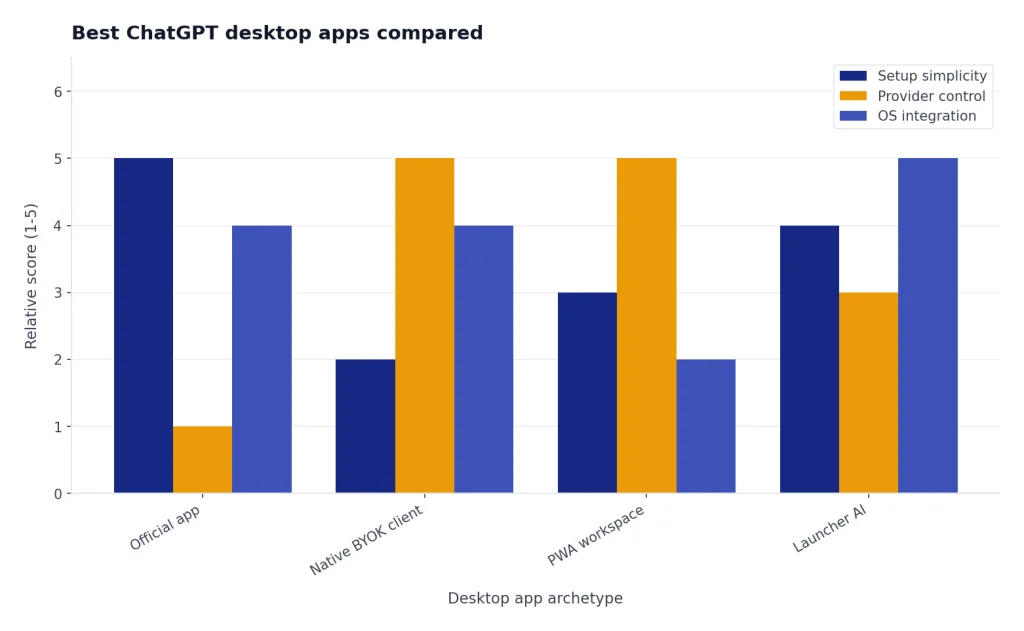
The main split is official app versus third-party client. The official app is best when you want ChatGPT exactly as OpenAI ships it. Third-party clients are best when you want local organization, multiple providers, API-key billing, or a Mac-native productivity layer.
| App | Best for | Desktop platforms | How it connects | Key caveat |
|---|---|---|---|---|
| Official ChatGPT desktop app | Most users | macOS, Windows | ChatGPT account | macOS requires macOS 14 and Apple Silicon; Windows requires Windows 10 version 17763.0 or higher.[2][3] |
| BoltAI | Mac power users | macOS | AI providers and local tools | It is a separate client, not OpenAI’s official ChatGPT app. |
| MindMac | Mac API users | macOS | OpenAI API and other providers | You need a valid API key to use ChatGPT through MindMac.[9] |
| Chatbox | Cross-platform users | Windows, macOS, Linux, web, iOS, Android | Own API key or Chatbox AI plans | Its paid Chatbox AI service is separate from OpenAI billing. |
| TypingMind | Multi-model workspace users | PWA install on macOS, Linux, Windows, iOS, Android | API keys and supported model providers | It is closer to a web/PWA workspace than a native desktop app. |
| Raycast AI | Mac launcher workflows | macOS | Raycast AI plans, local models, and supported providers | It is a productivity launcher with AI, not a dedicated ChatGPT client. |
Do not judge these apps only by screenshots. A beautiful wrapper around a chatbot is not enough. The best desktop app should reduce context switching, make it easy to add files or screenshots, preserve the right amount of history, and expose enough settings without making every prompt feel like an engineering task.
Official ChatGPT desktop app
The official ChatGPT desktop app is the first app most readers should install. It gives you direct access to ChatGPT from the desktop and avoids the account, billing, and privacy ambiguity that can come with third-party wrappers. OpenAI’s desktop page lists faster desktop access, screenshots, file uploads, web search, and voice as desktop capabilities.[1]
On macOS, OpenAI says the ChatGPT app requires macOS 14 and Apple Silicon, meaning an M1 chip or better.[3] On Windows, OpenAI says the app requires Windows 10 on x64 or arm64, version 17763.0 or higher, and is distributed through the Microsoft Store.[2] Those requirements matter if you use an older Intel Mac or a locked-down work PC.
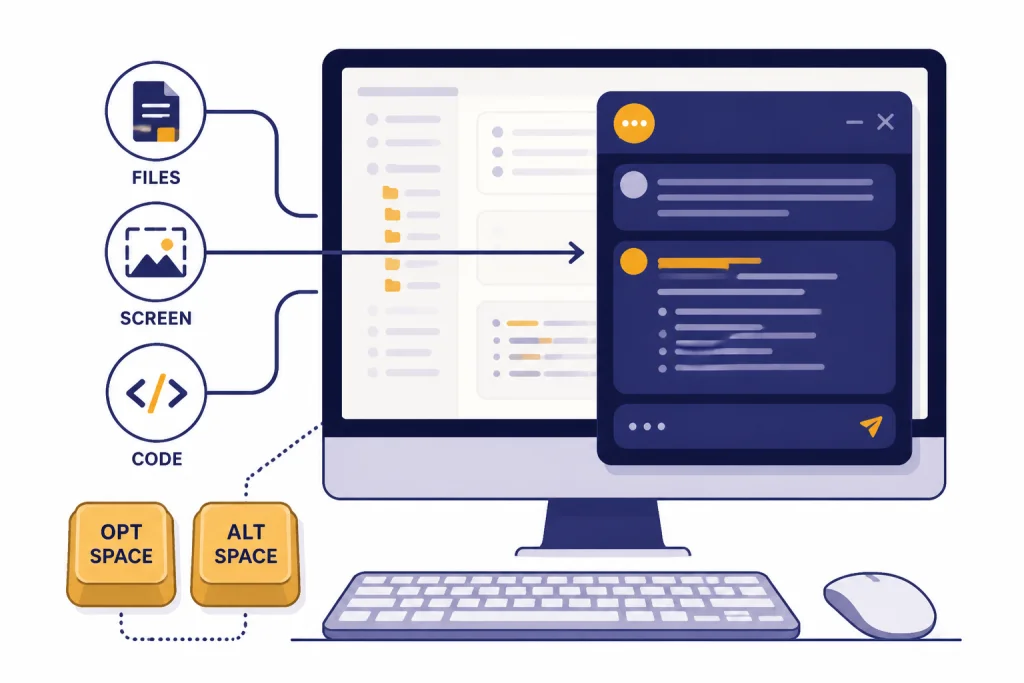
The app’s fastest feature is the keyboard shortcut. OpenAI lists Option + Space on macOS and Alt + Space on Windows for launching ChatGPT from the desktop.[1] That sounds minor, but it changes the habit. Instead of opening a browser tab, finding ChatGPT, and pasting context, you can ask from the window you are already using.
The Mac version is especially useful for developers. OpenAI says ChatGPT for macOS can work with apps such as IDEs, terminals, and Notes, and the app can be opened with Option + Space while you work in the active app.[4] OpenAI also says ChatGPT can write edits directly into an IDE and that this is available to all users on macOS.[1] If your main use case is code, compare this with our best AI coding assistants of 2026 before you commit to one workflow.
The official app is not always the best choice. It is not designed to be a universal multi-model dashboard. It does not replace a token meter, an API cost tracker, or a prompt-management system. If you need those, pair it with OpenAI Token Counter Tools, Best OpenAI API Cost Calculator Tools, or Best ChatGPT Prompt Generator Tools.
Third-party ChatGPT desktop clients
Third-party desktop clients make sense when you want control that the official app does not provide. They can store chats locally, connect to several model providers, support local models, expose model parameters, or let you run repeatable commands in other apps. The tradeoff is responsibility. You need to understand where your prompts go, how API keys are stored, and whether the app uses OpenAI directly or routes traffic through its own service.
BoltAI
BoltAI is one of the strongest Mac-first options. Its documentation says the app is built as a native macOS app using SwiftUI and AppKit, includes instant chat, inline workflows, dictation, advanced LLM parameters, and support for more than 300 AI models from providers such as OpenAI, Anthropic, Google AI, DeepSeek, Mistral, Azure OpenAI, and Amazon Bedrock.[10]
BoltAI is best if you want a serious Mac desktop layer around AI rather than a simple ChatGPT window. It fits writers, developers, consultants, and researchers who reuse commands all day. Its privacy posture is also clearer than many small wrappers: BoltAI says chats are stored locally in SQLite, prompts go directly to your AI provider, cloud sync is optional, API keys can be end-to-end encrypted, and the app is sandboxed and notarized by Apple.[10]
MindMac
MindMac is another Mac-focused ChatGPT client, but it is more obviously built around API-key use. Its site says that after configuring an API key, you can chat with ChatGPT in the main app or use Inline mode in apps such as Notes, Mail, and browsers.[9] MindMac also says ChatGPT access through the app requires an OpenAI account and a valid API key.[9]
MindMac is best if you want a traditional desktop client with local-first behavior and you are comfortable managing API billing. Its free plan has limits: MindMac says free users can create a maximum of 5 conversations and use Inline mode up to 10 times per day.[9] That is enough to test the workflow, not enough for heavy daily use.
Chatbox
Chatbox is the most practical cross-platform pick. Its download page says Chatbox apps are free, support Windows, macOS, Linux, iOS, Android, and web, and let users bring their own API key to access model services.[11] That makes it useful if you move between a Windows desktop, a Linux laptop, and a Mac.
Chatbox also sells its own Chatbox AI service. Its page lists Lite at $3.50 per month, Pro at $16.70 per month, and Pro+ at $33.33 per month, with compute-point quotas and model access varying by tier.[11] Treat those plans as separate from OpenAI subscriptions. They may be convenient, but they are not the same thing as ChatGPT Plus.
TypingMind
TypingMind is less of a native desktop app and more of an installable AI workspace. Its documentation says all TypingMind plans are one-time purchases and support PWA installation on macOS, Linux, Windows, iOS, and Android.[8] It also supports multiple model families, including GPT models, Claude models, Gemini models, DeepSeek, Mistral AI, OpenRouter, and open-source models.[8]
Choose TypingMind if you want a durable workspace for prompts, agents, knowledge bases, plugins, and multiple providers. Skip it if you want a small native menubar app or an official ChatGPT experience. TypingMind is strongest when you want your own AI control panel.
Raycast AI
Raycast AI belongs in this roundup because many Mac users use it as their fastest route to AI, even though it is not a dedicated ChatGPT app. Raycast says every user gets 50 free AI messages, and its Pro request limits include 50 requests per minute and 300 requests per hour for Pro models.[12] Raycast’s original Pro announcement listed Pro at $8 per month when billed annually.[13]
Raycast is best when the prompt is part of a command. Rename text. Translate a snippet. Ask a quick question. Summarize something from the clipboard. It is weaker as a long-form ChatGPT replacement because the core product is still a launcher. If your workflow happens in the browser, compare it with ChatGPT Chrome Extension: Top Picks and ChatGPT Sidebar Review.
Bring-your-own-key apps vs ChatGPT subscriptions
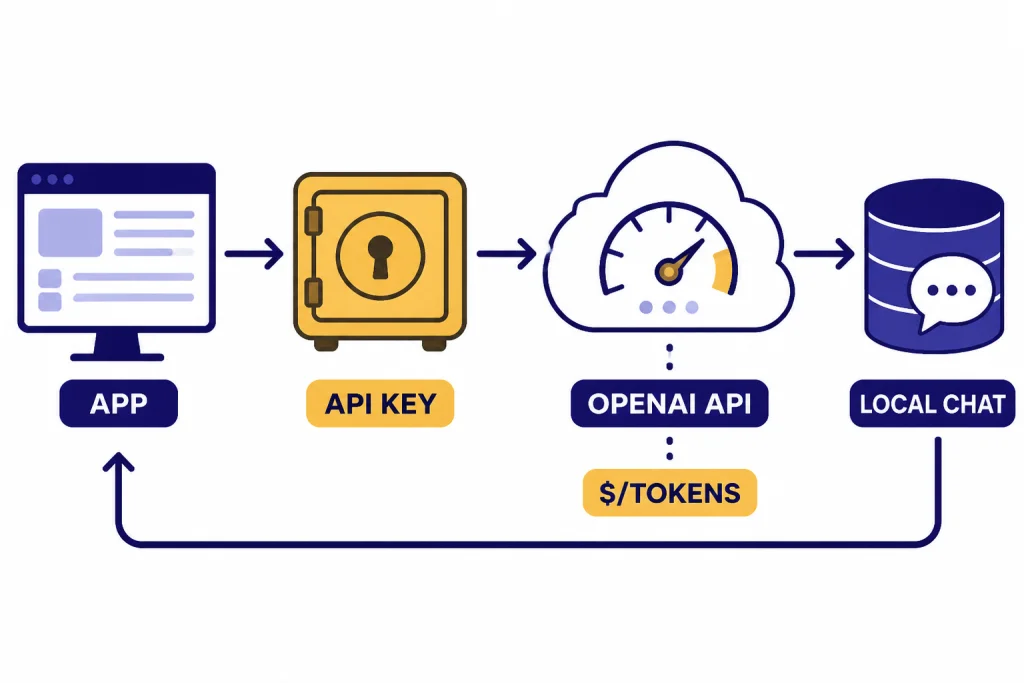
The biggest buying mistake is assuming a ChatGPT Plus subscription covers every desktop client. It does not. OpenAI says API service is billed and managed separately from ChatGPT, and API usage is charged by token use.[7] That means a BYOK app can be cheap for light use and surprisingly expensive for heavy document workflows.
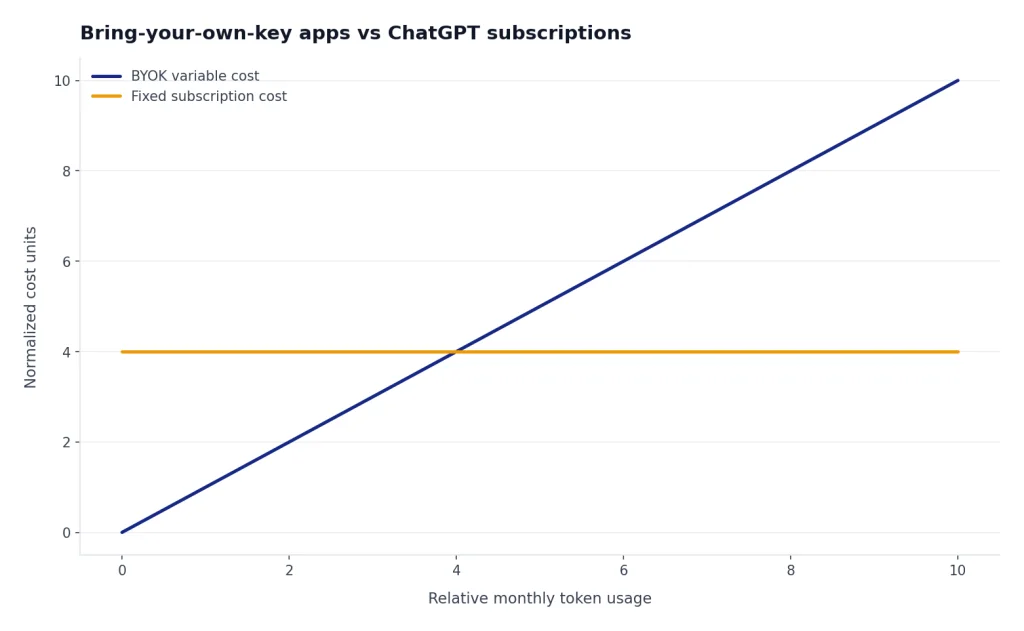
ChatGPT Plus is simpler. OpenAI says ChatGPT Plus costs $20 per month and includes enhanced access, faster response speeds, expanded features, file uploads and analysis, image generation, voice conversations, deep research tools where available, and custom GPT creation and use.[5] OpenAI’s pricing page also lists ChatGPT Pro at $200 per month.[6] For many people, those fixed monthly plans are easier to understand than token billing.
| Choice | What you pay for | Best when | Risk |
|---|---|---|---|
| Official ChatGPT app with Free, Plus, or Pro | A ChatGPT plan, if you upgrade | You want official features and predictable access | Less control over model-provider mixing and local organization |
| BYOK desktop client | The app license plus separate API usage | You want multi-provider control, local storage, and model settings | Costs vary by token use and provider |
| Third-party hosted AI plan | The app vendor’s subscription | You want convenience without managing API keys | You must trust the vendor’s routing, limits, and retention policies |
If you are mostly writing emails, outlines, summaries, and short drafts, the official app is usually enough. If you process large files, compare long outputs, or run repeated workflows, the economics can change. Use an API calculator before moving a high-volume workflow into a BYOK client. Our OpenAI API pricing guide, API cost calculator tools, and token counter tools can help you estimate the difference.
Privacy and security checklist
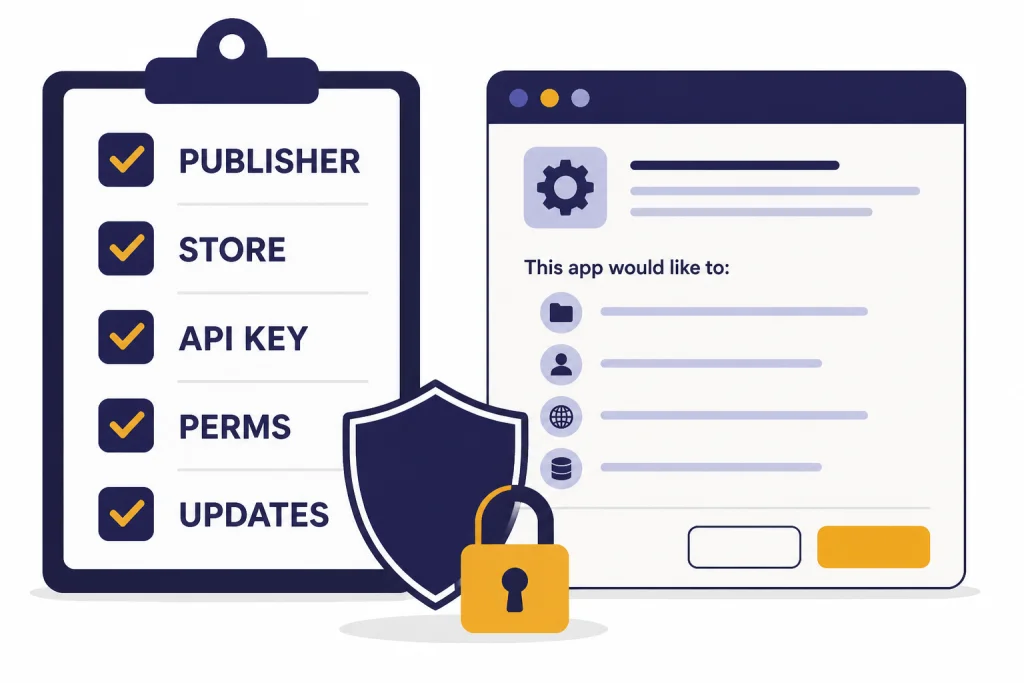
Desktop AI apps deserve more scrutiny than ordinary note apps. They may receive screenshots, files, source code, emails, customer data, meeting notes, or API keys. Before you install one, check five things.
- Publisher: Confirm the developer. For the official ChatGPT app, start from OpenAI’s own download page or the linked store page, not a search ad.
- Billing path: Know whether you are paying OpenAI, the app developer, or both.
- API-key handling: Prefer apps that clearly explain key storage, encryption, and whether requests go directly to the model provider.
- Local data: Check whether chats stay on your device, sync through the vendor, or go to a third-party backend.
- Permissions: Be cautious with screen, accessibility, file-system, and clipboard permissions. Grant only what the workflow needs.
This is also why the official app remains the safest default for casual users. If an app claims to be ChatGPT but asks for unusual permissions, pushes aggressive subscriptions, or hides the publisher, skip it. For school or workplace settings, pair any app rollout with an AI-use policy. Related tools such as Best AI Detectors for Teachers and Schools, Best Plagiarism Checkers, and Best AI Summarizer Tools for Long Documents solve different problems and should not be treated as substitutes for safe app selection.
Choose by workflow
The best desktop app is the one you will use without friction. Pick by job, not by feature count.
For everyday ChatGPT use
Use the official ChatGPT desktop app. It is direct, current, and tied to your existing ChatGPT account. It is especially good for quick questions, file uploads, screenshots, and general writing help.
For writers and marketers
Start with the official app, then add a prompt tool only if you repeat the same tasks often. If your work is mostly drafting, editing, and rewriting, a full BYOK client may be unnecessary. Compare specialized options in best AI writing tools compared in 2026 before paying for another AI subscription.
For developers
Mac developers should test the official app’s Work with Apps flow first. If you need deeper IDE automation, compare it with coding assistants and agent tools. BoltAI is a strong Mac option for multi-model workflows, while Chatbox is better if you need Windows, macOS, and Linux coverage.
For API users
Use MindMac, Chatbox, TypingMind, or BoltAI only after you understand API billing. BYOK apps can be excellent, but the app license is not the full cost. You still need to pay the model provider for usage.
For Microsoft-heavy workflows
If your work already lives in Microsoft 365, Copilot may fit better than a standalone ChatGPT client. It is not the same as ChatGPT, but it can be more convenient inside Microsoft’s ecosystem. If you want an OpenAI browser-style experience, also compare ChatGPT Atlas for Windows as that product line evolves.
Final recommendation: install the official ChatGPT desktop app first. Use it for a week. If you keep wishing for local folders, provider switching, API controls, custom parameters, or repeatable commands, then test a third-party client. That order avoids paying for complexity before you know you need it.
Frequently asked questions
What is the best ChatGPT desktop app?
The best ChatGPT desktop app for most users is OpenAI’s official ChatGPT app. It supports macOS and Windows, uses your ChatGPT account, and includes desktop shortcuts, file uploads, screenshots, and other official features. Third-party apps are better only when you need API-key control, local organization, or multi-model workflows.
Is there an official ChatGPT app for Windows?
Yes. OpenAI documents a ChatGPT Windows app distributed through the Microsoft Store. OpenAI says it requires Windows 10 version 17763.0 or higher on x64 or arm64 systems.[2]
Can I use ChatGPT Plus in third-party desktop apps?
Usually no. Many third-party apps use the OpenAI API, and OpenAI says API service is billed and managed separately from ChatGPT.[7] A ChatGPT Plus subscription applies to ChatGPT itself, not automatically to API-key clients.
Are third-party ChatGPT desktop apps safe?
Some are reputable, but you should verify the publisher, permissions, API-key handling, and data storage policy before installing. Prefer apps that clearly state whether prompts go directly to OpenAI or through the app developer’s servers. Do not paste sensitive work data into an app you have not vetted.
What is the best ChatGPT desktop app for Mac?
For most Mac users, the official ChatGPT app is the best starting point. For Mac power users, BoltAI and MindMac are worth testing because they offer more desktop control, local workflows, and provider flexibility. The official app requires macOS 14 and Apple Silicon, according to OpenAI.[3]
What is the best cross-platform ChatGPT desktop client?
Chatbox is the strongest cross-platform pick because it supports Windows, macOS, Linux, web, iOS, and Android, and it lets users bring their own API key.[11] TypingMind is also strong if you are comfortable with an installable PWA rather than a fully native desktop app.