

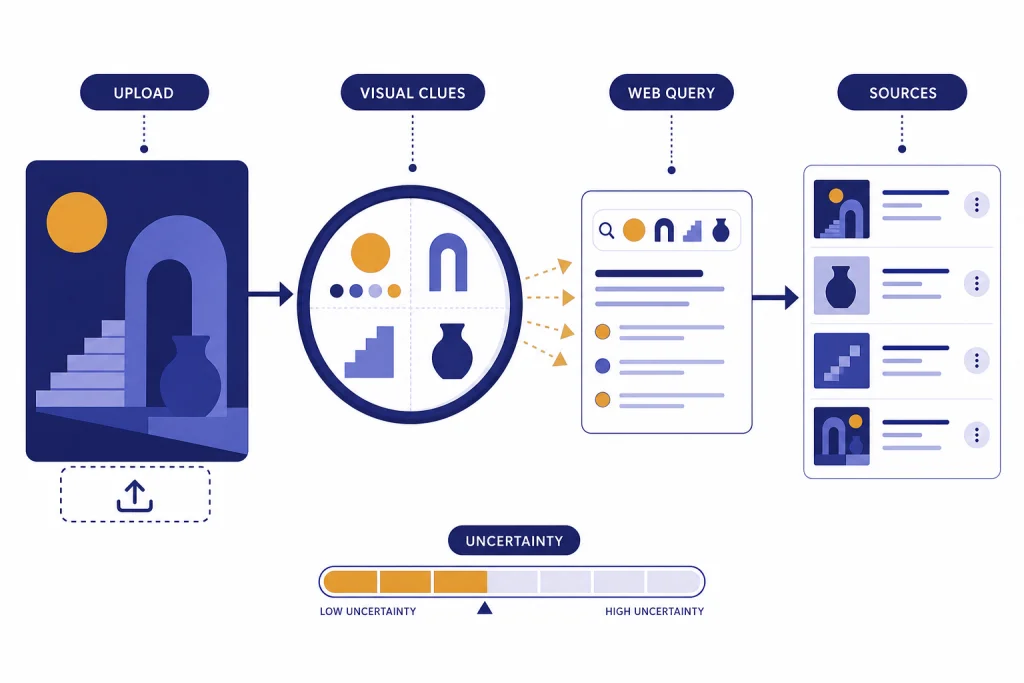
ChatGPT image search is useful when you want an explanation, identification attempt, or source-backed research path for an image, but it is not a full replacement for a traditional reverse image search engine. You can upload a static image, ask ChatGPT to describe visible clues, and tell it to search the web for matching context, products, locations, artworks, screenshots, or claims. The strongest results come from combining ChatGPT’s visual reasoning with web citations and, when needed, a dedicated reverse image tool such as Google Lens, Bing Visual Search, or TinEye. Use ChatGPT when you need interpretation. Use a reverse image engine when you need exact matches.
What ChatGPT image search is
ChatGPT image search is a practical workflow, not a separate search engine button. You give ChatGPT an image. It analyzes what is visible. Then you ask it to search the web for source-backed context. OpenAI describes image inputs as a way for ChatGPT to understand and interpret images added to a conversation, including objects, documents, and visual content.[1] OpenAI also says ChatGPT Search can look up timely web information and provide links to relevant sources.[2] Together, those capabilities let ChatGPT turn visual evidence into a research query.
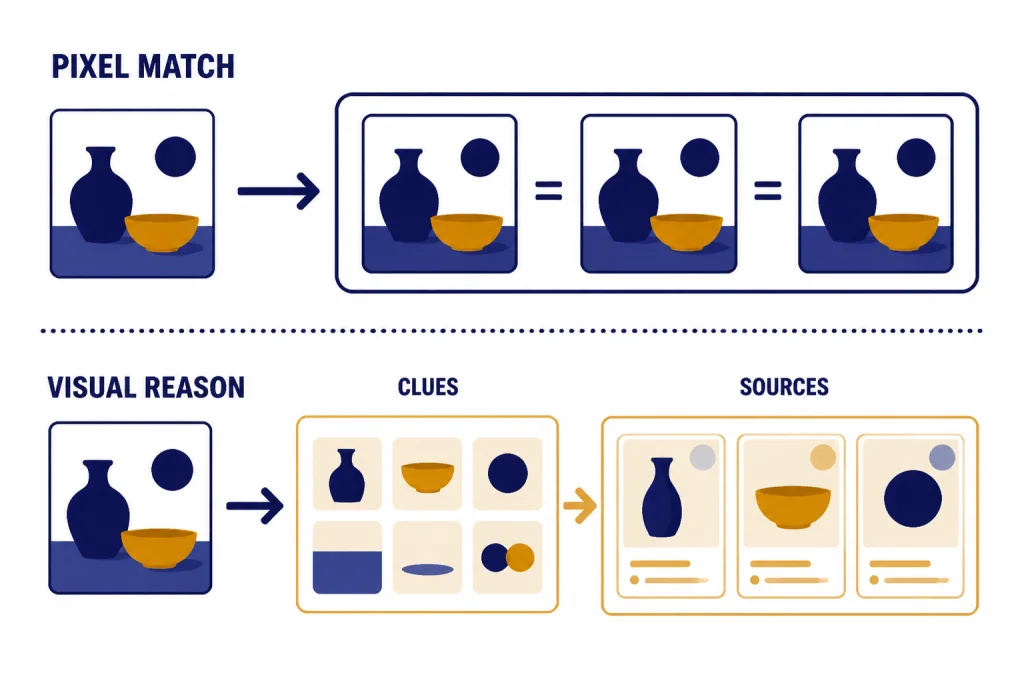
The important distinction is that ChatGPT usually does not perform the same kind of pixel-level index lookup that a dedicated reverse image search engine performs. It may reason from visible details, read text in the image, infer likely names, and search the web using those clues. That can be better than a normal reverse search when the image needs interpretation. It can also be worse when your goal is to find the exact page where an image first appeared.
For a broader overview of the visual side of ChatGPT, start with our ChatGPT vision guide. For the web side, read this guide to ChatGPT Search and our guide to ChatGPT web browsing. This article focuses on the overlap: using an uploaded image as the starting point for a web-backed lookup.
How to run a reverse image lookup in ChatGPT
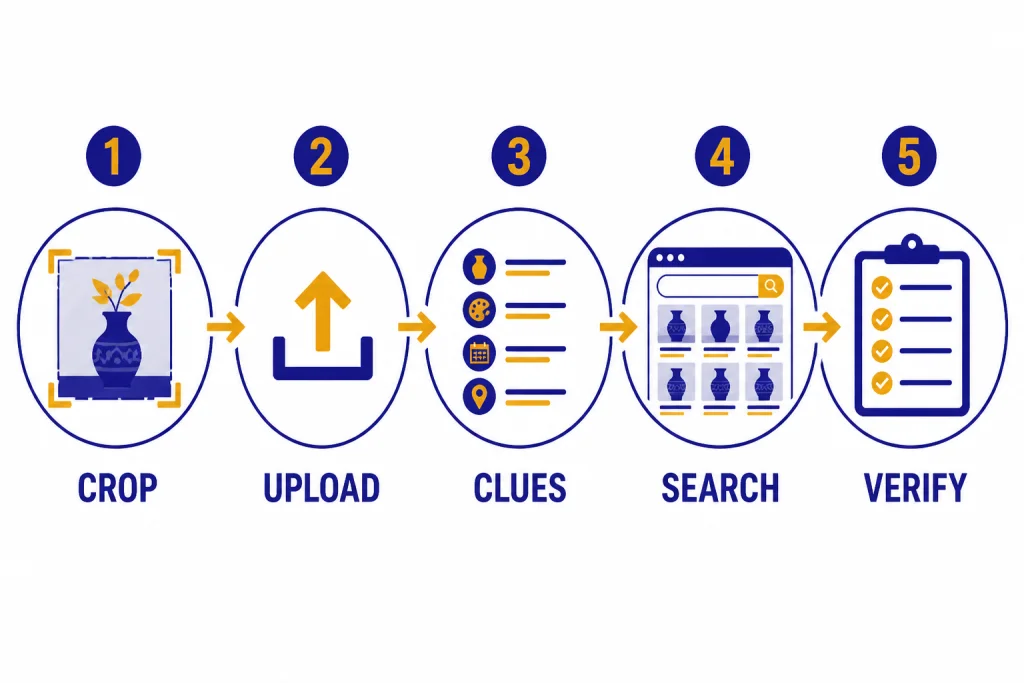
The best ChatGPT image search workflow has two phases. First, ask ChatGPT to inspect the image without guessing. Second, ask it to search the web using only the strongest visible clues. This reduces hallucinated identifications and gives you a better audit trail.
Step 1: Upload the image
Use the attachment button in ChatGPT and add the image. OpenAI says image inputs support PNG, JPEG/JPG, and non-animated GIF files.[1] If you are working from a screenshot, crop out unrelated browser chrome, chat bubbles, or background clutter before uploading. If there is tiny text, upload a higher-resolution crop focused on the relevant area.
Step 2: Ask for visible clues only
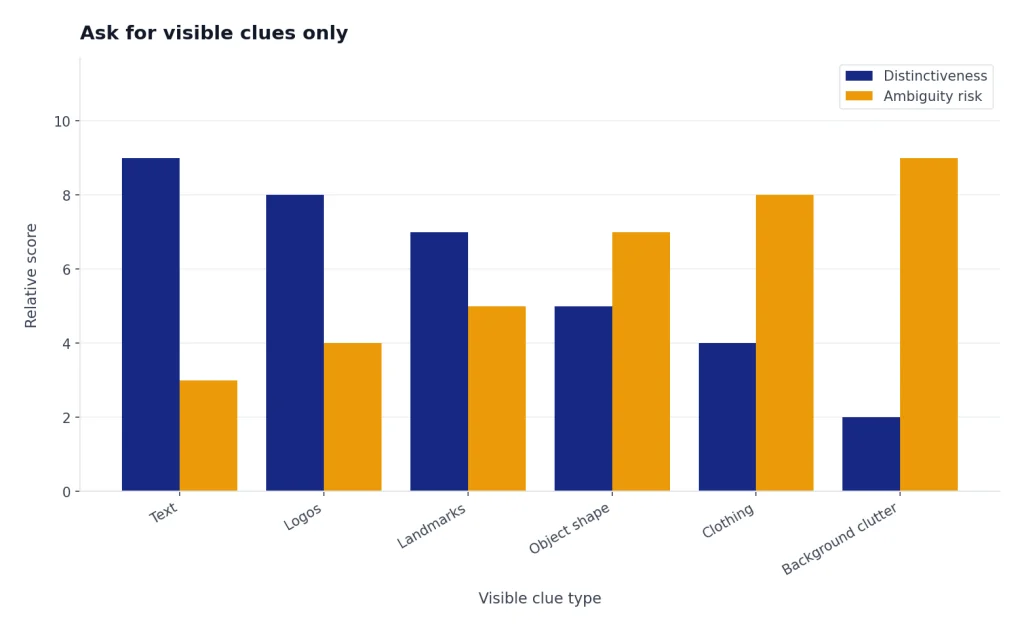
Start with a constraint such as: Describe only what is visible in this image. List text, logos, landmarks, object shapes, clothing, labels, architecture, packaging, and any other searchable clues. Do not identify the source yet. This forces ChatGPT to separate observation from conclusion.
Step 3: Ask ChatGPT to search the web
After the clue list looks reasonable, ask: Search the web for these clues and find the most likely source or context. Cite each source and explain how well it matches the image. OpenAI says ChatGPT Search may rewrite a prompt into targeted search queries that are sent to search providers, and it may use follow-up queries after reviewing initial results.[2] That is why specific visual clues matter.
Step 4: Ask for a confidence table
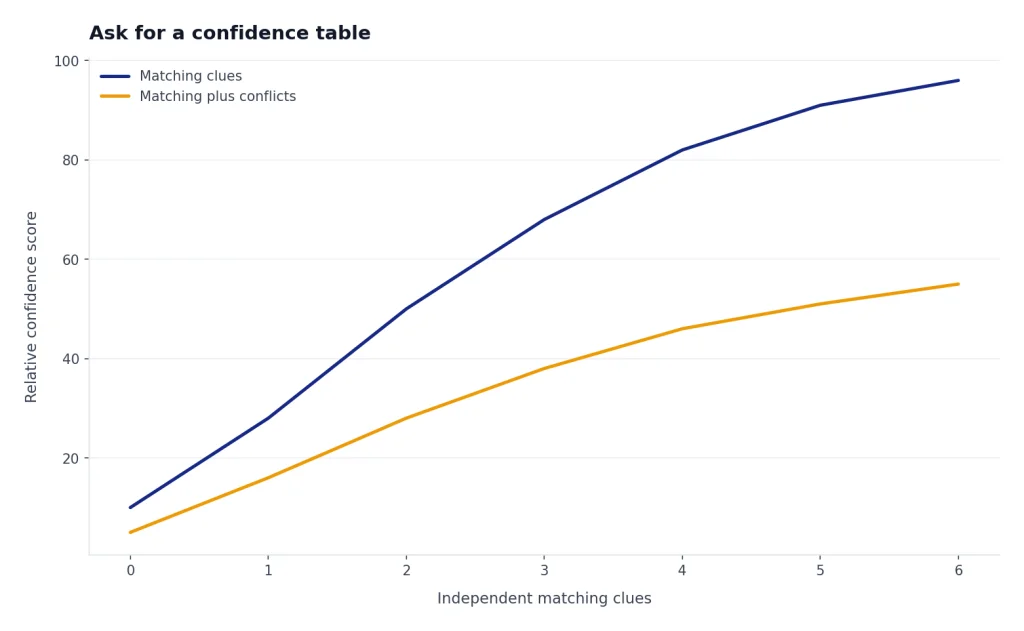
Do not accept a single confident answer for a weak image. Ask ChatGPT to produce a table with candidate matches, matching evidence, conflicting evidence, and confidence. This is especially useful for product packaging, old memes, viral images, interior design references, plants, insects, artworks, and screenshots from unfamiliar apps.
Step 5: Verify outside ChatGPT when the source matters
If you need the original publisher, copyright owner, earliest upload, or exact duplicate, run the same image through a dedicated reverse image tool. ChatGPT can help you interpret the results afterward. For example, you can paste source links back into ChatGPT and ask it to compare dates, captions, and image variations.
Best prompts for image search
Good prompts make ChatGPT less likely to overstate what it knows. The goal is to make it behave like a visual researcher: observe, query, compare, and qualify. These prompts work well for most reverse image lookup tasks.
| Use case | Prompt to use | What to check |
|---|---|---|
| Find image context | “Describe the visible clues, then search the web for likely context. Give me candidate sources with citations and confidence.” | Look for citations that actually contain matching details. |
| Identify a product | “Read any visible text, infer the product category, search for matching products, and separate exact matches from similar items.” | Check model numbers, packaging, colorway, and seller pages. |
| Check a viral image | “Do not assume the caption is true. Search for earlier appearances and fact-checking coverage. Compare the image to each source.” | Look for older uses with different captions. |
| Find a location | “List architecture, signs, road markings, vegetation, terrain, language, and skyline clues. Search for candidates and explain conflicts.” | Do not rely on one landmark unless it is distinctive. |
| Read a screenshot | “Extract the visible text, identify the app or website if possible, then search only if current context is needed.” | Verify that OCR text is accurate before searching. |
For screenshots, ChatGPT often works better than a traditional reverse image engine because it can read interface text and explain what the screen shows. If your task involves uploaded PDFs or mixed documents, our ChatGPT file upload guide covers the broader document workflow. If you need to compare images across conversations or keep research organized, ChatGPT Projects can help keep the source image, links, and notes in one place.
For shopping images, ask for uncertainty. ChatGPT can mistake a similar-looking item for an exact match. A safer prompt is: Find similar products, but do not call anything an exact match unless the visible logo, shape, color, and product details all match. This wording is slower, but it avoids many false positives.
ChatGPT vs. reverse image search tools
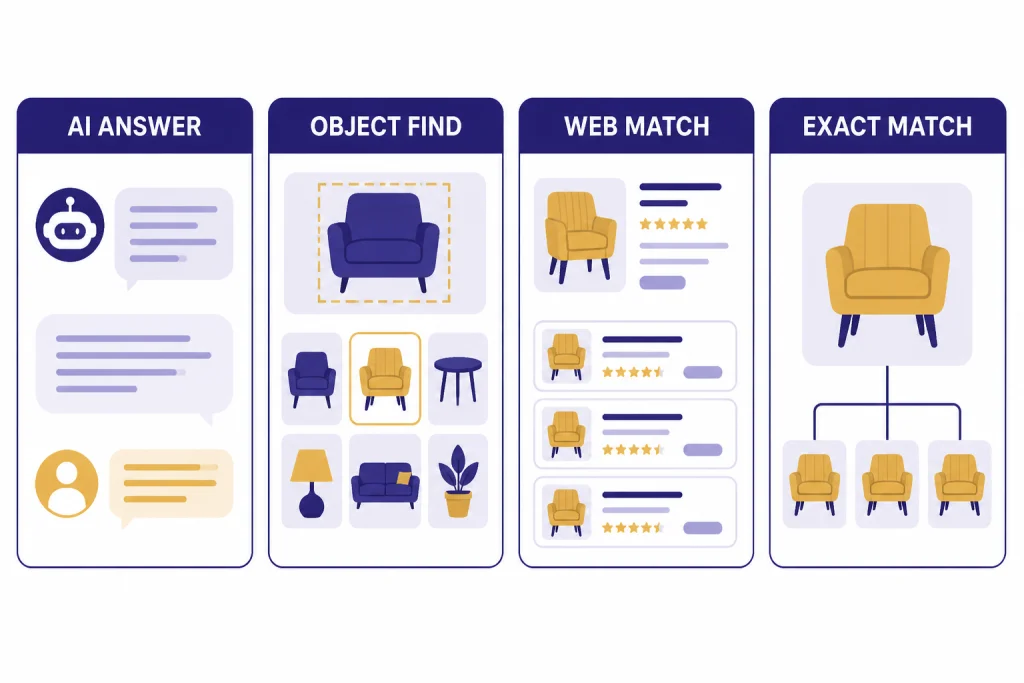
ChatGPT is best when the image needs explanation. Google Lens, Bing Visual Search, and TinEye are better when you need image-index matching. Google says Lens results can include search results for objects in the image, similar images, and websites with the image or a similar image.[6] Microsoft says Bing Visual Search can find similar images, products, pages that include an image, and other related information.[7] TinEye describes itself as a reverse image search tool for finding where an image came from, how it is being used, modified versions, or a higher-resolution version.[8]
| Tool | Best for | Weakness | Use it when |
|---|---|---|---|
| ChatGPT | Explaining an image, extracting clues, comparing candidates, and summarizing cited sources | May infer from visual clues rather than matching the exact image | You need reasoning, not just duplicate-image results |
| Google Lens | Object recognition, similar images, websites with matching or similar images | Can favor visually similar results over original-source research | You want quick object, product, place, or similar-image discovery |
| Bing Visual Search | Similar images, products, pages using an image, and visual web results | Like other visual engines, results can depend on index coverage | You want another visual index to compare against Google Lens |
| TinEye | Exact and modified-image tracking, source hunting, higher-resolution copies | Less useful for general object interpretation | You need provenance, reuse, or duplicate-image evidence |
A good research pattern is to start with ChatGPT, then test the image in at least one visual search engine. ChatGPT can turn the image into a structured clue list. A reverse search engine can test whether the web contains the same or similar pixels. Then ChatGPT can help compare the candidate pages and explain which match is strongest.
Do not use only one tool for high-stakes claims. If an image is being used as evidence in a news, legal, health, financial, or safety context, treat ChatGPT as a research assistant, not as a final authority. Look for primary sources, original uploads, archived pages, and independent fact-checks.
What ChatGPT can and cannot identify
ChatGPT can be strong at visible reasoning. It can describe objects, read clear text, explain charts, identify broad categories, and connect visual clues to web research. OpenAI’s capabilities overview says ChatGPT can analyze uploaded images, diagrams, screenshots, and charts, and users can ask questions about what is shown or get help interpreting visuals.[3] That makes it useful for tasks where the image is only the starting point.
It is weaker when the answer depends on exact provenance. A cropped meme, reposted artwork, compressed social image, or edited product shot may not contain enough visible evidence for a reliable source claim. Even if ChatGPT finds a plausible match, you still need to verify the page, date, caption, and image similarity yourself.
Strong use cases
- Product discovery: identifying visible product categories, model text, colors, and distinguishing similar listings.
- Screenshot research: extracting interface text and finding documentation or forum threads about an error.
- Location narrowing: using signs, architecture, vegetation, road markings, and landmarks to form candidates.
- Artwork context: describing style, subject, visible signature, or exhibition label before searching.
- Claim checking: separating what the image shows from what a caption claims.
Weak use cases
- Exact first appearance: use TinEye, Google Lens, Bing Visual Search, archives, and source pages.
- Precise measurement: do not rely on ChatGPT to measure dimensions from perspective-distorted images.
- Medical interpretation: OpenAI says image input is not suitable for specialized medical images such as CT scans and should not be used for medical advice.[1]
- Rotated or tiny text: OpenAI notes that rotated or upside-down text and small visual details can be misread.[1]
- Counting dense objects: OpenAI says object counts may be approximate.[1]
If you are using ChatGPT to inspect a video frame, export a still image first. ChatGPT image inputs are for static images, and OpenAI says image inputs do not handle videos.[1] For video-specific workflows, see our guide to whether ChatGPT can analyze video and our overview of the ChatGPT video generator.
Privacy, file types, and limits
Before using ChatGPT image search, decide whether the image is safe to upload. Avoid uploading private IDs, medical records, confidential work screenshots, children’s personal details, security badges, unreleased designs, or anything you do not have permission to process. If the image contains sensitive information, redact it first or use a local tool where possible.
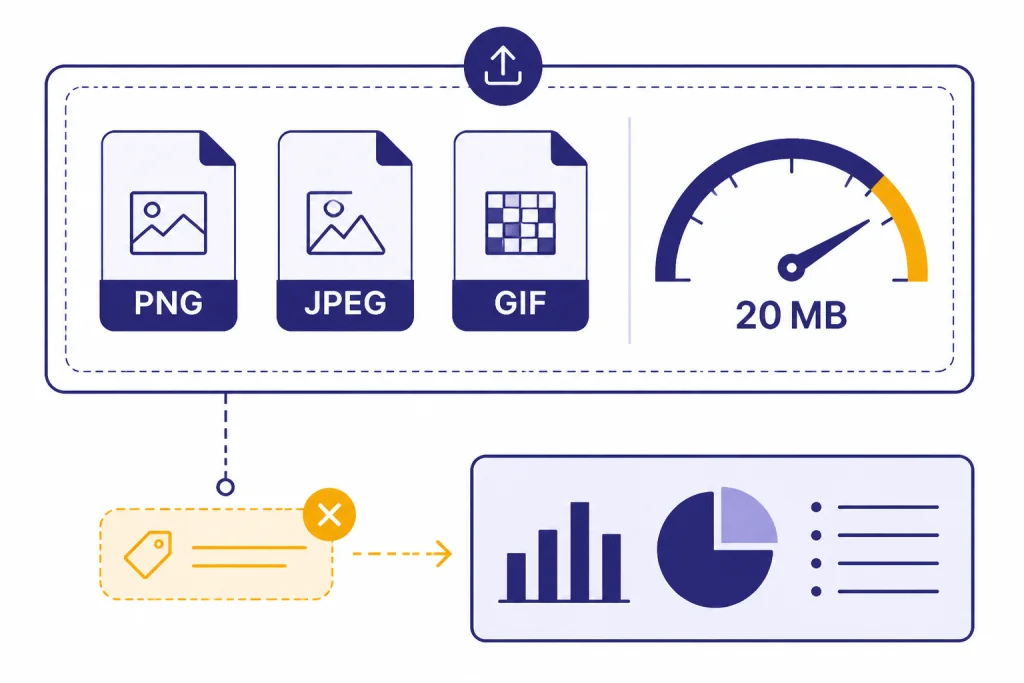
OpenAI says ChatGPT image inputs support PNG, JPEG/JPG, and non-animated GIF files, with a per-image size limit of 20 MB.[1] OpenAI also says the model does not process original file names or metadata, and images are resized before analysis.[1] That matters for reverse image lookup because filename clues, EXIF timestamps, camera data, and original pixel dimensions may not be available to ChatGPT.
Generated images are a separate issue. OpenAI says images generated with ChatGPT on the web and through its DALL·E 3 API include C2PA metadata, and that Content Credentials Verify can be used to check whether an image was generated through OpenAI tools unless the metadata has been removed.[5] OpenAI also warns that C2PA metadata can be removed accidentally or intentionally, including through screenshots or platforms that strip metadata.[5] In other words, metadata can help, but absence of metadata is not proof that an image is real.
If you use ChatGPT Memory or Custom Instructions, remember that they can influence how ChatGPT frames a search. OpenAI says ChatGPT Search may use Memory when rewriting a prompt into a search query if Memory is enabled.[2] For control over that behavior, see ChatGPT Memory and ChatGPT Custom Instructions.
Troubleshooting bad results
If ChatGPT gives a weak or overconfident image search result, the fix is usually better evidence. Ask it to slow down, list observable clues, and show conflicts. Then use external reverse search tools to test the candidate.
ChatGPT identifies the wrong product
Ask it to create a visible-spec checklist: logo, color, shape, material, label text, button layout, ports, packaging, and scale. Then ask it to search for products that match every visible detail. If it cannot find an exact match, tell it to say “similar item” instead of “match.”
ChatGPT finds a plausible but uncited source
Ask for sources only. A good prompt is: Search again and return only pages that contain the matching image, matching text, or matching product details. If you cannot verify the source, say so. OpenAI says ChatGPT Search responses can contain inline citations and a sources panel when available.[2] Use those citations to inspect the underlying pages.
The image has no obvious matches
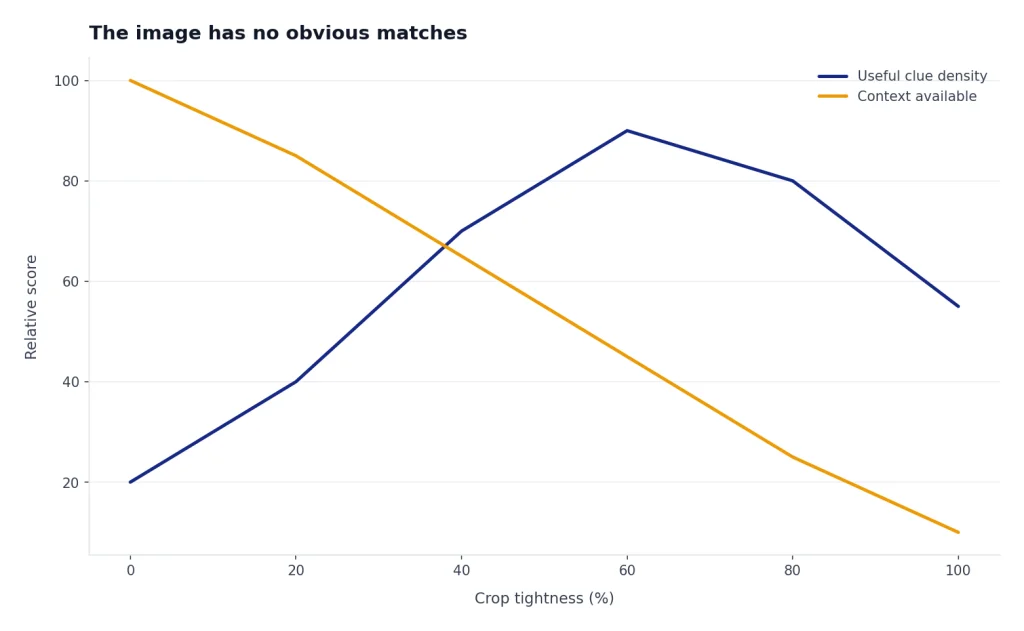
Try a different route. Crop the most distinctive part. Upload a higher-quality version. Search visible text as plain text. Use Google Lens for similar images, Bing Visual Search for another index, and TinEye for duplicate or modified versions. If all tools fail, the image may be private, newly created, heavily edited, or not indexed.
The image contains text ChatGPT misreads
Crop the text area and upload it separately. Increase contrast if needed. Ask ChatGPT to transcribe the text before doing any web search. If the text uses a non-Latin alphabet, rotated layout, or stylized font, verify the transcription manually because OpenAI notes that image inputs can struggle with non-Latin text and rotated text.[1]
When you need to use the result on a phone, the official ChatGPT app is often the easiest way to capture or upload an image. See our best ChatGPT app guide for platform notes. If you plan to share the finished research thread with someone else, ChatGPT Shareable Links can help package the conversation, as long as you remove private images or sensitive details first.
Frequently asked questions
Can ChatGPT do a true reverse image search?
ChatGPT can analyze an uploaded image and use web search to research visible clues, but it should not be treated as a guaranteed pixel-matching reverse image engine. Use ChatGPT for interpretation and candidate research. Use Google Lens, Bing Visual Search, or TinEye when you need duplicate or similar-image matches.
Can ChatGPT find the original source of an image?
Sometimes. It may find a likely source if the image contains distinctive text, a known product, a recognizable place, or a widely indexed visual. For original-source work, verify with dedicated reverse image tools, page dates, archives, and primary sources.
Can I upload a screenshot and ask ChatGPT what app or website it shows?
Yes. Screenshots are one of the better uses for ChatGPT image search because the model can read visible interface text and describe layout clues. Ask it to extract the text first, then search the web only if it needs current documentation or source context.
What image formats work with ChatGPT?
OpenAI lists PNG, JPEG/JPG, and non-animated GIF as supported image input formats.[1] If an upload fails, convert the file to PNG or JPEG, reduce its size, and remove unnecessary background area.
Can ChatGPT identify whether an image was AI-generated?
It can discuss signs that an image might be AI-generated, but visual inspection alone is not reliable proof. For images generated through OpenAI tools, C2PA metadata may help if it is still present, but OpenAI warns that metadata can be removed.[5] Treat AI-detection claims as probabilistic unless you have provenance evidence.
Is ChatGPT image search better than Google Lens?
It depends on the task. ChatGPT is better for explaining an image, building a research plan, and comparing cited evidence. Google Lens is usually better for fast visual matching, similar images, and object discovery.