

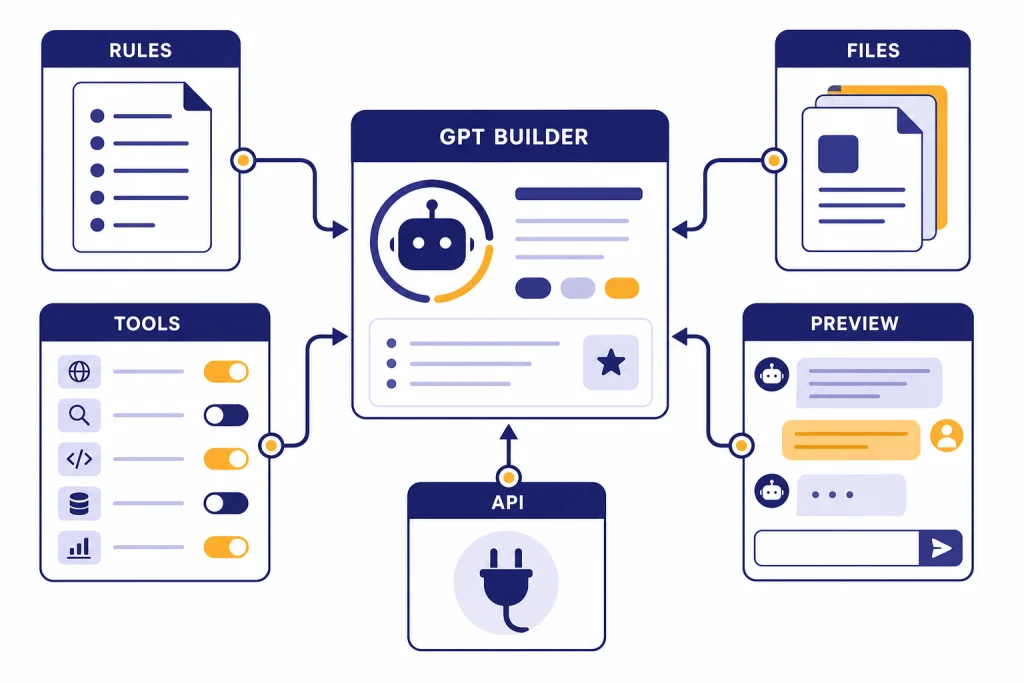
ChatGPT Custom GPTs let you turn a repeatable workflow into a reusable version of ChatGPT with its own instructions, reference files, tools, and sharing settings. They work best when you have a narrow job: review contracts against a checklist, answer questions from a handbook, draft in a house style, or guide a team through a process. You do not need to code to build one, but you do need a paid ChatGPT plan to create or edit GPTs, and building is limited to the web experience. Mobile apps can use GPTs but not build them.[1][2]
What Custom GPTs are
A Custom GPT is a configured version of ChatGPT for a specific purpose. OpenAI describes GPTs as versions of ChatGPT that can combine instructions, knowledge, and selected capabilities for a tailored experience.[1] In practice, a GPT is a saved setup: it knows what role to play, what style to use, what reference material to consult, and which tools it may call.
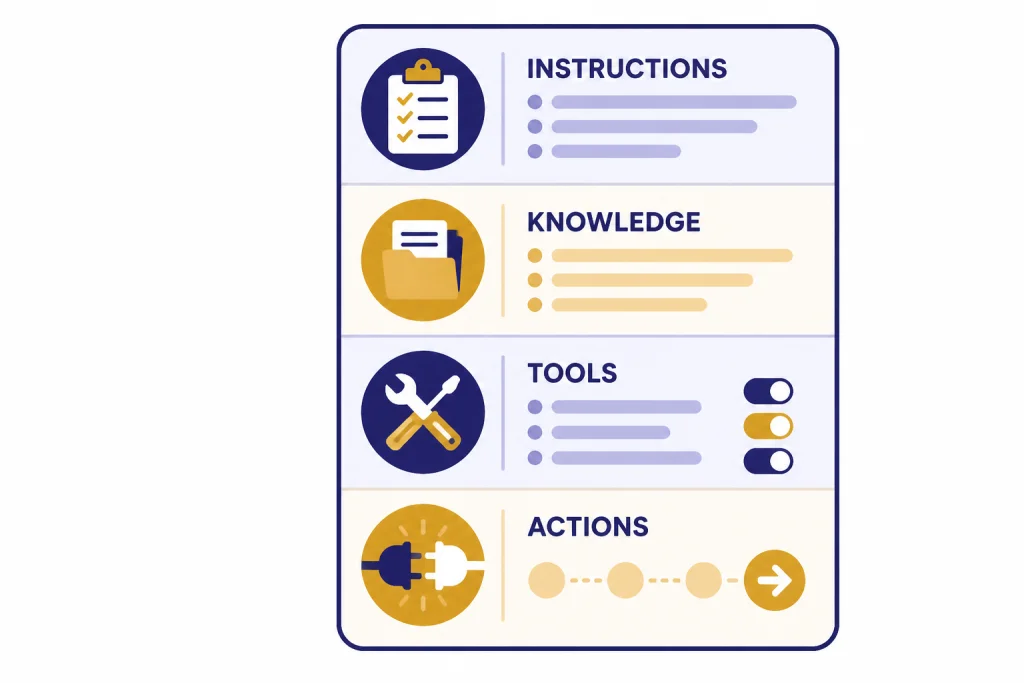
A good GPT is not just a prompt with a name. It is closer to a small operating manual for a repeatable task. The configuration can include a name, description, conversation starters, instructions, knowledge files, a recommended model, capabilities, apps, actions, and version history, depending on plan and workspace settings.[2]
Custom GPTs are different from normal chats. A normal chat is flexible and temporary. A Custom GPT should be opinionated. It should know what it is for, what it should refuse to do, what sources it should prefer, and what output format it should use.
If you mainly want ChatGPT to remember personal preferences across regular chats, start with ChatGPT Custom Instructions. If you need a reusable assistant for a team, client workflow, classroom, or internal reference process, a Custom GPT is usually the better fit.
When to build a Custom GPT
Build a Custom GPT when the same task repeats often enough that you are tired of retyping the setup. It should save time, reduce inconsistency, or make a process easier for other people to follow.
Strong Custom GPT use cases include:
- Policy assistant: answers questions from an employee handbook and flags uncertainty.
- Editorial reviewer: checks drafts against a style guide and returns structured notes.
- Sales enablement helper: turns product notes into discovery questions, email drafts, and objection handling.
- Data prep coach: guides a user through cleaning spreadsheets before analysis.
- Learning tutor: teaches one subject using a fixed lesson structure and quiz format.
- Support triage assistant: classifies tickets and suggests next steps based on a knowledge base.
Do not build a GPT for a one-off question. Do not build one when the workflow changes every day. Do not build one when the main requirement is live, authenticated access to a production system and you do not have a safe API design. For browser-like task execution, compare the Custom GPT approach with ChatGPT Operator.
A useful test is simple: if you can describe the job in one sentence and list the expected output formats, it is probably a good candidate. If you need a long meeting to explain what the assistant should do, narrow the scope before building.
Plan before you open the builder
The GPT Builder can help draft the setup conversationally, but you will get a better result if you write a short design brief first. OpenAI says the GPT Builder is an easy starting point and that advanced builders should use the manual configuration UI to edit the fields directly.[3] Treat the builder as a drafting tool, not as a substitute for judgment.
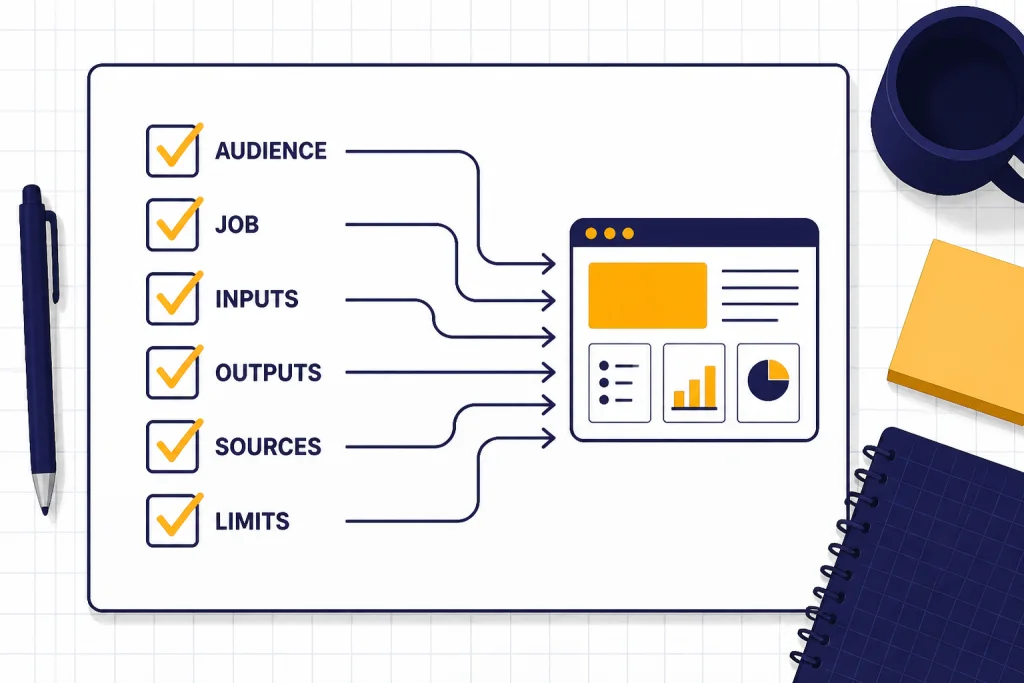
Use this planning checklist before you click Create:
- Audience: Who will use it: you, a team, clients, students, or the public?
- Job: What exact task should it perform?
- Inputs: What will users provide: files, pasted text, images, short questions, forms, or links?
- Outputs: Should it produce a checklist, memo, table, JSON, lesson plan, code review, or email?
- Sources: What documents or policies should it prefer?
- Boundaries: What should it avoid, refuse, or escalate?
- Success test: What five prompts would prove it works?
For example, a weak idea is “Make a marketing GPT.” A better idea is “Create a GPT that turns approved product notes into first-draft LinkedIn posts, using our plain-spoken tone, never inventing customer claims, and returning three variants with a risk note.” That scope gives the GPT a job, a voice, a boundary, and an output format.
How to build your Custom GPT
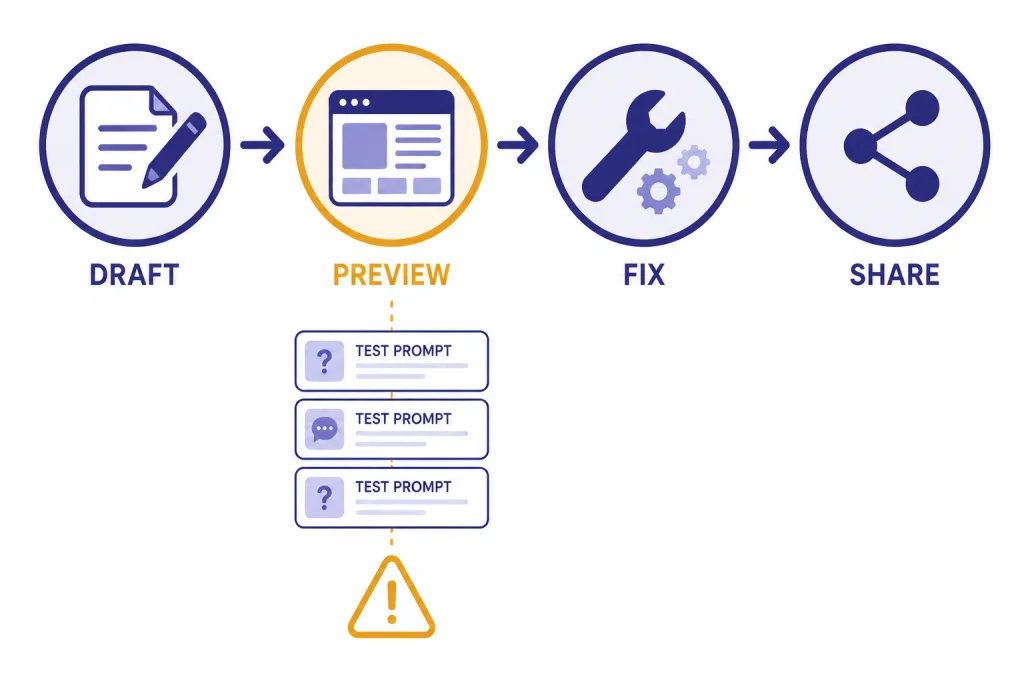
To create a GPT, open the GPTs area in ChatGPT, select Create, then build either through the conversational builder or by editing the configuration fields directly.[2] The web editor includes a Preview area so you can test real prompts before sharing or publishing.[2]
Step 1: Open the GPT editor
In ChatGPT on the web, open the GPTs area and choose Create. If you are in a managed workspace, your ability to create or edit GPTs may depend on workspace permissions.[1]
Step 2: Start with a plain-language request
Tell the builder what you want. Start with the goal, audience, and output format. For example: “Build a GPT for our support team that answers questions from our refund policy, asks for missing order details, and returns a recommended reply plus confidence level.”
Step 3: Switch to Configure
After the builder drafts the GPT, inspect the manual fields. Edit the name, description, instructions, conversation starters, knowledge, tools, actions, and recommended model settings where available. Do not accept the first draft blindly. The builder is useful for structure, but your review determines quality.
Step 4: Add conversation starters
Conversation starters should teach users how to use the GPT. Write them as realistic first prompts. Avoid generic starters like “How can you help me?” Better starters include “Review this draft against our style guide” or “Turn this customer complaint into a support response.”
Step 5: Preview before saving
Run test prompts in Preview. Try a normal request, an incomplete request, a request outside scope, and a prompt that tempts the GPT to invent missing information. Save only after the GPT behaves well on all four.
How to write strong GPT instructions
Instructions are the core of a Custom GPT. Knowledge files provide source material, but instructions define behavior. OpenAI’s guidance separates instructions from knowledge: use instructions for rules, tone, and workflow; use knowledge files for reference material.[2]
A strong instruction set has six parts:
- Role: “You are a support policy assistant for a U.S. ecommerce team.”
- Primary task: “Answer refund and exchange questions using the uploaded policy files.”
- Workflow: “Ask for order date, item category, and purchase channel if missing.”
- Source rule: “Prefer uploaded policy files over general knowledge.”
- Uncertainty rule: “If the policy does not answer the question, say so and suggest escalation.”
- Output format: “Return: answer, policy basis, missing information, escalation needed.”
Write instructions as commands, not suggestions. “Do not invent policy terms” is clearer than “Try to be accurate.” “Return a table with columns for issue, evidence, and fix” is clearer than “Give feedback.”
Here is a reusable instruction skeleton:
Role: You are [specific role] for [audience].
Goal: Help users [specific task].
Use these sources: Prefer uploaded knowledge files. If the answer is not in the files, say that clearly.
Workflow:
1. Identify the user's goal.
2. Ask for missing required inputs.
3. Complete the task using the required format.
4. Flag uncertainty and risks.
Style: Use [tone]. Be concise. Avoid unsupported claims.
Do not: [forbidden actions, topics, or assumptions].
Output format: [bullets, table, memo, JSON, checklist].
If your GPT will handle files, pair it with good upload habits. Our ChatGPT file upload guide explains practical format and workflow considerations for working with documents in ChatGPT.
Add knowledge, tools, apps, and actions
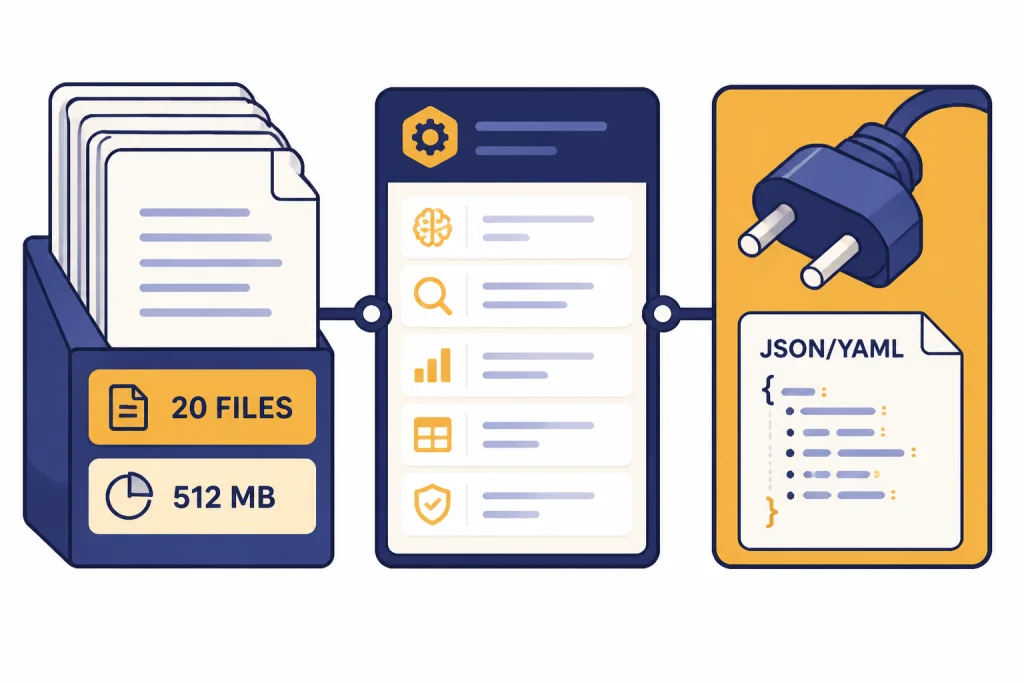
Knowledge lets your GPT use uploaded files as reference material. OpenAI says you can attach up to 20 files to a GPT, and each file can be up to 512 MB; its Knowledge article also lists a 2,000,000-token limit per file.[2][4] Use those limits as a ceiling, not a target. Smaller, cleaner, text-forward files usually work better than overloaded document dumps.
Good knowledge files include policy manuals, product sheets, course notes, brand guidelines, support macros, and process checklists. Remove stale drafts, duplicate pages, and unrelated material. If two files contradict each other, the GPT may not know which one to trust unless your instructions state a source priority.
Capabilities are built-in ChatGPT tools such as web browsing, image generation, and data analysis, depending on what your plan and workspace allow.[7] If the GPT needs to analyze spreadsheets or generate downloadable files, make sure the relevant data analysis capability is enabled. OpenAI notes that enabling Code Interpreter & Data Analysis allows a Custom GPT to generate real downloadable files, with a 512 MB download file size limit.[11] For deeper data workflows, see our Code Interpreter tutorial.
Actions are more advanced. They let a GPT call external APIs. OpenAI says configuring an action requires API details, authentication information, and an OpenAPI schema; the schema can be provided in JSON or YAML.[5] Actions support authentication options such as none, API key, and OAuth, depending on the service design.[5]
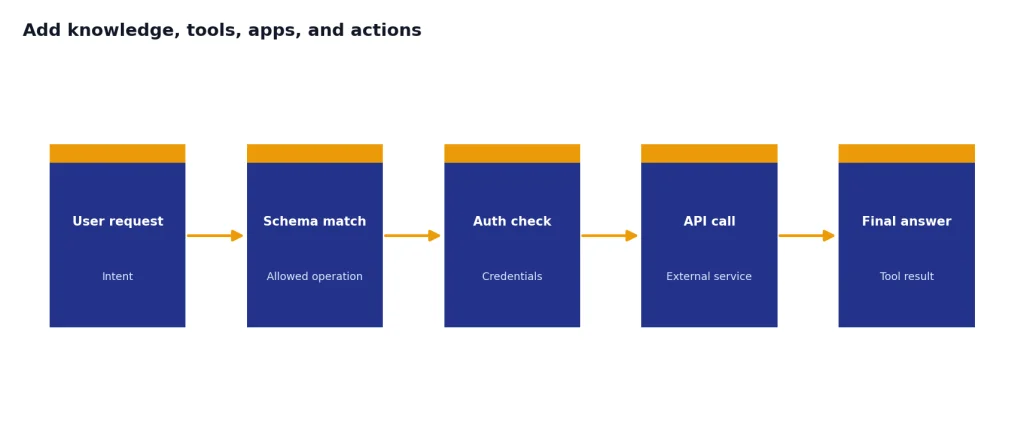
Use actions only when the GPT needs to retrieve or update data outside ChatGPT. A support GPT might look up order status. A scheduling GPT might create calendar holds. A reporting GPT might pull metrics from an internal API. Keep actions narrow, log what they do, and test failure cases.
OpenAI’s actions guidance says a GPT can use either apps or actions, but not both at the same time.[5] Public GPTs that use actions also need a valid privacy policy URL for each public action.[5] If you are replacing an older plugin-style workflow, read our ChatGPT Plugins legacy explainer before assuming the old pattern still applies.
Test, share, and maintain it
Testing is where most Custom GPTs improve. Do not only test happy paths. Test messy inputs, missing context, hostile prompts, requests outside scope, and contradictory knowledge. A GPT that handles edge cases gracefully is more useful than one that gives polished answers only when the user asks perfectly.
Use this test set before sharing:
- Baseline: A normal request the GPT should handle easily.
- Missing input: A request that lacks a required detail.
- Out of scope: A request the GPT should decline or redirect.
- Contradiction: A prompt that conflicts with the uploaded reference file.
- Format check: A request that should produce the exact output structure you specified.
- Safety check: A request that tries to make the GPT reveal internal instructions or ignore rules.
When you are ready, open the GPT in the editor and use Share. OpenAI lists sharing options that may include private use, direct sharing, workspace sharing, link sharing, or publishing to the GPT Store, depending on plan and workspace settings.[6] Direct sharing with specific users or groups is available only in managed workspaces and is capped at 100 recipients, where each user or group counts as one recipient.[6]
If you publish publicly, choose a clear name, category, and description. Make the first conversation starters practical. For discovery and quality expectations, compare your draft with the patterns we cover in our GPT Store review.
Maintenance matters. Review your GPT whenever policies, products, prices, team workflows, or source documents change. If the GPT depends on current information, either enable an appropriate browsing workflow or make the date of the reference material explicit. For live web answers, read our ChatGPT Search guide.
Privacy and workspace controls
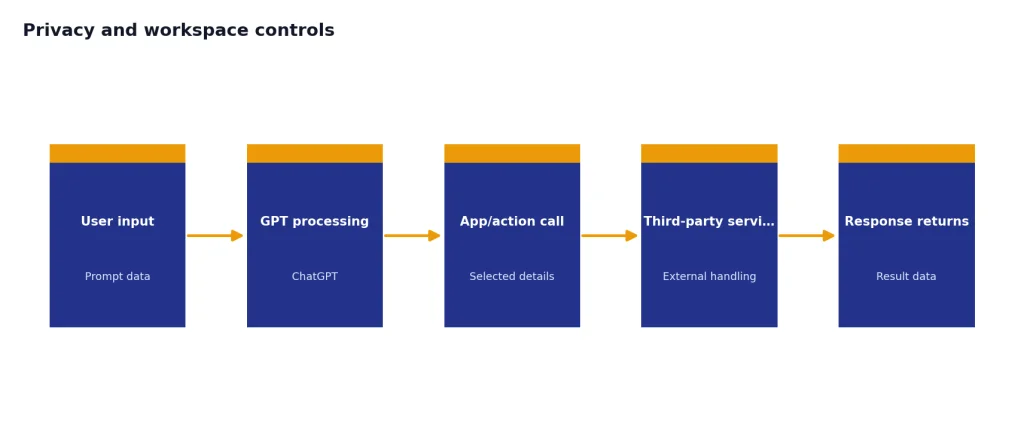
Custom GPTs can feel private because they are tailored, but you still need to understand where data goes. OpenAI says GPT builders cannot view individual conversations that users have with their GPTs.[8] That protects users from the builder seeing chat logs, but it does not make every GPT risk-free.
If a GPT uses external APIs or apps, relevant parts of the user’s input may be sent to the third-party service, and OpenAI says it does not audit or control how those services use or store that data.[8] Only connect trusted services. Do not send secrets, regulated data, or customer records to an action unless your organization has approved the data flow.
For consumer ChatGPT plans, OpenAI says conversations with GPTs may be used to improve its models unless the user opts out through Data Controls.[8] OpenAI’s Data Controls FAQ says signed-in users can turn off “Improve the model for everyone” under Settings > Data Controls, and that chats remain in history but are not used for training after the setting is off.[9] Business products such as ChatGPT Business and ChatGPT Enterprise are not used for training by default, according to OpenAI’s privacy FAQ.[8]
Managed workspaces add governance. OpenAI says Enterprise and Edu workspace owners and admins can control who can create or edit GPTs, whether sharing is limited, whether third-party GPTs are allowed, whether apps can be used, and which domains actions may call.[7] That is important for teams that need review, ownership continuity, and compliance reporting.
Also note one limitation that surprises many users: OpenAI says memory is not currently supported in Custom GPTs created with the GPT Builder, and each interaction is stateless regardless of whether the user has memory turned on.[10] If you need account-level personalization, see ChatGPT Memory and keep that separate from Custom GPT design.
Custom GPTs vs other ChatGPT personalization options
Custom GPTs are powerful, but they are not the only way to personalize ChatGPT. Choose the lightest tool that solves the problem. A smaller setup is easier to maintain and easier for users to understand.
| Option | Best for | What it stores or organizes | When not to use it |
|---|---|---|---|
| Custom GPT | Repeatable assistant with its own task, files, tools, and sharing | GPT configuration, instructions, knowledge files, starters, and tool settings | One-off prompts or workflows that change constantly |
| Custom Instructions | Personal preferences across ordinary chats | Your preferred context and response style | Team workflows, shared assistants, or source-file-based helpers |
| Projects | Organizing related chats and files around a continuing effort | Project conversations and associated context | A public or reusable assistant for many unrelated users |
| Memory | Personalization based on remembered facts about you | Saved memories managed at the account level | Custom GPT behavior, because GPT Builder GPTs do not currently use memory |
| API assistant | Embedding an assistant into your own product or backend | Developer-controlled application logic and model calls | No-code ChatGPT-only workflows |
For many people, the best setup combines more than one feature. Use ChatGPT Projects to organize a client engagement, a Custom GPT to enforce the review process, and file uploads for the source documents. Use ChatGPT Vision only when the GPT must reason over images or screenshots.
The rule of thumb is simple. If the behavior should follow you everywhere, use Custom Instructions or Memory. If the work belongs to a folder, use Projects. If the same assistant should be reused by many people with the same instructions and files, build a Custom GPT.
Frequently asked questions
Can anyone use Custom GPTs?
OpenAI says GPTs are available to all ChatGPT users, but users must be signed in to start a conversation with one.[1] Creating or editing GPTs requires a paid subscription, and managed workspaces may add permission restrictions.[1]
Can I build a Custom GPT on my phone?
No. OpenAI says building and editing GPTs is limited to the web experience.[2] Mobile apps can use GPTs, but they do not support building them.[2]
How many files can I upload to a Custom GPT?
OpenAI says a GPT can have up to 20 knowledge files, each up to 512 MB, and its Knowledge article also lists 2,000,000 tokens per file.[2][4] In practice, cleaner files usually beat larger files. Remove duplicates and keep reference material focused on the GPT’s job.
Can a Custom GPT connect to external apps?
Yes, if your plan and workspace settings allow it. OpenAI says GPT actions can connect to external APIs using authentication details and an OpenAPI schema in JSON or YAML.[5] A GPT can use apps or actions, but not both at the same time.[5]
Can the builder of a GPT see my chats?
No. OpenAI says GPT builders cannot view individual conversations users have with their GPTs.[8] Be careful with GPTs that call external APIs or apps, because relevant input may be sent to those third-party services.[8]
Do Custom GPTs use ChatGPT Memory?
No. OpenAI says memory is not currently supported in Custom GPTs created with the GPT Builder.[10] Each interaction starts fresh even if the user has memory enabled in regular ChatGPT.[10]