

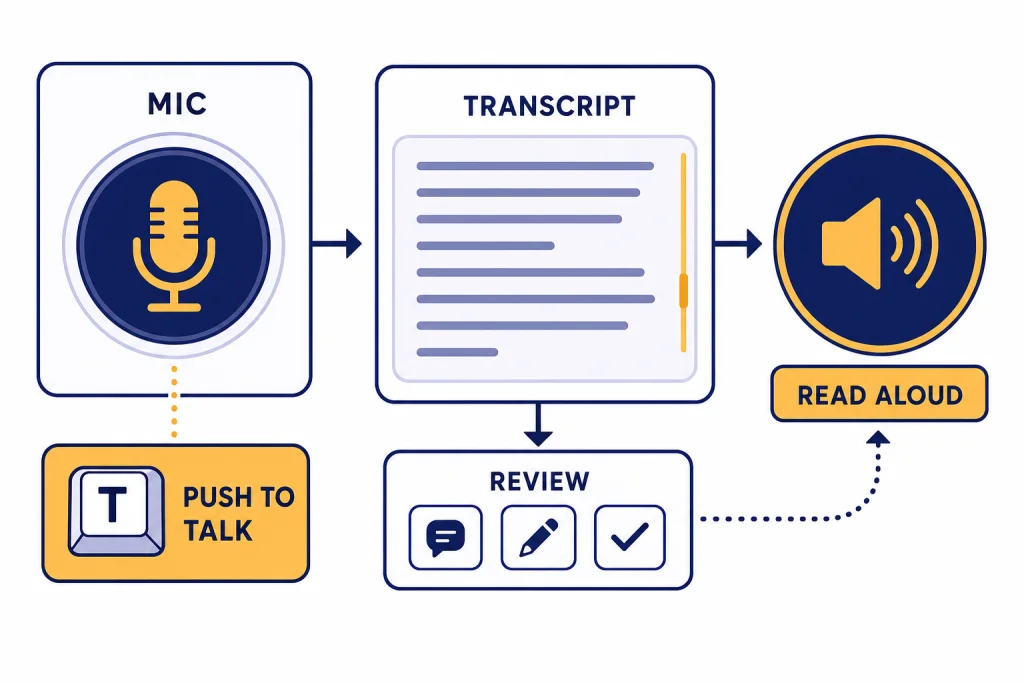
Voice Control for ChatGPT is a useful Chrome extension for people who want faster prompt dictation, push-to-talk control, automatic read-aloud, and simple hands-free workflows inside ChatGPT on desktop. It is not the same as ChatGPT’s native Voice mode. The extension is better for turning speech into editable text, sending repeated prompt commands, and hearing written responses read back. Native ChatGPT Voice is better for real-time spoken conversation. Our recommendation is conditional: install Voice Control for ChatGPT if you primarily work in Chrome or Edge on a desktop and want dictation-style control. Skip it if you need mobile support, Safari support, or the most natural voice conversation experience.
Verdict
Voice Control for ChatGPT earns a cautious recommendation. It solves a real desktop problem: ChatGPT users often want quick dictation, press-to-talk input, and spoken playback without switching to a separate voice interface. The extension adds those controls directly to the ChatGPT web workflow.
The strongest reason to use it is control. You can dictate a prompt, review the recognized text, correct it, and then send it. That is different from a live voice conversation, where the interaction can feel faster but gives you less opportunity to edit before submission.
As of our review, the Chrome Web Store listing showed Voice Control for ChatGPT at 4.0 out of 5 from 671 ratings, with 400,000 users, version 4.3.1, and a last update date of September 9, 2025. Chrome-Stats independently listed 400,000 users, a 3.99 rating from 671 ratings, version 4.3.1, and the same September 9, 2025 update date.[1][2]
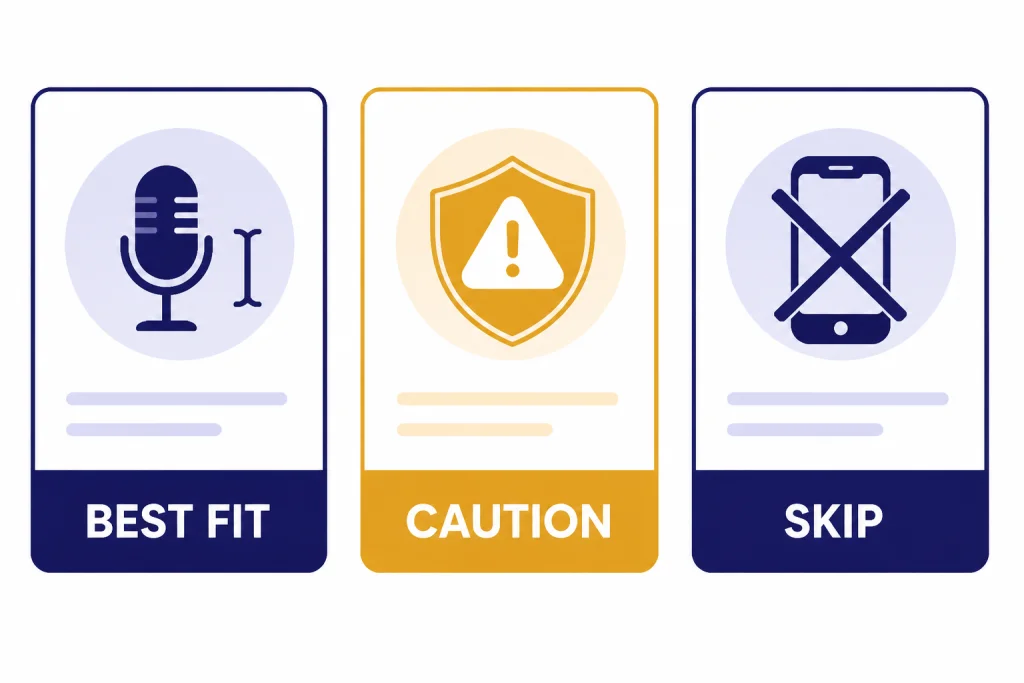
The main drawback is scope. The extension listing says Chrome desktop has full support, Edge on Windows has full support, Edge on macOS and several Chromium browsers have partial support, and Safari and mobile are not supported.[1] If you need voice inside the official ChatGPT mobile app, read our Best ChatGPT Mobile Apps guide instead.
| Review area | Assessment | Why it matters |
|---|---|---|
| Best fit | Desktop dictation for ChatGPT | You can speak prompts, edit text, and send when ready. |
| Weakest fit | Mobile and Safari use | The listing says those environments are not supported. |
| Privacy posture | Acceptable but still worth checking | The developer says it does not read messages, but it is still a browser extension with microphone access. |
| Best alternative | Native ChatGPT Voice | Use native Voice when you want a live spoken conversation rather than dictation. |
What Voice Control for ChatGPT does
Voice Control for ChatGPT adds a microphone layer to the ChatGPT web interface. The Chrome Web Store listing describes speech input, hands-free replies, keyboard shortcuts, custom voice commands, and a personal dictionary for word replacements or longer prompt triggers.[1] That combination makes it closer to a workflow extension than a simple microphone button.
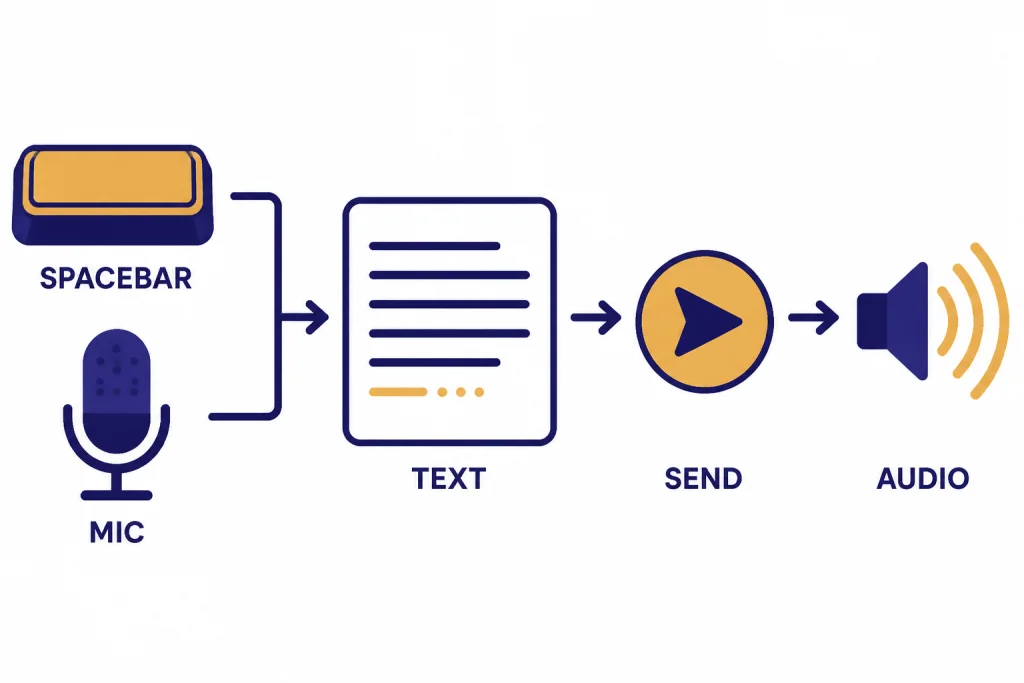
The push-to-talk feature is the practical center of the tool. You can hold the spacebar or click the mic to speak, then let the extension place recognized text into ChatGPT. For long prompts, this is often faster than typing. For sensitive prompts, it is safer than fully automatic voice chat because you can review the text before sending.
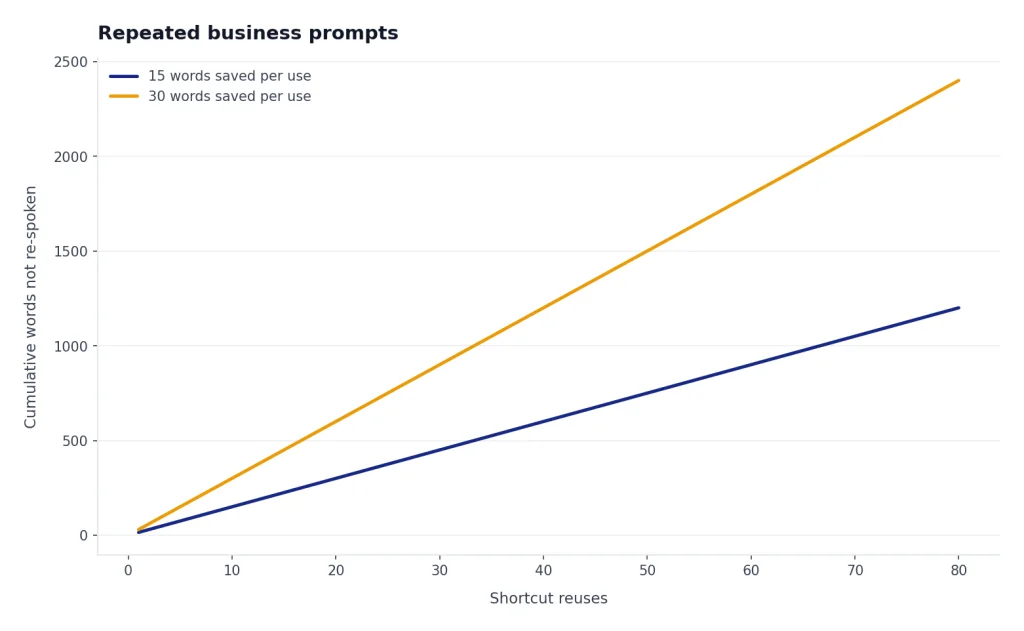
The custom dictionary is the feature that separates it from basic browser dictation. If ChatGPT keeps hearing a product name, acronym, client name, or technical term incorrectly, you can define replacements. You can also use short spoken phrases as prompt shortcuts. For example, a user could say “summarize meeting” and map it to a fuller instruction such as “Summarize the following notes into decisions, action items, owners, and deadlines.”
The read-aloud feature is useful when you want to listen while checking email, coding, cleaning up notes, or reviewing a long answer. It is not the same as a natural two-way conversation, but it can reduce screen fatigue. If spoken output is your main interest across many apps, compare it with broader tools in our best AI voice tools roundup.
The extension also advertises optional support for Claude when enabled through its popup.[1] That matters if you split work across multiple AI assistants. It does not mean the extension supports every chatbot or every browser equally.
Setup and daily workflow
Setup is simple. Install the extension from the Chrome Web Store, open ChatGPT, sign in, click the extension’s microphone control or hold the spacebar, and allow microphone access when the browser asks. The listing’s own setup flow says to install the extension, go to ChatGPT, log in, click the mic or hold spacebar, and allow microphone permission.[1]
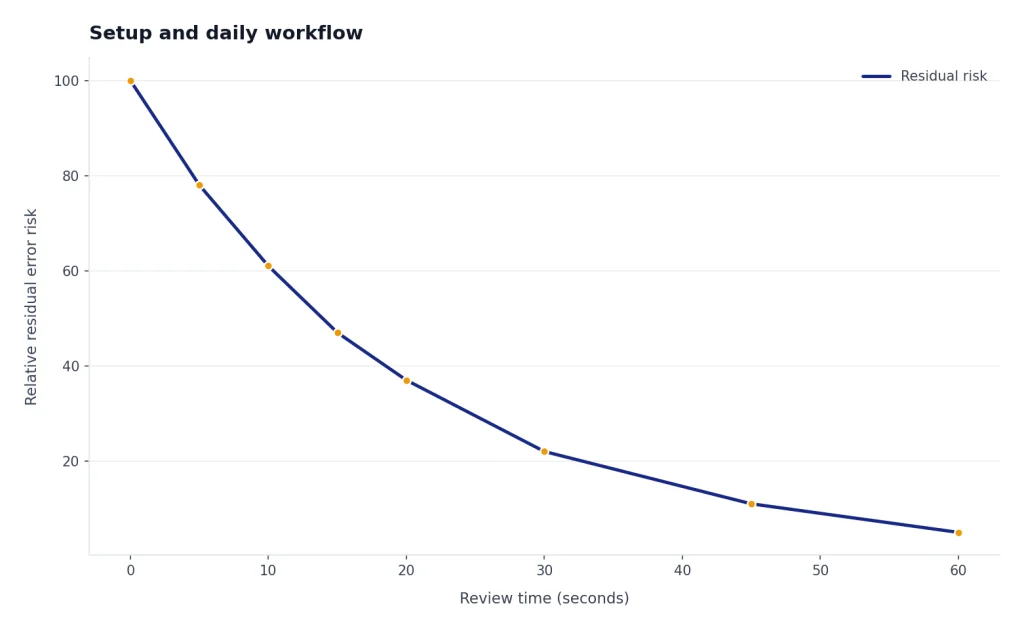
For daily use, start with push-to-talk rather than full hands-free mode. Press-to-talk gives you a clean boundary between thinking and speaking. It also reduces accidental submissions when you cough, talk to someone nearby, or read text aloud from another window.
- Use push-to-talk for drafted prompts. Speak the rough version, edit the transcript, then send.
- Use the dictionary for recurring errors. Add names, acronyms, product terms, and phrases you say often.
- Use read-aloud selectively. Turn it on for long answers, then turn it off when you need to skim.
- Refresh the ChatGPT tab if controls disappear. Browser extensions can break when web apps change their interface.
- Keep native ChatGPT Voice available. Use it when the goal is conversation, not written prompt drafting.
The best workflow is not fully hands-free. It is voice-first drafting with a typed review step. That protects quality. ChatGPT answers depend heavily on prompt clarity, so a spoken prompt that includes filler words, false starts, or mistranscribed names can produce weaker output. If you want to build better reusable prompts, pair the extension with a ChatGPT prompt generator tool.
Voice Control for ChatGPT vs native ChatGPT Voice
Voice Control for ChatGPT and native ChatGPT Voice solve different problems. The extension is best when you want spoken input to become editable text in the normal chat composer. Native ChatGPT Voice is best when you want a spoken back-and-forth conversation with ChatGPT.
OpenAI says Voice conversations are available to logged-in users in the ChatGPT mobile apps and on desktop web at ChatGPT.com.[4] OpenAI also says first-time web voice use may require browser microphone permission, and users can start a voice conversation from the Voice icon on the right side of the prompt window.[4]
OpenAI’s current Voice documentation lists nine output voices: Arbor, Breeze, Cove, Ember, Juniper, Maple, Sol, Spruce, and Vale.[4] It also states that logged-in Free users get voice powered by GPT-4o mini with a limit of 2 hours each day, while subscriber limits differ and may change.[4] If plan limits affect your choice, see our ChatGPT Plus price analysis before upgrading.
| Need | Voice Control for ChatGPT | Native ChatGPT Voice |
|---|---|---|
| Dictate a long written prompt | Strong fit | Usable, but less focused on editable prompt drafting |
| Review text before sending | Strong fit | Weaker fit |
| Have a natural spoken conversation | Limited fit | Strong fit |
| Use ChatGPT on mobile | Not supported by the extension listing | Supported through ChatGPT mobile apps |
| Use Safari | Not supported by the extension listing | Use ChatGPT’s supported web or app experience |
| Create custom spoken shortcuts | Strong fit | Not the main purpose |
Use both if you can. The extension is a productivity layer for written work. Native ChatGPT Voice is a conversation mode. If you spend most of your day on a laptop, also compare the official app options in our Best ChatGPT Desktop Apps guide.
Privacy and extension safety
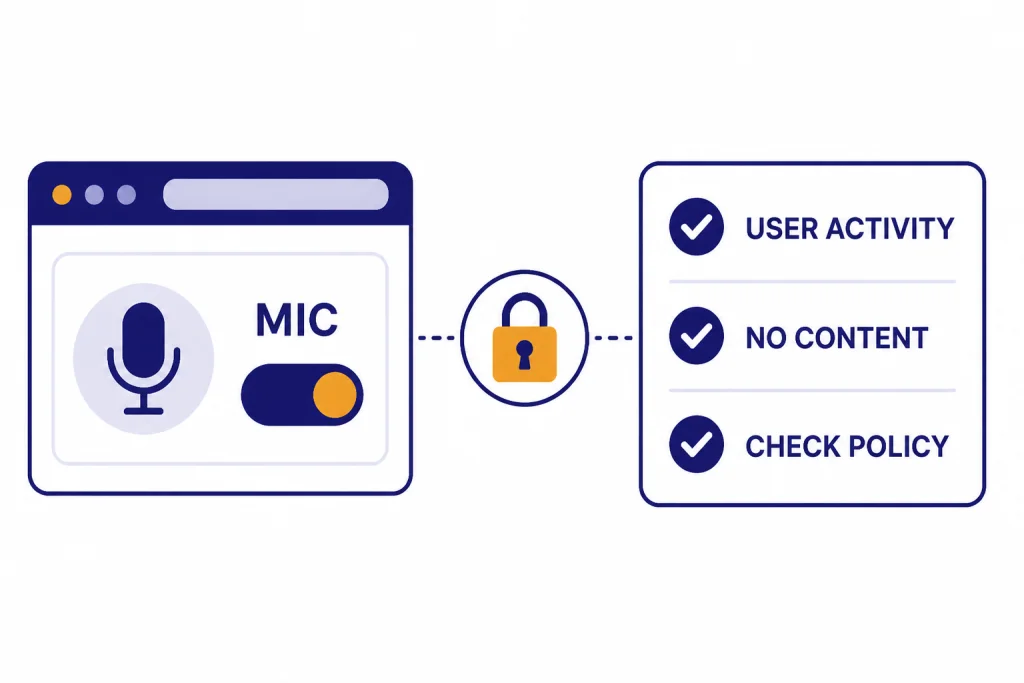
Voice tools deserve extra scrutiny because they involve microphone access and may touch sensitive prompts. The Voice Control for ChatGPT privacy statement says the extension collects non-personal user activity, such as button clicks, to improve functionality and user experience. It also says it does not collect, store, or process personal or sensitive user data, and does not read or access messages or user-generated content.[3]
The Chrome Web Store privacy section separately says Voice Control for ChatGPT handles “User activity” and that the developer declares the data is not sold to third parties, not used or transferred for unrelated purposes, and not used or transferred for lending or creditworthiness decisions.[1] Those are positive disclosures, but they are still developer disclosures. Treat them as claims to review, not a substitute for your own risk judgment.
Google’s Chrome Web Store policies require extensions that handle user data to post an accurate privacy policy, disclose how data is collected, used, and shared, and request the narrowest permissions needed for the product’s features.[5] That framework helps, but it does not make every extension risk-free.
OpenAI’s native Voice mode has its own privacy model. OpenAI says audio and video clips from voice chats are stored alongside the transcription in chat history, audio and video clips are retained for 30 days, and audio or video clips are not used to train models unless the user chooses to share them.[4] This differs from the extension’s stated approach, where the developer says it does not read or store messages.[3]
- Do not dictate passwords, API keys, medical details, legal facts, or confidential client data into any voice tool unless your organization has approved that workflow.
- Check Chrome’s extension permissions after installation.
- Disable microphone access when you do not need voice input.
- Use a separate browser profile for sensitive work.
- Remove any extension you no longer use.
If you use ChatGPT for development work, remember that voice input can accidentally capture code snippets or credentials spoken during a call. For technical workflows, pair voice with good API hygiene and review our OpenAI API errors guide if you are troubleshooting production systems.
Best use cases
Voice Control for ChatGPT works best when speech is a faster input method but the final output still needs to be text. That makes it useful for writers, researchers, teachers, support teams, language learners, and users with typing fatigue.
Long prompt drafting
Many strong ChatGPT prompts are closer to short briefs than simple questions. Speaking the first draft can be faster than typing it. You can dictate the goal, audience, constraints, examples, and desired output format, then clean up the transcript before sending.
Accessibility and fatigue reduction
Users who type all day may benefit from alternating between keyboard input and speech input. The extension is not a full accessibility platform, and it should not be treated as one. Still, push-to-talk dictation can reduce repetitive typing for routine prompts.
Language practice
The extension’s read-aloud and speech input features can help language learners practice phrasing, pronunciation, and listening. If translation is the main job, compare dedicated options in our best AI translation tools guide.
Repeated business prompts
The custom dictionary can turn short spoken commands into longer prompt patterns. A recruiter might use one phrase for resume screening notes. A marketer might use another for rewriting a campaign brief. A support manager might use a third for summarizing call notes.
Voice input does not remove the need for review. If you create content for publication, still check originality, sourcing, and tone. Our best plagiarism checkers roundup can help when the output will be submitted, graded, or published.
Alternatives to consider
The best alternative depends on what you mean by voice control. Some users want dictation. Others want a conversational assistant. Others want text-to-speech across the whole browser.
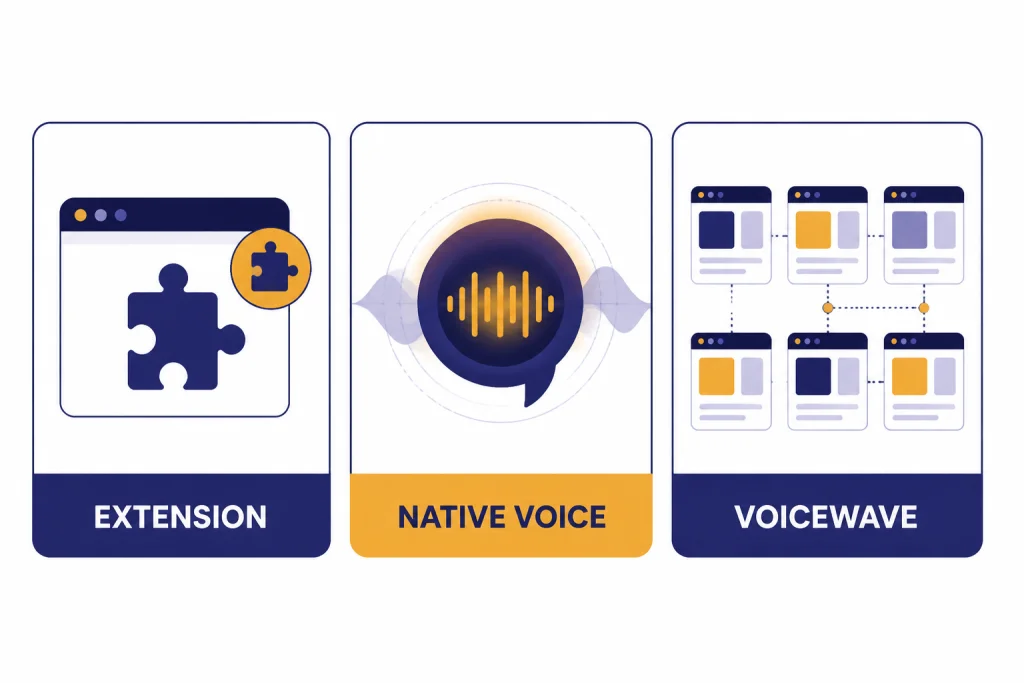
Native ChatGPT Voice
Choose native ChatGPT Voice if you want a natural conversation, mobile support, or the official OpenAI experience. OpenAI says Voice is available on ChatGPT mobile apps and desktop web for logged-in users.[4] It is the cleaner choice if you do not want to install another browser extension.
VoiceWave
VoiceWave is the closest extension-style alternative. Its Chrome Web Store listing says it supports ChatGPT, DeepSeek, Claude, and other AI chatbots, includes voice recognition and text-to-speech, offers voice typing for all websites, and supports 145+ languages.[6] That broader scope may help if you want one voice extension across many sites rather than a ChatGPT-focused tool.
System dictation
macOS, Windows, iOS, Android, and ChromeOS all include some form of built-in dictation. Use system dictation if you only need speech-to-text and do not need ChatGPT-specific controls, read-aloud buttons, or custom prompt commands.
Other ChatGPT extensions
If voice is only one part of the workflow, compare broader extension categories. Our ChatGPT Chrome extension guide covers tools that add sidebar access, prompt libraries, search helpers, and productivity controls. For a more powerful extension with non-voice features, see our Superpower ChatGPT review.
Buying advice
Install Voice Control for ChatGPT if your main device is a desktop browser, you use Chrome or Edge, and you want to draft prompts by voice without losing the ability to edit before sending. It is especially useful for long prompts, recurring workflows, and read-aloud review.
Do not install it just because it sounds like native ChatGPT Voice. It is better understood as a dictation and control layer. If you want live conversation, start with ChatGPT’s built-in Voice mode.
Teams should be more conservative than individual users. A browser extension can be useful for productivity, but an organization should review permissions, privacy disclosures, data handling, and acceptable-use rules before approving it. That is especially true for schools, law firms, healthcare teams, financial services, and companies handling customer data.
For most individual users, the best test is simple. Install it in Chrome, use push-to-talk for a week, add a few dictionary replacements, and compare your speed and error rate against native dictation and native ChatGPT Voice. Keep it only if it saves time after the novelty wears off.
Our bottom line: Voice Control for ChatGPT is one of the better focused tools for desktop ChatGPT dictation, but it is not mandatory in 2026 because ChatGPT now has strong native voice support. Use the extension when you need editable spoken prompts. Use native Voice when you want a conversation.
Frequently asked questions
Is Voice Control for ChatGPT free?
The Chrome Web Store listing does not present a paid price in the details we reviewed. Because extension pricing and in-app offers can change, check the listing before installing. If a tool asks for payment later, review what features are actually locked before upgrading.
Does Voice Control for ChatGPT work on mobile?
No. The Chrome Web Store listing says mobile is not supported.[1] Use native ChatGPT Voice in the official ChatGPT mobile app if you want voice on a phone or tablet.
Is it better than ChatGPT Voice?
It is better for editable dictation and repeated prompt commands. ChatGPT Voice is better for real-time spoken conversation. Many users will get the best result by using both for different tasks.
Does it read my ChatGPT messages?
The developer’s privacy statement says the extension does not read or access messages or user-generated content.[3] That is a positive claim, but you should still review the current Chrome permissions and privacy policy before using it for sensitive work.
What browsers does it support?
The listing says Chrome desktop and Edge on Windows have full support. It lists partial support for Edge on macOS, Brave, Vivaldi, Opera, and Naver, and says Safari is not supported.[1] Browser support can change, so check the current listing if your setup is unusual.
Who should skip this extension?
Skip it if you mainly use ChatGPT on mobile, use Safari, or only need occasional voice conversations. Also skip it for confidential work unless your organization has approved browser extensions with microphone access.