

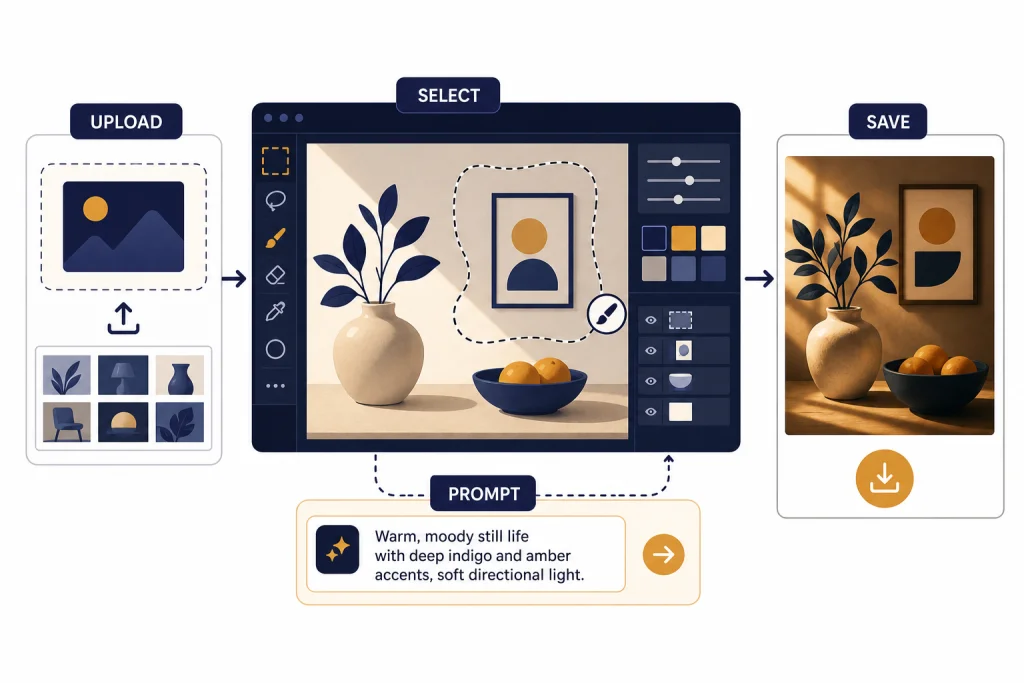
The ChatGPT photo editor lets you upload an image, describe the change you want, and get a revised image back without using traditional editing tools. It works best for natural-language edits: removing distractions, changing backgrounds, adjusting product mockups, restyling portraits, adding text, making transparent backgrounds, or iterating on images you created inside ChatGPT. As of April 1, 2026, the feature sits inside ChatGPT Images, OpenAI’s image creation and editing experience, and is available through the web and mobile apps.[1] It is not a full replacement for Photoshop, Lightroom, or a production design workflow, but it is one of the fastest ways to turn plain-language instructions into usable visual edits.
What is the ChatGPT photo editor?
The ChatGPT photo editor is not a separate app named “Photo Editor.” It is the image editing side of ChatGPT Images. You can generate a new picture, open it, select part of it, and ask ChatGPT to change that region. You can also upload an existing photo and describe the edit you want ChatGPT to make.[1]
The core difference from a traditional editor is control style. Photoshop and similar tools give you layers, masks, curves, brushes, and pixel-level adjustments. ChatGPT gives you a conversation. You say what should change, what should stay the same, and what the finished image is for. ChatGPT then creates a new edited version.
OpenAI first brought native image generation into ChatGPT through GPT-4o image generation on March 25, 2025, emphasizing better instruction following, text rendering, and editing precision.[3] On December 16, 2025, OpenAI announced a newer ChatGPT Images experience powered in the API as GPT-Image-1.5, with stronger instruction following, more precise editing, detail preservation, and generation up to 4x faster than before.[2]
For basic visual understanding before you edit, it helps to know how ChatGPT Vision reads images. For file workflows, see our separate ChatGPT file upload guide. Those features overlap with photo editing, but they are not the same thing: vision analyzes images, file upload attaches source material, and ChatGPT Images creates or changes visuals.
How to edit a photo in ChatGPT
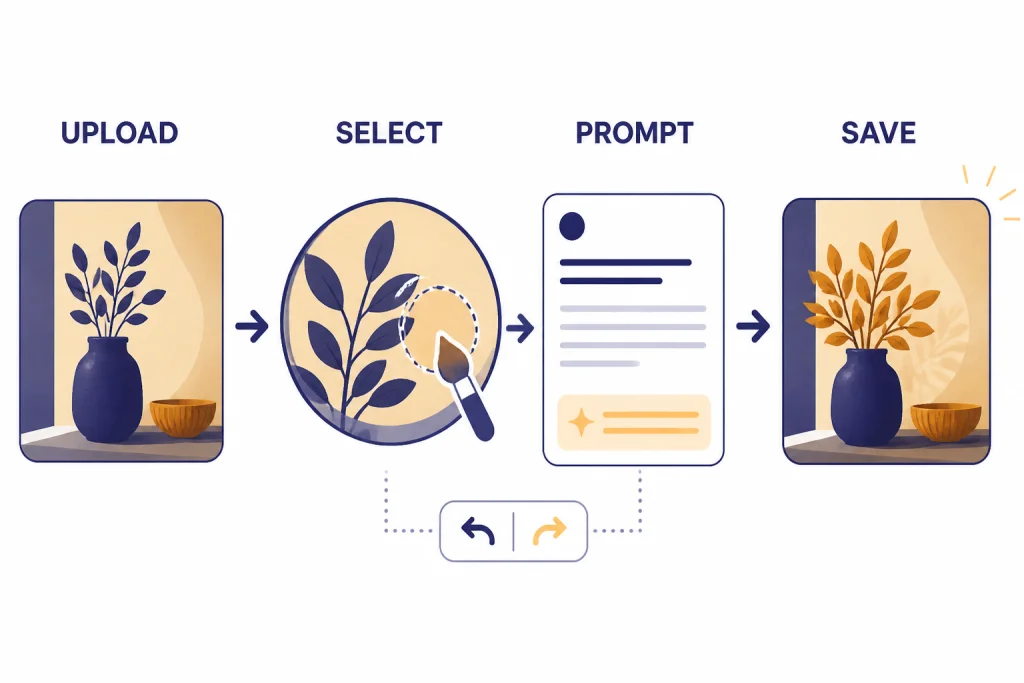
The simplest workflow has four parts: upload or create the image, define the target change, protect what should remain unchanged, and save the result. ChatGPT Images can take up to two minutes to generate an image, depending on instruction complexity, so it is better to make one clear edit at a time than to stack too many unrelated changes into one prompt.[1]
Step 1: Start with the right source image
Use the clearest version of the photo you have. A high-quality source image gives ChatGPT more reliable detail to preserve. If the subject is small, blurry, cropped awkwardly, or covered by shadows, the output may invent missing details. That can be useful for creative work, but it is risky for product photos, documentation, or anything that needs visual accuracy.
Step 2: Open the image editor
In ChatGPT, open the image you created or uploaded. OpenAI’s help documentation says you can edit by selecting part of the image with the selection tool and describing the change, or by skipping selection and describing the edit directly in the conversation panel.[1]
Step 3: Tell ChatGPT what to change and what to preserve
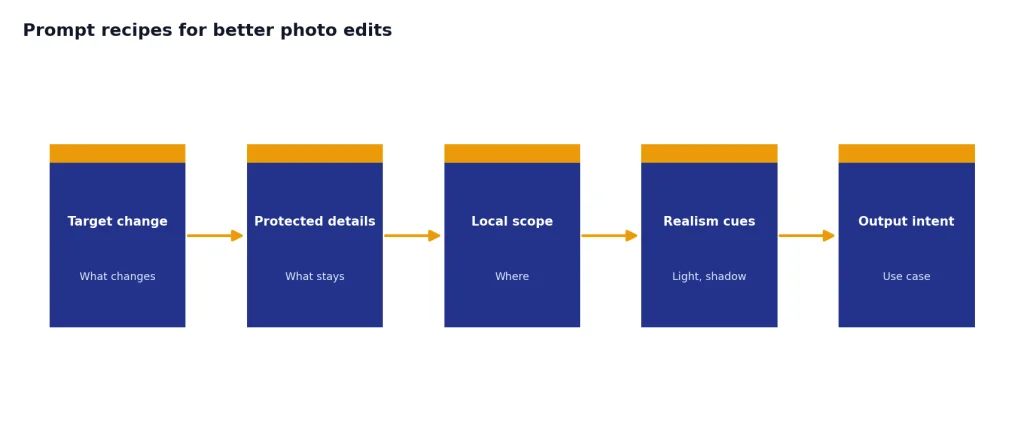
A good edit prompt has two halves. First, state the change: “remove the coffee cup from the desk.” Second, state the preservation rule: “keep the laptop, shadows, camera angle, and warm indoor lighting unchanged.” This reduces unwanted global changes.
Step 4: Review, refine, and save
OpenAI’s editor includes undo, redo, cancel, and save controls, and the mobile editor includes a brush-size slider for selection work.[1] Treat the first output as a draft. If the edit is close but not right, ask for a narrower correction instead of starting over.
What edits work best
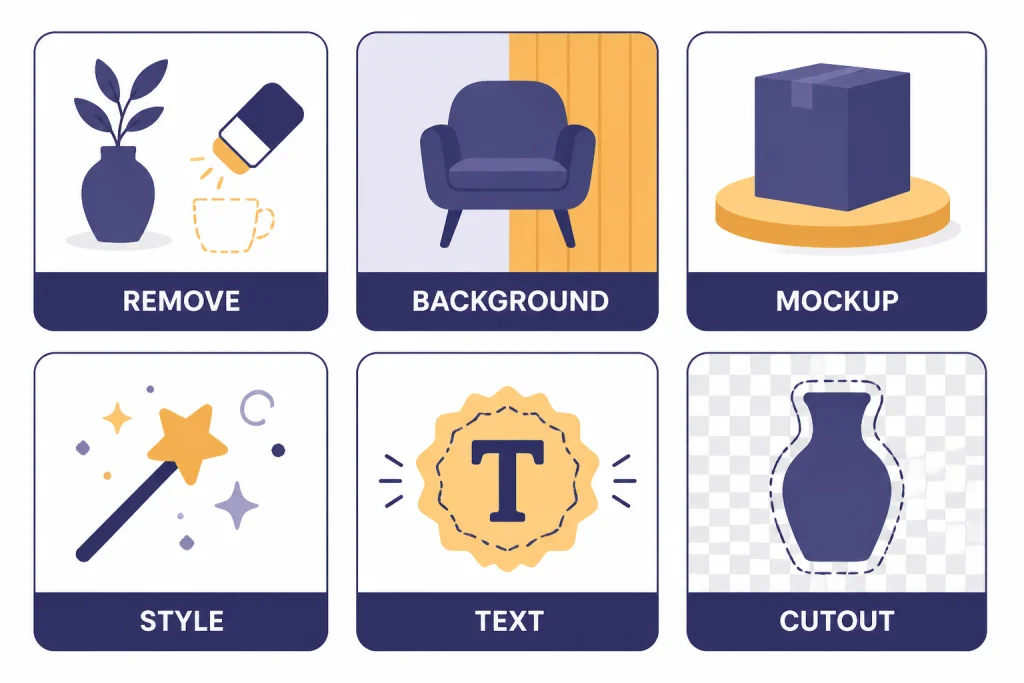
The ChatGPT photo editor is strongest when the desired result can be described in ordinary language. It is especially useful when you care more about the final look than about the exact mechanical path used to get there.
| Edit type | Good use case | Prompt pattern | Watch out for |
|---|---|---|---|
| Object removal | Remove a sign, cup, cable, person in background, or small distraction. | “Remove X and fill the area naturally. Keep Y unchanged.” | Texture smearing or invented background details. |
| Background change | Place a product or portrait into a cleaner setting. | “Replace the background with X. Preserve the subject exactly.” | Changes to edges, hair, reflections, or shadows. |
| Product mockup | Show packaging on a shelf, desk, or display scene. | “Put this item in X environment with Y lighting.” | Incorrect logos, labels, or product proportions. |
| Style conversion | Turn a photo into an editorial, poster, sketch, or concept image. | “Restyle as X while keeping the pose and composition.” | Loss of identity or brand-specific details. |
| Text addition | Add a short label, sign, or simple headline. | “Add the words X in large clear letters on Y.” | Small text may still distort, especially at low resolution. |
| Transparent background | Create cutouts for ecommerce, slides, or thumbnails. | “Make the background transparent and keep the full object intact.” | Fine edge cleanup may still need a dedicated editor. |
For reverse-image research, identification, or finding visually similar images, use ChatGPT image search rather than the photo editor. For turning still visuals into motion, our ChatGPT video generator guide covers Sora inside ChatGPT.
Prompt recipes for better photo edits
Precise prompts matter because ChatGPT often tries to satisfy the overall visual intent, not just the literal command. If you only say “make this better,” it may change lighting, pose, color, background, and style at once. Use constraints.
Object removal prompt
“Remove the red water bottle on the left side of the table. Fill the space with matching wood grain and natural shadows. Do not change the laptop, notebook, hands, camera angle, or lighting.”
Portrait cleanup prompt
“Clean up the background clutter and soften the lighting slightly. Keep the person’s face, hairstyle, clothing, expression, skin texture, and pose realistic. Do not make the image look airbrushed.”
Product photo prompt
“Place this product on a matte white studio surface with soft shadowing. Keep the product shape, label placement, colors, and proportions unchanged. Make the background clean and suitable for an ecommerce listing.”
Background replacement prompt
“Replace the background with a modern kitchen interior in soft daylight. Keep the person and foreground object unchanged. Match the shadows and perspective so the subject looks naturally present in the room.”
Text-in-image prompt
“Add a simple sign in the upper-right corner that says SALE. Use large block letters. Keep the sign flat, readable, and aligned with the wall perspective.”
If you make similar edits often, consider saving your preferred wording in ChatGPT Custom Instructions. If you are building a repeatable campaign or content set, ChatGPT Projects can keep the relevant prompts, reference images, and conversations together.
Plans, limits, and access
OpenAI’s help documentation says ChatGPT Images is available on web, iOS, and Android, and lets users create new images and edit existing ones.[1] The practical experience varies by plan, demand, region, account state, and temporary system limits.
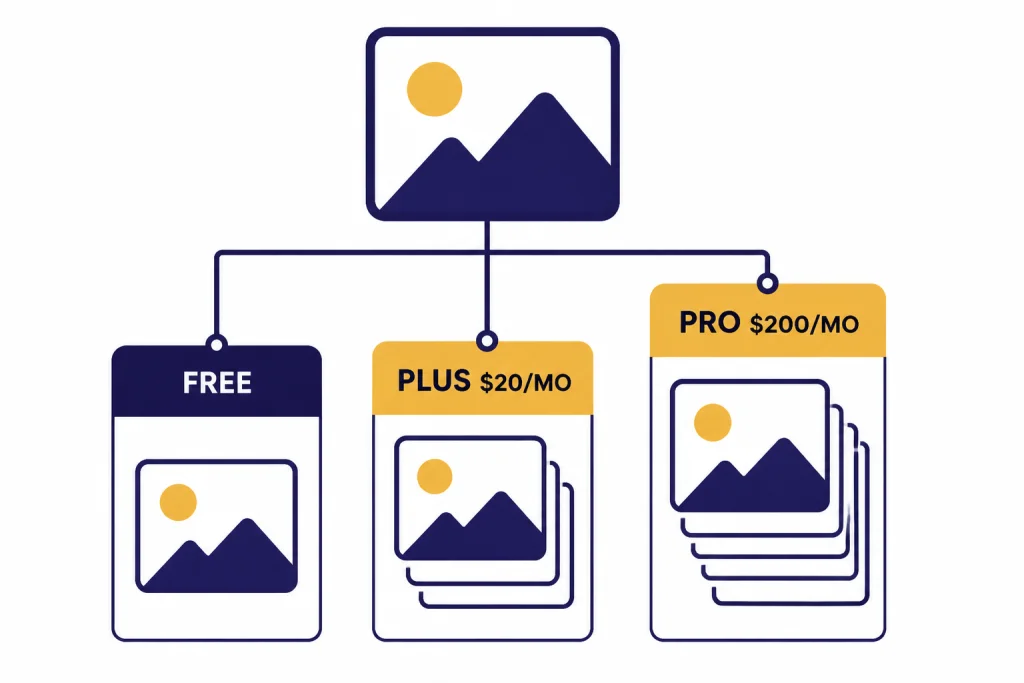
ChatGPT Plus is listed by OpenAI as a $20/month subscription that includes image generation among its expanded features.[4] ChatGPT Pro is listed by OpenAI as a $200/month subscription that includes everything in Plus, including image generation, plus higher-end access to additional ChatGPT capabilities.[5]
OpenAI has not published an official fixed daily image-editing quota that applies consistently to every account in the public help documents cited here. Do not plan a client deadline around an assumed unlimited number of edits. If you are editing many images, batch the work, keep prompts short, and save source files outside ChatGPT.
| Plan or route | Best fit | Photo editing note |
|---|---|---|
| Free ChatGPT account | Occasional edits and testing. | Useful for simple edits, but availability and limits may be tighter during demand spikes. |
| ChatGPT Plus | Regular personal or small-business editing. | Good default choice if image editing is part of a broader ChatGPT workflow. |
| ChatGPT Pro | Heavy ChatGPT users who also use advanced tools. | Overkill for photo edits alone, but useful if you also rely on other high-limit ChatGPT features. |
| OpenAI API | Developers building image workflows into apps. | Better for automation, but less convenient than ChatGPT for one-off visual iteration. |
For desktop access, use the official ChatGPT app or browser experience. If you are choosing an install route, compare our best ChatGPT app guide and the ChatGPT Windows app setup.
Privacy, safety, and provenance
Photo editing can expose sensitive information. Before uploading an image, check for faces, addresses, license plates, documents, screens, badges, children, medical details, and private locations. Crop or blur unnecessary information before sending it to any AI service.
OpenAI says ChatGPT Images supports image creation and editing, and its policy pages direct users to follow OpenAI’s usage policies when creating images and videos.[8] That matters for edits involving real people, public figures, explicit content, violence, political persuasion, identity documents, or copyrighted material.
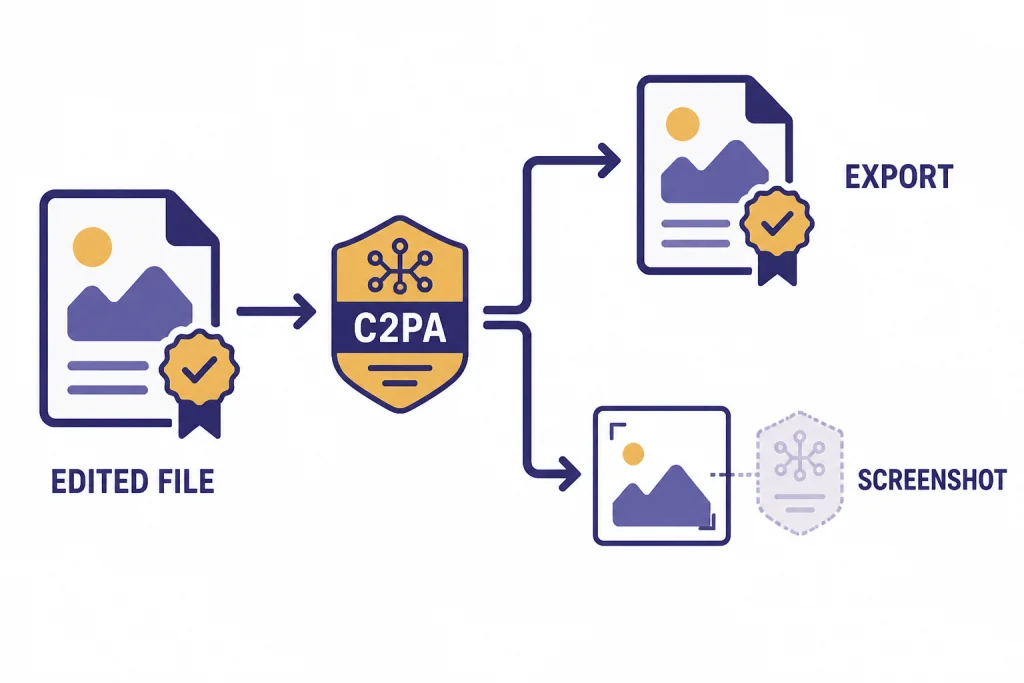
OpenAI also documents C2PA metadata for images generated in ChatGPT and explains that C2PA can help indicate provenance, but it can be removed accidentally or intentionally, including through screenshots or platforms that strip metadata.[6] Treat provenance metadata as a helpful signal, not as a guarantee.
If you are publishing edited images, label them honestly when the edit changes meaning. Cosmetic cleanup is different from fabricating an event. A product photo with a cleaner background is one thing; an edited news image, legal exhibit, or documentary photo is another.
When not to use ChatGPT for photo editing
Do not use the ChatGPT photo editor when exact pixel-level fidelity is required. It generates a new result from instructions, so even a small requested edit can slightly alter nearby details. That makes it less reliable for forensic images, legal evidence, medical records, technical diagrams, proof-of-condition photos, and regulated product claims.
It is also the wrong first tool for RAW photo development. If you need lens correction, color calibration, noise reduction, nondestructive adjustment history, export profiles, or print preparation, use a dedicated photo editor. ChatGPT is better after those steps, when you need a quick creative variant or a natural-language edit.
Be careful with identity-sensitive edits. If a person must remain recognizable, ask ChatGPT to preserve identity, pose, expression, and proportions. Then compare the result closely. If recognition matters for official use, do not rely on an AI-edited image without human review.
For editing documents, screenshots, or text-heavy images, consider whether a text workflow is safer. Sometimes it is better to extract the text, revise it, and rebuild the graphic than to ask an image model to rewrite small lettering.
Troubleshooting common problems
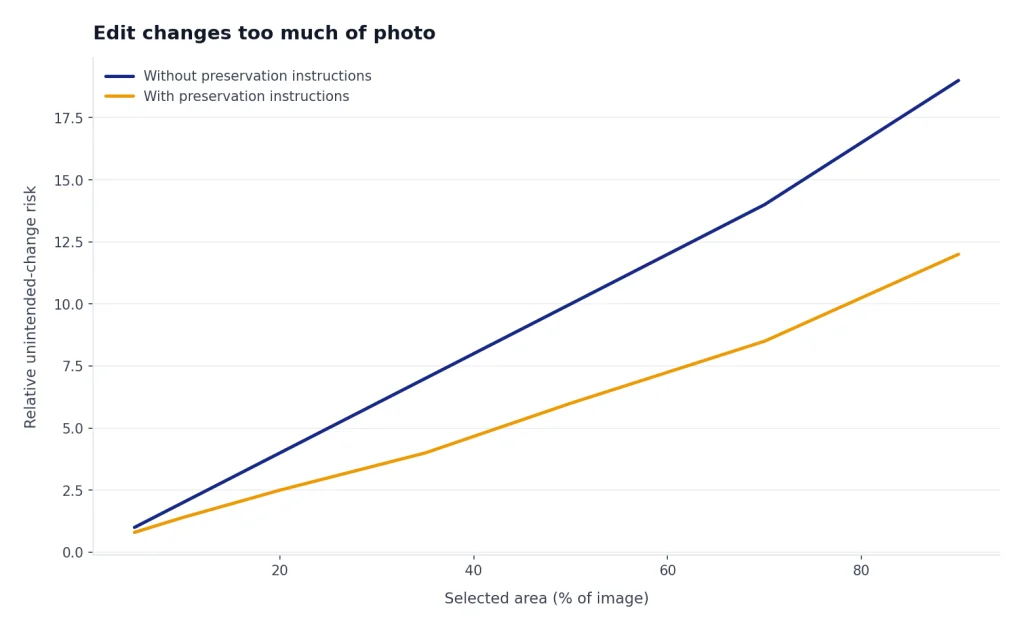
The edit changes too much of the photo
Use the selection tool for the smallest relevant area, then add preservation instructions. Say “only change the selected area” and list the details that must remain unchanged. If the problem continues, break the edit into smaller steps.
The output does not preserve the person’s likeness
Ask for a lighter edit. Prompts like “keep the person’s face exactly the same” can help, but they do not guarantee identity preservation. Avoid large style conversions if likeness matters.
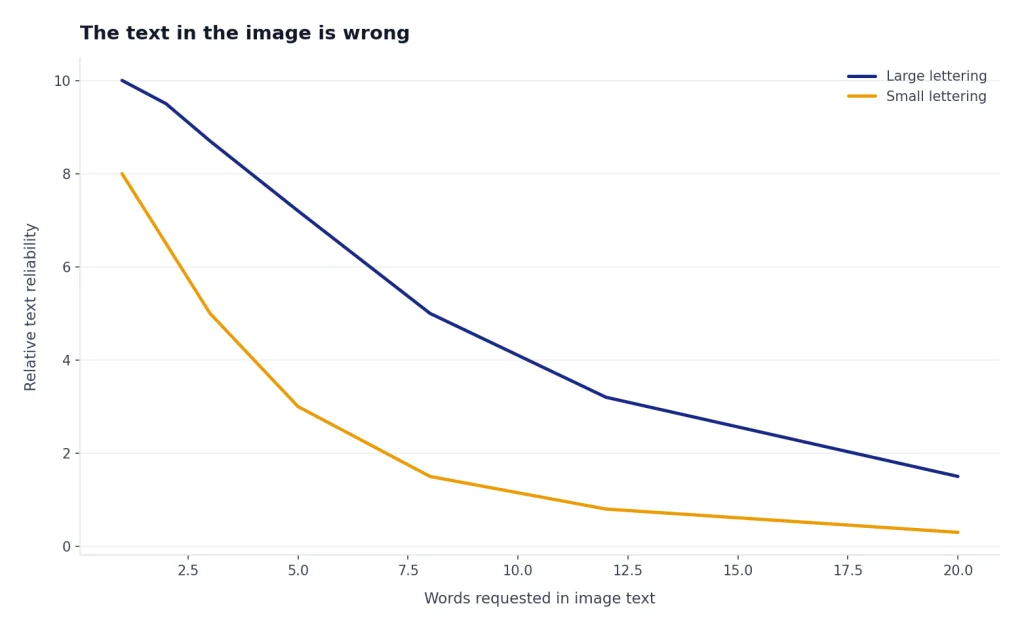
The text in the image is wrong
Use fewer words, larger lettering, and a simple placement. Ask for one short label instead of a paragraph. If the text must be perfect, add it later in a design tool.
The result looks artificial
Add realism constraints. Mention lens type only if you know it, but always include lighting, shadow, perspective, and texture. For example: “match the existing soft window light and keep the original shadow direction.”
The image will not upload
Try a common image format, reduce file size, refresh the session, or switch between web and mobile. If you are troubleshooting more than images, see our ChatGPT file upload guide.
If you need to share before-and-after results, ChatGPT Shareable Links can help with conversation context, but do not share private source images publicly unless you have permission.
Frequently asked questions
Can ChatGPT edit an existing photo?
Yes. OpenAI’s ChatGPT Images documentation says you can upload an existing image and describe the changes you want ChatGPT to make.[1] For best results, give one specific change at a time and say what should stay unchanged.
Is the ChatGPT photo editor free?
ChatGPT Images is available inside ChatGPT, but your exact access depends on your plan and current usage limits.[1] OpenAI lists ChatGPT Plus at $20/month and ChatGPT Pro at $200/month, both with image generation included in their feature sets.[4][5]
Can ChatGPT remove backgrounds?
Yes, background removal is one of the practical uses for ChatGPT Images. OpenAI says ChatGPT Images can make the background of an image transparent.[1] Check edges carefully if the subject has hair, glass, shadows, or fine product details.
Can ChatGPT edit only part of an image?
Yes. OpenAI’s editor lets you select part of an image and then describe the change in chat.[1] The selection is a guide rather than a perfect hard mask, so nearby areas may still change.
Does ChatGPT keep the original image?
ChatGPT keeps the conversation context while you work, and OpenAI says images you create are saved under Images so you can revisit and reuse them.[1] You should still keep your own local copies of important originals and final exports.
Is ChatGPT better than Photoshop for photo editing?
ChatGPT is faster for plain-language creative edits. Photoshop is better for precise professional control, layered files, color-managed workflows, and repeatable production edits. Many users will get the best results by using ChatGPT for drafts and a dedicated editor for final polish.