

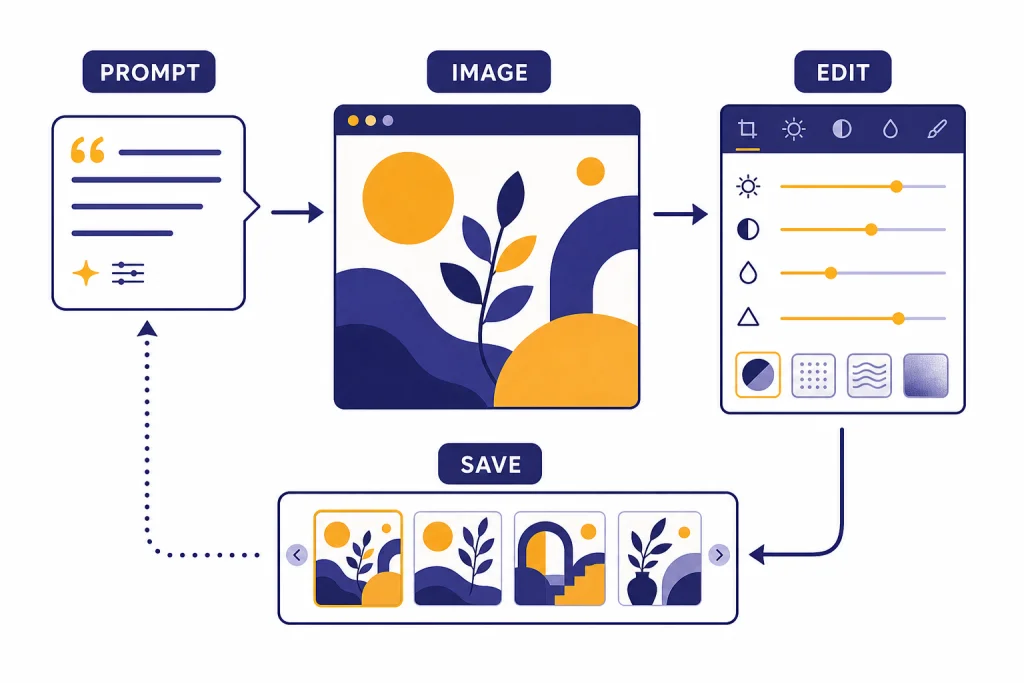
The ChatGPT image generator is OpenAI’s built-in image creation and editing feature inside ChatGPT. You describe what you want, add reference images when useful, and keep revising the result in the same conversation. It is strongest for visual concepts, social graphics, diagrams, mockups, storyboards, presentation art, and practical edits to existing images. It can also follow instructions about text, details, aspect ratio, and transparent backgrounds.[2] It is not a substitute for rights review, brand review, accessibility review, or professional production work. The main benefit is speed through iteration: you can ask for changes in plain English instead of rebuilding the image from scratch.
What the ChatGPT image generator is
The ChatGPT image generator is the image creation experience built into ChatGPT. Instead of opening a separate design app, you type a prompt in a chat, ask for an image, and continue refining the result with follow-up instructions. OpenAI introduced native image generation in GPT-4o on March 25, 2025, and described it as a default image generator for Plus, Pro, Team, and Free users during that rollout.[8] OpenAI then released a newer ChatGPT Images experience on December 16, 2025, exposed in the API as GPT-Image-1.5.[1] As of May 2026, OpenAI’s current image lineup also includes GPT-image-2, which is the top current image-generation model for developers.
The practical difference from older prompt-only image tools is the conversation. You can say, “make the label easier to read,” “keep the same character but change the background,” or “turn this into a square icon set.” ChatGPT keeps the visual task connected to the chat context, which makes it useful for people who need several close variations rather than one isolated image.
Use it when you need a visual draft quickly. Do not treat the output as automatically accurate, original, or publication-ready. If the image contains product claims, medical or legal concepts, real people, trademarks, copyrighted characters, or sensitive public topics, review it the same way you would review work from any other creative source.
Availability, plans, and cost
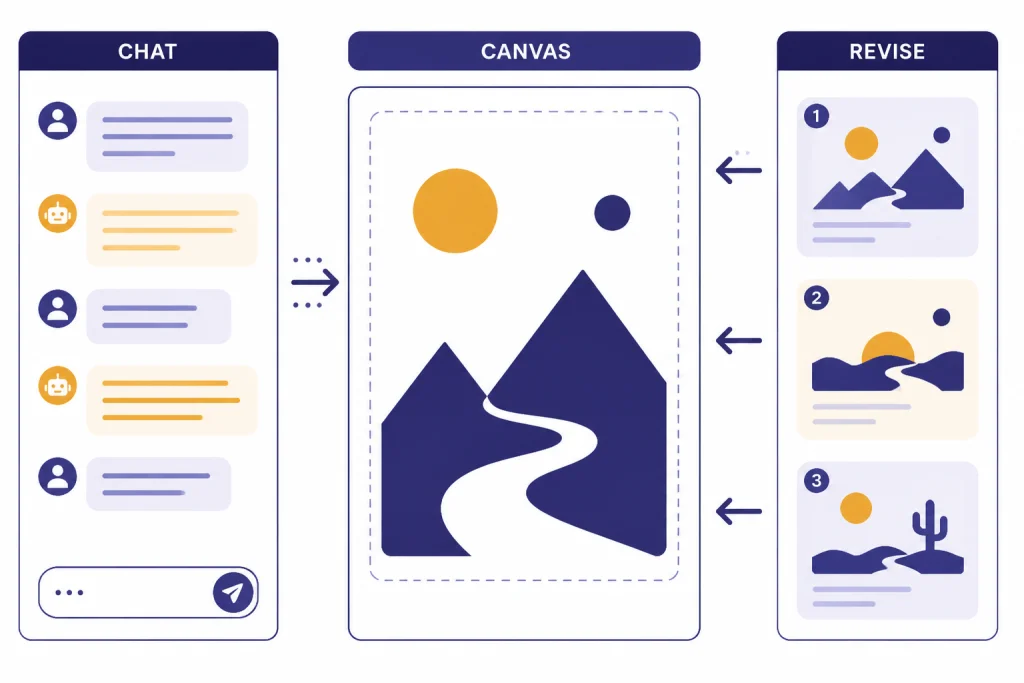
OpenAI’s public pricing page lists image generation across ChatGPT plans, with Free shown as limited, Plus shown with expanded image creation, and Pro shown with faster or higher-volume image creation subject to abuse guardrails.[3] OpenAI has not published one universal public image-count limit that applies to every user, every region, and every time period. If you hit a limit, the number that matters is the message shown inside your ChatGPT account.
For individual users, OpenAI listed ChatGPT Plus at $20 per month in its pricing materials and help content.[3] OpenAI also documents Pro tiers, including a Pro $200 tier with higher usage than Plus.[4] Prices, plan names, model access, and regional availability can change, so treat the in-account upgrade screen as the final source before subscribing.
| Plan or route | Best fit | Image access pattern | Watch for |
|---|---|---|---|
| Free | Trying the feature and making occasional drafts | Limited image generation | Lower limits and slower access during busy periods |
| Plus | Regular personal or creative use | Expanded image creation compared with Free | Still subject to usage caps and policy checks |
| Pro | Heavy individual workflows | Higher usage and faster image creation on the pricing page | Cost may exceed what casual users need |
| Business or Enterprise | Team workflows with admin and data controls | Plan-dependent image access | Ask the workspace admin about enabled features and data settings |
| OpenAI API | Apps, automation, batch workflows, and product integrations | Usage-based billing through developer tools | Requires implementation, billing controls, storage, and policy review |
If your main question is whether to pay for ChatGPT only to make images, start with your expected volume. A few birthday cards, icons, or social drafts may fit Free. Weekly campaign work, repeated edits, and client mockups usually justify a paid plan. If you need automated image generation inside your own product, compare the API route with OpenAI API pricing before building.
How to create an image in ChatGPT
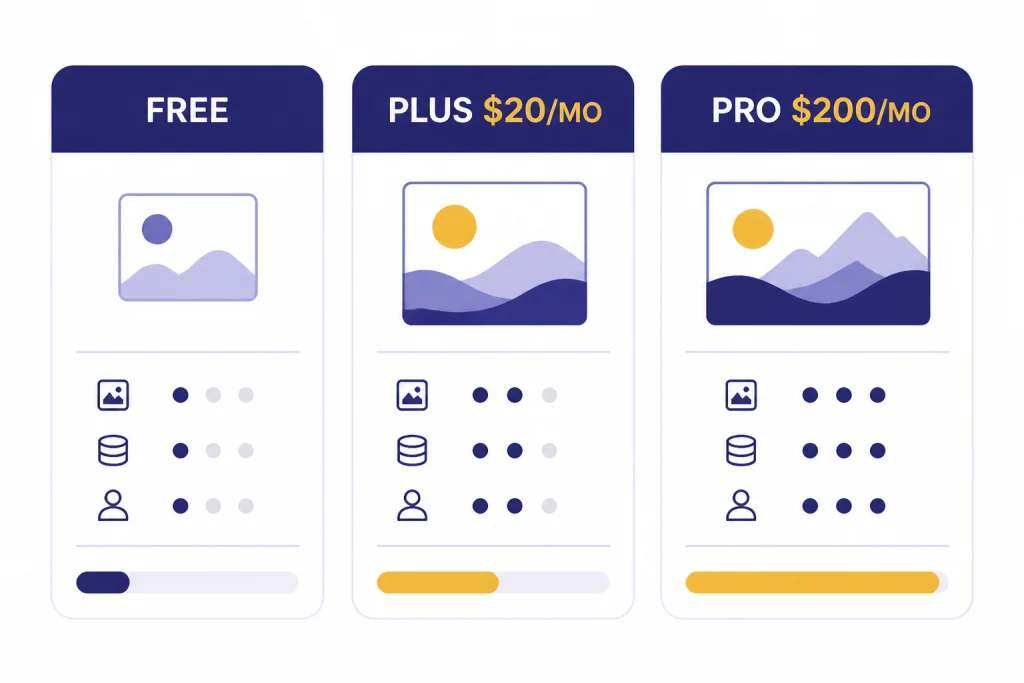
You can generate an image by asking ChatGPT directly or by opening the tools menu and selecting the image creation option.[2] The exact labels can vary by app version, but the working paths are similar:
- Web: go to chatgpt.com, start a new chat, choose a model that supports images if your picker shows model choices, type your image request in the message box, or open the Tools/+ menu and choose the image creation option.
- Mobile app: open ChatGPT, tap the composer, use the + or tools button to attach reference images if needed, then ask for the image. To revise an existing result, tap the generated image, use the visible edit or selection control if offered, and describe the change.
- Desktop app: open a chat from the sidebar, use the composer or tools menu the same way you would on web, and drag in reference files when the app supports file drop. Desktop is convenient for copying brand briefs, screenshots, and downloaded results between apps.
The best first prompt tells ChatGPT what the image is for, what it should contain, what it should not contain, and the final format you need. Do not start with style alone. Start with the job the image must do.
- State the deliverable. Example: “Create a square hero image for a guide about password managers.”
- Name the subject. Example: “Show a locked vault, a password field, and three device cards.”
- Set the format. Example: “Use a 1:1 aspect ratio with a clean editorial vector style.” Common choices are square, portrait, landscape, 16:9, 4:5, 3:2, and 1:1. If the UI does not expose an aspect-ratio picker, put the ratio directly in the prompt.
- Control text. Example: “Include only the labels VAULT, PHONE, LAPTOP, and KEY.” Keep text short and large.
- Add constraints. Example: “No logos, no real company names, no faces.”
- Ask for a revision. Example: “Keep the composition but make the vault smaller and the labels larger.”
Illustrative prompt test: a vague request such as “Make a professional image about password security” usually produces a generic lock, glowing code, and vague corporate colors. A stronger prompt is: “Create a 16:9 editorial hero image for a password-manager article. Show a simple vault icon on the left, three device cards on the right, and four readable labels: VAULT, PHONE, LAPTOP, KEY. Use flat vector art, white background, blue and amber accents, no brand logos, no faces.” The second version gives ChatGPT composition, format, readable text limits, and no-go rules.
After generation, open the image to review it at full size. On most ChatGPT surfaces, you can download or save the result from the image viewer using a download icon, overflow menu, share sheet, or right-click/save action. Export behavior depends on the app and account, but the practical workflow is the same: download the final image, rename it, store the prompt or conversation link with the project, and do any final cropping or typography in your design tool.
For work that depends on facts, use ChatGPT’s browsing or search capabilities separately before generating the final image. A data chart, map, medical diagram, or product comparison should not rely on visual generation alone. If you need the model to inspect an existing image before creating a new one, read our separate ChatGPT Vision guide.
ChatGPT may take up to two minutes to generate an image depending on instruction complexity, according to OpenAI’s help documentation.[2] Complex prompts with many objects, small text, or multiple reference images usually take longer than simple visual concepts.
How image editing works
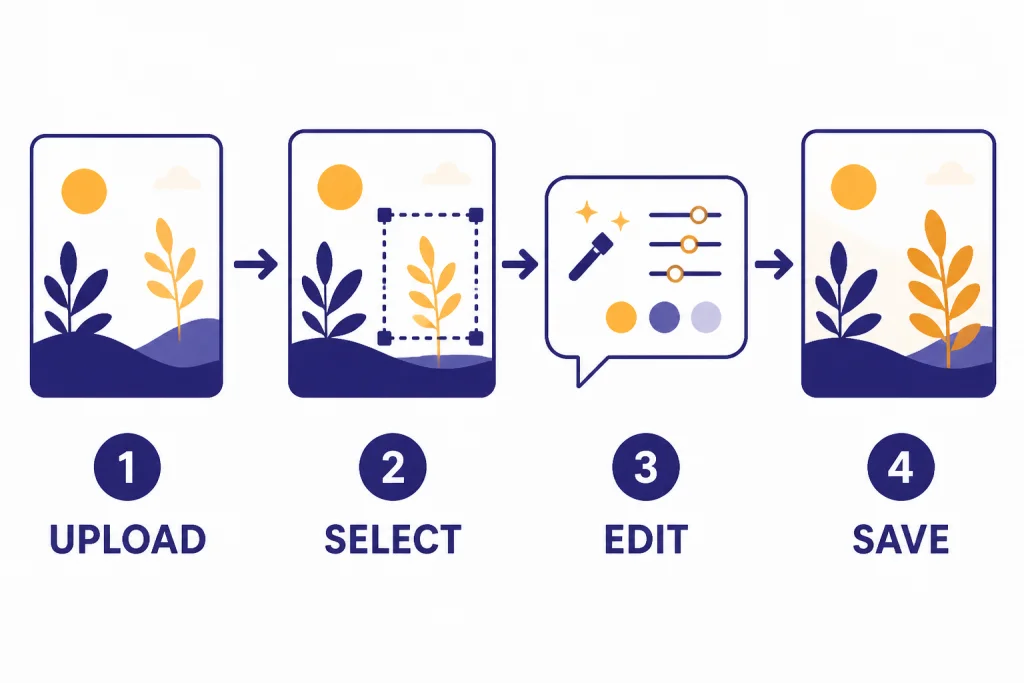
ChatGPT Images can edit images you generated in ChatGPT or images you upload. OpenAI’s help article says you can upload an existing image and describe the changes you want ChatGPT to make.[2] This is useful for small visual corrections, background changes, layout alternatives, and style transfers. It is also useful when the first generation is almost right but one area needs repair.
The editor supports a selection workflow: open the image, choose the edit or selection tool when it appears, mark the area you want changed, and describe the edit. On web and desktop, the selection control is usually available after you open the generated image or uploaded image in the image viewer. On mobile, tap the image first, then look for the edit/selection button or overflow menu. Use selection for a localized change, such as replacing a sign, removing an object, changing a shirt color, or correcting one label. Skip selection when the whole image needs a broader change, such as a new aspect ratio, a different lighting mood, or a complete style shift.
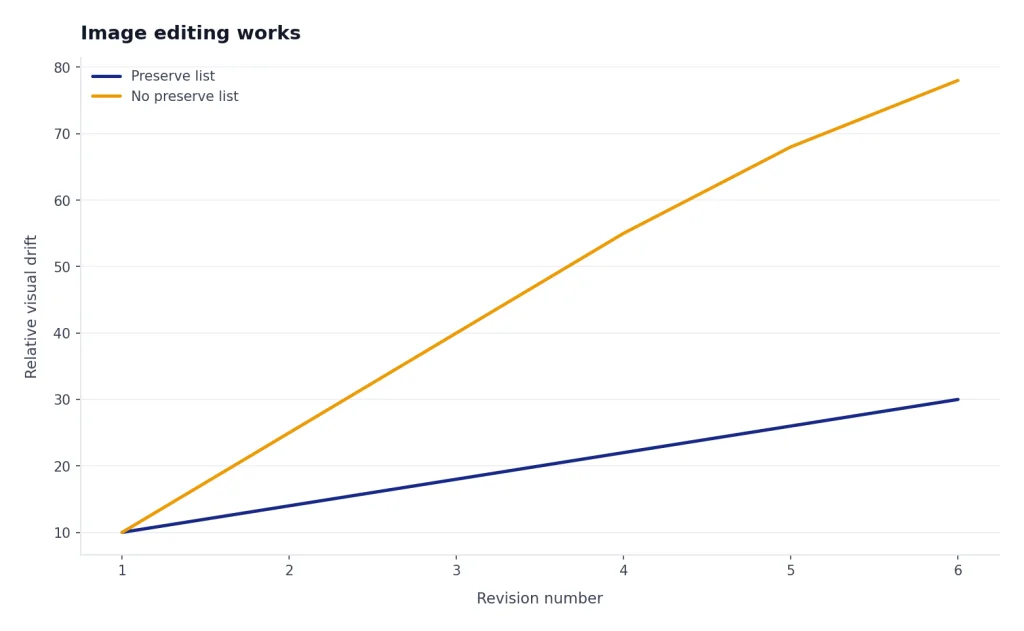
Good edit prompts preserve what matters. Say what should stay the same before you say what should change. For example: “Keep the same composition, colors, and character pose. Replace the background with a simple office wall. Do not change the face or clothing.” That pattern reduces unwanted drift across revisions.
Illustrative edit example: if a generated product mockup is good but the headline is wrong, do not ask “fix the text.” Open the image, select only the headline area, and prompt: “Keep the rest of the poster unchanged. Replace the selected headline with exactly: SECURE YOUR FILES. Use large uppercase sans-serif letters, centered, high contrast.” If the model changes unrelated parts, revert to the previous version and repeat the edit with a tighter selected region.
If you plan to edit uploaded photos of real people, be careful. Ask for ordinary improvements such as cropping, lighting cleanup, background removal, or non-deceptive styling. Avoid prompts that could mislead viewers about identity, events, endorsements, or real-world actions.
Prompt patterns that get better results
The most reliable prompts use concrete nouns, visible relationships, and clear constraints. Avoid vague requests such as “make it professional.” Say what professional means in the image: symmetrical layout, limited palette, no clutter, readable labels, and one clear focal point.
| Goal | Prompt pattern | Example instruction |
|---|---|---|
| Marketing graphic | Audience + object + layout + no-go list | “Create a LinkedIn banner for software buyers. Show three abstract app windows connected to one dashboard. No logos or people.” |
| Diagram | Process steps + labels + direction | “Make a left-to-right flow diagram with four boxes labeled INPUT, CHECK, EDIT, EXPORT.” |
| Product mockup | Object + environment + material + camera angle | “Show a matte black desk timer on a white desk, top-down view, soft shadows, no brand marks.” |
| Icon set | Count + shared style + individual subjects | “Create six matching line icons for upload, search, image, audio, video, and settings.” |
| Photo edit | Preserve list + change list | “Keep the person, pose, and lighting. Replace the background with a plain gray studio wall.” |
Here are three before-and-after prompt upgrades you can copy:
- Generic social post: before: “Make an image about AI productivity.” After: “Create a 4:5 social graphic for a productivity newsletter. Show a tidy desk with a laptop, calendar, and three floating task cards labeled PLAN, WRITE, REVIEW. Minimal editorial illustration, cream background, navy text, no logos, no faces.”
- Messy diagram: before: “Draw how a chatbot works.” After: “Create a left-to-right process diagram with five boxes: USER QUESTION, RETRIEVAL, MODEL, TOOL CALL, ANSWER. Use arrows between boxes, large readable labels, white background, simple blue outline style.”
- Over-edited photo: before: “Make this photo better.” After: “Keep the same person, pose, clothing, and crop. Improve exposure slightly, soften background clutter, and remove the red object on the table. Do not change the face, body shape, or room layout.”
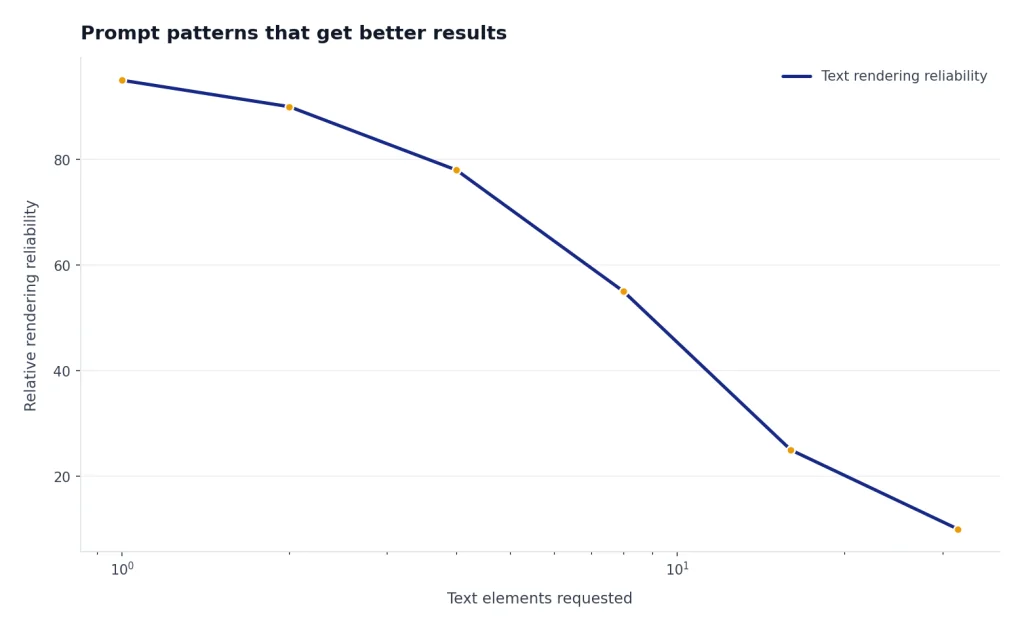
Text inside images is still a special case. OpenAI says ChatGPT Images can follow instructions to add text, add details, and make backgrounds transparent.[2] Keep text short. Use a few large labels rather than a paragraph. If you need a polished poster, generate the background in ChatGPT and add final typography in a design app.
For recurring brand work, combine image prompts with saved preferences. ChatGPT Custom Instructions can help you keep tone and formatting preferences available across chats, though you should still specify image details in the active prompt.
Strengths, limits, and best use cases
The strongest use cases are visual exploration and fast iteration. ChatGPT Images is helpful when you need to see several directions before choosing one: different compositions, icon styles, color systems, or scene concepts. OpenAI’s December 2025 release said the newer ChatGPT Images model improved instruction following, editing precision, dense text rendering, and natural-looking results.[1] As of May 2026, GPT-image-2 is also part of OpenAI’s current image model lineup, so developer workflows should check whether the newer model is available for their use case.
In practical testing-style use, the feature is best when the prompt describes visible objects and the review loop is short. For example, a prompt for “six matching icons: upload, search, image, audio, video, settings; black line art; 1:1 grid; no text” is usually easier to revise than a full poster with a paragraph of copy. A local edit like “change only the selected mug from red to white” is also more controllable than “make this more premium,” because the model knows which pixels should change.
The limits are predictable. The image may invent details, overfit to a reference, miss small layout instructions, or produce awkward hands, tiny text, or inconsistent objects. It may also create a beautiful result that is wrong for your purpose. Treat the first output as a draft, not a verdict.
For business use, separate ideation from publication. Use ChatGPT for rough concepts, then run final assets through brand review, accessibility review, legal review, and export cleanup. If your work includes uploaded assets, organize the surrounding project with ChatGPT Projects or download files promptly so you do not lose track of the source conversation.
The feature is weaker for exact replicas, regulated diagrams, production typography, and anything that needs verifiable measurements. If the task requires a precise chart, use a data tool first. If it requires exact identity or real-world evidence, use original photography or licensed assets.
How it compares with related ChatGPT tools
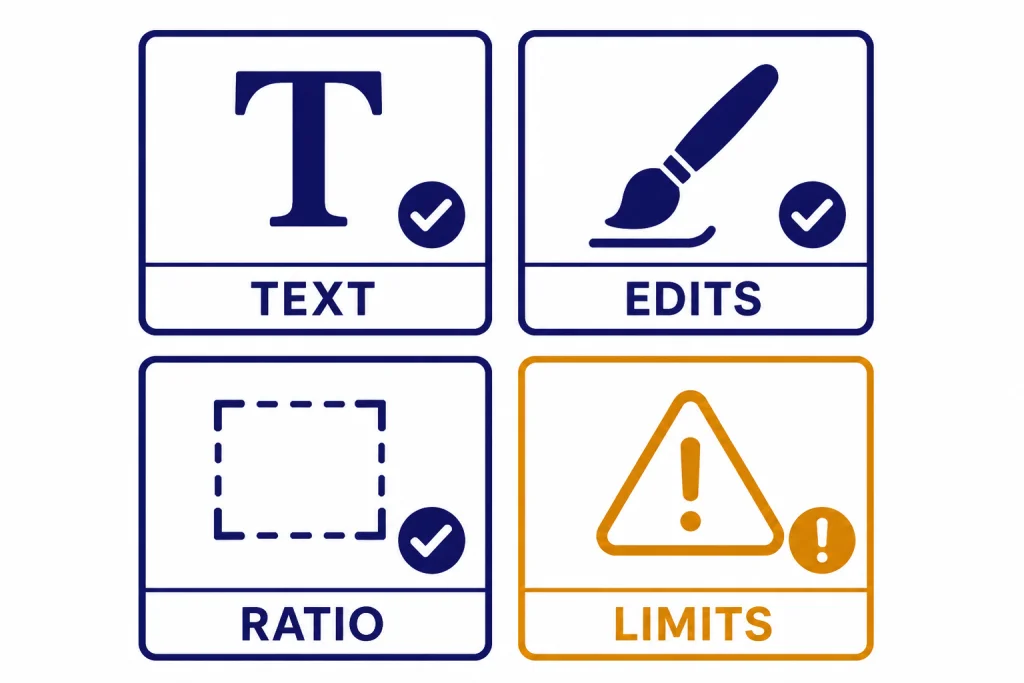
ChatGPT now has several visual and media features, and they are easy to confuse. The image generator creates or edits still images. Vision analyzes images you upload. Image search helps with reverse lookup and visual discovery. Video generation creates motion rather than a still frame. File upload lets ChatGPT read source material that may inform your prompt.
| Tool | Main job | Use it when | Related guide |
|---|---|---|---|
| ChatGPT image generator | Create or edit still images | You need a new visual asset or a revised image | This guide |
| Vision | Analyze an uploaded image | You need description, critique, extraction, or reasoning over an image | ChatGPT Vision |
| Image search | Find image context or matches | You need reverse lookup or source research | ChatGPT image search |
| File upload | Provide documents or assets as context | You want ChatGPT to use a brief, PDF, spreadsheet, or reference file | ChatGPT file upload |
| Video generator | Create moving clips | You need animation, scenes, or short generated video | ChatGPT video generator |
| ChatGPT Search | Get current web information | You need facts before generating a visual | ChatGPT Search |
Use the mobile or desktop app that fits your workflow. If you create images on the go, compare app behavior in our best ChatGPT app guide. If you need to share a prompt-and-result workflow with someone else, ChatGPT Shareable Links can be useful, but avoid sharing private uploaded images unless you have permission.
Privacy, provenance, and safety checks
Before uploading an image, ask whether you have the right to use it and whether it contains private information. Product screenshots, contracts, IDs, children’s faces, patient images, and internal brand files deserve extra caution. If you are using a work account, follow your organization’s policy rather than assuming every personal-account feature is approved.
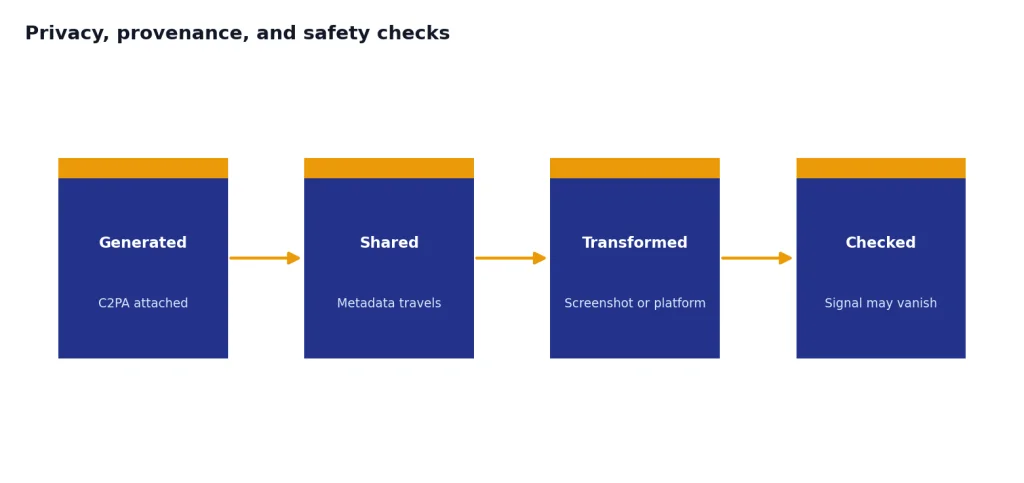
OpenAI says images generated with ChatGPT on the web include C2PA metadata, and that this metadata can help people check whether an image was generated through ChatGPT or OpenAI tools.[7] OpenAI also warns that provenance metadata is not a complete solution because it can be removed, including through screenshots or platforms that strip metadata.[7]
For publication, keep a record of your prompt, source assets, generated versions, final edits, and download date. That record helps with correction, disclosure, and rights review. If you publish AI-assisted images, consider labeling them when the image could otherwise be mistaken for documentary evidence.
Safety review should happen before the image leaves ChatGPT. Check for hidden logos, fake citations, unreadable or misleading text, distorted anatomy, culturally sensitive symbols, and accidental resemblance to real people. If the image is for an ad, product claim, election topic, health topic, or financial topic, raise the review standard.
ChatGPT image generator vs. the OpenAI API
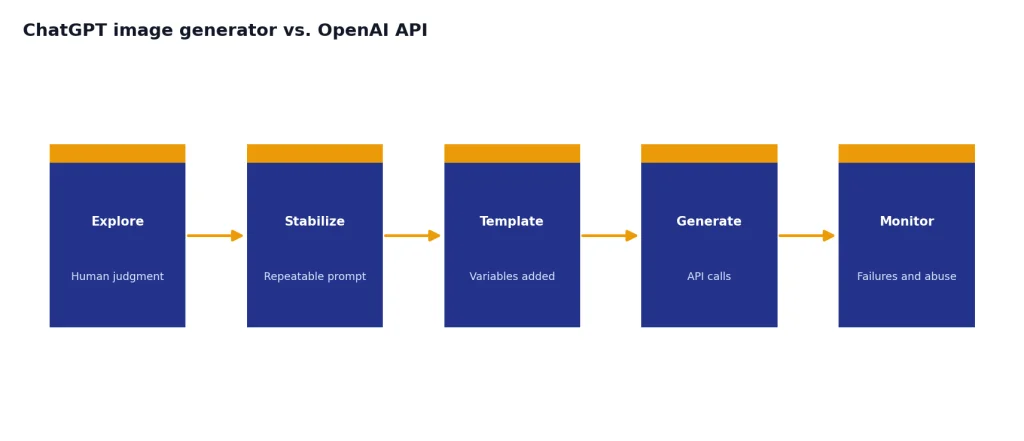
Use ChatGPT when a human is steering the creative process. Use the OpenAI API when software needs to generate or edit images repeatedly, store outputs, apply templates, enforce presets, or integrate the workflow into another product. OpenAI’s developer documentation says the API can generate and edit images from text prompts using GPT Image models, including GPT-image-2 in the current developer guide.[5]
The API route adds engineering responsibilities. You need authentication, billing controls, abuse monitoring, storage decisions, user disclosure, and fallbacks when generation fails. OpenAI’s GPT Image 1.5 model page lists image generation pricing by quality and size, such as $0.009 for a low-quality 1024 x 1024 image and $0.133 for a high-quality 1024 x 1024 image.[6] Use the live pricing page before launch because API models and prices can change.
Quality and size are not just cost settings. Lower quality is usually better for thumbnails, placeholders, quick A/B drafts, and background jobs where a human will not inspect every pixel. Higher quality is more appropriate for hero art, product mockups, dense diagrams, and images that need cleaner edges or more faithful instruction following. Larger outputs can reduce upscaling work but increase file size, storage needs, transfer time, and cost. If your app only displays a small card image, generating the largest size by default may waste budget.
Latency also matters. ChatGPT hides much of the queueing and retry behavior behind a conversational interface. In the API, your product must decide what users see while an image is generating: a spinner, background job, email notification, retry button, or placeholder. For multi-image workflows, design for partial success. Save the prompt, model, size, quality setting, user ID or job ID, moderation state, and returned file reference so you can debug failures and reproduce the job when policy and retention rules allow.
Output handling is another difference. In ChatGPT, a person can download the finished image from the viewer and file it manually. In an API workflow, you decide whether to store generated files in your own object storage, how long to retain them, whether users can delete them, whether to preserve metadata, and how to log the source prompt without exposing private user content. Those choices should be made before launch, not after the first support complaint.
For most readers, ChatGPT is the better place to learn prompting and editing. Once the workflow is stable, the API can turn the repeatable parts into a product or internal tool. That progression keeps experimentation cheap and reduces the risk of automating a prompt that still needs human judgment.
Troubleshooting common problems
ChatGPT changed too much during an edit
Rewrite the prompt with a preserve list. Start with “Keep the same composition, subject, colors, and lighting.” Then state the one change you want. If the edit is local, open the image and use the selection tool instead of asking for a global rewrite.
The text in the image is wrong
Shorten the text and reduce the number of labels. Ask for large block letters and specify the exact labels. For polished marketing work, generate the visual without final text and add typography in a design app.
The image looks generic
Add concrete visual anchors. Name the objects, camera angle, layout, material, lighting, and use case. Replace “modern” with visible details such as “three-column editorial layout, white background, thin amber dividers, no people.”
You hit an image limit
Wait for the limit to reset or switch to a plan with more access if your account offers one. OpenAI’s public materials describe Free image generation as limited and paid plans as expanded, but they do not provide one universal image-count limit for all users.[3]
The output may violate a policy or rights rule
Stop and revise the request. Avoid prompts that imply false endorsements, nonconsensual identity use, or deceptive real-world evidence. When in doubt, create a fictional scene with no real names, logos, or private people.
Frequently asked questions
Is the ChatGPT image generator free?
Yes, OpenAI lists image generation on the Free plan, but with limited access.[3] If you need more frequent generation, a paid plan may be more practical. Check your account because limits and availability can vary.
Can ChatGPT edit an image I upload?
Yes. OpenAI says you can upload an existing image and describe the changes you want ChatGPT to make.[2] For precise edits, open the image, select the region you want changed if the selection tool is available, and tell ChatGPT what should remain untouched.
Can the ChatGPT image generator make transparent backgrounds?
Yes. OpenAI’s help article says ChatGPT Images can follow instructions to make the background transparent.[2] For best results, ask for a simple subject, clean edges, and no shadow if you plan to place the image on another background.
Is DALL·E still available in ChatGPT?
OpenAI’s March 2025 rollout said users who preferred DALL·E could still access it through a dedicated DALL·E GPT.[8] Availability can change by plan and workspace settings. If you do not see it, search GPTs or check your account’s enabled tools.
Are ChatGPT-generated images labeled as AI-generated?
OpenAI says images generated with ChatGPT on the web include C2PA metadata that can indicate they were created through ChatGPT or OpenAI tools.[7] That metadata can be stripped by screenshots or platforms, so it should not be treated as a permanent watermark.
Should I use ChatGPT or the API for image generation?
Use ChatGPT for interactive creative work, brainstorming, and manual edits. Use the API for repeatable app workflows, automated generation, and production systems. The API requires engineering, billing controls, output storage decisions, latency handling, and stronger operational review.