


ChatGPT status is best checked from OpenAI’s official status page first, then confirmed with your own device, browser, network, and account tests. The public page shows current service state, component health, incident updates, history, and aggregate availability notes, but it does not prove that every user, plan, model, or region has the same experience.[1] Use it as the starting signal, not the final diagnosis. If the page shows an active incident, wait for OpenAI’s updates. If it looks normal, test a private window, another browser, mobile data, and a fresh conversation before assuming ChatGPT is down for everyone.
What the ChatGPT status page shows
The official OpenAI status page is the primary place to check ChatGPT status. It displays whether OpenAI is reporting an active incident, which product areas are affected, and whether the incident is being investigated, mitigated, monitored, or resolved.[1] It also links to a history view for past incidents, which helps you decide whether your problem matches a known outage pattern.[2]
The page is useful because it separates broad system health from individual troubleshooting. A visible incident usually means you should stop clearing cookies and wait for recovery updates. A normal-looking page means you should keep testing your own environment, especially if only one browser, device, network, workspace, or conversation is affected.
OpenAI also warns that availability metrics are reported at an aggregate level across tiers, models, and error types, and that individual customer availability can vary by subscription tier, model, and API feature.[1] That caveat matters. A status page can say the main service is operational while a smaller feature, plan, region, connector, file workflow, or model path still has a problem.
For a broader record of past disruptions, use our ChatGPT outage history. For events grouped by year, see chatgpt outages 2026.
The fast check: outage or local problem
Start with a two-minute check. Open the official status page. If it reports an active ChatGPT incident, match your symptom to the affected service and follow the incident timeline. If it does not report an active incident, run a local isolation test before changing account settings or reinstalling apps.
- Check the official status page and history page for active or recent ChatGPT incidents.[1][2]
- Start a new chat. Long conversations can become slower or fail while a new thread works normally.
- Refresh the page or restart the app. OpenAI recommends refreshes, new chats, and app restarts for several common ChatGPT errors.[3]
- Open ChatGPT in a private or incognito window. This removes many extension and cookie conflicts from the test.
- Try another browser, device, or network. OpenAI’s troubleshooting guidance repeatedly uses this step to separate local setup problems from broader service issues.[3]
- Turn off VPNs, proxies, secure DNS tools, privacy extensions, and script blockers for one controlled test.[3]
- If you are on a managed company network, try a mobile hotspot. OpenAI’s network guidance recommends comparing company Wi-Fi with cellular access to identify network-specific issues.[4]
If ChatGPT works on mobile data but not on office Wi-Fi, the status page is probably not the main story. Your firewall, proxy, SSL inspection, WebSocket policy, or domain filtering may be interfering. If ChatGPT fails across devices and networks while the status page shows an incident, you are probably seeing the same system-side event as other users.

How to read incidents, components, and history
A status incident has three parts that matter to users: the title, the affected component, and the update sequence. The title tells you the symptom OpenAI sees. The component tells you whether the issue affects ChatGPT, APIs, login, file uploads, images, voice, connectors, or another product area. The updates tell you whether OpenAI is still investigating or already monitoring a fix.
Do not treat “resolved” as a promise that every browser tab will recover instantly. Refresh the page, start a new chat, or restart the app after a resolved update. Cached sessions, interrupted WebSocket streams, and failed file jobs may not automatically repair themselves when the backend recovers.
The history view is useful when your problem appears after the main incident is gone. OpenAI’s history page lists previous incidents and recovery notes, so you can compare your timing with recent service events.[2] If your issue began at the same time as a listed incident, wait longer before making destructive changes such as deleting app data or changing workspace settings.
Use this reading order:
- Current banner: Look for an active incident first.
- Affected component: Confirm whether the incident mentions ChatGPT or the specific feature you use.
- Latest update: “Investigating” means the cause may still be unknown. “Identified” means OpenAI has found a likely cause. “Monitoring” means a mitigation is in place. “Resolved” means OpenAI considers the incident over.
- History: Check whether a similar issue happened recently.
- Scope caveat: Remember that aggregate status can miss account-, model-, plan-, or region-specific symptoms.[1]

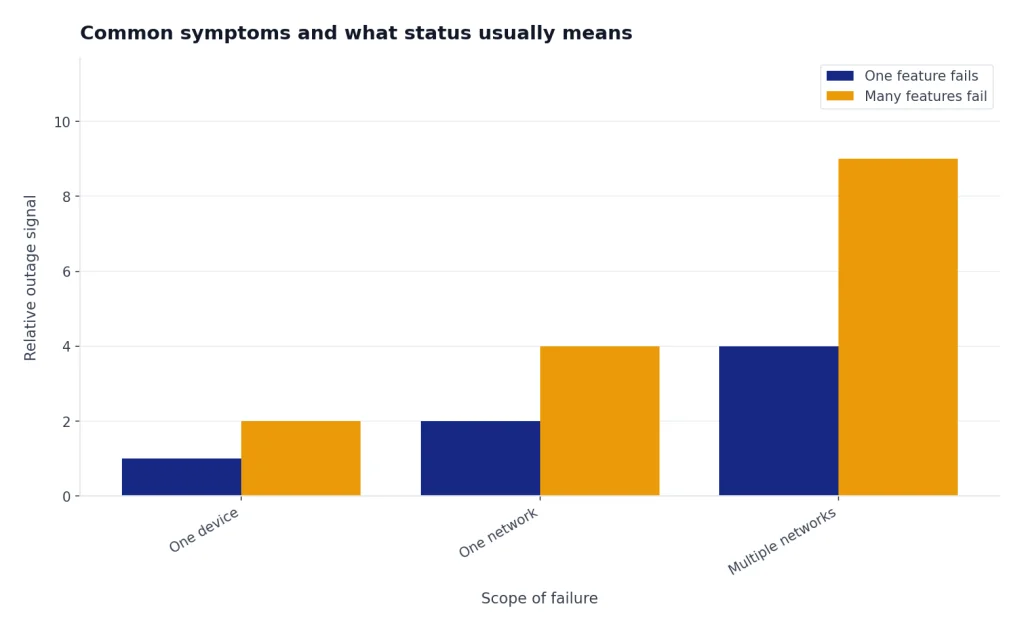
Common symptoms and what status usually means
ChatGPT errors are not all outage signals. Some point to OpenAI service health. Others point to your browser, network, login session, file workflow, or usage pattern. Use the status page to decide which branch to follow.
| Symptom | Status page signal | Most likely next step | Related guide |
|---|---|---|---|
| “Something went wrong” | Check for a current ChatGPT incident first. | Refresh, start a new chat, clear cache, test private browsing, and disable extensions if no incident appears.[3] | ChatGPT something went wrong error |
| Network error or WebSocket connection error | Status may be normal if your network blocks streaming connections. | Disable VPN or proxy, test another network, and ask IT to review WebSocket and firewall rules.[3][4] | chatgpt network error |
| Login failure | Check for active authentication or ChatGPT incidents. | Use the original sign-in method, clear cookies, test incognito, and wait before repeated attempts.[5] | chatgpt login failed |
| Error 500, 502, or 503 | Often worth checking status immediately because these can reflect server or gateway problems. | If status is normal, test another browser and network before retrying repeatedly. | chatgpt error 500 internal server, ChatGPT Error 502 Bad Gateway, or chatgpt error 503 service unavailable |
| Error 429 or too many requests | Status may be normal because rate limits can be account- or usage-specific. | Pause requests, reduce rapid retries, and check whether you hit a plan or rate limit. | ChatGPT Error 429 Too Many Requests |
| Slow replies, endless “thinking,” or frozen output | Check status, then test a new chat and a different browser. | OpenAI recommends checking status, starting a new chat, refreshing, and disabling extensions, VPNs, proxies, or secure DNS tools.[3] | Why Is My ChatGPT So Slow? 8 Easy Fixes |
| File upload or download failure | Status may show a file-specific incident, or the problem may be network filtering. | Test another network and confirm file-related domains are not blocked. | chatgpt file upload not working |
The pattern is simple. If many features fail across multiple devices and networks, status matters more. If one feature fails on one device or one company network, local troubleshooting matters more. For mobile-specific problems, use chatgpt app not working. For VPN conflicts, use chatgpt not working with vpn.

Monitoring ChatGPT status for teams
Teams should treat ChatGPT status as an operational signal, not a casual browser check. Assign one owner to watch the status page during incidents. Keep a short internal note with the start time, affected users, affected feature, plan or workspace, browser or app version, network, and exact error text.
For company networks, OpenAI recommends checking the status page before troubleshooting connectivity and then reviewing whether required OpenAI and ChatGPT domains are blocked or modified by filtering tools.[4] The same guidance notes that some ChatGPT and Codex features use secure WebSocket connections in addition to standard HTTPS, and that organizations should allow WebSocket traffic over TCP port 443 with the standard upgrade handshake.[4]
That means a team can see three different results at the same time: ChatGPT works at home, fails on company Wi-Fi, and works again on a mobile hotspot. In that case, the public status page may be correct, but your enterprise security stack is still blocking part of the app.
A practical team monitoring checklist:
- Create an internal incident note when multiple people report the same symptom.
- Record the first report time and the last successful use time.
- Check the official status page and history page.[1][2]
- Test one affected account on a different network.
- Test one unaffected account on the affected network, if policy allows.
- Ask IT to review domain allowlists, WebSocket support, TLS inspection, and firewall logs.[4]
- Tell users whether to wait, switch networks, use the web app, use the mobile app, or pause affected workflows.
If image generation, file uploads, or voice mode are the only failing features, do not announce a total ChatGPT outage. Route users to the specific workflow fix. We maintain separate guides for chatgpt image generator not working, chatgpt voice mode not working, and code interpreter session expired.

ChatGPT status versus API status
ChatGPT status and API status are related, but they are not the same diagnostic surface. ChatGPT users care about the web app, desktop app, mobile apps, login, conversations, tools, images, files, voice, and workspace features. API users care about endpoints, models, service tiers, projects, request errors, latency, token velocity, and usage patterns.
OpenAI’s API troubleshooting guidance says the Service Health and Usage dashboards can help diagnose API errors and latency, and notes that the Service Health Dashboard is available only to Enterprise API customers.[6] The same guidance says meaningful API troubleshooting requires filtering by model, service tier, and project rather than reading an aggregate chart.[6]
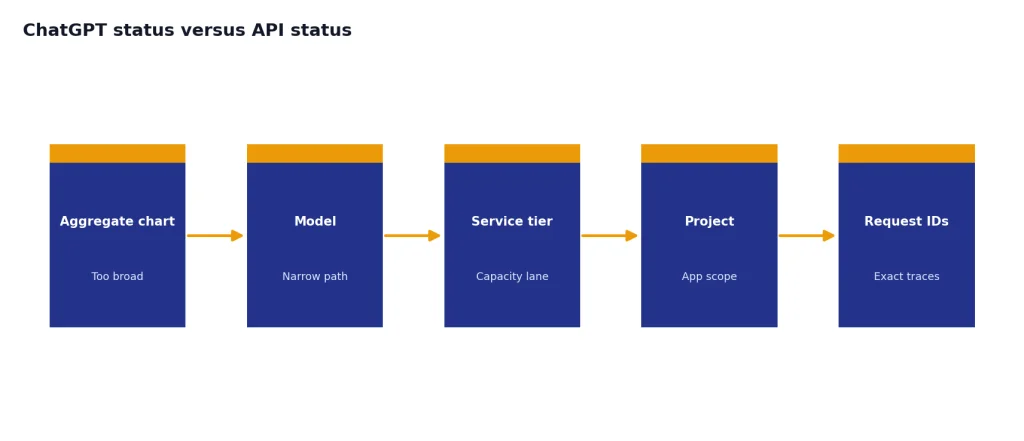
That distinction prevents false conclusions. A developer might see API latency while ChatGPT works normally. A ChatGPT user might see a file upload incident while the API remains healthy. A team might see one model path affected while other models are fine. The public status page helps, but API teams should also check their own logs, request IDs, model names, endpoints, and service tier data.
| Question | Use ChatGPT status | Use API health data |
|---|---|---|
| Can users open the ChatGPT app? | Yes | No |
| Are file uploads or generated downloads failing in ChatGPT? | Yes | Usually no |
| Are API requests returning HTTP status errors? | Sometimes | Yes |
| Did latency change for one model or project? | No | Yes |
| Is a corporate network blocking ChatGPT streaming? | Maybe | Maybe, but local network logs matter more |
| Do users need a plain-language incident update? | Yes | No |
If your main concern is cost, model selection, or usage planning rather than uptime, use our openai api pricing guide. If you are confusing ChatGPT plan limits with outages, see chatgpt daily limit and chatgpt plus gpt-4o message limit.
What to collect before contacting support
Contact support after you have separated a likely outage from a local issue and gathered evidence. OpenAI’s ChatGPT troubleshooting guidance recommends collecting a HAR file, browser console errors, timestamps, the model used, and the conversation URL or ID when a problem persists across browsers, devices, and networks.[3]
For login problems, include the sign-in method you used when you created the account. OpenAI’s login guidance says users who signed up with Google, Microsoft, or Apple must continue with the same method, and it recommends checking status for active service issues before continuing local fixes.[5]
For API problems, include the impacted organization IDs, endpoints, and models. OpenAI’s API troubleshooting guidance lists those details as important support context.[6] Also include request timestamps, status codes, request IDs where available, service tier, project, retry behavior, and whether failures appear in OpenAI dashboards or only in your client logs.
Use this short support packet:
- Exact error text or screenshot.
- Start time and time zone.
- Device, browser, app, and operating system.
- Whether the issue happens in a private window.
- Whether it happens on mobile data.
- Whether other users in the same workspace see it.
- Status page incident link or note that no incident was shown.
- HAR file and console logs for browser problems.[3]
- Conversation URL or ID when relevant.[3]
- For API incidents, organization ID, endpoint, model, project, tier, status code, and request timestamps.[6]
The goal is to avoid sending “ChatGPT is down” when the evidence says “ChatGPT fails only on our proxy,” or “the API is broken” when the evidence says “one project changed output token volume.” Clear evidence shortens the path to a useful answer.
Frequently asked questions
What is the best way to check ChatGPT status?
Check OpenAI’s official status page first, then test your own browser, app, device, and network. The status page shows active incidents, system status, history, and aggregate availability notes.[1] If it shows no incident, continue with local troubleshooting before assuming a global outage.
Can ChatGPT be broken for me while the status page says it is fine?
Yes. OpenAI says availability metrics are aggregate and that individual availability can vary by subscription tier, model, and feature.[1] Browser extensions, VPNs, company firewalls, blocked WebSockets, login sessions, and regional routing can also create user-specific failures.
How do I know whether ChatGPT slowness is an outage?
Check the status page, then try a new chat, refresh the app, and test another browser or network. OpenAI recommends checking status for slow or stuck ChatGPT behavior, then trying steps such as refreshing, disabling extensions, and switching device or network.[3] If only one long conversation is slow, it may not be a service outage.
Why does ChatGPT work on my phone but not on my office network?
Your company network may be blocking or modifying traffic that ChatGPT needs. OpenAI’s network guidance tells users to compare company Wi-Fi with a cellular hotspot and notes that some features use secure WebSocket connections over TCP port 443.[4] Ask IT to review firewall, proxy, SSL inspection, and domain allowlist rules.
Does ChatGPT status cover the OpenAI API?
The public status page includes product areas beyond ChatGPT, but API troubleshooting needs more detail. OpenAI says API users should use Service Health and Usage dashboards for errors and latency, and that Service Health is available only to Enterprise API customers.[6] API teams should filter by model, tier, and project before drawing conclusions.
Should I clear cookies every time ChatGPT is down?
No. If OpenAI reports an active incident, clearing cookies will usually not fix it. If the status page is normal and the issue affects only your browser, clearing cache and cookies is a reasonable step because OpenAI recommends it for several ChatGPT error and login scenarios.[3][5]