

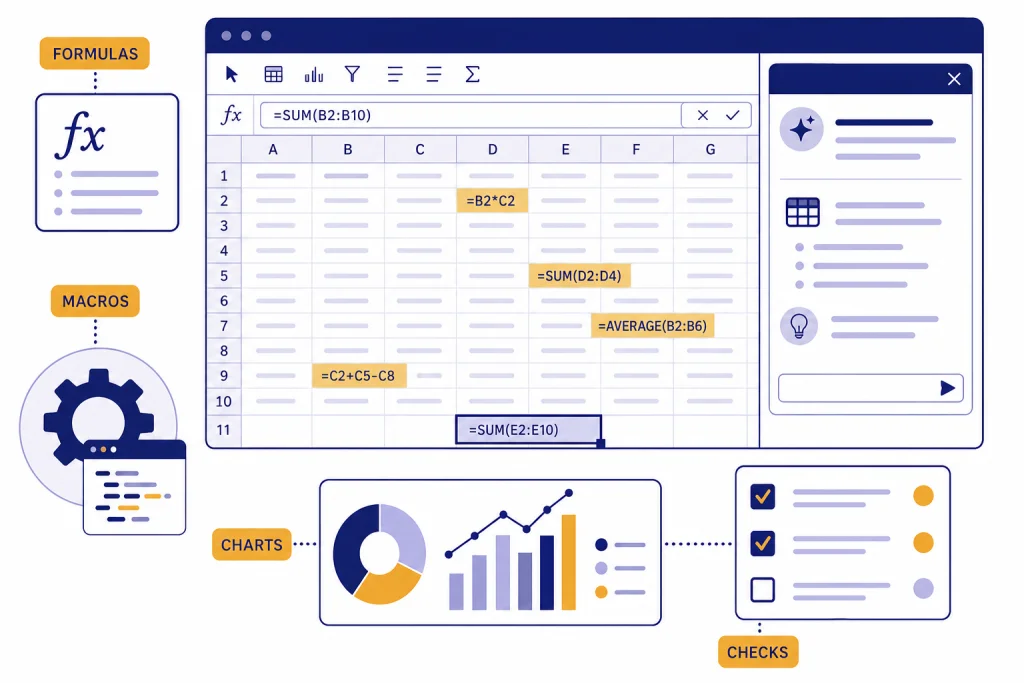
ChatGPT for Excel can help you write formulas, explain broken calculations, clean spreadsheet data, summarize workbooks, draft VBA macros, and analyze uploaded Excel or CSV files. The safest workflow is not to let it replace spreadsheet judgment. Use it as a formula translator, error checker, data analyst, and macro drafting assistant, then test every result inside Excel before relying on it. OpenAI introduced ChatGPT for Excel as a beta Excel add-in in March 2026, designed to work directly inside workbooks for model building, scenario work, and outputs based on cells and formulas.[1] You can also use regular ChatGPT file uploads for Excel analysis when you do not need an in-workbook assistant.
What ChatGPT can do in Excel
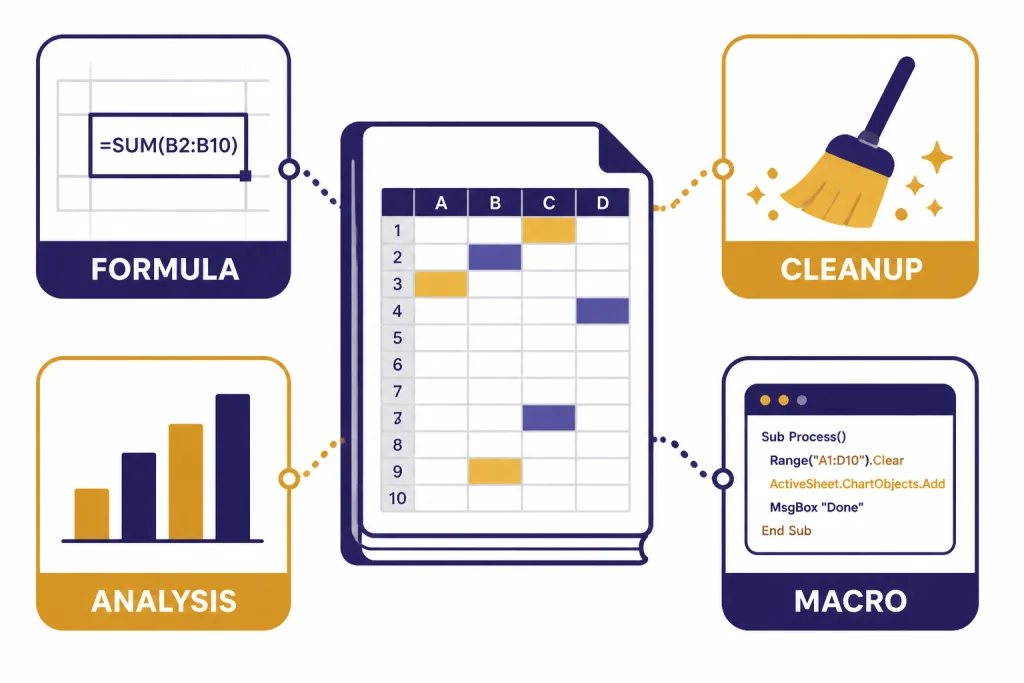
ChatGPT for Excel is useful when your spreadsheet problem is easy to describe but tedious to solve. That includes writing nested formulas, explaining why a lookup returns the wrong value, turning a plain-English rule into conditional logic, converting formulas between approaches, and drafting a macro that you can inspect before running.
There are two common ways to use ChatGPT with Excel. The first is the ChatGPT for Excel add-in, which OpenAI describes as a beta Excel add-in that brings ChatGPT directly into workbooks to build and update models, run scenarios, and generate outputs from cells and formulas.[1] The second is standard ChatGPT data analysis, where you upload an Excel or CSV file, ask questions, create charts, inspect rows, and download generated outputs.
OpenAI’s help documentation says ChatGPT for Excel can help with spreadsheet work such as model cleanup, scenario building, and summarizing changes, but also warns that outputs may be incomplete or incorrect and should be reviewed before sharing or relying on them.[2] That warning matters. Spreadsheets often drive invoices, commissions, forecasts, budgets, payroll checks, and compliance reports. A fluent explanation is not the same as a verified calculation.
If you want a deeper prompt library after reading this guide, save ChatGPT Excel Prompts for Power Users. If your spreadsheet work connects to database extracts, chatgpt for SQL queries and database work pairs well with this workflow.
The best ways to use ChatGPT for Excel work
The strongest Excel uses are bounded tasks with a clear expected result. Ask ChatGPT to help you build the formula, explain the logic, and suggest tests. Do not paste a vague request like “fix this workbook” and accept the answer without context.
Start with the sheet structure. Tell ChatGPT the column names, row range, sample values, expected output, and the version of Excel if a feature depends on newer functions. If you are using the add-in, duplicate the workbook first. OpenAI’s ChatGPT for Excel help page recommends duplicating important files so you can revert easily.[2]
High-value Excel tasks
- Formula building: Turn business rules into
XLOOKUP,FILTER,SUMIFS,LET, or nestedIFformulas. - Formula debugging: Explain why a formula returns
#N/A,#VALUE!, a blank, or an unexpected number. - Workbook cleanup: Identify duplicate rows, inconsistent category labels, blank required fields, or date formatting problems.
- Analysis planning: Ask which PivotTable, chart, or summary table would answer a business question.
- Scenario modeling: Build assumptions, sensitivity tables, and plain-English summaries of model changes.
- Macro drafting: Generate a first draft of VBA or Office Scripts for repetitive formatting and cleanup tasks.
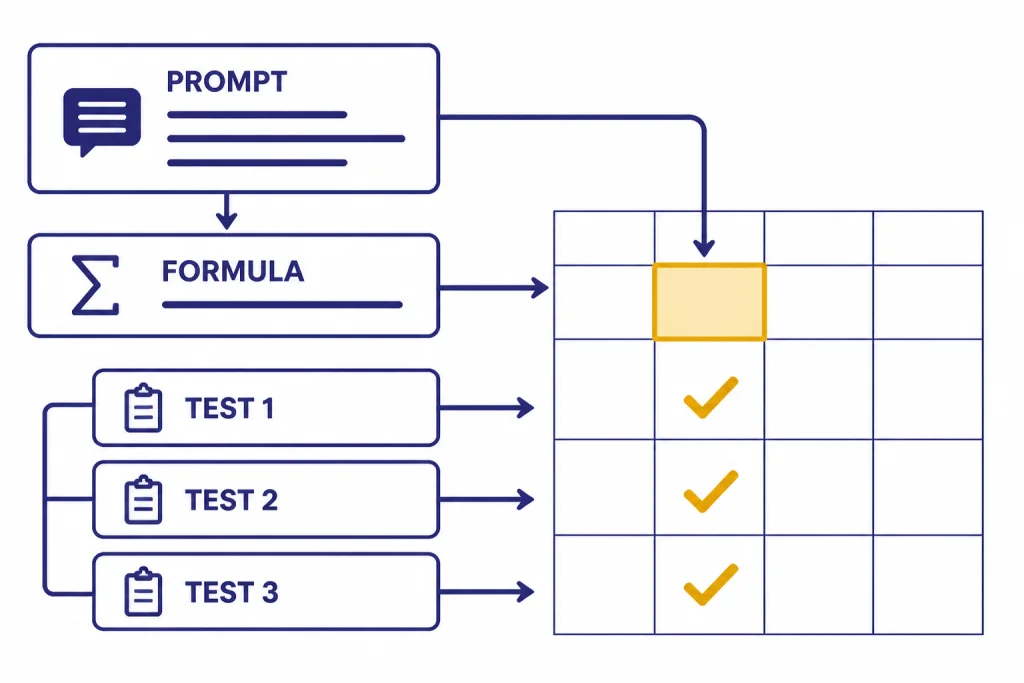
The best prompt format is simple: describe the goal, give the table shape, show a few sample rows, define the expected output, and ask for a test plan. This reduces guessing. It also makes the answer easier to audit.
| Task | Weak prompt | Better prompt | What to verify |
|---|---|---|---|
| Lookup formula | Write an Excel lookup. | Write an XLOOKUP for Orders!B2 that finds the matching SKU in Products!A:A and returns price from Products!D:D. Return blank if no match. | Missing SKUs, duplicate SKUs, blank SKU cells. |
| Cleaning | Clean these names. | Create a formula that trims spaces, converts to proper case, and removes text after a slash in column A. | Names with hyphens, suffixes, and company abbreviations. |
| Summary | Analyze sales. | Using columns Date, Region, Rep, Product, Revenue, and Margin, suggest a PivotTable layout for monthly revenue and margin by region. | Date grouping, subtotal logic, missing margin values. |
| Macro | Make a macro. | Draft VBA that copies rows where Status equals “Ready” from Sheet1 to a new sheet named Export, preserving headers. | Workbook backup, sample run, undo plan, macro security settings. |
Formula prompts that get better answers
ChatGPT is most reliable with formulas when you force it to be specific. Do not ask for “the best formula.” Ask for one formula for one cell, using named columns or exact ranges, with a short explanation and edge-case tests.
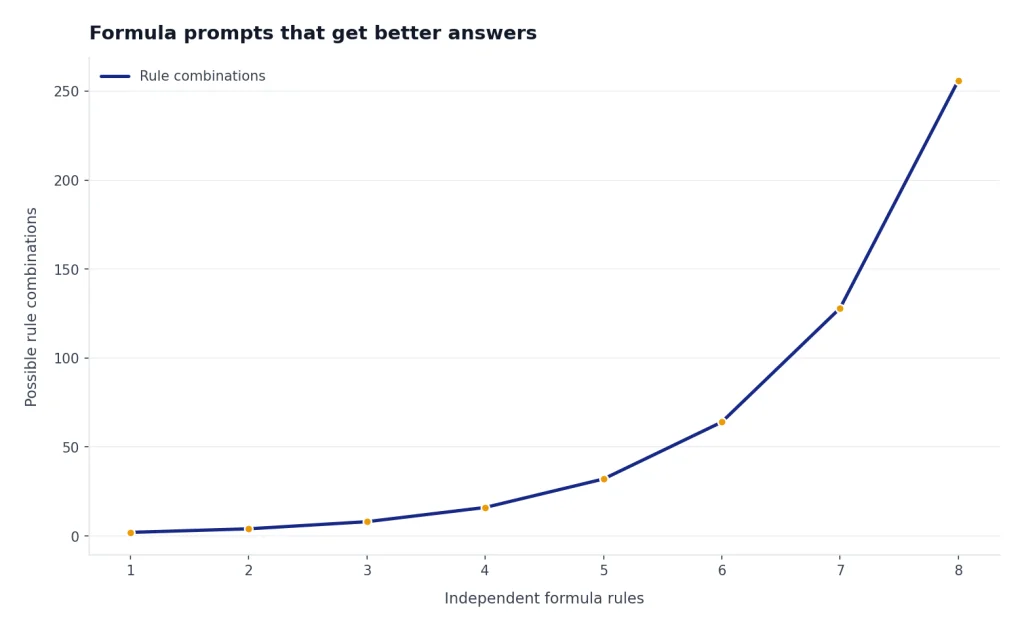
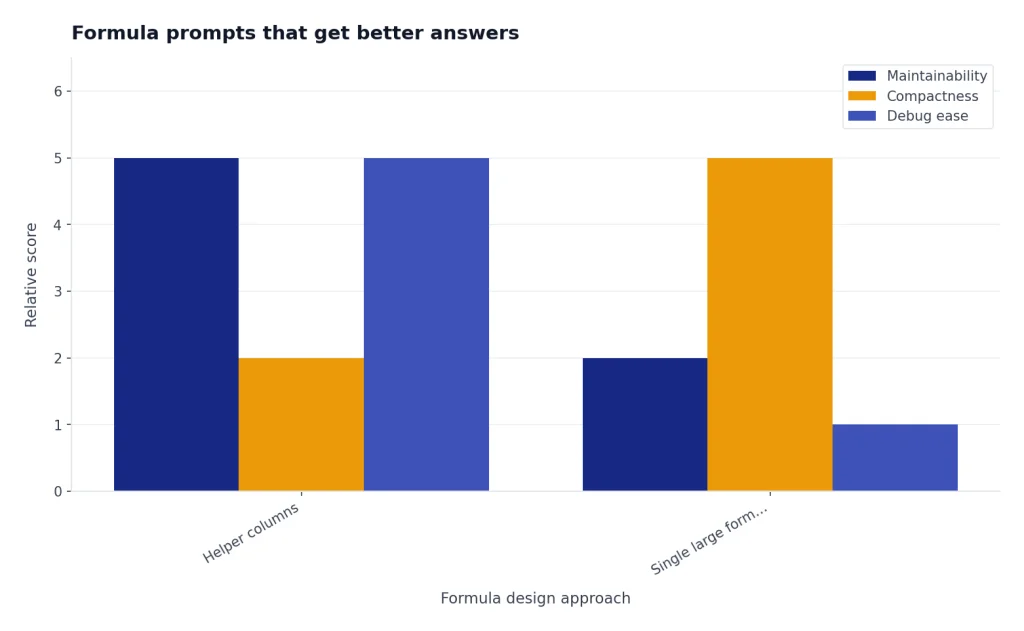
For modern Excel work, ask ChatGPT to explain alternatives. A lookup can be written with XLOOKUP, INDEX/MATCH, FILTER, or a PivotTable depending on the goal. A calculation can use helper columns or a single large formula. The “right” answer is the one your team can maintain.
Prompt template for formulas
I am working in Excel. I need a formula for cell [CELL].

Sheet structure:
- [Sheet name]: columns [list columns and meanings]
- Data starts on row [number]

Goal:
- [Describe the exact output]

Rules:
- [Rule 1]
- [Rule 2]
- If no match, return [blank / zero / message]

Please return:
1. The formula
2. A plain-English explanation
3. Three test cases I should run
Example: commission formula
Suppose column B contains revenue, column C contains product type, and column D should return commission. You can prompt:
Write an Excel formula for D2.
If B2 is under 10000, commission is 3%.
If B2 is 10000 or more, commission is 5%.
If C2 equals "Renewal", add an extra 1%.
If B2 is blank, return blank.
Return the formula and explain it.
Then test the formula with small rows you can calculate by hand. Use one blank value, one value below the threshold, one value above the threshold, and one renewal. This is the same discipline accountants and analysts use when they audit spreadsheets, and it is why ChatGPT for Accountants and Bookkeepers should be treated as a verification workflow, not just a writing workflow.
Macros and VBA: useful, but verify everything
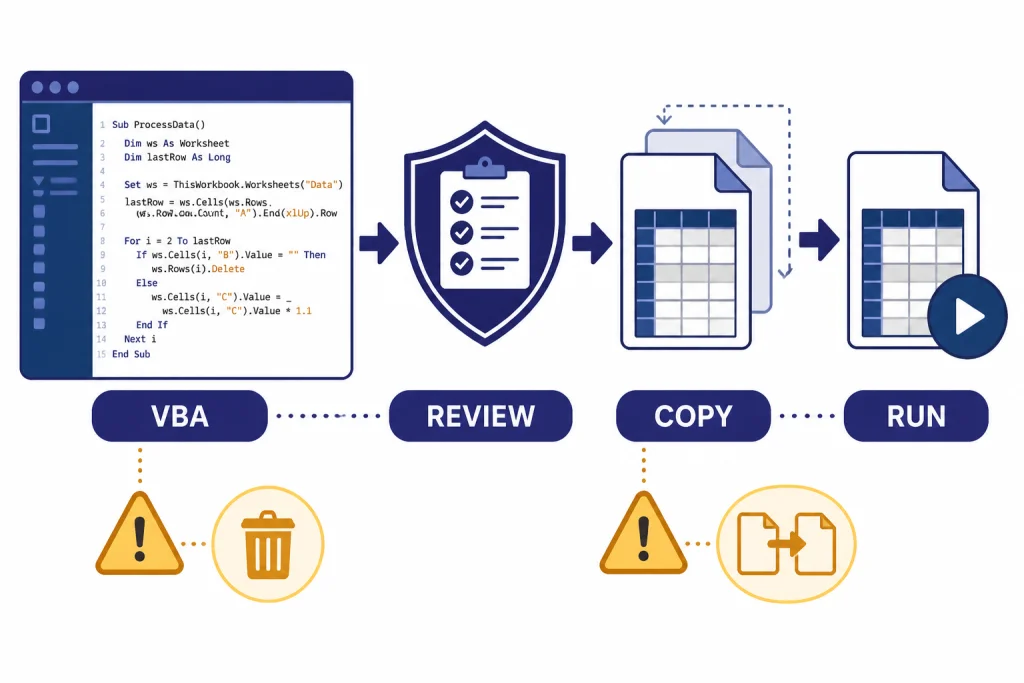
ChatGPT can draft VBA macros, explain old VBA, convert repetitive steps into a macro outline, and help you add comments to code. It is good at boilerplate. It is not a substitute for testing, access control, or code review.
OpenAI’s help page for ChatGPT for Excel says advanced spreadsheet features such as VBA and macros may not be fully supported.[2] Treat that as a practical limit. If you need a macro, you may get better results by asking ChatGPT in a normal chat to draft the code, then pasting it into the VBA editor yourself after review.
Safe macro prompt template
Draft a VBA macro for Excel, but do not assume it is safe to run.

Task:
[Describe the task]

Workbook structure:
- Sheet names: [names]
- Columns: [columns]
- Data starts on row: [row]

Requirements:
- Do not delete original data.
- Create a new output sheet instead.
- Add comments to the code.
- Include a short explanation of each major step.
- List risks and test cases before the code.
That prompt tells ChatGPT to design for reversibility. It also asks for risks before the code, which helps you catch destructive operations such as deleting sheets, overwriting formulas, or changing formats across the whole workbook.
Macro review checklist
- Save a copy of the workbook before running any generated macro.
- Read every line that deletes, clears, overwrites, saves, sends, imports, or exports data.
- Run the macro on a small sample workbook first.
- Check whether the macro assumes fixed column positions that may change later.
- Ask ChatGPT to explain unknown lines, but verify the explanation against the code behavior.
- Do not run macros from untrusted files or prompts that came from an unknown source.
If you use ChatGPT for coding outside Excel, pair this section with our chatgpt tutorial for Code Interpreter. The habits are similar: isolate the data, run small tests, inspect outputs, and keep a rollback path.
Data analysis workflows with Excel files
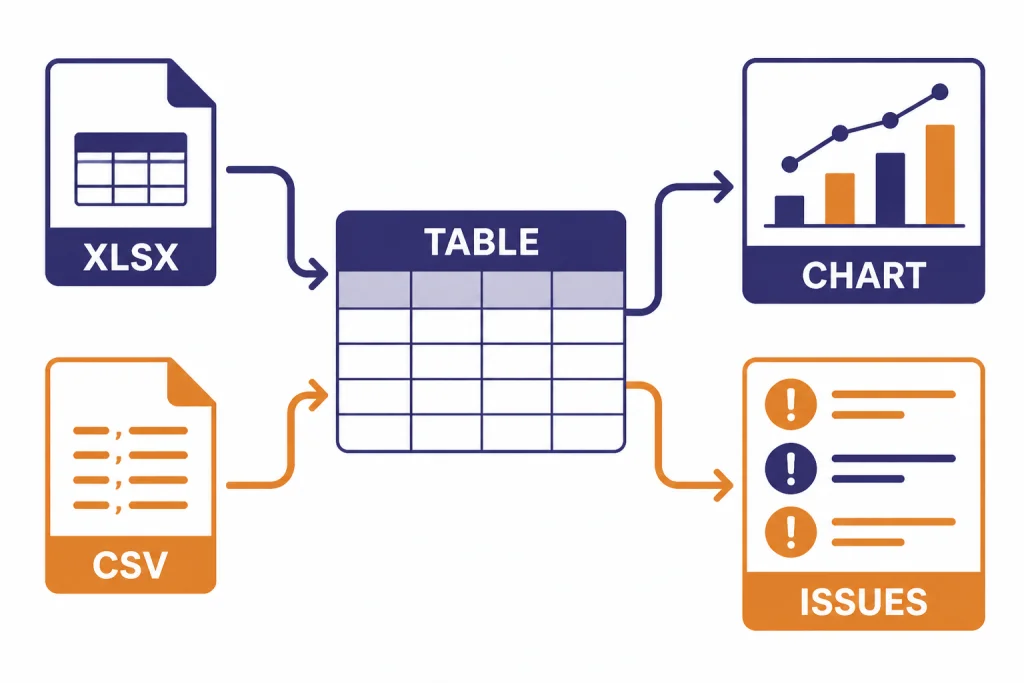
Regular ChatGPT data analysis is often better than formula-by-formula prompting when you need to inspect a whole dataset. OpenAI says ChatGPT can analyze uploaded Excel and CSV files, create static and interactive tables and charts, and use reasoning models for tasks such as regressions, complex business metric visualization, and scenario-based simulations.[3]
OpenAI’s data analysis documentation says up to 10 files can be uploaded to a given conversation, and up to 20 files can be attached to a GPT as Knowledge when Code Interpreter is enabled at the GPT level.[3] Its file upload FAQ also states a hard limit of 512 MB per file and an approximate 50 MB limit for CSV files or spreadsheets, depending on row size.[4]
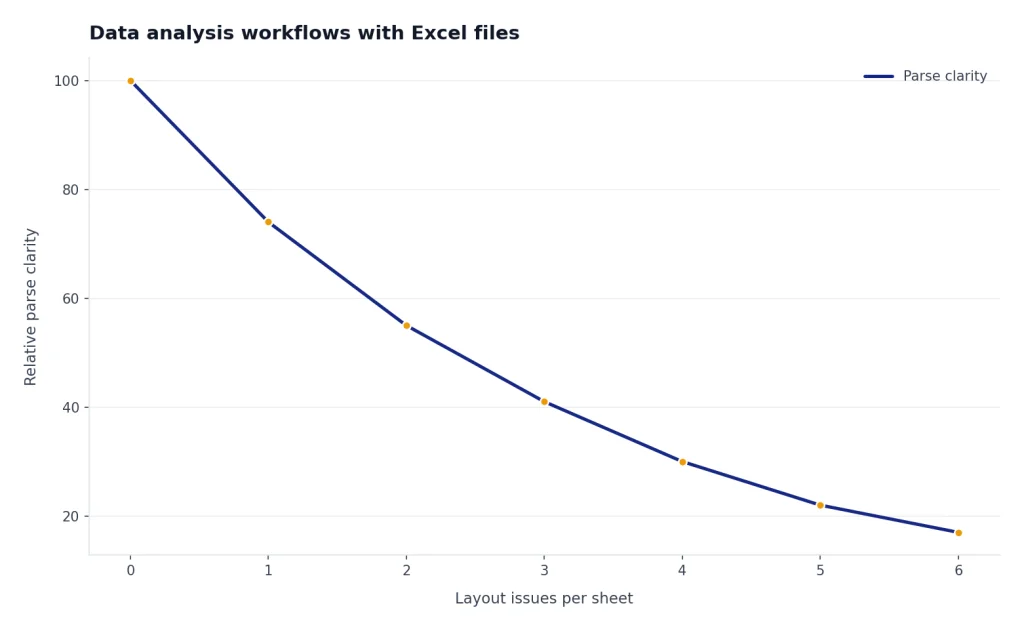
Those limits do not mean every large workbook will analyze cleanly. Messy tabs, merged cells, hidden rows, inconsistent headers, and multiple tables on one sheet can confuse the analysis. OpenAI’s supported file page says common spreadsheet formats such as XLSX, XLS, CSV, and TSV are supported, but format support does not guarantee that your workbook structure is analysis-ready.[5]
Prepare the workbook before upload
- Use one header row per table.
- Remove decorative title rows above the headers.
- Unmerge cells in the analysis range.
- Keep one record per row.
- Convert dates to a consistent format.
- Replace color-only meaning with explicit columns, such as Status or Priority.
- Delete private columns that are not needed for the analysis.
Good analysis prompts
Analyze this workbook for data quality problems.
Focus on missing values, duplicate IDs, date inconsistencies, and outliers.
Return a table with: issue, affected column, example rows, likely cause, and recommended fix.
Use the sales data to create a summary by month and region.
Show revenue, gross margin, order count, and average order value.
Then list three patterns worth checking with the business team.For research-heavy spreadsheet work, connect this with chatgpt for research or ChatGPT for Market Research and Surveys. For pipeline, quota, and CRM exports, ChatGPT for Sales Professionals gives a more sales-specific angle.
ChatGPT for Excel vs. Microsoft Copilot in Excel
ChatGPT for Excel and Microsoft Copilot in Excel overlap, but they are not the same product. ChatGPT for Excel is OpenAI’s beta add-in for working directly inside Excel workbooks.[1] Microsoft Copilot in Excel is Microsoft’s own Excel-integrated assistant; Microsoft says it can help create and understand formulas, analyze data for insights, and more.[8]
Microsoft Learn describes Microsoft 365 Copilot in Excel as supporting formula suggestions, chart-type suggestions, and insights about spreadsheet data.[9] Microsoft also documents advanced analysis in Excel with Python for Copilot in Excel, noting that users can use Agent Mode in Excel to generate formulas, charts, and edit workbooks, Copilot Chat for basic questions, or Analyst for deep reasoning data analysis.[10]
| Need | ChatGPT for Excel | Regular ChatGPT upload | Microsoft Copilot in Excel |
|---|---|---|---|
| Work directly inside a workbook | Yes, through OpenAI’s beta Excel add-in.[1] | No. You upload the file into ChatGPT instead. | Yes, inside Microsoft Excel.[8] |
| Write or explain formulas | Strong fit for natural-language formula help. | Strong fit if you paste ranges or upload a file. | Microsoft says Copilot in Excel helps create and understand formulas.[8] |
| Analyze uploaded files outside Excel | Not the main use case. | Strong fit for Excel and CSV analysis.[3] | Best when analysis should stay in the Microsoft 365 environment. |
| Draft VBA macros | Useful for drafts, but OpenAI says advanced spreadsheet features such as VBA and macros may not be fully supported.[2] | Useful for code drafts and explanations. | Better for Microsoft-native workbook assistance, depending on your license and rollout. |
| Use organization data controls | Depends on your ChatGPT plan and admin settings. | Depends on your ChatGPT plan and settings. | Depends on Microsoft 365 licensing, tenant settings, and data governance. |
Use the tool your organization already governs. If your company manages Microsoft 365 tightly, Copilot may fit the existing compliance model better. If your team already uses ChatGPT Business or Enterprise and wants OpenAI’s assistant inside Excel, ChatGPT for Excel may be more natural. If you are working with an exported workbook and want a quick analyst, regular ChatGPT file upload may be enough.
Privacy, security, and review checklist
Spreadsheet data is often sensitive. It may contain employee pay, customer lists, revenue, medical billing data, legal matter details, tax information, or nonpublic forecasts. Before using ChatGPT for Excel, decide whether the data is allowed in the tool under your company policy.
OpenAI says it does not use data from ChatGPT Enterprise, ChatGPT Business, ChatGPT Edu, ChatGPT for Healthcare, ChatGPT for Teachers, or the API platform to train or improve models by default.[6] For individual services such as ChatGPT, OpenAI says it may use content to train models, and users can opt out through the privacy portal or ChatGPT data controls.[7]
OpenAI’s ChatGPT for Excel help page also says the add-in runs in Microsoft Excel, that Microsoft may have the ability to read workbook content, attachments, and prompts under Microsoft’s add-in marketplace terms, and that some data logs may be stored with OpenAI for 30 days for safety and integrity purposes.[2] If your workbook contains regulated or confidential data, ask your administrator before uploading or connecting it.
Review checklist before relying on an output
- Verify formulas with hand-calculated test rows.
- Check whether formulas use the correct absolute and relative references.
- Inspect generated macros before running them.
- Compare totals against source-system reports.
- Confirm that summaries did not omit hidden sheets, filtered rows, or blank categories.
- Remove unnecessary personal or confidential data before uploading files.
- Document which cells, formulas, or macros were AI-assisted.
Some professions need stricter review. A lawyer should not upload client spreadsheets without checking firm policy; see ChatGPT for Lawyers for that risk profile. A healthcare team should follow privacy rules before using any patient-related workbook; see ChatGPT for Doctors and Healthcare Professionals. Marketing teams using campaign exports can start with chatgpt for marketing, where the data is usually lower risk but still commercially sensitive.
The practical rule is simple. Use ChatGPT to speed up thinking, drafting, and checking. Keep responsibility for the spreadsheet with a human who understands the workbook, the business rule, and the consequence of being wrong.
Frequently asked questions
Can ChatGPT write Excel formulas?
Yes. ChatGPT can write and explain Excel formulas when you give it the sheet structure, column meanings, desired output, and edge cases. You should still test the formula with known examples before copying it across a workbook.
Can ChatGPT create Excel macros?
ChatGPT can draft VBA macros and explain existing VBA, but you should treat the output as unreviewed code. OpenAI says advanced spreadsheet features such as VBA and macros may not be fully supported in ChatGPT for Excel.[2] Always run generated macros on a copy first.
Can I upload an Excel file to ChatGPT?
Yes. OpenAI says ChatGPT data analysis supports Excel and CSV files, and its file type page lists common spreadsheet formats including XLSX, XLS, CSV, and TSV.[3][5] Clean the workbook before upload so ChatGPT can identify headers, rows, and tables correctly.
What is the file size limit for Excel analysis in ChatGPT?
OpenAI’s file upload FAQ says all files uploaded to a GPT or ChatGPT conversation have a hard limit of 512 MB per file, while CSV files or spreadsheets cannot exceed approximately 50 MB depending on row size.[4] Smaller, cleaner files usually produce better results than oversized workbooks with many tabs and mixed layouts.
Is ChatGPT for Excel better than Copilot in Excel?
It depends on your workflow and governance. ChatGPT for Excel is OpenAI’s beta add-in for workbook work, while Microsoft Copilot in Excel is Microsoft’s built-in assistant for formulas, insights, and spreadsheet help.[1][8] Many teams will choose based on licensing, data policy, and which assistant their company already supports.
Should I use ChatGPT for financial models?
You can use it for model cleanup, formula explanation, scenario setup, and documentation. Do not rely on it as the final reviewer for a financial model. Check formulas, assumptions, linked cells, totals, and outputs manually or through your normal review process.